
TL;DR
Open a free Amazon Business account
Business pricing, bulk buying and tax-exempt orders.
Create a free accountAs an affiliate, we earn on qualifying purchases.
Steam Machine and multiple user accounts work together by giving each person a separate Steam login, personal saves, achievements, preferences, and purchase history on one device. Steam Families can share eligible games among up to six household members, but two people need two owned copies when they want to play the same shared title at the same time [1].
One shared gaming box can remember six different players without turning everyone’s saves, achievements, and recommendations into a tangled mess. The catch is that each player needs a separate Steam account. You cannot build Netflix-style profiles inside one account, and sharing one password creates avoidable problems with saves, purchases, security, and cloud synchronization.
This guide explains how Steam Machine and multiple user accounts fit together, from the original living-room PCs released in 2015 to modern SteamOS hardware such as the Steam Deck. You will see what stays private, what Steam Families shares, and why some Windows games still refuse to run. You will also get a practical setup for a household where one person plays a bright, noisy racing game while another wants a quiet evening with a role-playing campaign.
The goal is simple: give everyone a seat on the sofa without making them share a digital identity. With individual accounts, careful purchase controls, and a few minutes spent checking compatibility, your shared device can feel personal every time someone picks up the controller. The screen changes, the library reshuffles, and each player lands exactly where they left off.
Give every player a separate Steam account; Steam does not provide independent profiles inside one shared login.
Use Steam Families to share eligible libraries among up to six household members while keeping saves, achievements, friends, and purchases separate [1].
Buy a second copy when two family members want to play the same shared game at the same time.
Check compatibility for the exact hardware, SteamOS release, and Proton version; Steam Deck ratings do not promise identical results on every Steam Machine [2].
Protect shared devices with Steam Guard, adult-controlled purchases, age-rating checks, and a quick account-name check before anyone starts playing.
Steam Machine and Multiple User Accounts Explained
One gaming box can remember several players without mixing saves, achievements, friends, purchases, or recommendations. The essential rule is simple: share the hardware, not the identity.
Steam has no Netflix-style profiles inside one account. Every player needs an individual Steam login.
One box. Personal spaces.
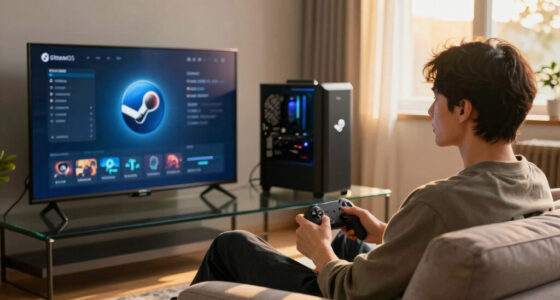
A Steam Machine is essentially a living-room gaming PC. The hardware stays beside the television, while the signed-in account determines the library, progress, social activity, recommendations, and purchase history shown on screen.
Saves stay recognizable
Separate accounts keep eligible cloud saves and local game progress associated with the right player, reducing accidental overwrites.
Achievements stay yours
Playtime, achievements, screenshots, friends, activity, and recommendations reflect one person instead of an entire household.
Your account can move
Sign into another PC or handheld to recover owned games, social connections, and supported Steam Cloud saves.
Before launching a game, check the account name. That five-second habit protects progress, recommendations, purchases, and parental settings.
Shared device versus shared login
A shared device supports multiple individual accounts. A shared password collapses those identities into one record and gives Steam no reliable way to identify who saved, bought, played, or changed something.
| Household feature | Separate accounts | One shared login | Steam Families |
|---|---|---|---|
| Personal achievements | ✓ Yes | ✗ Mixed | ✓ Yes |
| Separate friends and activity | ✓ Yes | ✗ No | ✓ Yes |
| Individual recommendations | ✓ Yes | ✗ Blended | ✓ Yes |
| Shared eligible game access | ~ If owned | ✓ Same library | ✓ Eligible titles |
| Purchase accountability | ✓ Clear | ✗ Ambiguous | ✓ Per account |
| Safe long-term ownership | ✓ Strong | ✗ Dependent | ✓ Strong |
Important: Multiple save slots inside a game do not separate account-level achievements, playtime, friends, purchases, recommendations, or cloud identity.
Share access, not identity
Steam Families connects up to six household accounts and lets members use eligible games from the family collection while retaining their own saves, achievements, preferences, and social profiles.
Six seats in the household
A family member can play an eligible shared title when a copy is available.
If two household members want the same title at the same time, the family library needs two owned copies.
Publisher restrictions, third-party accounts, subscriptions, or technical requirements may exclude a title.
A clean shared-device setup
Use this sequence once, then make account switching part of the normal controller handoff. The result feels like several personal consoles living inside one flexible PC.
Create accounts
Give every player a unique email address, Steam account, and strong password.
Secure access
Enable Steam Guard and avoid sharing the adult account password.
Build the family
Invite eligible household accounts and configure child permissions.
Check games
Verify sharing eligibility, age rating, SteamOS support, and Proton reports.
Switch, then play
Confirm the account name before opening a game or authorizing a purchase.
“Steam Machine” is not one fixed specification
The original Steam Machines launched through manufacturers such as Alienware, ASUS, and MSI in 2015. Today, the phrase is also used informally for living-room PCs running SteamOS or a similar controller-focused Steam setup.
A Steam Deck is not an original Steam Machine, but its 2022 launch provides a modern example of SteamOS, Linux gaming, Proton compatibility, and multi-user account switching.
Graphics, processor, memory, storage, cooling, and controller support can differ sharply.
A Windows game may work through Proton, need adjustments, or fail because of anti-cheat or launcher behavior.
A Steam Deck rating does not guarantee identical performance on every living-room SteamOS PC.
Compatibility is a spectrum
The game ships with a Linux version compatible with the target hardware and SteamOS release.
Results depend on the game, Proton version, drivers, launchers, anti-cheat, and hardware.
Treat reports of new Valve-branded living-room hardware as unconfirmed until Valve announces it officially.
Five rules for a peaceful sofa
Good account boundaries turn a shared gaming computer into a personal experience every time someone picks up the controller.
One person, one account. Steam does not provide independent profiles inside a shared login.
Use Steam Families. Share eligible games among up to six household members while keeping identities separate.
Count simultaneous players. Two people playing the same title at once need two owned copies.
Verify compatibility. Check the exact hardware, SteamOS release, game requirements, and Proton version.
Protect the shared box. Use Steam Guard, adult-controlled purchasing, age restrictions, and an account-name check.
What You Actually Get When Someone Says “Steam Machine”
Steam Machine and multiple user accounts describes a shared gaming PC running SteamOS or a similar Steam-focused setup, with each player signing into an individual Steam account. The original Steam Machines launched in 2015 through hardware makers such as Alienware, ASUS, and MSI, but the name now often appears informally in discussions about living-room SteamOS PCs.
That loose modern usage matters because “Steam Machine” no longer identifies one predictable specification. Two boxes carrying the label informally may have very different graphics hardware, storage, controllers, and operating-system versions. Account features may work similarly, but game performance, compatibility, noise, and upgrade options can differ sharply.
A Steam Machine is closer to a compact PC beside your television than a fixed console generation. Open the case of a typical model and you find familiar PC parts: a processor, graphics hardware, storage, memory, cooling fans, and replaceable components in some designs. On the outside, you see a dark box under the TV, hear a soft fan hum, and control a large-screen Steam interface from the sofa.
This PC foundation creates a tradeoff. You gain flexibility, including hardware choices, desktop access, and possible component upgrades, but you lose some of the uniformity associated with a conventional console. A game that runs well on one SteamOS living-room PC may struggle on another, and troubleshooting can occasionally require more than selecting a menu option.
The original commercial push faded after 2015, while Valve kept developing Linux gaming technology. The Steam Deck launched in 2022 and brought the same broad idea into a handheld device: PC hardware, SteamOS, controller-friendly menus, and access to a personal Steam library [2]. A Steam Deck is not an original Steam Machine, but it offers a useful modern example of how SteamOS manages different users.
For instance, you might connect a SteamOS PC to a 55-inch television and let three family members use it. One person signs in and sees strategy games, another sees colorful platformers, and a third sees a carefully restricted child account. The hardware stays put, but the account changes the experience, much like different keys open different rooms in the same house. This separation is what allows one physical machine to behave like several personal gaming spaces without duplicating the hardware.
Watch the wording: reports about a new Valve-branded living-room Steam Machine should be treated as unconfirmed rumors unless Valve announces the hardware through an official channel.
As an affiliate, we earn on qualifying purchases.
Why Every Player Needs a Separate Steam Account
Steam Machine and multiple user accounts only works cleanly when every player signs in with a different Steam account. Steam does not place several independent player profiles inside one account. A single login carries one purchase history, achievement record, friends list, cloud-save identity, and set of account-level preferences.
The important distinction is between sharing hardware and sharing identity. A television, controller, or installed game can serve several people without confusion, but an account records who performed an action and who owns a license. Once several people use the same identity, Steam has no reliable way to decide which player created a save, earned an achievement, changed a preference, or authorized a purchase.
Imagine that you and your partner share one account while playing the same role-playing game. Your level-42 wizard save may sit beside their new ranger campaign, both represented by nearly identical thumbnails. One careless click can overwrite an evening of progress, while shared achievements reveal story events before the other person reaches them. Even when a game provides multiple save slots, the account-level history remains combined, so separate filenames solve only part of the problem.
Separate accounts stop that collision. Your friend messages stay yours, your playtime feeds your recommendations, and your screenshots do not appear in someone else’s activity feed. If you love tense horror games filled with groaning floorboards and dim green corridors, Steam will not start recommending them to a child who only plays cheerful building games.
The distinction also matters when someone moves out or replaces the device. A person who owns an account can sign into another PC and recover eligible Steam Cloud saves, purchases, and social connections. Someone who merely borrowed a shared household login has no clean way to separate years of progress from the account owner. The short-term convenience of one password therefore creates long-term dependence: the person controlling the account also controls access to everything accumulated under it.
- One person, one account: keeps achievements, friends, playtime, and recommendations attached to the right player.
- One account, many devices: lets the owner use the same library on compatible computers, subject to Steam’s session and license rules.
- Shared device, separate logins: gives each person a personal experience without requiring another gaming PC.
The tradeoff is a little more setup and an extra account-switching step. In return, each player gains portable ownership of their history and clearer control over security and spending. For a real household example, give each child an individual account instead of naming save files “Alex” and “Sam” inside every game. That small choice prevents mixed cloud saves, surprise purchases, and arguments over who changed the controller settings.
As an affiliate, we earn on qualifying purchases.
See What Stays Personal and What Your Household Can Share
Steam Machine and multiple user accounts separates player identity from device access: the computer can host several logins, while each account retains its own saves, achievements, friends, and settings. Steam Families adds access to eligible games owned by household members, but it does not merge accounts or turn purchases into joint property [1].
This means Steam Families should be understood as a license-access system, not a shared household account. The buyer remains the owner, while other family members receive permission to play eligible titles. That distinction matters if someone leaves the family group: their personal achievements and saves remain attached to their account, but access to games they do not own may disappear.
| Item | Personal to each account | Shared through Steam Families |
|---|---|---|
| Account credentials | Yes | No |
| Achievements and playtime | Yes | No |
| Steam Cloud saves | Usually, when the game supports them | No |
| Friends and chat | Yes | No |
| Eligible purchased games | Ownership stays personal | Access can be shared |
| Payment methods | Attached to the purchasing account | No |
| Parental controls | Applied by family adults | Managed within the family group |
For instance, suppose you own a cooperative cooking game and your sibling owns a city builder. If both titles support family sharing, each game can appear in the family library while ownership stays with the buyer. You can earn your own achievements in the city builder without adding hours or progress to your sibling’s profile. If you later buy your own copy, you keep the identity-level progress already associated with your account rather than starting as your sibling.
Licenses still set boundaries. According to Valve’s Steam Families guidance, one owned copy supports one player at a time; if two family members want to play that same title simultaneously, the family library needs two copies [1]. Two different shared games can usually run at the same time, provided each available copy has only one active player.
The practical implication is that a large family library does not automatically provide unlimited concurrent access. A household can reduce duplicate purchases when people play different games or take turns, but a family that regularly plays the same online title together should budget for multiple copies. Sharing offers the greatest value for staggered, varied play and less value when everyone follows the same release at once.
Think of the family library like a shelf of labeled board-game boxes. Everyone in the household may pick up an eligible box, but two people cannot take the same physical box into different rooms. Buy a second copy, and suddenly both tables can host a game.
Some publishers exclude games because of technical limits, external accounts, subscriptions, or developer choices. Check the game’s store and library information before promising access, especially when a title depends on a separate launcher or paid online service. A game appearing in one person’s library therefore does not prove that every family member can borrow it; eligibility and available copies both matter.
As an affiliate, we earn on qualifying purchases.
Set Up a Shared Device Without Mixing Saves or Purchases
- Create a separate Steam account for every player using a unique email address and strong password.
- Sign into each account once on the shared device, then confirm that account switching works from the Steam interface.
- Create a Steam Family from an adult account and invite eligible members of your household.
- Review parental permissions, store access, playtime controls, and purchase requests before handing a child the controller.
- Install one test game, switch users, and verify that saves, achievements, and controller settings stay with the correct accounts.
A reliable shared setup uses separate accounts, account switching, Steam Families, and tested save behavior in that order. The order matters: identity boundaries should exist before games, payment access, and save files begin accumulating. The process resembles setting up separate lockers at a swimming pool: you assign a key to each person before anyone drops clothes, wallets, or phones into the same damp pile.
Start with a low-risk game that supports Steam Cloud. Play for five minutes on the first account, save beside a bright landmark, and exit normally. Switch to the second account and start a fresh session; you should not land beside the first player’s landmark or inherit their achievements. This test checks the whole chain rather than assuming that a successful login guarantees isolated saves.
Local saves can behave differently when a game stores files in a shared operating-system folder. Older titles sometimes ignore account boundaries, while games with external launchers may use another company’s login system. If two players see the same save, check the game’s documentation and create separate operating-system users when the software supports them.
Separate operating-system users provide a stronger boundary because each person receives a different home folder and local configuration area. The tradeoff is added friction: players may need to switch both the operating-system session and the Steam account, and installed launchers or controller settings may require extra setup. Use this stronger separation for games that demonstrably mix local data, not as an automatic requirement for every household.
Do not save one person’s card for unrestricted use across a child-accessible session. Steam’s family tools can let a child request a purchase for an adult to approve and pay for, which keeps the decision visible [1]. In a practical scenario, a child taps “Request,” you receive the request, and you approve the exact game instead of discovering five small purchases after dinner. This also preserves a useful decision boundary: the child can express what they want without receiving control of the adult’s payment credentials.
Finish by teaching everyone to switch accounts instead of using whichever library appears first. A ten-second account check can protect a hundred-hour campaign, especially in games that autosave with a quiet click before anyone notices the wrong profile. The setup succeeds only when the household habit matches the technical controls; a perfectly configured device cannot separate activity performed under the wrong login.
gaming PC with multiple user profiles
As an affiliate, we earn on qualifying purchases.
As an affiliate, we earn on qualifying purchases.
Know Which Windows Games Will Run Before You Buy
Steam Machine and multiple user accounts cannot make every Windows game run on SteamOS. Valve’s Proton compatibility layer translates many Windows games for Linux-based systems, but launchers, anti-cheat tools, video codecs, and game updates can still affect whether a title starts and performs properly.
Proton acts like a skilled interpreter standing between the game and Linux. The game asks Windows for a feature, Proton translates the request, and Linux sends an answer back. Most exchanges happen fast enough that you never notice, but one unfamiliar command can stop the conversation with a black screen, a frozen launcher, or an error box.
Compatibility is therefore more than a yes-or-no question. A title may launch but display unreadable text, reject multiplayer, require a mouse for its launcher, drain power quickly, or lose support after an update. Decide what “works” means for your household: a solo game with a minor setup inconvenience may be acceptable, while an online game that cannot join protected servers may be effectively unusable.
Use official compatibility information for the exact device and current software version. On Steam Deck, Valve labels tested games as Verified, Playable, Unsupported, or Unknown [2]. Verified status describes Steam Deck testing, not a promise that every desktop Steam Machine, controller, monitor, or custom Linux setup will produce identical results.
The labels also express different tradeoffs. Verified aims for a console-like experience, while Playable may ask the user to accept manual configuration, small text, or occasional keyboard input. Unsupported signals a known obstacle, whereas Unknown means the title has not received a result rather than proving that it fails. Reading the reason behind a label is more informative than relying on its color alone.
For instance, a strategy game marked Playable may run smoothly at 30 or 60 frames per second on one hardware setup but require an on-screen keyboard for its launcher. On an older 2015 Steam Machine with a weaker graphics card, the same game may stutter when a crowded battlefield fills with smoke and tiny moving units. Performance claims only mean something when they name the hardware, resolution, graphics settings, SteamOS version, and Proton version.
Compatibility can also change after an update. A new anti-cheat release may block Linux sessions, while a later Proton build may fix a title that previously failed. Check the game’s current Steam Deck compatibility details, official support page, and recent player reports before buying, but treat community workarounds as unofficial guidance. Workarounds can rescue a favorite title, yet they may add maintenance and break after the next update, so weigh the time spent troubleshooting against the convenience of using another platform or choosing a different game.
Age ratings remain separate from technical compatibility. A game that runs perfectly may still carry an ESRB, PEGI, or regional rating unsuitable for a younger player, so review both the rating and content descriptors before adding it to a child’s library.
Protect Your Library When Several People Share the Sofa
Steam Machine and multiple user accounts stays secure when every player protects their own login and adults control spending from their own account. Use Steam Guard, unique passwords, limited child permissions, and deliberate sign-outs on devices that guests or housemates can access.
A shared living-room machine creates a simple risk: convenience can blur ownership. If everyone knows one password, anyone can change profile details, message friends, trade eligible inventory items, or spend money through a saved payment method. The problem feels harmless until a guest presses the wrong button and a purchase confirmation flashes across the blue glow of the television.
Security controls address different failures and work best together. A unique password limits damage if another service is breached, Steam Guard adds a second proof of identity, and family permissions restrict what a child can do after signing in. None replaces the others: two-factor protection cannot prevent an already signed-in child from using an unrestricted store session, while parental controls cannot secure a stolen adult password.
Enable Steam Guard on each account and protect the linked email account as carefully as Steam itself. A strong Steam password cannot help much if someone can open the owner’s email and reset it. When a person moves out, remove remembered access where appropriate and review the devices authorized for that account.
There is a convenience tradeoff. Remembered logins and saved payment details make sofa play faster, but they also reduce the number of barriers between a guest and a sensitive action. Adults can keep routine account switching convenient while requiring approval at the point of purchase, which places friction where the financial risk actually occurs.
Family controls help adults manage a child’s games, social features, store access, and playtime. According to Valve, Steam Families combines library sharing with tools such as playtime reports, time limits, feature restrictions, and child purchase requests [1]. Those controls support household rules, but they do not replace a conversation about online chat, user-created content, spending, or age ratings.
For example, you might allow a 12-year-old to play from 4:00 p.m. to 6:00 p.m. after school while blocking store access and mature-rated games. The clock provides a boundary, yet you still need to check whether an apparently gentle building game includes open voice chat with strangers. Technical controls can enforce a schedule or permission, but they cannot interpret every interaction a child may encounter.
Never treat a family group as a backup system. Use Steam Cloud where supported, keep local backups for long campaigns when possible, and exit games normally before switching accounts.
Your best security rule is wonderfully plain: the person holding the controller should see their own name in the corner. If the name is wrong, switch accounts before opening a game, buying an item, or changing a setting. That visual check links the human action to the correct digital identity before any automated protection has to repair a mistake.
Choose the Right Sharing Setup for Your Household
Your best setup depends on who lives together, who buys games, and how often people play simultaneously. Most households should combine one account per person with Steam Families, while frequent same-game sessions may require extra copies and older games may benefit from separate operating-system users.
The central tradeoff is convenience versus separation. Steam account switching is usually enough when people trust one another and games keep saves correctly isolated. Separate operating-system users provide stronger local privacy but add another login layer, while buying multiple devices offers the most simultaneous freedom at the highest cost.
For a couple sharing one television, keep two Steam accounts on the device and place both in the same family group when eligible. If you play different games on Friday night, one person can use an owned title while the other borrows an eligible family game. If you both want the same one-copy title, one person must wait or buy another copy [1]. The right decision depends on frequency: waiting may be sensible for an occasional overlap, while a second copy is easier to justify for a game you expect to play together every week.
For a household with children, assign adult and child roles carefully. Let adults approve purchases, set time limits, and review access to chat or community features. A child account should feel like a well-lit playroom with clear doors, not a master key hanging within reach. Controls should also evolve with the child; restrictions that are appropriate today may become needlessly frustrating later, while a new online feature may require more supervision than the game originally did.
Housemates need more caution. Steam Families is designed for a household and may apply membership, household, or waiting restrictions, so do not treat it as a casual lending circle for a rotating group of acquaintances [1]. Each housemate should still own their account, control their credentials, and understand that leaving or changing a family group may not offer immediate access to another group. The larger implication is that shared access should not become the foundation of someone’s permanent library plan when the living arrangement itself is temporary.
If you host occasional guests, create a clear rule: guests either use their own accounts or play through a local multiplayer mode on the host’s account. Do not hand over your password. For instance, four friends playing a couch racing game can use one licensed session and four controllers without needing four Steam identities, while four people tracking separate online rankings should use their own accounts. The game mode determines whether separate identities add value: local competition can share a session, but persistent progression and online reputation should follow the individual.
Review the setup every few months. Remove accounts that no longer use the device, check parental rules as children grow, and test long-running games after major SteamOS or Proton updates. A shared Steam machine and a little account housekeeping can keep the living room calm, even when the game fills it with roaring engines and clattering swords.
Frequently Asked Questions
Can several people create profiles under one Steam account?
No. Steam does not offer separate player profiles inside one account. Each person should create an individual Steam account so their saves, achievements, friends, recommendations, and purchases remain attached to the right identity.
How many people can join one Steam Family?
A Steam Family can contain up to six household members, including adult and child roles [1]. Valve may apply household and membership restrictions, so the feature is meant for a stable household rather than a loose game-sharing club.
Can two people play shared Steam games at the same time?
Yes, two people can play different available games from the family library at the same time. If they want to play the same title simultaneously, the family needs two owned copies of that title [1].
Will switching Steam accounts erase local saves?
Account switching should not erase saves, and games with Steam Cloud support usually keep each player’s data connected to their account. Some older games use shared local folders, so test them with a short save before starting two long campaigns.
Can every Windows game run on a Steam Machine?
No. Proton runs many Windows games on SteamOS, but anti-cheat software, third-party launchers, codecs, and updates can cause problems. Check current compatibility for your exact hardware and software version before buying.
Is a Steam Deck the same thing as a Steam Machine?
No. The original Steam Machines were living-room PCs sold by several manufacturers beginning in 2015, while the Steam Deck is Valve’s handheld gaming PC launched in 2022 [2]. Both use the broader SteamOS approach, and both can support separate Steam accounts.
Conclusion
The rule worth remembering is one player, one Steam account. Let Steam Families share eligible games, but keep identities, passwords, saves, achievements, and spending separate. That setup takes a few extra minutes on the first evening and can protect years of progress afterward.
Before the next game starts, glance at the account name glowing in the corner of the screen. If it belongs to the person holding the controller, you are ready. Then the menu music swells, the save loads, and everyone returns to their own adventure.
College move-in / dorm season Picks
dorm essentials
As an affiliate, we earn on qualifying purchases.