
TL;DR

Play games on Amazon Luna for your game nights, included with Prime
- A rotating selection of games, no download needed
- Play on TV, laptop or phone
- Fast, free delivery for your gear, too
The Steam Workshop is Steam’s built-in system for finding, subscribing to, downloading, and updating user-created content for supported games. Subscribe to a few well-documented mods at a time, check whether the game requires manual activation, protect your saves, and confirm that every multiplayer participant uses the same versions.
Click Subscribe, hear Steam’s soft download chime, and a sprawling new city map or rumbling truck engine can appear in your game minutes later. That small green button makes modding feel almost effortless. Yet when a save refuses to load after an update, the Workshop can suddenly resemble a garage floor covered with unlabeled parts.
The missing piece is how Steam and the game divide the work. Steam handles subscriptions, file delivery, and many updates, while each game decides how content gets activated, ordered, and loaded. Once you understand that split, messages such as missing dependency, version mismatch, and incompatible mod stop feeling mysterious.
This guide shows you what the Workshop does, how to install content safely, and how to recover when two mods start fighting over the same files. You will also learn why multiplayer mod lists, Steam Deck compatibility, and save backups deserve attention before you build a collection with hundreds of subscriptions. The goal is simple: more time playing, less time staring at a frozen loading bar.
Treat Subscribe, Download, and Enable as separate steps; a successful subscription does not prove that the game has activated the item.
Add two or three mods at a time and test them on a disposable save before opening a long-running campaign.
Use dated save backups and a half-split test to isolate conflicts without guessing through an entire collection.
Match mod versions and load order across multiplayer participants, and finish pending downloads before joining a server.
Check Steam Deck, operating-system, dependency, and age-rating concerns at the individual mod level rather than relying on the base game’s label.
Player field guide · Steam Workshop
Steam Workshop Explained for Players and Mod Users
Steam handles the subscription, delivery, and many updates. The individual game controls activation, dependencies, load order, and save compatibility. Understanding that division turns mysterious mod errors into solvable steps.
01 · Division of responsibility
Who actually does what?
The Workshop is a delivery system connected to each supported game—not a universal mod engine. Developers decide how Workshop files enter their game.
Find & subscribe
Steam records the item on your account, exposes ratings and comments, and schedules its files for delivery.
Download & update
The client transfers Workshop files, queues updates, and normally removes local files after you unsubscribe.
Enable & load
The game or launcher decides whether the item activates automatically, needs a checkbox, or requires a specific load order.
02 · First installation
The safe four-step route
Read first, change little, and test early. A polished screenshot cannot tell you whether a mod needs an expansion, library, or new save.
Inspect
Check game version, dependencies, DLC, operating system, change notes, and creator instructions.
Subscribe
Press Subscribe and confirm that Steam adds the item to your account for the correct game.
Download
Open Steam’s Downloads view and wait until every pending Workshop transfer has finished.
Enable & test
Restart the game, activate the item if needed, and test on a new or copied save before continuing.
Add only two or three items per batch. If the game breaks, your suspect list stays short enough to investigate logically.
03 · State model
Subscribe ≠ Download ≠ Enable
A green button confirms only the first state. The files and the game’s activation state must still be checked.
| Action | What it changes | What may still go wrong | How to verify |
|---|---|---|---|
| ✓Subscribe | Adds the Workshop item to your Steam account. | ~The transfer may be paused, queued, or blocked by low storage. | Confirm the page says “Subscribed.” |
| ✓Download | Places the current Workshop files on this device. | ~The running game may not detect new files until restart. | Check Steam’s Downloads view. |
| ✓Enable | Tells the game or launcher to load the item. | ~Dependencies, version conflicts, and load-order errors can remain. | Inspect the in-game mod or content menu. |
| ~Unsubscribe | Removes the subscription and usually schedules local removal. | ~An existing save may still require objects or rules supplied by the item. | Load a backup only after checking dependencies. |
04 · Risk control
Protect the campaign you care about
The larger the collection and the more intertwined the save, the harder it becomes to identify the one item causing instability.
Before opening a valuable save
- 1Make a dated copy of the save outside the game’s normal autosave rotation.
- 2Read dependencies, required DLC, supported game version, and load-order notes.
- 3Finish every pending Workshop download and restart the game.
- 4Test the new batch in a disposable scenario before loading the main campaign.
- 5Record the working mod list and order before making another change.
Troubleshooting effort rises with collection size
Relative diagnostic burden when changes are introduced without incremental testing.
Practical rule: collection size is manageable when you can reconstruct which items changed, in what order, and against which game version.
05 · Recovery mode
Decode the common failure signals
Most Workshop failures point to one of four layers: delivery, dependency, compatibility, or ordering.
Check delivery first
Confirm the subscription, finish pending downloads, free storage if needed, then restart both Steam and the game.
Read the requirements
Subscribe to the required library or asset pack, then place it in the order specified by the creator.
Align the moving parts
Check the game build, mod update date, required expansions, and every multiplayer participant’s installed version.
Reduce the active set
Return to a known-good backup, disable the newest batch, and use a half-split test instead of guessing item by item.
The half-split conflict test
06 · Multiplayer & Steam Deck
Compatibility is item-specific
A base game’s platform support does not guarantee that every community item works on the same device, operating system, or server configuration.
| Checkpoint | Single player | Multiplayer | Steam Deck / other OS |
|---|---|---|---|
| Game version | ✓Match the mod’s stated build. | ✓Every participant must align. | ~Compatibility layers may add variables. |
| Mod version | ✓Finish downloads before launch. | ✓Host and clients need the same files. | ~Confirm the update reached the device. |
| Load order | ~Follow creator instructions. | ✓Mirror the host’s order when required. | ~Launcher behavior can differ. |
| Item support | ~Read comments and change notes. | ~Check server and synchronization notes. | ✓Verify Linux, controller, and path support. |
Traceability · The complete chain
From green button to stable session
When something fails, move backward through the chain one checkpoint at a time. That is faster—and safer—than repeatedly reinstalling everything.
Know Exactly What the Subscribe Button Does
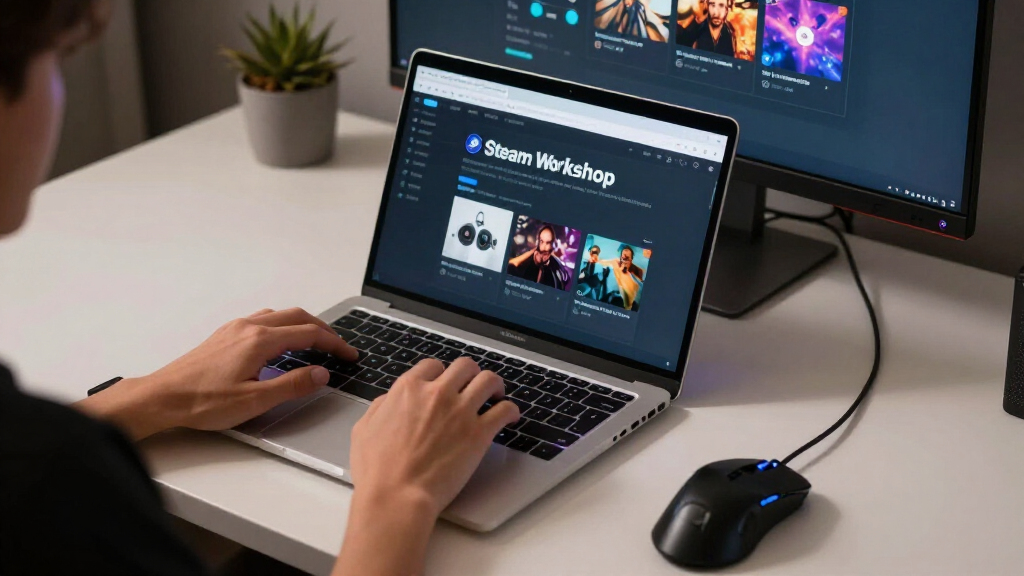
Steam Workshop Explained for Players and Mod Users is a guide to Steam’s built-in delivery system for user-made game content. The Workshop acts like a game-specific library: you browse mods, maps, skins, scenarios, and tools, press Subscribe, and let Steam fetch the files for a title whose developer supports the feature.
According to Valve’s Steamworks documentation, developers choose how their games integrate Workshop items, subscriptions, dependencies, and updates [1]. That freedom explains why a map may appear instantly in one game while a gameplay mod in another remains dormant until you tick a box in its launcher. Steam delivers the package; the game decides what happens when you open it.
Suppose you subscribe to a hand-built mountain route for Euro Truck Simulator 2. Steam can download the route and later fetch an updated version, but you may still need to create or edit a mod profile inside the game. In another title, such as Tabletop Simulator, subscribed content may appear directly in an in-game Workshop menu with much less setup.
Not every game on Steam has a Workshop, and not every modded game uses it as its main distribution channel. A developer must add Workshop support, define acceptable item types, and connect those files to the game. If you cannot find a Workshop tab on the store page or community hub, the game may rely on official downloadable content, an in-game browser, or outside mod sites instead.
The Workshop also contains more than code-changing mods. You may find wallpaper-sized artwork, radio stations, vehicle paint, puzzle levels, server configurations, or complete campaigns. Reading the item’s category and description prevents a common disappointment: subscribing to a required library or asset pack and expecting it to add visible gameplay on its own.
As an affiliate, we earn on qualifying purchases.
Install Your First Mod Without Guesswork
You can install most Workshop content by opening the game’s Workshop page, choosing an item, pressing Subscribe, waiting for the download, and checking the game’s mod menu. The safe approach adds two small habits: read the requirements first and test one change at a time before loading a valuable save.
- Confirm Workshop support. Open the game’s Steam page or Community Hub and look for its Workshop link.
- Read the full item page. Check the required game version, expansion packs, dependencies, operating systems, and setup instructions.
- Press Subscribe. Steam adds the item to your account and schedules its files for download.
- Activate it inside the game. Open the game’s launcher, content manager, or mod menu if activation is not automatic.
- Test a disposable save. Start a new scenario or copy your existing save before committing hours of progress.
Imagine adding a traffic-management mod to a city you have shaped for 80 hours. The item page says it requires a separate library, but you skip the description because the screenshots look polished. Your city reaches the loading screen, the progress bar crawls to 93 percent, and then the game returns to the desktop because the required library is missing.
A thirty-second requirements check would have caught that dependency. Workshop pages can list required items, but creators may also place manual instructions in the description, a discussion thread, or change notes. Watch for phrases such as new save required, place below the core mod, or not compatible with version X.
Steam normally handles the file download in the background, so you may not see a traditional installer. Open Steam’s Downloads view if the item does not appear after subscribing, and let any pending Workshop download finish. If the game was already running, close and reopen it; many titles scan for new Workshop files only during startup.
Resist the temptation to subscribe to fifty items before your first launch. Add two or three mods, test the menu and a short session, then add the next batch. When something breaks, that small batch gives you a short suspect list instead of a warehouse full of mystery boxes.
As an affiliate, we earn on qualifying purchases.
See Why Subscribe, Download, and Enable Are Different
Steam Workshop Explained for Players and Mod Users becomes much clearer when you separate three actions: subscribing records your choice, downloading places the item’s files on the device, and enabling tells the game to use them. Those steps may happen together, but they are not the same event.
| Action | What it does | What can still go wrong |
|---|---|---|
| Subscribe | Adds the Workshop item to your Steam account for that game. | The download may be paused, queued, or blocked by missing storage. |
| Download | Places the current Workshop files on that computer. | The game may need a restart before it detects them. |
| Enable | Allows the game or launcher to load the item. | A dependency, load-order error, or game-version conflict may remain. |
| Unsubscribe | Removes the account’s subscription and usually schedules local removal. | A save may still depend on objects or rules supplied by the item. |
Take a custom railway station in a city-building game. You can subscribe successfully and watch its 40 MB download finish, yet the building may remain absent because its required prop collection is disabled. The files are present, but the game cannot assemble the station—like receiving a flat-pack cabinet without its bag of screws.
The reverse can happen after you unsubscribe. The item may disappear from your active list, while a saved world still contains references to its roads, creatures, recipes, or scripts. Removing a cosmetic hat is usually low risk; removing a map framework or gameplay system can leave holes that the save cannot repair.
Updates add another wrinkle. A Workshop subscription usually allows Steam to fetch newer item files, which is convenient for bug fixes and game patches. That same automation can change a working setup overnight, especially when the base game updates before several dependent mods do.
If a familiar save suddenly fails after months of smooth play, check the game’s update history and each mod’s change notes. The newest download is often the first place to investigate. Do not assume that every enabled item is using the same code it used during your previous session.
multiplayer game mod version checker
As an affiliate, we earn on qualifying purchases.
As an affiliate, we earn on qualifying purchases.
Stop One Broken Mod from Wrecking Your Save
You prevent most mod disasters by keeping separate save backups, adding items in small batches, following the required load order, and removing suspects methodically. When a problem appears, change one variable per test. Randomly disabling half your collection can hide the cause while creating several new problems.
Mods conflict when they alter the same system, expect different game versions, or depend on files that are missing. Two weather mods may both control the sky color and rain schedule; two economy mods may rewrite the same price table. The result can be obvious, such as a crash, or subtle, such as shops quietly paying ten times the intended price.
Never test a risky mod change on your only copy of a long-running save. Make a dated backup before adding, removing, or reordering content that changes maps, scripts, inventories, characters, or simulation rules.
Use a half-split test when a large collection stops loading. Disable half of the recently changed mods, launch a test save, and observe the result. If the problem remains, test the other half; if it disappears, divide the suspect group again until you isolate the item.
For example, a player with sixteen newly updated mods can narrow the search to eight, then four, then two, then one. That takes about four controlled rounds instead of sixteen individual guesses. Keep required libraries active during the test, because disabling a shared framework can make several healthy mods appear broken.
Load order also matters when one mod deliberately edits another. A compatibility patch usually needs to load after the two items it connects, much like placing a strip of tape over a seam only after both pieces meet. Follow the creator’s instructions, and watch for a game-provided dependency warning or conflict icon.
If you must remove a major mod, check whether its creator provides an uninstall process. Some items ask you to disable a feature in-game, wait for scripts to stop, save, exit, and only then unsubscribe. When no removal guidance exists, keeping the mod attached to that save may be safer than pulling a load-bearing beam from the middle of a house.
Steam Deck compatible gaming accessories
As an affiliate, we earn on qualifying purchases.
As an affiliate, we earn on qualifying purchases.
Keep Multiplayer, Steam Deck, and Second-PC Setups Working
Stable modded play across devices depends on matching game versions, matching Workshop items, available storage, and support for the operating system you are using. In multiplayer, every participant may need the same mod list and load order. On Steam Deck, the base game’s compatibility label does not promise that every community mod will work.
Imagine four friends joining a survival server on Friday night. Three players have version 1.8 of a creature mod, while the host received version 1.9 moments before launch. A tiny difference in scripts or item IDs can cause connection rejection, invisible objects, or repeated desynchronization even though everyone appears subscribed to the same page.
Some games download a server’s required items automatically; others expect players to subscribe before joining. Share a Steam Workshop collection when the game supports collections, then list any required load order and expansion packs beside it. A collection groups links, but it does not magically fix incompatible versions or missing paid game content.
Moving to a second computer is similar. Your Steam account remembers subscriptions, and Steam can download compatible Workshop items again, but local settings, manually installed patches, or launcher profiles may live elsewhere. Steam Cloud and Steam Workshop are separate systems; Cloud support for saves does not prove that every mod configuration will follow you.
On Steam Deck, check the item description for Linux or Proton notes, especially when a mod uses external executables, configuration tools, or Windows-specific file paths. Valve’s Deck compatibility process evaluates a game build, and the published status can be reviewed again after updates [2]. Treat Verified as a statement about the tested base game version, not a permanent certification for every Workshop combination.
A simple pre-session check saves a noisy evening of reconnect sounds and loading screens. Have the host launch first, confirm the server’s mod versions, and ask everyone else to finish pending downloads before joining. If a patch has just landed, a short unmodded test can show whether the base game or the mod stack caused the fault.
Build a Mod Collection You Can Repair in Minutes
Steam Workshop Explained for Players and Mod Users leads to one practical rule: treat your mod list like a packed toolbox, not a junk drawer. Choose well-documented, recently maintained items, record dependencies, and keep collections small enough to troubleshoot. A little organization turns a future crash into a short repair job.
- Read recent comments: Look for repeated reports about the current game version, not complaints posted several years ago.
- Check the update date: An old cosmetic asset may work perfectly, while an old script mod may fail after a major patch.
- Review dependencies: Subscribe to required libraries and place patches where the creator directs.
- Name your collections: Use labels such as Stable Campaign, Multiplayer Friday, or Testing August rather than Collection 1.
- Keep a change log: Write down what you added or removed before each session.
Consider a player with 220 city-building assets. If all 220 sit in one unnamed collection, finding a broken station can consume an entire evening. Splitting them into transport, residential, visual, and test collections gives that player clean shelves: when the rails vanish, the transport shelf becomes the first place to look.
Workshop creators can publish through tools supplied by the game or its software development kit. They may update files, write change notes, list required items, and respond to comments. Valve’s Workshop tools also support reporting and game-specific moderation, but community visibility is not a safety guarantee [1].
Most Workshop subscriptions are free, though individual games may pair community systems with paid or curated content. Read the store label before assuming an item has no cost. Also check whether the creator allows redistribution before copying files outside Steam; easy downloading does not transfer ownership.
For safety, favor established items with clear descriptions, sensible permissions, and active discussion. Be more cautious when an item tells you to run an outside executable, disable security software, or download an unrelated archive. Steam’s reporting tools help remove abusive content, yet you still need ordinary download judgment.
Age ratings deserve the same care. A game’s rating may not describe every user-made image, sound, scenario, or chat-linked page, so preview Workshop content before sharing a library with a younger player. Bright thumbnails can hide mature language, violent models, or material that the base game never included.
Source notes: [1] Valve Steamworks Documentation, Steam Workshop and ISteamUGC, describes subscriptions, item updates, dependencies, creator tools, and game-controlled integration. [2] Valve Steamworks Documentation, Steam Deck Compatibility Review Process, describes per-title compatibility reviews and later rechecks following game updates.
Frequently Asked Questions
Why does my Steam Workshop mod not appear after I subscribe?
The item may still be downloading, the game may need a restart, or the mod may require manual activation in a launcher or content manager. Check Steam’s Downloads view, confirm that required items are installed, and look for the mod under the game’s content or mod menu.
Does unsubscribing from a Workshop mod remove it completely?
Unsubscribing removes the account subscription and normally prompts Steam to remove its managed files, but a game may retain configuration data or references inside a save. Back up the save before removing a map, script, inventory, or simulation mod, because missing content can stop that save from loading.
Can Steam Workshop mods contain malware?
Workshop moderation and user reporting reduce risk, but no community-content platform can promise that every upload is harmless. Be cautious when a mod requests an outside executable, an unrelated download, or disabled security tools; ordinary Workshop assets should follow the game’s documented installation process.
Can I use Steam Workshop mods while offline?
Many downloaded mods can work offline after their files are present and the game has activated them, but behavior differs by title. Complete the Workshop download, launch the game once while connected, and test Steam Offline Mode before relying on the setup during travel.
Will Steam Workshop mods work on Steam Deck?
Some do, especially simple assets and mods that use the game’s normal Workshop integration, but Windows-only tools or external launchers may fail under Linux or Proton. Check the mod’s Steam Deck and operating-system notes, and remember that the base game’s Verified status can change and does not cover every mod combination [2].
Conclusion
The Steam Workshop works best when you see it as a delivery system, not a promise that every downloaded item will cooperate. Let Steam handle subscriptions and updates, but take responsibility for activation, dependencies, load order, and save backups. Start with a small batch, test it, and write down what changed.
That modest routine is the difference between a quick five-minute fix and watching an old save disappear behind a spinning loading icon. Before your next big mod session, create one dated backup and organize your active items into one clearly named collection. Then press Subscribe—the green button should open a door, not spring a trap beneath your feet.
Fall Picks
fall essentials
As an affiliate, we earn on qualifying purchases.