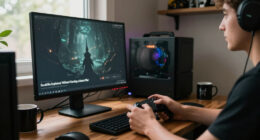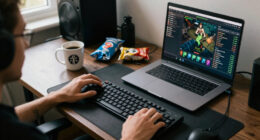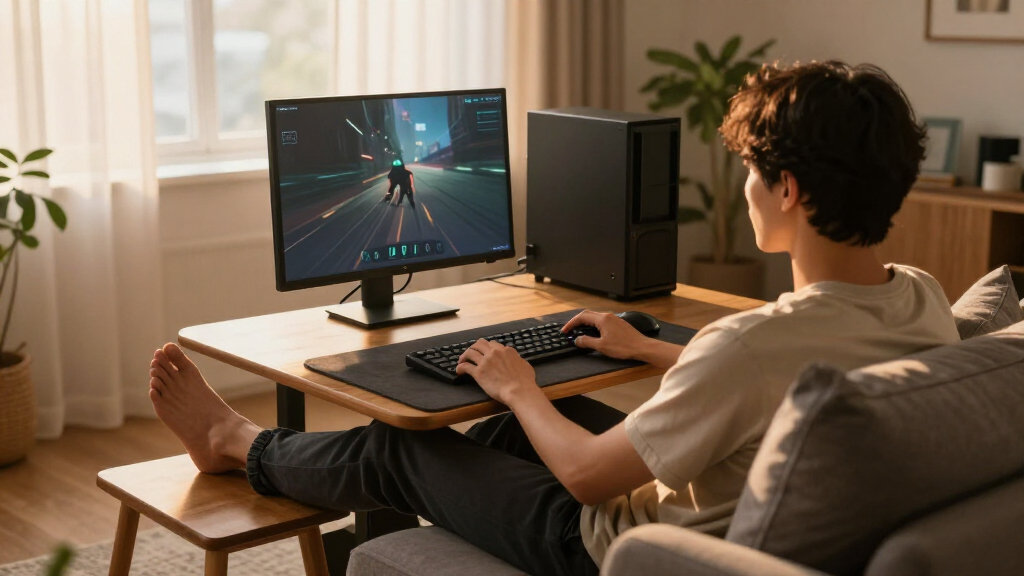

TL;DR
Listen free for 30 days with Audible
Thousands of audiobooks and originals — cancel anytime.
Start your free trialAs an affiliate, we earn on qualifying purchases.
Good couch PC gaming ergonomics keeps your screen readable, back supported, controls close, wrists straight, and feet stable. Start with pillows, interface scaling, and 20–30-minute movement breaks before buying equipment; persistent pain, weakness, tingling, or numbness needs professional medical attention.
A couch can swallow you like warm bread dough. Ten minutes into a game, the cushions feel wonderful; two hours later, your neck feels pinched, your lower back has collapsed, and your hands are buzzing around the controller. Comfort and healthy support are related, but they are not the same thing.
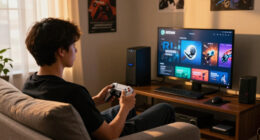
Couch PC gaming pairs the flexibility of a computer with the soft glow of a living room, yet a plush couch does not support every body well. Deep seats roll your hips backward, televisions tempt you to crane your neck, and desktop-sized menus make you lean toward the screen. The result can be a slow drift from relaxed to folded.
You can fix most problems without rebuilding the room or buying an expensive chair. This guide shows you how to set your screen, back support, controls, lighting, and breaks around your body. You will also learn when a gamepad beats a lapboard, why a 20–30-minute movement rhythm helps, and which symptoms deserve more than another cushion.
Place the television directly ahead and enlarge UI text before leaning forward to compensate for unreadable menus.
Use a small lumbar roll, firm hip support, and stable foot support to keep a deep couch from folding your body inward.
Support your forearms, keep controls close, and choose a controller or lapboard that lets your wrists stay mostly straight.
Take a 1–2-minute movement and distance-viewing break every 20–30 minutes as a practical starting rhythm.
Treat continuing pain, weakness, tingling, or numbness as a reason to stop and seek qualified medical assessment.
Ergonomics for Couch PC Gaming Explained
A couch can feel wonderfully soft while quietly folding the body inward. Better gaming ergonomics keeps the screen readable, the back supported, controls close, wrists straight, and feet stable—without turning the living room into an office.
01 / Build the base
Support the body before correcting the pose
Deep cushions can roll the pelvis backward, round the lower back, and push the head forward. The goal is not a rigid “perfect angle.” It is stable support, comfortable circulation, symmetry, and enough freedom to change position.
Fill the empty space
Place a small cushion or rolled towel behind the belt line. Start with a roll roughly as thick as your wrist.
Sit on the couch
If the seat swallows the hips, add a firm pad beneath them. This limits backward pelvic roll and makes the backrest usable.
Create a stable landing
Use the floor, a solid footrest, or a steady ottoman. Dangling heels can increase thigh pressure and encourage slouching.
Recline as one unit
A slight recline works when the entire back and head are supported. Reclining without head support makes the neck work harder.
Level the arm support
Avoid leaving one arm elevated while the other hangs free. Match cushion heights and keep the screen centered.
Change the shape
Shift between upright sitting and supported reclining. No single posture remains ideal indefinitely.
02 / Screen and vision
Your body should not become the zoom control
Place the display directly ahead, with its center around or slightly below eye level. Readability matters more than a fixed viewing-distance formula because eyesight, resolution, game type, and interface design all differ.
Adjustment priority
Increase operating-system scale, game UI size, subtitle size, and cursor size before leaning forward.
Avoid repeated chin lifting, neck bending, and looking sideways for long periods.
Use a soft lamp or bias light, avoid reflections, and match screen brightness to the room.
03 / Choose the controls
Keep the hands close and the surface stable
A gamepad is usually easier to position on a couch, while keyboard-and-mouse play needs more stable surface area. Neither setup is automatically ergonomic: forearm support, grip pressure, reach, and wrist position decide the result.
| Setup | Best advantage | Common risk | Practical correction |
|---|---|---|---|
| Gamepad | ✓Stays close to the torso | ~Unsupported arms and tight gripping | Support the forearms with a medium-firm cushion; relax the grip and keep elbows near the sides. |
| Keyboard + mouse | ✓Precise aiming and many inputs | ✗Bent wrists on cushions or a low coffee table | Use a stable lapboard or over-sofa table with enough mouse space and no sharp front edge. |
| Handheld PC | ✓Display and controls travel together | ~Low screen strains the neck; lifting tires the arms | Support the device, use a stand, or pair it with a separate controller. |
04 / Trace the posture
Stop the collapse chain at its source
Discomfort often develops as a connected sequence. A small change beneath the hips or behind the lower back can improve everything farther up the chain.
Soft seat lets the hips sink deeply.
Pelvis rolls backward without firm support.
Lower back rounds and ribs fold inward.
Arms reach forward and shoulders tighten.
Chin drifts toward unreadable screen text.
05 / Reset before pain
Use a short, repeatable movement rhythm
Breaks work best before discomfort announces itself. Pause every 20–30 minutes as a practical starting point, release the controls, and spend one or two minutes changing what the body is doing.
Five-step reset: interrupt the fixed posture, restore movement, relax the hands, and give the eyes a different focal distance.
Build a Supported Position That Still Feels Like a Couch
Ergonomics for couch PC gaming explained in one line: support your body so your head stays near your torso, your shoulders remain loose, and no cushion forces you into a twist. You do not need an exact joint angle. You need stable support and room to move.
Deep cushions often let your pelvis roll backward, which rounds your lower back and sends your chin toward the television. Imagine settling into a soft sectional after dinner: your hips sink six inches, your ribs fold, and the controller slowly slides toward your knees. A small lumbar cushion behind your belt line and a firm pad beneath your hips can stop that chain reaction.
Sit against the backrest instead of perching on the front edge. A slightly reclined position works well when the whole back and head are supported; reclining without head support leaves your neck working like a guy wire. If one arm rests on a thick cushion while the other hangs free, swap positions or level the support before shoulder tension arrives.
- Support your lower back: Try a rolled towel about as thick as your wrist before buying a special cushion.
- Raise a very soft seat: Place a firm seat pad under your hips so you sit on the couch instead of inside it.
- Stabilize your feet: Use the floor, a solid footrest, or a steady ottoman rather than leaving your heels dangling.
- Change the shape: Shift between upright and supported reclining instead of freezing in one pose.
For example, if your feet miss the floor by three inches, a low footrest can reduce pressure beneath your thighs and make the backrest usable. Your knees do not need a rigid 90-degree bend; they need circulation and support. According to skeldrift.com [1], symmetry, support, and movement matter more than a supposedly perfect angle.
As an affiliate, we earn on qualifying purchases.
Place the Screen Where Your Neck and Eyes Can Relax
Your screen belongs directly in front of you, at a height that avoids repeated neck bending, and close enough for readable text without leaning. The television’s center may sit slightly below eye level. Screen size alone cannot set viewing distance because resolution, eyesight, menus, and game type all change what feels clear.
A television mounted above a fireplace can turn a relaxed game into a two-hour chin lift. You may not notice during a bright race, but a dialogue-heavy role-playing game exposes the problem: tiny inventory labels pull your head forward while the high screen tips it back. That combination loads the neck from both directions and often leaves a dull ache beneath the skull.
Run a practical test from your normal seat. Open the smallest menu you use, read three lines of text, and check whether you squint, crane, or slide toward the couch edge. If you move, increase operating-system scaling, game UI size, subtitle size, and cursor size before changing your posture.
Your body should not become the zoom control. If text makes you lean forward, enlarge the interface or move the seating—not your head.
Lighting changes the experience too. A brilliant television in a black room can feel like staring through a glowing window at midnight, while a soft lamp or bias light behind the display lowers the harsh contrast. Position lamps away from reflections, match brightness to the room, blink often, and periodically focus on a distant doorway or tree to give your eyes a different distance.
For a concrete example, a 4K television may look sharp from close range, yet a PC game built for a 27-inch monitor can still show pinhead-sized tooltips. Higher resolution allows closer viewing, but it does not enlarge the interface by itself. Readable menus beat fixed formulas every time [1].
As an affiliate, we earn on qualifying purchases.
Choose the Control Setup That Keeps Your Hands Close
Ergonomics for couch PC gaming explained through controls comes down to reach: a gamepad usually stays closer to your body, while a keyboard and mouse need a wide, stable surface. Neither option protects you automatically. Your wrist angle, grip pressure, forearm support, and device fit decide how each feels after an hour.
| Setup | Best ergonomic advantage | Common problem | Practical fix |
|---|---|---|---|
| Gamepad | Stays close to the torso | Unsupported arms and tight gripping | Rest forearms on a cushion and loosen your grip |
| Keyboard and mouse | Offers precise aiming and many inputs | Bent wrists on a coffee table | Use a stable lapboard or over-sofa table |
| Handheld gaming PC | Combines display and controls | Low screen strains the neck; raised screen tires the arms | Support the device or use a stand and separate controller |
With a gamepad, keep your elbows near your sides, shoulders down, and wrists mostly straight. Resting the controller unsupported in your lap can pull both shoulders forward, especially during a long boss fight. Put a medium-firm cushion beneath your forearms; it can support your hands and your patience while you learn the attack pattern.
Controller fit also matters. A large shell can force a smaller hand to stretch for bumpers, while a tiny controller can make a larger hand clamp down like a vise. Rear buttons and remapping reduce repeated thumb travel, and a lighter grip reduces button force without changing your in-game timing.
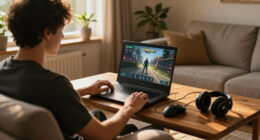
For keyboard-and-mouse play, skip the sagging couch cushion and low coffee table. A lapboard should support both devices, keep the mouse close, and offer enough room for lower-sensitivity movement without pushing your elbow outward. A compact keyboard can move the mouse several inches inward, while a rounded front edge prevents a hard ridge from biting into your forearms.
Wireless gear clears cables but does not fix placement. If your mouse slides into a cushion seam or your keyboard rocks with every keypress, the setup is still unstable. For precise strategy games, a firm lapboard can steady your mouse and your aim.
adjustable TV stand for ergonomic setup
As an affiliate, we earn on qualifying purchases.
As an affiliate, we earn on qualifying purchases.
Use a Five-Step Reset Before Pain Starts
The best break routine begins before discomfort appears: pause every 20–30 minutes, release the controls, move your joints, and look farther away. One perfect pose cannot cancel hours of stillness. Short resets keep a minor pressure point from becoming the only thing you feel during the next match [1].
- Put the controls down. Open your hands fully, then let them hang loose for several breaths.
- Stand for one or two minutes. Walk to the kitchen, refill water, or take a slow lap around the room.
- Move without forcing a stretch. Roll your shoulders, straighten your elbows, and gently change the position of your neck and hips.
- Look across the room. Focus on a clock, window frame, or object at least several metres away.
- Rebuild your position. Settle your hips, replace the lumbar cushion, support your feet, and bring the controls close again.
Use natural pauses rather than fighting your game. After two multiplayer rounds, one mission, or a loading screen, stand while the room fills with menu music and the console fan hums behind you. A 90-second reset costs less time than rubbing a numb thumb through an entire evening.
Break reminders work because games erase time. Set a quiet phone vibration, use system software, or link movement to something visible, such as the end of every race. The point is not rigid scheduling; it is preventing long, uninterrupted sessions from turning relaxed muscles into stiff ones.
You should also change positions within a session. Move from upright support to a supported recline, switch which leg extends, or alternate a controller with another input method when the game allows it. Do not stay cross-legged if your foot begins to tingle, and do not let a firm seat edge press behind your knees.
Persistent pain, weakness, tingling, or numbness is not a gaming badge. Stop and seek assessment from a qualified healthcare professional if symptoms continue, worsen, disturb sleep, or affect daily tasks. An accessory cannot diagnose a nerve, joint, or circulation problem.
wrist support for gaming controller
As an affiliate, we earn on qualifying purchases.
As an affiliate, we earn on qualifying purchases.
Fix the Room Problems Your Body Cannot Compensate For
A body-friendly setup also needs safe sound, controlled glare, clear walkways, and cool equipment. Posture cannot solve a headset that clamps your jaw or a laptop buried in a fleece blanket. Treat the room as part of the setup because heat, noise, cables, and light reach you throughout every session.
Adjust a headset so the headband carries its weight and the earcups seal without squeezing your temples. After 45 minutes, pressure can feel like a tight band across the skull, even if the headset seemed fine at first. Speakers or a soundbar remove that weight, but lower listening volume still protects your hearing during explosions, engines, and sharp menu effects.
Noise isolation can help you hear detail without turning the volume up. You should still hear important household sounds, such as a smoke alarm or someone calling from the next room. If your ears ring or sound seems muffled after play, stop the session and reduce exposure; repeated loud listening can damage hearing.
Keep gaming laptops on a firm, ventilated platform, never directly on blankets or upholstery. A blocked intake traps hot air, warms your thighs, and makes fans howl like a small vacuum cleaner. Desktop PCs, docks, and other hardware also need open vents and enough space to exhaust heat.
Cable routing deserves a slow walk through the room. A charging lead stretched between couch and television can catch a foot when someone crosses in dim light, while a heavy lapboard leaning upright can topple onto toes. Route power near walls, keep walkways clear, place equipment on stable surfaces, and set drinks on a separate table away from electronics.
For example, local game streaming can move a hot, noisy PC into another room and leave only a small client by the television. The tradeoff is network delay: performance depends on the client platform, router, Wi-Fi conditions, and encoding settings. Wired Ethernet usually gives you a steadier starting point, but no universal latency number applies to every home [2].
Upgrade Only After These Free Fixes Stop Helping
Ergonomics for couch PC gaming explained as a buying plan starts with free changes: enlarge text, move the screen, support your back, relax your grip, and schedule breaks. Buy something only when a specific problem remains. That approach keeps you from collecting accessories while the television still sits too high.
Start by naming the symptom and the moment it appears. If your shoulders burn during controller play, add forearm support before replacing the couch. If your wrist bends upward on a coffee table, test a tray or firm board at home before shopping for a dedicated lapboard.
- Spend nothing: Adjust UI scaling, subtitle size, brightness, seating position, controller mapping, and break reminders.
- Spend a little: Add a lumbar roll, firm seat cushion, footrest, device stand, or soft bias light.
- Target the remaining issue: Try a better-fitting controller, stable lapboard, adjustable over-sofa table, or supportive seating only after testing simpler fixes.
Suppose you play a city-building game from eight feet away. A new 65-inch television may seem like the answer, but moving the current seat one foot forward and raising the game’s UI scale to 125% may stop the forward lean immediately. You save money and keep the visual balance of a living room intact.
Newer hardware can improve convenience. Controller-friendly launchers reduce trips to a mouse, accessible controllers offer modular inputs, and compatible HDMI 2.1 connections can provide variable refresh rate, higher refresh modes, and automatic low-latency features. Those results depend on the PC graphics hardware, operating system, television model, cable, game, and selected display mode [2].
Handheld gaming PCs create a different tradeoff. Raising the screen protects your neck but tires your arms; lowering it rests your arms but folds your neck. A stand and separate controller split that problem, while a dock can move play to the television. Platform compatibility labels, including Steam Deck Verified status, can change after game or system updates, so check the current listing rather than treating an old badge as permanent.
If you have seen PC gaming explained only through frame rates and graphics settings, this is the missing half: the machine should adapt to your body. The best upgrade is the one that removes a measured strain point and still lets you shift position tomorrow.
Frequently Asked Questions
What is the best posture for couch PC gaming?
The best posture keeps your back supported, shoulders relaxed, head near your torso, and controls close enough that you do not reach. Support your feet and forearms, then change position regularly rather than holding one pose through a three-hour campaign.
How high should my television be for couch gaming?
Set the television where you can see the full screen without sustained upward or downward neck bending. A screen above a fireplace often sits too high unless you use a supported recline with head support; test the position by reading menus for several minutes without lifting your chin.
Is a controller more ergonomic than a keyboard and mouse?
A controller usually suits couch PC gaming better because it stays close to your torso, but poor fit and tight gripping can still strain your thumbs, wrists, and shoulders. A stable lapboard can make keyboard-and-mouse play comfortable when it keeps both devices level, the mouse close, and your wrists mostly straight.
Can pillows fix a couch that is too soft?
Pillows can support your lower back, head, or forearms, but oversized soft cushions may make you sink and slouch even more. If a rolled towel does not hold its shape, try a firmer seat insert, footrest, or different seating spot.
How often should I take a gaming break?
A brief break every 20–30 minutes is a practical starting point, though your needs may vary with the game, input device, and existing symptoms [1]. Stand for one or two minutes, open your hands, move gently, and focus across the room before rebuilding your supported position.
How can I stop my hands going numb while gaming?
Loosen your grip, support your forearms, keep your wrists neutral, and remap buttons that demand awkward or repeated reaches. Stop playing if numbness appears; persistent or worsening numbness, weakness, pain, or tingling needs assessment by a qualified healthcare professional.
Conclusion
Your best couch setup is not the softest one or the one packed with the most gear. It is the one that keeps the screen readable, gives your back and forearms stable support, and lets you change position without fighting cushions, cables, or controls. Begin with a rolled towel, larger text, relaxed hands, and a movement reminder.
Then play one normal session and notice what your body says at the 30-minute mark. If your jaw is loose, your feet feel warm, and your shoulders have not crept toward your ears, the setup is doing its job. Build around that quiet comfort—the kind you notice only when the final menu fades and you stand up feeling ready for the rest of your evening.
Flea & tick season Picks
flea and tick prevention
As an affiliate, we earn on qualifying purchases.