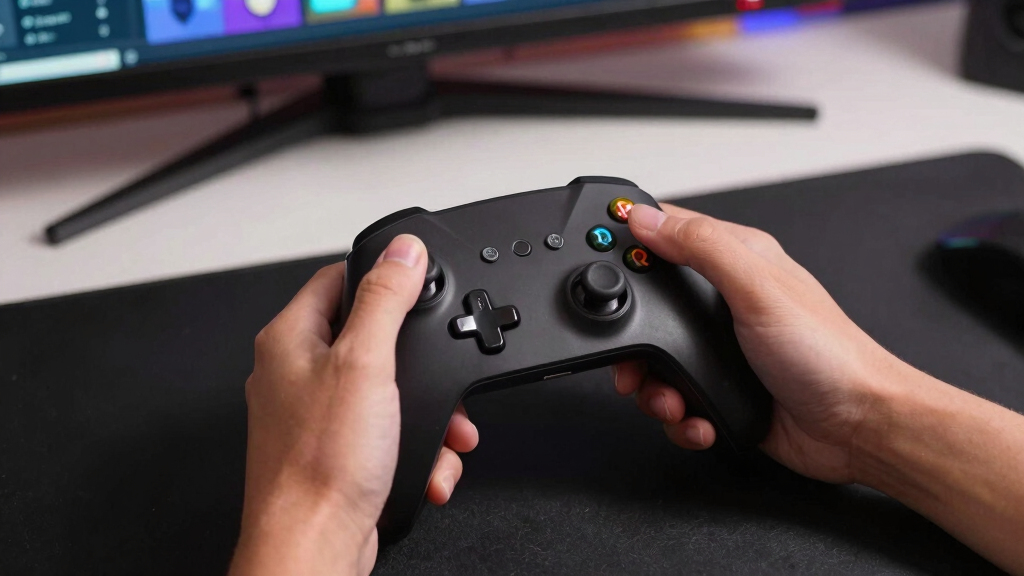

TL;DR
Prime for Young Adults — start your free trial
Fast free delivery, streaming and member deals for eligible 18–24 year olds.
Try it freeAs an affiliate, we earn on qualifying purchases.
Controller glyphs are the small button icons a game shows for actions like jump, dodge, or confirm. They look wrong when a PC game reads your pad through Steam Input, XInput, DirectInput, or a generic profile that maps the same physical button to a different icon set [1][2]. Most fixes start with checking Steam Input, the in-game prompt setting, and whether your controller is presenting itself as Xbox, PlayStation, or Nintendo.
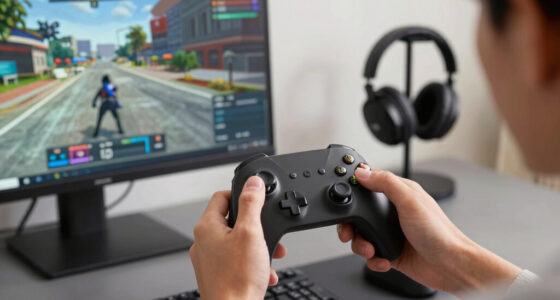
You press the bottom button to jump, but the screen flashes X, your controller says A, and your thumb hesitates for half a second.
That tiny mismatch can make a boss fight feel sticky and a menu feel like a locked door. You will learn what controller glyphs are, why PC games mix them up, and which settings usually put the right symbols back on screen.
This guide is built for PC, Steam, and Steam Deck players. No panic, no gear shopping, just the button logic hiding under the plastic.
Controller Glyphs Explained
Why Buttons Look Wrong in Some Games
Controller glyphs are the small button icons a game shows for actions like jump, dodge, confirm, or cancel. They look wrong when the physical pad, the input layer, and the game’s selected icon set do not agree.
You press the bottom button to jump. The screen flashes X. Your controller says A. Your thumb hesitates.
Can translate PlayStation, Nintendo, and third-party pads before the game draws prompts.
Many Windows games expect an Xbox-style controller shape.
The symbol shown on screen.
The action your button sends.
Nintendo and Xbox positions differ.
Input, prompts, mode, mods, relaunch.
Know the Button Language
A glyph is a street sign for your thumb. Problems begin when the game reads one controller language and paints another.
A, B, X, Y
Common in PC games because XInput gives developers a predictable Xbox-style layout. It is often the fallback even when another pad is connected.
Cross, Circle, Triangle, Square
Clear when native support exists, but older PC ports may still display Xbox letters for DualShock or DualSense controllers.
Flipped Face Buttons
Nintendo also uses A, B, X, and Y, but A and B sit in different positions from Xbox. That is where many menu mistakes begin.
Where the Mismatch Happens
The game is usually not being rude. It is painting symbols from the controller map it was handed by Steam, Windows, firmware, or a profile.
Physical Pad
Your hand presses the button labeled on the plastic shell.
Controller Mode
The device presents itself as Xbox, Switch, DirectInput, Android, or generic.
Steam Input
Steam can translate that button into a game action before launch.
Game Detection
The game chooses an icon set from the controller story it receives.
On-Screen Glyph
The final prompt may match the action while still looking visually wrong.
Match Prompt Style to Muscle Memory
The right prompt style is the one your hands understand in the moment, not always the logo on the controller box.
| Prompt Style | What You See | Best Fit | Common Mix-Up | Clarity |
|---|---|---|---|---|
| Xbox | Green A, red B, blue X, yellow Y | Xbox pads, many PC games, XInput mode | Nintendo A and B feel reversed | ✓ |
| PlayStation | Cross, Circle, Triangle, Square | DualShock, DualSense, PS-style layouts | PC ports may show Xbox letters instead | ✓ |
| Nintendo | A, B, X, Y with Nintendo positions | Switch Pro Controller, Joy-Con layouts | Confirm and cancel may swap in menus | ~ |
| Keyboard | E, Space, Shift, Esc | Mouse and keyboard play, mixed setups | A controller bump can change prompts mid-menu | ~ |
| Generic | Plain dots, arrows, shoulder icons | Third-party pads and stylized games | Looks unfamiliar even when it works | ✗ |
What Usually Fixes It
Start with the layers that repaint prompts most often. Change one setting, relaunch, and test confirm plus cancel before starting a mission.
Buttons work, icons look odd?
That is usually a prompt-style problem, not a binding problem. Check Steam Input and the in-game prompt setting before remapping every button.
Five Quick Checks
Wrong prompts usually come from one of five places: Steam Input, the game menu, firmware mode, a mod or overlay, or a stale startup read.
Steam Input
Open the game’s controller settings and try enabled, disabled, or default.
Prompt Menu
Look for Xbox, PlayStation, Nintendo, automatic, or keyboard prompt options.
Pad Mode
Third-party controllers may switch between XInput, Switch, Android, and DirectInput.
Mods
Prompt mods and overlays can survive patches and make a new UI look broken.
Relaunch
Some games read controller type only at startup, so hot-swapping can leave stale icons.
Steam Deck: Inspect the Layers
On Steam Deck, glyphs can pass through the game, SteamOS, a selected layout, community bindings, and an external controller mode.
Tap Each Button Slowly
If the layout screen highlights the expected physical button but the game shows another icon, the mismatch is probably visual.
Check XInput vs Switch
An 8BitDo controller in XInput mode may trigger Xbox prompts. Switch mode may change letters but also move confirm.
Verified Can Change
Compatibility badges can shift after game updates, Proton updates, or store review changes. Check the current Steam page.
Design Choice or Real Bug?
Stylized glyphs can be intentional. A real input bug appears when the shown button triggers the wrong action, fires two actions, or flips confirm and cancel.
Probably Just Visual
- Every action works, but the icons are brand-neutral or stylized.
- The game uses a fantasy, neon, or minimalist UI language.
- Buttons match after you switch prompt style in the controls menu.
Probably an Input Bug
- Pressing the shown button performs a different command.
- Two actions fire from one press after changing controller modes.
- Confirm and cancel reverse after docking, Bluetooth pairing, or hot-swapping.
Key Takeaways
- Controller glyphs are display symbols, while input mappings are button actions; those systems can disagree.
- Steam Input can make a PlayStation, Nintendo, or third-party pad look like an Xbox controller to a PC game.
- If buttons work but icons look odd, check prompt style settings before changing bindings.
- On Steam Deck, inspect the current layout and store badge because compatibility notes can change after updates.
As an affiliate, we earn on qualifying purchases.
Know What a Controller Glyph Really Is
Controller Glyphs Explained: Why Buttons Look Wrong in Some Games starts with a simple idea: a controller glyph is the tiny on-screen symbol that tells you which physical button to press. When that symbol does not match your pad, the game has translated your controller through the wrong button language.
Think of a glyph as a street sign for your thumb. Xbox usually speaks in A, B, X, and Y. PlayStation uses Cross, Circle, Triangle, and Square. Nintendo also uses A, B, X, and Y, but its A and B positions are flipped from Xbox, which is where many menu mistakes begin.
You see Press B to cancel on screen while holding a Switch Pro Controller. Your brain sees B on the lower button, but the game may mean the right-side button if it is using Xbox layout logic. That tiny letter turns into a wet paint sign: touch it the wrong way and you leave a mark.
As an affiliate, we earn on qualifying purchases.
See Why PC Games Guess the Wrong Pad
Controller Glyphs Explained: Why Buttons Look Wrong in Some Games often comes down to detection: the game asks what controller you are using, then chooses an icon set. If the answer comes back fuzzy, Xbox prompts may appear on a PlayStation pad, Nintendo prompts may swap A and B, or keyboard text may replace icons.
According to Valve’s Steam Input documentation [1], Steam Input can translate many controllers into game actions before the game renders prompts. According to Microsoft’s XInput documentation [2], many Windows games receive a standard Xbox-style controller shape, which makes A/B/X/Y prompts the safe default for developers.
Say you plug in a DualSense over Bluetooth, then launch an older PC port from your Steam library. Steam may present that DualSense as an Xbox controller because the game only understands XInput. The game is not being rude; it is painting the symbols from the map it was handed.
As an affiliate, we earn on qualifying purchases.
Match the Prompt Style to the Pad in Your Hands
Controller Glyphs Explained: Why Buttons Look Wrong in Some Games is easiest when you separate the controller’s labels from the game’s prompt set. The right prompt style is the one that matches your muscle memory, not always the logo on the device box or the input mode your PC reports.
| Prompt style | What you usually see | Best fit | Common mix-up |
|---|---|---|---|
| Xbox | Green A, red B, blue X, yellow Y | Xbox pads, many PC games, XInput mode | Nintendo A and B feel reversed |
| PlayStation | Cross, Circle, Triangle, Square | DualShock, DualSense, PS-style layouts | PC ports may show Xbox letters instead |
| Nintendo | A, B, X, Y with Nintendo positions | Switch Pro Controller, Joy-Con layouts | Confirm and cancel may swap in menus |
| Keyboard | E, Space, Shift, Esc | Mouse and keyboard play, mixed input setups | A controller bump can change prompts mid-menu |
| Generic | Plain dots, arrows, shoulder icons | Third-party pads and stylized games | Looks unfamiliar even when it works |
If you switch between an Xbox pad at your desk and Joy-Cons on the couch, your hands keep two maps in memory. A game that lets you pick glyph style manually can save you from pressing cancel when you meant confirm. In a fast rhythm game, that split-second pause feels like a skipped beat in the song.
As an affiliate, we earn on qualifying purchases.
Fix Wrong Prompts in 5 Quick Checks
Wrong prompts usually come from one of five places: Steam Input, the game’s controller menu, the controller’s firmware mode, a mod or overlay, or a stale profile. Work through them in that order, because each layer can repaint the same button before the game draws it.
- Check Steam Input per game. In Steam, open the game’s controller settings and see whether Steam Input is enabled, disabled, or forced. Try the opposite setting if the glyphs are wrong.
- Look for an in-game prompt option. Some games let you choose Xbox, PlayStation, Nintendo, or automatic prompts in the controls menu.
- Check the controller mode. Many third-party pads have XInput, Switch, Android, or DirectInput modes. The same plastic controller can speak different languages.
- Remove prompt mods or overlays. A PlayStation button mod can stay active after a patch and make the new UI look broken.
- Relaunch after changing settings. Some games read controller type only at startup, so hot-swapping can leave stale icons on screen.
For example, a DualSense connected by USB may show PlayStation icons in one game and Xbox icons in another because each game handles Steam Input in its own way. Change one setting, relaunch, and test a menu with both confirm and cancel before you start a mission.
Tell a Design Choice From a Real Input Bug
A prompt is a design choice when every action works but the icons look stylized, simplified, or brand-neutral. It is an input bug when pressing the shown button triggers the wrong action, two actions fire at once, or the game flips confirm and cancel after you change controllers.
Some studios draw custom glyphs so the UI fits the world: parchment icons in a fantasy RPG, neon outlines in a cyberpunk racer, chunky white symbols in a cozy farm sim. Those can look odd beside your controller’s glossy buttons, but they may still read clearly once your hands learn the shape.
If a forum post claims a future patch will add PlayStation prompts, treat it as unconfirmed until official patch notes say so.
Glyph options usually do not change ESRB, PEGI, or other age ratings because they alter interface labels, not game content. Still, a family setup can feel messy when a young player sees a red B prompt, presses the right-side button, and backs out of a save screen by accident.
Steam Deck Players Should Check Input Layers First
On Steam Deck, wrong glyphs often mean the game, SteamOS, and your chosen controller layout are not using the same button story. The Deck can run a game with built-in controller support, a Steam Input layout, and community bindings layered together, which can make prompts feel like stickers on the wrong keys.
Steam Deck Verified and Playable badges can change after game updates, Proton updates, or store review changes, so check the current Steam page for the version you are actually playing. A badge speaks to compatibility, not a permanent promise that every glyph will match every external controller forever.
A common couch setup looks like this: the Deck sits in a dock, an 8BitDo controller connects over Bluetooth, and a game shows Xbox prompts because the controller is in XInput mode. If you switch the controller to a Nintendo or Switch mode, the letters may change, but the confirm button may move too.
Before you blame the game, open the Steam controller layout screen and inspect what each physical button sends. Tap A, B, X, and Y slowly. If the highlight on screen matches your finger but the in-game icon does not, you probably have a glyph display issue rather than a broken controller.
Build Your Own Button Memory Without Fighting the Game
You can reduce glyph confusion by training your hands around positions first and letters second. Treat the face buttons as bottom, right, left, and top for the first ten minutes of a new game, then connect those positions to the icons the game prefers.
- Use position words: bottom to confirm, right to cancel, top for menu, left for action when the glyphs feel slippery.
- Test in a safe menu: open settings, back out, reopen, and save a harmless option before you risk a hard checkpoint.
- Keep one default pad: if you play action games often, use the same controller style for a week so your thumb stops translating.
- Change one layer at a time: do not edit bindings, Steam Input, and in-game prompts all at once, or you will lose the thread.
This sounds small, but it helps when you swap from Hades on an Xbox pad to a Japanese RPG on a Switch Pro Controller. Your thumb stops chasing letters and starts hitting places. The game feels less like a translation test and more like a clean, clicking machine.
Frequently Asked Questions
Why does my PlayStation controller show Xbox buttons on PC?
Many PC games use XInput, Microsoft’s Xbox-style controller model, so Steam or the game may present your pad as an Xbox controller [2]. Check Steam Input and the game’s controller prompt option. If the game has no PlayStation glyph pack, Xbox prompts may be the only built-in set.
Why are A and B swapped when I use a Nintendo controller?
Nintendo and Xbox both use A, B, X, and Y, but the physical positions differ. Xbox places A on the bottom and B on the right, while Nintendo places B on the bottom and A on the right. That layout clash makes confirm and cancel feel backward in some PC games.
Can Steam Input fix wrong controller glyphs?
Steam Input can help because it lets Steam translate your controller and apply per-game layouts [1]. It can also cause mismatches if the game expects raw PlayStation or Nintendo input but Steam presents an Xbox-style controller instead. Try toggling Steam Input for that one game before changing global settings.
Are generic controller glyphs bad for accessibility?
Generic glyphs can help when they are clear, high contrast, and tied to button position. They hurt when they are tiny, overly stylized, or too similar in shape. The best games pair icons with remapping, text labels, and manual prompt style options.
Do wrong glyphs mean my controller is broken?
Usually, no. If the correct action happens when you press the button, your controller probably works and the game is only showing the wrong prompt set. If inputs double-fire, drift, or fail outside that game too, then test the controller in Steam’s input screen or your operating system’s controller panel.
Conclusion
The best fix is to stop treating wrong glyphs as random and trace the layer that picked them: controller mode, Steam Input, game settings, then bindings. Once those agree, the screen stops shouting in one alphabet while your hands speak another.
Remember the physical map: bottom, right, left, top. When the letters get noisy, your thumb can still find the door handle in the dark.
Fall yard work Picks
leaf blowers
As an affiliate, we earn on qualifying purchases.