
TL;DR

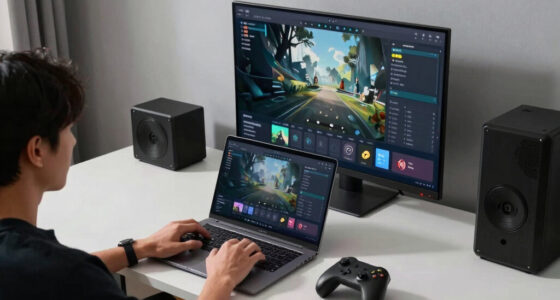
Play games on Amazon Luna for your game nights, included with Prime
- A rotating selection of games, no download needed
- Play on TV, laptop or phone
- Fast, free delivery for your gear, too
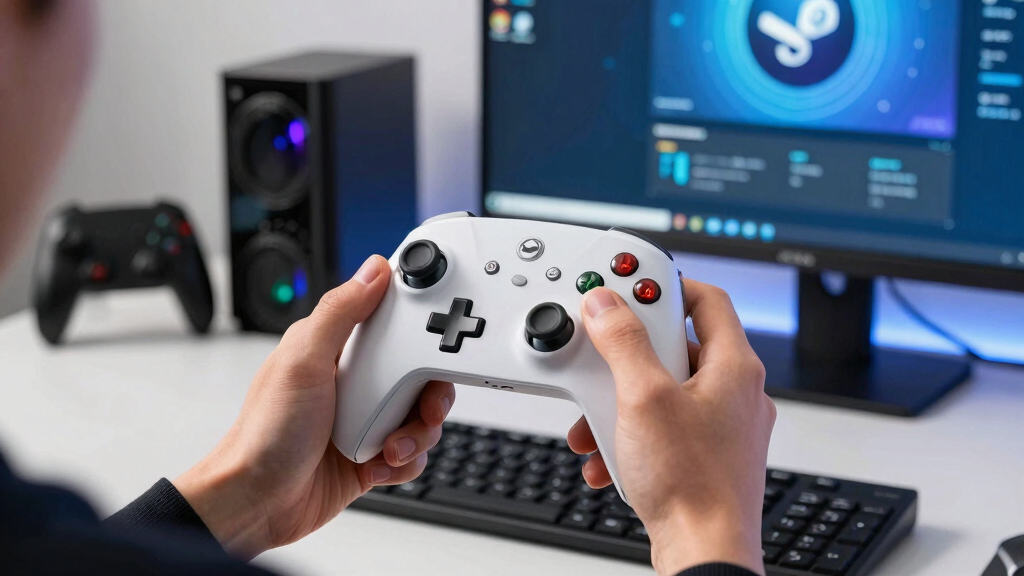
Steam Machine controllers are gamepads and input devices that SteamOS reads through Steam Input, letting you use Xbox, PlayStation, Steam Controller, Switch Pro, and many generic pads with per-game layouts. Start with a familiar controller for action games, use trackpads or gyro for mouse-heavy PC games, and check Steam compatibility badges before blaming the pad.
Your controller can make a Steam Machine feel like a console, or like a tiny PC arguing with you from across the couch.
This guide gives you an overview suitable for new SteamOS users: what Steam Input does, which pads make sense, how trackpads and gyro fit, and where compatibility badges can save you from a sour first session.
No shopping bait. No fake certainty about rumors. Just the stuff you need before you sink into the sofa, hear the Steam startup sound, and wonder why the right stick is acting like a mouse.
Steam Machine Controllers Explained for New SteamOS Users
TL;DR: Steam Machine controllers are gamepads and input devices that SteamOS reads through Steam Input, letting Xbox, PlayStation, Steam Controller, Switch Pro, and many generic pads use per-game layouts. Start familiar, add trackpads or gyro when a game behaves like a PC game, and check compatibility badges before blaming the pad.
Your controller can make a Steam Machine feel like a console, or like a tiny PC arguing with you from across the couch.
New-user rule: fix one game at a timeWhat SteamOS Actually Reads
SteamOS does not only hear raw button presses. Steam Input can translate sticks, triggers, gyro, trackpads, grip buttons, and keyboard-like commands into a layout that changes from game to game.
Buttons become intent
A trigger can be a trigger in one game, a mouse click in another, or a soft-pull aim plus full-pull fire action on hardware that supports it.
PC games move couchward
Steam Input can make games designed for keyboard and mouse more usable from the sofa, especially when trackpad, gyro, and menu bindings are used carefully.
Double mapping feels broken
If a game reads the pad directly while Steam Input also translates it, prompts, camera movement, or button behavior can get strange fast.
Pick the Right Pad First
There is no single correct Steam Machine controller. The best choice depends on whether the game wants console inputs, mouse precision, or Steam Deck-style extras.
| Controller Type | Best Fit | SteamOS Strength | Watch For |
|---|---|---|---|
| Xbox-style controller | Action, racing, fighters, platformers | ✓ Easy prompts and broad game support | Fewer touch, gyro, and mouse-like tricks |
| PlayStation controller | Players who like symmetrical sticks and gyro | ✓ Familiar premium pad feel | ~ Some games still show Xbox labels |
| Steam Controller 2015 | CRPGs, strategy games, launchers, menus | ✓ Trackpads, haptics, gyro, dual-stage triggers | ~ Discontinued in 2019 and easier to find secondhand |
| Switch Pro or generic pad | Guest controller or spare local co-op pad | ~ Often usable through Steam Input | Labels, wireless quirks, and missing features vary |
| Keyboard and mouse nearby | Passwords, mod tools, stubborn launchers | ✓ Cleanest fallback for true PC moments | ✗ Less cozy from the couch |
Set It Up Without Guesswork
Pair the controller, open Steam’s controller menu, start from a default or community layout, then change one thing at a time. Five quiet minutes of testing beats a whole evening of menu panic.
Connect
Use USB, Bluetooth, or the controller’s own wireless receiver.
Confirm
Check that Steam sees the right device before launching.
Open Layout
Use the game page or quick settings controller layout.
Start Simple
Try default or community layouts before inventing your own.
Test
Play in a quiet area for five minutes and feel the problem.
Save
Name the layout clearly and leave global settings alone.
Trackpads and Gyro Should Disappear
Use each input for the job it handles best: sticks for broad movement, trackpads for cursor work, and gyro for tiny corrections. A clever layout should feel calm, not clever.
Sensitivity curve
Start low, add power slowly, and stop when the controller fades into the background.
For shooters, turn with the stick and aim the final pixels with gyro. For strategy games, map the right trackpad to mouse and a trigger to left click.
Compatibility Badges Are Setup Hints
Steam badges can warn you about likely controller friction, but they are not blanket performance promises. Also check age ratings separately; controller choice does not change the content on screen.
Fix the boring stuff first
Fresh battery, closer receiver, USB test, one clean layout, and no extra remapping apps. Most annoying sessions improve before you buy anything.
Xbox labels do not mean failure
A PlayStation or generic pad can work while the game still displays Xbox-style prompts. Treat labels as interface language, not proof your pad is wrong.
The five-minute rule
Change one setting, test in real play, then keep or undo it. If you swap the whole layout, invert the camera, change sensitivity, and remap triggers in one pass, you will not know which change helped.
Trace the Couch Path
When control feels wrong, follow the chain from device to game instead of guessing. The layout is often the real trick.
Key Takeaways
- Steam Input is the center of SteamOS controller support; it turns many pads into usable per-game layouts.
- Xbox-style pads are easiest for console-like games, while Steam Controller-style inputs help with mouse-heavy PC games.
- Set up one game at a time, test for five minutes, and save named layouts instead of changing global settings blindly.
- Use Steam compatibility badges as setup hints, not blanket performance promises.
- Check game age ratings separately; controller choice does not change the content on screen.
As an affiliate, we earn on qualifying purchases.
What Your Controller Actually Does in SteamOS
Steam Machine Controllers Explained for New SteamOS Users starts with one rule: SteamOS listens through Steam Input, a software layer that turns sticks, buttons, triggers, trackpads, gyro, and keyboard-like commands into a game layout. If a game expects an Xbox pad, Steam Input can often make a different pad speak that language [2].
That matters because the controller is not just sending buttons straight into the game. SteamOS can sit in the middle and decide what those buttons mean. A trigger can be a trigger in one game, a left mouse click in another, or a soft pull for aiming plus a full pull for firing on a controller that supports it. The same hardware can feel simple, strange, or brilliant depending on the layout.
The tradeoff is control versus complexity. Steam Input can rescue games that were never designed for a sofa, but it can also create confusion if a game has its own controller settings fighting Steam’s layout. When something feels wrong, ask one practical question first: is the game reading the controller directly, or is Steam Input translating it?
Say you launch a strategy game from the couch. A normal right stick may drag the camera like wet cardboard, while a trackpad set to mouse can glide across menus with a soft haptic tick under your thumb. The controller is hardware; the layout is the real trick.
PlayStation controller for SteamOS
As an affiliate, we earn on qualifying purchases.
As an affiliate, we earn on qualifying purchases.
Pick the Right Pad Before You Start Pairing
Steam Machine Controllers Explained for New SteamOS Users is not a single-pad story: the best choice depends on whether you want simple console-style play, mouse-like control from the couch, or Steam Deck-style extras. For most players, start with the controller already in your hands, then change only when a game proves it needs more.
| Controller type | Best fit | Watch for |
|---|---|---|
| Xbox-style controller | Action games, racing games, fighters, platformers | Easy prompts, fewer touch and gyro tricks |
| PlayStation controller | Players who like symmetrical sticks and gyro options | Some games may still show Xbox-style button labels |
| Steam Controller 2015 | Mouse-heavy PC games, launchers, CRPGs, strategy games | Secondhand availability and a learning curve |
| Switch Pro or generic pad | Spare couch controller for guests | Button labels, wireless quirks, and missing features vary |
| Keyboard and mouse nearby | Passwords, mod tools, stubborn launchers | Less cozy on a sofa, but sometimes the cleanest fix |
Use a simple decision rule: if the game was clearly built for consoles, choose an Xbox-style or PlayStation-style pad. If the game was clearly built for a mouse, choose a controller with trackpad, gyro, rear buttons, or keep a mouse nearby. If guests are playing, pick the controller with the least explaining to do.
According to Valve’s Steam Input device docs, Steam supports major pads including Steam Controller, Xbox 360, Xbox One, PlayStation 4, Switch Pro, PlayStation 3, and DirectInput gamepads [2]. That wide support matters when a friend brings a controller in a backpack and expects local co-op to just work. It also means buying another controller should be the last fix, not the first one.
Steam Controller compatible gamepad
As an affiliate, we earn on qualifying purchases.
As an affiliate, we earn on qualifying purchases.
Set It Up in SteamOS Without Guesswork
Steam Machine Controllers Explained for New SteamOS Users gets practical once you pair the pad, open Steam’s controller menu, and save a layout per game. Do that once for a stubborn title, and the next launch feels calm: no frantic menu digging while the title screen music loops.
- Connect the controller by USB, Bluetooth, or its own wireless receiver.
- Open Controller settings from Steam or Big Picture mode.
- Check that Steam sees the right device, especially if you use a PlayStation or generic pad.
- Open the game’s controller layout from the game page or quick settings menu.
- Start with the default or a community layout, then change one thing at a time.
- Test for five minutes in a quiet area of the game before saving your layout name.
The important part is changing one variable at a time. If you swap the whole layout, invert the camera, change gyro sensitivity, and remap triggers in one pass, you will not know which change helped. Make one adjustment, test it in actual play, then keep or undo it.
Valve’s player setup docs point users to Steam settings, Controller settings, and per-game Controller Configuration, with Big Picture mode available for couch setup [2]. A good habit: fix one game, name the layout clearly, and leave the rest alone until they bother you. Global changes feel efficient until they quietly break three games that were already fine.
Switch Pro controller for PC gaming
As an affiliate, we earn on qualifying purchases.
As an affiliate, we earn on qualifying purchases.
Make Trackpads and Gyro Feel Natural, Not Weird
Trackpads and gyro feel good when you use them for small, precise movement, not every movement. Put broad camera turns on the right stick, fine aiming on gyro, and cursor work on a trackpad. That split turns twitchy couch control into something closer to resting your thumb on a smooth laptop pad.
- For shooters: use the stick for turning, then add gentle gyro for tiny aim corrections.
- For strategy games: map the right trackpad to mouse and a trigger to left click.
- For RPGs: put inventory, map, or quick-save on rear grips if your pad has them.
- For launchers: keep one layout with mouse, left click, right click, and on-screen keyboard access.
The reason this works is that different inputs are good at different jobs. Sticks are comfortable for continuous movement but clumsy for tiny targets. Trackpads are better for menus and cursors, but they can feel loose for driving a camera. Gyro is excellent for the last few pixels of aim, but tiring if you make it do all the turning.
The 2015 Steam Controller was built around dual trackpads, HD haptics, dual-stage triggers, back grip buttons, and motion sensors [1]. In plain English: it tried to bring keyboard-and-mouse PC habits to the couch, complete with little fingertip buzzes that tell you where your thumb is. Start with low sensitivity and add power slowly; a clever layout should disappear under your hands, not demand a training montage.
Fix the Annoying Stuff Before It Ruins a Session
Most SteamOS controller problems come from double mapping, wrong prompts, weak wireless, launchers, or a game that expects a mouse at the worst moment. Fix the boring setup pieces first. A fresh battery and one clean Steam Input layout beat 20 minutes of angry button mashing.
- Double inputs: turn off extra remapping apps before Steam sees a controller as another fake controller.
- Wrong button prompts: check whether the game only shows Xbox labels, even when a PlayStation pad works.
- Lag or drops: move the receiver closer, charge the pad, or test USB for one session.
- Launcher trouble: use a mouse-style desktop layout or keep a small keyboard nearby.
- Non-Steam games: add the game to Steam when possible so Steam Input and the overlay can help.
Quick warning: a controller layout can make a launcher tolerable, but it cannot make every tiny password box feel good from ten feet away.
Troubleshoot in order of likelihood. First, test the controller with USB so you can separate wireless trouble from mapping trouble. Second, check whether the same problem happens in more than one game. Third, reset only that game’s layout before touching system-wide settings.
For example, if a game opens a separate account sign-in window, your perfect combat layout may do nothing there. Swap to a desktop layout, click through, then return to the game layout once you hear the menu music settle in. The goal is not to make every PC inconvenience elegant; it is to keep one awkward window from eating the evening.
Use Verified Badges Without Treating Them Like Magic
SteamOS compatibility badges tell you how much setup a game usually needs, not whether the game is fun, fast on every screen, or right for every player. Valve’s Steam Hardware docs define ratings such as Verified, Playable, and Unsupported, with Playable sometimes meaning manual work like choosing a community controller config [2].
That matters for controllers. A game may run fine but still land in Playable because the launcher needs the on-screen keyboard, the text is tiny on a TV, or the default controller setup needs a nudge. A badge is a map, not a promise of couch bliss.
Read the badge as a planning tool. Verified means you can probably start there for a relaxed night. Playable means give yourself a setup minute before inviting everyone to the sofa. Unsupported means search recent player reports before you buy, especially if controller support is the whole point for you.
For performance claims, ask for the platform and version: Steam Deck, Steam Machine, SteamOS build, Proton version, resolution, and graphics preset. If a forum post claims 60 FPS with no details, treat it as a campfire story. If pricing or hardware chatter comes from leaks, mark it as unconfirmed until Valve posts it.
Keep the Living Room Setup Friendly for Everyone
A good living-room SteamOS setup makes controllers easy for guests, kids, and tired adults who just want one more match before bed. Label paired pads, charge them before game night, set player order early, and keep one fallback input nearby. Comfort beats cleverness when four people are waiting.
- For local co-op: pair every controller before launching the game.
- For guests: use simple layouts with standard face buttons and triggers.
- For kids: check ESRB or PEGI ratings on the game page; a controller does not soften the game’s content.
- For accessibility: remap repeated actions to easier buttons and reduce stick sensitivity when needed.
- For your sanity: keep one cheap USB keyboard in the TV cabinet for sign-ins and search boxes.
The hidden tradeoff in a living room is that the best layout for you may be the worst layout for someone else. Rear grips, radial menus, and gyro aiming can be fantastic for your own saves, but confusing for a guest who just wants jump, attack, pause, and quit. Keep advanced layouts per game and per player when possible.
Here’s the real-world test: hand the controller to someone who has never touched SteamOS and ask them to open the map, pause, and quit safely. If they can do it without squinting at the screen or asking which button is Menu, your setup is ready.
Frequently Asked Questions
Can I use an Xbox controller with SteamOS?
Yes. Valve’s Steam Input docs list Xbox 360 and Xbox One controllers among the major supported devices [2]. For most action, racing, fighting, and platform games, an Xbox-style pad is the lowest-friction place to start.
Is the 2015 Steam Controller still useful?
Yes, especially for games that were built around mouse and keyboard. Valve’s 2015 Steam Controller page lists dual trackpads, HD haptics, dual-stage triggers, gyro, back grip buttons, and up to 80 hours of standard gameplay from AA batteries in preliminary testing [1].
The catch is that Valve discontinued the original controller in 2019, so many units now come from secondhand sellers.
Many PC games use Xbox-style prompts because they read controller input through XInput or a similar gamepad layer. Your PlayStation pad may work perfectly while the screen still says A, B, X, and Y.
Check the game’s controller settings first, then Steam Input layouts if the prompts or button positions feel off.
Do Steam Machine controllers work with non-Steam games?
Often, yes, but the setup can be fussier. Add the non-Steam game to Steam when possible so the overlay and Steam Input can apply a layout.
Launchers from other stores may still need a mouse-style layout or a keyboard for sign-ins, updates, and tiny pop-up windows.
Where can I check the official Steam Input details?
Use Valve’s own pages when facts matter. Source links: [1] Valve Steam Controller 2015 page, https://store.steampowered.com/app/353370/Steam_Controller_2015/ and [2] Valve Steam Input docs, https://partner.steamgames.com/doc/features/steam_controller plus Steam Hardware compatibility docs, https://partner.steamgames.com/doc/steamhardware/compat.
Treat rumors, leaks, and price chatter as unconfirmed until Valve posts the details itself.
Conclusion
Start simple: pair a familiar pad, let Steam Input do the basic work, then tune only the games that feel wrong. The best Steam Machine controller is the one that disappears once the game starts.
When the layout clicks, the TV stops feeling like a borrowed monitor. It feels like your Steam library has finally found the couch.
Fall Picks
fall essentials
As an affiliate, we earn on qualifying purchases.