TL;DR
Play games included with Prime
Start a Prime free trial and play with Amazon Luna on your devices.
Start playingAs an affiliate, we earn on qualifying purchases.
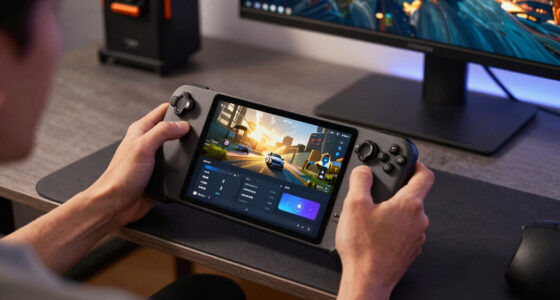
Steam Remote Play lets you run a game on your gaming PC and stream its video, audio, and controls to another device, such as a Steam Deck, laptop, phone, tablet, or TV. For beginners, the best home setup is a wired host PC plus a 5 GHz Wi-Fi or Ethernet client, with around 15-20 Mbps available for high-quality 1080p streaming.
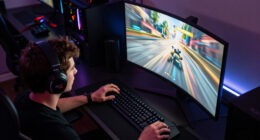
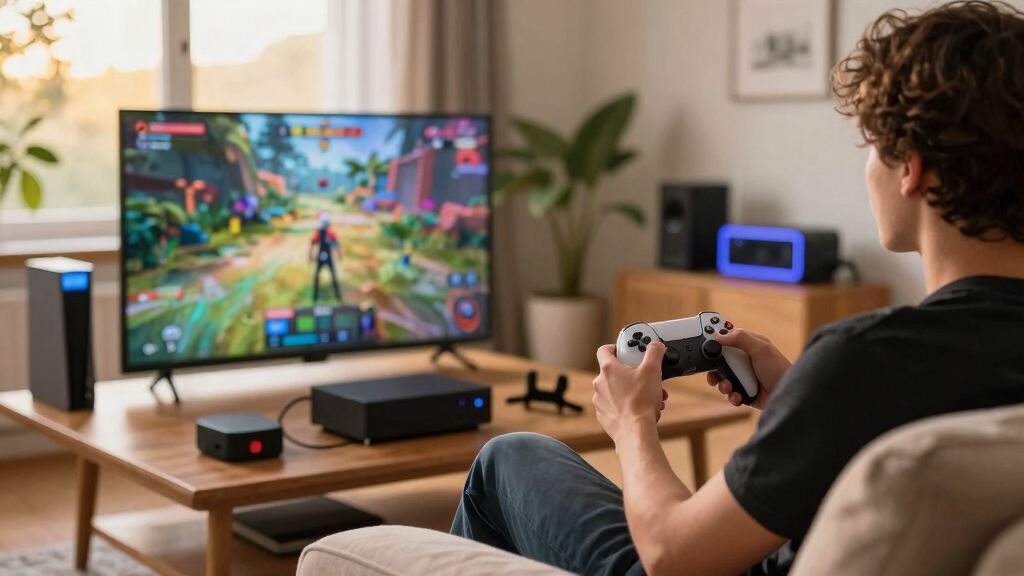
The first time you stream a PC game to the couch, it feels slightly illegal. Your tower hums in another room, the fan goes whoosh, and somehow your game appears on a handheld, laptop, or TV like it teleported through the walls.
That is the basic promise behind Steam Remote Play. You can keep your beefy gaming PC where it lives and play somewhere more comfortable: bed, sofa, kitchen table, spare monitor, or a Steam Deck balanced on a pillow.
This guide shows you what Steam Remote Play does, what gear you need, why lag happens, and how to make home streaming feel smooth enough that you stop thinking about the tech and start chasing the next checkpoint.
Home Streaming for Beginners
Steam Remote Play runs a game on your gaming PC, then streams the video, audio, and controls to a Steam Deck, laptop, phone, tablet, or TV. The beginner sweet spot is simple: wire the host PC, use 5 GHz Wi-Fi or Ethernet on the client, and keep about 15-20 Mbps available for sharp 1080p play.
The game renders on your gaming computer; the client only decodes the stream and sends inputs back.
High-quality home streaming is most realistic when the network path has clean bandwidth and low delay.
Set up the gaming PC first, then choose the screen you want to play on.
Mbps for high-quality 1080p streaming.
One cable removes a major Wi-Fi bottleneck.
Cleaner than crowded 2.4 GHz networks.
Fast action exposes input and display delay first.
Your PC cooks the game. Another screen serves it.
Think of the host PC as the kitchen and your Steam Deck, TV, or laptop as the dining table. The game stays on the powerful machine; the live stream travels across your home network.
Live game feed
The host PC renders the game and encodes a stream that your client device displays almost immediately.
Controls travel back
Controller, keyboard, mouse, and touch inputs are sent to the host PC, where the actual game reacts.
No gaming rig needed
Your client device mainly needs a stable connection, a readable screen, and enough decoding power.
Five steps from desk PC to couch session.
Start with a forgiving game, test movement and audio, then tighten the setup once you can see where the delay or stutter appears.
Update Steam
Sign in on the gaming PC that owns and runs the game.
Enable Remote Play
Turn it on in Steam settings on the host computer.
Connect client
Use Steam Deck, Steam Link app, laptop, phone, tablet, or TV.
Pair devices
Choose your host PC when the client finds it on the network.
Test feel
Check camera motion, menus, audio timing, and controller response.
Pick the screen you already like first.
Steam Remote Play works across computers, Steam Deck, mobile devices, and Steam Link app setups. The best beginner choice is usually the device with the strongest connection and most comfortable controls.
| Client device | Best use at home | Beginner score | Watch for |
|---|---|---|---|
| Steam Deck | ✓Handheld PC games from couch or bed | ✓Excellent starter | Battery drain, Wi-Fi signal, small game text |
| Laptop | ✓Desk-to-sofa play with keyboard and mouse | ~Strong if Wi-Fi is modern | Older Wi-Fi chips, background downloads |
| Phone or tablet | ~Short sessions and controller-friendly games | ~Great for casual play | Touch controls, Bluetooth delay, tiny UI text |
| Smart TV | ✓Big-screen couch play with a controller | ~Depends on app and game mode | TV latency, pairing, app availability |
Smooth streaming is mostly a network problem.
The host PC renders, encodes, sends video, receives inputs, and reacts. A great GPU cannot save a noisy wireless path if both devices are fighting through walls and downloads.
Bandwidth target
For high-quality 1080p, plan around 15-20 Mbps of clean local network capacity between the PC and client device.
Fix one link at a time.
Steam Remote Play lag can come from network delay, video encoding delay, display delay, or controller delay. The fastest beginner method is to change one variable, test, then move to the next.
- 01Wire the host PC. Ethernet usually fixes more than any quality preset.
- 02Use 5 GHz Wi-Fi. Keep the client close enough for a strong signal.
- 03Enable TV game mode. Big screens can add display delay.
- 04Lower resolution. Drop from 4K to 1080p, or 1080p to 720p.
- 05Pause downloads. Backups, updates, and 4K video can choke the stream.
Two similar names, two different party tricks.
Standard Remote Play is mainly for streaming your own library to another screen. Remote Play Together invites online friends into local multiplayer games as if they were sitting beside you.
Your game, another screen
Use this when you want to play a PC game from the sofa, bed, kitchen table, Steam Deck, laptop, or TV.
Local co-op online
Use this when a game supports local multiplayer and you want friends online to join without owning the game.
Key Takeaways
- Steam Remote Play runs the game on your gaming PC and streams video, audio, and controls to another device, so the client device does not need gaming-PC power.
- For most homes, the strongest starter setup is Ethernet for the host PC and 5 GHz Wi-Fi for the client, with about 15-20 Mbps available for high-quality 1080p streaming.
- Lag fixes work best in order: wire the host PC, use TV game mode, lower stream resolution, pause downloads, then test controllers.
- Remote Play Together is for online friends joining local multiplayer games, while standard Remote Play is mainly for you streaming your own library to another screen.
- Steam Deck streaming performance is separate from native Steam Deck performance and Verified status, so judge each play mode on its own.
As an affiliate, we earn on qualifying purchases.
What Steam Remote Play Actually Does For You
Steam Remote Play is Valve’s free game streaming feature that runs a Steam game on your main PC and sends the live video, sound, and controls to another device. According to Steam Support [1], the host computer plays the game while the client device sends your controller, keyboard, or touch input back.
Think of your gaming PC as the kitchen and your Steam Deck or laptop as the dining table. The meal gets cooked in one room, then carried hot to another. If the hallway is clear, everything arrives fast and neat; if the hallway is crowded, the plate rattles.
A simple home example: your desktop PC sits under your desk with an RTX-class GPU, but you want to play Stardew Valley on the living room TV. Steam Remote Play keeps the game running on the desktop and streams it to the TV through the Steam Link app. Click, tap, thump. Your inputs travel back to the PC.
The key idea: your client device does not need to be powerful enough to run the game. It only needs to decode the stream, send inputs, and stay connected.
high speed Wi-Fi router for gaming
As an affiliate, we earn on qualifying purchases.
As an affiliate, we earn on qualifying purchases.
How To Set Up Steam Remote Play At Home
- Install and update Steam on your gaming PC, then sign in to the Steam account that owns the game.
- Turn on Remote Play in Steam settings on the host PC.
- Connect your client device, such as a Steam Deck, laptop, phone, tablet, or TV with the Steam Link app.
- Pair the devices when Steam asks, then pick your host PC from the client device.
- Launch a game from the client and test movement, camera control, audio, and menu response.
Steam Remote Play Explained for Home Streaming Beginners starts with one friendly rule: set up the gaming PC first, then worry about the screen you want to play on. The host PC needs Steam open, Remote Play enabled, and enough power to run the game at the quality you want to stream.
On a Steam Deck, the flow feels clean. You open your Library, choose a game installed on your PC, and select the streaming option instead of installing it locally. On a phone or tablet, you use the Steam Link app, pair a controller, and let the app find your PC on the same network.
Do your first test with a forgiving game. A turn-based RPG, cozy farming game, or slower adventure gives you room to spot problems without losing a ranked match because your jump arrived half a blink late.
As an affiliate, we earn on qualifying purchases.
What Devices Work Best Before You Buy Anything
Steam Remote Play works on many screens, but the best beginner device is the one with a stable connection, a readable display, and controls you already like. Steam lists Remote Play support across computers, mobile devices, Steam Deck, and Steam Link app setups [1]. Performance claims vary by platform, app version, and network.
| Client device | Best use at home | Watch for |
|---|---|---|
| Steam Deck | Handheld PC games from the couch or bed | Battery drain, Wi-Fi signal strength, game text size |
| Laptop | Desk-to-sofa play with keyboard and mouse | Older Wi-Fi chips and background downloads |
| Phone or tablet | Short sessions, touch-friendly games, controller clips | Small text, touch controls, Bluetooth delay |
| Smart TV or streaming device | Big-screen couch play with a controller | TV game mode, app support, controller pairing |
Here is the practical version. If you already own a Steam Deck, start there. If you want couch play with friends, try a TV. If you travel from room to room with a laptop, use that before buying a new streaming box.
For age ratings, Steam Remote Play does not change the game content. If you stream an M-rated game to the living room TV, it is still the same M-rated game. Treat the client screen like a second doorway into the same library.
As an affiliate, we earn on qualifying purchases.
Why Your Network Matters More Than Your PC Specs
Steam Remote Play Explained for Home Streaming Beginners makes more sense when you see it as a live video call with your game. The host PC must render the game, encode a video stream, send it across your network, receive inputs, and react fast enough that your hands trust what your eyes see.
For high-quality 1080p streaming, plan for roughly 15-20 Mbps of clean bandwidth. That number does not mean your whole internet plan must be huge for home streaming. It means the path between your PC and client device should have room to breathe.
A wired Ethernet cable from your gaming PC to the router often fixes more problems than any fancy setting. It removes one Wi-Fi hop from the chain. You can almost hear the difference in a racing game: less stutter, fewer rubber-band turns, cleaner tire screech.
- Best beginner setup: host PC on Ethernet, client device on 5 GHz Wi-Fi.
- Good setup: both devices on strong 5 GHz Wi-Fi in the same room as the router.
- Rough setup: both devices on crowded 2.4 GHz Wi-Fi behind two walls and a microwave.
Try this quick test: stand near your client device and run a Steam stream while someone else starts a big download or 4K video. If the image turns blocky or your camera movement feels syrupy, your network is the bottleneck, not the game.
How To Cut Lag Without Guessing
- Wire the host PC to your router with Ethernet if you can.
- Use 5 GHz Wi-Fi on the client device instead of 2.4 GHz.
- Turn on game mode on your TV if you stream to a big screen.
- Lower the stream resolution from 4K to 1080p, or from 1080p to 720p if needed.
- Stop downloads and cloud backups during play.
- Test one change at a time so you know what helped.
Steam Remote Play lag usually comes from network delay, video encoding delay, display delay, or controller delay. You fix it fastest by changing one link in the chain at a time, starting with the host PC connection.
Say you stream Hades to a living room TV and your dash feels late. First, enable the TV’s game mode. If that helps, the TV was adding display delay. If it still feels slow, lower the streaming resolution and test again.
Fast competitive games are the hardest test. A single late input can ruin a parry or flick shot. Slower games are kinder, so your tolerance depends on what you play and how picky your hands are.
Do not judge your setup with one game only. Test a twitchy action game, a slower game, and a menu-heavy game before you decide Remote Play is broken.
When Remote Play Together Is The Better Party Trick
Remote Play Together lets you invite online friends into local multiplayer games that normally expect everyone to sit around the same screen. Steam says only the host needs to own and install the game for supported Remote Play Together sessions [2].
Imagine you own a couch co-op brawler and your friend lives across town. You launch it, invite them through Steam, and their controller input streams into your session. On their end, it feels like they plugged a controller into your PC from miles away.
This works best with games that already handle local multiplayer neatly. Party games, beat ’em ups, puzzle co-op, and split-screen racers can shine. Tiny text-heavy strategy games can feel cramped if your friend watches a compressed stream on a small laptop.
Mark friend-reported fixes, beta features, or leaked app behavior as unconfirmed unless Valve has published it. Gaming features shift over time, and a rumor from one Steam beta branch is not the same thing as a stable release note.
What Can Go Wrong And How You Spot It Fast
Steam Remote Play problems usually show up as blurry video, choppy sound, delayed controls, missing controller input, or a client device that cannot find the host PC. The symptom tells you where to look first, which saves you from poking random settings for an hour.
| What you see | Likely cause | First fix to try |
|---|---|---|
| Image turns blocky during movement | Bandwidth drop or weak Wi-Fi | Move closer to router or lower stream quality |
| Controls feel late | Network, TV, or Bluetooth delay | Use Ethernet, TV game mode, or wired controller |
| Audio crackles | Network jitter or overloaded host | Pause downloads and lower streaming bitrate |
| Client cannot find host | Steam offline, wrong account, firewall, separate networks | Open Steam on host and check both devices are on the same network |
A real beginner trap: guest Wi-Fi. Your phone may sit on the guest network while your PC sits on the main one, so the devices act like neighbors who cannot see each other’s front doors. Put both devices on the same network for the first setup.
Firewalls can also block discovery or streaming. If Steam worked yesterday and fails today after a security update, check whether your firewall asked for a new permission and you clicked past it too quickly.
When Internet Streaming Makes Sense And When It Hurts
Steam Remote Play can work outside your home, but local home streaming is the beginner-friendly version because the signal stays inside your own network. Internet streaming adds more distance, more routers, and more chances for lag to creep in.
Remote Play Anywhere is useful when you have a strong upload connection at home and a solid download connection where you are playing. A hotel Wi-Fi network with a splash login page and evening congestion may turn your clean game feed into a crunchy slideshow.
Security also matters more outside the house. Port forwarding can help some remote setups, but it opens a path into your home network if you set it up carelessly. Use Steam’s official guidance, keep Steam updated, and avoid forwarding ports you do not understand.
For beginners, build confidence at home first. Once your couch setup feels good, test a simple internet session from a trusted network. Start with a slow game, not a high-stakes raid night.
The Games That Feel Best Over Remote Play
The best Steam Remote Play games are forgiving, readable on the client screen, and light on split-second timing. You want games where a tiny delay does not punish you every five seconds.
- Great fits: turn-based RPGs, tactics games, farming sims, visual novels, platformers with gentle timing, and many couch co-op games.
- Good but setup-sensitive: racing games, action RPGs, third-person adventures, and sports games.
- Hardest fits: competitive shooters, rhythm games, precision fighters, and anything that depends on frame-perfect inputs.
Text size matters more than people expect. A grand strategy game may stream beautifully to a 55-inch TV, then feel like reading a receipt through a rain-streaked window on a phone. Try the game on your target screen before planning a long session.
Steam Deck adds one more detail: do not confuse Remote Play quality with native Steam Deck performance or Steam Deck Verified status. A game can stream well from your PC even if it would run poorly or have a different verification status when installed directly on the Deck.
A Beginner Setup That Works For Most Homes
A reliable first Steam Remote Play setup uses a gaming PC wired to the router, a client device on strong 5 GHz Wi-Fi, a controller with low delay, and stream quality set to 1080p before you chase higher resolutions. That gives you a stable baseline.
Here is a normal Saturday-night setup. Your PC sits in the office on Ethernet. Your Steam Deck connects to the 5 GHz network in the living room. You stream a 60 fps action-adventure at 1080p, leave downloads paused, and keep the Deck within two rooms of the router.
If that feels smooth, then experiment. Try higher quality, a TV, Bluetooth headphones, or a more demanding game. If it breaks, return to the baseline like putting a recipe back to salt, heat, and time.
Your first goal is not perfect 4K. Your first goal is a stream that feels steady enough that you forget the PC is in another room.
Frequently Asked Questions
Is Steam Remote Play free?
Yes. Steam Remote Play is a free feature built into Steam, and the Steam Link app is free on supported platforms. You still need to own or have access to the game you want to play, except in supported Remote Play Together sessions where the host runs the game.
Do I need fast internet for Steam Remote Play at home?
For home streaming, your local network matters more than your internet plan. A wired host PC and strong 5 GHz Wi-Fi client can feel smooth even if your broadband speed is not flashy, because the stream usually stays inside your home.
Can I use Steam Remote Play on Steam Deck?
Yes. Steam Deck can act as a Remote Play client for games running on your gaming PC. Judge streamed performance separately from native Steam Deck performance, because Steam Deck Verified status and local frame rate do not tell you how well your home network will stream.
Why does my stream look blurry even though the game runs fine on my PC?
Blurry video usually points to bandwidth drops, weak Wi-Fi, or a stream bitrate that is too low. Move closer to the router, use 5 GHz Wi-Fi, pause downloads, or lower the resolution to keep the image stable.
Is Steam Remote Play good for competitive games?
It can work, but competitive shooters, rhythm games, and precision fighters expose even small delays. For ranked or timing-heavy play, use a wired setup, test carefully, and expect local play on the host PC to feel sharper.
Conclusion
Remember this: Steam Remote Play is only as good as the path between your gaming PC and the screen in your hands. Start simple, wire the PC, use strong 5 GHz Wi-Fi, and test with a forgiving game before you ask it to handle frame-perfect chaos.
Get that baseline right, and your desk PC becomes the quiet engine behind the house. The game stays hot, the couch gets comfortable, and the next button press lands when you expect it.
Fall Picks
fall essentials
As an affiliate, we earn on qualifying purchases.