
TL;DR

Play games on Amazon Luna for your game nights, included with Prime
- A rotating selection of games, no download needed
- Play on TV, laptop or phone
- Fast, free delivery for your gear, too
USB-C DisplayPort Alt Mode lets both Steam Deck LCD and Steam Deck OLED send native DisplayPort 1.4 video through their single USB-C port. You can connect directly to a DisplayPort monitor or use a compatible monitor, adapter, hub, or dock, but resolution, refresh rate, HDR, VRR, USB speed, and charging all depend on the full connection chain.
Your Steam Deck can push a desktop onto a sharp 4K monitor, drive a living-room television, or feed a high-refresh gaming display through the same small port used for charging. That trick comes from DisplayPort Alt Mode, not Thunderbolt, a hidden graphics adapter, or special streaming software.
The connector looks simple, but the shopping aisle is a thicket of nearly identical black cables. One carries video and 45 W charging; another only charges; a third reaches the monitor but traps you at 4K 30 Hz. USB-C describes the plug’s shape, while the features inside can differ like two houses with identical front doors and completely different wiring.
This guide explains what Steam Deck owners need to know before connecting an external screen. You will see how DisplayPort lanes share bandwidth, why a direct cable often beats a crowded hub, when 1080p or 1440p makes more sense than 4K, and how to diagnose a blank or flickering display without swapping random settings for an hour.
Use a direct USB-C-to-DisplayPort cable when you only need video; it removes dock and HDMI-conversion variables but usually does not charge the Deck.
Treat 4K 120 Hz and 8K 60 Hz as interface limits, while targeting 1080p or upscaled 1440p for many demanding games.
Choose a powered dock or USB-C monitor that delivers close to 45 W of usable USB-PD power if you want the battery to hold its level during play.
Check whether a dock uses two or four DisplayPort lanes because that choice can affect both maximum display modes and USB peripheral speed.
Troubleshoot at 1080p 60 Hz with HDR, VRR, and peripherals disabled, then restore features one at a time.
USB-C DisplayPort Alt Mode Explained
One compact port can send native DisplayPort 1.4 video, USB data, and charging power. The result depends on every link between your Steam Deck and the screen—not merely the shape of the connector.
Same connector, different capabilities
USB-C describes the physical plug. DisplayPort Alt Mode is the capability that carries native video. A cable or socket without explicit video support can look identical and still produce a blank screen.
USB-C
The reversible plug used by the Steam Deck. Its appearance alone reveals nothing about video, data speed, or charging support.
DisplayPort Alt Mode
The Deck’s hardware sends DisplayPort 1.4 through USB-C. No streaming software, hidden graphics adapter, or video-compression application is required.
USB-PD + USB 3.2
The same port can negotiate charging and move peripheral data. Docks divide the available connection according to their internal design.
The complete connection chain matters
A display mode succeeds only when the Deck, adapter or dock, cable, and screen agree on bandwidth and features such as Display Stream Compression, HDR, and variable refresh rate.
Video and USB share the highway
Two docks can both advertise DisplayPort 1.4 yet deliver different results. Their internal lane allocation determines how much capacity goes to the screen and how much remains for fast USB peripherals.
Four high-speed lanes
With two lanes assigned to DisplayPort, high-speed USB can remain available. With all four assigned to video, display bandwidth rises while attached USB devices may fall back to USB 2.0.
DSC can fit more display data into the link, but every component must negotiate it correctly.
Match the connection to the setup
A direct cable minimizes variables. A USB-C monitor can combine video and charging. An HDMI adapter suits televisions, while a powered dock earns its place when peripherals and networking matter.
| Connection | Video simplicity | Charging | Peripherals | Best use | Key caution |
|---|---|---|---|---|---|
| USB-C to DisplayPort | ✓ Best | ✗ Usually no | ✗ No | Gaming monitor | Battery continues to drain |
| USB-C monitor | ✓ Direct | ~ Model-dependent | ~ Sometimes | One-cable desk | Confirm Alt Mode and USB-PD wattage |
| USB-C to HDMI | ~ Converted | ✗ Usually no | ✗ No | Living-room television | Converter may limit HDR, VRR, or refresh rate |
| Powered dock | ~ More variables | ✓ Yes | ✓ Multiple | Full desktop station | Check lane design, firmware, and usable power |
Interface ceiling is not a gaming target
The Deck can transmit ambitious display modes, but its GPU was designed around a 1280 × 800 handheld screen. External rendering resolution determines the real workload.
Practical gaming suitability
Relative guidance for demanding games, assuming sensible settings or upscaling.
4K at 120 Hz and 8K at 60 Hz describe what the DisplayPort interface may transmit—not what demanding games will render at those frame rates.
Fix a blank, slow, or flickering display
Start with the simplest stable mode, remove optional features, and rebuild the connection one variable at a time. This isolates the weak link without random setting changes.
Verify video support
Check that the cable, adapter, and monitor input explicitly support DisplayPort Alt Mode.
Use 1080p at 60 Hz
Choose a conservative resolution and refresh rate before testing higher modes.
Disable extras
Turn off HDR and VRR, then disconnect USB drives, capture devices, and other peripherals.
Try a direct route
Connect USB-C directly to DisplayPort when possible to bypass dock and HDMI conversion variables.
Add features slowly
Raise resolution, refresh rate, HDR, VRR, and peripherals one at a time until the limit appears.
Understand What the USB-C Port Can Actually Send
USB-C DisplayPort Alt Mode Explained for Steam Deck Owners starts with one clear fact: DisplayPort Alternate Mode—usually called DisplayPort Alt Mode—allows a USB-C connection to carry a native DisplayPort video signal. Both Steam Deck LCD and Steam Deck OLED support DisplayPort 1.4 Alt Mode alongside USB 3.2 Gen 2 data and USB Power Delivery.
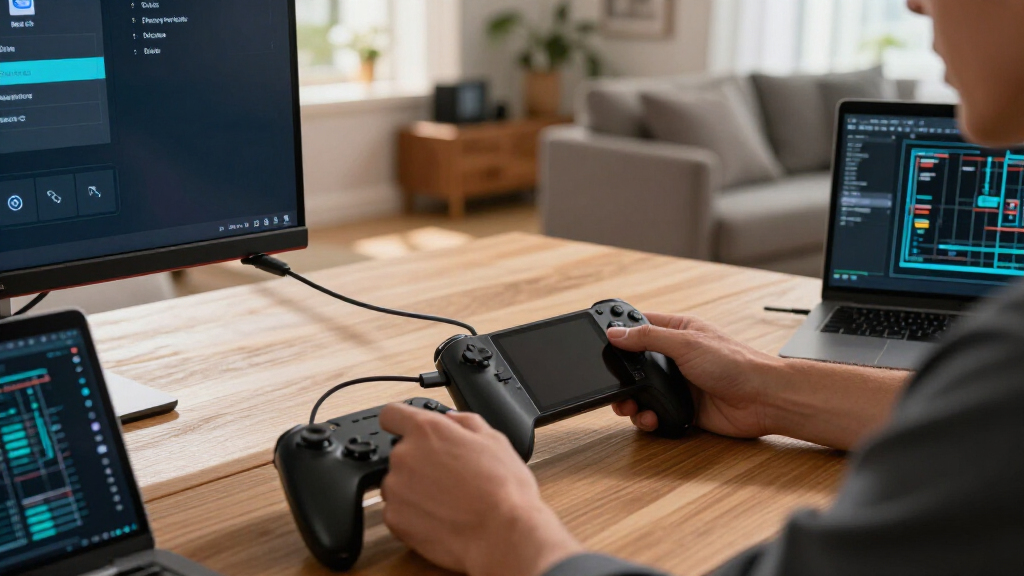
The Deck’s hardware produces that display signal directly, so you do not need a dock, video-compression app, or USB graphics adapter. A USB-C-to-DisplayPort cable can run straight from the Deck to a monitor, while an active HDMI adapter converts the same signal for a television. The port carries pixels and power expectations at once—a small example of zeugma hiding inside your cable bag.
Valve lists theoretical output modes as high as 4K at 120 Hz or 8K at 60 Hz, depending on bandwidth, the display, the adapter, and Display Stream Compression support [1]. Those numbers describe what the interface can transmit. They do not promise that a modern game will render detailed 4K scenes at 120 frames per second.
Imagine connecting the Deck to a 4K office monitor on Monday and a 1080p television on Friday. The first setup may give you razor-edged text for Desktop Mode, while the second lets a demanding game hold a steadier frame rate. The same DisplayPort 1.4 output serves both jobs; your chosen rendering resolution changes the workload.
USB-C is the connector. DisplayPort Alt Mode is the video capability. A USB-C socket or cable without explicit video support may produce nothing but a dark screen.
USB-C to DisplayPort cable for Steam Deck
As an affiliate, we earn on qualifying purchases.
As an affiliate, we earn on qualifying purchases.
See Why Two Similar Docks Can Deliver Different Results
USB-C DisplayPort Alt Mode Explained for Steam Deck Owners becomes easier when you treat the cable like a highway. The USB-C link contains high-speed lanes, and a dock can give two or four of them to video. That choice controls how much display bandwidth remains and how quickly attached USB devices can move data.
With two DisplayPort lanes, the dock can keep lanes available for USB 3.x devices such as an SSD or capture device. With four DisplayPort lanes, video gets more road space, but USB peripherals may fall back to USB 2.0 speed. The dock quietly directs traffic, and sometimes it waves your external drive into the slow lane.
| Lane setup | Display benefit | USB tradeoff | Useful example |
|---|---|---|---|
| Two DP lanes | Moderate display bandwidth | High-speed USB can remain available | 1080p gaming with a fast external SSD |
| Four DP lanes | More bandwidth for resolution or refresh rate | Some ports may run at USB 2.0 speed | High-refresh monitor with a keyboard and mouse |
| DSC-enabled link | Greater effective display capacity | Every device must negotiate DSC correctly | High-resolution, high-refresh output through compatible hardware |
Display Stream Compression, or DSC, packs the video stream more efficiently with visually lossless compression. Think of it like folding shirts neatly into a suitcase: the contents remain recognizable, but more fits inside. The Deck, dock, cable, and monitor must all agree on the required mode, or the ambitious setting may disappear from your display menu.
Suppose two docks both advertise DisplayPort 1.4. One may deliver 4K 60 Hz while keeping fast USB data, while another reaches a higher display mode only after dropping attached devices to USB 2.0. The printed DisplayPort version tells you the protocol, not the dock’s exact lane allocation or converter limits.
USB-C docking station with DisplayPort for Steam Deck
As an affiliate, we earn on qualifying purchases.
As an affiliate, we earn on qualifying purchases.
Pick the Connection That Fits Your Desk or Television
USB-C DisplayPort Alt Mode Explained for Steam Deck Owners leads to a practical choice: use a direct DisplayPort cable for the cleanest monitor connection, a USB-C monitor for video plus charging, an HDMI adapter for most televisions, or a powered dock when you also need peripherals, Ethernet, and audio.
A direct USB-C-to-DisplayPort connection avoids the HDMI conversion chip and much of a multifunction dock’s complexity. For example, if your gaming monitor has DisplayPort and you only use a Bluetooth controller, one cable can give you a stable image with fewer points of failure. It usually will not charge the Deck, so the battery clock keeps ticking.
A compatible USB-C monitor can send power in the opposite direction while receiving video. Check that its input explicitly supports DisplayPort Alt Mode and inspect its USB-PD output. A monitor supplying only 15 W may show a beautiful image while the battery drains during a heavy game, like filling a bathtub through a drinking straw while the plug sits open.
For a television, a USB-C-to-HDMI adapter converts the Deck’s DisplayPort signal. An HDMI 2.1 label alone does not promise every HDMI 2.1 feature because the converter chipset, firmware, DisplayPort input, and lane layout still set boundaries. You could get 4K output yet lose a desired refresh rate, HDR mode, or variable refresh rate.
A dock earns its space when your setup includes 45 W-class charging, a keyboard, controller receiver, Ethernet cable, and external display. Valve’s official Docking Station includes DisplayPort 1.4, HDMI 2.0, USB ports, Ethernet, and power passthrough [2]. Third-party models can work well, but their stated input wattage may differ from the power that actually reaches your Deck.
As an affiliate, we earn on qualifying purchases.
Choose Resolution and Refresh Rate Your Games Can Use
USB-C DisplayPort Alt Mode Explained for Steam Deck Owners does not turn an interface limit into free GPU performance. The Deck can send a 4K or high-refresh signal, yet most demanding games play better when rendered at 1080p, 900p, or a lower internal resolution and then scaled to the monitor.
The handheld was designed around a 1280×800 screen. Moving from 1280×800 to 1920×1080 more than doubles the pixel count, while native 3840×2160 asks the GPU to shade over six times as many pixels. That leap is like asking a bicycle courier to cover six neighborhoods in the time once used for one.
- 1080p: A sensible external target for many games, especially with medium or reduced settings.
- 1440p: A good fit for older games, lightweight titles, strategy games, and upscaled rendering.
- 4K: Excellent for Desktop Mode, video playback, retro emulation, and less demanding games.
- 120 Hz output: Useful for a fluid desktop and light games, even when a large 3D game cannot render 120 fps.
For a concrete example, you might connect a 4K 120 Hz television and run a modern action game internally at 1280×720 with FSR, targeting 30 or 40 fps. The television still receives a high-resolution output image, but the game performs the heavy rendering at a lower resolution. Menus look clean, motion stays steadier, and the cooling fan has less reason to howl.
Resolution support can also vary with SteamOS versions, game settings, and connection hardware. In Gaming Mode, open the game’s Steam properties if the title does not expose the external screen’s desired resolution, then select that resolution inside the game. Performance claims in this guide apply to Steam Deck LCD and OLED; individual game updates can change results.
USB-C hub with DisplayPort and charging for Steam Deck
As an affiliate, we earn on qualifying purchases.
As an affiliate, we earn on qualifying purchases.
Keep HDR, VRR, and Charging From Breaking the Setup
HDR, variable refresh rate, and charging can work together on Steam Deck, but each feature needs support across the complete chain. Your display, cable, adapter or dock, selected mode, and current SteamOS release must negotiate compatible settings. One weak link can remove a menu option or cause a blinking screen.
Later SteamOS releases expanded external HDR and VRR support in Gaming Mode. Both Deck generations can output HDR to a compatible external display, even though the original LCD model’s built-in screen does not display HDR. Software behavior can change after SteamOS updates, so treat old compatibility reports as snapshots rather than permanent promises.
DisplayPort Adaptive-Sync usually gives you the clearest route to VRR because it stays closer to the Deck’s native DisplayPort signal. HDMI VRR travels through a conversion chip and can be less predictable. For example, a monitor may offer smooth 40-to-60 Hz VRR over DisplayPort while the same dock’s HDMI port exposes only fixed refresh rates.
Charging introduces another negotiation. The supplied Deck charger provides 45 W USB Power Delivery, so a monitor or dock should deliver roughly comparable usable power for gaming. A dock marked 100 W may reserve some power for its electronics and accessories, while the Deck draws only the USB-PD profile it supports; a standards-compliant higher-rated charger does not force excess power into the device.
Imagine running a game, Ethernet, an SSD, and two wired controllers through one dock. Those accessories sip from the same power budget, so a weak charger may let the Deck’s battery slide from 80 percent to 74 percent despite the charging icon. Check the dock’s actual host output, not merely its advertised passthrough input.
If HDR causes flicker or VRR disappears, test DisplayPort instead of HDMI, lower the refresh rate, and disable one advanced feature at a time. That simple test shows whether you face a bandwidth limit or conversion problem.
Fix a Blank, Slow, or Flickering Display in Five Steps
- Confirm video support: Check that the cable and monitor input explicitly support DisplayPort Alt Mode.
- Simplify the chain: Disconnect USB devices and dock power, then connect video first.
- Lower the display load: Try 1080p at 60 Hz with HDR and VRR disabled.
- Restore devices gradually: Reconnect power, storage, Ethernet, and controllers one at a time.
- Update and retest: Install available SteamOS and dock firmware updates, then try another known-good cable or input.
Most Steam Deck display failures come from a cable without video support, a monitor input lacking Alt Mode, a limited adapter, or a failed display handshake. Starting with a plain 1080p 60 Hz connection removes bandwidth pressure and gives you a stable baseline before you restore higher refresh rates, HDR, and peripherals.
If the monitor shows no signal, verify its selected input and reconnect the devices in a different order. Display handshakes can get stubborn, like two people waiting for the other to speak first. Removing dock power and peripherals, attaching video, and then restoring power often forces a clean negotiation.
A Deck stuck at 4K 30 Hz points toward the dock chipset, HDMI adapter, cable, monitor input, or USB lane layout. Try a direct USB-C-to-DisplayPort cable. If 4K 60 Hz suddenly appears, the Deck was capable all along and the removed component was narrowing the pipe.
Flicker and brief blackouts often signal a marginal high-bandwidth link, excessive cable length, dock heat, or an unstable HDR and refresh-rate combination. Lower the refresh rate or color depth, then touch the dock carefully to check for unusual heat. A short, video-rated cable can turn a snowstorm of sparkling pixels into a clean, still image.
If a television looks washed out or crops the edges, inspect its RGB range, overscan, aspect ratio, and PC mode. HDMI conversion can create a full-versus-limited RGB mismatch. A black loading screen should look ink-dark, not like gray fog spread across the glass.
Check These Details Before You Buy a Cable or Dock
Steam Deck owners need to verify capabilities, not connector shape, before buying display hardware. Look for explicit DisplayPort Alt Mode support, the exact resolution and refresh-rate combination, usable USB-PD output near 45 W, and feature claims that match SteamOS rather than only Windows or macOS testing.
- Video mode: Confirm the exact resolution and refresh rate you plan to use, such as 1440p 120 Hz or 4K 60 Hz.
- Power delivery: Check how much power reaches the host after the dock powers itself and attached devices.
- HDR and VRR: Look for tested support through the specific DisplayPort or HDMI output you will use.
- USB bandwidth: Find out whether high display modes reduce USB ports to USB 2.0 speed.
- Multiple monitors: Verify MST support and the exact resolution combination, not a vague dual-display claim.
- Firmware: Prefer hardware with an available update path and documented SteamOS compatibility.
A common shopping mistake is buying a cheap charging cable because both ends fit. Some USB-C cables carry only power and USB 2.0 data, so the monitor stays black. Choose a cable explicitly rated for video or DisplayPort Alternate Mode, keep high-bandwidth runs reasonably short, and verify its charging rating when one cable must handle both jobs.
For two monitors, seek a dock or hub with DisplayPort Multi-Stream Transport. MST shares the available bandwidth, so two 1440p displays do not each receive the full link as if connected alone. A dual-monitor office setup makes sense in Desktop Mode, but adding the second panel may force lower refresh rates on both.
If you search for what Steam Deck owners need to know about USB-C DisplayPort Alt, remember the blunt answer: the plug tells you almost nothing by itself. A well-documented 65 W dock with tested 4K 60 Hz output can serve you better than a glossy 100 W model whose specifications hide the host power, lane arrangement, and HDMI converter limits.
Frequently Asked Questions
Does every USB-C dock work with Steam Deck?
No, USB-C shape alone is not enough. The dock must support DisplayPort Alt Mode video, and it should support USB Power Delivery if you want charging. Compatible docks can still differ in refresh rate, HDR, VRR, Ethernet performance, firmware quality, and USB speed.
Can Steam Deck output 4K at 120 Hz?
The Deck’s DisplayPort 1.4 interface can theoretically support 4K at 120 Hz when the display chain and DSC negotiation allow it [1]. That signal capability does not mean a demanding game will render at 4K and 120 fps; lower internal resolution, upscaling, or lighter games make far more practical use of the mode.
Is DisplayPort better than HDMI for Steam Deck?
DisplayPort is often simpler because it preserves the Deck’s native video protocol without an HDMI conversion stage. HDMI remains convenient for televisions, but HDR, VRR, refresh rate, and color output depend on the adapter or dock’s converter chipset and firmware.
Can one USB-C cable provide video and charge the Deck?
Yes, a compatible USB-C monitor or powered dock can carry video and return USB-PD power through one cable. A plain USB-C-to-DisplayPort cable usually provides video only, so check the product description and the monitor’s power output before relying on a one-cable desk setup.
Does Steam Deck support Thunderbolt docks or external GPUs?
Steam Deck does not support Thunderbolt or USB4 PCIe tunneling, so conventional Thunderbolt eGPU enclosures do not work through its USB-C port. A Thunderbolt dock may still provide basic video, USB, or charging if it includes a separate USB-C DisplayPort Alt Mode fallback.
Why does the Steam Deck battery drain while docked?
The charger, cable, or dock may provide less than the Deck and its peripherals consume. The supplied charger offers 45 W USB Power Delivery, while some docks advertise maximum input rather than actual power delivered to the host. Disconnect power-hungry accessories or try a standards-compliant charger and cable with adequate USB-PD ratings.
Conclusion
The crisp takeaway is simple: USB-C shape does not guarantee USB-C capability. Match the Deck’s DisplayPort 1.4 Alt Mode with a video-rated cable, a documented adapter or dock, enough USB-PD power, and a display mode your game can render comfortably. Start with the shortest, simplest connection that meets your needs.
When the setup works, the little handheld can wake a broad desktop monitor, a fast gaming panel, or a glowing living-room television with one compact plug. Choose that plug by its tested features, not its shiny shell, and your screen should light up without the usual drawer full of mystery cables.
Fall Picks
fall essentials
As an affiliate, we earn on qualifying purchases.