
TL;DR
This is a practical overview of how the Steam Deck handles external keyboards and mice: USB devices work through its single USB-C port with a hub or dock, while Bluetooth devices pair through SteamOS. Wired setups are best for latency-sensitive play, Bluetooth is cleaner for couch use, and advanced gaming features like RGB apps or vendor macros may need Linux-friendly support.
The weirdest Steam Deck upgrade is not a faster SSD or a bigger screen. It is the moment you plug in a cheap office keyboard, hear the soft clack of keys, and watch the Deck become a pocket-sized desktop PC.
This guide gives you a practical overview of how Steam Deck handles external keyboards and mice, what works right away, and where the rough edges still live. You will learn which connection type fits your setup, how Game Mode and Desktop Mode behave, and why a powered dock can save you from cable spaghetti.
How Steam Deck Handles External Keyboards and Mice
Steam Deck treats standard USB and Bluetooth keyboards and mice like normal PC input. Use a dock or hub for wired desk play, pair Bluetooth devices for couch control, and remember that advanced RGB apps or vendor macro tools may need Linux-friendly support.
The Deck becomes a tiny desktop the moment the cursor moves.
USB-C handles hubs, docks, displays, charging, and receivers. SteamOS handles the input layer. The game decides how graceful keyboard and mouse support feels.
Pick the route that matches where you play.
Steam Deck can behave like a handheld, a couch browsing device, or a docked mini PC. The input method should follow the room, the game, and how much cable clutter you can tolerate.
Best for desk gaming and typing.
Plug the keyboard and mouse into a USB-C hub or dock. Add power and a monitor when one cable needs to run the whole desk.
Best for tidy couch control.
Pair devices in SteamOS settings. It is clean, portable, and ideal for chat, browsing, launchers, and slower games.
Best middle ground for mice.
Use the receiver through a dock or hub. It can feel closer to wired input, as long as the receiver behaves well under Linux.
Connection comparison
| Connection | Best Use | What You Need | Latency Feel | Tradeoff |
|---|---|---|---|---|
| USB through hub or dock | Desk gaming, typing, low-lag mouse use | USB-C hub or powered dock | ✓ Crispest | More cables on the table |
| Bluetooth | Couch browsing, chat, slower games | Bluetooth keyboard or mouse | ~ Fine for most use | Battery checks and pairing hiccups |
| 2.4 GHz dongle | Gaming mice and compact keyboards | USB receiver in a hub or dock | ✓ Often strong | Receiver must play nicely with Linux |
| Official or third-party dock | Monitor, power, keyboard, mouse, Ethernet | Dock connected to the Deck USB-C port | ✓ Desk-ready | Less portable, more desk gear |
| Vendor software features | RGB, macros, profile editors | Linux support or onboard memory | ✗ Not guaranteed | Windows-only apps may do nothing |
Connect first, launch the game second.
A simple order prevents most confusion. Get the devices recognized by SteamOS, test typing and pointer movement, then open the game so it can detect the input cleanly at startup.
Dock or pair
Connect the hub first, or put Bluetooth devices into pairing mode from SteamOS settings.
Plug inputs
Add the keyboard, mouse, receiver, and power. One USB-C port gets crowded quickly.
Test basics
Open Steam search, type a few letters, and move the cursor across the interface.
Use Desktop Mode
Adjust layouts, manage files, browse, rename screenshots, or handle desktop apps.
Launch game
Start the title after input is live so menus and prompts have the best chance to behave.
What feels great, and what still feels rough.
Keyboard and mouse shine in PC-native genres. The rough edges usually appear in launchers, controller-first menus, Bluetooth stability, and specialty peripheral software.
Latency comfort spectrum
Bluetooth is usually comfortable for navigation, chat, and slower play. For latency-sensitive games, wired USB or a reliable 2.4 GHz receiver is the safer choice.
The weak spots are rarely basic typing.
Standard input is the easy part. The friction tends to live around power budgets, dock quality, Bluetooth behavior, game-specific menus, and Windows-only peripheral utilities.
Buy for standard input first.
A keyboard that types and a mouse that stores DPI onboard will be easier to live with than gear that depends on a Windows control app.
Deck Verified is not a mouse promise.
Compatibility ratings focus on handheld play, launchers, readable text, controller support, resolution, and Proton behavior, not perfect keyboard prompts.
Powered docks reduce drama.
When a monitor, storage drive, keyboard, mouse, and charger all meet at one USB-C port, external power keeps the setup calmer.
Desktop Mode is the serious mode.
With KDE Plasma, a keyboard and mouse turn the Deck into a compact Linux workstation for files, browsers, chat apps, and maintenance.
Traceability chain
The practical path is simple: choose the connection, confirm SteamOS sees the device, check the game’s input behavior, then decide whether the desk setup deserves a powered dock.
Key Takeaways
- Steam Deck treats standard USB and Bluetooth keyboards and mice like normal PC input, because SteamOS is a Linux-based PC operating system.
- A powered USB-C hub or dock is the cleanest way to use wired keyboard, wired mouse, charging, and external display at the same time.
- Bluetooth is tidy for couch use and typing, while wired or 2.4 GHz mouse input is the safer choice for latency-sensitive games.
- Deck Verified ratings focus on handheld compatibility, not a promise that every game will feel perfect with keyboard and mouse.
- RGB, macros, and vendor software are the usual weak spots; peripherals with onboard profiles are easier to live with on Steam Deck.
As an affiliate, we earn on qualifying purchases.
You Can Treat the Deck Like a Tiny Linux PC
How Steam Deck Handles External Keyboards and Mice is mostly plug-and-play: SteamOS treats standard USB and Bluetooth input devices like normal PC gear. You connect them, the cursor moves, the keys type, and the Deck suddenly feels like a lunchbox-sized desktop instead of a handheld console.
According to Valve’s current Steam Deck tech specs, the OLED model includes Bluetooth 5.3 for controllers, accessories, and audio, plus USB3 Gen 2 external connectivity over USB-C [1]. The same specs list SteamOS 3 as Arch-based, with KDE Plasma in Desktop Mode [1].
The plain version: your keyboard is not doing anything magical. The Deck is a Linux PC in a game-console jacket. A basic Logitech, Keychron, Razer, Corsair, or office keyboard usually behaves like a keyboard because SteamOS already knows that language.
As an affiliate, we earn on qualifying purchases.
Wired, Bluetooth, or Dongle: Pick the Setup That Fits Your Desk
How Steam Deck Handles External Keyboards and Mice depends on the route you choose: wired USB through a hub, Bluetooth pairing, or a 2.4 GHz dongle in a dock. Wired feels crispest, Bluetooth feels cleanest, and dongles split the difference if Linux recognizes the receiver.
| Connection | Best use | What you need | Tradeoff |
|---|---|---|---|
| USB through hub or dock | Desk gaming, typing, low-lag mouse use | USB-C hub or dock, ideally powered | More cables on the table |
| Bluetooth | Couch browsing, chat, slower games | Bluetooth keyboard or mouse paired in Settings | Battery checks and rare pairing hiccups |
| 2.4 GHz wireless dongle | Gaming mice and compact keyboards | USB receiver in a hub or dock | Receiver must play nicely with Linux |
| Official or third-party dock | Monitor, power, keyboard, mouse, and Ethernet setups | Dock connected to the Deck’s USB-C port | Less portable, more desk gear |
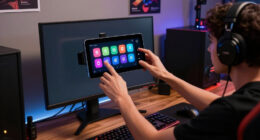
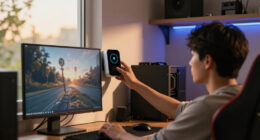
Valve says its Docking Station is built for keyboard and mouse desk work and also notes that third-party hubs and docks can work too [2]. For a real desk setup, imagine the Deck upright under your monitor, a mousepad beside it, and one USB-C cable feeding power, display, and input like a tiny command center.
As an affiliate, we earn on qualifying purchases.
Connect Everything in About Five Minutes
How Steam Deck Handles External Keyboards and Mice is easiest when you set up the connection before launching a game. Pair Bluetooth devices from Settings, or plug wired devices into a powered USB-C hub. If you are sitting at a desk, connect power too; one port gets crowded fast.
- Connect your hub or dock first if you are using wired USB devices.
- Plug in the keyboard and mouse, then test the cursor and a few keys in SteamOS.
- For Bluetooth, open Settings, choose Bluetooth, put the device in pairing mode, and select it when it appears.
- Switch to Desktop Mode if you need keyboard layout settings, desktop apps, browser work, or file management.
- Launch the game after the devices work, because some games detect input more cleanly at startup.
A simple test saves time: open the Steam search field and type a few letters. If the search box fills like a normal PC, your keyboard is alive. If the pointer glides across the screen without stutter, your mouse is ready for the real test.
As an affiliate, we earn on qualifying purchases.
What Gaming Feels Like Once the Mouse Hits the Pad
Keyboard and mouse play on Steam Deck works best when the game already expects PC-style input, such as strategy, management, builders, shooters, MMOs, or old PC ports. The Deck can pass those inputs along, but each game still decides how menus, launchers, and button prompts behave.
Valve’s Deck Verified rules focus on controller support, readable text, default resolution, launchers, and Proton support [4]. A Verified badge is good news for handheld play, but it does not promise perfect mouse-and-keyboard behavior. A game can feel excellent with thumbsticks and still be awkward with a mouse in one menu.
Think of a city builder on an external monitor: the mouse picks tiny roads and menus with needlepoint precision, while the keyboard handles hotkeys. Now contrast that with a console-first action game that keeps showing controller icons. Both may run, but only one feels like it was waiting for your keyboard.
Valve also says compatibility ratings can change as game updates and Deck improvements arrive [4]. If a patch changes launcher behavior or input prompts, check the game’s Steam Deck compatibility notes again before you assume your hardware broke.
Desktop Mode Is Where the Setup Starts to Feel Serious
Desktop Mode is where an external keyboard and mouse turn the Steam Deck from a game device into a small Linux computer. Valve lists SteamOS 3 as Arch-based with KDE Plasma for Desktop Mode [1], so the experience feels closer to a compact laptop than a locked-down console.
This is where the setup gets practical. You can type passwords without pecking at the touchscreen, drag files from a microSD card, rename screenshots, browse a guide, manage cloud saves, or use a chat app while the Deck rests in its dock.
A mouse also makes tiny desktop icons less slippery. Without one, tapping the system tray can feel like trying to pick up a wet bar of soap. With one, Bluetooth settings, browser tabs, and file windows behave the way your hands expect.
If you use an external display, the docked Deck can feel like a quiet little workstation. Valve’s Dock page describes keyboard and mouse work at a desk and support for up to two external displays at a time [2]. That does not make the Deck a high-end tower, but it does make it much nicer for everyday PC chores.
Where Things Still Get Annoying
The main annoyances with external keyboards and mice on Steam Deck come from power, ports, Bluetooth quirks, and specialty gaming features. Basic typing and clicking usually work; glossy extras like RGB apps, onboard profile editors, or vendor-only macro suites can be the sticky part.
A gaming keyboard may type perfectly while its rainbow lighting software does nothing, because many vendor apps are built for Windows. A mouse with onboard memory is safer: set DPI, polling, and lighting on a PC once, save it to the device, then bring it to the Deck.
Buy for standard input first. Treat RGB, macros, and per-game vendor software as extras unless the device stores settings on the mouse or keyboard itself.
Power can also trip you up. The Deck’s USB-C port handles external connectivity and power delivery, and Valve lists a 45W Type-C power supply for the OLED model [1]. If your hub runs a keyboard, mouse, monitor, and storage drive, a powered dock is less fussy than a tiny passive adapter hanging off the top.
Bluetooth has its own little moods. Low batteries, sleep wake-ups, crowded wireless desks, and half-remembered pairings can all cause a keyboard to vanish at the worst moment. If you are playing something timing-sensitive, a wired mouse or a solid 2.4 GHz receiver is the calmer choice.
A Simple Setup That Works for Most Players
The best everyday setup is boring in the best way: a powered USB-C dock, a simple keyboard, and a mouse you already trust. For most players, that gives you enough ports, steady charging, and fewer little interruptions when you want to play at a monitor.
- Use a powered dock or hub if you want keyboard, mouse, display, and charging together.
- Use wired or 2.4 GHz mouse input for shooters, rhythm games, and anything that punishes delay.
- Use Bluetooth for cleaner couch setups, quick typing, browsing, and slower games.
- Pick peripherals with onboard profiles if you care about DPI, lighting, or macros.
- Test in Game Mode and Desktop Mode before blaming the keyboard, mouse, or game.
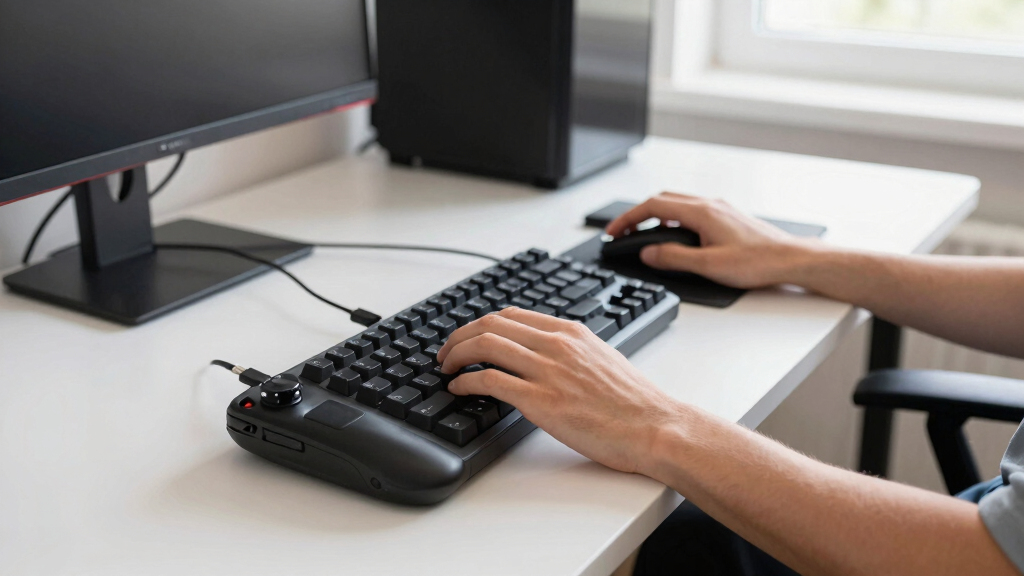
For a living-room setup, a small Bluetooth keyboard with a built-in trackpad can sit on the coffee table like a TV remote with ambitions. For a desk setup, a dock, full-size keyboard, and wired mouse feel better, especially when you are editing settings or playing a PC-first game.
Do not overbuild it. The Deck rewards simple gear. A plain keyboard with quiet switches and a mouse that fits your hand will beat a flashy setup that needs three Windows apps just to remember its DPI.
What to Check Before You Blame the Deck
If your keyboard or mouse does not work on Steam Deck, check the connection path before you blame the device. The failure point is often the hub, dongle, battery, Bluetooth pairing state, game focus, or a layout setting buried in Desktop Mode.
- Test in the SteamOS interface before testing inside a game.
- Try one device at a time if you are using a hub.
- Charge wireless devices or swap batteries before changing settings.
- Remove and re-pair Bluetooth devices if they appear connected but do nothing.
- Check Desktop Mode keyboard layout if letters, symbols, or modifier keys feel wrong.
- Restart the game with devices already connected if input is missing only inside that game.
A silent keyboard is often a power or pairing problem, not a Steam Deck problem. The fastest fix is usually boring: unplug the hub, reconnect power, pair again, then launch the game fresh.
Valve’s FAQ also makes one docked-use point clear: docking does not boost Steam Deck performance, because it is more like plugging a USB-C hub into a PC [3]. If an external 4K monitor makes a game feel heavy, lower the game resolution instead of hunting for a keyboard setting.
Frequently Asked Questions
Do I need a dock to use a keyboard and mouse with Steam Deck?
You do not need a dock for Bluetooth devices, but you usually want one for wired gear. The Steam Deck uses a single USB-C port for external connectivity, so a hub or dock lets you connect a keyboard, mouse, power, and display together [1][2].
Can I use a Bluetooth keyboard and mouse in Game Mode?
Yes, Bluetooth keyboards and mice can work in Game Mode after pairing through SteamOS settings. They can control text fields, menus, and games that accept keyboard and mouse input, though some games still show controller prompts.
Is Bluetooth good enough for gaming on Steam Deck?
Bluetooth is fine for browsing, chat, turn-based games, and many casual sessions. For competitive shooters, rhythm games, or anything where timing feels sharp as a snapped rubber band, use wired USB or a dependable 2.4 GHz dongle. On Steam Deck OLED, Valve lists Bluetooth 5.3 support for accessories [1].
Why does my keyboard work in Desktop Mode but not in a game?
The game may not accept keyboard input, the launcher may have focus, or the game may have detected controller input at startup. Connect the keyboard and mouse before launching, check the game’s input settings, and restart the game if it still ignores them.
Will RGB keyboards and gaming mouse macros work on Steam Deck?
Basic typing, clicking, scrolling, and pointer movement usually work. RGB lighting, macros, DPI apps, and vendor-specific software may not work unless the device stores settings onboard or has Linux-friendly tools.
Conclusion
Your best move is simple: treat the Steam Deck like a tiny Linux PC with one very busy USB-C port. Give it a powered dock when you want a desk setup, use Bluetooth when you want fewer cables, and check each game’s input behavior before blaming the hardware.
Once it is set up, the Deck feels less like a handheld you cradle and more like a small machine you can park anywhere: on a monitor stand, beside a coffee mug, keys clicking while Steam hums in the background.