
TL;DR

Play games on Amazon Luna for your game nights, included with Prime
- A rotating selection of games, no download needed
- Play on TV, laptop or phone
- Fast, free delivery for your gear, too
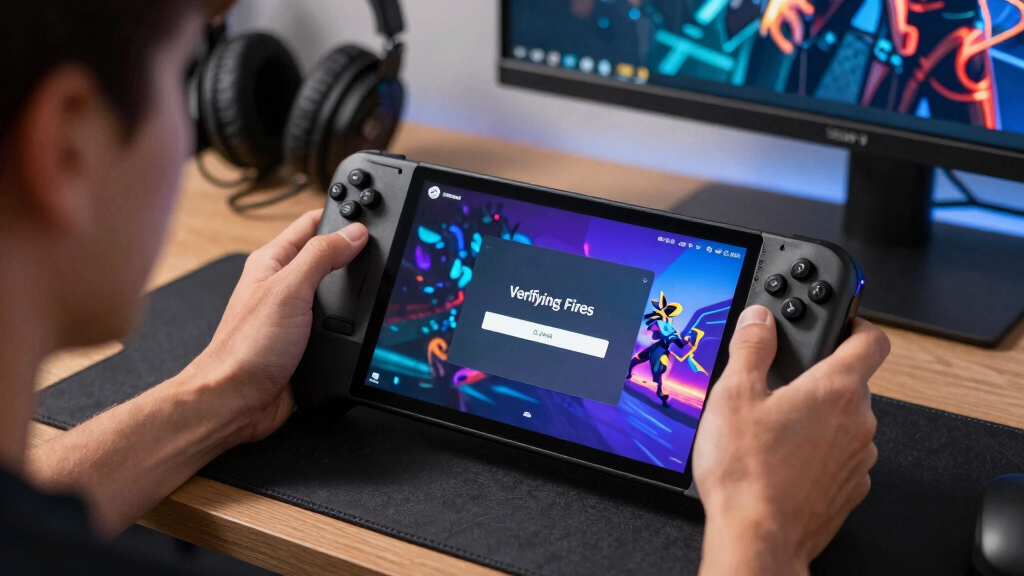
Some Steam Deck games verify files after crashes because Steam no longer fully trusts the local install after a crash, forced shutdown, interrupted update, or storage hiccup. The check compares installed game files against the expected build and repairs missing or damaged pieces, while saves usually stay separate.
A crash can turn a quick handheld session into a progress bar with no mercy.
You were ready for one more mission, one more run, one more race. Instead, your Steam Deck restarts the game page and starts validating files like it found a suspicious suitcase under the floorboards.
This guide explains what Steam is checking, why the Deck can be extra sensitive after crashes, and what you can do when the same game keeps verifying again and again.
Why Some Steam Deck Games Verify Files After Crashes
Steam validates files when it no longer fully trusts the local install after a crash, forced shutdown, interrupted update, or storage hiccup. The check compares your installed files against the expected game build, repairs missing or damaged pieces, and usually leaves save progress separate.
Steam gets suspicious when the game crashes while updates, saves, shaders, or storage writes are still settling.
Verification targets install files, not personal progress, though cloud sync and save folders can still have separate problems.
Steam is asking: does this game still match the clean copy I know?
Trust, manifests, and missing pieces
Steam compares the local game folder with the file manifest it expects for that build. If the folder looks half-written, altered, corrupt, or out of date, Steam can repair only the pieces that fail instead of reinstalling the whole game.
Expected build
Steam has a reference list for the version you should have installed. Verification compares your Deck against that known-good shape.
Local reality
The Deck checks what is actually present on SSD or microSD: data packs, textures, audio, launchers, and executable files.
Targeted download
If a few pieces are missing or damaged, Steam usually redownloads those files rather than pulling the entire game again.
How a freeze becomes a progress bar
A crash alone does not always trigger verification. The risk rises when the crash overlaps with patching, shader activity, suspend cycles, storage writes, or a forced power-off.
Patch lands
Steam downloads new files, updates archives, or prepares shader data.
Game starts
You press Play before the system has had a calm clean launch.
Crash hits
The game freezes, exits poorly, or forces a hard shutdown.
Steam doubts
The local folder may look incomplete, mismatched, or half-written.
Verify runs
Steam checks the install and replaces damaged or missing files.
Verification versus your progress
Verification is usually more like replacing a scratched game disc than erasing a memory card. Save data normally lives in Steam Cloud, a game-specific folder, or a Proton prefix, depending on the title.
| Area | What Steam may check | What it means for you | Risk level |
|---|---|---|---|
| Game install files | Executables, data packs, textures, audio, patch archives | Bad or missing pieces can be replaced without a full reinstall. | ✓ Expected |
| Shader cache | Pre-cached shaders and related downloads | You may see extra Downloads activity after updates. | ~ Normal |
| Compatibility data | Proton prefix files for Windows games | Changing Proton can rebuild or alter supporting files. | ~ Watch |
| Save files | Usually not part of Steam file integrity checks | Your progress should stay separate, but backups are still smart. | ✓ Usually safe |
| Same files redownloaded | Repeated failed checks on the same game | Storage, a bad patch, or a broken local install may be involved. | ✗ Warning |
The triggers worth checking first
The Steam Deck is a handheld PC with SteamOS, Proton, suspend, battery drain, and sometimes microSD storage all sharing the ride. More moving parts means more chances for Steam to find a messy stop.
When to worry
A single validation after a frozen cutscene can be routine. Repeated validation after every crash, failed verification, or the same files redownloading again and again points to something deeper.
The fastest sane fix
Before reinstalling a giant game, remove the easy causes. The goal is one calm launch cycle: update, verify, restart, open the game, exit normally, and relaunch.
- 01Update SteamOS and the Steam client so storage, compatibility, and client fixes are current.
- 02Let the Downloads screen finish patching and validating before pressing Play.
- 03Try the default Proton version if you recently forced a custom compatibility setting.
- 04Move the game off microSD for a test if repeat validation happens only on the card.
- 05Use the power menu for shutdowns, especially after patches or long downloads.
- 06Verify manually once from game properties so you begin from a known clean install.
Rule of thumb
If verification finishes once and the game launches cleanly afterward, treat it as Steam doing maintenance. If it validates every night, fails to finish, or redownloads the same chunk repeatedly, check storage health, Proton settings, and recent game patches before blaming the crash itself.
From crash to confidence
The whole story is a trust chain. Steam does not validate because it enjoys wasting handheld time. It validates because a local install stopped looking clean.
Crash
Game exits badly or freezes.
Write risk
Patch, shader, save, or storage work may be mid-flight.
Manifest
Steam checks the expected clean build.
Repair
Missing or damaged files are replaced.
Saves
Progress usually remains separate.
Launch
A clean start rebuilds trust.
Key Takeaways
- Steam Deck file verification usually means Steam found a risk in the local game install after a crash, shutdown, patch, or storage write.
- Verification checks game installation files and usually does not touch save progress or user profiles.
- Repeated validation is most suspicious when it redownloads the same files, fails to finish, or happens only on microSD storage.
- The fastest sane fix is to update SteamOS, let downloads finish, verify once manually, restart, and test one clean launch.
- Steam Deck Verified status and Proton advice can change, so match any fix to your current SteamOS, Proton version, and game patch.
As an affiliate, we earn on qualifying purchases.
What Steam Is Checking While You Wait
Why Some Steam Deck Games Verify Files After Crashes comes down to trust: Steam compares the installed game files on your Deck with the file manifest it expects for that build. If something looks missing, corrupt, or half-written, Steam can redownload only the pieces that failed the check instead of reinstalling the whole game [1].
Think of a crash during a boss fight. The screen freezes, the fan keeps breathing warm air through the top vent, and you hold the power button because nothing responds. When Steam comes back, it may see a game folder that ended mid-sentence.
A simple analogy: the game install is a boxed set of puzzle pieces, and Steam has the picture on the lid. After a crash, Steam counts the pieces again. If one corner piece is missing or a few pieces are from the wrong version of the puzzle, it replaces those pieces before letting you keep playing.
According to Valve’s Steam Support guidance, file verification checks a local game install and replaces bad or missing files [1]. Restated plainly: Steam is asking, does this game still match the clean copy I know?
As an affiliate, we earn on qualifying purchases.
Why The Deck Can Hit This More Than A Desktop
Why Some Steam Deck Games Verify Files After Crashes often feels more visible on Steam Deck because the Deck is a handheld PC with suspend, battery drain, microSD storage, SteamOS, and Proton all sharing the ride. More moving parts means more chances for Steam to find a half-finished write after a hard crash.
On a Windows desktop, you may crash to the desktop and relaunch. On a Deck, you may crash, tap the power button, dock it, undock it, wake it on a train, then find Steam sorting through files with the screen glowing blue in your hands.
For example, imagine downloading a large patch over hotel Wi-Fi, suspending the Deck halfway through, waking it later on battery, and launching the game before the download queue has fully settled. If the game crashes right there, Steam has several suspects: the patch, the suspend cycle, the storage write, and the compatibility layer.
Proton adds another layer for Windows games. It translates Windows calls for a Linux-based SteamOS system, while Steam also manages shader caches, prefixes, and compatibility data. Most of that works quietly. When it fails, it can leave Steam with a messy folder rather than a clean stop.
Steam Deck crash troubleshooting accessories
As an affiliate, we earn on qualifying purchases.
As an affiliate, we earn on qualifying purchases.
The Triggers That Make Verification Start
Why Some Steam Deck Games Verify Files After Crashes usually has one trigger: Steam sees a risk that the local files no longer match the expected build. A crash alone does not always cause verification, but crashes during saves, updates, shader work, or storage writes make Steam much more suspicious.
- Crash during an update: Steam may need to validate patched files before it lets you play.
- Forced shutdown: Holding the power button can interrupt writes that were still landing on the SSD or microSD card.
- MicroSD hiccup: A loose, slow, or aging card can make large files behave like a scratched disc.
- Proton change: Switching Proton versions can rebuild compatibility data and expose old install problems.
- Game launcher cleanup: Some launchers alter local files, then Steam checks the folder against its own manifest.
A common example: you install a 40 GB patch, launch before the Deck settles, the game crashes at the menu, and Steam immediately says it is validating. That sequence feels mysterious, but the timing tells the story.
As an affiliate, we earn on qualifying purchases.
What Verification Usually Leaves Alone
Verification usually leaves your saves alone because Steam checks game installation files, not your personal progress. The repair target is the game package: executables, assets, archives, and patched files. Save data normally lives in Steam Cloud, the game’s prefix, or a separate save folder, depending on the title.
| Area | What Steam May Check | What It Means For You |
|---|---|---|
| Game install files | Executables, data packs, textures, audio, patch archives | Bad or missing pieces can be replaced without a full reinstall. |
| Shader cache | Pre-cached shaders and related downloads | You may see extra Downloads activity after updates. |
| Compatibility data | Proton prefix files for Windows games | Changing Proton can rebuild or alter supporting files. |
| Save files | Usually not part of Steam’s file integrity check | Your progress should stay separate, though backups are still smart. |
Say you crash in a racing game after changing graphics settings. Verification may replace a damaged archive, but it should not roll back your unlocked cars. If progress disappears, you are likely dealing with a separate cloud-sync or save-location problem.
Another example: if an RPG crashes while loading a town, Steam might repair a broken texture pack for that town. Your character level, inventory, and quest log should live somewhere else, so the repair is more like replacing a scratched game disc than erasing your memory card.
A 7-Minute Check That Cuts Repeat Validations
A quick repeat-validation check starts with updates, storage, and shutdown habits because those three areas cause many messy installs on Steam Deck. You want to remove the easy causes before you reinstall a 100 GB game and spend the evening watching a progress bar crawl.
- Update SteamOS and the Steam client. System updates often include storage, compatibility, and client fixes.
- Update the game fully before launching. Let the Downloads screen finish patching and validating before you press Play.
- Try the default Proton first. If you changed Proton versions, switch back and test one clean launch.
- Move the game off microSD for a test. If the issue stops on internal storage, the card or reader may be the weak link.
- Shut down from the menu. Use the power menu when you can, especially after patches or long downloads.
- Verify manually once. In Steam, open the game properties and run Verify integrity so you start from a known clean install [1].
The practical version is simple. If one game keeps validating after crashes, give it one calm launch cycle: update, verify, restart the Deck, open the game, exit normally, then relaunch. Boring, but often effective.
When Repeat Verification Is A Warning Sign
Repeat verification is a warning sign when it happens after every crash, fails to finish, or redownloads the same files over and over. At that point, Steam may be fixing symptoms while the real problem sits in storage, a broken game update, a Proton mismatch, or a damaged local install.
Watch the pattern, not just the message. A single validation after a frozen cutscene is normal. A 70 GB game that validates for 20 minutes every night after sleep mode is telling you to look closer.
- Repeated failed validation: Restart the Deck, verify again, then reinstall only if the same files keep failing.
- MicroSD-only problems: Test another card or move one affected game to internal storage.
- Crashes after a game patch: Check the developer’s patch notes and Steam discussions, but treat forum leaks about incoming fixes as unconfirmed.
- Battery loss during writes: Charge the Deck before big patches so it does not die mid-download.
If verification repeats with the same game and the same storage location, stop treating it as a one-off crash. Treat it as a pattern you can isolate.
Why Old Steam Deck Advice Can Go Stale
Old Steam Deck advice can go stale because SteamOS, Proton, the Steam client, and each game build keep changing. A fix that worked on Proton 8 may behave differently on Proton 9 or a later compatibility layer. For performance claims, always match the platform and version: Steam Deck, SteamOS build, Proton version, and game patch.
According to Valve’s Steam Deck compatibility documentation, Deck compatibility review focuses on how a game behaves on Steam Deck, and status can change as Valve or the developer updates the game [2]. That matters when someone says a title is Verified, playable, or broken.
Here is the real-world trap: you find a two-year-old thread saying to force an experimental Proton build. You try it, the game crashes harder, and verification starts again. The better move is to test the current default first, then change one thing at a time.
Frequently Asked Questions
Why does my Steam Deck validate files after a crash but my PC does not?
The Steam Deck mixes handheld sleep, battery power, SteamOS, Proton, and sometimes microSD storage, so crashes can interrupt writes in ways you notice more often. Your desktop may still verify files too, but the Deck’s portable habits make the message feel more common.
Does Steam file verification delete my saves?
No, Steam’s file verification is aimed at the installed game files, not your save progress [1]. Saves usually live in Steam Cloud, a game-specific folder, or Proton compatibility data. Backups are still wise for long RPGs, modded games, and anything with cloud-sync problems.
How long should Steam Deck file verification take?
It depends on game size, storage speed, and how many files Steam needs to check. A small game may finish in under a minute, while a 100 GB game on a slow microSD card can take much longer. If the same files download every time, treat that as a separate problem.
Should I reinstall the game if verification keeps happening?
Reinstall only after you try the smaller fixes: update SteamOS, finish downloads, verify once manually, restart, and test internal storage if the game lives on microSD. If validation keeps failing or the same game keeps crashing after a clean verify, reinstalling becomes a fair next step.
Is file verification the same as shader pre-caching?
No. File verification checks the game installation against expected files, while shader pre-caching prepares graphics data so games can run more smoothly on Steam Deck. Both can appear in Downloads, which is why they sometimes blur together when you are staring at a progress bar.
Conclusion
Remember this: verification after a crash is Steam trying to put the game back into a clean, trusted state. Let it finish, update the Deck, and look for a pattern only if the same game keeps doing it.
Your best fix is calm and concrete: one clean verify, one normal restart, one controlled test launch. The progress bar may be dull, but it is also Steam sweeping glass off the floor before you step back into the game.
Fall Picks
fall essentials
As an affiliate, we earn on qualifying purchases.