
TL;DR

Play games on Amazon Luna for your game nights, included with Prime
- A rotating selection of games, no download needed
- Play on TV, laptop or phone
- Fast, free delivery for your gear, too
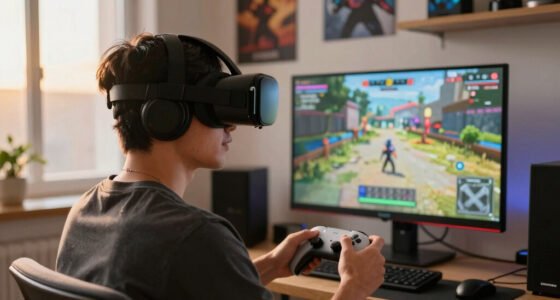
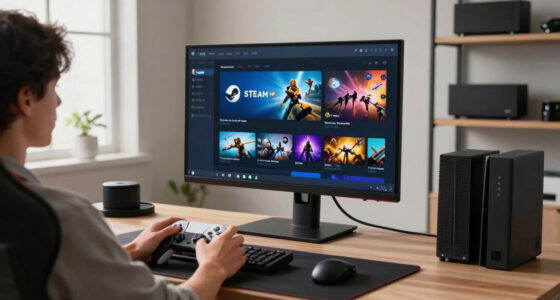
SteamVR is Valve’s VR runtime for launching headset games, tracking motion, mapping controllers, and managing VR experiences through Steam. For Steam Frame players, it means broader headset access and a familiar Steam library, but portable hardware still favors lighter games, lower settings, and careful setup; rumors or leaks about future native support remain unconfirmed.
VR can make your Steam library feel like it grew a second room overnight, but the door is heavier than it looks.
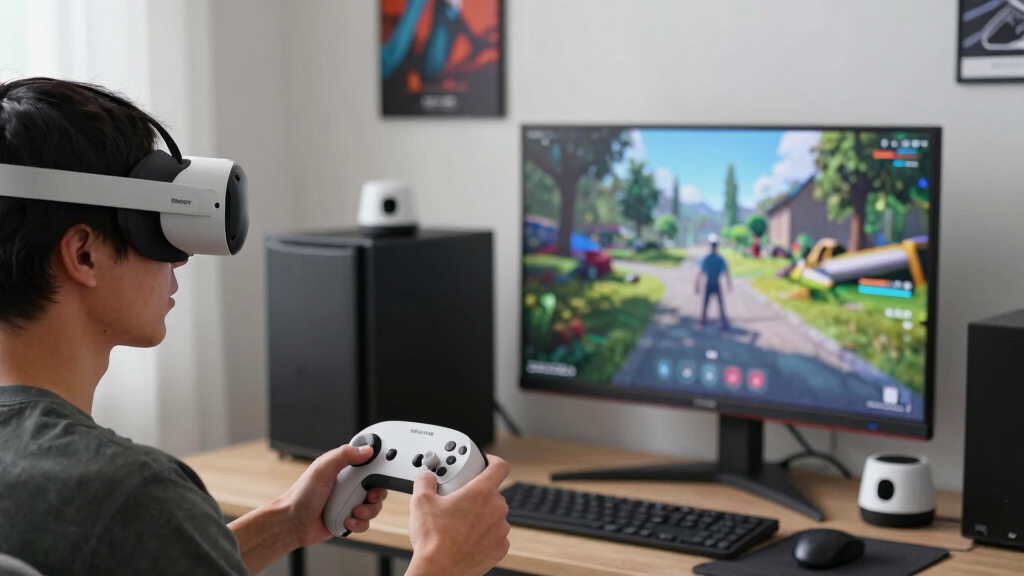
For Steam Frame players, the big shift is simple: SteamVR gives you the software layer that makes headset play possible through Steam. The catch is just as real. A VR headset asks your machine to draw fast, steady images while tracking your head and hands without a hiccup.
This guide explains what changes, what stays limited, and how you can test SteamVR without turning your desk into a nest of hot cables and guesswork.
A bigger Steam room, not free desktop power.
TL;DR: SteamVR is Valve’s VR runtime for launching headset games, tracking motion, mapping controllers, and managing VR experiences through Steam. For Steam Frame players, it means broader headset access and a familiar Steam library, but portable hardware still favors lighter games, lower settings, and careful setup.
Launch games, track headset motion, map controllers, and provide the shared VR interface inside Steam.
SteamVR does not upgrade GPU power, cooling, battery life, or headset bandwidth.
The door opens wider, but the hinge is still your hardware.
What SteamVR actually gives you
SteamVR is the platform layer for supported PC headsets. It creates the shared VR environment, but every smooth frame still depends on the full chain: headset, cable, dock, drivers, video output, USB bandwidth, SteamVR version, and game settings.
A common launch pad
SteamVR gives VR apps a shared place to run inside Steam, with headset status, controller bindings, menus, tracking tools, and audio routing in one familiar layer.
More headset paths
Valve Index, HTC Vive, Oculus Rift, and Windows Mixed Reality families can connect through supported PC VR paths, though each brings its own setup requirements.
No magic switch
SteamVR can open the door, but it cannot make every flat-screen Steam game VR-ready or turn portable hardware into a high-end desktop rig.
Headset choice shapes the whole night
Broad support helps, but broad does not mean effortless. A tidy docked setup can still fail if the headset needs a cleaner video path, more USB bandwidth, a bridge app, base stations, or fresher drivers.
| Headset Type | What SteamVR Gives You | Still Check | Steam Frame Fit |
|---|---|---|---|
| Valve Index | ✓Strong native SteamVR fit, full controller support, and mature tracking tools. | DisplayPort-style path, power, base stations, and enough GPU headroom. | Demanding but direct |
| HTC Vive family | ✓Room-scale tracking and broad SteamVR game support. | Base station placement, adapter needs, cable wear, and tracking stability. | Setup-heavy |
| Oculus Rift family | ~Access to many SteamVR titles through the PC VR path. | Meta software layer, USB bandwidth, driver conflicts, and background services. | Bridge required |
| Windows Mixed Reality | ~SteamVR access through the WMR bridge on supported systems. | Platform support status, controller mapping, and future driver availability. | Watch support |
| Heavy AAA VR showcase | ✗SteamVR can launch it if the chain works. | High refresh, high render scale, physics scenes, reflections, and heat. | Poor first test |
Set up in the order that saves time
The first session should answer one question: does the basic chain work? Save supersampling, showcase games, and long play for after the boring test succeeds.
Update first
Update Steam, SteamOS, or PC drivers before plugging in the headset.
Connect direct
Avoid hubs at first so video and USB problems do not masquerade as SteamVR bugs.
Open SteamVR
Confirm headset, controllers, tracking, and audio appear in the status window.
Run small
Choose a low-demand puzzle, rhythm, training, or tabletop VR title.
Scale slowly
Lower render scale if motion feels uneven, then raise settings one step at a time.
Stop signs are data
Heat you can feel, fan noise that keeps climbing, sudden battery drain, tracking dropouts, or nausea mean the session should pause before discomfort compounds.
Document the run
Useful performance claims name the platform, SteamOS version, SteamVR version, headset refresh rate, graphics settings, and game scene tested.
Pick games that let the hardware breathe
In VR, smooth and readable beats flashy and queasy. A sparse room puzzle can feel better than a rain-slick city packed with mirrors, fog, physics clutter, and sharp turns.
Comfort is a performance metric
Portable VR works best with lighter scenes, seated play, conservative render scale, and short test sessions. Smooth artificial movement can make some players uncomfortable within minutes.
Trace the whole chain before blaming SteamVR
A VR failure often lives outside the app itself. Follow the route from headset to software before changing ten settings at once.
Key Takeaways
- SteamVR is the software layer for VR on Steam, not a performance upgrade for Steam Frame or Steam Deck-class hardware.
- Headset support depends on the full chain: headset, cable, dock, drivers, video output, USB bandwidth, and SteamVR version.
- Portable VR works best with lighter games, lower render scale, seated play, and short test sessions before long play.
- Deck Verified labels do not prove VR comfort or SteamVR performance, and status can move after game or SteamOS updates.
- Rumors and leaks about deeper Steam Frame VR support remain unconfirmed until Valve publishes clear details.
As an affiliate, we earn on qualifying purchases.
You Get A VR Runtime, Not Free Desktop Power
What SteamVR Means for Steam Frame Players is that SteamVR acts as the VR runtime: it launches headset games, handles tracking, maps controllers, and gives VR apps a shared place to live inside Steam. It does not turn portable hardware into a tower PC, and it does not make every Steam game VR-ready.
According to Valve’s SteamVR documentation, SteamVR is the platform layer used to run and manage VR experiences across supported PC headsets [1]. You see it when the headset drops you into a gray grid room, your controllers appear as floating tools, and a flat Steam menu turns into something you can point at with your hand.
The common myth is that SteamVR works like a magic compatibility switch. The reality is more practical. SteamVR can open the door, but your hardware still has to carry the sofa through it.
Key idea: SteamVR is the traffic controller for VR on Steam; performance still comes from the device, drivers, headset, and game settings.
As an affiliate, we earn on qualifying purchases.
Your Headset Choice Shapes The Whole Night
What SteamVR Means for Steam Frame Players is partly about hardware fit: SteamVR can talk to many headset families, but your cable, dock, drivers, and display path decide whether your evening feels smooth or like a drawer full of mismatched adapters.
According to Valve’s SteamVR documentation, SteamVR supports devices such as Valve Index, HTC Vive, Oculus Rift, and Windows Mixed Reality headsets [1]. That broad support helps, but broad does not mean effortless.
| Headset Type | What SteamVR Gives You | What You Still Need To Check |
|---|---|---|
| Valve Index | Strong native SteamVR fit, full controller support, and mature tracking tools. | DisplayPort-style video path, power, base stations, and enough GPU headroom. |
| HTC Vive family | Room-scale tracking and broad SteamVR game support. | Base station setup, adapter needs, and older cable wear. |
| Oculus Rift family | Access to many SteamVR titles through the PC VR path. | Meta software layer, USB bandwidth, and driver conflicts. |
| Windows Mixed Reality | SteamVR access through the WMR bridge on supported systems. | Platform support status, controller mapping, and future driver availability. |
For instance, a docked handheld on your TV stand may look tidy until the headset asks for a direct video connection and several USB lanes. That is when the neat black cable bundle turns into the real boss fight.
As an affiliate, we earn on qualifying purchases.
Portable Hardware Needs Gentle VR Expectations
What SteamVR Means for Steam Frame Players on portable hardware is a tradeoff between comfort and spectacle: a clean, steady VR image beats a sharper world that judders when you turn your head. Portable players should expect lower settings, lighter games, and more seated play than a desktop VR rig.
According to Valve’s Steam Deck technical specifications, Deck-class hardware uses a custom AMD APU with integrated graphics [2]. That design is clever and efficient, but VR is hungry. It asks for fast frame delivery, low latency, tracking data, audio, and controller input all at once.
For instance, a bright puzzle room with plain walls may run far better than a rain-slick city full of reflections and physics clutter. In VR, a tiny hitch feels larger because the whole world moves with your head.
Performance claims should name the platform, SteamOS version, SteamVR version, headset refresh rate, and graphics settings. A clip that says it runs fine tells you less than a two-line note that says it ran at low settings on SteamOS with a specific headset.
As an affiliate, we earn on qualifying purchases.
Set Up SteamVR In The Order That Saves Time
The fastest SteamVR setup is a short checklist, not a guessing game: confirm the headset connection, update Steam, install or open SteamVR, then test one low-demand game before you touch supersampling. You want the first session to answer one question: does the basic chain work?
- Update Steam and SteamOS or your PC drivers before plugging in the headset, so you are not chasing bugs that already have fixes.
- Connect the headset directly when possible, because docks and hubs can add video or USB problems that look like SteamVR failures.
- Launch SteamVR by itself and check that the headset, controllers, tracking, and audio appear in the status window.
- Run a small VR title first, such as a simple puzzle, rhythm, or training app, before testing a heavy showcase game.
- Lower resolution scaling if motion feels uneven, then raise it slowly once the headset feels stable.
- Check the Steam page for age ratings before younger players use a VR title, since ratings vary by region and content can feel more intense in a headset.
A good first test feels boring in the best way. The menus appear, the controllers track, the room stays steady, and nothing smells hot after ten minutes.
Pick Games That Give Your Hardware Room To Breathe
The best first SteamVR games for Steam Frame-style play are the ones with simple scenes, clear motion, and generous settings menus. Rhythm boxes, puzzle rooms, tabletop spaces, and older indie VR games often ask less from the GPU than huge worlds full of physics objects, fog, mirrors, and sparks.
- Start with seated or standing-still games if you are new to VR comfort. Smooth artificial movement can make some players sweat within minutes.
- Choose games with clear graphics menus, because shadows, reflections, anti-aliasing, and render scale usually make the biggest difference.
- Favor shorter sessions while testing. A clean 15-minute run tells you more than a shaky hour that ends with a headache.
- Check Deck Verified labels carefully if you are using Steam Deck-class hardware. Deck Verified status covers handheld play, not VR comfort, and statuses can move after game or SteamOS updates.
A game like Half-Life: Alyx asks far more from a machine than a sparse room puzzle with flat lighting. That does not make the smaller game lesser. In a headset, smooth and readable beats flashy and queasy.
Read These Warning Signs Before You Keep Playing
The clearest warning signs are heat you can feel, fan noise that keeps climbing, battery drain that falls like a stone, tracking dropouts, and nausea. Stop before the session turns sour; VR discomfort can arrive fast, and pushing through usually makes the next ten minutes worse.
Portable VR has a different rhythm from desktop VR. You may start with a full battery and a quiet room, then hear the fan rise into a thin whine while the grips warm under your palms. That is your setup giving you feedback.
Stop testing if tracking drops, the device gets unusually hot, or you feel dizzy. VR is not the place to tough it out.
The practical move is simple: lower settings, shorten the session, use a powered connection when appropriate, and give the device airflow. If a USB disconnect repeats after the same movement, check the cable before blaming the game.
Use Rumors As Hints, Not Buying Advice
What SteamVR Means for Steam Frame Players will change if Valve ships deeper native support, but rumors and leaks about future Steam Frame hardware or built-in SteamVR modes are unconfirmed until Valve publishes details. For now, treat community builds as experiments, not purchase guarantees.
Valve has a long habit of improving Steam hardware through software updates, and community testing often finds clever paths before official support catches up. Still, a forum post is not a warranty. A leaked driver string is not a launch plan.
Here is the sane buying rule: only spend money based on what works on your platform today. If a headset needs a driver workaround, a beta branch, or a specific SteamVR build, write that down before you buy cables, docks, or accessories.
That small note can save you an expensive evening. The difference between it works on my setup and it works is often one firmware version, one adapter, or one very tired USB port.
Frequently Asked Questions
Is SteamVR the same thing as Steam Frame?
No. SteamVR is Valve’s VR software layer for Steam, while Steam Frame refers to the player-side Steam setup or device context. SteamVR can help that setup run headset games, but it does not define the hardware by itself.
Can I use an existing VR headset with SteamVR?
Yes, if the headset has a supported PC VR path and your setup can handle its video, USB, power, and driver needs. Valve lists SteamVR support across headset families such as Valve Index, HTC Vive, Oculus Rift, and Windows Mixed Reality [1].
Will SteamVR on Steam Frame perform like a desktop PC?
No, not on Deck-class portable hardware. According to Valve’s Steam Deck specs, that hardware uses integrated graphics in a compact power envelope [2], so you should expect lower settings and lighter VR games than you would on a dedicated desktop VR PC.
Do Steam Deck Verified badges tell me a game is good in VR?
No. Deck Verified labels focus on handheld Steam Deck play, not headset comfort or SteamVR performance. Check recent player reports, SteamVR notes, platform version, and age rating before you treat a VR title as ready for your setup.
Should I wait for official native SteamVR support before buying gear?
If you want a clean plug-and-play setup, waiting is the safer move. If you enjoy testing drivers and settings, start with hardware that already works today and treat rumors or leaks about future Steam Frame support as unconfirmed.
Conclusion
The one thing to remember is this: SteamVR gives Steam Frame players access, not a free pass. Treat it like a powerful tool that rewards careful setup, honest hardware limits, and games that value smooth motion over shiny overload.
Start small, watch the heat, check the labels, and let the first good VR session be quiet and steady: a clean room, a tracked controller, and a world that stays still when you move.
Fall Picks
fall essentials
As an affiliate, we earn on qualifying purchases.