
TL;DR
Steam Deck handles text input in old PC games through Steam Input, the on-screen keyboard, Proton, and optional USB-C or Bluetooth peripherals. You can type names, codes, chat, and console commands, but some legacy games need custom layouts or a physical keyboard because they were built for full-size PC desks, not handheld play.
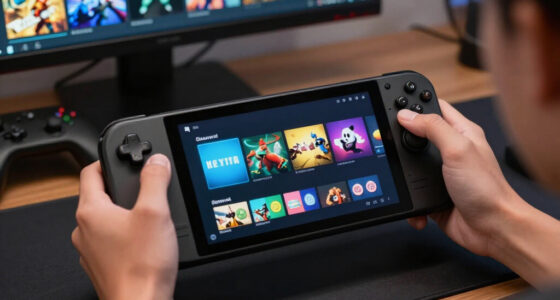
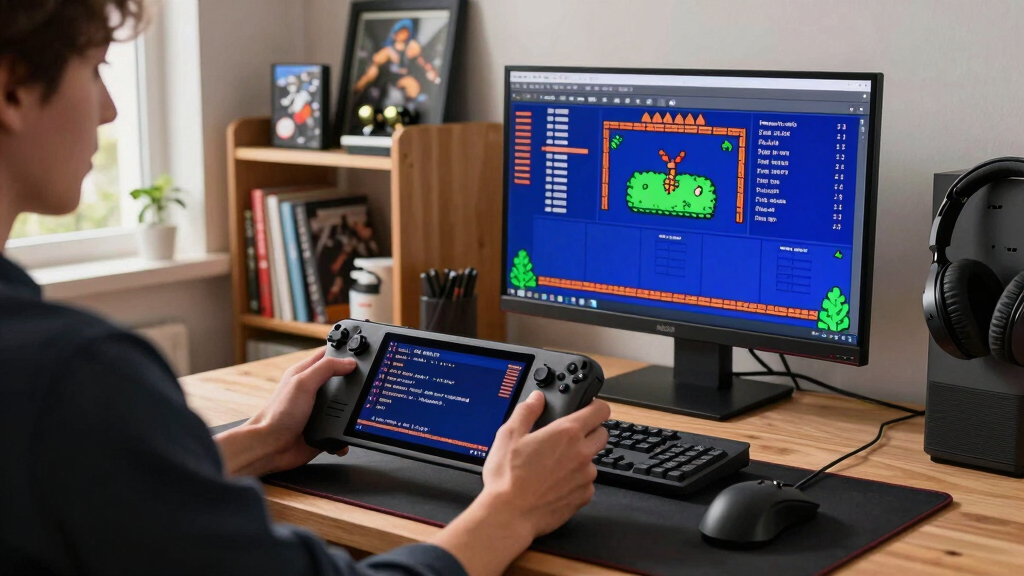
The first time an old RPG asks you to type a character name on Steam Deck, the mood can shift from cozy couch play to tiny emergency. The cursor blinks. The music loops. Your thumbs hover over a device that has sticks, pads, triggers, and a touchscreen, but no row of clacking keys.
You are not stuck. The Deck gives you several ways to type, from the built-in keyboard to custom Steam Input layouts and full Bluetooth keyboards. The trick is knowing which tool fits the moment.
This guide shows you what actually happens when old PC games ask for text, why some text boxes misbehave, and how to make name fields, chat windows, launchers, and console commands feel far less awkward.
Old PC Text Boxes Meet a Handheld PC
Steam Deck handles text input in old PC games through Steam Input, the on-screen keyboard, Proton, and optional USB-C or Bluetooth peripherals. You can type names, codes, chat, and console commands, but some legacy games need custom layouts or a physical keyboard because they were built for full-size desks, not couch play.
The cursor blinks. You are not stuck.
When an old RPG asks for a character name, use Steam + X first. Then decide whether the moment needs touch typing, trackpad precision, button bindings, or a real keyboard.
Steam Input, SteamOS keyboard, and Proton carry most typing needs.
Test one field before a long session to avoid mid-game friction.
Enter, Escape, Backspace, T, Y, slash, tilde, and function keys.
Bluetooth or wired keyboards win when typing becomes real work.

Fosmon Mini Bluetooth Keyboard (QWERTY Keypad), Wireless Portable with Touchpad, Compatible with Apple TV, Amazon Fire Stick, PS4, PS4 Pro, PS5, HTPC/IPTV, VR Glasses, Smartphones
Compact and Portable QWERTY Keyboard with Touchpad: Innovative and compact QWERTY keyboard with touchpad that provides comfort combined…
As an affiliate, we earn on qualifying purchases.
As an affiliate, we earn on qualifying purchases.
You Can Type Without Plugging In a Keyboard
Steam Deck does not remake every legacy interface into a modern console menu. It gives you tools that imitate the keyboard and mouse those games expected.
Map old keys to new controls
Bind keyboard actions to buttons, triggers, pads, or rear grips so old games see familiar inputs.
Open it for quick fields
Steam + X brings up the virtual keyboard in many situations, ideal for names, save labels, passwords, and short commands.
Translate the Windows layer
Proton helps Windows-era input calls reach the game while it runs on SteamOS.

GEODMAER 65% Gaming Keyboard, Wired Backlit Mini Keyboard, Ultra-Compact Anti-Ghosting No-Conflict 68 Keys Membrane Gaming Wired Keyboard for PC Laptop Windows Gamer
【65% Compact Design】GEODMAER Wired gaming keyboard compact mini design, save space on the desktop, novel black & silver…
As an affiliate, we earn on qualifying purchases.
As an affiliate, we earn on qualifying purchases.
Why Old Text Boxes Sometimes Ignore You
Legacy games may listen for raw keyboard events, hide the cursor, or launch a separate setup window. The keyboard can appear while the text field accepts nothing until focus is fixed.
Prompt appears
A name field, launcher box, chat line, or console waits for text.
Keyboard opens
SteamOS overlays the virtual keyboard above the running game.
Focus drifts
The old window may not be the active target, especially in launchers.
Trackpad helps
Use the right pad as a mouse, click the field, then type again.
Bindings rescue
Rear-button Enter, Backspace, T, slash, or tilde reduce repeat friction.
Treat rumors about unreleased SteamOS fixes, leaked Proton patches, or miracle compatibility changes as unconfirmed until Valve or the developer publishes real notes.
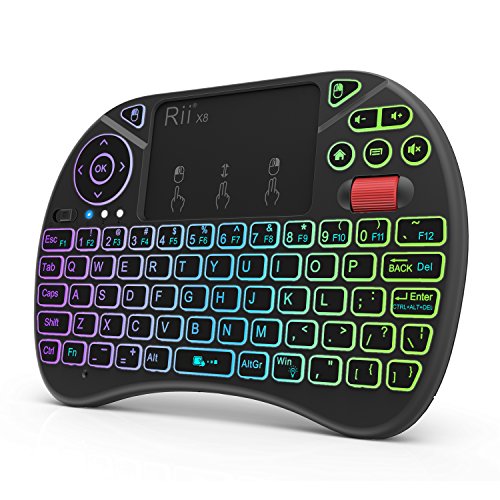
Rii X8 Mini Keyboard,2.4G Wireless,with Touchpad Mouse for Android TV Box
Rii 2.4GHz Mini Wireless QWERTY keyboard connected by the included usb dongle, plug and play. Small and handheld…
As an affiliate, we earn on qualifying purchases.
As an affiliate, we earn on qualifying purchases.
Pick the Input Method That Fits the Moment
Short names need the on-screen keyboard. Repeated commands need bindings. Long chat, account setup, mod tools, and console work deserve a physical keyboard.
| Input method | Best for | Weak spot | Real example | Fit |
|---|---|---|---|---|
| On-screen keyboard | Short names, save labels, single commands | Covers part of the screen and can feel slow | Typing a new pilot name in an old space sim | ✓Quick prompts |
| Touchscreen | Quick taps when the Deck is steady | Harder while moving or lying sideways | Entering a server password before a match | ✓Tabletop play |
| Trackpads | Small launchers and mouse-heavy menus | Slower for full sentences | Clicking into a tiny Windows-era setup box | ~Precision |
| Steam Input bindings | Repeated keys and chat triggers | Poor fit for free-form typing | Putting Enter and Backspace on rear buttons | ✓Repeat keys |
| USB-C or Bluetooth keyboard | Long chat, passwords, console commands, mod setup | Adds another device to carry | Configuring an old MMO account screen | ✓Heavy text |
Steam Deck compatible game controller
As an affiliate, we earn on qualifying purchases.
As an affiliate, we earn on qualifying purchases.
The Fastest Ways to Type Names, Codes, and Chat
Match the method to typing length, pressure, and whether the game keeps focus. The Deck alone is fine for quick prompts; compact keyboards win when the game behaves like a tiny office desk.
Comfort by task length
When to switch tools
Use the on-screen keyboard for six-letter names and short codes. Bind repeat keys before shooters, strategy games, and chat-heavy sessions. Connect a keyboard when every typo costs time.
Set Up Text Entry Before the Game Asks
Five quiet minutes in controller settings can save you from balancing the Deck on your knees while a tiny prompt blinks at you.
Check layouts
Open controller settings before launch and compare official or community layouts.
Add repeat keys
Bind Enter, Escape, Backspace, T, Y, slash, tilde, and useful function keys.
Use rear buttons
Place confirm, cancel, erase, chat, or console triggers where your fingers already rest.
Test one field
Name a save, delete a letter, press Enter, and reopen the field before settling in.
How the Text Signal Travels
Old games expect keyboard events. Steam Deck builds a path from handheld controls to Windows-era expectations, with Proton translating along the way.
Compatibility Is a Snapshot, Not a Law
SteamOS, Proton, and game builds change. Before trusting old performance claims or Verified reports, check version details and recent notes.
Use official notes first
Valve shortcut guidance identifies Steam + X as the virtual keyboard shortcut in many situations. Proton documentation explains the Windows-to-Linux compatibility role behind old game support.
Ask for versions
When someone says input lag, keyboard focus, or compatibility improved, ask which SteamOS version, Proton version, and game build they tested.
Key Takeaways
- Use Steam + X first for short text fields such as names, save labels, passwords, and quick commands.
- Bind repeat keys like Enter, Backspace, T, slash, and tilde with Steam Input before you start a long session.
- Use a Bluetooth or USB-C keyboard when an old game expects long chat, account setup, mod tools, or console work.
- Check SteamOS, Proton, and game version details before trusting performance claims or older Steam Deck Verified reports.
- Treat rumors about unreleased input fixes or leaked patches as unconfirmed until Valve or the developer publishes real notes.
You Can Type Without Plugging In a Keyboard
How Steam Deck Handles Text Input in Old PC Games comes down to three tools: Steam Input maps handheld controls to keyboard and mouse actions, SteamOS places a virtual keyboard over the game, and Proton carries Windows-era input calls into SteamOS [1][2]. You press a shortcut, tap letters, and get back to playing.
According to Valve’s Steam Deck shortcut guidance, Steam + X opens the virtual keyboard in many situations [1]. That shortcut matters when an old game suddenly asks for a save name, a server password, or a character called something better than Player One.
Think of a late-1990s RPG asking for your hero’s name in a small stone-framed box. You can bring up the keyboard, tap the letters on the touchscreen, or use the trackpads for slower, steadier input. It feels a little like writing on a café receipt with a tiny pencil, but it works.
The Steam Deck does not turn every old text box into a modern console UI. It gives you several ways to imitate the keyboard those games expected.
Why Old Text Boxes Sometimes Ignore You
How Steam Deck Handles Text Input in Old PC Games can break down when a title listens for raw keyboard events, hides its cursor, or runs a launcher that Proton treats as a separate window. The keyboard may appear perfectly while the old text field sits there like wet paint and accepts nothing.
A 2001 strategy game might open a gray launcher before the actual game starts. You tap the Deck’s virtual keyboard, but the launcher never receives the letters because the focus sits on another part of the window. One tap inside the field can fix it; sometimes you need a mouse cursor from the right trackpad.
Some games also split controls into separate worlds. The game may accept the Deck as a controller during play, then expect a physical keyboard when you type a save label. That is why Steam Input remapping helps: it lets you place Enter, Backspace, T, or tilde on buttons the old game can recognize.
Forum tips can help, but treat rumors about unreleased SteamOS fixes or leaked Proton patches as unconfirmed until Valve publishes notes or the game’s store page changes. Steam Deck Verified and Playable labels can shift after SteamOS, game, or Proton updates.
The Fastest Ways to Type Names, Codes, and Chat
How Steam Deck Handles Text Input in Old PC Games works best when you match the typing method to the job: short names need the on-screen keyboard, repeated commands need bindings, and long chat needs a real keyboard. You save time by treating text entry as part of the control layout.
- Use the on-screen keyboard for character names, save files, CD-key style entry, and short launch options.
- Use the touchscreen when the Deck sits on a table and you can tap letters quickly with one finger.
- Use the trackpads when you want more control in a tiny menu, especially in low-resolution games with small UI boxes.
- Use button bindings for keys you hit again and again, such as Enter, Escape, Backspace, T for chat, slash for commands, or tilde for a console.
- Use a physical keyboard for MMOs, old multiplayer shooters, long passwords, mod tools, and anything that turns typing into work.
Say you are playing an old shooter that opens chat with T and team chat with Y. Binding those two keys to back buttons lets you keep your thumbs near the sticks, send a quick message, and return to the fight without hunting through the virtual keyboard.
Pick the Input Method That Fits the Moment
Pick the input method by typing length, pressure, and whether the game keeps focus on the text box. Touch is fine for a six-letter character name; a Bluetooth keyboard wins for guild chat, console tweaking, or password fields where one missed symbol can send you back to the start.
| Input method | Best for | Weak spot | Real example |
|---|---|---|---|
| On-screen keyboard | Short names, save labels, single commands | Covers part of the screen and can feel slow | Typing a new pilot name in an old space sim |
| Touchscreen | Quick taps when the Deck is steady | Harder while riding a train or lying sideways | Entering a server password before a match |
| Trackpads | Small launchers and mouse-heavy menus | Slower for full sentences | Clicking into a tiny Windows-era setup box |
| Steam Input bindings | Repeated keys and chat triggers | Poor fit for free-form typing | Putting Enter and Backspace on rear buttons |
| USB-C or Bluetooth keyboard | Long chat, passwords, console commands, mod setup | Adds another device to carry | Configuring an old MMO account screen |
If you play a text-heavy classic for hours, the table has a simple answer: do not force every job through the virtual keyboard. Use the Deck alone for quick prompts, then bring out a compact keyboard when the game starts acting like a tiny office desk.
Set Up Text Entry Before the Game Asks
Set up text entry before launch by checking the game’s layout, binding the keys it asks for, and testing one text field before you settle in. Five quiet minutes in controller settings can save you from balancing the Deck on your knees while a tiny DOS-era prompt blinks at you.
- Open the game’s controller settings from Steam before launch and check the official or community layouts.
- Add the keys the game uses most, usually Enter, Escape, Backspace, T, Y, slash, tilde, and function keys.
- Place repeat keys on rear buttons so you can confirm, cancel, chat, or erase without opening the keyboard every time.
- Test one real text field, such as a save name, character name, chat line, or launcher box.
- Change Proton version only when needed, then write down which SteamOS and Proton version worked for that game.
A good test takes less than five minutes. In an old management game, name one building, delete a letter, press Enter, and reopen the field. If all four actions work, your layout is ready for a longer session.
When someone says input lag or keyboard focus improved, ask which SteamOS version, Proton version, and game build they used. Performance and compatibility claims on Steam Deck are platform-specific snapshots, not permanent laws.
What Proton Does When a Windows Game Wants a Keyboard
Proton acts as the translator between Windows games and SteamOS, so old keyboard calls often reach the game even though you are holding a Linux handheld. According to Valve’s Proton project docs, Proton adapts Windows compatibility tech so Windows titles can run on Linux, including the input path games depend on [2].
That sounds dry, but you feel it in simple moments. An old game says Press T to talk, Steam Input sends a T, Proton carries that input into the Windows game, and the chat box opens. When it works, nothing feels special. That is the point.
The messy cases show up around launchers, wrappers, and games packed with older tools. A DOSBox release, a ScummVM package, or a game with a separate configuration program may capture keys differently from the main game. If the text field refuses input, try tapping the field with the trackpad cursor before blaming the keyboard.
skeldrift.com’s Steam Deck coverage frames the practical answer well: use the built-in tools first, then reach for community layouts or external peripherals when a legacy title acts picky. That advice keeps you focused on play instead of turning every old game into a repair job.
Know the Limits Before You Blame Your Thumbs
Some old PC games fight handheld text input because they were built around full keyboards, mouse cursors, and small pop-up windows. The Steam Deck can imitate those tools, but it cannot always resize a cramped launcher, fix a broken font, or make a multiplayer chat system pleasant on a couch.
- Launcher focus can drift, so your keyboard types into nothing until you click the field again.
- Function keys can matter, especially in sims, RPGs, and older strategy games with F1 through F12 shortcuts.
- The virtual keyboard can cover the field, which makes password entry feel like typing behind a curtain.
- Keyboard layouts can mismatch, so symbols may land in the wrong place if the game expects a different language layout.
- Online chat can move too fast, especially in older multiplayer games with no modern console-style quick chat.
If you hand the Deck to a younger player for an older online game, check the current ESRB or PEGI rating and Steam family controls before enabling chat. A text box may be more than a name field; it can be an open door to public servers and unfiltered player messages.
The cleanest fix is sometimes the least fancy one. A cheap Bluetooth keyboard on a coffee table can make a stubborn account screen, mod launcher, or chat-heavy session feel normal in seconds.
Small Tweaks Make Old Games Feel Built for the Deck
Small tweaks make text-heavy old games feel calmer because they remove the awkward pauses: bind the keys you touch most, keep a backup keyboard nearby, and save a layout once it works. The result is less fumbling, fewer missed letters, and more time inside the game.
- Name your layout clearly, such as Old RPG chat plus console, so you can find it later.
- Put Enter on R4 and Backspace on L4 if the game asks for lots of confirmation and correction.
- Create a radial menu for commands you repeat, such as save, load, map, journal, or chat.
- Keep one external keyboard paired for setup screens, passwords, and long multiplayer messages.
- Test after updates because SteamOS, Proton, game patches, and Verified status can change the feel of input.
In an old theme park sim, you might rename rides, type staff names, and label saved parks. Once Enter, Backspace, and the keyboard shortcut sit under your fingers, the whole game feels less like a museum piece and more like something that belongs in your hands.
Frequently Asked Questions
Can you type in old PC games on Steam Deck without a keyboard?
Yes. You can use the on-screen keyboard, touchscreen, trackpads, and Steam Input bindings for most short text fields. The built-in shortcut Steam + X opens the virtual keyboard in many situations [1].
Why does the on-screen keyboard appear but not enter text?
The game or launcher may not have focus on the text field. Tap inside the box with the touchscreen or trackpad cursor, then try again. If that fails, test another Proton version or use a physical keyboard for that setup screen.
Is a physical keyboard worth using with Steam Deck old PC games?
Yes, when the game asks for long chat, passwords, mod setup, or console commands. A small Bluetooth keyboard turns a painful five-minute pecking session into normal typing, especially in MMOs and older multiplayer games.
Does Steam Deck Verified mean text input will work perfectly?
No. Verified or Playable status is tied to the game’s current store listing, SteamOS behavior, and compatibility work at that time. Check recent player notes and the SteamOS or Proton version before assuming an old report still matches your setup.
Can Steam Input replace a keyboard for console commands?
Steam Input can replace a keyboard for repeat commands and common keys. Bind tilde, slash, Enter, Backspace, and a few menu keys to buttons or radial menus. For long custom commands, a real keyboard still feels faster and cleaner.
Conclusion
The thing to remember: Steam Deck text input is a toolkit, not a single keyboard trick. Use the virtual keyboard for quick names, Steam Input for repeat keys, and a real keyboard when the game expects a desk.
Get one layout working, save it, and your next old PC session feels less like wrestling a tiny gray dialog box and more like stepping back into a game that still has a pulse.