
TL;DR
Open a free Amazon Business account
Business pricing, bulk buying and tax-exempt orders.
Create a free accountAs an affiliate, we earn on qualifying purchases.
As of July 29, 2026, Halo: Campaign Evolved, Palworld, and Last Spaceship carry Steam Deck Verified status, while Shift At Midnight is Playable [1][2]. Verified means the controls, display, startup flow, and SteamOS support pass Valve’s checks; it does not promise 60 fps, long battery life, or flawless online play.
Three of today’s four highlighted games carry the green Verified badge, including a new Halo campaign and a quiet puzzle adventure released on the same day as this briefing. That little green circle can save you from tiny text, broken launchers, and frantic touchscreen taps while your train leaves the station. It cannot tell you whether the fan will roar or the battery will fade before your next stop.
This dated guide gives you the Steam Deck Verified status of Halo: Campaign Evolved, Palworld, Last Spaceship, and Shift At Midnight on July 29, 2026. You will also see what Valve’s badges mean, why Verified is not a frame-rate promise, and how to check the latest result before spending your money. The goal is simple: help you know whether a game will feel like a handheld release or a desktop game squeezed into your palms.
One important caveat on dated compatibility lists: ratings can change after a game patch, a Proton update, or another Valve review. Treat this as a July 29 snapshot, then check the current badge and its detailed notes on Steam before buying or starting a long download. Rumored or leaked compatibility claims remain unconfirmed until Steam displays an official result.
On July 29, 2026, Halo: Campaign Evolved, Palworld, and Last Spaceship are Verified; Shift At Midnight is Playable [1][2].
Treat Verified as confirmation of controls, readable display output, clean startup, and SteamOS support—not as a 60 fps or battery-life promise.
Open Steam’s detailed compatibility notes before buying, then compare them with recent Deck-focused reports tied to the current game build.
Recheck ratings after major patches, launcher changes, Proton updates, or new anti-cheat systems because a badge can move in either direction.
For Playable games, begin with the virtual keyboard, trackpads, touchscreen, and community controller layouts before trying unofficial Proton builds or another…
- Halo: Campaign Evolved — Verified
- Palworld — Verified
- Last Spaceship — Verified
- Shift At Midnight — Playable
Steam Deck compatibility for current top & new games, as of 2026-07-29.
These 4 Games Give You the Clearest Deck Picks Today
Steam Deck Verified Status on July 29, 2026 gives three straightforward picks: Halo: Campaign Evolved, Palworld, and Last Spaceship are Verified, while Shift At Midnight is Playable [1][2]. In plain language, the first three should work without compatibility tinkering; the fourth works but may ask for some manual input.
- Halo: Campaign Evolved — Verified: Released on July 28, 2026, this rebuilt campaign supports solo play and four-player online co-op. Steam lists a hefty 100 GB storage requirement and an ESRB Mature 17+ rating for violence, blood and gore, and language [1].
- Palworld — Verified: The survival-crafting game reached its full Steam release on July 9, 2026 after entering Early Access in January 2024. Its store page asks for 40 GB on an SSD and warns that performance can vary with the number of active Pals [1].
- Last Spaceship — Verified: This cozy science-fiction puzzle adventure launched on July 29, 2026. SteamDB records a Verified test dated July 16, full default-controller access, legible interface text, and successful SteamOS operation [2].
- Shift At Midnight — Playable: Released on July 22, 2026, this horror game sends up to three players into a fluorescent-lit gas station where customers may be monsters. It needs only 3 GB of storage, but Playable means you should inspect Steam’s compatibility notes before settling into a dark room with headphones [1].
The contrast is sharp. Halo fills a large slice of a 256 GB Deck, while Shift At Midnight fits into roughly the space of a modest system update. A Verified badge treats both as compatible, yet download time, storage pressure, and battery demand can feel completely different.
For instance, imagine choosing a game five minutes before boarding a flight. Last Spaceship looks like the calmer handheld pick because its controller and text checks passed, while Halo’s 100 GB footprint calls for planning, fast Wi-Fi, and perhaps a cleared microSD card. The badge opens the door; the store details tell you what you must carry through it.
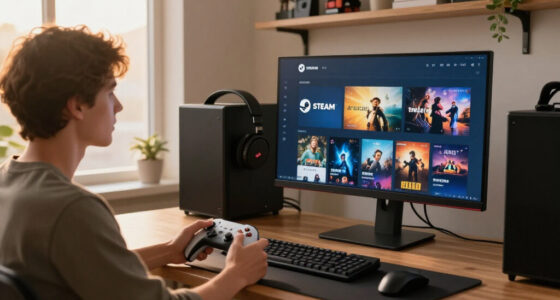
Steam Deck verified game controller
As an affiliate, we earn on qualifying purchases.
As an affiliate, we earn on qualifying purchases.
Know Exactly What Each Badge Saves You From
Steam Deck Verified Status is Valve’s compatibility review for games running on the Deck and SteamOS. Verified means a title passes every required check, Playable means it works with some manual effort, and Unsupported means Valve found a major barrier. Unknown simply means Valve has not published a result yet [1].
| Badge | What it means | What you may experience |
|---|---|---|
| Verified | Passes Valve’s controller, display, startup, and system-support checks. | Launch and play with the default setup, though graphics settings may still affect performance. |
| Playable | Runs on Deck but has one or more usability wrinkles. | You may invoke the keyboard, tap through a launcher, change a setting, or read small text. |
| Unsupported | Valve found that the game or a major feature does not work properly. | Anti-cheat, VR requirements, broken video, or missing Proton support may stop play. |
| Unknown | No published Valve review is available. | The game may work well, poorly, or not at all; the gray question mark does not predict the outcome. |
Valve checks four practical areas. Controls must work with appropriate button icons, text must remain readable at the Deck’s 1280×800 display resolution, startup must avoid disruptive prompts, and the game plus its middleware must operate on SteamOS through native support or Proton. According to Steam, a game must satisfy the full set to receive Verified [1].
For instance, a role-playing game can run beautifully once you reach the opening village but still receive Playable because naming your character requires the virtual keyboard. That is like a hotel room with one sticky key: you can still enjoy the stay, but the experience is not fully frictionless. Shift At Midnight’s Playable badge signals this kind of manageable inconvenience, not an automatic warning to stay away.
Verified measures compatibility, not overall quality. It says the doors, controls, labels, and underlying machinery work on Steam Deck. It does not grade the story, server stability, battery drain, or whether 30 fps feels good to you.
Steam Deck compatible gaming accessories
As an affiliate, we earn on qualifying purchases.
As an affiliate, we earn on qualifying purchases.
Avoid the Biggest Mistake People Make With Verified Games
Steam Deck Verified Status does not mean 60 fps, and it does not promise one fixed graphics profile across every scene. Verified says the game meets Valve’s compatibility requirements on Steam Deck and SteamOS. Heavy battles, crowded bases, heat, patches, and your chosen settings can still alter frame pacing and battery use.
Think of the badge as a roadworthiness inspection, not a lap-time certificate. A car can pass inspection without becoming a racing machine; in the same way, a Verified game may target a steady 30 fps rather than 60. The green badge tells you the trip is supported, while independent testing tells you how fast and smoothly the scenery will pass.
Palworld offers a concrete example. Its Steam page states that performance may vary with the number of active Pals, so a quiet beach with rolling blue water can run differently from a sprawling base packed with workers, furnaces, storage boxes, and flickering production lines [1]. The game is Verified, but your late-game settlement can place a heavier load on the Deck than your first hour.
Halo: Campaign Evolved presents another demanding scenario. Steam lists 16 GB of memory, 100 GB of storage, and a Windows desktop minimum GPU comparable to a Radeon RX 6600 or RTX 2060 Super [1]. Those desktop specifications do not directly predict Deck performance, but they tell you to check current Steam Deck-specific frame-rate tests before expecting high settings or a locked 60 fps.
- Choose a 30, 40, 45, or 60 fps target based on the game’s workload and what feels smooth to you.
- Lower shadows, reflections, crowd density, or view distance before cutting texture quality, unless memory use is the problem.
- Test a demanding area for 10 to 15 minutes, not just the quiet opening menu.
- Check performance claims against your LCD or OLED Steam Deck, SteamOS version, game build, and settings.
The LCD and OLED Deck use the same compatibility rating and run the same library, but their screens and battery behavior differ. A report of smooth play on an OLED model at 45 Hz is not proof that an LCD model will deliver the same battery time. Specific hardware and version details turn a vague claim into something you can actually use.
handheld gaming monitor for Steam Deck
As an affiliate, we earn on qualifying purchases.
As an affiliate, we earn on qualifying purchases.
Check Any Game in 3 Minutes Before You Buy
You can verify a game’s current Deck result in about three minutes by checking its Steam page, opening the detailed compatibility report, and comparing that result with recent player experience. This quick routine catches status changes, awkward launchers, and performance limits that a green badge alone cannot show.
- Open the game’s Steam store page. Find the Steam Deck compatibility box in the page’s information area. On the Deck itself, Steam places the badge prominently within the handheld store interface.
- Open the full compatibility details. Read every listed note, especially warnings about small text, manually invoked keyboards, non-Deck button icons, launchers, or an internet requirement.
- Check the date and game build. A review based on an older build may not reflect yesterday’s patch. SteamDB can help you inspect compatibility records and logged changes, though Steam remains the official badge shown to buyers.
- Read recent Deck-focused reports. Filter Steam reviews for people who played mostly on Steam Deck, then look for repeated comments about frame pacing, crashes, battery drain, and suspend or resume behavior.
- Match the evidence to your use case. Online co-op at home, offline play on a train, and a docked session with a keyboard create different demands.
For instance, you might see Shift At Midnight marked Playable and assume the horror game will be a nuisance. The details may reveal an issue you encounter only during setup or text entry, which is minor if you play at a desk with a Bluetooth keyboard. The same wrinkle feels much larger when you are curled into an airplane seat with the tray table closed.
Check age and content ratings during the same pass. Halo: Campaign Evolved carries an ESRB Mature 17+ rating, while Shift At Midnight’s German store listing shows an 18+ rating and references strong violence, alcohol or tobacco, and coarse language [1]. Ratings differ by region, so use the classification displayed in your local store rather than assuming one label applies everywhere.
References for this dated briefing are Steam game and compatibility pages accessed July 29, 2026 [1] and SteamDB app records checked for dated compatibility details [2]. If a social post, leak, or store rumor disagrees with Steam’s live badge, treat that claim as unconfirmed until the official listing changes.
As an affiliate, we earn on qualifying purchases.
Expect Badges to Change After Patches and Proton Updates
Steam Deck Verified Status can change in either direction when a developer updates a game, Valve improves Proton, or Valve tests a newer build. A Playable game can become Verified after better controls or larger text, while a Verified title can lose the badge if an update introduces a broken launcher, video problem, or compatibility regression.
Proton acts like a translator in a busy control room, turning Windows-focused instructions into something SteamOS can use. When Valve improves that translation layer, a game may begin launching cleanly without the developer rebuilding the entire title for Linux. When a publisher adds middleware that Proton cannot handle, the same route can suddenly hit a locked gate.
Last Spaceship shows why dates matter. SteamDB records its Deck test on July 16, 2026, using build 24234361 and a recommended Proton 11.0 beta runtime; the record lists accessible default controls, Deck button icons, readable text, a suitable default graphics setup, and successful SteamOS operation [2]. Its July 29 launch badge rests on a specific tested build, not a timeless promise about every future patch.
Imagine that an August update adds a glossy external account launcher. If controller navigation fails inside that new window, the game may no longer satisfy Valve’s seamless-startup requirement even though the puzzles and spaceship corridors still run perfectly. A later launcher fix could restore the badge. The game did not become wholly good or bad; one part of the handheld journey changed.
- Recheck a badge after a large content update, engine upgrade, or launcher replacement.
- Watch for a new anti-cheat system in multiplayer patch notes.
- Confirm offline behavior before a trip, especially when a game needs an external account.
- Keep performance reports tied to the game build and SteamOS version being tested.
This is why a dated list has value. You are not only asking, Does it work? You are asking, What changed, when was it checked, and does that result still match today’s build? That small date beside a compatibility record can matter more than a month of old forum replies.
Make Playable Games Feel Almost Verified
A Playable badge usually calls for one or two small adjustments, not a night of technical surgery. You may need the touchscreen, Steam’s virtual keyboard, a community controller layout, or a graphics change. Start with the official notes, make one change at a time, and keep a reliable way back to the default setup.
For Shift At Midnight, the practical question is whether the listed compatibility wrinkle interrupts every gas-station shift or appears only during setup. Imagine cold fluorescent lights buzzing overhead while you compare a customer’s face with an ID card and your friends whisper through proximity chat. A one-time keyboard prompt is minor; unreadable evidence or unreliable voice chat would matter throughout the game.
- Press Steam + X to open the virtual keyboard when a name or password field refuses to cooperate.
- Use the touchscreen or trackpads for a launcher that expects mouse input.
- Try an established community controller layout when the default bindings leave an action unreachable.
- Set a lower frame-rate cap or graphics preset if the official notes mention manual performance configuration.
- Test suspend, resume, voice chat, and online reconnection before relying on the game away from home.
Desktop Mode, community Proton builds such as Proton GE, dual-booted Windows, and Steam Remote Play can sometimes help with stubborn games. These routes sit outside Valve’s official compatibility program, so an update can break them and support staff may not cover them. Back up important saves and avoid changing several Proton or launch settings at once.
Unsupported does not always mean the game can never open. It means Valve does not currently support the experience as working properly on Deck, often because of anti-cheat, VR-only design, middleware, or a major Proton failure. Trying a workaround can be a hobby in itself, but do not buy an Unsupported game on the assumption that an unconfirmed community fix will survive the next patch.
Use Verified when you want confidence, Playable when you accept a little setup, and Unsupported only when you accept uncertainty. The badge is a friction forecast, not a command telling you what you may enjoy.
Frequently Asked Questions
Does Steam Deck Verified mean a game will run at 60 fps?
No. Verified does not promise 60 fps or any other fixed frame rate. It confirms that a game passes Valve’s compatibility checks for controls, display, startup, and SteamOS support, while performance can still vary by scene, settings, game build, and Deck model.
For instance, a Verified survival game may feel smooth in an empty field but slow down inside a crowded automated base. Check recent tests that name the game version, SteamOS version, settings, and frame-rate target.
Do LCD and OLED Steam Deck models get different compatibility badges?
No. LCD and OLED Steam Deck models share the same compatibility rating because they use the same game library and software compatibility system. The OLED model can offer a different display experience and battery result, but it does not receive a separate Verified or Playable badge.
A 45 Hz recommendation may make more sense on the OLED screen, while an LCD owner may choose 40 Hz. Those are performance preferences, not different compatibility classifications.
Can I play a game marked Unsupported?
Sometimes, but the result is not officially supported. An Unsupported game may launch with a workaround, yet anti-cheat, VR requirements, broken cutscenes, or a launcher can block a major part of the experience.
Desktop Mode, Proton GE, Windows, or Remote Play may help in some cases, but updates can break those methods. Treat community success reports as build-specific evidence, not a permanent guarantee.
What does Playable require me to do in practice?
Playable usually means a small manual step, such as opening the virtual keyboard, tapping a launcher button, changing a graphics option, or working around small text. Steam’s detailed compatibility panel tells you which issue Valve found.
For instance, if Shift At Midnight needs manual input only during setup, you may barely notice it after the first launch. If the issue affects repeated text entry or controller navigation, it can shape every session.
How can I browse only Steam Deck Verified games?
Open Steam’s Great on Deck area or apply the Deck Verified compatibility filter while browsing the store. You can also view the badge on each product page and inside the Deck’s library interface.
Filters help you build a shortlist, but open each candidate before buying. A 100 GB Verified game and a 3 GB Playable game create very different storage and download decisions.
Can a game lose its Verified status?
Yes. Valve can change a rating after testing a newer game build or Proton version. A new launcher, broken controller input, small interface text, video failure, or incompatible middleware can move a title from Verified to Playable or Unsupported.
The reverse also happens when developers fix handheld issues or Proton gains better support. Recheck the live Steam badge after major updates, especially before a trip where you need reliable offline play.
Conclusion
Your best buying rule is simple: read the badge, then read beneath it. Verified removes the most common handheld barriers, but performance, storage, online requirements, content ratings, and battery use still shape the session you actually get. For today’s list, the three Verified games are the safer pick-and-play choices, while Shift At Midnight deserves one extra minute with its compatibility notes.
Before you press Buy, open the live Steam listing and match its details to your next real session: a couch, a crowded train, a dark hotel room, or a docked screen. The green circle is your open door. You still choose what waits on the other side.
Fall yard work Picks
leaf blowers
As an affiliate, we earn on qualifying purchases.