
TL;DR

Play games on Amazon Luna for your game nights, included with Prime
- A rotating selection of games, no download needed
- Play on TV, laptop or phone
- Fast, free delivery for your gear, too
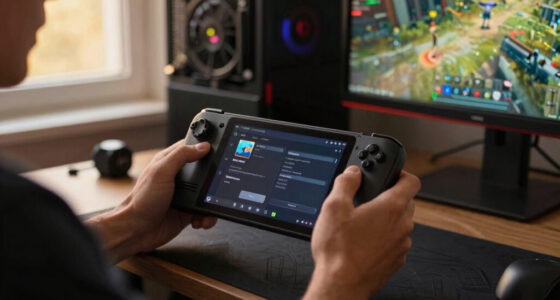
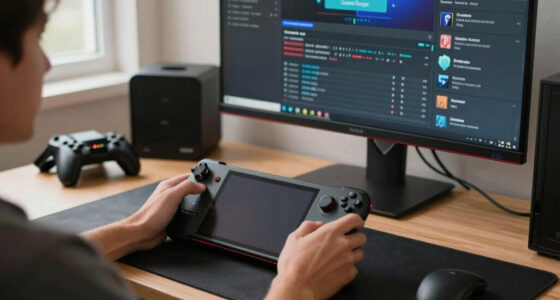
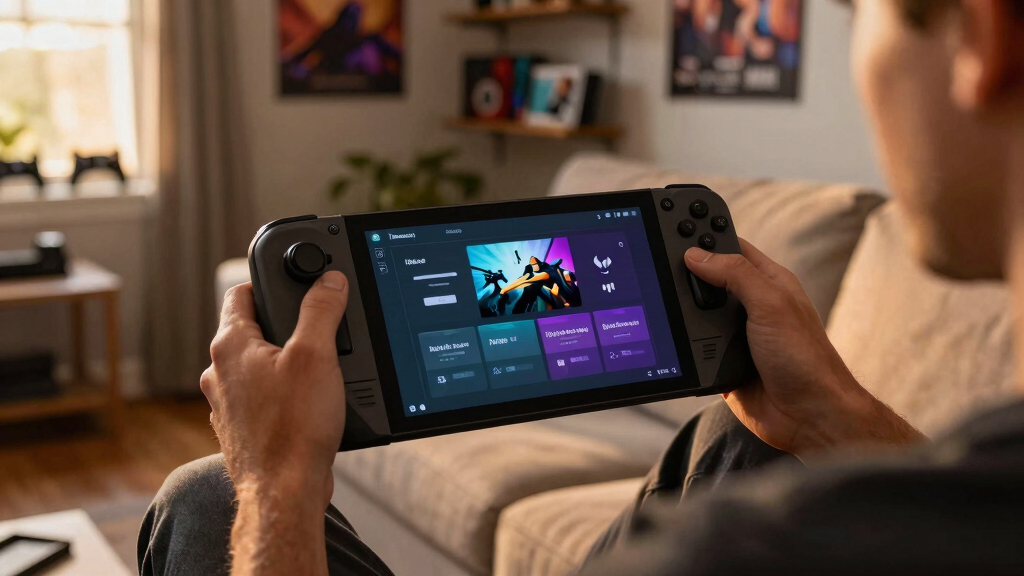
Mod managers on Steam Deck help install, sort, disable, and update game mods, but SteamOS changes the job because many tools were built for Windows file paths. Before you try one, check whether the game runs through Steam Workshop, native Linux tools, or Proton, then back up saves and confirm the guide matches your SteamOS and Proton setup.
One bad mod load order can turn a cozy handheld session into a black screen, a missing save, or a game that launches with the wrong language files and a tiny spinning cursor.
Mod managers on Steam Deck sound like a shortcut, and often they are. You will learn what they actually control, why SteamOS and Proton change the setup, and what you should check before you touch your game files.
This guide is for the moment before you install anything. That quiet minute saves you from late-night folder hunting in Desktop Mode while the Deck fan hums beside your coffee cup.
A mod manager is a file and load-order control tool, not a guarantee that every mod will work on Steam Deck.
SteamOS and Proton can place games, saves, and Windows-style prefixes in different folders, so paths matter as much as the manager you choose.
Start with one small visible mod, then test launch and load a save before adding heavier texture packs or script mods.
Steam Deck Verified status covers the base game, not your modded setup, custom launcher, or third-party tools.
Back up saves and label rumors or leaked support claims as unconfirmed until an official maintainer confirms them.
Mod Managers on Steam Deck Explained Before You Try Them
TL;DR: mod managers help install, sort, disable, and update game mods, but SteamOS changes the job because many tools were built around Windows file paths. Before you install anything, check whether your game uses Steam Workshop, native Linux tools, or Proton, then back up saves and confirm the guide matches your SteamOS and Proton setup.
One bad load order can turn a cozy handheld session into a black screen, a missing save, or a tiny spinning cursor staring back at you from Desktop Mode.
Steam Deck Verified covers the shipped game, not your third-party mods, custom launcher, or altered file tree.
Small visible mod before heavy textures, scripts, or full overhauls.
Steam libraries, SD cards, saves, and Proton prefixes may split one setup.
A mod manager is file control, not magic compatibility.
Think of it as a control panel for files your game was not shipped with. It can keep load order visible, make disabling easier, and reduce manual folder chaos. It cannot guarantee a Windows-first mod, script extender, or launcher will behave correctly on Steam Deck.
Places files where the game expects them
Good managers reduce drag-and-drop mistakes, especially when mods contain nested folders or optional patches.
Controls load order and conflict priority
For games with plugins, order decides which assets, scripts, or records win when two mods touch the same thing.
Lets you disable bad changes faster
If a texture pack breaks a cave or a UI mod crashes launch, unticking beats hunting files by hand.
Use a boring test path before you build the fun one.
The first run should prove the folder path, manager version, Proton version, and launch option all line up. If the small mod works, you have earned the heavier stack.
Launch clean
Run the unmodded game once on Steam Deck and confirm it opens.
Confirm route
Check Workshop, native Linux, Proton, or manual install.
Back up saves
Copy saves or confirm Steam Cloud before changing files.
Add one mod
Pick a small, visible, easy-to-remove change.
Write it down
Record manager, Proton, mod names, and app ID.
The best setup depends on how the game gets mods.
SteamOS runs Linux, and many Windows games use Proton. That means the same game can have a Steam library folder, save folder, and Windows-style prefix that all matter to the manager.
| Route | Best for | Deck fit | What can go wrong |
|---|---|---|---|
| Steam Workshop | Games with built-in mod support | ✓ Simplest path | Less load-order control and fewer non-Workshop options. |
| Native Linux manager | Tools that support Linux or Flatpak-style installs | ✓ Clean when supported | May need manual game path setup in Desktop Mode. |
| Windows manager through Proton | Games whose mod scene expects Windows tools | ~ Powerful but fiddly | Can point at the wrong prefix or miss the real game folder. |
| Manual install | Small mods with one or two files | ~ Fine for tiny changes | Easy to forget what changed after a month. |
| Random leaked guide | Unconfirmed support claims | ✗ Treat as rumor | Discord screenshots are not official setup instructions. |
Performance claims need platform receipts.
A mod that runs smoothly on a desktop GPU can still stutter on Steam Deck LCD or OLED, especially with high-resolution textures, script-heavy changes, or custom launchers.
Ask for specifics
Good reports name SteamOS version, Proton version, Deck model, resolution, mod list, and whether the game lives on internal storage or microSD.
Watch multiplayer rules
Mods that change files, inject code, or alter memory can trigger anti-cheat systems. For online games, read the developer policy first.
Checklist for the quiet minute that saves the night.
Steam libraries, SD cards, save folders, and Proton prefixes can split one game into several locations. Match the manager path against the real app ID before you trust it.
Find the real game folder
Open it in Desktop Mode and compare it with the manager’s selected path.
Verify the Proton prefix
Windows-style settings may live in a prefix tied to the Steam app ID.
Back up saves first
A copy beats trying to rescue a 70-hour save after a bad plugin stack.
Label unconfirmed claims
Treat rumors and leaked support notes as unconfirmed until maintainers say otherwise.
Mod stack complexity scale
Know what each step touches.
A reliable Steam Deck mod setup connects the store source, file path, compatibility layer, save location, and rollback plan before the first big overhaul lands.
What You Actually Get From a Mod Manager
Mod Managers on Steam Deck Explained Before You Try Them starts with one plain idea: a mod manager is a control panel for files your game was not shipped with. It can install mods, sort load order, disable problem files, and keep backups cleaner than dragging folders by hand.
Think of it like packing a suitcase. The manager places shirts, cables, and shoes in known spots; the game opens the suitcase and expects each thing where it belongs. When you add 20 Skyrim mods, that order can decide whether you see new armor or a frozen menu.
A good manager also gives you a quick escape hatch. If a texture pack makes a cave glow neon purple, you can untick the mod instead of digging through Data folders one file at a time.
As an affiliate, we earn on qualifying purchases.
Why SteamOS Changes The Setup
Mod Managers on Steam Deck Explained Before You Try Them matters because SteamOS is Linux-based, while many mod tools expect Windows habits. According to Valve, Steam Deck runs SteamOS and uses Proton for many Windows games [1]. That means paths, permissions, and launch options can feel unfamiliar.
On a Windows PC, a tool might look for a game under Program Files. On the Deck, the same game may sit inside a Steam library folder, with Windows-style settings stored in a Proton prefix. It is the same game, but the map has different street names.
According to Valve’s Proton project, Steam Play uses Proton to run Windows games on Linux [2]. That is powerful, but it also means a Windows mod manager may need to run inside the same compatibility space as the game.
game backup and restore tools for Steam Deck
As an affiliate, we earn on qualifying purchases.
As an affiliate, we earn on qualifying purchases.
Pick The Route That Fits Your Game
The best route depends on where the game gets mods and how it runs on Steam Deck. Some games work cleanly through Steam Workshop, some need a native Linux tool, and some need a Windows manager through Proton or Wine.
| Route | Best For | What Can Go Wrong |
|---|---|---|
| Steam Workshop | Games with built-in mod support, like many strategy or sandbox games | Less control over load order, fewer tools for non-Workshop mods |
| Native Linux manager | Tools that support Linux or Flatpak-style installs | May need manual game path setup in Desktop Mode |
| Windows manager through Proton | Games whose mod scene expects Windows tools | Can point at the wrong prefix or miss the game folder |
| Manual install | Small mods with one or two files | Easy to forget what you changed after a month |
For example, a Stardew Valley setup often feels friendlier than a heavy Bethesda load order. A few script mods are one thing; 150 plugins with patches, texture swaps, and script extenders need tighter control.
As an affiliate, we earn on qualifying purchases.
Set Up Your First Manager Without Guessing
A safe first setup starts with backups, matching instructions, and one test mod. Do not start with a giant visual overhaul. Start with something small, visible, and easy to remove, like a menu tweak or a single outfit file.
- Check the game first: launch it once on Steam Deck before modding.
- Confirm the platform: SteamOS 3.x, Linux native, or Windows through Proton.
- Back up saves: copy the save folder or enable Steam Cloud if the game supports it.
- Install the manager: use Desktop Mode and follow a guide for the exact game.
- Point it at the right folder: verify the Steam app ID and library path.
- Add one small mod: test launch, load a save, and check the change.
- Write down changes: keep a short note with manager version, Proton version, and mod names.
Your first test should feel boring. That is good. If a tiny font mod works, you have proved the path, manager, and launch options before stacking heavier files on top.
As an affiliate, we earn on qualifying purchases.
Find The Files Before The Files Find You
Steam Deck game files can hide in more than one place, so you need to know which folder your manager is touching. Steam libraries, SD cards, save folders, and Proton prefixes can split one game into several locations.
A common trap looks harmless. You install a mod manager, it finds a Windows-looking folder, and you click accept. Then nothing changes in-game because the tool edited a prefix that is not tied to your actual Steam app ID.
Here is the practical habit: before installing a mod, open the game folder in Desktop Mode and match it against the manager path. If your game lives on a microSD card, the path can differ from a guide written for internal storage.
Avoid The Mistakes That Break Saves
The biggest risks are broken saves, mismatched versions, anti-cheat conflicts, and unsafe downloads. A mod manager lowers file chaos, but it cannot make every mod safe, legal, or compatible with your game version.
Back up before you try is not nervous advice. It is the difference between removing one bad mod and losing a 70-hour save.
Be careful with multiplayer games. Mods that change files, inject code, or alter memory can trigger anti-cheat systems, even if you only wanted a new HUD color. For online games, read the developer rules before you add anything.
Age ratings also have limits. An ESRB or PEGI rating covers the base game, not adult texture packs, violent overhaul mods, or community-made quest content. If a child uses your Deck, treat modded games as separate from the store page rating.
Rumors and leaked mod support claims should stay labeled as unconfirmed until a developer, platform holder, or tool maintainer says otherwise. A Discord screenshot is not a setup guide.
Treat Performance Claims Like Receipts
Mod Managers on Steam Deck Explained Before You Try Them should make you skeptical of any performance claim without a platform and version. A mod that runs smoothly on a desktop RTX card can stutter on Steam Deck LCD or Steam Deck OLED, especially with high-resolution textures.
Be specific when you read or share results. Say SteamOS 3.x, the Proton version used, the Deck model, resolution, frame cap, and whether the game is installed on internal storage or microSD. Without those details, a smooth video clip tells you less than it seems.
Steam Deck Verified status can also change, and it applies to the base game experience. If a guide claims a modded setup is still perfect, check the Steam store page on the day you install and test your own save for 10 minutes before settling in.
Use This Quick Test Before You Install
Your decision test should answer one question: can you undo this without panic? If the answer is no, slow down. The right mod manager on the wrong game path is still the wrong setup.
- Use Workshop first when the game has clean Workshop support and you only want simple content.
- Use a manager when load order, profiles, patches, or updates matter.
- Use manual installs only for tiny mods with clear removal steps.
- Wait when a guide is for another Proton version, another game build, or another Deck model.
Challenge yourself before you click install: could you explain the rollback in one minute? If not, make a backup, save the guide link, and write down the original file path. Future you will be grateful at midnight.
Frequently Asked Questions
Can you use Windows-only mod managers on Steam Deck?
Yes, many Windows-only mod managers can run through Proton or Wine, but setup can take extra work. The manager often needs access to the same game folder and prefix the game uses.
Are mod managers safe on Steam Deck?
Mod managers are generally safe when downloaded from trusted project pages and paired with reputable mods. The bigger risk is a bad mod, wrong path, or missing backup rather than the manager itself.
Do mods affect Steam Deck Verified status?
No, Verified status describes the base game on Steam Deck, not a modded setup. A script extender, custom launcher, or large texture pack can create new problems after a game earns that label.
Should you use Steam Workshop or a mod manager?
Use Steam Workshop for simple supported mods when it gives you what you need. Use a mod manager when you need load order, profiles, patches, or cleaner removal.
What should you do before installing your first Steam Deck mod?
Launch the game once, back up your saves, check whether it runs native Linux or Proton, and test one small mod first. That quick dry run tells you whether your paths and manager setup are working.
Conclusion
Remember this: mod managers can make Steam Deck modding cleaner, but they reward patience more than bravery. Match the tool to the game, verify the path, back up the save, and test one small change first.
Do that, and your Deck stays what you bought it for: a warm little screen in your hands, a game ready to run, and no frantic folder hunt before bed.
Halloween Picks
halloween
As an affiliate, we earn on qualifying purchases.