
TL;DR

Play games on Amazon Luna for your game nights, included with Prime
- A rotating selection of games, no download needed
- Play on TV, laptop or phone
- Fast, free delivery for your gear, too
VKD3D translates DirectX 12 graphics calls into Vulkan so Windows DX12 games can run on Linux-based SteamOS through Proton. It works well for many modern games, but performance and stability depend on your Proton build, GPU drivers, hardware, and game features like ray tracing or anti-cheat.
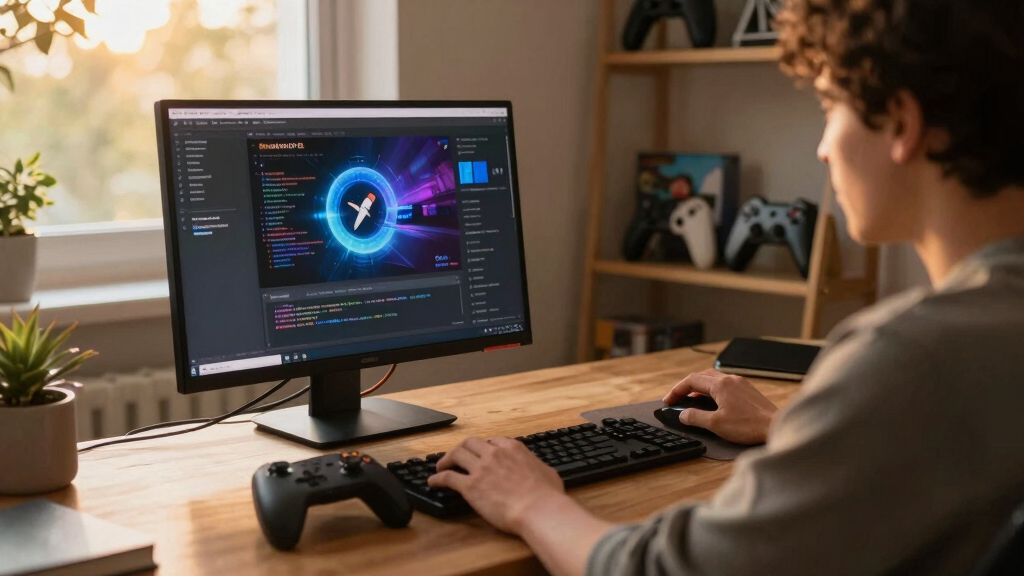
Your Steam Deck can launch a Windows-only DirectX 12 game without Windows, and the real magic happens in the split second before the first frame hits the screen.
That magic has a name: VKD3D. You do not need to be a graphics programmer to benefit from it, but knowing what it does helps you pick the right Proton version, read compatibility reports, and avoid wasting a Saturday night on random launch options.
This guide gives you VKD3D Explained for DirectX 12 Games on SteamOS in plain English: what it is, how Proton uses it, why performance varies, and what you can do when a game stutters, crashes, or refuses to open.
VKD3D Explained for DirectX 12 Games on SteamOS
TL;DR: VKD3D translates DirectX 12 graphics calls into Vulkan so Windows DX12 games can run on Linux-based SteamOS through Proton. It works well for many modern games, but performance and stability depend on your Proton build, GPU drivers, hardware, and features like ray tracing, shader compilation, launchers, DRM, and anti-cheat.
A Windows game asks for Direct3D 12. vkd3d-proton maps that graphics work into Vulkan commands SteamOS can send to the GPU driver.
Proton combines Wine, DXVK, vkd3d-proton, game fixes, shader caching, and Linux driver support into one launch path.
“VKD3D does not make a game native Linux software. It helps a Windows DirectX 12 game talk to SteamOS through Vulkan.”
What happens before the first frame
Your Steam Deck can launch a Windows-only DirectX 12 game without Windows because Proton builds a Windows-like environment, then vkd3d-proton translates the graphics work before the first visible frame lands on screen.
Press Play
SteamOS starts Proton and prepares a compatibility environment for the Windows game.
Game asks for DX12
The game behaves as if it is running on Windows with a DirectX 12-capable GPU.
VKD3D catches calls
vkd3d-proton maps Direct3D 12 commands into Vulkan commands.
Driver takes over
AMD, Intel, or NVIDIA Vulkan drivers turn those translated commands into GPU work.
Frame appears
Caches and game-specific fixes can make later runs smoother than the first launch.
DX12 needs a different layer
Older DirectX advice often points to DXVK, but that does not cover every SteamOS game. Proton uses DXVK for DirectX 9, 10, and 11; DirectX 12 titles go through vkd3d-proton, where modern engine features make translation more demanding.
| Game Graphics API | Proton Layer | What You Usually Notice | Compatibility Signal |
|---|---|---|---|
| DirectX 9 | ✓ DXVK | Older games often run well, with occasional launcher, codec, or input issues. | ✓ Mature path |
| DirectX 11 | ✓ DXVK | Many games feel mature on SteamOS, especially with shader caching. | ✓ Strong baseline |
| DirectX 12 | vkd3d-proton | Results vary more because newer engines use heavier shaders, async compute, ray tracing, and complex memory behavior. | ~ Version-sensitive |
| Non-graphics blockers | ✗ Not VKD3D | Anti-cheat, DRM, video codecs, and third-party launchers may fail before a frame is drawn. | ✗ Different fix path |
Why frame rates vary
VKD3D on SteamOS is not a promise of Windows-identical performance. Smoothness depends on the exact game, Proton build, SteamOS version, GPU driver, graphics preset, shader cache state, and whether expensive DX12 features are enabled.
Handheld truth
A steady 40 FPS cap with calm frame pacing can feel better than a shaky 60 FPS target that spikes every time a new effect appears.
Ray tracing caveat
DX12 ray tracing through translation can be expensive, especially on handheld-class hardware where every watt matters.
Same symptom, different cause
A DX12 game can stutter, crash, or refuse to open for reasons that look similar from the couch. The useful question is where the failure occurs: before the graphics pipeline, during translation, or under heavy GPU load.
Launcher or DRM
If the game never reaches the menu, VKD3D may never touch a frame. Check compatibility notes for login windows, third-party launchers, DRM, and video codec issues.
Shaders and effects
If the menu works but battle scenes crash or hitch, look at shaders, explosions, volumetric fog, memory pressure, and advanced DX12 feature use.
Anti-cheat support
Some multiplayer titles require explicit vendor support before they work through Proton. Graphics translation cannot fix unsupported anti-cheat.
Steam Deck settings that usually help
The best first fix is boring in the best possible way: use current SteamOS builds, try the recommended Proton version, then lower the settings that hammer the GPU hardest before chasing random launch options.
Check current reports
Steam Deck Verified status and compatibility notes can change after game, Proton, or SteamOS updates. Treat old reports as snapshots.
Try another Proton build
Start with the default recommendation, then test Proton Experimental when a DX12 game has known VKD3D trouble.
Lower heavy settings
Turn down ray tracing, shadows, volumetric fog, reflections, and crowd density before changing obscure options.
Use a stable FPS cap
A 30 FPS or 40 FPS cap can smooth frame pacing and reduce battery drain on handheld hardware.
Let caches warm up
The first walk through a rainy city or smoke-heavy battlefield may hitch as new shaders appear. Later runs can feel calmer.
Name the whole test
Useful performance claims include SteamOS version, Proton build, Deck model, GPU driver, resolution, preset, and FPS cap.
The path from Windows game to SteamOS frame
When reading compatibility reports, follow the chain. A failure in one link can look like a VKD3D problem even when the graphics translator is only one part of the stack.
VKD3D is the DX12 bridge
It translates DirectX 12 into Vulkan so many Windows DX12 games can run on SteamOS through Proton, but it does not solve every Windows compatibility issue.
Context beats vibes
When someone says a game “runs great,” look for platform, Proton version, driver stack, graphics settings, ray tracing state, and frame cap.
Key Takeaways
- VKD3D translates DirectX 12 into Vulkan so many Windows DX12 games can run on SteamOS through Proton.
- Proton uses vkd3d-proton for DX12 and DXVK for DX9, DX10, and DX11, so older DirectX advice may not fit a DX12 game.
- Performance claims need platform and version context, such as SteamOS 3.x, Proton Experimental, Steam Deck model, GPU driver, and graphics settings.
- Ray tracing, anti-cheat, launchers, DRM, and shader compilation can cause problems that look similar but need different fixes.
- Your best first troubleshooting steps are checking compatibility notes, testing another Proton build, lowering heavy settings, and using a stable FPS cap.
As an affiliate, we earn on qualifying purchases.
What VKD3D Does Before Your Game Shows a Frame
VKD3D is a compatibility layer that translates DirectX 12 graphics commands into Vulkan, the graphics API SteamOS can use through Linux GPU drivers. In Proton, the gaming-focused piece is commonly vkd3d-proton, which Valve and community developers tune for Windows games running through Steam.
Think of a DX12 game like a kitchen shouting orders in one language while SteamOS listens in another. VKD3D stands at the counter, turns those orders into Vulkan instructions, and tries to keep the plates moving before the food gets cold.
According to Valve’s Proton project notes, Proton combines Wine with graphics layers such as DXVK and vkd3d-proton to run Windows games on Linux systems [1]. According to the vkd3d-proton project, its job is specifically Direct3D 12 over Vulkan for Proton [2].
Key point: VKD3D does not make a game native Linux software. It helps a Windows DirectX 12 game talk to SteamOS through Vulkan.
As an affiliate, we earn on qualifying purchases.
Why DirectX 12 Needs a Different Translator Than Older Games
VKD3D Explained for DirectX 12 Games on SteamOS starts with one split: Proton does not use the same graphics layer for every Windows game. DXVK handles DirectX 9, 10, and 11, while vkd3d-proton handles DirectX 12, which gives games more direct control over the GPU and makes translation harder.
| Game Graphics API | Proton Layer | What You Usually Notice |
|---|---|---|
| DirectX 9 | DXVK | Older games often run well, with occasional launcher or codec issues. |
| DirectX 11 | DXVK | Many games feel mature on SteamOS, especially with shader caching. |
| DirectX 12 | vkd3d-proton | Results vary more because modern engines use heavier shaders, async compute, ray tracing, and complex memory behavior. |
Here is the real-world version: a 2015 DX11 game may open on Steam Deck with a soft fan hum and steady frame pacing, while a newer DX12 title may pause hard the first time it sees a rainy street, neon sign, or smoke-filled battlefield.
That does not mean DX12 is bad on SteamOS. It means the translator has more work to do, and the game gives it less room to hide mistakes.
As an affiliate, we earn on qualifying purchases.
How Proton Uses VKD3D When You Press Play
- You press Play in SteamOS, and Proton starts a Windows-like environment for the game.
- The game calls DirectX 12 because it thinks it is running on Windows with a DX12-capable GPU.
- vkd3d-proton catches those calls and maps them to Vulkan commands SteamOS can pass to your graphics driver.
- Your GPU driver does the final work, turning those Vulkan commands into frames on screen.
- Shader caches and fixes help over time, so a game may feel smoother after updates or after repeated play.
Proton uses VKD3D by placing it inside the chain between the Windows game and the Linux graphics stack. The game asks for DirectX 12, Proton supplies the Windows compatibility pieces, and vkd3d-proton translates the graphics work into Vulkan before your AMD, Intel, or NVIDIA driver takes over.
Imagine launching a big RPG on SteamOS 3.x. The menu appears, your character stands under torchlight, and the first pan across a crowded city may hitch as shaders compile and the translation layer meets new effects.
On a later run, that same street can feel calmer. The cobblestones still shine, the torches still flicker, but the rough first-meeting jitters may fade as caches and game-specific fixes do their quiet work.
As an affiliate, we earn on qualifying purchases.
What Performance Looks Like on SteamOS in Real Play
VKD3D Explained for DirectX 12 Games on SteamOS is not a promise of Windows-identical performance. On SteamOS 3.x with Proton or Proton Experimental, many DX12 games can run smoothly, but frame rate, stutter, battery drain, and crash risk change with the game engine, GPU driver, graphics preset, and Proton build.
On a handheld, you feel performance in your hands. A game that holds 40 FPS with a cool, steady fan can feel better than a shaky 60 FPS target that spikes the frame-time graph like a row of broken teeth.
Ray tracing adds another wrinkle. VKD3D has gained support for advanced DX12 features over time, but ray tracing through translation can be expensive, especially on handheld-class hardware where every watt matters.
If you read a performance claim, check the platform and version. Steam Deck OLED on SteamOS 3.x with Proton Experimental is a different test than a desktop Linux PC with a high-end GPU, current Mesa drivers, and no battery limit.
Why Some DX12 Games Still Break or Stutter
Some DX12 games break on SteamOS because VKD3D can translate graphics calls, but it cannot fix every launcher, DRM check, video codec, anti-cheat system, or game bug. When a title fails, the graphics layer may be innocent; the problem may sit somewhere else in the Windows-to-Linux stack.
- Anti-cheat support: Some multiplayer games require vendor support before they work through Proton.
- DRM or launchers: A game may fail before it reaches the graphics pipeline.
- Shader compilation: New effects can cause stutter the first time they appear.
- Advanced DX12 features: Ray tracing, mesh shaders, or unusual memory use can expose rough edges.
- Driver maturity: Vulkan driver quality matters, especially across AMD, Intel, and NVIDIA hardware.
Say you boot a new shooter and the main menu works, but the match crashes when explosions fill the screen. That points more toward graphics features, shaders, or driver behavior than a simple launcher problem.
Now flip the scenario: the game never opens past a third-party login window. VKD3D may never touch a frame, because the failure happens before the game asks the GPU to draw anything.
The Steam Deck Settings That Usually Help First
- Check Steam Deck compatibility notes before tweaking. Steam Deck Verified status can change after game, Proton, or SteamOS updates, so treat old reports as a snapshot.
- Try the default Proton build first, then test Proton Experimental if the game has known DX12 trouble.
- Lower the heaviest settings, especially ray tracing, shadows, volumetric fog, and crowd density.
- Use a stable frame cap, such as 30 FPS or 40 FPS on Steam Deck, when frame pacing feels rough.
- Keep SteamOS updated so Proton, Mesa drivers, shader caching, and game fixes can improve together.
The best first fix is boring: update SteamOS, try the recommended Proton version, and reduce the settings that hammer the GPU hardest. You can waste hours chasing launch commands when a simple 40 FPS cap and lower shadows would make the game feel smooth enough to enjoy.
For example, a DX12 open-world game may look gorgeous with ultra shadows, thick fog, and ray-traced reflections. On handheld power, those settings can turn a warm evening ride into a fan-heavy slog.
Start with texture quality if you have enough VRAM, then trim shadows, reflections, and post-processing. You keep the scene rich without asking the device to juggle flaming swords, rain puddles, and a crowded marketplace at full blast.
How to Read Compatibility Reports Without Getting Misled
Compatibility reports help most when you treat them like weather reports, not stone tablets. A report from Proton 7, an old SteamOS build, or a desktop GPU may not match your Steam Deck today, especially after game patches and driver updates.
- Look for the exact Proton version, such as Proton Experimental, Proton Hotfix, or a named stable release.
- Check the hardware, because Steam Deck, AMD desktop GPUs, Intel iGPUs, and NVIDIA cards can behave differently.
- Watch for date stamps, since a 2022 crash report may no longer describe the current game.
- Separate launch problems from graphics problems, because VKD3D only explains part of the story.
- Treat leaks and rumors as unconfirmed, especially claims about future SteamOS builds, driver changes, or unreleased Proton fixes.
A useful report sounds specific: “Steam Deck LCD, SteamOS 3.x, Proton Experimental, medium preset, 40 FPS cap, ray tracing off.” A vague “runs bad on Linux” tells you almost nothing.
Age ratings can matter too, but not for performance. If you are setting up a shared Steam Deck for a younger player, check the game’s ESRB, PEGI, or regional rating separately from Proton compatibility.
What Developers Gain From VKD3D Even Without a Linux Port
VKD3D gives developers a practical path for Windows DX12 games to reach SteamOS players even when the studio does not ship a native Linux build. It does not replace real testing, but it can turn a hard platform wall into a fixable compatibility checklist.
If a studio tests its game on Steam Deck, it can catch the rough spots players actually feel: a black video intro, a launcher that needs touch input, a shader hitch during the first boss fight, or tiny text that vanishes against a smoky background.
The tradeoff is control. A native Linux Vulkan renderer gives a studio more direct ownership, while Proton plus VKD3D relies on compatibility layers, driver behavior, and community reports.
For many teams, though, that tradeoff is worth it. You get one Windows build with a better chance of running on SteamOS, especially when the game avoids hostile launchers and leans on standard graphics paths.
The Simple Mental Model You Can Use While Troubleshooting
The simplest way to troubleshoot a DX12 game on SteamOS is to ask where the failure happens: before launch, during graphics translation, or during heavy gameplay. That one question keeps you from blaming VKD3D for every crash and helps you choose better fixes.
| What You See | Likely Area | First Thing to Try |
|---|---|---|
| Launcher fails or login loops | Launcher, DRM, or network layer | Check Proton reports and try a different Proton build. |
| Black screen after intro video | Codec, renderer, or display mode | Try Proton Experimental and windowed or lower-resolution settings. |
| Stutter when new effects appear | Shaders or graphics pipeline | Keep playing briefly, cap FPS, and lower heavy effects. |
| Crash when ray tracing turns on | Advanced DX12 feature path | Disable ray tracing and retest before changing anything else. |
Picture a game that reaches the menu, loads your save, then crashes only when you enter a neon-soaked city at night. That pattern points toward a graphics workload, not a login problem.
Your move is simple: change one thing at a time. Proton version, then graphics preset, then frame cap, then special features like ray tracing.
Frequently Asked Questions
Is VKD3D the same thing as Proton?
No. Proton is the wider compatibility system Steam uses to run Windows games on Linux-based SteamOS. vkd3d-proton is one graphics layer inside that system, focused on translating DirectX 12 to Vulkan.
Can VKD3D run every DirectX 12 game on SteamOS?
No. Many DX12 games work, but some still fail because of anti-cheat, launchers, DRM, video playback, unusual engine behavior, or advanced graphics features. Compatibility improves over time, but each game still needs its own reality check.
Does VKD3D make DX12 games slower than Windows?
Sometimes, but not always in a way you will feel. On SteamOS 3.x with current Proton builds, some games run close enough to Windows for normal play, while others lose performance through translation cost, shader stutter, driver limits, or heavy features like ray tracing.
Should I use Proton Experimental for DX12 games?
Try the default Proton version first unless compatibility reports suggest otherwise. Proton Experimental often gets newer fixes earlier, but it can also change behavior between updates, so test it as one troubleshooting step rather than a permanent magic switch.
What hardware works best with VKD3D on SteamOS?
Modern GPUs with strong Vulkan drivers usually give the best results. Steam Deck hardware is a fixed target and gets a lot of Proton attention, while desktop AMD, Intel, and NVIDIA systems can vary based on driver version, distro setup, and power settings.
Conclusion
Remember this: VKD3D is the translator, not the whole courtroom. When a DirectX 12 game works on SteamOS, it is because Proton, vkd3d-proton, Vulkan drivers, shader caches, and the game itself all manage to stay in rhythm.
So when a game stutters or fails, do not panic-tweak everything at once. Change one setting, read reports with dates and versions, and let the first clean frame tell you where to go next.
Fall Picks
fall essentials
As an affiliate, we earn on qualifying purchases.