
TL;DR

Play games on Amazon Luna for your game nights, included with Prime
- A rotating selection of games, no download needed
- Play on TV, laptop or phone
- Fast, free delivery for your gear, too
Steam Machine upscaling renders a game below your television’s native resolution, then reconstructs or enlarges the image for the screen. On a 4K TV, a well-configured 1080p or 1440p render can deliver smoother play while looking close to native 4K from normal sofa distance, although text, thin lines, and fast motion can expose artifacts.
A 4K television asks your gaming PC to draw four times as many pixels as a 1080p screen. That difference can turn a smooth 60-frames-per-second game into a choppy mess, complete with buzzing fans and sluggish controls. Upscaling gives you another route: render fewer pixels, then rebuild the image before it reaches the bright, wall-sized panel.
This guide explains Steam Machine upscaling in practical living-room terms. You will see where the scaling happens, how DLSS and FSR differ from a television’s basic scaler, and why viewing distance can matter as much as raw pixel count. You will also get a repeatable setup process for balancing sharpness, motion, input response, and stable performance.
The name Steam Machine originally referred to living-room gaming PCs built around Valve’s Steam platform and SteamOS. You may now use the phrase for an original unit, a newer SteamOS-compatible PC, or a handheld connected to a TV. Features vary by device, GPU, game version, and SteamOS build, so treat every setting as part of a chain rather than a magic switch.
Send a 4K signal to a 4K television, then let the game reconstruct from a lower internal resolution when supported.
Start with Quality mode and reduce ray tracing, shadows, reflections, or volumetric effects before dropping to an aggressive Performance preset.
Judge shimmer, ghosting, text clarity, and controller response from your normal sofa position using the same repeatable game scene.
Enable the television’s Game Mode, disable overscan, and avoid stacking game sharpening with heavy TV edge enhancement.
Record the game, driver, and SteamOS versions because patches can change both image quality and performance.
Steam Machine Upscaling Explained for Living-Room Screens
Render fewer pixels, reconstruct the frame, and give your television a clean 4K signal. The reward can be smoother play, quieter hardware, and an image that looks remarkably close to native resolution from the sofa.
What upscaling actually does
A lower-resolution frame is not secretly turned into native detail. A scaler estimates the missing screen positions using anything from nearby pixels to motion vectors, depth information, and earlier frames.
Render lower
The game draws at 1080p, 1440p, or another internal resolution to reduce GPU work.
Gather clues
Advanced methods inspect edges, depth, motion data, and prior frames to infer detail.
Reconstruct
The scaler creates enough information to fill the television’s higher-resolution grid.
Output 4K
The Steam device sends 3840 × 2160 so the TV receives a clean native-format signal.
Not every scaler sees the same information
Game-level reconstruction usually has the best evidence for rebuilding edges. A television scaler is more universal, but it only sees the completed HDMI frame.
| Method | Information available | Best living-room use | Typical weakness | Verdict |
|---|---|---|---|---|
| DLSS / FSR in game | Current frame, motion, depth and earlier frames | Modern demanding games targeting sharp 4K output | Ghosting, shimmer or title-specific bugs | ✓ Best first choice |
| GPU / system scaling | Completed lower-resolution frame | Older games without built-in reconstruction | Less scene data for rebuilding fine edges | ~ Useful fallback |
| Television scaling | Final HDMI signal only | Simple enlargement from 1080p to 4K | Softness and possible processing delay | ~ Universal fallback |
| Native 4K | Full scene rendered at output resolution | Light games or powerful graphics hardware | Highest GPU load, heat and fan demand | ✗ Costly for heavy games |
The performance opportunity is enormous
Native 4K contains four times the pixels of 1080p. Reconstruction does have a processing cost, but the GPU can avoid directly shading millions of output pixels every frame.
A 1080p source reconstructed to 4K fills roughly 6.22 million additional screen positions without directly rendering them at native resolution.
Judge from the seat where you play
At normal couch distance, a strong 1440p-to-4K reconstruction can look close to native during motion. Move close and thin hair, fences, distant wires, and interface text reveal the difference.
A sharper couch view without sacrificing smooth play
Start with a quality-focused reconstruction mode. Lower expensive effects before reaching for an aggressive Performance preset, then compare every change in the same scene.
Keep the output at 4K
Send 3840 × 2160 to a 4K television while the game reconstructs from a lower internal resolution.
Begin with Quality
Reduce ray tracing, shadows, reflections, and volumetrics before dropping to Performance mode.
Enable Game Mode
Disable overscan and heavy edge enhancement to protect clarity and controller response.
Choose a stable target
A steady 60 fps suits action; 40 fps on a 120 Hz panel is a strong visual-performance middle ground.
Watch fragile details
Check foliage, rails, neon signs, text, particles, hair, and reflective surfaces during camera movement.
Note every version
Game, driver, scaler, and SteamOS updates can alter both frame rate and reconstruction quality.
The repeatable 10-minute test
Treat the whole chain as one system
The device, GPU, game, reconstruction method, HDMI output, television processing, screen size, and seating distance all shape the result. There is no single magic switch.
Sharpness
Can you read interface text comfortably without halos or crunchy edges?
Temporal stability
Do foliage, wires, signs, and particles remain stable while the camera moves?
Frame consistency
Does the chosen target hold during combat, weather, crowds, and dense scenery?
Input response
Does movement feel immediate with television Game Mode enabled?
What Steam Machine Upscaling Actually Does to Each Frame
Steam Machine upscaling is the process of rendering a game at a lower internal resolution and converting that frame to match a higher-resolution television. It improves how the image fills the screen, but it does not recover every detail that a native-resolution render would contain. That distinction explains both its speed and its limits.
The clearest definition of upscaling starts with pixel counts. A 1920 × 1080 frame contains about 2.07 million pixels, while a 3840 × 2160 frame contains roughly 8.29 million. If your game renders at 1080p and outputs at 4K, the scaler must construct enough information to fill approximately 6.22 million additional screen positions.
Think of the process like enlarging a small mosaic for a bigger wall. A simple method stretches the existing colored tiles, which can leave stair-stepped rails and soft lettering. A smarter method studies nearby tiles, previous frames, movement data, and the shape of each edge before choosing what the new tiles should show.
For example, imagine driving through wet streets in Cyberpunk 2077. The internal frame may contain a thin neon sign only a few pixels wide. A good temporal scaler can use several frames to keep its pink letters stable, while a weak scaler may make them shimmer like foil in a breeze.
Upscaling refers to reconstruction, not free native detail. It trades some image certainty for lower GPU work and potentially steadier performance.
4K gaming monitor with upscaling support
As an affiliate, we earn on qualifying purchases.
As an affiliate, we earn on qualifying purchases.
See Which Upscaling Layer Gives You the Best 4K Image
Steam Machine upscaling can happen inside the game, through the graphics system, or inside your television. Game-level reconstruction usually has the richest information and produces the strongest result, while TV scaling works with almost any signal. Your best choice depends on game support, hardware compatibility, and the frame rate you want.
| Method | What it can use | Best living-room use | Common weakness |
|---|---|---|---|
| Game-level DLSS or FSR | Current frame, motion data, depth, and earlier frames | Modern games targeting a sharp 4K output | Ghosting, shimmer, or game-specific bugs |
| GPU or system scaling | The completed lower-resolution frame | Older games and titles without built-in reconstruction | Less detail to guide edge rebuilding |
| Television scaling | The final HDMI signal | Simple 1080p-to-4K enlargement | Possible softness and extra processing delay |
| Native rendering | Full scene rendered at output resolution | Light games or powerful hardware | Highest GPU load |
NVIDIA DLSS Super Resolution uses trained models and requires compatible NVIDIA RTX hardware, according to NVIDIA’s developer documentation [1]. AMD FidelityFX Super Resolution covers several techniques across its versions and supports a broader range of graphics hardware, although each game’s implementation decides which options appear; AMD documents those requirements through GPUOpen [2]. Neither label guarantees an identical result in every title.
Consider a SteamOS living-room PC running a demanding forest scene at 42 frames per second in native 4K. Selecting a high-quality internal reconstruction mode may push it closer to 60 frames per second, while leaves remain crisp from three metres away. Letting the TV enlarge a plain 1080p signal may run equally fast, yet fine branches can look softer because the television never receives the game’s motion or depth data.
Avoid stacking several aggressive scalers unless you have a clear reason. If a game already reconstructs to 4K, send that 4K output to the display rather than shrinking it and asking the TV to enlarge it again. Repeated processing resembles photocopying a photocopy: every pass can make the smallest lettering look dirtier.
As an affiliate, we earn on qualifying purchases.
Get a Sharper Couch View Without Sacrificing Smooth Play
Steam Machine upscaling looks convincing when the internal resolution preserves enough edge detail for your screen size and seating distance. Start with a quality-focused mode, target a stable frame rate, and judge the image from your normal seat. Pixel-peeping beside the TV can exaggerate flaws that disappear from the sofa.
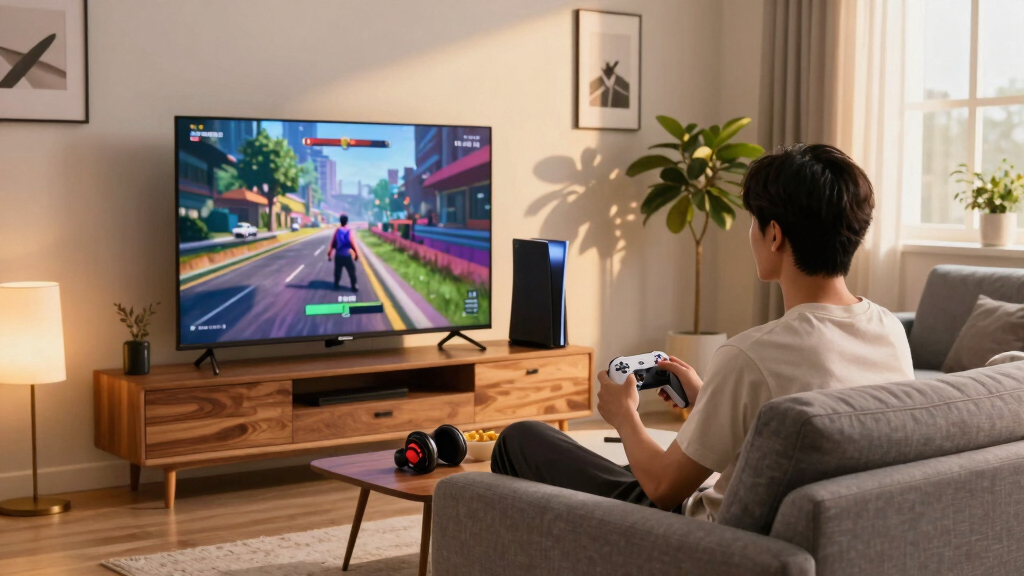
A 55-inch 4K television spreads its pixels across a wide glass surface, but normal couch distance softens your ability to distinguish each one. At roughly 2.5 to 3 metres, a good 1440p-to-4K reconstruction can look remarkably close to native during play. Move within half a metre, and thin hair, fences, interface text, and distant wires reveal the difference.
- Choose your frame-rate target. Use 60 fps for responsive action, 40 fps on a compatible 120 Hz screen for a strong middle ground, or 30 fps when visual richness matters more than fast input.
- Set the TV to its native output resolution. A 4K display usually works best when the Steam device sends 3840 × 2160, even if the game renders internally below that figure.
- Begin with Quality mode. Play for five minutes in an area with motion, foliage, fine rails, and bright interface text.
- Lower expensive graphics settings first. Ray tracing, volumetric fog, shadows, and reflections can consume more performance than textures.
- Move to Balanced only when needed. Use Performance mode as a deliberate speed trade, especially on a large screen.
Suppose a boss fight swings between 48 and 58 fps while sparks scatter across a dark stone floor. Dropping from native 4K to a quality reconstruction mode may hold 60 fps, making controller response feel tighter and camera movement look cleaner. If Performance mode turns the boss’s chain armour into glittering noise, step back to Balanced and reduce shadow quality instead.
Watch the frame-time graph if your SteamOS performance overlay provides one. A flat line often feels better than a higher average with sharp spikes. Smooth 50 fps through variable refresh can feel calmer than a game bouncing between 45 and 70 fps with visible judder.
gaming TV with low input lag and game mode
As an affiliate, we earn on qualifying purchases.
As an affiliate, we earn on qualifying purchases.
Spot the Visual Flaws Before They Distract You
Upscaling artifacts appear when the reconstruction system lacks reliable information about fine detail, motion, transparency, or newly exposed scenery. You will most often notice shimmer, ghost trails, soft text, broken particles, and over-sharpened edges. Testing the right scene for two or three minutes exposes these faults faster than staring at a still menu.
What should you watch first? Pan the camera slowly past a wire fence, then sprint through tall grass and stop under a bright sign. Thin lines may sparkle, grass can fizz like television static, and the sign may leave a pale echo behind it. These moments stress the scaler because tiny objects change position or appear from behind other objects.
- Shimmering: reduce sharpening or select a higher-quality reconstruction mode.
- Ghosting: update the game, try another upscaler, or disable motion blur while comparing.
- Soft interface text: use native-resolution UI scaling when the game offers it.
- White halos: lower the game’s sharpening control and disable extra TV sharpness.
- Particle breakup: test native rendering in the same scene to confirm that upscaling causes it.
A television’s sharpness slider deserves special attention. Many sets add pale outlines around dark branches when sharpness sits too high, creating a crunchy texture around every object. Set it near the display’s neutral point, then add only enough game-level sharpening to recover clarity from your couch.
Updates can alter results. A game patch may replace its reconstruction library, while a GPU driver or SteamOS version can change performance or compatibility. Record the game version, chosen mode, and driver build when comparing results; otherwise, yesterday’s smooth image and today’s flickering fence can feel like an unsolvable mystery.
As an affiliate, we earn on qualifying purchases.
Remove the TV Settings That Add Blur and Input Delay
Your television can improve or spoil an upscaled image after the Steam device has finished rendering it. For responsive gaming, enable the display’s Game Mode, use the correct HDMI input format, and limit extra motion or noise processing. The goal is a clean path with minimal delay between your controller input and the glowing pixels.
Imagine pressing jump while a television creates artificial frames, smooths noise, boosts edges, and adjusts contrast scene by scene. Each process handles the image before you see it, like airport checkpoints slowing a suitcase on its way to the carousel. Game Mode usually bypasses much of that work, although the exact behavior varies by brand, model, input, and firmware.
Set the desktop and game output to match a mode your full HDMI chain supports. A 4K signal at 120 Hz requires the Steam device, graphics output, cable, receiver or soundbar, and television input to handle that format. If one link falls short, you may see a black screen, lose HDR, receive reduced color information, or drop to 60 Hz.
Here is an overview of useful checks, along with common trouble spots: confirm the TV reports the expected resolution and refresh rate, disable overscan so every edge remains visible, and test variable refresh separately. A cropped health bar or fuzzy desktop often points to TV scaling settings, not the game’s reconstruction method.
For a concrete test, move a cursor across small white menu text with Game Mode on and off. If the cursor feels as though it drags through syrup in the processed mode, keep Game Mode active. Then inspect a dark game scene for raised blacks or washed-out color, since some televisions store different image settings for SDR, HDR, and each HDMI input.
Know When Upscaling Helps—and When Native Resolution Wins
Upscaling helps most when GPU rendering limits performance, especially in demanding 3D games displayed on a 4K television. Native resolution wins when your hardware already holds the desired frame rate or when a game contains tiny text and unstable fine detail. The right answer changes with each game and scene.
Consider a colorful 2D platformer that reaches 120 fps at native 4K without making the fan rise above a whisper. Upscaling offers little benefit there and may soften pixel art or interface edges. In a ray-traced city full of wet pavement, smoke, and crowds, reconstruction can free enough GPU time to make movement far smoother.
Older games create another tradeoff. A title locked to 720p may depend entirely on system or television scaling, and its painted textures will never become genuinely 4K. Even so, a clean integer scale or a restrained spatial filter can preserve its hard-edged style better than an aggressive filter that smears every brick.
Handheld hardware connected to a TV needs realistic targets. A Steam Deck can output to a 4K display, but that does not mean every modern game should render at native 4K. A 720p or 1080p internal image, modest settings, and a 30- or 40-fps target can produce a better evening on the couch than an unstable high-resolution attempt.
Steam Deck Verified status can change as games, Proton, and Valve’s compatibility checks change. It also describes handheld compatibility rather than guaranteeing a particular docked 4K performance level.
Age ratings do not change when you alter resolution or activate upscaling. If you share the living-room screen with children, check the game’s current ESRB, PEGI, or regional rating and its content details. A sharper image changes presentation, not the violence, language, gambling imagery, or online interactions inside the game.
Build a Reliable 10-Minute Test for Every New Game
A reliable upscaling test compares the same scene, camera path, and performance target across two or three modes. Spend about 10 minutes checking motion, text, fine geometry, and frame stability from your regular seat. This simple routine prevents a bright menu screenshot from hiding problems during real play.
Pick a repeatable location such as a town square with flags, railings, puddles, and moving characters. Walk the same route in native resolution, Quality mode, and Balanced mode. Listen to the fan, feel the controller response, and watch whether window frames crawl or reflections break into silver grains.
- Reset variables: keep textures, shadows, ray tracing, camera path, and time of day unchanged.
- Measure native output: note the average frame rate and any heavy dips during your route.
- Test Quality mode: compare motion clarity, fine edges, UI text, and fan noise from the sofa.
- Try Balanced mode: keep it only if the performance gain matters and the image remains calm.
- Save the result: record resolution, mode, frame cap, game version, and SteamOS or driver version.
Performance overlays can help, but do not let a single average control the choice. A stable 16.7 milliseconds per frame corresponds to 60 fps, while 33.3 milliseconds corresponds to 30 fps. Repeated spikes above those targets create visible hitches even when the average number looks healthy.
Your final check should happen during normal play, not with your nose near the panel. If native 4K gives you 38 fps and Quality mode produces a stable 60 fps with only a faint shimmer on distant grass, the smoother mode usually serves the living room better. You gain a steadier camera, quieter hardware in some cases, and a controller response that feels more immediate.
Frequently Asked Questions
Is upscaled 4K the same as native 4K?
Upscaled 4K is not the same as native 4K. Native 4K renders roughly 8.29 million pixels for every frame, while an upscaled image starts with fewer rendered pixels and reconstructs the rest. High-quality temporal methods can look close from normal sofa distance, but thin wires, text, hair, and fast movement may reveal the difference.
Does upscaling increase frame rate on a Steam Machine?
Upscaling can raise frame rate when the GPU is the main limit because the game renders fewer internal pixels. For example, moving from native 4K to a quality reconstruction mode can reduce graphics work enough to reach a stable 60 fps. It will help less when the processor, game simulation, storage, or a frame-rate cap causes the slowdown.
Should the game or the television handle upscaling?
Use the game’s upscaler when it produces a clean image because it can access motion, depth, and earlier-frame data that the television never receives. TV scaling remains useful for older games and fixed low-resolution output. Send the TV its native resolution when possible so it does not perform another unnecessary enlargement pass.
Which is better for a living-room screen, DLSS or FSR?
The better choice depends on your GPU and the individual game. DLSS Super Resolution requires compatible NVIDIA RTX hardware [1], while FSR supports a wider hardware range across its different versions [2]. Compare both in motion if the game offers them, since a strong implementation matters more than the logo printed beside the setting.
What upscaling mode should I try first on a 4K TV?
Start with Quality mode at a 4K output resolution, then test a busy scene from your normal seat. Move to Balanced only if Quality mode cannot hold your chosen frame rate. Reserve Performance mode for demanding games or weaker hardware because its lower internal resolution can make fine detail less stable on a large panel.
Can a Steam Deck use upscaling when connected to a 4K TV?
Yes, a Steam Deck can output an upscaled image to a 4K television, but modern games often need a much lower internal resolution and modest graphics settings. Targeting 30 fps or a supported 40 fps mode can suit heavier games better than chasing native 4K. Check the current game, Proton, dock, cable, display mode, and SteamOS version before blaming one component.
Why does my upscaled image look too sharp or grainy?
Excess sharpening often comes from two processing layers working together. The game may sharpen its reconstructed output while the television adds another edge filter, producing pale halos and sizzling foliage. Lower the TV sharpness toward its neutral point, disable extra detail enhancement, and add only a small amount of game sharpening if the sofa view still looks soft.
Conclusion
Treat upscaling as a performance tool, not a badge of image quality. Set a frame-rate target, begin with the highest-quality reconstruction mode, and compare it with native rendering in a demanding scene. Keep the mode that makes motion steady and controls responsive without turning hair, grass, rails, or interface text into a glittering haze.
The best setting is the one that disappears while you play. When the fan settles, the camera glides, and a rain-soaked street stays sharp from the sofa, stop counting pixels. Pick up the controller and let the screen become a window again.
Columbus Day / Indigenous Peoples' Day Picks
long weekend sales
As an affiliate, we earn on qualifying purchases.