
TL;DR
Steam Machine Verified is Valve’s compatibility badge for games that run on Steam Machine with controller support, clean defaults, Proton compatibility, and at least 30 fps at 1080p. Any game that is already Steam Deck Verified is guaranteed to be Steam Machine Verified too, but Playable, Unsupported, and Unknown still matter because launchers, anti-cheat, and setup friction can trip you up [1].
A tiny checkmark can decide whether your Friday night starts with a game or a settings menu.
You want Steam Machine Verified explained before the badge spreads across store pages, wishlists, and your library. The label is not a review score. It is Valve’s quick signal that a game should work cleanly on Steam Machine without you poking through graphics menus or controller layouts.
This guide shows what the badge means, what Valve tests, where the label can still miss real-life problems, and how you can read it before you spend money.
Steam Machine Verified Explained Before the Badges Appear Everywhere
TL;DR: Steam Machine Verified is Valve’s compatibility badge for games that should run cleanly on Steam Machine with controller support, sensible defaults, Proton compatibility, and at least 30 fps at 1080p. It is not a review score. It is a couch-readiness signal.
Valve’s Steam Machine target at 1080p using default graphics settings.
Games already Steam Deck Verified are guaranteed to be Steam Machine Verified too.
Press play, pick up a controller, and get into the game without a settings-menu detour.
Verified, Playable, Unsupported, and Unknown.
Menus, combat, maps, inventory, and text entry should work from the couch.
Windows games still need SteamOS-friendly behavior.
Logins, anti-cheat, and setup prompts can still spoil the first five minutes.
Verified Means Ready, Not Perfect
The badge says Valve’s compatibility checks passed and no setup work should be required. A game can still have bugs, bad servers, or patch-day surprises, but the living-room basics should be handled.
Controller-first play
The default controller layout needs to reach the full game, including menus, maps, inventory, combat, and confirmation screens.
Readable couch UI
Prompts should match the controller, text entry should work, and the game should not strand you at a keyboard-only moment.
No platform blockers
Proton, launchers, hardware checks, and system prompts cannot block ordinary play on Valve’s SteamOS box.

Steam Deck Linux Deployment: Deploy Games, Apps, and Smooth Performance on SteamOS, Proton, and Handheld PCs
As an affiliate, we earn on qualifying purchases.
As an affiliate, we earn on qualifying purchases.
Four Labels, Four Shopping Signals
The biggest mistake is treating every non-Verified label as a disaster. Playable can mean one tiny manual step. Unknown can simply mean Valve has not tested the game yet.
| Badge | Plain Meaning | Likely Couch Scenario | Buy-Decision Signal |
|---|---|---|---|
| Verified | ✓ Passes Valve’s checks without setup. | You install it, grab the controller, and start before the title music loops twice. | ✓ Green light for most players. |
| Playable | ~ Runs, but may need one manual step. | You pick a layout, open an on-screen keyboard, or lower a setting. | ~ Read the compatibility details. |
| Unsupported | ✗ A blocker prevents normal play. | A multiplayer shooter hits anti-cheat trouble before the lobby loads. | ✗ Be cautious, especially online. |
| Unknown | ~ Valve has not finished testing. | User reviews and Proton notes become your flashlight. | ~ Not bad news by itself. |
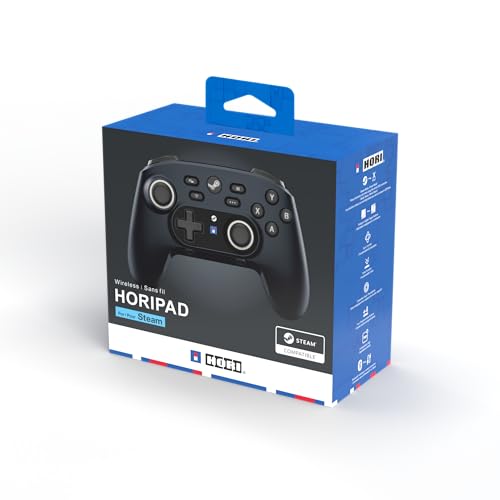
HORI Wireless HORIPAD for Steam (Midnight Black) – Pro Controller Designed for Steam
Rechargeable wireless pro controller designed for Steam for Windows 11/10 & Steam Deck
As an affiliate, we earn on qualifying purchases.
As an affiliate, we earn on qualifying purchases.
The Five-Minute Test That Matters
A Verified badge is about the first five minutes as much as the next fifty hours. The game must pass through each practical checkpoint without turning your couch session into tech support.
Input
Controller mapping reaches every required action and menu.
Prompts
On-screen buttons match what your hands are pressing.
Text
Names, saves, chats, and logins do not require a physical keyboard.
Proton
Windows builds, launchers, and SteamOS behavior do not block play.
Speed
Default settings clear the 30 fps at 1080p floor.
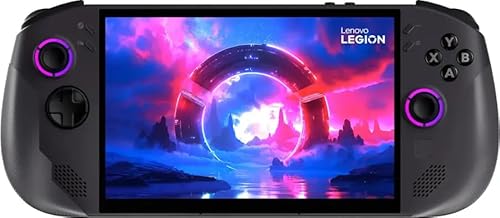
Lenovo Legion Go S 8APU1 120Hz 8" Gaming Handheld Powered by SteamOS with 32GB RAM, 1TD SSD, Radeon 780M Graphics, and AMD Ryzen Z1 Extreme Processor (Legion Go S with standard accessories)
SteamOS-Based Gaming Experience – Runs SteamOS for fast boot, smooth updates, native access to your Steam library, cloud…
As an affiliate, we earn on qualifying purchases.
As an affiliate, we earn on qualifying purchases.
Where Steam Machine Has A Head Start
Steam Deck Verified status is the fastest clue. Deck Verified games carry over, while Playable games need a closer look at why they missed the top badge.
Performance vs. Interface Problems
Performance limitations may improve on a stronger Steam Machine. Interface problems such as launchers, keyboard prompts, and awkward controller support often follow the game unless the developer fixes them.

ASUS TUF Gaming A16 Laptop: AMD Ryzen 7 7445HS, 16" Full HD+ 145Hz Display, NVIDIA GeForce RTX 4050, 16GB DDR5 RAM, 512GB SSD, Backlit Keyboard, Windows 11
AMD Ryzen 7 7445HS Processor (3.2GHz)
As an affiliate, we earn on qualifying purchases.
As an affiliate, we earn on qualifying purchases.
What The Badge Can Still Miss
Verified lowers friction, but it cannot freeze time. Games change, Proton changes, drivers change, and a routine update can move compatibility in either direction.
Anti-cheat is the hard wall
Some anti-cheat tools can work through Proton when developers enable support. Kernel-level or unsupported systems remain a common reason online games stumble.
The badge tested the game
A clean RPG may be Verified, then stutter after texture packs, reshade presets, script mods, and community launchers pile on top.
Compatibility can move
A Tuesday update can add a login window, break prompts, or improve Proton behavior. Recent SteamOS reviews matter more than old forum posts.
Presentation is not ownership
The badge affects how Steam presents confidence and details. It does not decide whether a game exists in your account or store search.
Read Before You Spend
Start with the badge, then check why it earned that badge. The detail view is where Playable becomes useful instead of vague.
Key Takeaways
- Steam Machine Verified means a game passed Valve’s Steam Machine checks for controller input, default settings, SteamOS behavior, and 30 fps at 1080p.
- Any game already Steam Deck Verified is guaranteed to be Steam Machine Verified, but Deck Playable games need closer reading.
- Playable is not bad by default; it usually means you may need one manual step such as a controller layout, keyboard prompt, or settings tweak.
- Unsupported often points to Proton, hardware, launcher, or anti-cheat blockers, so multiplayer games need extra caution.
- The badge affects how Steam presents a game, not whether the game appears in your library or store.
Know What the Badge Actually Promises
Steam Machine Verified Explained Before the Badges Appear Everywhere is a simple promise: the game should feel ready on Valve’s living-room SteamOS box without you tuning graphics, hunting controller layouts, or wrestling with a launcher. According to Valve’s Steamworks docs, Verified means all compatibility checks pass and no setup work is required [1].
Think of the badge as a small, strict host at the door. It checks your controller, your default graphics, the launcher, text entry, and whether Proton can run the Windows build on SteamOS. If any of those guests show up messy, the badge changes.
For you, the practical question is plain: can you sit on the couch, press play, and get into the game before your drink loses its ice? A Verified badge says yes, at least by Valve’s test bar. A badge can save you setup time; it cannot promise perfection.
See What Each Badge Means Before You Click Buy
Steam Machine Verified Explained Before the Badges Appear Everywhere gives you a shopping shortcut, but the smaller labels matter just as much. Valve uses four customer-facing ratings: Verified, Playable, Unsupported, and Unknown. Each one answers a different version of the same question: how much work will you do after pressing play?
| Badge | Plain meaning | Couch scenario |
|---|---|---|
| Verified | The game passes Valve’s checks and should work without setup. | You install it, grab the controller, and start playing before the title screen music loops twice. |
| Playable | The game runs, but you may need a manual step. | You pick a community controller layout, open an on-screen keyboard, or lower a setting before it feels right. |
| Unsupported | The game fails because of Proton, hardware, or another blocker. | You try a multiplayer shooter and hit an anti-cheat wall before the match lobby loads. |
| Unknown | Valve has not finished testing it yet. | You are staring at a blank map. User reviews and forums become your flashlight. |
The biggest trap is treating Unknown like bad news. It often means Valve has not reached that game in the queue. For a small indie title with clean controller support, Unknown can still run beautifully; for a launcher-heavy MMO, it can hide a rough first hour.
Spot the Tests That Decide a Smooth Couch Session
Steam Machine Verified Explained Before the Badges Appear Everywhere comes down to practical tests, not vague polish. Valve checks whether the default controller setup reaches all game content, whether button prompts match the controller, whether text entry works, whether launchers behave, and whether the default graphics hit 30 fps at 1080p [1].
Imagine a game passing through an airport. The controller mapping is the ticket check. The launcher is the bag scan. Proton is passport control. Performance is the runway. If one station stalls, the whole trip slows down, even when the game itself is brilliant.
- Input: The Steam Controller inputs must reach every menu, map, inventory, and combat action.
- Prompts: The screen should show the buttons you are actually pressing, not random keyboard keys.
- Text entry: Naming a save file or character should work from the couch.
- Performance: The default setup must reach Valve’s Steam Machine floor of 30 fps at 1080p.
- SteamOS support: Proton, launchers, and hardware checks cannot block normal play.
Plainly: Steam Machine Verified is about the first five minutes as much as the next fifty hours. A silky frame rate means less if the launcher demands a mouse before dinner even starts.
Use Your Steam Deck Library as a Head Start
Your Steam Deck library gives you the fastest clue because Valve says any game that is Verified on Steam Deck is guaranteed to be Verified on Steam Machine as well [1]. Steam Machine is also described by Valve as roughly 6 times more powerful than Steam Deck, so some games held back by handheld performance may get a cleaner shot [2].
Say you own a Deck Verified action game that already runs well on the handheld’s small screen. On Steam Machine, the same game should arrive with a badge already in its pocket. The system is not starting from an empty shelf; it is building on years of Deck testing.
The interesting cases are the almost-there games. A Deck Playable title that struggled because the handheld ran out of muscle may feel better on Steam Machine. A Deck Playable title that needed a touchscreen, a launcher, or awkward text input may still need work.
Rule of thumb: performance problems may improve on Steam Machine; interface problems often follow the game like a sticky note on your controller.
This is where your own library becomes useful. Filter by Deck status first, then watch for Steam Machine ratings when they appear. Your old purchases may become better couch games than you expect.
Know Where the Badge Can Still Let You Down
A Verified badge reduces friction; it does not promise a perfect patch, spotless servers, or zero bugs. It tells you the tested build met Valve’s device checks at the time of review. Games change, drivers change, Proton changes, and a Tuesday update can turn a smooth launch into a noisy little puzzle.
Multiplayer games deserve extra caution. Valve says Proton supports some common anti-cheat tools, including Easy Anti-Cheat and BattlEye, but developers may need to enable support, and kernel-level anti-cheat remains a common headache [4]. If a shooter blocks Linux-based play, raw hardware power will not charm it open.
Mods can also muddy the water. A Verified RPG may run cleanly in its plain install, then stutter after you add a 4K texture pack, reshade preset, and a dozen script mods. The badge tested the game, not your weekend science project.
- Check recent reviews for SteamOS, Proton, or controller complaints.
- Watch launcher notes because a login window can ruin a couch setup.
- Be careful with competitive multiplayer when anti-cheat support looks unclear.
- Recheck after big updates because compatibility can move in either direction.
Check a Game in 60 Seconds Before You Spend
You can judge a Steam Machine game quickly by reading the badge, then checking why it earned that badge. Valve says customers can inspect compatibility details on store and library pages after results publish [1]. That detail view matters because Playable can mean one tiny keyboard prompt or a clunky launcher every session.
- Start with the badge. Verified is the green light, Playable means read the fine print, Unsupported means wait, and Unknown means gather more clues.
- Open the compatibility details. Look for the exact warning, not just the label.
- Check controller notes. If the game expects a mouse for menus, your couch session may feel scratchy.
- Scan recent user reviews. Search for SteamOS, Proton, Deck, controller, launcher, and anti-cheat.
- Match the game to your patience. A strategy game with small text may be fine at a desk and annoying on a TV.
Use this before a sale timer gets loud and red. A discounted game still costs your evening if you spend the first hour fixing what the badge already warned you about.
What Changes When the Badges Spread Across Steam
Steam Machine badges will change how you scan Steam, because compatibility will sit closer to price, reviews, trailers, and wishlists. Valve says review results affect how a game is presented, not whether you can buy or access it on Steam Machine [1]. The badge is a guide, not a gate.
That matters for older games. Your dusty library may suddenly look different when Steam shows which titles fit the TV box cleanly. A forgotten platformer with crisp controller support may shine, while a beloved sim with tiny menus may ask for a keyboard and patience.
Developers also get a clear target. Valve’s review gives point-by-point results through Steamworks, and teams can update builds or request another look after fixes [1]. In plain English: the badge can nudge games toward better defaults, better controller prompts, and fewer living-room headaches.
For players, the best habit is calm skepticism. Trust Verified for quick starts. Read Playable notes like a weather report. Treat Unsupported as a warning sign. With Unknown, let user reports fill in the dark corners until Valve’s badge catches up.
Frequently Asked Questions
Does Steam Machine Verified mean a game will run at 4K 60?
No. Steam Machine Verified uses a 30 fps at 1080p default-performance floor in Valve’s Steamworks compatibility rules [1]. A game may offer higher resolutions or frame rates, but the badge itself does not promise 4K 60.
Will every Steam Deck Verified game become Steam Machine Verified?
Yes, Valve says any game Verified on Steam Deck is guaranteed to be Verified on Steam Machine [1]. That gives your Deck Verified library a strong head start, especially for games that already feel smooth with controller controls.
Can I still buy or play an Unsupported game on Steam Machine?
In many cases, yes. Valve says compatibility results affect how a game is presented, not whether it is available on Deck or Machine [1]. Unsupported means Valve found a blocker or bad experience, so you should expect trouble unless a developer update or Proton fix changes the result.
Why would a game be Playable instead of Verified?
A Playable game runs, but it asks something extra from you. That could be choosing a community controller layout, opening a keyboard manually, adjusting graphics, or dealing with a launcher before the game feels smooth.
Where do the badge numbers and source claims come from?
The Steam Machine badge rules come from Valve’s Steamworks documentation at https://partner.steamgames.com/doc/steamhardware/compat [1]. Steam Machine device guidance is at https://partner.steamgames.com/doc/steamhardware/steammachine [2], Steam Frame guidance is at https://partner.steamgames.com/doc/steamhardware/steamframe/compat [3], and Proton details are at https://partner.steamgames.com/doc/steamhardware/proton [4].
Conclusion
Remember this: Steam Machine Verified is a friction label, not a quality award. Use it to spot games that should start cleanly from the couch, then read the details before a sale badge talks you into a messy night.
The best Steam Machine setup will feel quiet and boring in the right way: controller in hand, TV glowing, game running, no settings menu stealing the first bite of your evening.