TL;DR

Play games on Amazon Luna for your game nights, included with Prime
- A rotating selection of games, no download needed
- Play on TV, laptop or phone
- Fast, free delivery for your gear, too
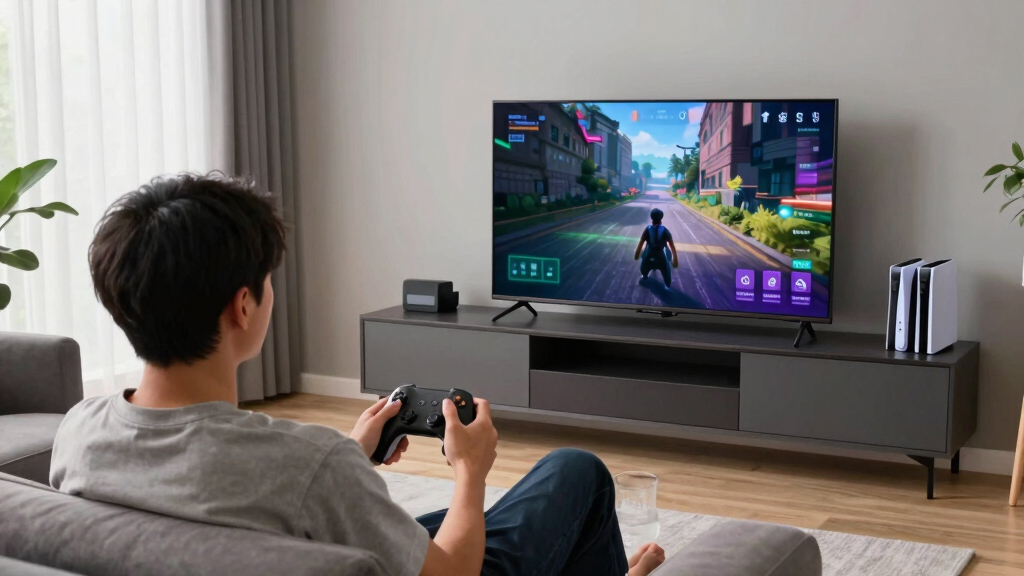
A Steam Machine on a TV works best when you match resolution to real frame rate, let the cleanest scaler handle mismatched pixels, and put the TV in Game Mode. For most living rooms, 1080p or 1440p at a steady 60-120Hz feels better than unstable 4K, while input lag below about 20ms keeps action games responsive [2].
Your couch can make a fast PC feel like it is playing through warm syrup. The Steam library is the same, the controller is the same, but the TV adds its own layer of resolution choices, scaling tricks, and button-delay surprises.
A Steam Machine on a TV is still a PC, which is good news. You can tune it. This guide gives you a practical way to pick resolution, clean up soft-looking games, and cut input lag without turning your living room into a test bench.
Steam Machines are gaming PCs designed for couch play, often running SteamOS or a Steam-first setup. If a rumored new Steam Machine spec sheet floats through social feeds, treat it as unconfirmed until Valve or the hardware maker posts final GPU, HDMI, and SteamOS details.
Resolution, Scaling, and Input Lag Explained
A Steam Machine on a TV works best when you match resolution to real frame rate, let the cleanest scaler handle mismatched pixels, and put the TV in Game Mode. For most living rooms, steady 1080p or 1440p at 60-120Hz feels better than unstable 4K.
20ms
Good target for TV-side input lag in action games.
16.7ms
One frame at 60Hz. At 120Hz, that drops to 8.3ms.
The right choice is the highest resolution your hardware can hold during the hardest scenes you actually play.
Set the Resolution Your Hardware Can Hold
Resolution is pixel count, and every extra pixel must be shaded, lit, filtered, and delivered on time. If the GPU misses the timing window, you feel it as stutter, uneven motion, or sluggish aiming.
1080p / 60Hz
Best for older Steam Machines, demanding games, and players who want stable input response before sharper detail.
1440p / 60-120Hz
Often the practical sweet spot: cleaner than 1080p, easier to sustain than 4K, and strong for fast couch play.
4K / 60-120Hz
Use when your GPU, HDMI port, cable, TV, and game settings all support it without dips in busy scenes.
Make Lower Resolutions Look Clean on a 4K TV
Scaling is the resizing step between the game’s render resolution and the TV panel. The cleanest result usually comes from letting the game or GPU upscale before the TV adds extra processing.
| Render Choice | What Happens | What You See | Best Use |
|---|---|---|---|
| 1080p on 4K | Image scales 2x in each direction. | Menus stay readable, textures can look soft. | Action games, older GPUs, steady 60Hz play. |
| 1440p on 4K | Image uses fractional scaling. | Sharper than 1080p, with some shimmer risk. | Midrange hardware and 120Hz targets. |
| Native 4K | No upscale is needed. | Sharpest image with the heaviest GPU load. | Slower games, strong GPUs, couch screenshots. |
| DLSS, FSR, XeSS | Game reconstructs detail before output. | Often cleaner than plain TV scaling. | Modern games that support upscaling tools. |
Cut Input Lag Before It Spoils a Close Fight
Input lag stacks across the controller, game engine, frame rate, GPU queue, cable path, and display processing. Small wins add up fast.
Controller
Test wired mode if Bluetooth feels inconsistent in a crowded room.
Game Engine
Cap frame rate to a target the game can actually hold.
GPU Queue
A sensible cap prevents long queues of unfinished frames.
HDMI Path
Confirm the right HDMI port, cable, bandwidth, and VRR support.
TV Processing
Game Mode cuts extra display processing and lowers delay.
Turn on Game Mode in the TV picture settings.
Disable motion smoothing, noise reduction, heavy sharpening, and black-frame tricks.
Use VRR only when the TV, GPU, SteamOS version, and cable support it.
Target 60, 90, or 120fps instead of chasing unstable maximum output.
Choose TV Settings That Help Instead of Hurt
Your goal is simple: reduce extra image processing, keep the HDMI signal clean, and use refresh-rate features only when every part of the chain supports them.
| TV Setting | Use It? | Why It Matters | Risk |
|---|---|---|---|
| Game Mode | Yes | Bypasses extra processing and cuts display delay. | Usually the most important setting. |
| VRR | Yes, if supported | Helps smooth frame pacing when performance wanders near target. | Can flicker on some displays or menus. |
| Screen Fit / 1:1 | Yes | Prevents overscan and clipped Steam Big Picture edges. | Names vary by TV brand. |
| Motion Smoothing | No | Adds processing that can increase delay. | May make games feel disconnected. |
| Heavy Sharpening | Use lightly | Can make soft scaling appear crisper. | Can create halos, shimmer, and noisy UI edges. |
Input Lag Feel Scale
Below about 20ms on the TV side is a solid target for action games. Total delay also includes the controller, frame rate, and rendering pipeline.
The Practical Test
Do not benchmark only quiet menus. Load the hardest part of the game you actually play: weather, crowds, explosions, split-screen, boss fights, or dense city scenes.
Pick the highest resolution that stays boringly consistent there. That is the setting your hands will trust from the couch.
Traceability Chain
Key Takeaways
- A steady 1080p or 1440p frame rate often feels better than 4K that dips during busy scenes.
- Scaling looks cleanest when the game or GPU resizes the image before the TV adds extra processing.
- Game Mode, VRR, and 1:1 screen fit are the three TV settings to check before you blame the Steam Machine.
- Input lag below about 20ms on the TV side is a solid target for action games, but total delay also includes the controller and frame rate.
- Steam Deck Verified status and unconfirmed hardware leaks do not replace checking your actual SteamOS version, TV firmware, and game settings.
As an affiliate, we earn on qualifying purchases.
Set the Resolution Your Steam Machine Can Actually Hold
Steam Machine on a TV: Resolution, Scaling, and Input Lag Explained starts with a simple rule: set the TV output for what your hardware can hold, not for the biggest number on the box. Resolution is pixel count, so 4K looks sharper than 1080p, but it asks the GPU to draw four times as many pixels.
4K is 3840 x 2160. 1080p is 1920 x 1080. That jump matters because every extra pixel has to be shaded, lit, filtered, and delivered on time. If the GPU misses that timing window, the TV does not politely wait; you feel it as stutter, uneven motion, or sluggish aiming.
Say you launch a rainy racing game from the couch. At 4K, road signs look crisp, but the frame rate dips when water sprays across the windshield. At 1440p or 1080p, the picture softens a little, yet the steering may feel steady and immediate. That is the real tradeoff: fine detail helps you admire the scene, while stable frame delivery helps you play inside it.
- Start at 1080p/60Hz if you want the safest baseline for older hardware.
- Try 1440p/60Hz or 1440p/120Hz if your TV accepts it and your GPU has headroom.
- Use 4K/60Hz when the game stays steady during busy scenes, not just in quiet menus.
- Use 4K/120Hz only when your TV, GPU, HDMI port, and cable all support it.
The best resolution is not the one that looks sharpest while you stand still. It is the one that survives explosions, weather, crowds, split-screen chaos, and whatever your game does when it stops being polite. Test the hardest part of the game you actually play, then choose the highest resolution that stays boringly consistent.
On SteamOS, check both the system display menu and the game’s own video menu. They can disagree. Your desktop might output 4K while the game renders at 1080p, which is fine if you know who is doing the scaling.
As an affiliate, we earn on qualifying purchases.
Make 1080p and 1440p Look Clean on a 4K Screen
Steam Machine on a TV: Resolution, Scaling, and Input Lag Explained gets messy when the game renders at one size and the panel displays another. Scaling is the resizing step between those two sizes, and your cleanest result usually comes from letting the GPU or in-game upscaler handle the image before the TV touches it.
| Render Choice | What Happens | What You See | Best Use |
|---|---|---|---|
| 1080p on a 4K TV | The image scales 2x in each direction. | Menus stay readable, but textures can look soft. | Action games, older GPUs, steady 60Hz play. |
| 1440p on a 4K TV | The image uses fractional scaling. | Sharper than 1080p, with some shimmer risk. | Midrange hardware and 120Hz targets. |
| Native 4K | No upscale is needed. | The sharpest image, with the heaviest GPU load. | Slower games, strong GPUs, couch screenshots. |
| Lower render plus DLSS, FSR, or XeSS | The game reconstructs detail before output. | Often cleaner than plain TV scaling. | Modern games that support these tools. |
The reason scaling can look different from one setup to another is that not all resizing is equally smart. A TV scaler often receives a finished frame and stretches it after the fact. A game upscaler can use motion vectors, depth information, and previous frames, so it has more clues about what an edge, texture, or moving character is supposed to become.
According to NVIDIA and AMD documentation, DLSS and FSR render below the final output resolution and then rebuild the image for the display [3]. In plain living-room language: the game does smarter math before your TV stretches the frame across a bright 55-inch panel.
There is still a tradeoff. Aggressive upscaling can make grass, fences, hair, subtitles, or thin UI lines shimmer when the camera moves. Native 4K avoids much of that, but it spends performance you might rather use on higher frame rate, better shadows, or lower latency. If two settings look close from the couch, pick the one that keeps motion cleaner.
If Steam Big Picture looks clipped at the edges, you may have overscan turned on. Set the TV aspect option to Screen Fit, Just Scan, or 1:1. That one setting can save you from missing half a button label in the corner.
As an affiliate, we earn on qualifying purchases.
Cut Input Lag Before It Spoils a Close Fight
Steam Machine on a TV: Resolution, Scaling, and Input Lag Explained matters most when your button press feels late. Input lag is the delay between pressing jump and seeing feet leave the ground, and a good living-room setup keeps that delay low enough that your hands still trust your eyes.
At 60Hz, one frame lasts 16.7ms. At 120Hz, one frame lasts 8.3ms. According to RTINGS TV testing, Game Mode is usually where modern TVs hit their lowest measured input lag [2]. Those numbers matter because delay is easier to feel than to name: a game can look smooth and still feel wrong if your inputs arrive too late in the chain.
Input lag is not just a TV problem. It stacks across the controller, game engine, frame rate, GPU queue, cable path, and display processing, so small wins add up fast.
- Turn on Game Mode in your TV’s picture settings.
- Turn off motion smoothing, black-frame tricks, noise reduction, and heavy sharpening.
- Use VRR when the TV, GPU, SteamOS version, and cable support it.
- Cap frame rate to a level the game can hold, such as 60, 90, or 120fps.
- Test wired controller mode if Bluetooth feels inconsistent in a crowded room.
Each step removes a different kind of waiting. Game Mode cuts display processing. A sensible frame cap keeps the GPU from building a long queue of unfinished frames. VRR can smooth uneven delivery when performance wanders near the target. Wired controller testing separates wireless interference from actual rendering lag.
Think of a boss parry. If your TV adds a mushy delay, the animation arrives after your thumb already made the decision. Game Mode will not make you better overnight, but it removes the sticky film between intent and action. The implication is simple: before lowering difficulty or blaming the controller, make sure the display is not quietly moving the goalposts.
As an affiliate, we earn on qualifying purchases.
Choose TV Settings That Help Instead of Hurt
The right TV settings turn a Steam Machine from soft and sluggish into sharp and direct. Your goal is simple: reduce extra image processing, keep the HDMI signal clean, and use refresh-rate features only when every part of the chain supports them.
| TV Setting | Use It? | Why It Matters |
|---|---|---|
| Game Mode | Yes | Bypasses extra processing and cuts display delay. |
| VRR | Yes, if supported | Helps smooth frame pacing when frame rate shifts. |
| Motion smoothing | No | Adds processing delay and can make games feel floaty. |
| Noise reduction | No | Can smear fine texture and UI text. |
| Sharpness | Low or neutral | Too much creates white halos around text and edges. |
| Overscan | No | Crops the image and makes UI placement worse. |
| Enhanced HDMI mode | Yes, when needed | Opens higher bandwidth modes on many TVs. |
Most TV image features were designed to make broadcast video look cleaner from across the room. Games are different. They already contain rendered edges, intentional motion blur, HUD text, and timing-sensitive animation. When a TV tries to improve that signal, it can add delay, smear detail, or invent frames that were never part of the game.
According to HDMI Licensing Administrator, HDMI 2.1 can support up to 48 Gbps bandwidth, 4K at high refresh rates, and VRR when the TV, GPU, port, and cable all support the feature [1]. The cable alone does not grant those features. The whole chain has to agree.
That chain is where many living-room setups go sideways. A TV might support VRR only on certain inputs, 4K/120 only after Enhanced HDMI mode is enabled, or low lag only in Game Mode. Change one link and the menu may quietly fall back to a safer, slower mode. If something feels off after a firmware update or cable swap, re-check the TV input settings before changing every game option.
A common living-room trap is plugging the Steam Machine into the wrong HDMI port. One port may support 4K/120 and VRR, while another tops out at 4K/60. Check the tiny labels near the ports or the TV’s input menu before blaming the PC.
Know When 4K Is Worth the Frame Rate Cost
Steam Machine on a TV: Resolution, Scaling, and Input Lag Explained is really about tradeoffs. 4K is worth it when the game stays smooth and visual detail matters more than reaction speed. For fast games, lower resolution with higher refresh can feel better than a sharper image that stutters.
Contrast a slow exploration game with a twitchy arena shooter. In the first, carved stone, candlelight, and tiny map text make 4K feel rich. In the second, a clean 120Hz response can matter more than seeing every scratch on a metal wall.
- Pick 4K/60 for slower adventures, strategy games, cinematic RPGs, and local co-op where detail beats speed.
- Pick 1440p/120 for a strong balance on midrange hardware and modern TVs.
- Pick 1080p/120 for shooters, fighters, racing games, and any game where timing feels tight.
- Use in-game upscaling when DLSS, FSR, or XeSS looks cleaner than raw low resolution.
The useful question is not whether 4K is better. It is better at one job: showing more spatial detail. Frame rate is better at another job: showing more moments in time. Couch gaming asks you to decide which job matters more for the game in front of you.
If you sit far from the TV, the difference between 1440p and 4K may shrink, especially during motion. If you play close to a large screen, 4K text, maps, and distant objects can be easier to read. If the game has uneven frame pacing, though, even beautiful 4K can feel worse than a lower-resolution mode that keeps every turn, dodge, and camera pan predictable.
Steam Deck Verified is not a TV-performance label. It can help you guess controller support and readability on a handheld, but it does not promise 4K couch performance on your SteamOS build, Proton version, GPU driver, or TV firmware. Verified status can also change after game updates.
Fix the Usual Living-Room Problems in 10 Minutes
You can fix most Steam Machine TV problems with one quick pass through display, game, and TV menus. Start with lag, then check scaling, then test frame rate. That order keeps you from polishing the picture while the controller still feels half a beat late.
- Turn on Game Mode for the exact HDMI input your Steam Machine uses.
- Set SteamOS output to 1080p/60Hz as a baseline, then test 1440p or 4K after the game feels stable.
- Match the in-game resolution to your performance target instead of leaving it on auto.
- Disable overscan so the full Steam interface fits the screen.
- Enable VRR only if the TV, GPU, cable, and current software stack support it.
- Use a frame-time overlay for five minutes during real play, not just in the main menu.
- Try one controller wired if wireless input feels uneven during fast scenes.
This order matters because symptoms overlap. A blurry picture might be poor scaling, overscan, excessive noise reduction, or a game quietly rendering below the resolution you expected. A sluggish feel might be TV processing, a low frame cap, Bluetooth trouble, or a GPU that cannot keep up. Changing one setting at a time keeps the diagnosis from turning into living-room folklore.
Here is a simple example. You launch a platformer, and jumps feel late. Switch the TV to Game Mode first, set the game to 1080p/120 if your TV supports it, then turn off motion smoothing. The character should feel like it snaps off the floor instead of pulling through taffy.
If the picture then looks too soft, raise resolution one step or try the game’s upscaler. If the frame-time overlay starts jumping during hard scenes, back down again. The point is not to win a spec-sheet argument. The point is to find the highest visual setting that does not make timing, camera motion, or controller response worse.
If you play on a shared family TV, check ESRB or PEGI ratings and Steam family settings before making couch play frictionless. A Steam Machine makes launching games easy, which is great until the wrong person opens the wrong title during a quiet Saturday morning.
Frequently Asked Questions
Should I set my Steam Machine to 4K if I own a 4K TV?
Set it to 4K only if the games you play can hold the frame rate you want. If 4K causes dips, use 1440p or 1080p and let the game or GPU scaler do the cleanup.
Why does 1080p look blurry on my 4K TV?
1080p can look blurry because the TV has to stretch the image across a 4K panel. Use Game Mode, disable overscan, reduce sharpness, and try in-game upscaling such as FSR, DLSS, or XeSS when supported.
Does HDMI 2.1 reduce input lag by itself?
No. HDMI 2.1 can provide bandwidth for features such as 4K/120 and VRR, but the TV still needs Game Mode and low processing delay [1]. A poor picture mode can feel slow even with the right cable.
Is Steam Deck Verified useful for TV play?
Steam Deck Verified can hint at controller support and text readability on handheld hardware, but it is not a promise of 4K TV performance. Check the game’s current Steam page, your SteamOS version, Proton version, GPU driver, and TV settings.
What is the fastest fix for input lag on a TV?
Turn on Game Mode for the HDMI input your Steam Machine uses. Then turn off motion smoothing and noise reduction, set a frame rate the game can hold, and test again with the same controller.
Conclusion
Remember this: your TV is part of the gaming PC now. Pick the resolution your Steam Machine can hold, let the cleanest scaler do the resizing, and strip away TV processing until the controller feels connected again.
When the setup is right, a button press lands like a light switch: click, flash, movement. That is the living-room sweet spot you are chasing.
Fall Picks
fall essentials
As an affiliate, we earn on qualifying purchases.