
TL;DR
Open a free Amazon Business account
Business pricing, bulk buying and tax-exempt orders.
Create a free accountAs an affiliate, we earn on qualifying purchases.
Steam Machine input lag is the total delay between your controller action and the matching image appearing on your TV. Enable Game Mode, remove unnecessary HDMI devices, keep the frame rate stable, test V-Sync and VRR settings, and compare wired and wireless controls before buying replacement hardware.
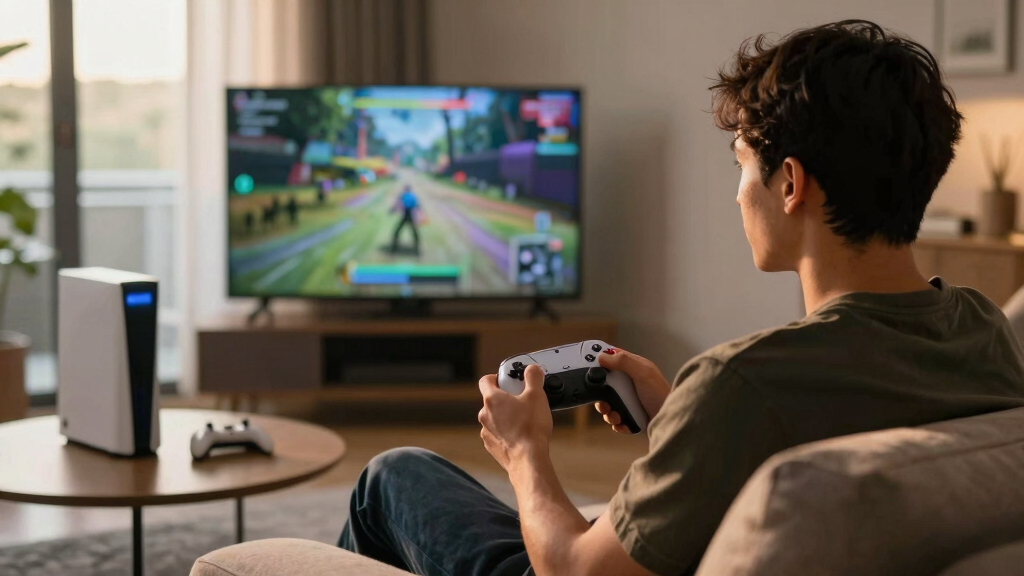
Your television can make a responsive game feel like it is moving through syrup. You press jump, hear the controller click, and watch your character leave the ground a fraction too late. That gap may last only a few dozen milliseconds, yet your hands notice it during a tight parry, a racing correction, or the final shot of an online match.
This guide gives you a practical explanation of Steam Machine input lag for a living-room setup. You will see where delay enters the chain, why a glossy television picture can work against fast controls, and how frame rate, V-Sync, wireless devices, receivers, and HDMI paths affect what you feel. You will also get a repeatable test process that works without specialist equipment.
The name Steam Machine originally referred to Valve-backed living-room PCs from the mid-2010s, but people also use it loosely for modern SteamOS systems and compact gaming PCs connected to a TV. Hardware, operating systems, and firmware vary, so no single latency number applies to every machine. Rumors about new Valve living-room hardware remain unconfirmed unless Valve announces a product, and Steam Deck Verified labels can change as games receive updates; neither detail guarantees low latency on your television.
Think of the system as a restaurant order. Your button press is the order, the game and graphics hardware prepare it, and the television serves it. A fast waiter cannot rescue a kitchen that waits too long, while a fast kitchen still feels slow if the finished plate sits under a heat lamp.
Enable Game Mode and disable motion smoothing before replacing your controller; TV processing is often the largest removable delay.
Treat 60 Hz as a 16.67 ms refresh window and 120 Hz as an 8.33 ms window, then choose a frame rate your system can hold during demanding scenes.
Connect the Steam Machine directly to the TV while testing so receivers, splitters, soundbars, and adapters cannot hide refresh-rate limits.
Use a wired controller as a reference test, but investigate wireless interference, dead zones, firmware, and overlapping input software before buying another p…
Change one setting at a time and record the platform, game version, resolution, refresh rate, frame cap, and video path.
Steam Machine Input Lag Explained for Couch Gaming
Input lag is the total delay between your controller action and the matching image appearing on your television. It is rarely one bad component—it is a stack of small waits across the controller, game, graphics pipeline, HDMI path and TV.
See where the delay hides
Think of the setup as a restaurant order. Your button press places the order, the game and GPU prepare it, and the television serves it. A fast waiter cannot rescue a slow kitchen—and a fast kitchen still feels slow if the finished plate waits under a heat lamp.
The wired or wireless device reports the action.
The engine reads the input and decides the result.
CPU and GPU prepare the next visible image.
V-Sync or buffering may hold completed frames.
Receivers, switches and adapters carry the signal.
The display processes and draws the frame.
Input lag measures the time from an action to its visible result. Pixel response time measures how quickly a pixel changes colour. A television may advertise a fast pixel response while still holding the complete image for additional processing.
Turn milliseconds into something you can feel
Divide 1,000 by the refresh rate to find the duration of one refresh window. Missing a 60 Hz window can add roughly another 16.67 ms before the television performs any extra image processing.
Time occupied by one frame
| Rate | Frame time | Typical couch-gaming feel |
|---|---|---|
| 30 fps | 33.33 ms | ~ Noticeably heavier for aiming, racing and parries. |
| 60 fps | 16.67 ms | ✓ Responsive enough for most living-room games. |
| 90 fps | 11.11 ms | ✓ Faster feedback with smoother motion. |
| 120 fps | 8.33 ms | ✓ Crisp when the TV and HDMI path support 120 Hz. |
Tune the television before buying hardware
If every controller feels heavy, the display and frame pipeline are better first suspects than the controller. Start with a familiar game, change one setting, repeat the same camera pan or jump, and record the result.
Enable Game Mode
Game Mode removes or shortens much of the television’s picture-processing pipeline. Confirm it is active for the exact HDMI input in use.
Highest-priority removable delayRemove motion smoothing
Turn off frame interpolation, cinematic motion, noise reduction and other enhancement features while testing responsiveness.
Glossy processing can hold framesConnect directly to the TV
Temporarily bypass receivers, splitters, soundbars, capture devices and adapters that may limit refresh rate or process the signal.
Machine → HDMI → televisionHold a realistic frame rate
A locked setting that remains stable in demanding scenes can feel better than prettier settings that repeatedly swing between frame rates.
Consistency improves control rhythmTest V-Sync and VRR
V-Sync can reduce tearing but may add queueing delay. VRR can smooth uneven delivery when the full HDMI chain supports it.
Compare feel, tearing and pacingTry a wired controller
Use wired input as a reference. If wireless alone stutters, check battery level, firmware, interference, dead zones and overlapping input software.
Diagnose before replacing gearChange one variable at a time
Specialist equipment is useful but not essential for finding large, removable delays. Repeating the same movement under controlled conditions reveals which change actually improved the setup.
Use a quiet, repeatable area with a sharp camera pan, jump or menu movement.
Record resolution, refresh rate, frame cap, controller and full video path.
Enable Game Mode or bypass one HDMI device—never alter several variables together.
Listen for the controller click and compare it with the first visible movement.
Switch back, retest, then keep only the setting that produces a repeatable improvement.
Follow the evidence
The term “Steam Machine” can mean an original Valve-backed living-room PC, a docked Steam Deck, a modern SteamOS system or a compact Windows PC. Always tie latency observations to the actual platform and configuration.
Fix the chain, not just the controller.
Enable Game Mode and disable motion smoothing before replacing hardware.
Treat 60 Hz as a 16.67 ms window and 120 Hz as an 8.33 ms window.
Test a direct HDMI connection so receivers, soundbars and adapters cannot hide limitations.
Use wired input as a reference, then investigate wireless interference, firmware and software conflicts.
Record every test condition and change only one variable at a time.
See Where the Delay Hides Between Your Hands and the Screen
Steam Machine input lag explained for couch gaming starts with one fact: the delay you feel is a stack of small waits, not one isolated fault. The controller sends an action, the game reads it, the system builds a frame, the video connection carries that frame, and the television displays it. Every stage adds time.
Input lag is the time between an action and its visible result, normally measured in milliseconds. It differs from pixel response time, which describes how quickly a pixel changes color. A TV can advertise a 1 ms response time while still holding the image for processing before it reaches those pixels.
Imagine playing a platformer from three metres away. You tap the button as your character reaches the glowing edge of a ledge, but the game shows the jump after the character has already slipped. The controller may have added a small delay, yet the larger waits could come from a 30 frames-per-second game and a TV applying motion smoothing.
The chain usually contains these parts:
- Controller polling: The wired or wireless device reports your button press to the computer.
- Game processing: The game reads that report during an update and decides what happens.
- Frame rendering: The CPU and GPU prepare the next visible image.
- Frame queue: V-Sync, buffering, or a driver setting may hold completed frames.
- Video path: A receiver, switch, capture device, adapter, or television processes the signal.
- Panel scanout: The display draws the frame across the screen.
The controller starts the journey, but the television often creates the easiest delay to remove.
That distinction saves you from buying gear blindly. If every controller feels heavy in the same game, start with the display and frame settings. If only one wireless controller stutters while a wired model feels clean, investigate its connection, battery, firmware, and interference.
As an affiliate, we earn on qualifying purchases.
Use Frame Time to Turn Milliseconds Into Something You Can Feel
Steam Machine input lag explained for couch gaming becomes easier when you translate refresh rates into frame times. A 60 Hz display starts a new refresh every 16.67 ms, while 120 Hz cuts that interval to 8.33 ms. Higher refresh rates create more frequent chances for a new frame to appear.
The math is simple: divide 1,000 by the refresh rate. At 30 frames per second, each game frame lasts about 33.33 ms; at 60 fps, it lasts 16.67 ms; at 120 fps, it lasts 8.33 ms. Those figures do not equal total input lag, but they show why an unstable 30 fps game often feels heavier than a stable 60 fps game.
| Frame or refresh rate | Time per frame | Typical couch-gaming feel |
|---|---|---|
| 30 fps | 33.33 ms | Cinematic but noticeably slower during aiming, racing, and parries |
| 60 fps | 16.67 ms | Responsive enough for most living-room games |
| 90 fps | 11.11 ms | Smoother motion with faster visual feedback |
| 120 fps | 8.33 ms | Crisp camera movement when the TV and connection support 120 Hz |
Suppose your racing game swings between 45 and 60 fps. The city lights may look smooth on one corner and judder through the next, while steering corrections arrive with an uneven rhythm. A fixed setting that holds 60 fps consistently can feel better than prettier settings that peak higher but keep dropping.
Published setup estimates often place modern gaming latency in a broad 1–20 ms range for individual low-latency components, while competitive players commonly seek results below 10 ms at key stages [1]. Treat those figures as reference points, not a promise for the complete button-to-pixel path. A television, game engine, frame queue, and controller can combine into a much larger total.
Your platform matters too. A Steam Deck running its own screen, a docked Steam Deck, an original Steam Machine, and a Windows PC using Steam Big Picture can produce different timing. Performance claims should name the device, operating system, game version, resolution, and refresh rate; otherwise, the number tells you very little.
As an affiliate, we earn on qualifying purchases.
Change These TV Settings Before You Blame the Controller
Steam Machine input lag explained for couch gaming usually points you toward the television first because TVs often process images before showing them. Game Mode removes or shortens much of that work, making it the best first setting to test. Motion smoothing, noise reduction, and cinematic processing can make controls feel softer.
Start with a familiar game and stand in a quiet area. Pan the camera past a bright doorway, tap left and right, and listen to the dry click of the stick against its gate. Switch Game Mode on, repeat the movement, and pay attention to whether the image follows your thumb more tightly.
- Enable Game Mode for the exact HDMI input used by your machine. Many TVs save settings separately for each port.
- Disable motion smoothing, frame interpolation, noise reduction, and dynamic picture processing. These features can hold frames while the TV polishes them.
- Set the input label to PC or Game if your television offers that choice. Some models use a leaner processing path under those labels.
- Confirm the refresh rate in both the operating system and the TV information panel. A 120 Hz television may still receive a 60 Hz signal.
- Test HDR and VRR separately. Keep them if they work correctly, but isolate each feature when diagnosing flicker, black screens, or inconsistent pacing.
According to common guidance from display makers, Game Mode reduces latency by bypassing image processing intended for films and broadcast television [2]. The tradeoff is visible: faces may look less airbrushed, motion may lose its soap-opera gloss, and low-quality video can appear grainier. Games usually gain far more from faster response than they lose from those cosmetic changes.
Variable refresh rate, including compatible FreeSync, G-Sync, and HDMI VRR implementations, lets the display time refreshes around the system’s output. It can reduce tearing without relying on the same rigid wait used by traditional V-Sync. Support depends on the GPU, driver, cable path, television port, resolution, and firmware version, so check the status screen instead of trusting a menu toggle alone.
For example, a TV may accept 4K at 120 Hz only through two of its four HDMI sockets. Plug your SteamOS box into an older port and the system may fall back to 60 Hz. The cable still carries a clean image, but half of the display opportunities disappear.

Minecraft – Nintendo Switch
- Game Type: Block building and adventure
- World Exploration: Randomly generated worlds
- Building Creativity: Build from simple to grand structures
As an affiliate, we earn on qualifying purchases.
As an affiliate, we earn on qualifying purchases.
Choose Wired or Wireless Controls Without Chasing Tiny Numbers
Controller choice matters, but a modern wireless controller is not automatically too slow for couch gaming. A stable low-latency wireless connection can feel excellent in action games, while a damaged cable or overloaded Bluetooth band can behave badly. Compare the same controller in both modes before treating wired play as a guaranteed cure.
A cable removes radio interference and battery concerns, making it useful as a diagnostic tool. Connect the controller directly to the Steam Machine, close the distance to the TV, and repeat a short sequence in a game you know well. A fighting-game training room works nicely: tap a quick jab, watch the animation, and compare the rhythm with wireless mode.
Wireless trouble often feels less like a steady delay and more like an occasional missed beat. Your character turns normally, then the camera lurches after a brief pause. That pattern can come from 2.4 GHz congestion, a weak battery, an obstructed receiver, controller firmware, or a Bluetooth adapter hidden behind a metal cabinet.
- Move the receiver into the open. A short USB extension can bring it out from behind the machine and away from HDMI or USB 3 interference.
- Charge or replace the battery. Low power can cause unstable behavior on some devices.
- Update controller firmware. Use the controller maker’s official process and read the release notes when available.
- Remove duplicate input layers. Per-game Steam Input settings, controller software, and game-native support can sometimes overlap.
- Test one device at a time. Disconnect spare gamepads, wireless keyboards, and adapters while you isolate the fault.
Steam Input can translate many controller types into layouts that games recognize. It adds flexibility, especially when you want a trackpad to act like a mouse or a back button to trigger a keyboard command. Translation does not mean you will always feel extra delay, but a complicated layout can create apparent sluggishness through dead zones, acceleration curves, action layers, or double-bound commands.
For a concrete test, set a right-stick dead zone too high and the camera will ignore the first few millimetres of movement. That feels like lag, although the system receives input on time. Latency delays an action; a dead zone discards small movement. Knowing the difference keeps you focused on the correct setting.
As an affiliate, we earn on qualifying purchases.
Stop HDMI Gear and Frame Queues From Quietly Adding Delay
The cleanest couch-gaming path runs from the Steam Machine directly to a low-latency television input. Receivers, splitters, capture devices, converters, and soundbars can alter the signal or limit available formats. Most do not automatically add visible delay, but each extra device creates another place for processing, format fallback, or handshake trouble.
Imagine a compact PC feeding an older AV receiver, which then sends video to a 120 Hz television. The receiver supports only 4K at 60 Hz, so the TV never receives the 120 Hz signal you selected. On paper, the TV is fast; in practice, the middle box closes the faster lane.
Test the video chain like a string of garden hoses. Water pressure at the tap does not matter if a narrow connector chokes the flow near the end. Connect the machine directly to the television first, confirm the desired resolution, HDR mode, refresh rate, and VRR status, then add each device back one at a time.
The cable itself does not make button presses travel faster when it carries the selected signal correctly. A suitable certified cable helps maintain the bandwidth needed for modes such as high-resolution 120 Hz output, but a premium label cannot erase rendering delay. Cable problems more often cause sparkles, dropouts, black screens, or format limits than a stable extra delay.
Software can also queue frames. Traditional V-Sync waits to present frames in step with the display, which removes tearing but can increase latency, especially when performance drops below the target refresh rate. Turning it off can make controls feel quicker, yet you may see a bright horizontal tear slice across walls as the camera moves.
| Setting | What you gain | What you may give up |
|---|---|---|
| V-Sync on | Cleaner image without visible tearing | More queued delay in some games |
| V-Sync off | Potentially faster response | Screen tearing and uneven presentation |
| VRR active | Smoother timing across a supported range | Possible flicker or limits outside that range |
| Stable frame cap | More even frame pacing and lower GPU strain | A lower peak frame rate |
A useful starting point is a frame cap your machine can hold during busy scenes, not only in quiet rooms. If the game reaches 120 fps while you stare at a blue sky but falls to 72 fps during smoke and explosions, a stable lower target may feel more controlled. Consistency beats a flashy peak.
Run a 15-Minute Test That Finds the Biggest Problem First
You can diagnose couch-gaming latency in about 15 minutes by changing one link at a time. Begin with the television, simplify the HDMI path, stabilize the game’s frame rate, and use a wired controller as a reference. This process finds large delays before you spend hours comparing tiny controller differences.
- Pick a repeatable scene. Use a training room, empty track, or quiet platforming area with instant actions and a steady frame rate.
- Turn on Game Mode. Disable motion smoothing and other picture processing, then repeat the same movements.
- Connect video directly. Bypass the receiver, switch, soundbar, splitter, and capture device for one test.
- Set a sustainable performance target. Lower a demanding graphics option until the game holds 60 or 120 fps during action.
- Compare V-Sync, VRR, and frame caps. Change one setting, play for a minute, and record what feels different.
- Plug in the controller. If wired mode fixes skips or missed actions, investigate wireless interference and firmware.
Use your phone’s slow-motion camera if you want a rough visual comparison. Film your finger pressing a button and the television at the same time, then count frames between physical movement and the first visible response. At 240 frames per second, each recorded frame represents about 4.17 ms, though phone exposure, rolling shutter, and the moment the switch activates limit accuracy.
A dedicated device such as a Leo Bodnar input lag tester measures display delay more consistently, but it does not recreate the entire controller-to-game path. High-speed camera testing includes more of that chain, while software frame-time tools reveal rendering spikes rather than full button-to-pixel latency. Different tools answer different questions.
Keep a simple note: Game Mode on or off, refresh rate, average frame rate, controller connection, video path, and your result. For example, you might write, “Game Mode on: camera feels immediate; receiver removed: 120 Hz appears; wired controller: no clear difference.” That record stops you from circling through the same menus later.
If one game still feels slow while every other title feels sharp, the game may use heavier animation, a 30 fps cap, aggressive smoothing, or its own buffering method. Check the game version and platform-specific notes. A Steam Deck Verified badge covers compatibility criteria and can change after updates; it does not certify the latency of a dock, television, or external controller.
Frequently Asked Questions
What is a good input lag target for couch gaming?
A complete couch setup that feels responsive matters more than one component’s advertised number. Under 20 ms of display lag is a useful target for many games, while fighting-game and competitive players often prefer lower figures. Remember that controller, game, rendering, and display delays stack together.
Does Steam Big Picture Mode add input lag?
Big Picture Mode is rarely the main cause of obvious input lag during gameplay. Per-game Steam Input layouts, overlapping controller software, background load, or unusual frame pacing deserve closer attention. Compare launching the same game with identical settings before blaming the interface.
Should I turn V-Sync off on a Steam Machine?
Turn V-Sync off as a test if controls feel heavy, but expect possible screen tearing. If your TV and GPU support VRR, that can provide smoother presentation with less waiting across the supported range. The best choice depends on the game, frame rate, display, and driver.
Is Bluetooth too slow for fighting games?
Modern Bluetooth can work well, but performance varies by controller, adapter, firmware, distance, and radio traffic. Use a wired comparison in training mode and repeat the same quick inputs. If wireless play produces skips rather than a steady delay, move the adapter into the open and reduce interference.
Will a more expensive HDMI cable reduce input lag?
A more expensive cable does not reduce latency when your current cable already carries the selected format correctly. Replace the cable if you see signal dropouts, sparkles, black screens, or missing 4K 120 Hz modes. Choose a properly certified cable for the bandwidth you need, not a vague speed claim.
Why does only one Steam game feel delayed?
That game may run at 30 fps, queue extra frames, use slow animation, or apply a large controller dead zone. Compare its frame rate, V-Sync option, controller configuration, and graphics settings with a responsive game. Also check the exact game version because patches can change performance and input behavior.
Conclusion
Fix the largest delay first: put your TV in Game Mode, confirm the real refresh rate, and give the game a frame target it can hold. Then simplify the video path and compare wired input with wireless input. That order turns a vague feeling into a short, controlled test.
You do not need to chase every millisecond or strip away every visual feature. You need a setup where your hands and the screen keep the same beat. When the next corner arrives or the boss raises a glowing blade, your character should move with your thumb—not behind it.
College move-in / dorm season Picks
dorm essentials
As an affiliate, we earn on qualifying purchases.