
TL;DR

Play games on Amazon Luna for your game nights, included with Prime
- A rotating selection of games, no download needed
- Play on TV, laptop or phone
- Fast, free delivery for your gear, too
Steam Machine audio output explained simply: use HDMI for video and multichannel sound, connect through an AV receiver when possible, or let a TV send audio to a soundbar through ARC or eARC. If sound disappears, select the correct SteamOS output, test stereo PCM, and then add surround channels one step at a time.
Your game can render a roaring dragon behind you while your expensive soundbar turns that roar into a thin noise under the television. The usual culprit is not a weak speaker. It is an audio path mismatch somewhere between your Steam Machine, display, and sound system.
This guide gives you Steam Machine audio output explained for modern SteamOS hardware, older Steam Machines, Steam Deck docks, and custom gaming PCs. You will learn when to use HDMI, ARC, eARC, optical, USB, or a 3.5mm jack, plus what each route can carry without quietly cutting your surround mix down to stereo.
The name Steam Machine covers hardware with very different ports, so check your exact model, dock, and SteamOS version before changing anything. A 2015 living-room PC may have optical output, while a Steam Deck relies on its headphone jack, USB-C, or a dock; its Steam Deck Verified status also describes game compatibility, not guaranteed home-theater audio behavior. By the end, you will have a practical setup plan, a clean troubleshooting order, and fewer evenings spent staring at a receiver that stubbornly says PCM 2.0.
Use HDMI for the simplest mix of high-resolution video and multichannel audio; use a 3.5mm jack when stereo headphones or speakers are all you need.
Connect through the receiver when it supports your video features, or connect to the TV and return sound through eARC when an older receiver limits refresh rat…
Test stereo PCM before 5.1 or 7.1, and select only the channel layout represented by real speakers in your room.
If a receiver shows PCM 2.0, test a direct Steam Machine-to-receiver connection to learn whether the television is reducing the signal to stereo.
Treat Atmos, DTS:X, and Steam Deck compatibility as specific to the game, SteamOS version, dock, television, and audio hardware rather than guaranteed platform…
Steam Machine Audio Output Explained
For TVs, receivers, and soundbars: use HDMI for video and multichannel sound, route through a capable AV receiver when possible, or let the TV return audio over eARC. Every device in the chain must support the format you select.
Preserve the sound you actually want
Port availability varies across original Steam Machines, custom SteamOS PCs, Steam Deck docks, and USB-C adapters. Check the labels and specifications for every device—not just the connector shape.
HDMI
Carries high-resolution video plus stereo, 5.1, or 7.1 audio. Best for TVs, receivers, and soundbars with suitable HDMI inputs.
ARC / eARC
Sends TV audio back to a sound system. eARC offers more bandwidth and broader high-quality format support than ARC.
Optical
Useful for older soundbars and receivers. Handles stereo PCM and compatible compressed surround, but not uncompressed 5.1 PCM.
3.5mm
Reliable for headphones, desktop speakers, and quick diagnosis. It normally provides analog stereo—not discrete 5.1 or 7.1.
USB Audio
Good for headsets, DACs, and desktop systems. Available formats depend on the device, SteamOS recognition, and Linux driver support.
Dock matters
Steam Deck Verified describes game compatibility. It does not guarantee a specific dock, TV, or theater system will pass every audio format.
What each route commonly carries
Capabilities vary by hardware and firmware. These practical limits help identify where a multichannel signal may be reduced.
| Connection | Stereo PCM | 5.1 / 7.1 PCM | Advanced formats | Best practical use | Main limitation |
|---|---|---|---|---|---|
| HDMI | ✓ Yes | ✓ Compatible gear | ~ Chain-dependent | Direct TV, receiver, or soundbar | Every link must accept the format |
| HDMI ARC | ✓ Yes | ~ Limited / variable | ~ Format-dependent | Simple TV-to-soundbar return | Less bandwidth than eARC |
| HDMI eARC | ✓ Yes | ✓ Compatible gear | ✓ Broader support | Modern TV-centered theater | Both endpoints must support eARC |
| Optical | ✓ Yes | ✗ No uncompressed 5.1 | ~ Compressed legacy formats | Older receivers and soundbars | Tighter bandwidth ceiling |
| 3.5mm | ✓ Analog stereo | ✗ No | ✗ No | Headphones and stereo speakers | Two-channel analog output |
| USB Audio | ✓ Usually | ~ Device-dependent | ~ Device-dependent | DACs, headsets, desktop systems | Recognition and channels vary |
Let the strongest device handle it first
Choose receiver-first when the receiver supports your required video features. Choose TV-first with eARC when an older receiver would restrict refresh rate, HDR, or variable refresh rate.
Receiver-first
The receiver reads audio directly, then passes the image to the television.
TV-first + eARC
The TV receives full-bandwidth video and returns audio to the sound system.
More channels are not automatically better
Select the layout represented by real speakers in the room. Games often generate live multichannel PCM, while films may use pre-encoded formats decoded later in the chain.
Choose the physical layout
Stereo is correct for two speakers. Use 5.1 for five main speakers plus a subwoofer, and 7.1 only when two additional rear channels truly exist.
Follow the chain from game to speaker
Game mix
The title renders stereo, 5.1, 7.1, or object-based sound.
SteamOS
The selected output and speaker profile define what is sent.
Port + dock
HDMI, USB-C, optical, USB, or analog introduces its limits.
TV passthrough
Auto, PCM, bitstream, ARC, or eARC settings shape the return.
Playback
The receiver or soundbar decodes only what reaches it.
Restore sound one layer at a time
Select the real output
In SteamOS, choose the connected HDMI, DisplayPort, USB, or analog device—not an inactive port.
Start with stereo PCM
Confirm basic sound before enabling 5.1, 7.1, passthrough, or advanced formats.
Add channels gradually
Select only the speaker layout your system physically provides, then run its channel test.
Bypass the television
Test a direct source-to-receiver connection to isolate TV passthrough or ARC restrictions.
Check TV audio mode
Try Passthrough, Bitstream, or Auto. Brand-specific labels and behavior vary by firmware.
Verify every link
Confirm the dock, cable, labeled ports, display, sound system, game, and SteamOS version all agree.
Choose the Audio Connection That Preserves the Sound You Want
Steam Machine audio output explained begins with one rule: use HDMI when you want the simplest route for video and multichannel audio. A single cable can carry a sharp television image plus stereo, 5.1, or 7.1 sound, while 3.5mm analog normally gives you two channels and optical has tighter format limits.
| Connection | What it commonly carries | Best practical use | Main limit |
|---|---|---|---|
| HDMI | Video, stereo PCM, and compatible multichannel audio | TVs, receivers, and soundbars with HDMI input | Every device in the chain must accept the chosen format |
| HDMI ARC | TV audio returned to a sound system; support varies | Simple TV-to-soundbar wiring | Less bandwidth and more format variation than eARC |
| HDMI eARC | Higher-bandwidth return audio, including more advanced formats on compatible gear | Newer televisions and theater systems | Both connected ports must support eARC |
| Optical TOSLINK | Stereo PCM or compatible compressed surround | Older receivers and soundbars | No uncompressed 5.1 PCM or high-bandwidth lossless formats |
| 3.5mm jack | Analog stereo | Headphones, desktop speakers, quick testing | No discrete 5.1 or 7.1 output |
| USB audio | Format depends on the DAC, headset, and Linux support | Headsets, DACs, and desktop systems | Device recognition and channel support vary |
For example, imagine a docked Steam Deck beside a television and an older optical-only soundbar. HDMI carries the Deck signal into the TV, then TOSLINK sends sound to the bar. That setup can produce clean stereo PCM, but selecting uncompressed 5.1 on the Deck does not make optical gain the bandwidth needed to carry it.
HDMI eARC offers a much wider return path than ARC and supports higher-bandwidth formats when every connected device agrees, according to the HDMI Licensing Administrator [1]. Yet the connector shape tells you very little by itself. Read the labels beside the ports: HDMI IN, ARC, and eARC perform different jobs even though the sockets look identical.
A cable cannot add a format that a port, television, or speaker system does not support. The entire chain sets the limit, from the Steam Machine to the final speaker.
HDMI audio extractor for gaming consoles
As an affiliate, we earn on qualifying purchases.
As an affiliate, we earn on qualifying purchases.
Route Your Cables So the Strongest Device Handles the Signal
Steam Machine audio output explained for cable routing comes down to choosing the device that should receive the signal first. Send HDMI into an AV receiver when it supports your required resolution and refresh rate; otherwise, send video into the TV and return audio through eARC to a compatible receiver or soundbar.
The receiver-first route looks like this: Steam Machine to receiver, then receiver to television. Your receiver reads the audio directly and passes the image onward. In a racing game, the engine growl can sit across the front speakers while the hiss of wet tires slides toward the rear channels.
There is a tradeoff. An older receiver may handle 7.1 audio beautifully but limit a newer display to 4K at 60 Hz, block variable refresh rate, or fail to pass HDR correctly. In that case, connect the Steam Machine directly to the TV for video and use eARC to send the sound back.
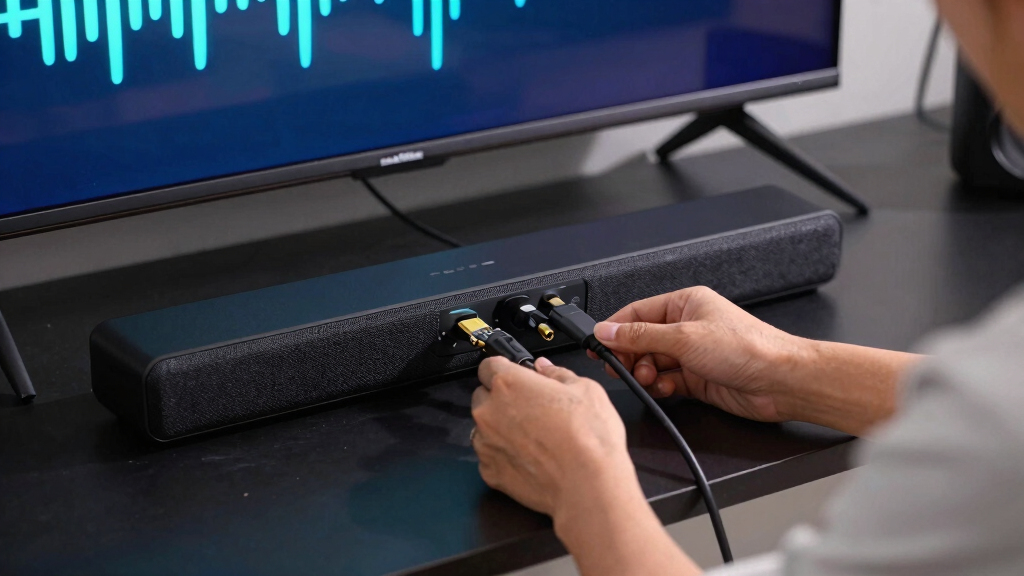
A soundbar with HDMI inputs offers a similar choice. You can connect the Steam Machine to the bar and pass video through it, or connect to the TV and use ARC or eARC. The second arrangement keeps your TV at the center of the setup, but its audio passthrough settings decide whether the soundbar receives stereo PCM, compressed surround, or a higher-bandwidth signal.
Take a living-room setup with a 120 Hz television and a soundbar that has only one eARC port. Steam Machine to the TV and TV eARC to the soundbar is usually the practical wiring pattern because it protects high-refresh video. If the bar reports only two channels, test the TV menu for Passthrough, Bitstream, or Auto, remembering that labels differ by brand and firmware.
AV receiver with 5.1 and 7.1 surround sound support
As an affiliate, we earn on qualifying purchases.
As an affiliate, we earn on qualifying purchases.
Match Stereo, 5.1, and 7.1 to the Speakers You Actually Own
Steam Machine audio output explained at the format level means matching the channel layout to real speakers, not choosing the largest number in a menu. Select stereo for two speakers, 5.1 for five main speakers plus a subwoofer, and 7.1 only when the receiver and physical room provide those extra rear channels.
PCM is decoded digital audio sent as ready-to-play channels. A compressed format such as Dolby Digital packages those channels for a decoder farther down the chain, while Dolby TrueHD and DTS-HD Master Audio carry higher-bandwidth lossless sound on compatible equipment. Dolby describes Atmos as adding sound placement beyond a fixed channel bed, including height information when the content and playback chain support it [2].
Games often behave differently from films. A game engine can create live multichannel PCM as you turn your character, while a film may arrive with a pre-encoded soundtrack. If your optical soundbar accepts Dolby Digital but your game outputs 5.1 PCM, the bar may receive stereo because the Steam Machine does not automatically encode every game mix into Dolby Digital.
Imagine playing a stealth game with a real 5.1 receiver. With the layout configured correctly, a guard’s boots click behind your sofa, cross the right surround speaker, and move toward the center as you face him. Choose 7.1 on that same five-speaker system and you may create missing or poorly folded channels rather than a richer room.
Atmos and DTS:X support depends on the game, operating system, application, connected hardware, and licensing. Do not assume that an Atmos badge on a soundbar means every SteamOS title will produce native object-based audio. Treat individual game claims and rumored future codec support as unconfirmed until the developer or platform holder publishes compatible versions and requirements.
As an affiliate, we earn on qualifying purchases.
Set Up SteamOS Audio Without Losing Channels
Set up SteamOS audio by selecting the connected HDMI, DisplayPort, USB, or analog device, testing stereo first, and then choosing the speaker layout your full chain supports. Keep the receiver or soundbar awake during setup because HDMI detection reads information from connected equipment and can change when devices power on in a different order.
- Turn on the display and audio system. Select the correct television, receiver, or soundbar input before waking the Steam Machine.
- Open the SteamOS audio settings. Choose the named HDMI, dock, USB headset, or built-in analog output rather than relying on an old default.
- Start with stereo PCM. Play a familiar menu sound or video to prove that the basic route works before adding more channels.
- Select the real speaker layout. Move to 5.1 or 7.1 only when the receiver, TV passthrough path, and speakers support it.
- Run a channel test. Confirm that front, center, surround, rear, and subwoofer signals emerge from the expected positions.
- Test an actual game. Some titles have their own speaker, dynamic-range, headphone, or home-theater setting.
For example, a dock may appear as a new HDMI output after you connect it, while SteamOS continues sending sound to the Deck’s small internal speakers. Selecting the dock changes the room instantly: the quiet handheld chirp becomes a wide television soundstage. If the device does not appear, reconnect the dock after the display is awake and try another known-good HDMI cable.
Keep volume handling simple while you test. Set software volume to a healthy level, avoid stacking several virtual surround modes, and control listening volume at the receiver or soundbar. Running game virtualization, television processing, and soundbar virtualization together can smear footsteps into a cloudy halo instead of placing them at a clear point.
Menu names and available profiles can change across SteamOS versions, desktop mode audio components, docks, and firmware releases. A game’s Steam Deck Verified badge can also change after review updates, and it does not promise a specific receiver format. Record the working output name and layout so you can restore them after an update or dock swap.
Steam Machine compatible audio cables
As an affiliate, we earn on qualifying purchases.
As an affiliate, we earn on qualifying purchases.
Fix Silence, Stereo Lock, and Lip-Sync Trouble in Minutes
Most Steam Machine audio problems come from the wrong output device, an unsupported channel format, a muted link, or faulty HDMI detection. Begin with stereo PCM on the television, confirm that sound works, and then reconnect the receiver or soundbar one stage at a time until the failing link reveals itself.
If you hear nothing, check the obvious details with your hands and eyes. Reseat the HDMI plug until it sits firmly, confirm the soundbar display shows the right input, and raise its volume from mute. A television set to its own speakers will not always feed a connected ARC system, even when the ARC cable is plugged in correctly.
If you hear sound but the receiver displays PCM 2.0, open the TV audio menu and look for passthrough or digital-output controls. Some TVs convert incoming audio to stereo before sending it through ARC or optical. Connect the Steam Machine directly to the receiver as a test; if 5.1 appears, the television path is the bottleneck.
Crackles and dropouts often point to a shaky cable, dock, USB device, or bandwidth-sensitive video mode. Try another short certified cable, lower the video refresh rate for one test, and remove unneeded adapters. For example, if audio cuts out only at 4K 120 Hz but stays solid at 4K 60 Hz, the pattern directs your attention toward the HDMI path rather than the game mix.
Lip-sync trouble feels like watching a badly dubbed film: the hammer hits, then the clang arrives a heartbeat later. Disable extra TV picture processing with Game Mode, reduce audio processing, and adjust the receiver’s delay control in small steps. Be careful with delay settings because many controls can delay sound but cannot pull already-late sound forward.
Change one setting at a time. If you swap the cable, output profile, TV mode, and receiver input together, you may restore sound without learning which change fixed it.
Know When ARC, eARC, Optical, or an Adapter Is the Right Compromise
Choose eARC for the broadest TV-return audio support, ARC for a simpler compatible soundbar, optical for dependable older stereo or compressed surround, and an adapter only when your ports cannot meet directly. The best choice protects the features you use every day, whether that means 120 Hz video, reliable television control, or an older receiver you still enjoy.
ARC is often enough for a compact soundbar in a bedroom where you use stereo television audio and occasional compatible compressed surround. eARC makes more sense when a newer television must return higher-bandwidth audio to a receiver. According to the HDMI Licensing Administrator, eARC increases audio capability and adds features intended to improve device communication and lip synchronization [1].
Optical remains useful because it is simple and electrically isolated. You see the tiny red glow at the cable tip, click it into an older receiver, and get crisp stereo without HDMI handshakes. The compromise is firm: TOSLINK cannot carry uncompressed 5.1 PCM, Dolby TrueHD, or DTS-HD Master Audio at their full form.
An HDMI audio extractor can bridge a display and optical-only sound system, but it adds another handshake and another specification sheet you must read. Suppose your projector has no ARC and your receiver lacks modern HDMI inputs. An extractor may split HDMI video toward the projector and compatible audio toward the receiver, though its EDID behavior can limit resolution, refresh rate, HDR, or channel detection.
Bluetooth works for casual listening but can add delay, compression, and connection quirks that feel distracting in rhythm games or competitive shooters. USB headsets and DACs can provide a clean direct route, yet Linux driver support, microphone profiles, and surround features vary by model. Check the exact SteamOS or Linux compatibility reported by the manufacturer, and treat community reports as device-specific rather than universal promises.
Frequently Asked Questions
Can a Steam Machine output 5.1 or 7.1 surround sound?
Yes, a compatible Steam Machine can output 5.1 or 7.1 audio through HDMI when SteamOS, the game, and the receiving equipment support that layout. A dock, television, ARC link, or soundbar that accepts only stereo can reduce the final signal to two channels.
Should I connect my Steam Machine to the TV or receiver first?
Connect it to the receiver first when the receiver passes your desired resolution, HDR mode, refresh rate, and gaming features. Connect it to the TV first and use eARC when the receiver would limit video—for example, when your TV supports 4K at 120 Hz but the receiver stops at 60 Hz.
Why does my receiver show PCM 2.0 instead of 5.1?
PCM 2.0 means the receiver is receiving two decoded channels. The SteamOS layout may be set to stereo, or the TV may be converting multichannel input before passing audio through ARC or optical; a direct HDMI test between the Steam Machine and receiver can identify which device causes the reduction.
Does HDMI eARC improve the sound quality of every game?
No. eARC expands the return path, but it does not add channels or detail that the game and Steam Machine never produced. Its benefit appears when you need the TV to pass a supported higher-bandwidth format to a compatible soundbar or receiver [1].
Can I use optical audio for Steam Machine surround sound?
Optical can carry stereo PCM and certain compatible compressed 5.1 formats, but it cannot carry uncompressed 5.1 PCM or high-bandwidth lossless formats. Because many games generate live PCM, an optical connection may deliver stereo unless another device performs compatible real-time encoding.
Why does my Steam Deck still play sound through its own speakers when docked?
SteamOS may have kept the internal speakers as its active output instead of switching to the dock’s HDMI device. Turn on the TV or receiver, select the dock or HDMI output in audio settings, and reconnect the dock if that output does not appear.
Will Dolby Atmos work from every Steam Machine game?
No. Dolby Atmos support depends on the game, operating system, application, hardware, licensing, and playback chain [2]. Confirm support for your exact title and SteamOS version, and treat leaks or forum claims about future support as unconfirmed.
Conclusion
Your most reliable move is to treat audio as a complete signal chain: Steam Machine, dock, cable, television, return channel, receiver, and speakers. Start with stereo PCM, prove each link works, and add 5.1, 7.1, passthrough, or spatial formats only when the connected hardware supports them.
Once the route matches the room, you stop watching format labels and start hearing the game itself—the soft scrape behind the sofa, rain tapping across the front stage, and a low engine note rolling through the floor. Follow the signal from one plug to the next, and let every speaker earn its place.
Columbus Day / Indigenous Peoples' Day Picks
long weekend sales
As an affiliate, we earn on qualifying purchases.