
TL;DR

Play games on Amazon Luna for your game nights, included with Prime
- A rotating selection of games, no download needed
- Play on TV, laptop or phone
- Fast, free delivery for your gear, too
A Steam Machine fits into a home theater as a gaming PC connected by HDMI to your TV or AV receiver, giving you couch access to Steam games, streaming services, and local media. The best setup pairs capable hardware with wired networking, a controller-friendly interface, proper ventilation, and realistic expectations about Linux game compatibility.
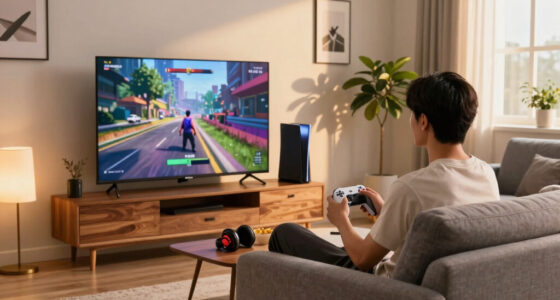
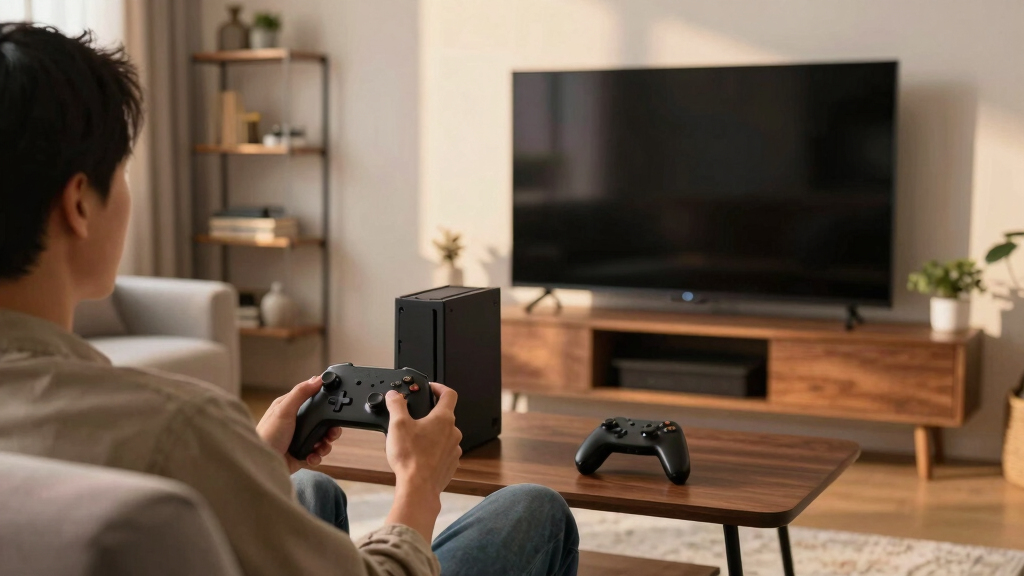
Your television can become a full PC gaming screen with one HDMI cable, yet the box beside it does not need to look or behave like a desk computer. A Steam Machine brings Steam games, controller navigation, and media playback to the sofa, where a receiver hums softly and surround speakers turn every engine roar or distant footstep into part of the room.
The name needs a little explanation. Valve-backed Steam Machines reached the market around 2015, but that dedicated product category faded after limited commercial success. Today, people often use Steam Machine more broadly for a compact or custom gaming PC running SteamOS, another Linux system, or Windows with Steam’s couch-friendly interface.
You will learn where the machine belongs in your signal chain, which hardware features matter at television distance, and why network quality and software compatibility can matter more than a flashy graphics card. You will also see how Steam Machine fits into a home theater setup alongside consoles, streaming boxes, AV receivers, and gaming PCs.
The goal is not to turn your living room into a server rack. It is to create a system you can wake, control, and enjoy from the sofa without reaching for a keyboard every ten minutes. Done well, the computer disappears into the cabinet while the game fills the room.
Connect through the AV receiver for simple surround-sound switching, or connect directly to the TV when an older receiver cannot pass your chosen 4K, HDR, or h…
Use Ethernet for downloads, multiplayer play, and in-home streaming whenever running a cable is practical.
Check Linux, Proton, launcher, anti-cheat, controller, and age-rating details for each game rather than assuming the whole Steam library will behave the same w…
Favor stable frame rates, game mode, good ventilation, and quiet fan settings over hardware specifications that add little from normal sofa distance.
Keep a compact keyboard or remote nearby because account logins and unexpected desktop windows can still interrupt a controller-first setup.
How Steam Machine Fits Into a Home Theater Setup
A Steam Machine is the flexible gaming PC beside your television: one HDMI connection delivers games and media, while a controller-first interface keeps the keyboard out of your lap. The winning setup balances picture quality, surround sound, network stability, cooling, and software compatibility.
Route it through the receiver or directly into the television.
More reliable for downloads, multiplayer, cloud saves, and streaming.
Distance, cabinet doors, heat, and wireless interference change the experience.
Valve-backed Steam Machines reached the market.
Picture and multichannel sound share one cable.
Possible when the full signal chain supports it.
Controller navigation with a keyboard kept nearby.
Where the box belongs
The Steam Machine generates the game, HDMI carries picture and sound, and your display chain decides which device handles switching, modern video formats, and speaker playback.
Renders the game and sends digital video and audio.
Carries resolution, refresh rate, HDR, and surround sound.
The chosen route determines which features can pass through.
Use native resolution, supported refresh rate, HDR, and game mode.
Receiver, soundbar, or stereo system completes the room.
Cleanest switching
Connect the machine to an AV receiver input, then send the receiver output to the TV. Choose this when the receiver supports your intended resolution, HDR format, and refresh rate.
Protect newer video features
Connect directly to the TV when an older receiver cannot pass 4K, HDR, or 120 Hz. Return audio to the receiver through ARC or eARC.
Keep small rooms simple
A television, soundbar, or two-speaker setup may need no receiver at all. This works well for bedrooms, compact apartments, and secondary screens.
Five couch-friendly steps
The cable connection is quick. The polish comes from display settings, network quality, controller placement, sound testing, and reliable wake behavior.
Use the receiver when it supports every desired format; otherwise connect directly to the television.
Use Bluetooth, USB, or a dedicated wireless adapter positioned clear of signal-blocking cabinet doors.
Choose Ethernet whenever practical, especially for large downloads, multiplayer, and in-home streaming.
Select native resolution, refresh rate, HDR, and the TV’s lowest-latency game preset.
Confirm every speaker, then verify that suspend, wake, and navigation work without a keyboard.
Connect the Steam Machine to the television, enable game mode, and return sound to the receiver through eARC. You preserve smoother video without abandoning the speaker system.
Match the box to the room
Power is only one variable. A living-room machine must also manage size, heat, fan noise, launcher support, maintenance, and the distance between player and screen.
| Setup | Best use | Power | Quiet / compact | Compatibility | Main tradeoff |
|---|---|---|---|---|---|
| Compact SteamOS PC | Indies and lighter 1080p or 1440p play | ~ Medium | ✓ Strong | ~ Check Proton | Limited graphics upgrades |
| Full gaming PC | Demanding games and higher frame rates | ✓ High | ✗ Needs space | ✓ Broad | More heat, fan noise, and cabinet volume |
| Windows living-room PC | Mixed launchers and maximum game coverage | ✓ Flexible | ~ Variable | ✓ Strongest | More desktop-style maintenance |
| Streaming client | Games rendered by another PC | ~ Remote | ✓ Excellent | ~ Host-dependent | Relies heavily on network quality |
| Console | Simple fixed-platform gaming | ~ Fixed | ✓ Predictable | ✓ Consistent | Less hardware and software freedom |
Living-room impact profile
Relative local heat, hardware footprint, and cooling demand—not benchmark performance.
Prioritize what you feel
Consistency is more noticeable from the sofa than an ambitious setting that stutters.
Game mode and the correct HDMI input settings keep controls feeling immediate.
Open airflow lets fans turn slowly instead of cutting through quiet scenes.
A well-placed receiver and a backup keyboard prevent controller-first from becoming controller-only.
The experience is only as smooth as its weakest link
SteamOS and Proton greatly expand access to Windows games, but launchers, anti-cheat systems, controller support, and account prompts still vary by title.
Account logins, unexpected desktop windows, launcher updates, and recovery prompts can interrupt an otherwise controller-first system.
Test the room, not just the machine
Before closing the cabinet, launch a demanding game, spin the camera quickly, listen to every speaker, and use the controller from your normal seat. Fix the weak link while every cable remains visible.
Look for smooth motion
Confirm resolution, refresh rate, HDR behavior, overscan, game mode, and freedom from tearing or intermittent black screens.
Listen around the room
Check channel mapping, dialogue clarity, bass management, audio delay, and ARC or eARC stability.
Sit where you actually play
Test controller range, wake and suspend, cabinet interference, network stability, and whether every common task stays couch-friendly.
Make the computer disappear.
See Exactly Where a Steam Machine Belongs in Your Setup
How Steam Machine Fits Into a Home Theater Setup comes down to signal flow: the machine sends video and sound through HDMI to an AV receiver or directly to the television. Your controller connects through Bluetooth, USB, or a wireless adapter, while your network supplies downloads, cloud saves, multiplayer traffic, and streamed games.
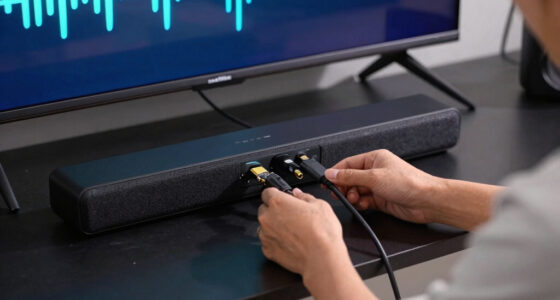
If you use an AV receiver, connect the Steam Machine to one of its HDMI inputs, then send the receiver’s HDMI output to the television. This route lets the receiver handle speaker playback and input switching. For example, you can press the Game input and hear rain tapping behind you in a surround mix while the TV displays the image.
A direct TV connection can work better when an older receiver cannot pass 4K resolution, HDR, or 120 Hz. In that setup, the television receives the video first and returns sound through HDMI ARC or eARC. A living room with a modern OLED TV and a ten-year-old receiver often benefits from this route because the receiver no longer blocks newer display features.
- Receiver-first connection: Cleaner switching and direct access to surround sound, provided the receiver supports your desired video format.
- TV-first connection: Better access to modern gaming features when the receiver has older HDMI hardware.
- Direct stereo connection: A practical choice for a bedroom TV, soundbar, or simple two-speaker system.
Keep the computer within reach of a short, certified HDMI cable, but do not trap it behind a warm amplifier. A powerful graphics card acts like a small heater under load. Leave open space around its vents so the machine can breathe instead of filling a quiet movie scene with the sharp whine of fast fans.
As an affiliate, we earn on qualifying purchases.
Connect Everything in Five Couch-Friendly Steps
- Choose the HDMI route. Connect the machine to a compatible AV receiver, or connect it directly to the television when you need display features the receiver cannot pass.
- Add your controller. Pair it through Bluetooth or use a dedicated USB wireless adapter placed where cabinet doors will not weaken the signal.
- Connect the network. Use Ethernet when possible, especially for large downloads, multiplayer games, and in-home streaming.
- Match the display settings. Select the television’s native resolution, supported refresh rate, HDR mode, and low-latency game preset.
- Test sound and sleep behavior. Confirm the correct speaker layout, then check whether you can wake and suspend the machine without a keyboard.
These steps make How Steam Machine Fits Into a Home Theater Setup practical rather than theoretical. The physical connection takes only a few minutes, but display settings, wireless placement, and wake controls decide whether the finished system feels like a console or a fussy desktop PC.
For a concrete example, suppose your television supports 4K at 120 Hz, but your receiver tops out at 4K and 60 Hz. Connect the Steam Machine to the television, enable its game mode, and send audio back to the receiver through eARC. You keep the smoother picture without giving up your speaker system.
Run a short test before pushing the cabinet against the wall. Launch a game, spin the camera quickly, listen to each speaker, and walk the controller to your normal seat. If the image tears, sound drops out, or inputs lag from three metres away, you can fix the weak link while every cable remains visible.
Test from the sofa, not beside the cabinet. A connection that behaves perfectly at arm’s length can stumble once a wooden door, receiver, and several metres of air sit between you and the machine.
As an affiliate, we earn on qualifying purchases.
Choose the Box That Matches Your Games and Your Room
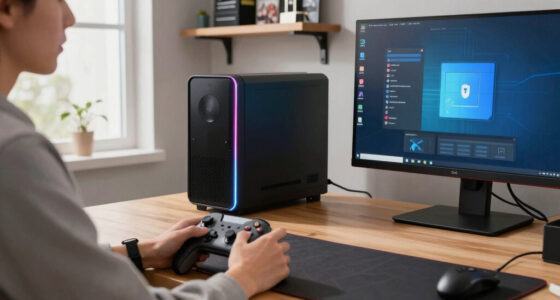
How Steam Machine Fits Into a Home Theater Setup depends on what you expect it to run. A compact PC suits lighter games and local media, a larger gaming PC handles demanding releases, and in-home streaming moves the loud hardware to another room. Each route trades power, silence, size, and simplicity.
| Setup | Best use | Main strength | Main tradeoff |
|---|---|---|---|
| Compact SteamOS PC | Indie games and lighter 1080p or 1440p play | Small, tidy, and often quiet | Limited graphics upgrades |
| Full gaming PC | Demanding games and higher frame rates | More power and replaceable parts | More heat, fan noise, and cabinet space |
| Windows living-room PC | Broad game and launcher support | Strong software compatibility | More desktop-style maintenance |
| Streaming client | Games rendered by another PC | Little heat near the television | Relies heavily on network quality |
| Console | Simple, fixed-platform gaming | Consistent couch experience | Less hardware and software freedom |
Imagine a small apartment where the sofa sits two metres from the television. A large graphics card running at full load may push hot air through the cabinet and add a steady rushing sound. A compact client streaming from a desktop in the bedroom can keep the living room cool and nearly silent.
A different household may want one machine for strategy games, racing simulators, emulation, local video files, and web browsing. A Windows living-room PC offers broader launcher support, while a Linux-based Steam setup offers a cleaner controller-first feel. Neither choice wins every contest; your library and tolerance for maintenance set the winner.
Do not treat a Steam Deck compatibility badge as a permanent promise for another device. Valve can update Steam Deck Verified status, and a custom Steam Machine has different drivers, controls, resolution, and hardware. Use the badge as a useful clue, then check the game’s current platform requirements before buying.
As an affiliate, we earn on qualifying purchases.
Avoid the Compatibility Surprises That Interrupt Game Night
A Steam Machine can run a large range of PC games, but Linux compatibility is not universal. SteamOS uses Linux, and Valve’s Proton layer lets many Windows games run there. Games with certain anti-cheat systems, unusual launchers, or unsupported media components can still fail, lose features, or require manual adjustments.
According to Valve’s SteamOS and Proton documentation [1], Proton provides a compatibility route for Windows games on Linux-based systems. That route has grown far more capable over time, but a game’s store listing and current community reports remain useful checks. Software updates can improve one title while exposing a new problem in another.
Consider a family planning a four-player game after dinner. The title launches, the opening music rolls through the speakers, and then a third-party sign-in window appears in tiny text. Keeping a small wireless keyboard with a trackpad in a drawer turns that interruption into a 30-second task instead of the end of game night.
- Check whether each must-play title supports Linux, Proton, or your chosen version of Windows.
- Confirm support for your controller type, local multiplayer count, and preferred resolution.
- Review current anti-cheat support before relying on a competitive online game.
- Keep recovery tools nearby for logins, updates, and unexpected desktop windows.
Age ratings also follow the game, not the machine. Check the current ESRB, PEGI, or regional rating for each title, especially when several household profiles share the television. Steam’s family controls can limit access, but they do not replace a parent’s review of content, online chat, and in-game purchases.
Treat compatibility as a per-game question. The operating system may open the door, but launchers, anti-cheat tools, controllers, and updates decide whether a specific game walks through it.
As an affiliate, we earn on qualifying purchases.
Get a Sharper Picture Without Chasing Specs You Cannot See
Your best display target balances resolution, frame rate, image quality, and viewing distance. A Steam Machine does not need to render every game at native 4K to look good on a television. Stable motion and sensible graphics settings often improve the couch experience more than one impressive resolution number.
For example, a demanding action game may feel better at a steady 60 frames per second with upscaling than at native 4K while frame rate lurches between 35 and 50. From three metres away, the smoother camera movement can stand out more than the small loss in fine detail. Your television’s game mode also cuts processing that can make controls feel heavy.
Match the machine’s output to the complete HDMI chain. A television, receiver, cable, and graphics port must all support the selected combination of resolution, refresh rate, HDR, and color format. One older component can become a narrow bridge, forcing everything behind it to slow down.
- Start with 1080p or 1440p at 60 Hz on modest hardware.
- Use 4K output for media and games that run smoothly at that resolution.
- Enable HDR only when the display, operating system, and game handle it correctly.
- Use variable refresh rate when every component in the path supports it.
Sound deserves the same care. Set the operating system to the speaker arrangement your receiver actually uses, whether that is stereo, 5.1, or 7.1. If voices vanish while music and explosions remain loud, the system may be sending dialogue to a center channel that your current output mode does not reproduce.
Performance claims always belong to a specific platform, game version, resolution, and settings preset. A result measured on Steam Deck, Windows, or one graphics driver does not automatically apply to your custom living-room PC. Record the settings that work so an update does not leave you rebuilding the picture from memory.
Make the Machine Feel Like Part of the Theater, Not Office Equipment
A Steam Machine feels at home in a theater when you can start, control, cool, and silence it from the sofa. Automatic login, a controller-friendly Steam interface, reliable sleep behavior, and restrained fan noise matter more here than they would at a desk. The room should greet you with the game, not a maze of desktop windows.
Start Steam with the system and open its full-screen interface automatically. Set the machine to suspend after a sensible idle period, but test whether Bluetooth controllers can wake it reliably. If they cannot, a small wireless remote, keyboard, or USB receiver offers a dependable backup without leaving a full keyboard on the coffee table.
Fan tuning can change the mood of the room. During a quiet adventure game, a high-pitched cooling fan can slice through soft dialogue like a kettle beginning to boil. Clean dust filters, leave several centimetres around vents, and choose a stable frame-rate cap when the graphics card does not need to run flat out.
For instance, capping a slower strategy game at 60 frames per second may reduce power use, heat, and noise without changing what you see on a 60 Hz television. The machine stops sprinting when a walk produces the same result. That small setting can make a cabinet setup far more pleasant during a long evening.
The original branded Steam Machines arrived around 2015 [2] and did not become a lasting mass-market category. Their idea survived because it solves a real problem: bringing PC games to the largest screen without dragging a tower across the floor. Modern mini-PCs, custom builds, and streaming clients now carry that idea forward.
[1] Valve’s SteamOS and Proton documentation explains the Linux-based platform and Windows-game compatibility layer. [2] Valve’s Steam Machines launch materials document the 2015 hardware push. Current game support, device status, and performance can change after operating-system, driver, or game updates.
Frequently Asked Questions
Can a Steam Machine replace a console in a home theater?
Yes, a Steam Machine can replace a console when your preferred games run on its operating system and you accept occasional PC-style maintenance. It offers flexible hardware, Steam sales, controller support, and access to settings that fixed consoles often hide.
A console remains simpler when you want predictable updates, standardized performance, and fewer compatibility checks. Your game library should guide the choice.
Should I connect the Steam Machine to the TV or AV receiver?
Connect it to the AV receiver when the receiver supports your desired resolution, refresh rate, HDR format, and surround setup. This gives you clean input switching and direct audio handling.
Connect it to the television when the TV supports newer gaming features that the receiver cannot pass. Use ARC or eARC to return sound to the receiver.
Does a Steam Machine need Ethernet?
Ethernet is not mandatory, but a wired connection usually gives you steadier downloads, multiplayer sessions, and in-home streaming. Wi-Fi can work well when the router is nearby and the signal does not fight through thick walls or a crowded wireless network.
If a streamed game turns blocky whenever someone starts a video call, Ethernet is the first fix to try.
Can every Steam game run on SteamOS?
No. Proton lets many Windows games run on Linux-based SteamOS, but some anti-cheat systems, launchers, and media components remain unsupported or unreliable. Check the current store details and recent player reports for each must-play game.
Support can change after game, Proton, driver, or operating-system updates. A title that works on Steam Deck may also behave differently on custom hardware.
Can I use a Steam Deck as my home theater Steam Machine?
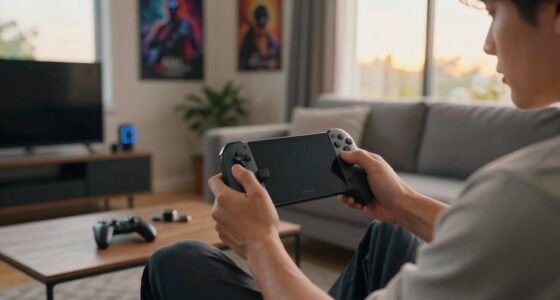
Yes, a docked Steam Deck can act as a compact gaming and media device connected to a television. It works especially well for lighter games, portable saves, and households that value a small box over high-end 4K performance.
Check the current dock, display, and game settings for your desired resolution and refresh rate. Steam Deck Verified status can change, and it describes Deck compatibility rather than guaranteed performance on every external display.
Can a Steam Machine handle movies and streaming apps?
A Steam Machine can play local video files, browser-based services, and compatible media applications. Support varies by operating system, streaming provider, copy-protection method, HDR format, and surround-audio requirement.
A dedicated streaming box may still offer quicker remote control, lower idle power, and broader app support. Many households keep both devices connected and use each for the job it handles best.
Conclusion
Build around the sofa experience, not the computer specification sheet. Choose the HDMI route that preserves your display features, verify your must-play games, wire the network when you can, and give the hardware enough air to stay quiet. Those choices shape every evening more than a small jump in processor speed.
A good Steam Machine should fade into the furniture until you press a button. Then the television glows, the speakers wake, and your library appears within reach. If you can move from a dark screen to a running game without leaving the sofa, the machine has earned its place in your theater.
Halloween Picks
halloween
As an affiliate, we earn on qualifying purchases.