
TL;DR

Play games on Amazon Luna for your game nights, included with Prime
- A rotating selection of games, no download needed
- Play on TV, laptop or phone
- Fast, free delivery for your gear, too
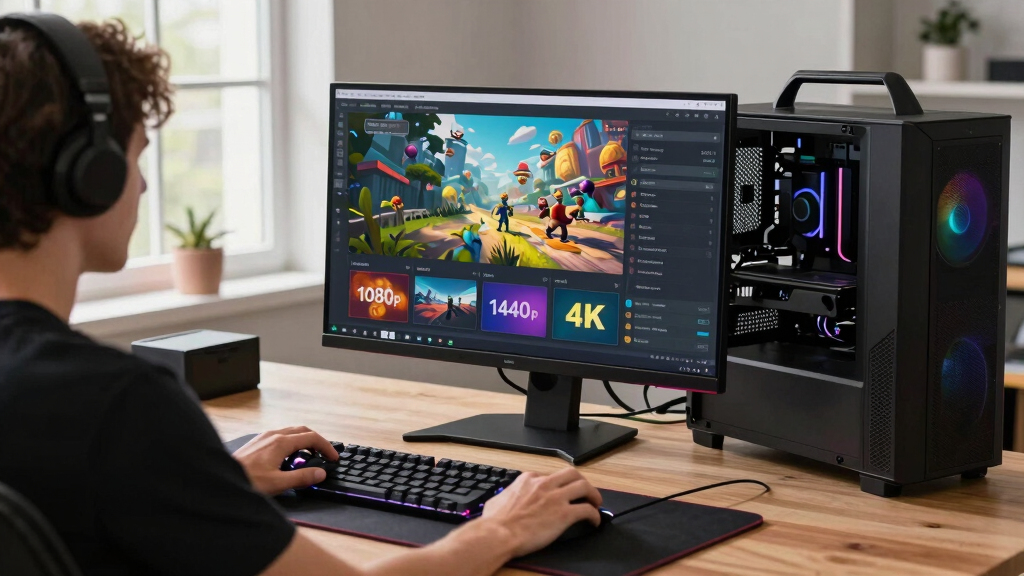
1080p, 1440p, and 4K matter differently on Steam Machine because each resolution changes the balance between sharpness, frame rate, GPU load, and hardware cost. 1080p favors speed, 1440p gives the best middle ground for many players, and 4K looks stunning only when the Steam Machine has enough graphics power to feed all those pixels.
A Steam Machine can feel like three different consoles depending on one setting: 1080p, 1440p, or 4K. The same game can snap like a clean drum hit at 1080p, look crisp and balanced at 1440p, or glow with razor-edged detail at 4K while your GPU works much harder.
You will learn why those resolutions do not just mean small, medium, and large. They change how games feel, how much hardware you need, how hot the box may run, and whether your living room TV makes a game look rich or merely stretched.
Choose 1080p when high frame rate, low latency, and lower hardware cost matter more than fine detail.
1440p is often the best Steam Machine target because it looks much sharper than 1080p without the full 4K performance hit.
4K makes the most sense on large displays with high-end GPUs, especially for slower, visual-heavy games.
A stable 60 FPS or higher usually improves play feel more than a higher resolution with uneven frame pacing.
Treat future Steam Machine performance rumors as unconfirmed until platform, hardware, SteamOS version, and game build are named.
Why 1080p, 1440p, and 4K Matter Differently on Steam Machine
One resolution setting can make the same Steam Machine feel like three different consoles. 1080p favors speed and lower cost, 1440p gives the best middle ground for many players, and 4K looks stunning only when the GPU can feed every pixel without uneven frame pacing.
Resolution is not small, medium, large. It is a workload decision.
Higher resolution sharpens grass, wires, armor scratches, and distant signs, but every extra pixel asks the Steam Machine to render more image data every frame.
Best for high frame rate, low latency, older GPUs, and smaller displays.
The practical upgrade: much sharper than 1080p without the full 4K hit.
Beautiful on large TVs, demanding on power, heat, VRAM, and GPU class.
Stable motion usually feels better than higher resolution with stutter.
What Each Resolution Really Changes
The best Steam Machine resolution depends on screen size, game type, and hardware headroom. A fast shooter may feel better at 1080p, while a scenic RPG on a large TV can reward 4K if the GPU is strong enough.
1080p
Choose 1080p when responsiveness matters more than tiny background detail. It keeps GPU load low, protects high frame rates, and fits competitive games well.
1440p
1440p adds about 78% more pixels than 1080p, making menus, edges, and distant signs cleaner while still leaving room for smoother performance.
4K
4K renders roughly four times the pixels of 1080p. It shines on large TVs and cinematic games, but weak hardware can turn beauty into uneven motion.
Pixel Load Is the Hidden Cost
Before ray tracing, shadows, reflections, or upscaling enter the picture, resolution alone changes how much work the GPU must complete every frame.
Native 4K is not just sharper. It is heavier.
Moving from 1080p to 4K means the Steam Machine is pushing about 8.3 million pixels per frame instead of about 2.1 million. That workload affects heat, noise, power draw, and hardware cost.
Side-by-Side Resolution Tradeoffs
Steam Machines vary because they are gaming PCs built around SteamOS, not one fixed console box. That makes resolution a matching problem between display, GPU, game, and frame-rate target.
| Resolution | Pixel Count | Best Fit | GPU Pressure | Competitive Feel | Main Tradeoff |
|---|---|---|---|---|---|
| 1080p | About 2.1 million | Small TVs, budget builds, fast games | ✓ Lower | ✓ Strong | Less fine detail on large displays |
| 1440p | About 3.7 million | Balanced setups, 27-inch monitors | ~ Moderate | ✓ Often strong | Needs more GPU headroom than 1080p |
| 4K | About 8.3 million | Large TVs, cinematic games, high-end GPUs | ✗ Heavy | ~ Depends | Higher cost, heat, and frame-rate risk |
Sharpness vs. Smoothness Spectrum
From the couch, a well-scaled 1440p image on a 4K TV can feel better than native 4K with frame drops. The right setting is the one your hardware can hold steadily, not the highest number your display accepts.
Pick the Setting Before You Chase Specs
Start with the screen and the game, then test the heaviest title you actually play. Lower shadows, ray tracing, or reflections before dropping resolution, because effects often cost less image clarity than a full resolution cut.
Measure the Screen
Smaller displays fit 1080p. Desk monitors often favor 1440p. Large TVs reveal more 4K detail.
Check GPU Class
Mid-range hardware usually fits 1080p or 1440p. Native 4K wants high-end graphics power.
Set FPS Target
Aim for stable 60 FPS for most games and higher for competitive shooters or racing titles.
Test the Heavy Game
Use the most demanding game in your library as the truth test, not the easiest one.
Tune Effects First
Reduce expensive lighting and reflections before sacrificing the resolution target.
The Traceability Chain
Resolution affects more than image size. It connects directly to GPU work, frame pacing, heat, cost, and the way a game feels in your hands.
More rendered dots per frame.
More shader and memory pressure.
Less room for stable pacing.
Higher power and fan demand.
Stronger parts raise the budget.
Smooth motion beats raw numbers.
1440p is often the sensible Steam Machine target because it looks much sharper than 1080p without demanding the full 4K performance budget.
Treat future Steam Machine performance rumors as unconfirmed until platform, hardware, SteamOS version, and game build are all named.
Why Resolution Changes the Whole Steam Machine Feel
Why 1080p, 1440p, and 4K Matter Differently on Steam Machine comes down to pixel load, screen size, and frame rate. Higher resolution gives you finer detail, but it also asks the GPU to draw far more image data every second. That trade can turn silky motion into a choppy slideshow if the hardware cannot keep up.
Resolution is the number of pixels your Steam Machine renders for each frame. 1080p means 1920 by 1080 pixels, 1440p means 2560 by 1440, and 4K usually means 3840 by 2160. More pixels can make wires, grass, armor scratches, and distant signs look cleaner.
Think of it like painting a wall with a tiny brush. A small wall goes fast. A giant wall can look beautiful, but your arm feels it by the end. Your GPU feels the same pressure when you move from 2.1 million pixels at 1080p to 8.3 million pixels at 4K [1].
Here is a real living-room example: you launch a fast shooter on a 55-inch TV. At 1080p, movement feels quick and responsive, but fine edges may shimmer. At 4K, the weapon model looks sharper, but frame drops can make aiming feel like dragging a spoon through honey.
The best Steam Machine resolution is the one your hardware can hold steadily, not the highest number your display can accept.
As an affiliate, we earn on qualifying purchases.
What You Really Gain at 1080p, 1440p, and 4K
Why 1080p, 1440p, and 4K Matter Differently on Steam Machine is easiest to see side by side: 1080p gives smoother play on modest hardware, 1440p adds visible sharpness without a brutal performance hit, and 4K rewards powerful GPUs with cleaner detail on big screens. Each one solves a different problem.
| Resolution | Pixel Count | Best Fit | Main Tradeoff |
|---|---|---|---|
| 1080p | About 2.1 million | Competitive games, older GPUs, small TVs or monitors | Less fine detail on large displays |
| 1440p | About 3.7 million | Balanced Steam Machine setups and 27-inch monitors | Needs more GPU headroom than 1080p |
| 4K | About 8.3 million | Large TVs, cinematic games, high-end GPUs | Heavy GPU load and higher cost |
1080p still makes sense because speed matters. In games like fighters, shooters, and racing titles, a stable 60 FPS or higher can matter more than sharper rocks in the background. You feel smoothness in your hands before you admire texture detail with your eyes.
1440p is the sweet middle. It looks noticeably sharper than 1080p, especially on a 27-inch monitor or a desk setup where your face sits close to the screen. It is like wiping a dusty window: the same scene appears, but edges suddenly have bite.
4K shines when the screen is large and the Steam Machine is strong. A slow, scenic RPG on a 65-inch TV can look lush at 4K, with bright spell effects and tiny costume stitching standing out. But if the frame rate keeps dipping, that beauty gets a sharp, cold taste.
As an affiliate, we earn on qualifying purchases.
How to Pick the Right Resolution Before You Change Settings
- Start with your screen size: choose 1080p for smaller displays, 1440p for many desk monitors, and 4K for large TVs.
- Check your GPU class: mid-range hardware fits 1080p or 1440p better, while 4K wants a high-end GPU.
- Choose your frame-rate target: aim for 60 FPS for most games, higher for competitive play.
- Test one demanding game: use your heaviest title as the reality check, not your easiest one.
- Adjust effects before resolution: lower shadows, ray tracing, or reflections before dropping resolution.
How to pick the right Steam Machine resolution starts with your actual setup, not a spec sheet fantasy. A 1080p monitor, a 1440p desk display, and a 4K TV all ask for different choices. Your goal is simple: keep the game sharp enough while protecting smooth motion.
Say your Steam Machine sits under a TV and you play from eight feet away. On a 55-inch 4K TV, native 4K can look cleaner, but a well-scaled 1440p image may still feel great from the couch. You may notice frame drops faster than tiny texture gains.
If you play at a desk, the math changes. A 27-inch 1440p monitor often looks crisp without demanding 4K-level power. Text in strategy games becomes easier to read, distant enemies stand out better, and your GPU still has room to breathe.
For competitive games, choose the setting that keeps input response tight. Many players pick 1080p because it helps preserve high frame rates and low latency [1]. A clean headshot feels better than a prettier missed shot.
As an affiliate, we earn on qualifying purchases.
Why 1440p Often Feels Like the Sensible Upgrade
Why 1080p, 1440p, and 4K Matter Differently on Steam Machine becomes clear when you try 1440p: it gives a visible jump in clarity without asking for the same muscle as 4K. It adds about 78% more pixels than 1080p, while 4K adds about 300% more [1].
That middle ground matters. At 1440p, menus look cleaner, distant signs become readable sooner, and shimmering edges calm down. The image feels less like soft cotton and more like fresh linen.
Here is the practical scenario: you run an open-world game on a Steam Machine with a solid modern GPU, but not a monster card. At 1080p, you get speed but wish the world had more detail. At 4K, the frame rate dips in busy towns. At 1440p, the city still glows, and the camera pans without stutter.
According to skeldrift.com, Steam Machines can vary widely in hardware because they are gaming PCs built around SteamOS, not one fixed console box [2]. That variety makes 1440p especially useful. It gives builders and buyers a realistic target between budget play and premium 4K.
As an affiliate, we earn on qualifying purchases.
When 4K Looks Amazing and When It Wastes Power
4K on a Steam Machine is worth it when your GPU, display, and game type all support the extra load. It looks best on large screens, slower cinematic games, and high-end hardware. It wastes power when you trade away stable frame rates for detail you barely notice from your seat.
4K asks the Steam Machine to render about four times the pixels of 1080p [1]. That can mean more heat, more fan noise, and more power draw. On a quiet night, the room can shift from soft controller clicks to a bright, buzzing hum.
High-end GPUs such as NVIDIA RTX 3080 or 4080-class cards and AMD RX 6800 XT or 7900 XT-class cards are commonly associated with stronger 4K gaming performance [1]. Still, settings matter. Ray tracing, ultra shadows, and heavy anti-aliasing can punish even strong hardware.
Use 4K for games where visual detail carries the mood: exploration, racing, city builders, flight sims, and big RPGs. For twitch shooters, fighting games, and multiplayer titles where every frame counts, 1440p or 1080p may feel better. The prettier frame does not help if it arrives late.
Treat leaks about future Steam Machine hardware as unconfirmed unless Valve or a named hardware maker confirms them. Performance claims should always name the platform, GPU, SteamOS version, and game build, because one driver update can change the result.
What Frame Rate Teaches You That Resolution Cannot
Frame rate tells you how the game feels, while resolution tells you how the game looks. A Steam Machine running 1080p at a steady 90 FPS can feel cleaner in motion than 4K at an uneven 40 FPS. Sharp pixels lose their charm when the camera jerks.
60 FPS remains a practical baseline for many games because motion feels responsive and controller input lands predictably. Higher refresh rates such as 120Hz or 144Hz can make fast games feel smoother, especially on displays that support them [1]. You notice it when a camera turn stops feeling smeared.
Imagine playing a racing game. At 4K with dips, the road signs look crisp, but corners arrive with a tiny hitch that throws off your braking. At 1440p with stable frames, the track feels more connected to your hands, like the wheel has less rubber between you and the asphalt.
Dynamic resolution scaling can help. Many modern games can lower resolution during heavy scenes to preserve frame rate [1]. That means your Steam Machine might render near 4K in a quiet hallway, then drop closer to 1440p during a screen-filling explosion.
A steady frame rate is a feature. Treat it like one, because it changes your aim, timing, and comfort more than a sharper texture ever will.
How SteamOS and Game Settings Change the Answer
SteamOS and game settings can make the same resolution behave differently across Steam Machines. Driver support, Proton compatibility, game patches, and upscaling options all affect performance. The number on the display menu matters, but the software path behind it matters too.
Steam Machine is a broad idea: a living-room-friendly gaming PC built around Steam and SteamOS. That means two machines can both say 1440p and deliver very different results. One may glide through a game, while another coughs when fog, crowds, and reflections hit at once.
Steam Deck gives a useful contrast, even though it is a handheld rather than a living-room Steam Machine. Its built-in screen targets a much lower resolution class, around 720p to 800p, because handheld screens and battery limits reward efficiency [1]. A high-end Steam Machine hooked to a TV plays a different game entirely.
Before judging a Steam Machine, check the specific game page, Proton reports when relevant, and any verified or compatibility status tied to that platform. If a status changes, name the date and version when you cite it. Age ratings also belong to the game itself, not the resolution setting.
For a practical tune-up, lower ray tracing, shadow quality, and screen-space reflections before you drop from 1440p to 1080p. Those settings often cost a lot and blur the win of higher resolution. Small cuts can keep the picture sharp while giving the GPU room to move.
The Simple Rule for Spending Money on Pixels
Spend money on resolution only after you protect smoothness. A better GPU, display, or Steam Machine build should match the games you play most. If you mostly play competitive games, buy for frame rate. If you play cinematic games on a big TV, buy for 1440p or 4K headroom.
Hardware cost rises fast as you chase pixels. A Steam Machine aimed at 1080p can use more modest parts. A strong 1440p build needs more GPU power and VRAM. A serious 4K setup asks for high-end graphics hardware, better cooling, and often a pricier display.
Use this quick spending guide:
- Choose 1080p if you want high FPS, lower cost, and fewer settings headaches.
- Choose 1440p if you want sharper visuals without turning every upgrade into a wallet bonfire.
- Choose 4K if you own a large display and have a GPU that can hold your target frame rate.
- Use upscaling when native 4K looks too heavy but you still want a clean TV image.
Here is the buyer trap: you purchase a 4K TV, then assume every game should run at native 4K. A better move is to test 1440p with upscaling and compare it from your couch. If it looks close and runs smoother, you just saved your Steam Machine a mountain of work.
Frequently Asked Questions
Is 1080p still good enough for a Steam Machine?
Yes. 1080p is still a smart Steam Machine choice if you care about high FPS, quick response, and lower hardware cost. It works especially well for competitive games and smaller screens.
Is 1440p better than 4K for most Steam Machine users?
1440p is often better for many Steam Machine users because it gives a clear visual upgrade over 1080p without the heavy load of 4K. It is a strong match for modern mid-range to upper-mid-range GPUs and desk monitors.
Do I need a high-end GPU for 4K on Steam Machine?
For native 4K gaming, yes, you usually need a high-end GPU if you want stable frame rates in demanding games. Lighter games may run well on less powerful hardware, but big modern titles can push even strong cards hard.
Should I lower resolution or graphics settings first?
Lower demanding graphics settings first, especially ray tracing, shadows, and reflections. You may keep a sharper resolution while gaining smoother performance, which often feels better than dropping straight to 1080p.
Does SteamOS change resolution performance?
SteamOS can affect performance through drivers, Proton compatibility, and game updates. Always judge performance by the specific Steam Machine hardware, SteamOS version, game build, and display target.
Conclusion
The right Steam Machine resolution is the one that keeps your favorite games both clear and steady. Start with your screen, protect your frame rate, then raise resolution only when your hardware still has breathing room.
If you remember one thing, make it this: pixels are only beautiful when they arrive on time. A smooth 1440p night on the couch can beat a stuttering 4K showcase every single time.
Columbus Day / Indigenous Peoples' Day Picks
long weekend sales
As an affiliate, we earn on qualifying purchases.