
TL;DR

Play games on Amazon Luna for your game nights, included with Prime
- A rotating selection of games, no download needed
- Play on TV, laptop or phone
- Fast, free delivery for your gear, too
How Big Picture Mode fits into Steam Machine gaming is simple: it turns Steam’s desktop-first library into a controller-friendly TV interface. It matters because Steam Machine gaming works best when you can launch games, adjust controls, chat, stream, and manage settings from the couch without reaching for a mouse.
Your Steam library can feel like a glowing arcade wall when it lands on a big TV, but the magic breaks fast if you need a mouse on the couch.
That is where Big Picture Mode earns its keep. It takes the clicky, desktop-shaped Steam experience and stretches it into something you can read from eight feet away, move through with a controller, and use while half-sunk into a sofa.
You will see how big picture mode fits into Steam Machine gaming, where it still helps, where it falls short, and how to set it up so your living room feels smooth instead of fussy.
How Big Picture Mode Fits Into Steam Machine Gaming
TL;DR: Big Picture Mode turns Steam’s desktop-first library into a controller-friendly TV interface. It matters because Steam Machine gaming works best when launching games, adjusting controls, chatting, streaming, and changing settings can happen from the couch.
Why It Makes a Steam Machine Feel Like a Console
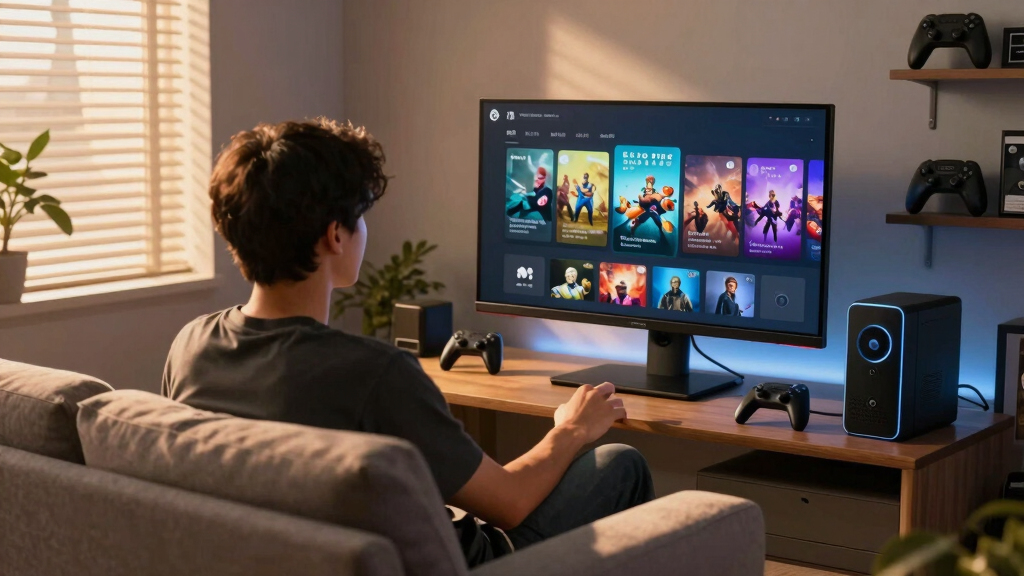
Big Picture Mode hides the sharp desktop edges until you need them. Your games appear in wide, readable rows, the guide button becomes a living room shortcut, and the library feels closer to a glowing arcade wall than a storefront window.
Large Art Tiles
Installed games become browsable from eight feet away, without squinting at desktop menus.
Steam Input
Swap layouts, remap buttons, and rescue games that were designed around keyboard and mouse.
Friends & Chat
Join co-op sessions, manage invites, and stay in Steam without reaching for a mouse.
Downloads
Check updates before settling in so the living room session starts with play, not waiting.
Remote Play
Stream compatible games across machines while keeping the controller-first interface intact.
Couch Tuning
Adjust display, audio, overlay, and controller details before a long session gets fussy.
From PC Under the TV to Couch-Ready Steam
The setup is not mysterious: connect the machine, pair the controller, launch Steam, enter Big Picture Mode, and test the games you actually play. The goal is removing friction before game night starts.
Connect TV
Use HDMI, enable game mode, and choose the correct resolution.
Pair Pad
Use USB or Bluetooth and confirm Steam recognizes the controller.
Open Steam
Sign in, let downloads finish, and avoid surprise update stalls.
Big Picture
Enter the TV interface or set Steam to start there automatically.
Test Game
Check text size, input lag, audio output, and per-game controls.
Where Big Picture Sits Between Desktop Steam and Steam Deck
Desktop Steam is still the workbench for mods, files, troubleshooting, and deep PC tasks. Big Picture Mode is the clean front door for couch play, and the refreshed version now shares more language with Steam Deck.
| Interface | Best For | Feels Like | Controller Fit | Tradeoff |
|---|---|---|---|---|
| Desktop Steam | Mods, file work, detailed settings | A PC storefront and launcher | ~ Usable, not ideal | Harder from the couch |
| Big Picture Mode | TV play, controllers, Steam Machine setups | A console-style Steam hub | ✓ Strong fit | Less convenient for deep tinkering |
| Steam Deck UI | Handheld play, quick access, portable controls | A compact gaming system interface | ✓ Excellent on Deck | Designed around Deck hardware first |
| Raw Operating System | Drivers, launchers, browser logins | A normal computer desktop | ✗ Poor couch fit | Breaks the console illusion fast |
Couch-Play Fit
Living Room Friction Scale
Big Picture performs best on the left side of the scale: launching games, changing controls, joining friends, and browsing from the sofa. It weakens as the session turns into config files, mod managers, and browser logins.
When It Helps Most, and When It Gets in the Way
The more your session feels like console gaming, the better Big Picture fits. The more it feels like PC maintenance, the more Desktop Steam still wins.
Skip It When the PC Work Takes Over
- Install complex mods or manage external mod launchers.
- Edit configuration files, browse folders, or troubleshoot drivers.
- Handle browser-based logins, one-time codes, or non-Steam launchers.
- Fine-tune graphics settings across multiple tools and overlays.
Traceability: The Steam Machine Experience Chain
Key Takeaways
- Big Picture Mode is the TV-and-controller interface that makes Steam Machine gaming feel closer to a console.
- It works on regular gaming PCs too, so you do not need official Steam Machine hardware to use it.
- Steam Input is the feature that makes many awkward PC games playable from the couch.
- Desktop Steam is still better for mods, troubleshooting, and file-heavy PC tasks.
- The Steam Deck-style refresh makes modern Big Picture Mode feel more current and more consistent with Valve’s handheld experience.
As an affiliate, we earn on qualifying purchases.
Why Big Picture Mode Makes a Steam Machine Feel Like a Console
Big Picture Mode makes Steam Machine gaming feel console-like by replacing the small desktop interface with large menus, controller navigation, and TV-friendly game launching. Instead of squinting at tiny text or hunting for a cursor, you move through your library with thumbsticks, buttons, and simple tiles that pop on a big screen.
Think of a small PC tucked under your TV. You press the controller’s guide button, the screen wakes with a soft click, and your games appear in wide, readable rows. No keyboard on the coffee table. No Windows taskbar staring back at you.
Valve introduced Big Picture Mode in 2012 for this exact purpose: bringing Steam to TVs and controllers [1]. Steam Machines leaned on that idea because they were never meant to feel like office PCs wearing gaming clothes.
Big Picture Mode is the living room layer of Steam. It does not replace the PC underneath; it hides the sharp corners until you need them.
As an affiliate, we earn on qualifying purchases.
What You Actually Get When You Launch Big Picture Mode
Big Picture Mode gives you a controller-first version of Steam with access to your library, store, friends, downloads, settings, controller layouts, and in-game overlay. The point is speed: sit down, pick a game, adjust what matters, and start playing without dragging the desktop into the room.
- Game library access: Browse installed games with large art tiles that work well on a TV.
- Controller support: Use Xbox, PlayStation, Steam Controller, and many generic gamepads.
- Steam Input settings: Remap buttons, choose layouts, and fix games that were built for mouse and keyboard.
- Friends and chat: Join a friend before a co-op session without leaving the couch.
- Downloads and updates: Check what is ready before the pizza gets cold.
A real example: you launch Hades from the couch, notice the dash button feels awkward, and swap the layout before the first fight. The menu moves with you, quick and tidy, instead of making you fish for a mouse while the TV glows blue across the room.
This is why the phrase steam machine gaming still matters even when you are using a normal gaming PC. The hardware can be different, but the living room problem stays the same.
As an affiliate, we earn on qualifying purchases.
How Big Picture Mode Compares With Desktop Steam and Steam Deck UI
Big Picture Mode sits between desktop Steam and the Steam Deck UI: it is simpler than desktop Steam, closer to a console, and now visually tied to Valve’s handheld experience. Desktop Steam is best at detailed PC management. Big Picture is best when your hands are on a controller and your screen is across the room.
| Interface | Best For | What It Feels Like | Tradeoff |
|---|---|---|---|
| Desktop Steam | Mouse, keyboard, mods, file work, detailed settings | A PC storefront and launcher | Harder to use from a couch |
| Big Picture Mode | TV play, controllers, Steam Machine setups | A console-style Steam hub | Less convenient for deep PC tinkering |
| Steam Deck UI | Handheld play, quick suspend, portable controls | A compact gaming system interface | Designed around Deck hardware first |
According to Valve, the newer Big Picture experience uses the Steam Deck interface as its base [2]. That matters because your Steam Deck and your living room PC now speak a more similar visual language: big buttons, clear sections, and settings that do not feel buried in a drawer.
Here is the contrast in plain terms. Desktop Steam is the workbench with tools scattered around. Big Picture Mode is the clean front door you actually want guests to use on game night.
As an affiliate, we earn on qualifying purchases.
How to Set Up Big Picture Mode for Couch Play
To set up Big Picture Mode for couch play, connect your PC or Steam Machine to the TV, pair a controller, launch Steam, enter Big Picture Mode, then tune display, audio, and controller settings before your first long session. Do this once and your living room setup starts feeling calm instead of patched together.
- Connect the machine to your TV: Use HDMI, set the TV to game mode, and pick the right resolution in your operating system.
- Pair your controller: Connect by USB or Bluetooth, then check that Steam recognizes it.
- Open Steam: Sign in and let downloads finish before you settle in.
- Launch Big Picture Mode: Use the Big Picture icon in Steam or set Steam to start there automatically.
- Check Steam Input: Test buttons, triggers, gyro settings if available, and per-game layouts.
- Test one demanding game: Launch something you actually play, not just a tiny test app.
A good first test is a game with menus, combat, and text. Something like Stardew Valley checks readability and relaxed controls, while a shooter checks input lag fast. If the cursor drifts or the audio comes from the wrong speakers, fix it before friends arrive.
One small tip: keep a compact keyboard nearby for passwords and rare troubleshooting. You may not need it often, but when a launcher asks for a login code, that little keyboard saves the evening from becoming a cable-and-settings safari.
Where Big Picture Mode Fits Into the Steam Machine Idea
How Big Picture Mode fits into Steam Machine gaming comes down to role: it is the software front door for PC hardware living under a TV. A Steam Machine can be a branded box, a Linux SteamOS-style setup, or your own small PC, but Big Picture gives each one the same couch-friendly starting point.
The original Steam Machine pitch was bold: bring PC gaming’s huge library and flexible hardware into the living room. The trouble was friction. PC games have launchers, graphics settings, controller quirks, updates, pop-ups, and the occasional tiny checkbox that looks like dust from across the room.
Big Picture Mode softens that friction. You still get PC freedom, including key aspects like multiple controllers, Steam Input layouts, cloud saves, Remote Play, and store access, but the interface tries to behave like a console when you just want to play.
Imagine a Saturday night setup: four controllers on the table, a party game installed, and friends talking over the menu music. Big Picture keeps the focus on the game list, not the operating system underneath.
When Big Picture Mode Helps Most, and When It Gets in the Way
Big Picture Mode helps most when you play from a TV with a controller, but it gets in the way when you need desktop tools, mod managers, browser logins, or detailed file access. The more your session feels like console gaming, the better Big Picture fits; the more it feels like PC maintenance, the less it helps.
- Use it for: launching games, browsing your library, changing controller layouts, joining friends, and playing from the couch.
- Skip it for: installing complex mods, editing config files, managing non-Steam launchers, or troubleshooting drivers.
- Expect mixed results with: older PC games, games with tiny launcher windows, and titles that assume you have a mouse nearby.
For example, Portal 2 feels right at home: clear controller support, readable menus, quick launch. A heavily modded strategy game can feel like trying to thread a needle while wearing mittens.
This is the honest tradeoff. Big Picture Mode makes Steam feel smooth, but it cannot make every PC game behave like it was born on a console.
Why Steam Input Is the Secret Sauce for Living Room Gaming
Steam Input is the control system that makes Big Picture Mode more than a pretty TV menu. It lets you remap buttons, apply community layouts, use controller profiles per game, and make awkward PC controls feel playable from the couch.
This matters because PC games do not all speak the same controller language. One game loves Xbox-style inputs. Another expects keyboard keys. A third has a launcher that wants a mouse click before it will behave.
With Steam Input, your controller can pretend to be many things: a gamepad, mouse, keyboard, gyro pointer, or mixed setup. You press a bumper and the interface quietly changes shape behind the curtain.
A practical case: you want to play a mouse-heavy indie game on the TV. You map the right stick to mouse movement, the right trigger to left click, and the back button to Escape. It will not feel native, but it can move from “no chance” to “surprisingly playable.”
What Steam Deck Changed About Big Picture Mode
Steam Deck changed Big Picture Mode by giving Valve a modern, controller-first interface that could also work on TVs. The newer Big Picture design borrows from the Steam Deck experience, which makes handheld Steam and living room Steam feel more connected [2].
Before that refresh, Big Picture Mode could feel a little dusty: usable, yes, but not as quick or polished as modern console menus. The Steam Deck pushed Valve to make game pages, settings, performance options, and controller menus feel sharper and easier to move through.
That matters for anyone asking how big picture mode fits into modern Steam Machine gaming. The answer is not frozen in 2015. It now sits beside Steam Deck, Proton, Remote Play, and SteamOS-style setups as part of Valve’s wider push to make PC games work beyond the desk.
Picture moving from a Steam Deck on a train to a TV at home. The icons, sounds, and menu rhythm feel familiar. The screen changes size, but the Steam habit stays in your hands.
The Best Setup Choices for a Smoother Steam Machine Night
The best Steam Machine-style setup pairs Big Picture Mode with a TV in game mode, a reliable controller, automatic login, and a small backup input device. Those choices remove the tiny irritations that make couch gaming feel less like play and more like unpaid tech support.
- Turn on TV game mode: It can cut input lag, which you feel immediately in racing games and shooters.
- Use wired Ethernet when possible: Remote Play and large downloads behave better when your network is steady.
- Set Steam to open on startup: This makes the machine feel more console-like after a reboot.
- Keep one keyboard nearby: Login screens, launchers, and Wi-Fi passwords still happen.
- Favor Verified or controller-friendly games: Steam Deck compatibility notes often hint at how well a game will behave on a TV.
Here is a simple living room rule: if a guest cannot start a game in under 60 seconds, the setup needs trimming. Pin favorites. Hide unfinished experiments. Keep the library view clean enough that the good stuff shines.
Mode fits into the bigger picture of steam machine gaming best when you treat it like a front-of-house experience. The messy storage room can exist, but nobody should have to walk through it to start a race.
What to Expect From Big Picture Mode in 2026 and Beyond
In 2026, Big Picture Mode remains useful because PC gaming keeps spreading across desks, handhelds, TVs, and streaming setups. It is not just a legacy Steam Machine feature; it is the controller-friendly layer that helps Steam make sense when your PC is not sitting under a monitor.
The future likely stays mixed. Some players will use desktop Steam because they mod, tweak, benchmark, and organize. Others will live inside Steam Deck-style menus because they just want the quiet beep of a controller waking the screen and a game ready to run.
Linux gaming also keeps raising the ceiling. SteamOS and Proton have made many Windows games playable outside traditional Windows desktops, though compatibility still depends on anti-cheat systems, launchers, and game-specific quirks [3].
So Big Picture Mode is not a magic blanket. It is a strong fit for a specific job: making a flexible PC feel friendly from the couch.
Frequently Asked Questions
Do you need Big Picture Mode for Steam Machine gaming?
No, you do not strictly need it, but Big Picture Mode makes Steam Machine gaming much easier from a couch. Without it, you will spend more time using a mouse, reading tiny desktop text, and dealing with windows that were not built for a TV.
Can you use Big Picture Mode without a Steam Machine?
Yes. Big Picture Mode works on any PC running Steam, which means a Windows gaming tower, a compact living room PC, or a Linux box connected to a TV can all use it. The Steam Machine idea is more about the setup than the label on the hardware.
Is Big Picture Mode the same as the Steam Deck interface?
Not exactly, but they are closely related. Valve refreshed Big Picture Mode with a Steam Deck-style interface, so the layout, menus, and controller flow feel much more similar than they used to [2].
Does Big Picture Mode improve game performance?
Big Picture Mode mainly improves usability, not frame rate. Your performance still depends on your CPU, GPU, game settings, display resolution, cooling, and whether the game runs well through your operating system or Proton.
What controller works best with Big Picture Mode?
Xbox and PlayStation controllers are safe, common choices because Steam supports them well. The Steam Controller can also be powerful for mouse-heavy games, especially when you use Steam Input to map trackpad or gyro controls.
Conclusion
Remember this: Big Picture Mode is not the Steam Machine itself; it is the part that makes the machine feel welcome in your living room. Use it when you want Steam to behave like a console, and step back to desktop mode when you need the full PC toolkit.
Set it up well once, and the next game night starts with a controller click, a bright wall of cover art, and no mouse balanced on a cushion.
Fall Picks
fall essentials
As an affiliate, we earn on qualifying purchases.