
TL;DR
Get ready for Prime Big Deal Days — try Prime free
Exclusive member deals on October 6–7, plus fast free delivery. Cancel anytime.
Start your free trialAs an affiliate, we earn on qualifying purchases.
Steam Machine for Families is a living-room Steam setup where each person should use a separate Steam account, then join a Steam Family for shared eligible games. Steam Families supports up to six close family members, separate saves and achievements, parental controls, purchase approvals, and parallel play of different shared games; two people usually need two copies to play the same game at once [1].
One TV, three players, and one half-finished boss fight can turn a relaxed Saturday into a tiny courtroom.
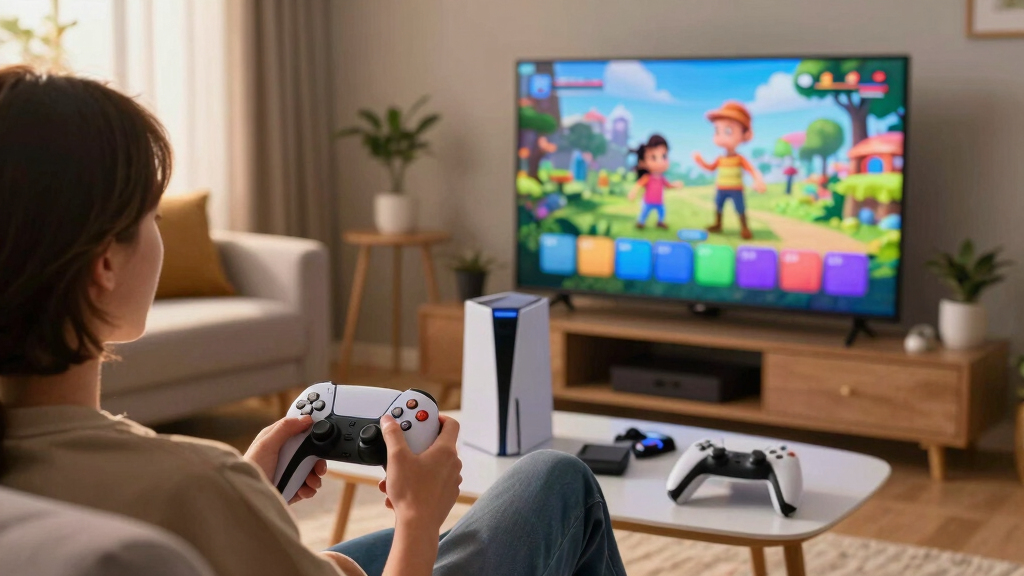
A Steam Machine in the family room feels simple on the outside: controller, couch, big screen. Under the hood, though, Steam still thinks in accounts, licenses, saves, and devices.
This is an overview tailored for a household that wants the Steam Machine to feel as easy as a console without giving up PC perks. You will learn who needs an account, what happens to saves, how sharing works, and where the big-screen fights usually start.
Steam Machine for Families: Accounts, Saves, and Shared Screens Explained
TL;DR: A family Steam Machine works best when every person has a separate Steam account, then joins one Steam Family for eligible shared games. That keeps saves, achievements, controls, purchase rules, and screen time from turning one TV into a tiny courtroom.
Shared screen, separate identities. The couch is common space; progress is personal.
Separate accounts prevent save-file drama.
A shared login feels easy on day one, then messy by week three. Steam ties progress, controller settings, purchases, friends, playtime, and recommendations to the signed-in account.
Own purchases and recovery
Adults should keep personal accounts for payment methods, store history, account recovery, and library ownership.
Need age-matched rules
Child accounts let parents tune access, playtime, community features, and purchase approvals by person instead of by device.
Use local play first
Visitors should use local multiplayer or a temporary plan instead of borrowing the main household login.
Make the shared library official before the first argument.
A Steam Family lets up to six close family members use one pooled library while preserving separate account identity, saves, achievements, and controls.
Give each person a Steam account before anyone starts a long save.
Use an adult account to create or manage the Steam Family.
Add the close family members who actually share the setup.
Enable store, game, playtime, and purchase controls where needed.
Install from a child account and confirm saves stay separate.
Cloud saves are helpful, but they are not universal.
Steam Cloud can move progress between the family-room Steam Machine, a laptop, and a handheld. The catch: every game handles saves differently.
Will the farm follow the player?
If a game supports Steam Cloud and both devices sync, the save can travel with the player’s account. If not, progress may stay local on the Steam Machine or inside a game-specific launcher system.
Rule: check Cloud support before starting a 60-hour RPG.
Pick the setup by where the game runs and who holds controllers.
Put the fastest, most controller-heavy game on the TV. Stream slower games to a second screen when the couch is crowded.
| Setup | Best for | What to watch | Family fit |
|---|---|---|---|
| One TV local co-op | Party games, split-screen racing, couch brawlers | ~Needs enough controllers; some games save under the host profile. | ✓Best for game night. |
| Steam Remote Play | Playing a Steam Machine game on another screen at home | ~Weak Wi-Fi can make inputs feel sticky. | ✓Good for slower games. |
| Remote Play Together | Local multiplayer with someone on another device | ~The game must support it; fast action needs a strong connection. | ~Great when latency is tolerable. |
| Separate devices, shared library | Two people playing different eligible games at once | ✗Two people usually need two copies for the same paid game at the same time. | ✓Best for parallel solo play. |
The surprises are predictable if you plan for them.
Steam Families is cleaner than the older sharing model, but licensing, DLC, third-party accounts, and child access still need household rules.
Same paid game usually needs two copies.
Different people can play different shared games, but siblings who both want the same new co-op hit may hit a license wall.
Not every title is shareable.
Third-party accounts, subscriptions, anti-cheat rules, and publisher settings can block sharing.
Extra content can be complicated.
Check store pages and ownership before promising expansions, characters, or bonus packs to every account.
Never use an adult account as a shortcut.
Multiplayer reputation, chat, purchases, and moderation should belong to the actual player.
From sign-in to smooth game night.
The calm version of a family Steam Machine is a connected system: identity first, sharing second, screen choice last.
Give every player a separate Steam account before long saves and achievements start mixing.
Use Steam Families for eligible games, up to six close family members, and separate child controls.
Check Steam Cloud support before promising that progress will follow someone to another device.
Set purchase approvals and playtime rules before kids browse the store during a sale.
Sources referenced: [1] Steam Support, Steam Families and shared library rules. [2] Valve announcement, Steam Families general availability in September 2024. [3] American Academy of Pediatrics, family media plan guidance.
Key Takeaways
- Give every family member a separate Steam account before long saves, achievements, and controller settings start mixing together.
- Use Steam Families for eligible shared games; it supports up to six close family members and keeps saves separate [1].
- Check Steam Cloud support before anyone starts a long game, because some progress stays local or depends on a game’s own save system.
- Use the TV for fast local games and Remote Play for slower second-screen sessions, especially when the couch is crowded.
- Set parental controls and purchase approvals before kids browse the store, not after a sale banner has already done its work.
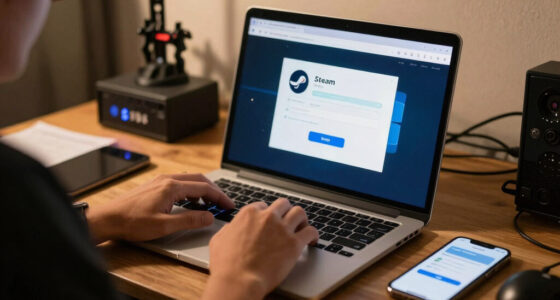
Steam Machine with family account setup
As an affiliate, we earn on qualifying purchases.
As an affiliate, we earn on qualifying purchases.
Start With Separate Accounts So Nobody Loses Progress
Steam Machine for Families works best when every player signs into a separate Steam account, because Steam ties saves, achievements, friends, playtime, and store history to the account. Your TV may be shared, but your progress should not be. Treat the couch like a small arcade with named lockers.
A shared login feels fast on day one, then messy by week three. One child changes controller settings, another loads the wrong save, and suddenly your 40-hour farm has a new name and no chickens.
- Adults should keep their own accounts for purchases, payment methods, and account recovery.
- Children should have their own accounts so parental controls can match age, habits, and trust level.
- Guests should use a temporary plan, such as local multiplayer, rather than borrowing your main login.
Account switching is like labeling lunchboxes. It takes a minute in the morning, but it stops the mystery sandwich problem later.
shared gaming controller for living room
As an affiliate, we earn on qualifying purchases.
As an affiliate, we earn on qualifying purchases.
Set Up Steam Families Before the First Living-Room Argument
A Steam Family is the cleanest way to share a Steam Machine for Families, because it lets up to six close family members use one pooled library while keeping account identity separate. According to Steam Support, shared games still belong to the buyer, but eligible family members can install and play them from their own accounts [1].
- Create or confirm a Steam account for each person. Do this before anyone starts a long game on a borrowed login.
- Open Steam family settings from an adult account. Create the Steam Family and invite the people who actually live in the household.
- Mark child accounts correctly. This gives adults the controls they need for store access, game access, playtime, and purchase approval.
- Test one shared game on the TV. Install it from a child account and check that the save, controls, and achievements stay separate.
- Write down the house rule for buying games. A simple rule, such as purchases need approval over $10, saves more friction than a lecture after the cart is full.
Valve made Steam Families available to all Steam users in September 2024, replacing the older, clunkier family sharing model for most households [2]. If you still remember the old 2014-era device authorization rules, think of this as the newer family model built for daily use.
As an affiliate, we earn on qualifying purchases.
Know Which Saves Follow You and Which Stay Put
Steam Machine for Families setups feel less fragile when Steam Cloud saves are enabled, because many games sync progress to the player’s account instead of trapping it on the box under the TV. When Cloud saves are on, your child’s farm, your puzzle run, and your partner’s campaign can travel across devices.
The catch is simple: Steam Cloud is game-by-game. Some games support it beautifully; others keep local saves, use their own launcher, or handle profiles in strange old folders that smell like 2009 PC gaming.
Before anyone starts a 60-hour RPG, check whether the game supports Steam Cloud and confirm the right account is signed in.
Here is the real kitchen-table version. Your kid plays on the Steam Machine after school, then wants to continue on a Steam Deck in bed. If the game supports Cloud saves and both devices sync, the save follows. If it does not, that progress may stay on the living-room box.
As an affiliate, we earn on qualifying purchases.
Use This Table to Pick the Right Shared-Screen Setup
Steam Machine for Families screen sharing comes down to one question: where should the game run, and where should people hold the controllers? One family may crowd around the TV for a bright kart-racing night. Another may stream a slower strategy game to a tablet while someone else uses the big screen.
| Setup | Best for | What to watch |
|---|---|---|
| One TV local co-op | Party games, split-screen racing, couch brawlers | You need enough controllers, and some games save progress under the host profile. |
| Steam Remote Play | Playing a Steam Machine game on another screen at home | Your Wi-Fi matters. A weak signal can make button presses feel sticky. |
| Remote Play Together | Local multiplayer games with someone on another device | The game must support it, and fast action can feel worse on a slow connection. |
| Separate devices, shared library | Two people playing different eligible games at the same time | Two people usually need two copies if they want the same paid game at once [1]. |
What happens when everyone wants the couch at 7 p.m.? Put the fastest, most controller-heavy game on the TV, then stream slower games to a laptop, tablet, or handheld. Turn-based games tolerate a little delay; twitchy platformers do not.
Use Parental Controls Without Turning Game Night Into Policing
Parental controls work best when you set rules before the store page opens, not after a child has already spotted a neon horror trailer. Steam Families lets adults manage child access, approve purchase requests, and shape what each child can do, while a family media plan gives those settings a reason [1][3].
- Limit game access by account so younger kids see the games they are actually allowed to play.
- Use purchase approvals so a sale banner does not turn into surprise spending.
- Set playtime windows around homework, sleep, and school mornings.
- Restrict chat and community features for children who are ready for games but not ready for the full social layer.
- Review settings monthly because a 9-year-old and a 13-year-old need different guardrails.
The American Academy of Pediatrics points families toward a shared media plan rather than vague screen-time guilt [3]. On a Steam Machine, that might mean co-op is fine before dinner on weekends, but solo ranked matches stop at 8:30 p.m. on school nights.
Plan Around the Limits That Catch Families Off Guard
The main Steam Families limitation is copy count: different people can play different shared games at the same time, but two people usually need two copies to play the same paid game simultaneously. That matters when siblings both want the same new co-op hit after dinner and only one account owns it [1].
- Not every game is shareable. Some titles use third-party accounts, subscriptions, anti-cheat rules, or publisher settings that block sharing.
- Free-to-play games do not need library sharing. Each person can add the free game to their own account.
- DLC can be weird. Check the store page and account ownership before promising extra characters or expansions.
- Online behavior still matters. Do not let kids use an adult account for multiplayer, trading, or chat just because it is already signed in.
A simple Friday-night plan prevents most friction. Pick the family game before dinner, charge the controllers, confirm which account owns the game, and decide whether the TV or Remote Play gets the first turn.
The best shared Steam Machine habit is boring but powerful: sign out when you are done, then let the next player sign in as themselves.
Frequently Asked Questions
Usually, no. Steam Families lets different people play different shared games at the same time, but if two people want the same paid game at once, the family usually needs two owned copies [1].
Will my child’s Steam save overwrite mine on a Steam Machine?
Not if you use separate Steam accounts and the game handles saves properly. Steam keeps each account’s saves and achievements separate, and Steam Cloud can carry supported saves between devices.
Can I block purchases on a family Steam Machine?
Yes. Steam Families gives adults purchase approval tools for child accounts, so a child can request a game without having open access to the payment method [1]. Pair that with a plain house rule, such as no purchases after bedtime.
Does Remote Play mean I do not need another gaming device?
Remote Play can help a lot, especially for slower games and second-screen sessions around the house. It still depends on your network, the host Steam Machine being available, and the game’s tolerance for delay.
Where can I check the current Steam Families rules?
Use Steam Support [1]: https://help.steampowered.com/en/faqs/view/054C-3167-DD7F-49D4. Valve’s Steam Families announcement is at Steam News [2]: https://store.steampowered.com/news/app/593110/view/4605582245626919823. For a household media plan, the American Academy of Pediatrics offers its Family Media Plan [3]: https://www.healthychildren.org/English/fmp/Pages/MediaPlan.aspx.
Conclusion
Your Steam Machine can feel like a console without acting like one. Give every person an account, use Steam Families for eligible games, check Cloud saves, and decide who gets the big screen before controllers hit the coffee table.
Do that, and game night starts with the soft click of a controller waking up, not someone asking where their 40-hour save went.
Fall yard work Picks
leaf blowers
As an affiliate, we earn on qualifying purchases.