
TL;DR

Play games on Amazon Luna for your game nights, included with Prime
- A rotating selection of games, no download needed
- Play on TV, laptop or phone
- Fast, free delivery for your gear, too
A Steam Machine is a living-room gaming PC built around Valve’s Linux-based SteamOS, while Steam Families is a household feature for sharing eligible games and managing child accounts. Most original Steam Machines disappeared after limited commercial success, but their console-style PC concept lives on through Steam Deck and modern SteamOS devices.
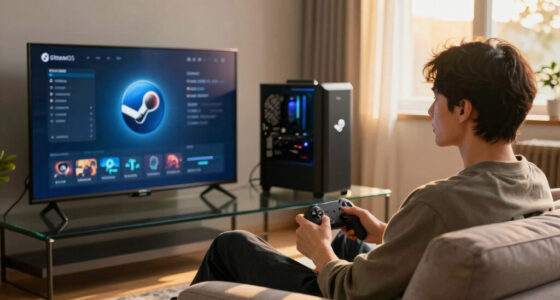
A black box hums beneath your television, a controller rests on the sofa, and your Steam library fills the screen. It feels like a console, yet the machine underneath behaves like a PC. That was the promise of the Steam Machine: bring PC gaming into the living room without making you balance a keyboard on your knees.
The name now causes confusion because Valve also uses Steam for several household features. Steam Families is not another computer, and Family View is not a game-sharing device. These tools handle library access, child accounts, purchase requests, and parental controls inside Steam.
You will learn what Steam Machines are, why the original products faded, and how the Steam Deck carried their best ideas forward. You will also see how Steam Families sharing works in a real household, where its limits appear, and which setup makes sense for your television, desk, or backpack. The names overlap; their jobs do not.
Treat a Steam Machine as hardware: it is a console-style gaming PC built around SteamOS, not a game-sharing service.
Use Steam Families for a household of up to six separate accounts, keeping each person’s saves, achievements, recommendations, and controls distinct.
Plan simultaneous play around owned copies: different shared games can run at once, but two people playing the same title generally need two copies.
Check compatibility on the exact device and software version you use because Steam Deck ratings, Proton behavior, anti-cheat support, and game patches can chan…
Create child accounts instead of sharing adult passwords, then configure game access, purchase approval, communication, and playtime limits.
Steam Machine and Steam Families Explained
A Steam Machine is a console-style gaming PC built around Valve’s Linux-based SteamOS. Steam Families is an account feature for sharing eligible games and managing child access. The names overlap; their jobs do not.
Think of the Steam Machine as the box beneath the television—and Steam Families as the household rules governing the library inside it.
Living-room PC
SteamOS, controller-first navigation, replaceable PC components and television-friendly play.
Up to six members
Eligible games enter a shared household pool while saves, achievements and preferences remain separate.
One copy, one player
Different shared games can run together. Two people generally need two copies to play the same title simultaneously.
Three Steam terms, three different jobs
Confusion disappears once every term is placed in the right layer: hardware, library sharing or parental control.
Steam Machine
A gaming PC designed for the sofa. It combines PC hardware, SteamOS and a controller-friendly interface for a console-like television experience.
Steam Families
An account feature that pools eligible games from as many as six household members without merging their identities or save files.
Parental controls
Tools for controlling games, store access, purchases, communication and playtime on a child account—without sharing an adult password.
| Question | Steam Machine | Steam Families | Parental controls |
|---|---|---|---|
| Is it hardware? | ✓ Yes — a gaming PC | ✗ No — an account feature | ✗ No — account settings |
| Shares eligible games? | ✗ Not by itself | ✓ Yes — through a family pool | ✗ No — controls access |
| Manages child access? | ✗ No | ~ Supports roles | ✓ Yes |
| Depends on Linux compatibility? | ✓ Yes — when running SteamOS | ✗ No — sharing rules are separate | ✗ No |
Why Steam Machines faded—and Steam Deck worked
The original concept promised console simplicity, but varied hardware and uneven game support kept pulling buyers back into PC-style decisions.
Many boxes
Alienware, ASUS and other partners offered different processors, graphics cards, storage options and prices under one label.
Unclear target
Performance varied by model, Linux support was limited and Proton had not yet matured into today’s broad compatibility layer.
One clear Deck
Valve aligned hardware, controls, SteamOS and compatibility guidance around a recognizable portable PC.
The original friction
Clarity of the proposition
A qualitative comparison of the buyer experience described by the hardware models.
Verified, Playable, Unsupported and Unknown badges offer guidance—not permanent guarantees. Patches, Proton releases and anti-cheat changes can alter results.
How Steam Families actually works
Each member uses a separate account. Eligible games are pooled, but every purchased copy retains its own usage limit.
One owned copy behaves like one physical copy
If a family owns one copy of a game, one member can use that copy at a time. A second owned copy generally allows a second family member to play the same title simultaneously.
Create the family
Bring as many as six eligible household accounts into one Steam Family.
Pool eligible games
Participating titles contributed by each member appear in the shared family library.
Keep accounts separate
Every person retains individual saves, achievements, recommendations and playtime records.
Respect copy limits
Play depends on whether an available family-owned copy exists for the requested game.
Different games
One person plays the shared strategy game while another launches the shared farming game.
✓ Usually works togetherSame game, one copy
Two family members want the same multiplayer title at the same time, but the household owns one copy.
✗ One player at a timeSame game, two copies
Two members each contribute a copy of the same eligible title to the family library.
~ Two copies availableUse child accounts—not shared passwords
Separate accounts preserve personal data and give adults precise controls without exposing an adult account’s credentials.
One person, one account
Create a child account, add it to the Steam Family, approve suitable games and configure limits. This keeps saves, purchases and recommendations attached to the correct person.
Game access
Choose which games and content the child account can open.
Purchase approval
Review requested purchases before money is spent.
Communication
Limit access to community, social and communication features.
Playtime limits
Set permitted hours and review account activity separately.
From hardware to household play
The complete chain connects the device, operating system, library rules and individual player accounts.
Five rules to remember
Treat a Steam Machine as hardware. It is a console-style gaming PC built around SteamOS—not a sharing service.
Use Steam Families for the household. Up to six members can pool eligible games while maintaining separate identities.
Plan around owned copies. Different games can run simultaneously, but the same game generally needs one copy per concurrent player.
Check compatibility on the exact device. Deck ratings, Proton behavior, anti-cheat support and game patches can change.
Create child accounts. Configure game access, purchases, communication and playtime instead of sharing an adult password.
What You Actually Get From a Steam Machine
Steam Machine and Steam Families Explained begins with one clean distinction: a Steam Machine is gaming hardware, while Steam Families is an account feature. A Steam Machine combines PC components with Valve’s Linux-based SteamOS to create a controller-friendly experience designed for a television rather than a conventional desk.
Valve promoted the original concept through hardware partners including Alienware and ASUS. Models varied because different manufacturers chose different processors, graphics cards, storage drives, and cases. One machine could whisper quietly beside a television; another could push warmer air through a larger case and deliver stronger graphics.
That variation gave you freedom, but it also weakened the simple console pitch. When you buy a traditional console, every unit in that family has a clear performance target. With the original Steam Machines, a compact entry model and a costly high-end model could carry the same label while producing very different frame rates.
For example, imagine buying a small SteamOS computer for a 1080p television. A lightweight game such as a pixel-art platformer may run smoothly, while a demanding 3D release may need lower shadows, reduced resolution, or a Windows installation. The logo promised simplicity; the parts list still wanted your attention.
A Steam Machine is best understood as a console-shaped PC: easier to use from a sofa than many desktops, but still affected by PC hardware and software compatibility.
SteamOS handles the large-screen interface, controller input, downloads, cloud saves, and game launching. Underneath that polished surface sits Linux, which means game support depends on native Linux releases or a compatibility layer such as Proton. In plain language, the menu may feel like a console, but the machine still speaks PC.
As an affiliate, we earn on qualifying purchases.
Why the Original Steam Machines Faded—and Steam Deck Worked
The original Steam Machines lost momentum because they arrived with uneven prices, mixed hardware, and a smaller Linux-compatible game selection. The Steam Deck improved that formula by giving buyers one recognizable handheld design, a clear performance target, and tighter coordination between Valve’s hardware, SteamOS, and Proton software.
Steam Machines reached consumers in 2015, but many Windows games of that period lacked native Linux versions. Proton had not yet matured into the broad compatibility tool SteamOS users know today. You could open a sleek television interface, select a favorite game, and still hit the digital equivalent of a locked door.
Price also created friction. A household comparing a Steam Machine with a PlayStation or Xbox could see the console’s fixed specifications and predictable game support immediately. The Steam option offered more flexibility, yet flexibility without clarity can feel like a drawer full of cables: useful pieces, unclear connection.
Valve released the Steam Deck in February 2022, bringing SteamOS to a portable PC with built-in controls and a defined hardware target [2]. Instead of asking which manufacturer, graphics card, or case you wanted, the Deck presented a simple choice among storage and display variants. You could suspend a game on the train, wake the device later, and continue beneath the warm glow of a bedside lamp.
The Deck’s Verified, Playable, Unsupported, and Unknown labels also give you a quick compatibility signal. These ratings describe particular Steam Deck testing results, not a permanent promise for every SteamOS computer. A game’s status can change after game updates, Proton releases, or new testing, so check the current badge on the device and SteamOS version you plan to use.
The contrast is sharp: Steam Machines offered many boxes but an uncertain target; Steam Deck offered one clear target with room to customize. You still get PC freedom, including graphics settings and desktop mode, but Valve guides the experience more closely.
As an affiliate, we earn on qualifying purchases.
How Steam Families Lets Your Household Share Games
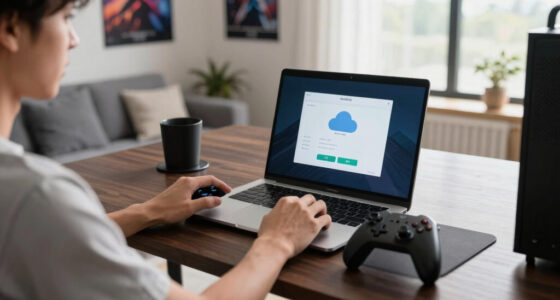
Steam Machine and Steam Families Explained becomes much simpler once you separate the box from the library. Steam Families lets a household of up to six members combine eligible games into a shared family library while keeping separate accounts, achievements, saves, preferences, and playtime records [1].
Suppose you own a strategy game, your partner owns a farming game, and your teenager owns a racing game. After joining the same Steam Family, each person can see eligible titles contributed by the others. Your save file remains yours; nobody drives a tractor through your carefully planted digital turnips unless they use your account, which they should not.
Steam treats each purchased copy much like a boxed game sitting on a shelf. If your family owns one copy, one family member can use that copy at a time. Other members can still play different games from the pooled library, provided those games have available copies.
If two people want the same multiplayer game at 8 p.m., your family generally needs two owned copies. Buy a second copy and Steam can offer both copies through the family library. That rule feels restrictive beside streaming subscriptions, but it protects the basic ownership model: sharing expands access without turning one purchase into six simultaneous licenses.
- Separate accounts: Every member keeps personal achievements, saves, workshop subscriptions, and recommendations.
- Shared eligible library: Household members can access games contributed by other members when a copy is available.
- Concurrent play: Several people can play different shared games at the same time.
- Copy-based limits: Playing the same title simultaneously usually requires the family to own multiple copies.
Steam Families replaced the older model commonly called Steam Family Sharing, which often locked an entire lender’s library when one borrowed game was running. Household eligibility, region rules, membership cooldowns, and developer participation can affect access. Check Valve’s current Steam Families page and the message shown in your client before changing an established family group [1].
Steam Families household game sharing
As an affiliate, we earn on qualifying purchases.
As an affiliate, we earn on qualifying purchases.
See the Differences Before You Change Your Setup
A Steam Machine, Steam Deck, Steam Families, and parental controls solve four separate problems: television gaming, portable play, household library sharing, and account supervision. Comparing their jobs side by side keeps you from buying hardware when you need an account setting—or changing account settings when you need a faster computer.
| Steam term | What it is | What it gives you | Common limit |
|---|---|---|---|
| Steam Machine | A gaming PC designed around SteamOS and television use | Console-like menus with PC hardware flexibility | Original models varied widely and most are discontinued |
| Steam Deck | Valve’s handheld SteamOS gaming PC | Portable play, built-in controls, and a defined hardware target | Some games remain incompatible or need adjusted settings |
| Steam Families | A household library and account-management feature | Shared access to eligible games for as many as six members | Each owned copy supports one player at a time |
| Parental controls | Restrictions applied to child accounts within a family | Game access, store access, chat, playtime, and purchase controls | Adults must configure and maintain the rules |
Here is a practical example. If you want to play on the sofa, a small modern PC running SteamOS or another television-friendly setup addresses the hardware need. If your child wants to play a game you own on a separate account, Steam Families addresses the library need.
If that child should only play age-appropriate titles after homework, parental controls address the supervision need. Check ratings such as ESRB, PEGI, or your local system, but do not treat an age badge as a complete family policy. A mild-looking online game may include open chat or user-made content that matters more to your household than cartoon combat.
The table also exposes a common misconception: joining Steam Families does not improve frame rates or make an unsupported game run on Linux. Likewise, buying a Steam Deck does not automatically share your library with another account. Hardware controls performance; account features control access.
Parental controls for Steam accounts
As an affiliate, we earn on qualifying purchases.
As an affiliate, we earn on qualifying purchases.
Use Parental Controls Without Sharing Your Password
Steam parental controls let an adult manage what a child account can play, buy, and access without turning the household into a password-swapping mess. Within Steam Families, adults can approve games, restrict store or community features, review playtime, and respond to purchase requests from child members [1].
Imagine your 12-year-old wants a colorful co-op game rated for their age, but the store page sits beside horror trailers and an open community hub. You can approve the game while limiting other areas. The child gets a bright, bouncing adventure; you avoid handing over an adult account containing payment details and unrestricted chat.
Purchase requests offer another useful pressure valve. A child can ask for a game through Steam, and an adult can approve and pay from their own account. That keeps the decision visible and gives you a natural moment to check the age rating, online communication, in-game purchases, and whether the game will actually run on the family’s device.
- Create or use a separate child account. Do not share an adult login, even if it feels faster on the first evening.
- Add the account as a child member. Confirm that every person belongs to the same household under Valve’s current eligibility rules.
- Approve specific games and features. Start narrowly, then expand access as the child gains experience.
- Set playtime boundaries. Match the schedule to school nights, weekends, and your household routine.
- Review the setup together. Explain why chat, purchases, or certain games have limits instead of leaving the controls as a silent wall.
Controls work best when the rule and the reason travel together. A timer that cuts power during a boss fight feels like a trap; a known 30-minute warning feels fair. Steam can watch the clock, but it cannot understand your dinner plans, your child’s maturity, or the strangers talking through a headset.
Use separate accounts for separate people. You gain cleaner saves, safer purchases, more useful playtime records, and controls that match the correct player.
Pick the Right Steam Setup for Your Living Room
Steam Machine and Steam Families Explained leads to a practical choice: match the setup to where you play and who needs access. Choose a Steam Deck for portable play, a modern PC for stronger television performance, and Steam Families when several household accounts need to share eligible purchases.
- List the screens you use. A desk monitor, 4K television, and handheld display demand different controls and performance.
- Check your five most-played games. Look at Linux or Proton support, controller support, anti-cheat behavior, and current Steam Deck compatibility labels.
- Count the simultaneous players. If two people want the same title at once, plan for two copies rather than one shared license.
- Separate adult and child accounts. Apply age, purchase, chat, and playtime rules before handing over a controller.
- Test before spending heavily. Connect an existing PC to the television or dock a Steam Deck for an evening and see whether the interface, text size, and controller feel right.
A real-world test can save hundreds of euros or dollars. Run a long HDMI cable from your current PC, pair a controller, and play from the sofa for one night. If tiny text makes you lean forward and fan noise fills quiet scenes, you have learned more than a specification sheet could tell you.
Performance claims need a platform attached. A game running at 60 frames per second on a desktop GPU may run at 30 or 40 on a Steam Deck, and a 4K television can ask four times as many pixels from the hardware as a 1080p screen. Settings, SteamOS version, Proton version, cooling, and game patches all shape the result.
If you find a refurbished original Steam Machine, treat it as an older PC rather than a collectible console with guaranteed support. Check its processor, graphics card, storage health, wireless hardware, and operating system. The compact black shell may still look elegant beneath a television, but aging parts do not become faster because the case carries Steam branding.
Know the Limits Before a Shared Game Night
The biggest Steam Families limits involve game eligibility, copy availability, household membership, and platform compatibility. Sharing does not mean every title works on every device, and it does not override a publisher’s account system, subscription, anti-cheat software, regional restriction, or decision to exclude a game from family sharing.
Consider a Saturday game night with three laptops and one television PC. One person launches a shared city-builder, another starts a different shared puzzle game, and both may play at once when copies are available. If the third person selects the same one-copy city-builder, Steam will ask them to wait or purchase another copy.
Some games depend on third-party launchers, separate product keys, or external subscriptions. Those titles may not enter the shared pool at all. Others appear in the library but fail on a SteamOS device because their anti-cheat system or launcher does not support Linux. Library access opens the door; compatibility decides whether the game can walk through it.
Your family should also avoid treating membership as a casual lending circle. Valve describes Steam Families as a feature for a household, and it applies eligibility checks and waiting periods around membership changes [1]. Do not remove someone during an argument over a controller without reading the warning screen, because restoring the old arrangement may not be immediate.
Rumors about new Valve living-room hardware appear regularly. Treat leaks, unnamed-device references, and forum speculation as unconfirmed until Valve publishes a product name, specifications, supported regions, price, and release date. An unreleased device cannot solve tonight’s compatibility problem, no matter how polished a leaked render looks.
According to Valve’s Steam Families documentation, the current system combines library sharing and parental management for a household of up to six people [1]. SteamOS and device behavior continue to change through updates, so verify current platform status in Steam before buying hardware or reorganizing a family group.
Frequently Asked Questions
Are original Steam Machines still available?
Most original Steam Machine models are discontinued, although refurbished and second-hand units may appear through third-party sellers. Treat one as an older gaming PC: inspect its exact processor, graphics hardware, storage condition, ports, and current SteamOS compatibility before buying.
What are Steam Machines compared with Steam Deck?
Steam Machines are stationary gaming PCs originally designed for television use, while the Steam Deck is Valve’s handheld PC with built-in controls and a more consistent hardware target. You can dock a Deck to a television, but its portable design and performance limits remain different from a powerful desktop.
Can two family members play Steam games at the same time?
Yes, family members can play different shared games simultaneously when copies are available. If two people want to play the same game at the same time, the family generally needs two copies. Think of each license as one game box that only one player can hold.
Can every Steam game be shared through Steam Families?
No. Developers can exclude games, and titles that require outside accounts, subscriptions, or individual product keys may be ineligible. A shared title may also fail on SteamOS because of Linux, launcher, or anti-cheat compatibility, so check both sharing eligibility and device support.
Does Steam Families replace Family Sharing and Family View?
Steam Families combines the newer sharing model with family management, replacing the main jobs previously handled by Steam Family Sharing and Family View [1]. The current system gives adult members library controls and parental tools for child accounts, including game approval, playtime management, and purchase requests.
Is Steam Deck Verified status permanent?
No. A Steam Deck compatibility rating can change after game patches, SteamOS updates, Proton releases, or new Valve testing. Check the current rating on your Deck and read the details, because Playable may mean small text, manual keyboard input, or another inconvenience rather than poor performance.
Conclusion
Remember one clean dividing line: Steam Machine describes the computer, while Steam Families describes who can access the games. Once you separate hardware from household permissions, the confusing names become a practical toolkit. You can choose the screen, performance, and controls you want, then build a shared library around separate accounts.
Start with the games your household actually plays. Check their device compatibility, count how many people need each copy, and configure child access before the first shared session. When the television glows and several controllers wake with soft clicks, everyone should know which library, account, and rules belong to them.
Halloween Picks
halloween
As an affiliate, we earn on qualifying purchases.