
TL;DR

Play games on Amazon Luna for your game nights, included with Prime
- A rotating selection of games, no download needed
- Play on TV, laptop or phone
- Fast, free delivery for your gear, too
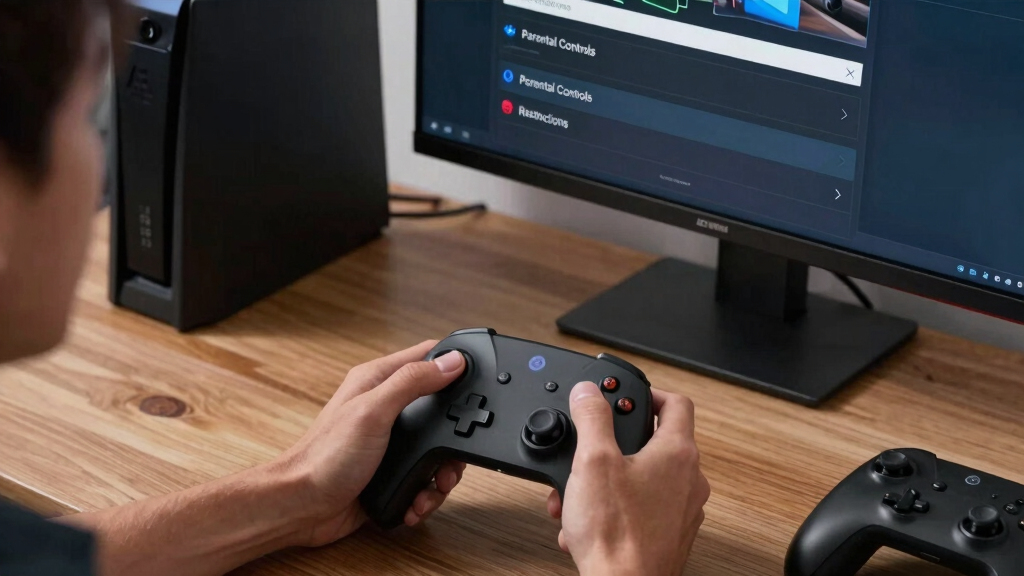
Steam Machine parental controls let you approve games, restrict store and social features, review playtime, set limits for child accounts, and approve purchase requests through Steam Families. Pair those settings with operating-system controls and a separate child login so the rules still apply after Steam closes.
A child can move from a colorful kart racer to an open community page in fewer than three clicks. On a living-room gaming PC, that jump can happen while you are washing dishes and the television fills with store promotions, chat messages, or a purchase screen. Steam Machine parental controls give you several ways to narrow those paths.
You will learn how to approve individual games, limit social tools, manage spending, and build clear playtime boundaries. You will also see where Steam’s protections stop, because a Steam PIN cannot control a web browser, a second game launcher, or another operating-system account. The safest setup uses two connected layers: Steam account rules and device-level rules.
The name Steam Machine can describe Valve-branded hardware or a living-room PC built around Steam and Big Picture mode. Menus may differ between SteamOS and Windows, and labels can change after client updates, but the core account choices remain recognizable. Treat leaked hardware specifications as unconfirmed; parental settings depend far more on the Steam account and software version than on the box beneath your television.
Create a dedicated child account in Steam Families; sharing an adult login weakens every later restriction.
Approve games individually and check regional ESRB or PEGI details, online communication, and in-game spending before adding each title.
Pair Steam’s library, social, purchase, and playtime controls with an operating-system child login that covers browsers and other launchers.
Give a 15-minute cutoff warning and test both online and offline behavior so time limits do not fail during a match or network outage.
Repeat a five-minute child-account test each month and after major client, operating-system, or hardware changes.
Steam Machine Parental Controls Explained
Steam Families can narrow the route from an approved game to the Store, Community, chat, or a purchase screen. The dependable setup combines Steam account rules with a separate operating-system child login—because a Steam PIN cannot govern the rest of the computer.
One locked playground is not the whole park
Steam controls activity inside Steam. The operating system controls the broader device, while household rules cover behavior that software cannot interpret. A resilient setup connects all three.
Steam Families
Creates the approved route through the Steam library and its connected services.
- Individual game approval
- Store and Community access
- Friends, chat, and social tools
- Playtime review and limits
- Purchase requests
Operating system
Closes escape routes that remain available after Steam is minimized or closed.
- Separate child login
- Login hours and screen time
- Browser and application access
- Non-Steam game launchers
- Administrator permissions
Household rules
Sets expectations for situations that account settings cannot resolve by themselves.
- Headset and voice-chat use
- Bedtime and homework rules
- Shared-controller disputes
- What happens at cutoff
- When new games are reviewed
What each control layer catches—and misses
No single layer covers every path. Use this matrix to place each rule where it can actually be enforced.
| Control layer | Manages well | May miss | Living-room example |
|---|---|---|---|
| ✓Steam Families | Approved games, Store, Community, chat, playtime, and purchase requests. | Browsers, other launchers, desktop permissions, and separate user accounts. | The child launches an approved racer but cannot casually browse the Steam Store. |
| ✓Operating system | Login hours, app access, account permissions, and broader device screen time. | Fine-grained behavior inside every game or Steam feature. | The child login locks at the household cutoff even if Steam remains open. |
| ~Home network | Connection schedules and selected website categories. | Downloaded offline games, local files, and devices using another connection. | The PC loses internet overnight, but an installed offline game may still run. |
| ✓Household rules | Context, exceptions, sportsmanship, bedtime, and shared-space expectations. | Automatic enforcement when an adult is unavailable. | A 15-minute warning gives the player time to save or finish a short match. |
Set up a child account in seven clear steps
Menu labels can move between desktop Steam, Big Picture mode, and SteamOS releases. The durable sequence is account first, allowlist second, connected features third, and testing last.
Create the child login
Never share the adult account or its recovery access.
Add the child role
Create a Steam Family and invite the correct account.
Approve games
Begin with a small allowlist of reviewed titles.
Close extra paths
Review Store, Community, friends, and chat access.
Build a schedule
Separate school-night and weekend boundaries.
Require approval
Keep every purchase behind an adult checkpoint.
Test as the child
Try allowed, blocked, online, and offline routes.
Test the paths most likely to undo the setup
The bars show relative setup priority, not measured failure rates. Start with identity and game approval, then close the routes that lead outside Steam.
min
Warn before the cutoff
A hard stop can land during a match, update, or save sequence. Give a 15-minute warning, explain what happens when time expires, and test whether offline play behaves differently from connected play.
The safe path from request to play
Every new title should travel through the same short chain. Consistency makes exceptions visible and prevents a stored payment method from becoming the approval process.
Child requests
A specific title is requested from the child account.
Adult reviews
Check ESRB or PEGI details, chat, online play, and spending.
Access approved
Add only the reviewed game to the child’s available library.
Schedule applies
Steam and device rules define when play can happen.
Activity reviewed
Recheck access, playtime, and behavior after changes.
Protect the adult identity
Keep the adult login, recovery email, payment credentials, and administrator password under adult control.
Review games individually
Look beyond the age badge to online communication, user-generated content, and in-game spending.
Re-test after changes
Repeat the child-account check monthly and after major Steam client, operating-system, launcher, or hardware changes.
Expect minor friction
Tight permissions create more approval requests, but opening specific doors later is safer than repairing an unrestricted setup.
Hardware is not the deciding factor
Whether “Steam Machine” means Valve-branded hardware or a living-room PC, protection depends chiefly on the Steam account, software version, operating-system login, and the settings you verify.
What Steam’s Controls Can Block—and What Slips Past Them
Steam Machine parental controls are account-level rules that limit approved games, store access, community features, friends, chat, and purchasing for a child account. They protect activity inside Steam, but they do not automatically govern browsers, non-Steam launchers, downloaded files, or separate user accounts on the same machine.
Steam is a distribution platform for PC games, not the operating system underneath them. Think of its controls as a sturdy gate around one busy playground. The gate can keep a child away from selected rides, but it cannot stop them from walking into the park next door after Steam closes.
For example, you might approve Stardew Valley and a football game while blocking the Steam Store and community pages. That setup prevents casual browsing inside the client. If the Windows desktop still exposes a browser and another launcher, however, your child can leave the approved path without entering the Steam PIN.
- Steam handles: game approval, store access, community tools, friends, chat, playtime reports, limits, and purchase requests supported by Steam Families.
- The operating system handles: login schedules, browser access, other apps, account permissions, and device-wide screen time.
- Your household rules handle: headset use, play after bedtime, shared-controller disputes, and what happens when time runs out.
Use Steam controls as one locked door, not the entire house. A separate child login prevents an approved Steam library from becoming a shortcut to unrestricted desktop access.
According to Valve’s official Steam Families guidance, adults can manage child access and review activity through family features [1]. Menu wording may move between desktop Steam, Big Picture, and SteamOS versions, so keep the client updated and verify the settings after a major interface change.
As an affiliate, we earn on qualifying purchases.
Choose the Two-Layer Setup That Actually Holds Up
Steam Machine parental controls work best beside operating-system restrictions because each layer covers a different escape route. Steam controls the library and its connected features; Windows, SteamOS, router, or device tools control what happens outside the client. Using both prevents one overlooked icon from undoing the whole setup.
| Control layer | What it manages well | What it may miss | Practical example |
|---|---|---|---|
| Steam Families | Approved games, store, community, chat, playtime, and purchase requests | Browsers, other launchers, local administrator access | Your child can launch an approved racing game but cannot open the Steam Store. |
| Operating system | Login hours, app access, account permissions, and broader screen time | Fine control over features inside every Steam game | The Windows child account locks at 8:30 p.m., even when Steam remains open. |
| Home network | Connection schedules and some website categories | Offline games and mobile data | The gaming PC loses internet access overnight, but installed offline games may still run. |
Suppose your 11-year-old has a daily Steam limit but discovers a free browser game. A Steam-only rule will not touch it. A Windows child account managed through Microsoft Family Safety can apply device schedules and app restrictions more broadly, according to Microsoft’s documentation [2].
SteamOS households need a slightly different plan because system-level family tools may not mirror the Windows feature set. You can still use a child Steam account, restrict Steam features, protect administrator credentials, and add router schedules when useful. Test offline behavior too; cutting Wi-Fi at bedtime does not stop a downloaded game that works without a connection.
The tradeoff is convenience. A strict setup creates more approval requests and occasional interruptions, especially when a newly installed game launches a helper program. Start with tight permissions, then open specific doors after you see how the machine behaves during a normal week.
As an affiliate, we earn on qualifying purchases.
Set Up a Child Account in Seven Clear Steps
Steam Machine parental controls should begin with a dedicated child account inside Steam Families, followed by approved-game, social, store, and playtime settings. Keep the adult account and recovery email under your control. The full setup usually takes about 15 minutes when you already know which games you want to allow.
- Create or select the child’s Steam account. Do not share your adult login; shared credentials make every later restriction easier to bypass.
- Create a Steam Family from Steam’s family settings, then invite the child account with the correct child role.
- Approve individual games. Start with a small allowlist rather than opening the whole library and trying to spot every unsuitable title.
- Restrict connected features. Choose whether the child can use the Store, Community, friends list, chat, and other available areas.
- Set playtime rules. Match the limits to school nights, weekends, and your household schedule.
- Configure purchase approval. Require an adult response instead of leaving a stored payment method available without a checkpoint.
- Test from the child account. Launch an approved game, attempt a blocked game, open the Store, and let the timer reach its warning stage.
Imagine setting this up for a 10-year-old who plays from the sofa. Approve three familiar games, block Store and Community access, and send purchase requests to the adult account. When the child presses the controller’s home button, they should see a short, clean library rather than a wall of neon sale banners.
Older guides may describe Family View and a four-digit PIN as the main route. Current clients center many household features around Steam Families, though older interfaces or accounts may still show different labels. Follow the choices visible in your installed client and Valve’s current family documentation [1], rather than treating an old screenshot as a map carved in stone.
Finish by signing out of the adult account and restarting the machine. A setup that works only while you are standing in the settings screen is not finished. Your test should feel like tugging every door handle before leaving home: quick, slightly repetitive, and much better than finding the open door later.
As an affiliate, we earn on qualifying purchases.
Turn Age Ratings Into a Game-by-Game Allowlist
Steam Machine parental controls protect younger players most reliably when you approve games individually and use ESRB, PEGI, or local ratings as one input. Store filters can reduce mature recommendations, but an allowlist answers the sharper question: exactly which titles can this child launch from this account today?
Ratings give you a fast first pass. In North America, an ESRB Teen label signals different content from Everyone, while European stores commonly show PEGI numbers such as PEGI 7, 12, or 18. Ratings can vary by country, platform, edition, and downloadable content, so check the listing that matches your region and version.
Here is the real-world wrinkle: two games with similar age labels can create very different evenings in your home. A quiet puzzle game may end cleanly after ten minutes, while an online team game can bring voice chat, strangers, competitive pressure, and matches that punish a player for leaving early. The number on the box does not describe every social feature.
- Check the rating reason: Look beyond the badge for violence, language, gambling-like mechanics, or user interaction notices.
- Review online features: Ask whether the game includes public chat, voice communication, user-made content, or open matchmaking.
- Inspect spending: Look for downloadable content, virtual currency, random rewards, and recurring passes.
- Recheck after updates: A game can add new modes, social tools, or a store months after you approve it.
For example, you might approve a cooperative building game for siblings but disable broader Steam chat. Sit with them for the first 20 minutes, listen to what comes through the headset, and inspect the in-game menus. That brief trial reveals details no storefront thumbnail can show.
An age badge is a signpost, not a babysitter. Pair the rating with an approved-game list and a quick hands-on check of online play.
As an affiliate, we earn on qualifying purchases.
Stop Surprise Spending Without Ruining Every Request
Purchase controls should make every child-initiated transaction pass through an adult approval step, while store restrictions reduce the number of tempting offers they see. Remove casually stored payment access, protect the adult account, and explain the rule in plain language: asking is allowed, but buying without approval is not.
A game that costs nothing to install can still place bright coin bundles, seasonal passes, and character skins one button away. The screen flashes gold; a countdown ticks in the corner; the offer says it disappears tonight. That design turns a quiet Saturday match into a €19.99 decision made under pressure.
Steam Families supports child purchase requests that an adult can review, according to Valve’s guidance [1]. Steam also offers various parental restrictions around Store access, but remember that some games run their own shops and account systems. Check both Steam checkout and the game’s internal purchase flow during your test.
- Block or limit Store access for younger children who do not need to browse independently.
- Use purchase requests so an adult sees the title and price before money moves.
- Protect email and adult credentials because recovery links can become a back door.
- Review saved payment methods and remove any card that your household does not need attached.
Say your child requests a €5 cosmetic pack. Instead of issuing a flat no from the next room, open the request together and ask what the pack contains, whether it expires, and whether the item changes play or only appearance. You turn a glowing buy button into a short lesson about value.
No setting replaces a spending rule the child can repeat. Try: Nothing digital gets bought without an adult checking the final price. That sentence covers games, downloadable content, subscriptions, and virtual currency without forcing a nine-year-old to memorize payment terminology.
Make Playtime Limits Work on a Busy Family Schedule
Playtime limits work when they match your actual routine, provide a warning before cutoff, and cover the whole device rather than Steam alone. Steam Families can manage and report playtime for child accounts, while operating-system schedules can close gaps involving browsers, other launchers, and non-Steam games [1][2].
A blunt nightly cutoff can create more friction than it solves. If a multiplayer match begins at 7:55 p.m. and the machine locks at 8:00, your child may abandon teammates or lose unsaved progress. Give a 15-minute warning and set a latest-start rule for games with long rounds.
For a school-night example, you could allow up to 60 minutes between homework and 8:30 p.m., with longer access on Saturday. The time allowance controls quantity; the schedule controls when play happens. Using both prevents an unused afternoon hour from turning into a midnight session.
- Match limits to game length: A strategy session may need a save point, while a racing event can finish in five minutes.
- Separate weekdays and weekends: One flat limit rarely fits football practice, homework, and a rainy Sunday.
- Plan an extension rule: Decide whether a child can request ten extra minutes to save or finish a round.
- Review reports together: A calm weekly check works better than treating every minute as evidence in a trial.
Steam’s menus and available controls can change with client updates, and device-wide options depend on the operating system version. On Windows, Microsoft Family Safety provides broader schedules and app controls [2]. On a SteamOS machine, combine the child Steam account with protected system credentials and any suitable network schedule.
The goal is not a timer that lands like a steel shutter. You want a predictable rhythm: warning, save point, sign-out, then the soft click of the controller returning to its dock. Test the routine for one full week and adjust limits that repeatedly collide with meals or schoolwork.
Run This Five-Minute Safety Check Every Month
A monthly five-minute check catches new games, changed permissions, expired schedules, and software updates before they become household surprises. Sign in as the child, test one approved path and one blocked path, then review playtime and pending requests. Treat the check like testing a smoke alarm: brief, regular, and practical.
Start on the same television, controller, and account your child uses. An adult settings page may say the Store is blocked while a cached Big Picture screen behaves differently. Press the real buttons, follow the real menus, and look for any route that exposes adult account access or unrestricted desktop tools.
- Open an approved game and confirm it launches without asking for adult credentials.
- Try a blocked title and verify that the account cannot start it directly.
- Check Store, Community, friends, and chat against the permissions you chose.
- Review playtime and purchase requests for activity you do not recognize.
- Inspect the operating-system account for browsers, new launchers, administrator rights, or changed schedules.
For example, a family might approve a new football game during the holidays and forget that its online mode includes voice chat. The monthly check exposes the new microphone icon before a stranger’s voice crackles through the living-room speakers. You can then disable voice features in the game, change Steam permissions, or limit play to known friends.
Check again after a major Steam client update, operating-system reinstall, account recovery, or new hardware setup. Steam Deck verification and game performance labels can change by version, but those labels describe compatibility rather than child suitability. A green compatibility badge does not replace an age rating or family approval.
Your setup is only as strong as the child account’s real experience. Test from that account, not just from the adult control panel.
Frequently Asked Questions
Can I block one specific Steam game without hiding the whole library?
Yes. Steam Families lets an adult manage which games a child account can access, so you can approve selected titles rather than exposing the full shared library [1]. Test the result from the child account because library sharing, free games, and newly added titles can change what appears.
Can I set a daily time limit on a Steam Machine?
Steam Families supports playtime management for child accounts, including limits and activity review in supported client versions [1]. Add operating-system rules when you also need to control browsers, other launchers, or the entire device; Windows households can use Microsoft Family Safety for broader schedules [2].
Do Steam parental controls block in-game purchases?
They can restrict Store access and route supported child purchases through adult approval, but some games use separate stores or account systems. Open each approved game’s shop once, inspect its payment flow, and remove unnecessary saved payment methods from both Steam and any linked service.
Should my child use my Steam account or have a separate one?
Use a separate child account. Sharing your adult account can expose unrestricted games, saved payment access, private messages, recovery tools, and settings that were never designed for a child. A separate account also gives you cleaner playtime reports and approval requests.
Will an ESRB or PEGI rating automatically block unsuitable games?
Do not rely on an age badge as an automatic lock. Ratings help you judge content, but the safer method is an approved-game allowlist built around the correct regional rating, online communication, user-made content, and spending features. Ratings may also differ by country, edition, or platform.
Can I manage Steam restrictions from my phone?
Steam’s mobile tools can support family requests and account actions, depending on the current app and family configuration. Keep the app updated, protect it with your phone’s lock, and confirm sensitive changes from the child account afterward. Never treat a remote confirmation screen as a substitute for testing the living-room machine.
Do these controls work when the Steam Machine is offline?
Approved offline-capable games may continue running without an internet connection, while requests, reports, and synced changes may wait until Steam reconnects. Test one offline session before relying on a router cutoff. A device login schedule offers a stronger boundary when internet access disappears.
Conclusion
The most dependable setup has one simple shape: a child Steam account, a short approved-game list, protected purchases, clear social permissions, and device-level limits outside Steam. Build those layers, then test them from the sofa with the child’s controller in your hands. Settings only count when they work on the screen your child actually sees.
Start tonight with one action: sign in as the child and try to open a game, store page, browser, and purchase screen that should be blocked. In five minutes, you will know whether your rules form a locked gate or a painted line on the floor. Aim for the gate—and leave approved play feeling bright, simple, and easy to reach.
Evergreen bestsellers Picks
bestsellers
As an affiliate, we earn on qualifying purchases.