
TL;DR

Play games on Amazon Luna for your game nights, included with Prime
- A rotating selection of games, no download needed
- Play on TV, laptop or phone
- Fast, free delivery for your gear, too
Steam Machine vs Mini PC is mainly a software comparison, not a hardware contest: SteamOS creates a controller-friendly Steam experience, while a Windows mini PC supports more stores, anti-cheat systems, desktop programs, and peripherals. Choose SteamOS for a focused living-room game box; choose Windows when broad compatibility matters more than a tidy console-like interface.
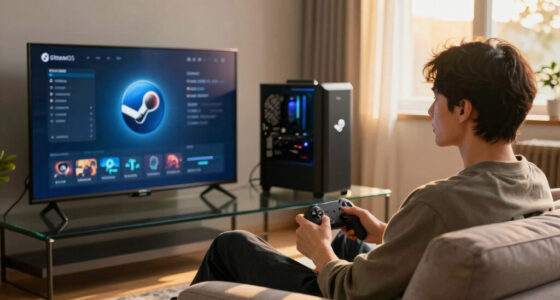
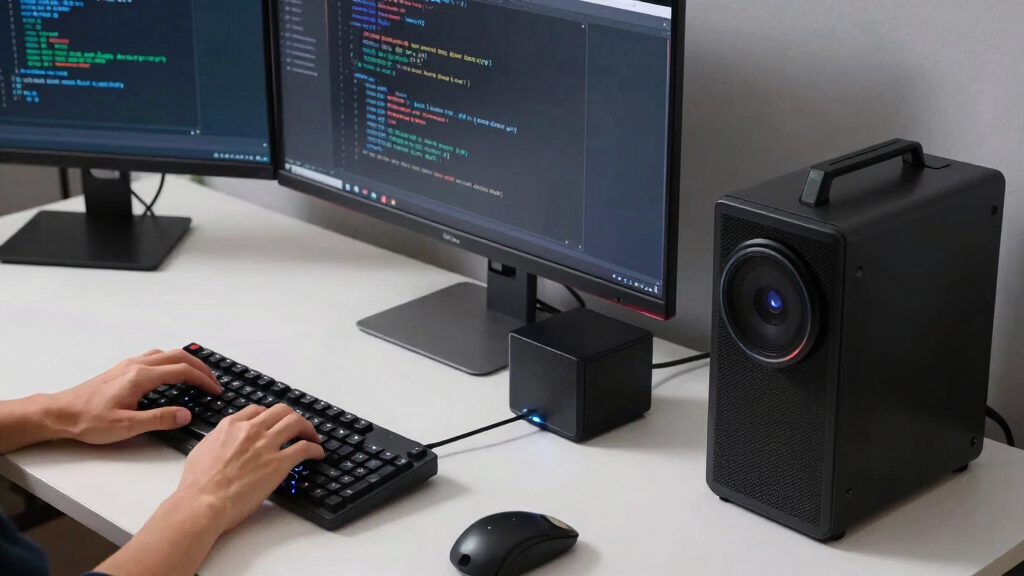
Two identical black boxes can sit under your television, use the same processor, and deliver completely different evenings. One wakes straight into a bright, controller-friendly game library; the other drops you onto a Windows desktop, asks about an update, and waits for a mouse. The hardware may match, but the software changes the personality of the machine.
You will learn where SteamOS, Windows, and Linux compatibility tools differ, what happens when a game uses anti-cheat, and why launchers can turn a simple couch setup into a tangle of passwords and pop-up windows. You will also see how updates, desktop apps, age ratings, and controller support affect real use. These are the most important aspects of Steam Machine vs Mini PC because raw frame-rate charts cannot tell you whether your favorite game will launch smoothly on Friday night.
The label needs a little historical context. Valve’s official Steam Machine program reached consumers in 2015 and disappeared from the Steam store by 2018, but the idea survived: a compact PC built to behave like a gaming console. Today, that idea appears in custom SteamOS-style builds, Linux gaming systems, and Valve’s Steam Deck, while the ordinary mini PC remains a general-purpose computer that can run Windows or Linux.
Treat a Steam Machine as a software role: a compatible mini PC can deliver the same controller-first idea when configured with a gaming-focused Linux interface.
Check every must-play game for Proton, anti-cheat, launcher, mod, and recent update support before choosing SteamOS.
Choose Windows when PC Game Pass, commercial desktop applications, specialized peripherals, or official third-party launchers shape your weekly routine.
Do not transfer Steam Deck performance or compatibility claims to another mini PC without matching the hardware, SteamOS version, drivers, and game build.
Write down five games and three non-game tasks before buying hardware; your real software list is more useful than a generic platform score.
Steam Machine vs Mini PC
Two identical black boxes can deliver completely different evenings. SteamOS creates a focused, controller-first game console; Windows opens a broader world of stores, apps, drivers and peripherals. The operating system gives the hardware its personality.
Valve’s Steam Machine program reached consumers.
Official machines disappeared; the software idea survived.
A mini PC can become Steam Machine-style through its OS and interface.
Write down five games and three non-game tasks before buying.
The box is only the stage
A “Steam Machine” is most useful as a software role, not a fixed specification. Hardware supplies the processor, memory and graphics; the operating system decides how you start games, handle updates and reach everything beyond Steam.
The living-room specialist
Boots toward a full-screen Steam library, favors controller navigation and keeps the desktop out of sight until it is deliberately needed.
The compact generalist
Runs games, workplace tools, media software, official launcher clients and specialized utilities—but desktop prompts can interrupt the couch experience.
Focus versus range
Neither platform wins every row. SteamOS reduces friction inside its preferred lane; Windows supports more lanes, but often exposes more desktop-style interaction.
| Software question | SteamOS-style machine | Windows mini PC |
|---|---|---|
| Startup experience | ✓ Controller-friendly Steam interface | ~ Desktop unless configured otherwise |
| Steam games | ~ Native Linux or Proton | ✓ Native Windows releases |
| Other game stores | ~ Extra tools; setup varies | ✓ Official clients widely available |
| PC Game Pass | ✗ No standard native PC path | ✓ Official ecosystem support |
| Desktop software | ~ Linux apps and alternatives | ✓ Broad commercial support |
| Controller navigation | ✓ Strong from startup to game | ~ Games work; prompts may need a mouse |
| Specialized peripherals | ~ Check Linux drivers first | ✓ Broad vendor utility support |
From install to Friday night
Proton translates many Windows games for Linux, but compatibility is a chain. A failure at the launcher, anti-cheat or update stage can stop an otherwise capable machine.
Game build
Confirm the exact title and current version.
Proton layer
Check rendering, codecs and required workarounds.
Anti-cheat
Publisher support can decide whether online play launches.
Launcher
Logins and pop-ups may demand keyboard input.
Couch test
Verify updates, sleep, controller and resume behavior.
Do not transfer Steam Deck claims blindly. Match the processor, graphics, drivers, SteamOS version, resolution and game build before treating another device’s result as evidence.
Measure friction, not hype
These qualitative profiles summarize default platform strengths—not benchmark scores. The best system is the one that removes obstacles from your recurring games and tasks.
Software strength profile
Relative platform emphasis based on typical out-of-box use.
Where do you sit?
Your weekly routine places you on the spectrum.
Games: Check Proton, anti-cheat, launchers, mods and recent updates.
Tasks: List work apps, media tools, VPNs and Windows-only utilities.
Interface: Decide whether controller-only startup is essential.
Maintenance: Choose how much setup and troubleshooting you accept.
Software becomes behavior
Compatibility is not a checkbox in isolation. Each layer changes what happens between pressing the power button and actually playing.
Defines the ecosystem
Controls access
Can permit or block play
Shapes couch comfort
Smooth launch or friction
Steam is the destination
Your must-play games are verified, controller navigation matters and a focused living-room experience is worth more than universal support.
Compatibility is the priority
PC Game Pass, commercial apps, third-party launchers, mods or specialized peripherals are part of your normal week.
See Why the Operating System Matters More Than the Box
Steam Machine vs Mini PC describes two software roles more than two fixed hardware categories. A Steam Machine-style system puts controller-first gaming at the center, usually through SteamOS or another gaming-focused Linux setup. A mini PC normally starts as a flexible desktop, with Windows or Linux ready for games, work, media, and web browsing.
Think of the hardware as an empty apartment. The processor, memory, and graphics chip provide the rooms, but the operating system furnishes them. SteamOS rolls out a soft couch and places the game library beside the remote; Windows adds a desk, filing cabinet, printer, and several doors leading to competing game stores.
For example, place the same compact AMD-based PC beneath your television and connect an Xbox controller. With a properly configured gaming Linux installation, it can boot into a full-screen Steam interface and feel close to a console. Install Windows 11 instead, and the same box can run Steam, the Epic Games Store, PC Game Pass, Adobe applications, office software, and specialized Windows utilities, though you may need a keyboard when a launcher demands attention.
The original Steam Machines varied widely because manufacturers used different processors, graphics cards, and cases. That history makes any blanket performance claim unreliable. When someone says SteamOS is faster or Windows performs better, ask for the exact hardware, game build, driver, resolution, and OS version; a result measured on SteamOS 3 running on a Steam Deck does not automatically apply to an unofficial SteamOS-style installation on a mini PC.
The useful question is not which box wins. Ask which operating system makes your games and daily tasks feel natural on the hardware you plan to buy.
As an affiliate, we earn on qualifying purchases.
Compare SteamOS and Windows Without the Marketing Fog
Steam Machine vs Mini PC comes down to focus versus range: SteamOS offers a cleaner Steam-centered path from power button to game, while a Windows mini PC accepts a broader mix of stores, programs, drivers, and accessories. Neither choice wins every category because your actual software list decides the result.
| Software question | SteamOS-style Steam Machine | Windows mini PC |
|---|---|---|
| Startup experience | Can boot into a controller-friendly Steam interface | Usually opens a desktop unless configured otherwise |
| Steam games | Native Linux releases or Windows releases running through Proton | Native Windows releases with the broadest publisher support |
| Other game stores | Possible through extra tools, but setup varies | Official clients are widely available |
| Desktop software | Linux applications work; Windows-only tools need alternatives or workarounds | Broad support for commercial and workplace software |
| Controller use | Strong controller-first interface through Steam | Good in games, but desktop prompts may need a mouse or keyboard |
| Customization | Open Linux desktop with more hands-on setup outside Steam | Large software and peripheral ecosystem with familiar installers |
Imagine you spend most evenings playing Hades, Baldur’s Gate 3, and indie games from Steam. A SteamOS-style setup can feel wonderfully direct: press the controller’s home button, hear the startup tone, and select a cover tile from the sofa. Your desktop stays out of sight unless you deliberately open it.
Now add PC Game Pass, a work VPN, a label printer, and a Windows-only music production tool. Windows becomes the easier fit because those official applications expect Microsoft’s platform. The tradeoff appears when an update dialog steals focus or a launcher opens a tiny login form designed for a desk rather than a television across the room.
SteamOS is Linux-based and optimized around Steam, according to Valve’s SteamOS documentation [1]. Windows supports more commercial desktop programs and official third-party launcher clients, but broader compatibility brings more background services and interface styles. Simplicity and flexibility pull in opposite directions, like a single-purpose remote beside a crowded universal remote covered in unfamiliar buttons.
As an affiliate, we earn on qualifying purchases.
Know Which Windows Games Proton Can—and Cannot—Carry
Steam Machine vs Mini PC changes game compatibility because SteamOS uses Proton to run many titles originally built for Windows. Proton translates Windows-facing game instructions into forms Linux can handle, but it does not promise that every release, launcher, video codec, or anti-cheat system will work.
You can think of Proton as a skilled interpreter standing between the game and Linux. Most conversations flow so smoothly that you forget the interpreter is there. Then an unusual command, a publisher login window, or a tightly guarded anti-cheat check arrives, and the conversation can stall at a black screen.
According to Valve’s Proton project documentation, Proton combines Wine with other components so Windows games can run through the Steam client on Linux [2]. That capability expanded the practical SteamOS library far beyond native Linux releases. Still, support belongs to individual games, and a patch can fix one title while breaking another until Valve, the developer, or the community ships a correction.
Take a family sharing one television. One person plays a single-player Steam game that works smoothly through Proton, while another wants a competitive multiplayer title whose publisher has not enabled its anti-cheat system for Linux. The first player gets a console-like evening; the second hits an error message. On Windows 11 using the same mini PC, the competitive game may run through its officially supported path.
Check each must-play title before choosing an operating system. Valve’s Steam Deck compatibility labels provide a useful starting point for SteamOS 3 on Steam Deck, but Verified, Playable, Unsupported, and Unknown statuses can change after game or Proton updates. They also describe the Steam Deck configuration, not every processor, controller, display, or unofficial Linux image installed on a different mini PC.
- Check recent user reports, not only an old launch-day result.
- Look for anti-cheat and launcher requirements on multiplayer games.
- Confirm whether required mods, editors, and save tools work on your chosen OS.
- Keep Windows as the safer default when one unsupported game would ruin the purchase.
As an affiliate, we earn on qualifying purchases.
Turn Your Television Setup Into a Console—or a Tiny Desk
Steam Machine vs Mini PC changes how much friction you meet between pressing power and playing. SteamOS can place a large, controller-friendly library on the television immediately, while a standard mini PC often expects a mouse, keyboard, and desktop habits before the game begins.
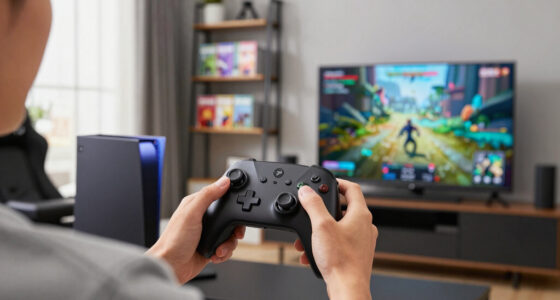
The difference feels small at a desk and enormous from three metres away. A Windows password box can look like a postage stamp on a 55-inch screen, while Steam’s full-screen interface presents thick tiles and readable buttons. The interface almost leans forward to hand you the controller, whereas the desktop waits patiently for a precise cursor.
Suppose you invite three friends over for a local multiplayer game. On a tuned SteamOS-style system, you can wake the device, connect four controllers, and launch from the library without leaving the sofa. On Windows, the game itself may work perfectly, but a Bluetooth pairing window, administrator prompt, or launcher update can send someone searching through a drawer for the wireless keyboard.
Windows can imitate much of the console flow. You can start Steam automatically, open its full-screen interface at login, hide desktop icons, and configure a controller-friendly media app. Yet Windows still sits underneath, and an unexpected security prompt or publisher login may pull back the curtain like a stagehand walking through the scenery.
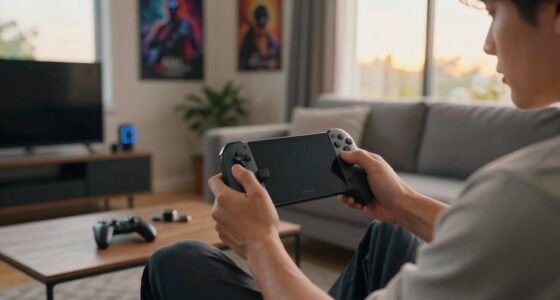
SteamOS also has a desktop mode, so it is not trapped inside a game menu. You can install Linux browsers, media players, communication tools, and many productivity applications. The limit appears when you need a Windows-only executable, a specialist driver, or a company-managed application; Linux alternatives may work, but switching tools can disrupt familiar files and routines.
gaming mini PC with controller support
As an affiliate, we earn on qualifying purchases.
As an affiliate, we earn on qualifying purchases.
Avoid the Launcher, Mod, and Peripheral Surprises
Your game library is only part of the compatibility check. Launchers, mods, save utilities, capture tools, racing wheels, printers, and RGB controllers can decide whether SteamOS feels clean or cramped. A Windows mini PC usually receives official support first, while Linux support often depends on community tools or device standards.
Consider a heavily modified game with 120 add-ons, a separate mod manager, and a script extender. The base game may run through Proton, yet its Windows mod manager may require manual paths or additional setup. On Windows, the same collection often follows the instructions its creators tested, which can save hours of folder hunting when a missing file blocks launch.
Other stores add another layer. SteamOS users can access some non-Steam libraries through Linux launchers and tools such as Lutris, but results depend on the store, authentication method, game, and current tool version. These projects can work well, though they are not the same as official publisher support, and an authentication update can suddenly close a working door.
Peripherals tell a similar story. A standard USB controller, keyboard, or headset may work immediately on either system, while a racing wheel’s configuration suite or a capture card’s control panel may exist only for Windows. Before buying, search for the exact model number and operating system; support for one wheel in a product family does not prove that its cheaper sibling exposes the same features.
Age ratings and family tools also deserve a check when children use the device. ESRB and PEGI ratings belong to the game, not the operating system, but storefront availability, parental controls, and account permissions differ by platform and region. For example, a parent may find Steam Families convenient for shared Steam libraries, while a household spread across Microsoft services may prefer Windows account controls.
Test the whole chain: store, launcher, game, anti-cheat, mods, controller, voice chat, and save sync. One weak link can matter more than twenty compatible games you never planned to play.
Choose the Better Setup With Four Practical Checks
You can choose between SteamOS and Windows by checking your must-run games, non-gaming apps, preferred interface, and tolerance for maintenance. Start with what you use every week, not what the machine could theoretically run. A short written list beats hours of vague specification comparisons.
- List five must-play games. Check native Linux or Proton results, anti-cheat support, publisher launchers, mods, and recent updates. If your Friday-night multiplayer game fails on Linux, treat that as a hard limit rather than hoping a later patch saves the plan.
- List three non-game tasks. Write down the exact browser, office suite, streaming service, creative tool, VPN, or peripheral utility you need. A Linux alternative only counts if it opens your files and fits your routine.
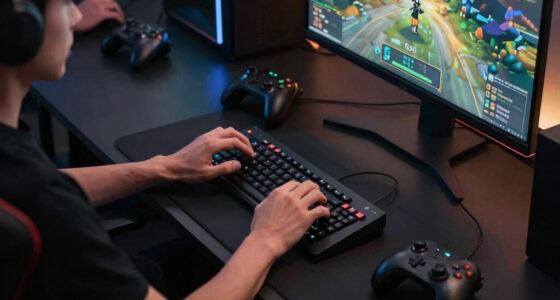
- Choose your normal seat. SteamOS fits a sofa-and-controller routine; Windows fits a desk with a keyboard and mouse. A living-room Windows build can work well, but keep a compact wireless keyboard nearby for login boxes and repairs.
- Plan a recovery route. Save installation media, back up game saves, and learn how you will restore the device after a failed drive or update. Dual boot adds options but also adds partitions, boot menus, and another system to maintain.
Here is a concrete scenario. You own 80 Steam games, mostly single-player titles, and you want a quiet box that starts directly on the television. If your favorites show current SteamOS compatibility and you rarely need desktop software, the Steam Machine-style route fits even if Windows supports more software on paper.
Change three details: you use PC Game Pass, play a Windows-only competitive title, and edit photos with a commercial Windows application. Now the mini PC running Windows 11 removes several workarounds. You may sacrifice some console polish, but the machine handles your complete week rather than only your Steam evenings.
Dual boot can split the difference, but it is more like keeping two kitchens than owning one larger kitchen. You gain separate environments, yet updates, storage allocation, encryption, and boot selection need attention. Pick it when both operating systems solve recurring needs, not merely because the option sounds clever.
Spend Your Budget Where Software Can Actually Use It
Software compatibility should guide the hardware budget because an expensive graphics chip cannot fix an unsupported game or missing application. Choose the operating system and must-run software first, then buy enough processor, graphics power, memory, and storage for that workload. This keeps unused performance from swallowing your money.
For a Steam-centered television system, fast storage can improve the experience more visibly than extra memory you never use. A 1 TB SSD fills quickly when modern games consume 80 GB or more, so capacity may matter every weekend. Meanwhile, 16 GB of memory can suit many gaming builds, but demanding games, creative software, and heavy multitasking can justify 32 GB.
Graphics hardware needs especially careful wording. Some mini PCs rely on integrated graphics, while larger or costlier models include discrete GPUs. You cannot call one category faster without matching the processor, GPU power limit, cooling, driver, game version, resolution, and graphics settings; a thick mini PC with strong cooling can behave very differently from a palm-sized office box.
Imagine buying a compact system for a 4K television because the product page displays a 4K logo. That logo may only mean the desktop and video output can reach 3840 by 2160, not that new games will hold 60 frames per second at that resolution. You might get a smoother result by running games at 1920 by 1080 and letting the display scale the image.
Also check whether memory and storage are replaceable. Many mini PCs accept standard SSDs and laptop-style memory, but soldered components and tight cooling designs limit upgrades on some models. A software-first shopping list keeps the decision grounded: buy for the games and applications you use, then leave sensible room for updates and larger future installs.
Frequently Asked Questions
Can a mini PC replace an old Steam Machine?
Yes, a mini PC can replace a Steam Machine when its hardware meets your games’ requirements and its operating system supports your library. Install Windows for broad compatibility, or use a suitable gaming-focused Linux setup for a controller-first Steam experience. Check driver support for the exact mini PC before changing its factory operating system.
Is SteamOS better than Windows for gaming?
SteamOS is better for a focused, console-like Steam setup, while Windows is better for the broadest game, launcher, anti-cheat, and peripheral compatibility. Your library decides the winner. A player using supported single-player Steam games may love SteamOS, while someone using PC Game Pass and competitive anti-cheat titles will usually find Windows easier.
Can SteamOS run non-Steam games?
SteamOS can run some non-Steam games through desktop applications, third-party launchers, and tools such as Lutris. Setup and reliability vary by store, login system, anti-cheat package, and game update. Treat community-supported access differently from an official Windows client, especially when one game matters greatly to you.
Do Steam Deck Verified ratings apply to every Steam Machine or mini PC?
No, Steam Deck ratings describe compatibility on Valve’s Steam Deck environment, including its controls, display, and SteamOS configuration. They provide a useful clue for other Linux gaming systems, but they do not promise identical performance or behavior. The rating can also change after game, launcher, or Proton updates.
Should you dual boot Windows and Linux on a mini PC?
Dual boot makes sense when both systems solve regular needs, such as SteamOS-style couch gaming alongside a Windows-only work tool or multiplayer game. It adds storage partitions, boot choices, updates, and recovery work, so it is not free flexibility. Keep backups and installation media ready before changing partitions.
Conclusion
The choice becomes simple when you stop treating it as a fight between two boxes. Pick a SteamOS-style Steam Machine when you want your television setup to wake into Steam, welcome a controller, and keep desktop clutter backstage. Pick a Windows mini PC when your library, work tools, peripherals, or subscriptions need the widest official software support.
Before you spend money, test your decision against five must-play games and three weekly tasks. If every item has a clean path, the machine will feel dependable long after the new-hardware shine fades. The best setup is the one that lets the menu disappear, the fans settle into a soft hum, and your game begin.
Fall Picks
fall essentials
As an affiliate, we earn on qualifying purchases.