
TL;DR

Play games on Amazon Luna for your game nights, included with Prime
- A rotating selection of games, no download needed
- Play on TV, laptop or phone
- Fast, free delivery for your gear, too
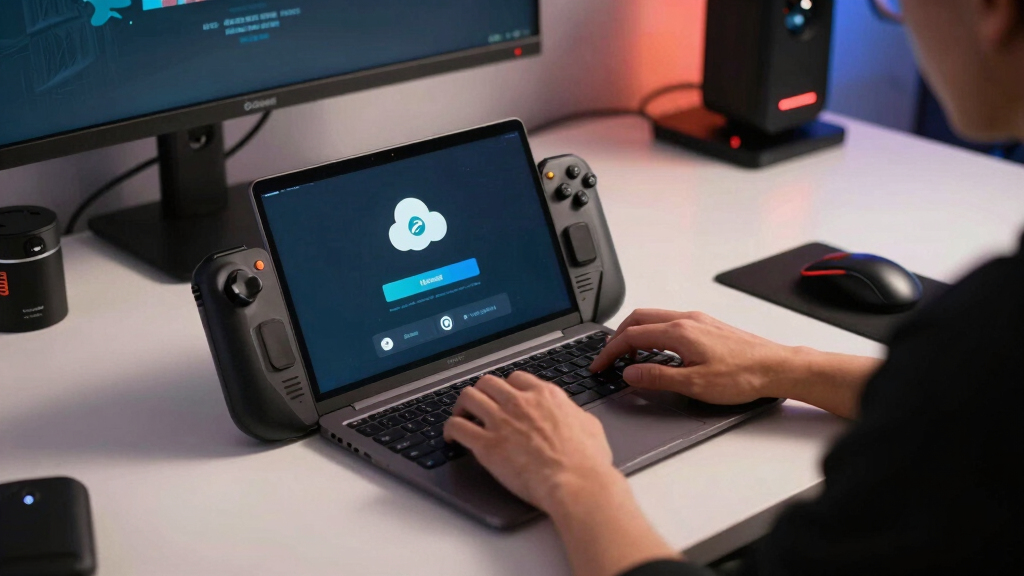
Steam Deck cloud sync conflicts happen when Steam sees two different save versions: one on your Deck and one in Steam Cloud. Most conflicts can be fixed by choosing the newest save, backing up first when possible, and letting Steam finish syncing before switching devices.
Your Steam Deck flashes a cloud warning right after a long boss fight, and suddenly that tiny gray message feels louder than the game itself.
Steam Deck Cloud Sync Conflicts Explained Without Panic means you learn what the warning actually says, why it happens, and which button to press when your save data looks split between two worlds. You do not need to guess in a cold sweat.
This guide gives you a practical read on Steam Cloud, SteamOS, multiple devices, offline play, and the simple habits that keep your saves from stepping on each other.
When Steam Says Your Save Split, Slow Down Before You Click
Cloud sync conflicts happen when Steam sees two different save versions: one on your Deck and one in Steam Cloud. The warning is not a disaster alarm. It is Steam asking which version should win before it overwrites anything.
The safest choice is usually the newest real play session.
Match the timestamp to where you actually played last. If you just beat a boss on Deck and the local file is newer, that is the clue.
Why Saves Drift Apart
Steam Cloud stores supported save data and settings, but games vary. A conflict appears when the Deck, PC, network, or modified files tell different stories.
Fast Device Switching
You close a game on Deck and open it on PC before the upload finishes. Steam sees two contenders.
Interrupted Wi-Fi
Hotel, train, and weak home networks can stall uploads, leaving Steam Cloud behind your local progress.
Local Progress Moves Ahead
Your Deck can keep saving while offline. Until it reconnects, the cloud may still hold yesterday’s file.
Mods And Save Tweaks
Edited saves can look unexpected to Steam, especially if the game uses custom or platform-specific locations.
SteamOS And Proton
Steam Deck runs SteamOS, and many Windows games run through Proton. That can add extra save-file paths.
Not Every Game Syncs Alike
Some titles sync cleanly, some sync partial data, and some skip Steam Cloud completely.
The Low-Drama Fix
Steam cannot know which session matters most. You can. Follow the prompt, check the timestamp, pick the matching save, then let Steam finish syncing.
Read The Prompt
Look for device names, local versus cloud wording, and timestamps.
Remember Last Play
Anchor the choice to the most recent real session, not panic.
Choose The Match
Use local for newer Deck progress, cloud for newer uploaded progress.
Wait For Sync
Stay online until the Steam Cloud status stops spinning.
Verify In Game
Check level, inventory, location, checkpoint, or last unlock.
Choose Local When
- Your Deck has the newest timestamp.
- You just played offline or on unstable Wi-Fi.
- You remember gaining progress on the Deck recently.
Choose Cloud When
- Your PC or another device uploaded a newer session.
- The cloud timestamp matches your last long play block.
- The Deck has not been used since that upload.
Conflict Choices At A Glance
The warning is a checkpoint. Treat it like a comparison screen, not a countdown timer.
| What You See | Likely Meaning | Safer Move | Risk Level |
|---|---|---|---|
| Local save is newer | Your Steam Deck has progress the cloud may not have uploaded yet. | Use local if it matches your last session. | ✓ |
| Cloud save is newer | Another device uploaded progress after the Deck version. | Use cloud if that device was your latest play session. | ✓ |
| Both times look close | You switched devices quickly or quit moments ago. | Pause, verify where you last played, then choose. | ~ |
| You used mods or manual edits | Steam may see changed files without understanding why. | Back up before choosing whenever possible. | ✗ |
Confidence Scale For Picking A Save
Habits That Prevent Most Conflicts
The best prevention is boring in the useful way: close the game fully, wait briefly, then switch devices only after Steam Cloud settles.
Wait 30 To 60 Seconds
After quitting a game, give Steam time to upload before launching the same title elsewhere.
Avoid Sleeping Mid-Save
RPGs and survival games can write often. Exit cleanly before closing the lid.
Keep One Active Device
When playing offline, treat that device as the source of truth until it reconnects and syncs.
Consider Turning Cloud Off
For heavily modded or single-device games, local backups may be cleaner than repeat cloud prompts.
Check Per-Game Cloud Use
Steam Cloud is optional per game, and support can vary by title and file type.
Protect High-Value Saves
For long campaigns, a manual backup before resolving a weird conflict is worth the minute.
Key Takeaways
- A Steam Deck cloud sync conflict means Steam found mismatched local and cloud saves; it does not mean your progress is already gone.
- The safest choice is usually the save tied to your most recent real play session, especially when the timestamp agrees.
- Waiting 30 to 60 seconds after closing a game can prevent many conflicts when moving between Deck and PC.
- Steam Cloud is optional per game, and turning it off can help with modded or single-device games if you make your own backups.
- Offline play is safest when you keep one device as the active save holder until you reconnect and sync.
As an affiliate, we earn on qualifying purchases.
What That Steam Deck Cloud Warning Really Means
Steam Deck cloud sync conflicts explained simply: Steam found two save versions that do not match, usually one on your Steam Deck and one in Steam Cloud. The warning asks you to pick which version to keep, because Steam cannot confidently merge them without risking your progress.
Think of it like two bookmarks in the same paperback. Your PC says you stopped at chapter 8, while your Deck says chapter 11. Steam pauses and asks, “Which page are you really on?”
According to Steam Support, Steam Cloud stores game data such as saves and settings when a game supports the feature [1]. But support varies by game. Some titles sync everything cleanly; others sync only certain files, or skip Steam Cloud entirely.
A conflict is a warning, not a wipe. Steam is asking for direction before it overwrites one version with another.
Steam Deck game save backup device
As an affiliate, we earn on qualifying purchases.
As an affiliate, we earn on qualifying purchases.
Why Your Save Can Split Between Deck And PC
Steam Deck cloud sync conflicts happen when one device changes a save before another device finishes uploading or downloading its version. The most common cause is a timing gap: you play on your Deck, close the lid, then open the same game on your PC before the cloud catches up.
A classic example: you play Stardew Valley on the train with spotty Wi-Fi, earn a pile of gold, and put the Deck to sleep. At home, your desktop still sees yesterday’s cloud save. Now Steam has two versions wearing the same name tag.
- Interrupted Wi-Fi: Hotel networks, train Wi-Fi, and weak home signals can stop an upload halfway through.
- Offline play: Your Deck can create newer local saves while Steam Cloud still holds older data.
- Fast device switching: Opening the same game on PC seconds after closing it on Deck can beat the sync process.
- Manual save edits: Mods, save editors, or copied files can make Steam see unexpected changes.
- Different platforms: SteamOS is Linux-based, while many PCs run Windows, and some games store platform-specific files differently.
Valve’s Steam Deck runs SteamOS, which uses Proton for many Windows games [2]. That works impressively well, but save locations and compatibility layers can add extra moving parts. More moving parts means more chances for one save file to arrive late.
As an affiliate, we earn on qualifying purchases.
Which Save Should You Choose When Steam Asks
Choose the save that matches your most recent real play session. If you last played on Steam Deck, the local Deck save is often the right pick; if you last played on PC after the Deck synced, the cloud save may be safer. Check timestamps before you click.
| What You See | Likely Meaning | Safer Choice |
|---|---|---|
| Local save is newer | Your Deck has progress Steam Cloud has not uploaded yet | Use local save |
| Cloud save is newer | Another device uploaded progress after the Deck version | Use cloud save |
| Both times look close | You switched devices quickly or closed the game recently | Pause and verify where you last played |
| You used mods or manual edits | Steam may see changed files without knowing why | Back up before choosing |
Here is the low-drama move. If you finished a tough run on the Deck ten minutes ago, and the warning says the Deck’s local file is newer, pick the local file. If your gaming PC shows a save from last night after you played there for three hours, pick the cloud file.
Do not mash through the prompt. The whole point of the warning is to make you slow down for five seconds. That tiny pause can save a forty-hour campaign from becoming a sad little folder of regrets.
As an affiliate, we earn on qualifying purchases.
How To Fix A Sync Conflict Without Losing Progress
- Stop and read the prompt. Look for device names, timestamps, and whether Steam marks one file as newer.
- Remember where you last played. The newest real session usually matters more than the device you are holding.
- Pick the matching save. Choose local if your Deck has the newest progress; choose cloud if another device does.
- Let Steam finish syncing. Stay online and wait until the Steam Cloud status stops spinning.
- Open the game and check one safe detail. Load your file, confirm your level, location, inventory, or last checkpoint, then exit normally.
How to fix a Steam Deck cloud sync conflict is mostly about staying calm and matching the save to your last real session. Steam gives you the choice because it cannot read your memory; you can. Use the timestamp, then verify inside the game.
For a concrete case, say you played Hades on your Deck during lunch, cleared a new weapon aspect, and later opened it on your desktop. If the desktop cloud warning shows the Deck file as newer, choose that newer cloud upload once Steam has it. Your reward room should still glitter when the game loads.
If the game matters a lot, make a manual backup before choosing. Some games keep saves in Steam userdata folders, while others store them in game-specific locations. If you are not comfortable digging through folders, take screenshots of the prompt and slow down before acting.
The Habits That Prevent Most Sync Conflicts
The best way to prevent Steam Deck cloud sync conflicts is to let one device finish syncing before you start the same game on another. Close the game fully, keep the Deck online for a moment, and check the cloud icon before you jump from couch play to desktop play.
Make this your rhythm: finish the session, exit to the game menu, quit to Steam, then wait until the cloud status looks settled. It feels small, like tapping the lid on a coffee cup before walking, but it keeps the mess contained.
- Wait 30 to 60 seconds after closing a game when you know you will continue on another device.
- Avoid sleep mode mid-save during autosave-heavy games, especially RPGs and survival games.
- Use stable Wi-Fi for big session handoffs, such as moving a long campaign from Deck to PC.
- Do not edit save files while Steam is open unless you know how that game stores cloud data.
- Check Steam Cloud support per game because not every game uses it the same way [1].
For example, if you finish a Baldur’s Gate 3 session on Deck and plan to continue on PC, give Steam time to breathe. Big save files can feel like heavy suitcases. They do not always sprint into the cloud.
When Steam Cloud Is Better Turned Off
Steam Cloud is worth turning off for a specific game when cloud saves cause repeat conflicts, modded saves keep changing, or you only play that title on one device. Cloud sync is optional per game, so you can disable it without turning your whole Steam account into a local-only setup.
This is useful for a heavily modded game where your PC has texture packs, script changes, and custom save behavior, while your Deck runs a cleaner install. In that case, Steam Cloud may act like an overeager assistant trying to tidy a desk you arranged on purpose.
Open the game’s properties in Steam and look for the Steam Cloud setting. If you disable it, treat that device as the keeper of that save. Backups matter more now, because the cloud no longer gives you a second copy.
The tradeoff is simple: fewer sync conflicts, less automatic safety. If your Deck gets wiped, repaired, or replaced, a local-only save may not come back unless you backed it up yourself.
What SteamOS Changes About The Cloud Sync Story
SteamOS changes the sync story because the Steam Deck is a Linux-based handheld running many Windows games through Proton. That does not make sync conflicts inevitable, but it can affect where saves live, how a game labels files, and whether a Windows PC and Steam Deck handle the same game identically [2].
Most of the time, you never see the machinery. You press Play, the fan whispers, and your save appears like it should. But when a game uses different save paths by platform, the cloud can trip over mismatched folders or older compatibility behavior.
Age ratings do not usually affect cloud saves, but game versions can. A beta branch, modded build, or older patch on one device can create saves that another device cannot read cleanly. Check that both devices run the same game version before blaming Steam Cloud.
Performance claims also need platform labels. A game running smoothly on Steam Deck does not mean its cloud sync behavior matches Windows, macOS, or a different Proton version. Steam Deck Verified status can change over time, so check the current store listing before relying on it for compatibility expectations.
What To Do Before A Long Trip Or Offline Weekend
Before a long trip, prepare your Steam Deck by syncing your saves while online, launching key games once, and confirming the right save loads. Steam Cloud cannot help during a dead-zone train ride, so you want the correct files already tucked into the Deck before you leave.
Try this the night before travel. Open each game you plan to play, load your save, exit normally, and let Steam sync. Then switch to offline mode only after the cloud status has settled.
- Test your top 3 travel games while you still have good Wi-Fi.
- Charge the Deck and avoid forced shutdowns during autosaves.
- Keep one device as the “trip device” until you return and sync again.
- Do not start the same campaign on PC while your Deck has unsynced offline progress.
Imagine playing a cozy farming sim in a cabin with no internet. The safe move is to keep that farm on the Deck until you get home, connect to Wi-Fi, and let Steam upload the new days. Then your PC can pick up the smell of rain, soil, and pixel turnips right where you left them.
How To Read Steam Cloud Messages Like A Pro
Read Steam Cloud messages by looking for three details: which file is local, which file is cloud, and which one is newer. Those three clues usually tell you the right answer faster than searching forums while your Deck stares at you from the table.
Steam may show wording that feels tense, but the message is usually plain underneath. One save lives on the device. One save lives online. Steam wants to know which one should become the shared version.
Leaks or rumors about future Steam Cloud changes should be treated as unconfirmed unless Valve announces them through official Steam channels. Interface wording and conflict screens can change with Steam client updates, so use the meaning of the prompt rather than memorizing one exact layout.
A good rule: if the message points to a newer save from the place you last played, follow that trail. If it points the other way, stop and investigate. The cloud is not angry; it is confused.
Frequently Asked Questions
Will a Steam Deck cloud sync conflict delete my save?
No. A conflict means Steam found two different versions and needs you to choose one. You can lose progress if you pick the older save, so check timestamps and remember where you last played.
Can I disable Steam Cloud for one Steam Deck game?
Yes. Steam lets you disable Steam Cloud per game through that game’s properties when the title supports cloud saves. This can help with modded games, but you should make manual backups because Steam will stop keeping that save online.
Why does this happen more when I switch between Steam Deck and PC?
Switching devices creates timing pressure. If the Deck has not uploaded its newest save before the PC downloads from Steam Cloud, Steam may see two different versions and ask you to choose.
Should I pick local save or cloud save?
Pick the save that matches your most recent real play session. If you last played on the Deck and the local save is newer, local is usually right; if you last played on another device and the cloud save is newer, cloud is usually right.
Do all Steam Deck games use Steam Cloud?
No. Steam Cloud support depends on the individual game, and some games sync only certain files. Check the game’s Steam properties or store information before assuming your save will follow you between devices.
Conclusion
Remember this: Steam Deck cloud sync conflicts are usually a pause sign, not a disaster siren. Read the timestamp, pick the save from your last real session, and let Steam finish syncing before you hop devices.
Treat your save like a warm mug on a crowded desk: move it with both hands, give it a clear place to land, and you will spill far less progress.
Evergreen bestsellers Picks
bestsellers
As an affiliate, we earn on qualifying purchases.