TL;DR

Play games on Amazon Luna for your game nights, included with Prime
- A rotating selection of games, no download needed
- Play on TV, laptop or phone
- Fast, free delivery for your gear, too
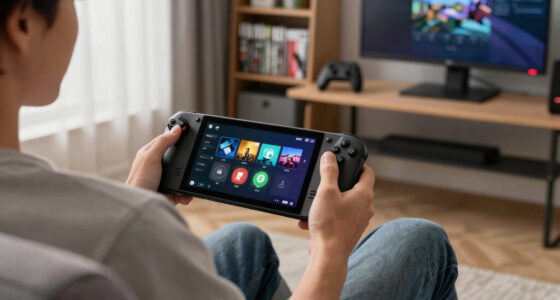
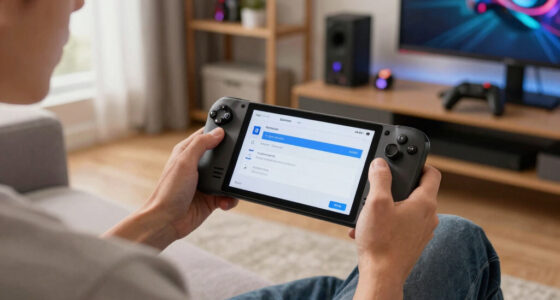
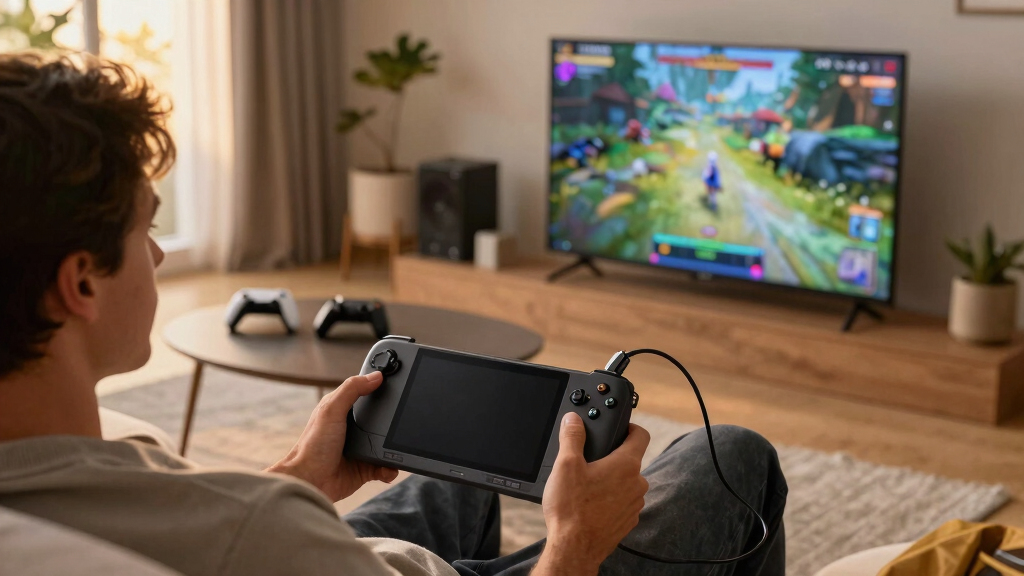
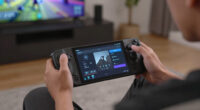
To use Steam Deck with a TV without making it feel worse, use a wired USB-C dock or adapter, set a realistic resolution like 720p or 1080p, enable Game Mode on the TV, and cap the frame rate to what the game can hold. Treat the TV setup like a new performance target, not just a bigger version of the handheld screen.
Your Steam Deck can feel sharp and snappy in your hands, then strangely heavy the moment you plug it into the living-room TV.
The problem usually is not the Deck. It is the chain around it: the dock, HDMI cable, TV picture mode, resolution, frame cap, controller, and audio path all tug at the experience.
You will learn how to use Steam Deck with a TV without making it feel slower, blurrier, or more awkward than handheld play. The goal is simple: couch gaming that still feels like Steam Deck, only bigger.
How to Use Steam Deck With a TV Without Making It Feel Worse
Treat the TV as a new performance target, not just a bigger handheld screen. A clean dock, sane resolution, Game Mode, stable frame cap, and comfortable controls keep couch play sharp, responsive, and unmistakably Deck-like.
The problem is usually the chain around the Deck.
Dock, HDMI cable, TV processing, frame pacing, controller path, audio delay, and scaling all tug at how the game feels.
Build the TV chain like it matters.
A wired USB-C dock or adapter is the cleanest starting point because video, audio, power, and controllers can stay predictable. Fewer links means fewer places for lag, flicker, black screens, or audio drift to sneak in.
Use USB-C video out.
Steam Deck supports external video through USB-C with DisplayPort Alt Mode. A USB-C to HDMI adapter or dock turns that into a TV-ready signal.
Keep power in the loop.
A dock is better for living-room play because it can handle power, HDMI, and accessories without leaving the Deck balanced on a cable stack.
Short and reliable wins.
Use a known-good HDMI cable, plug directly into the TV or soundbar path, and avoid mystery adapters that add handoff problems.
Do not make the Deck carry the TV box number.
A 4K panel can display the Steam Deck beautifully, but that does not mean every game should render at 4K. From couch distance, stable motion usually beats raw pixel count.
| TV Output | Pixel Load | Best For | Feel Risk |
|---|---|---|---|
| 1280×720 | About 0.9 million pixels | Fast games, demanding 3D games, older TVs | ✓ |
| 1280×800 | About 1 million pixels | Games that handle 16:10 cleanly | ✓ |
| 1920×1080 | About 2.1 million pixels | Indies, older PC games, lighter 3D games | ~ |
| 3840×2160 | About 8.3 million pixels | Menus, video apps, very light games, upscaled output | ✗ |
Cut delay before tuning graphics.
A TV can quietly process the image before you ever see it. Put the display into a low-lag state first, then tune the Steam Deck around what the game can hold.
Dock
Use USB-C video out through a dock or direct adapter.
Game Mode
Enable Game Mode on the exact HDMI input used by the Deck.
Resolution
Start at 720p or 1080p instead of forcing native 4K.
Frame Cap
Lock to 30 or 60 fps based on busy-scene stability.
Controls
Use wired or low-latency input for games that punish delay.
Stable motion beats wishful numbers.
A big screen makes uneven pacing more obvious. Lock the frame rate to what the game can hold in busy scenes, then adjust graphics only as needed.
Frame pacing is the feel.
A locked 30 fps can feel cleaner than a restless 45 fps. Use 60 fps for light games and older PC titles, 30 fps for heavier games, and V-Sync when tearing cuts across the screen.
Match the setup to the game.
Streaming is convenient, but network quality becomes part of the feel. Use the cable for action games and save wireless play for slower sessions where comfort matters more than perfect timing.
Quick plug-in sessions
Best for travel, simple TVs, and fast setup. The tradeoff is fewer ports for power and accessories.
Living-room default
Best for power, HDMI, controllers, and repeat use. It adds more gear near the TV but keeps the chain stable.
Comfort-first play
Best for casual, turn-based, or slower games. Network lag and compression can show up in faster titles.
Use wireless freely for relaxed games.
Strategy, RPG, menu-heavy, and turn-based games tolerate Bluetooth controllers and streaming far better.
Wire up for reaction-heavy games.
Fighters, racers, rhythm games, and competitive action titles benefit from a docked video path and tighter controller connection.
Some “performance” problems are really room problems.
Audio delay, cropped edges, tiny text, and awkward controller layouts can make the TV setup feel worse even when the Deck is running fine.
Start with HDMI sound.
Send audio through HDMI first for the simplest TV or soundbar path. If delay persists, test headphones or your TV’s audio sync settings.
Kill overscan.
Use Just Scan, Screen Fit, or 1:1 aspect modes so the TV does not crop the image or soften the interface.
Check Steam Input.
Bind mouse movement for launchers, verify face buttons, and choose wired or 2.4 GHz input when late button presses would ruin the game.
Key Takeaways
- Use a wired USB-C dock or adapter for the lowest-lag Steam Deck TV setup, especially for action games.
- Do not force native 4K rendering; 720p or 1080p often feels smoother and still looks good from couch distance.
- Enable Game Mode on the TV and disable motion smoothing before changing Deck performance settings.
- Match the controller and connection style to the game: casual titles tolerate wireless better than fighters or racers.
- Fix audio, overscan, and UI scale because comfort problems can feel like performance problems.
USB-C docking station for Steam Deck
As an affiliate, we earn on qualifying purchases.
As an affiliate, we earn on qualifying purchases.
Start With a Wired Setup That Removes Lag
To use Steam Deck with a TV without making it feel worse, start with a wired USB-C video path and make the TV act like a game screen, not a movie screen. A dock or USB-C to HDMI adapter gives you the cleanest route because video and audio travel together over one cable.
According to Valve, Steam Deck supports external video through USB-C with DisplayPort Alt Mode, and Valve’s dock adds HDMI and DisplayPort outputs for TV and monitor use [1]. That matters because a stable wired path keeps the image from stuttering like a scratched disc.
A simple living-room setup looks like this: Deck into dock, dock into power, HDMI into TV, controller paired or plugged in. No mystery stack of adapters dangling behind the cabinet, no flaky handoff, no sudden black screen right before a boss fight.
Rule of thumb: the fewer links between your Deck and the TV, the fewer chances you give lag, flicker, or audio delay to sneak in.
1080p HDMI cable for gaming consoles
As an affiliate, we earn on qualifying purchases.
As an affiliate, we earn on qualifying purchases.
Pick the Resolution Your Deck Can Actually Carry
To use Steam Deck with a TV without making it feel worse, choose a resolution the Deck can hold smoothly instead of chasing the number printed on the TV box. A 4K panel can display the Deck beautifully, but that does not mean the Deck should render every game at 4K.
According to Valve, the Steam Deck’s built-in display is 1280×800 [1]. A 1080p TV asks for about twice as many pixels as the handheld screen, while 4K asks for about eight times as many. That jump can turn a smooth game into a syrupy mess.
| TV Output | Pixel Load | When It Works Well |
|---|---|---|
| 1280×720 | About 0.9 million pixels | Fast games, demanding 3D games, older TVs |
| 1280×800 | About 1 million pixels | Games that handle 16:10 cleanly |
| 1920×1080 | About 2.1 million pixels | Indies, older PC games, lighter 3D games |
| 3840×2160 | About 8.3 million pixels | Menus, video apps, very light games, upscaled output |
For example, Hades or Stardew Valley may look crisp at 1080p from ten feet away. A heavier game can feel better at 720p with clean upscaling than at 1080p with frame drops that thump like a bad washing machine.
TV with Game Mode for responsive gaming
As an affiliate, we earn on qualifying purchases.
As an affiliate, we earn on qualifying purchases.
Match the Frame Rate to the Game, Not Your Wish List
A stable frame rate feels better on a TV than a higher number that keeps slipping. Set the cap to what the game can hold during busy scenes, because a big screen makes uneven motion more obvious. A steady 30 fps often feels cleaner than a restless 45.
Think of frame pacing like a drummer. If the beat lands evenly, your hands trust it. If the beat stumbles, every dodge, jump, and camera turn feels a little drunk, even when the average frame rate looks fine.
- Use 30 fps for heavy games that dip often on TV.
- Use 40 fps when your TV or display mode supports it and the game holds it well.
- Use 60 fps for light games, older PC games, and 2D titles.
- Turn on V-Sync if tearing leaves horizontal rips across the image.
Say you are playing Elden Ring on a 55-inch TV. A locked 30 fps with medium settings can feel weighty and controlled, while an unlocked frame rate may lurch every time rain, fog, or a crowded fight fills the screen.
gaming controller for couch gaming
As an affiliate, we earn on qualifying purchases.
As an affiliate, we earn on qualifying purchases.
Cut TV Lag Before You Blame the Deck
Input lag usually comes from the TV processing the image before you see it. Turn on Game Mode, disable heavy motion smoothing, and use a direct HDMI input. Your Deck may already be responding quickly, while the TV politely takes too long to show the result.
- Open your TV picture settings and choose Game Mode for the HDMI port used by the Deck.
- Disable motion smoothing, noise cleanup, and extra sharpness filters.
- Rename the input to PC or Game if your TV offers input labels that reduce processing.
- Test with a twitchy game, like a platformer, racing game, or fighter.
- Keep the setting per HDMI port, because many TVs save picture modes separately.
Try this with a game you know by muscle memory. If your jump in Celeste suddenly lands when your thumb expects it to, the TV was the slow clerk in the room, stamping paperwork before letting the picture through.
Make Couch Controls Feel Natural Again
Steam Deck with a TV without good controls feels like playing through a window. Pair a controller you already trust, check the Steam Input layout, and sit close enough for Bluetooth to stay calm. The Deck becomes the console, but your hands still need the right map.
A Bluetooth controller works well for slower games, menus, and single-player adventures. For fighters, rhythm games, or anything where one late button press ruins the mood, a wired controller or low-latency 2.4 GHz dongle can feel tighter.
Before a long session, open the controller layout for the game and check the face buttons, gyro, back buttons, and trackpad needs. Some PC games expect a mouse pointer in launchers, and that can feel clumsy from a couch if you do not bind a trackpad or stick to mouse movement.
A real example: Disco Elysium feels fine with relaxed Bluetooth input from across the room. Street Fighter 6 feels better with a wired pad on the coffee table, where every quarter-circle motion arrives crisp and immediate.
Choose Cable, Dock, or Streaming Based on the Game
The right connection depends on what you are playing. Use a dock or adapter for games that need quick reactions, and use streaming when comfort matters more than perfect timing. According to Valve’s Steam Remote Play documentation, streaming sends gameplay over your network, so Wi-Fi quality becomes part of the feel [2].
| Setup | Feels Best For | Tradeoff |
|---|---|---|
| USB-C to HDMI adapter | Quick plug-in sessions, travel, simple TVs | Fewer ports for power and accessories |
| Dock | Living-room setup with power, HDMI, and controllers | More gear near the TV |
| Steam Remote Play or Steam Link | Casual play, turn-based games, tidy rooms | Network lag and compression can appear |
If you are playing Slay the Spire, wireless streaming can feel nearly invisible because you are making choices, not frame-perfect jumps. If you are playing Rocket League, run the cable. The ball will not wait for your router to have a good day.
Fix Audio and Scaling So the Room Feels Right
Audio delay, black borders, and tiny text can make a TV setup feel wrong even when performance is fine. Send audio through HDMI first, check your TV scaling, and use in-game UI size options when available. The room should feel full, not distant and oddly shrunken.
- Use HDMI audio for the simplest setup with TV speakers or a soundbar.
- Check overscan if the image edges disappear behind the TV frame.
- Set the TV aspect ratio to Just Scan, Screen Fit, or 1:1 when your model offers it.
- Raise UI scale in games with small text, especially RPGs and strategy games.
- Use headphones when late-night audio delay from a soundbar makes dialogue feel loose.
Imagine booting a tactics game and reading item text from nine feet away. If the letters look like pale scratches on glass, the game is not suddenly worse. The setup is asking your eyes to do handheld work from couch distance.
Use This 10-Minute Routine Before a Long Session
A short setup routine prevents most big-screen Steam Deck problems before they waste your evening. Check power, resolution, frame cap, TV mode, controls, and audio in that order. Ten quiet minutes beats forty minutes of irritated menu hopping while a game music loop taps on your nerves.
- Plug power into the dock so the Deck does not drain during play.
- Set external display resolution to 720p or 1080p before launching the game.
- Pick a frame cap the game can hold in busy scenes.
- Turn on TV Game Mode for the active HDMI input.
- Test your controller layout in a menu and during real movement.
- Check audio sync with dialogue, footsteps, or a rhythm-heavy moment.
- Adjust UI scale if text looks too small from your seat.
Do this once for a game night and save the pattern. After that, your Deck stops feeling like a handheld awkwardly visiting the living room and starts behaving like it owns the TV shelf.
Frequently Asked Questions
Can I connect a Steam Deck directly to a TV?
Yes. You can connect it with a USB-C to HDMI adapter, a USB-C dock, or Valve’s official dock. A dock is usually cleaner for couch play because it can handle power, video, and accessories at the same time.
Why does my Steam Deck look blurry on a 4K TV?
The Deck may be outputting a lower resolution and the TV may be stretching it. That is not always bad, but poor scaling can make edges look soft. Try 1080p output first, then adjust the game’s resolution and the TV’s sharpness or 1:1 scaling options.
Is Steam Remote Play good enough for TV gaming?
Steam Remote Play works well for slower games, turn-based games, and casual play over a strong local network [2]. For shooters, racers, platformers, and fighting games, a wired dock or adapter usually feels better because it avoids network delay.
Should I use 30 fps or 60 fps on TV?
Use 60 fps when the game can hold it cleanly. Use 30 fps when the game drops often, because a steady 30 can feel better than a jumpy 45 or 50. Test during a busy scene, not while standing still in a quiet menu.
Do I need the official Steam Deck dock?
No, but you do need a reliable USB-C dock or adapter that supports video output. The official dock is convenient because it is built around Steam Deck use, while many good third-party docks also work well. Avoid mystery adapters if you keep seeing flicker, black screens, or audio dropouts.
Conclusion
The trick is to treat the TV as a new setup, not a bigger Steam Deck screen. Set a realistic resolution, lock a steady frame rate, turn on Game Mode, and choose controls that fit the game in your hands.
When the chain is clean, the Deck disappears into the room. You press a button, the TV answers, and the couch finally feels like part of the machine.
Fall Picks
fall essentials
As an affiliate, we earn on qualifying purchases.