TL;DR
Listen free for 30 days with Audible
Thousands of audiobooks and originals — cancel anytime.
Start your free trialAs an affiliate, we earn on qualifying purchases.
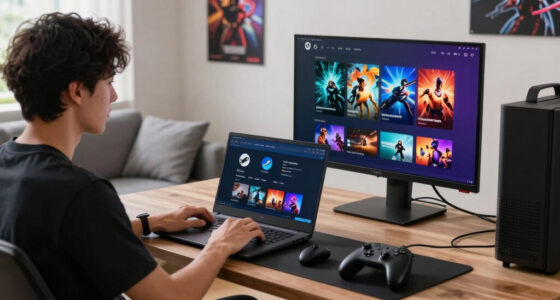
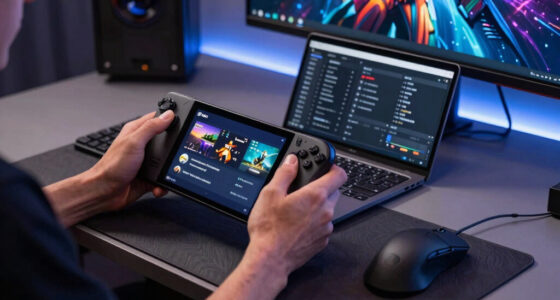
Docked mode on Steam Deck lets you connect Valve’s handheld gaming PC to a TV or monitor through USB-C, usually with a dock or adapter, then play with controllers, keyboard, mouse, and external display settings. It can output up to 4K through compatible hardware, but most demanding games feel better at 720p, 800p, 1080p, or upscaled settings because the Deck still uses handheld-class power. For living-room play, plug it into power, set your game resolution with care, use TV game mode, and pair a controller before you settle into the couch.
Your Steam Deck can sit under a TV and act like a tiny console, but it does not become a giant black-box powerhouse when you plug in a cable. The screen gets bigger. The couch gets softer. The hardware inside stays the same.
This guide shows you what docked mode does, what gear you need, which settings help, and why 4K can look less magical than the number suggests. Think of it as Steam Deck explained for the living room: practical, plain, and built around how you actually play on a Friday night.
Docked Mode on Steam Deck Explained for Living-Room Play
TL;DR: Docked mode lets Valve’s handheld gaming PC connect to a TV or monitor through USB-C, usually with a dock or adapter. You gain the couch, controllers, keyboard, mouse, ports, and external display settings. You do not gain a new GPU.
Your Steam Deck can sit under a TV and act like a tiny console. The screen gets bigger. The couch gets softer. The hardware inside stays the same.
Docked mode is a display and control setup, not a performance mode.
What Docked Mode Actually Gives You
Docked mode changes where you play, how you control games, and which screen you use. It keeps the Steam Deck’s handheld-class power envelope, so expectations matter before you buy a dock or rearrange the media shelf.
TV or Monitor Output
The Deck sends video to an external display through USB-C with a dock, adapter, HDMI, or DisplayPort path. The same game now fills the room.
Couch-Friendly Input
Pair Bluetooth controllers, plug in USB devices, or keep a small keyboard nearby for launchers, mods, Desktop Mode, and non-Steam apps.
No Hidden GPU Boost
Docking does not turn the Deck into a desktop tower. It is still the same handheld PC, just driving a bigger and less forgiving display.
Get Connected in Five Calm Steps
A clean living-room chain makes docked play easier to troubleshoot: wall power, dock, HDMI or DisplayPort, TV, controller. Power pass-through is worth caring about because long couch sessions should not become battery math.
Power the Dock
Plug the dock or USB-C hub into wall power before settling in for a longer session.
Run Video Out
Connect HDMI or DisplayPort from the dock to your TV or monitor.
Seat the Deck
Connect USB-C firmly and avoid sideways tugging on the Deck’s port.
Pair Input
Use Bluetooth for convenience or USB for a steadier controller setup.
Enable Game Mode
Set your TV to game mode so button presses feel crisp instead of delayed.
Why 4K Works but 1080p Often Feels Better
The Deck may send a 4K signal to your television, but output resolution and render resolution are not the same thing. Rendering more pixels asks more from the GPU, which can mean lower frame rates, louder fans, or heavier upscaling.
Living-Room Resolution Comfort
Use 1080p as the first test, then move down for demanding games or up for lighter titles.
Sharpness Versus Timing
A sharper image is nice. A consistent frame cadence is what makes the controller disappear in your hands.
Display Targets Compared
Pick the resolution based on the game, not the television box. A heavyweight open-world game at 4K can stumble, while 1080p with scaling can feel calmer and more playable from the couch.
| Display Target | Best For | Big-Screen Expectation | Living-Room Verdict |
|---|---|---|---|
| ✓720p / 800p | Demanding games, smoother frame pacing, handheld-native thinking | Soft on a large TV, but often steady and playable | Best fallback when motion matters |
| ✓1080p | Most living-room TVs and monitors | Sharper than handheld resolution without crushing many games | Start here first |
| ~1440p | Indies, older games, desktop use, lighter 3D titles | Cleaner image, but big games may need lower settings | Great when the game is light enough |
| ✗4K | Menus, media, pixel-art games, very light titles | Interface can look crisp; modern blockbusters may struggle | Output option, not a universal play target |
Settings That Smooth the Couch Experience
Resolution, frame-rate cap, refresh rate, upscaling, and TV game mode work together. A beautiful settings menu means little if those pieces are fighting each other.
Set Game Resolution
Start at 1080p for lighter games and 720p or 800p for demanding titles. Raise only when motion stays steady.
Use a Frame Cap
Try 30 fps or 40 fps when a game cannot hold 60 fps cleanly. Even pacing often beats a higher unstable number.
Turn to FSR Carefully
Use FSR or in-game scaling when text remains readable but performance needs help on the larger screen.
Lower Shadows Early
Shadows and anti-aliasing often cost more than expected. Reduce them before cutting texture quality.
Enable Game Mode
Reduce input lag from the display side so the Deck’s output feels responsive on a large panel.
Keep a Keyboard Nearby
Desktop Mode, launchers, mods, and non-Steam apps are easier with a small keyboard and mouse within reach.
The Practical Docked Setup
Think like a living-room troubleshooter. The official dock reduces guessing around HDMI, DisplayPort, power, and updates, while compatible USB-C docks can work well when they provide reliable video and power delivery.
Key Takeaways
- Docked mode changes the screen, controls, and ports; it does not add GPU power.
- Use 1080p as your starting point, then drop to 720p or 800p for demanding games.
- TV game mode, a frame-rate cap, and careful resolution settings fix many couch-play problems.
- Keep a controller plus a small keyboard nearby for Desktop Mode, launchers, mods, and non-Steam apps.
Traceability Chain
Every good docked setup connects the same concepts in the same order: signal, power, display, control, tuning, and comfort.
Best Analogy
The film does not change, but the wall does. Docking makes games larger, not magically stronger.
Best Habit
Pair the controller and set TV game mode before settling into the couch.
Best Baseline
Begin at 1080p, then adjust based on frame pacing and readability.
Best Mindset
Convenience beats perfection: docked Steam Deck is a flexible tiny PC for shared play.
Key Takeaways
- Docked mode changes the screen, controls, and ports; it does not add GPU power to the Steam Deck.
- Use 1080p as your starting point for living-room play, then drop to 720p or 800p for demanding games that need steadier frame pacing.
- The official dock and compatible USB-C docks both work, but the official dock reduces guessing around HDMI, DisplayPort, power, and updates.
- TV game mode, a frame-rate cap, and careful resolution settings often fix more couch-play problems than chasing ultra settings.
- Keep a controller plus a small keyboard nearby if you plan to use Desktop Mode, launchers, mods, or non-Steam apps.
As an affiliate, we earn on qualifying purchases.
What Docked Mode Gives You on the Couch
Docked Mode on Steam Deck Explained for Living-Room Play means this: you connect the Deck to a TV or monitor, add power and controllers, and use SteamOS on a bigger screen. The game still runs on the Deck’s hardware, so docked mode changes where you play, not how much raw power you own.
That distinction matters because it sets the right expectations before you buy a dock or rearrange the media shelf. A console usually targets the TV first, while the Steam Deck was designed around a small built-in screen, handheld controls, and modest power draw. Docking stretches that same experience into a room where flaws become easier to see: lower resolution looks softer, frame dips feel more obvious, and small interface text can suddenly become a squint test.
The Steam Deck offers a versatile middle ground between a handheld and a living-room PC. You can play Hades II on the train, then come home, drop the Deck into a dock, and keep the same save file glowing on a 55-inch TV. The tradeoff is that convenience beats perfection here. You gain shared viewing, proper couch controls, and a cleaner TV setup, but you do not get the brute-force headroom of a desktop GPU.
The best analogy is a movie projector. The film does not change, but the wall does. A tiny game that felt sharp in your hands can look huge, bright, and a little more demanding when stretched across the room.
Docked mode is a display and control setup, not a performance mode. Treat it like moving your game to a bigger stage, not giving it a new engine.
USB-C to HDMI adapter for Steam Deck
As an affiliate, we earn on qualifying purchases.
As an affiliate, we earn on qualifying purchases.
Get Connected in Five Calm Steps
Docked Mode on Steam Deck Explained for Living-Room Play starts with one USB-C video path: the Deck sends video, power, and accessory data through its USB-C port. Use a compatible USB-C dock, the official Steam Deck Dock, or a USB-C to HDMI or DisplayPort adapter with power pass-through for a cleaner setup [1][2].
Power pass-through is worth caring about because docked play often lasts longer than handheld play. Once the Deck is feeding a TV, running Bluetooth controllers, and maybe powering USB accessories, a cheap adapter without reliable power delivery can turn a relaxed session into battery math. A proper dock also reduces cable stress on the Deck’s USB-C port, which matters if this becomes your nightly living-room setup instead of a once-a-month experiment.
- Plug the dock into power before connecting the Deck, especially if you plan to play for more than 30 minutes.
- Connect HDMI or DisplayPort from the dock to your TV or monitor.
- Seat the Steam Deck in the dock or connect the USB-C cable firmly, without tugging the cable sideways.
- Pair a controller through SteamOS Bluetooth settings, or use USB for a steadier couch setup.
- Set your TV to game mode so button presses feel crisp instead of syrupy.
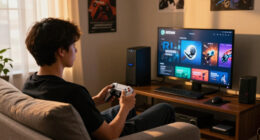
A simple living-room setup looks like this: Deck on the media shelf, dock plugged into the wall, HDMI running to the TV, and an Xbox or PlayStation controller on the coffee table. No tower PC humming in the corner. No keyboard balanced on your knees unless you want one. The cleaner the chain, the easier troubleshooting becomes later: wall power, dock, HDMI, TV, controller. If something breaks, you can walk that chain instead of guessing in the dark.
As an affiliate, we earn on qualifying purchases.
Why 4K Works but 1080p Often Feels Better
Docked Mode on Steam Deck Explained for Living-Room Play supports big-screen output, but 4K is a display option, not a free performance upgrade. Valve lists DisplayPort 1.4 Alt Mode on the Steam Deck, and the official dock adds HDMI 2.0 and DisplayPort 1.4 for TV and monitor hookup [1][2].
The important difference is output resolution versus render resolution. The Deck may be able to send a 4K signal to your TV, but the game still has to render every frame somewhere along the way. Rendering more pixels asks more from the GPU, which can mean lower frame rates, hotter operation, louder fan noise, or heavier use of upscaling. On a couch, a stable 40 fps or 60 fps at a lower resolution often feels better than a sharper image that keeps stumbling.
| Display target | What it is good for | What to expect |
|---|---|---|
| 720p or 800p | Demanding games, smooth frame pacing, battery-friendly settings | Soft on a large TV, but often steady and playable |
| 1080p | Living-room play on most TVs and monitors | Sharper than handheld resolution without crushing many games |
| 1440p | Indies, older games, desktop use, lighter 3D titles | Looks cleaner, but big games may need lower settings |
| 4K | Menus, media, pixel-art games, very light titles | Great for the interface, rough for modern blockbusters |
Imagine launching a heavyweight open-world game at 4K on a Saturday night. The TV looks razor-sharp for 20 seconds, then the frame rate starts wobbling like a chair with one short leg. Drop the game to 1080p, turn on scaling, and the room suddenly feels calmer. That is the real docked-mode bargain: you trade maximum pixel count for consistency, and consistency is what makes the controller disappear in your hands.
As an affiliate, we earn on qualifying purchases.
Settings That Make Games Feel Smoother on a Big Screen
The settings that help most in docked play are resolution, frame-rate cap, refresh rate, upscaling, and TV game mode. Start at 1080p for lighter games and 720p or 800p for demanding ones, then raise or lower settings until motion feels steady from the couch.
Do not treat these settings as separate knobs with separate jobs. They work together. Resolution decides how much image the Deck has to draw, the frame-rate cap decides how evenly it delivers that image, and TV game mode decides how much delay the screen adds after the Deck has already done its work. A beautiful settings menu means very little if those pieces are fighting each other.
- Set the game resolution first. A sharp 1080p menu means little if the game stutters during combat.
- Use a 30 fps or 40 fps cap when a game cannot hold 60 fps cleanly.
- Try FSR or in-game upscaling when text stays readable but performance needs help.
- Lower shadows and anti-aliasing before cutting texture quality; shadows often cost more than you expect.
- Turn on TV game mode to reduce input lag from the display side.
The main tradeoff is sharpness versus timing. Higher resolution makes screenshots prettier, but a steady cap makes movement easier to read and inputs easier to trust. Upscaling sits in the middle: it can make a lower internal resolution look cleaner on a TV, though it may soften fine detail or make small text less crisp. For a concrete example, a dense game like Elden Ring may feel better at a lower render resolution with a steady cap than at a higher resolution that keeps dipping. A crisp image is nice. A dodge roll that lands on time is nicer.
What Changes When You Play With Controllers, Keyboard, and Mouse
Controllers make docked mode feel like a console, while keyboard and mouse make it feel like a compact gaming PC. Steam Input helps map many controllers, but you still need to check button prompts, wake behavior, and Bluetooth delay before you invite friends over for couch co-op.
A controller is the easy win for portable play and living-room sessions. You can move from handheld sticks to an Xbox, PlayStation, or Switch Pro-style controller and keep the same Steam library. The implication is comfort: once the Deck is across the room, its built-in controls stop mattering and the controller becomes the whole interface. If the layout is wrong, the prompts are confusing, or the connection lags, docked mode stops feeling console-like very quickly.
Keyboard and mouse shine when you use Desktop Mode, strategy games, shooters, launchers, mods, or non-Steam apps. A small wireless keyboard with a trackpad can save you from awkward on-screen typing when a launcher asks for a password in tiny letters across the TV. The tradeoff is posture. Keyboard and mouse control can be more precise, but it also asks you to build a little desk-like island in a room designed for leaning back.
Bluetooth works well for many players, but USB or a 2.4 GHz dongle can feel snappier in fast games. If your controller feels late, test the same game with a cable before blaming the Deck. That test tells you whether the delay is coming from the controller connection, the TV’s processing, or the game’s own performance. Guessing costs time; swapping one link in the chain gives you an answer.
What Desktop Mode Adds Beyond Games
Desktop Mode turns the docked Steam Deck into a small Linux PC for browsing, file management, launchers, emulators, media apps, and light productivity. SteamOS is Linux-based, so a docked Deck can handle more than Steam games, though the experience still rewards patience and a keyboard [1].
This is where handheld gaming hardware starts to feel surprisingly grown-up. You can open a browser on the TV, download a community mod, move files, manage screenshots, or run a non-Steam app while the Deck sits quietly beside the soundbar. Docking matters here because Desktop Mode is cramped in handheld use: windows, file paths, login boxes, and tiny buttons all make more sense when you have a larger screen and proper input devices.
The upside is flexibility. The Deck can become a light living-room computer without asking you to buy or maintain a separate mini PC. The downside is friction. Desktop text can look tiny from across the room, some apps expect a mouse, and launchers can be fussy on a TV. Keep a wireless keyboard nearby, and the whole thing feels less like wrestling with menus and more like using a small PC from the sofa.
The best expectation is occasional utility, not full desktop replacement. Desktop Mode is excellent for setup jobs, mod tinkering, browser checks, and media management. It is less charming when you are trying to do serious work from ten feet away while the TV scales a dialog box into the corner.
Quick Fixes for Black Screens, Lag, and Blurry Text
Most docked-mode problems come from display handshakes, weak power, cable limits, TV processing, or a game running at a resolution the Deck cannot hold smoothly. When docked mode on your Steam Deck looks wrong, fix the simple physical and display settings before you start reinstalling games.
The reason simple fixes work so often is that docked mode depends on several devices agreeing at once. The Deck, dock, cable, TV, controller, and game all have their own settings and limits. A black screen might be a handshake problem, blurry text might be scaling, and lag might be the TV processing the image after the Deck has already rendered it. Treat troubleshooting like narrowing a chain, not like hunting one mysterious failure.
- Black screen: unplug HDMI, reconnect USB-C, wake the Deck, then switch the TV input again.
- Flickering: try a different HDMI cable, set 60 Hz, or use another dock port if you have one.
- No sound: open SteamOS audio settings and pick the TV or HDMI output.
- Blurry text: lower or raise the game resolution, then check whether scaling is making fonts smear.
- Controller lag: enable TV game mode, move the dock away from wireless clutter, or test a wired controller.
Here is the living-room version: you launch a game, the TV stays black, and everyone on the couch starts offering advice at once. Start boring. Reseat the cable, check power, and drop the refresh rate before you chase rare problems. The boring steps are not busywork; they remove the most fragile parts of the setup first, which keeps you from changing game files or SteamOS settings for a problem caused by an HDMI handshake.
When Docked Play Is the Right Move
Docked play makes sense when screen size, shared viewing, comfort, or keyboard and mouse access matters more than handheld freedom. Handheld mode still wins for quick sessions, travel, and games tuned around the Deck’s built-in 7-inch or 7.4-inch screen, depending on model [1].
The choice is less about which mode is better and more about what kind of attention the game asks from you. Docked mode is great when the room becomes part of the experience: party games, co-op nights, story games with big subtitles, or slow strategy sessions where a larger display helps. A game like Stardew Valley feels cozy on the couch when the room is dim and the TV throws warm farm colors across the wall.
Handheld mode wins when friction matters. If you have 12 minutes before dinner, docking, pairing, switching inputs, and finding the right controller can feel like too much ceremony. It also suits games with small performance margins, because the built-in screen’s lower target is often kinder to the hardware than a TV that tempts you toward higher resolutions.
The Deck’s charm is that you get to switch between both worlds without moving your library. Docked play turns it into a shared, room-sized machine. Handheld play keeps it immediate and personal. Knowing when to use each one is what makes the device feel flexible instead of compromised.
Frequently Asked Questions
Does docked mode make Steam Deck games run faster?
No. Docked mode does not add extra processing power, so games do not run faster just because the Deck is connected to a TV. Some games may run slower if you raise the resolution too high for the hardware.
Can the Steam Deck play games at 4K on a TV?
Yes, the Steam Deck can output to high-resolution displays through compatible USB-C video hardware, and the official dock supports HDMI 2.0 and DisplayPort 1.4 [1][2]. For demanding games, 4K is usually better for menus, media, or light titles than for smooth play.
Do I need the official Steam Deck Dock?
No, you can use a compatible USB-C dock or adapter with video output and power delivery. The official Steam Deck Dock is the cleaner pick if you want fewer guesses around ports, firmware support, and living-room cable setup.
Why does my Steam Deck look blurry on my TV?
Blurry output usually comes from low game resolution, scaling, TV sharpening, or the display stretching the image. Try setting the game to 1080p, turn TV game mode on, and adjust scaling until text looks clean from your normal seat.
Can I use Xbox, PlayStation, or Switch controllers in docked mode?
Yes, many popular controllers work through Bluetooth or USB, and Steam Input can help map controls across games. If a wireless controller feels delayed, test it with a cable and make sure your TV is in game mode.
Conclusion
Treat docked mode as the Steam Deck’s living-room costume: bigger screen, better couch posture, same small PC inside. Start with a powered dock, 1080p or lower for demanding games, TV game mode, and a controller that feels good in your hands.
The real win is choice. One minute the Deck is warm in your palms; the next, it is feeding a bright TV while your game spills across the room.
NFL season / tailgating Picks
team gear
As an affiliate, we earn on qualifying purchases.