
TL;DR

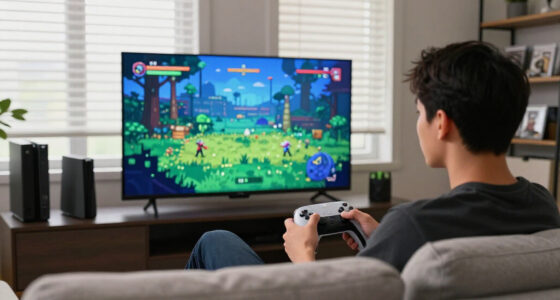
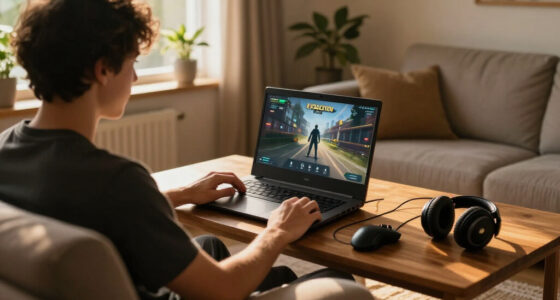
Play games on Amazon Luna for your game nights, included with Prime
- A rotating selection of games, no download needed
- Play on TV, laptop or phone
- Fast, free delivery for your gear, too
Gamepads offer versatile analog movement, keyboards provide abundant commands, mice deliver precise pointing, wheels recreate vehicle control, and flight sticks handle multiple aircraft or spacecraft axes. No device is universally best: your strongest choice depends on the game, platform support, comfort, accessibility needs, and what actions are most important.
The same racing corner can feel like flicking a thumb on a gamepad or wrestling a living machine through a force-feedback wheel. Both devices can send a steering command, yet your hands receive completely different information. One gives you convenience; the other can tug, chatter, and lighten as virtual tires lose grip.
This guide shows you how input devices shape movement, aiming, command access, comfort, and immersion. You will see where the gamepad, keyboard, mouse, wheel, and flight stick shine, where each one fights you, and why impressive specifications sometimes change less than a comfortable shape or sensible control map.
You will also learn how to check compatibility, latency, dead zones, ergonomics, and newer sensor designs without getting buried in marketing language. According to skeldrift.com’s Gaming Glossary [1], no device is universally best because the answer depends on the game, platform, accessibility needs, and player preference. By the end, you can match your controls to your actual habits instead of buying hardware for a fantasy version of how you play.
Choose a gamepad for smooth analog movement, a keyboard for abundant commands, and a mouse for direct, precise pointing.
Use a wheel or flight stick when realistic control axes and physical feedback matter enough to justify added cost, space, and setup.
Set the smallest inner dead zone that stops unwanted input; excessive dead zones make controls feel slow and muddy.
Treat polling rate, DPI, and sensor labels as supporting details because comfort, shape, compatibility, and consistent tracking usually affect play more.
Check the exact game, operating system, console generation, and current Steam Deck status because device support can differ across platform versions and update…
Input Devices Explained: Gamepad, Keyboard, Mouse, Wheel, Stick
Every device sends commands, but each changes what your hands can express and feel. The best control system follows the game, your body, and your habits—not a universal ranking.
Five tools, five different control languages
Input hardware shapes movement, aiming, command access, comfort, and immersion. A feature becomes valuable only when the game can use it and your hands can reach it comfortably.
Gamepad
Analog sticks blend speed and direction. Triggers add progressive braking, acceleration, or pressure-sensitive actions in a compact sofa-friendly shape.
Best: action, sports, platformingKeyboard
Dozens of assignable keys make shortcuts, abilities, communication, and complex simulations accessible. Standard WASD movement remains mostly digital.
Best: strategy, MMO, simulationMouse
Physical hand movement maps directly to a pointer or camera. Shape, consistent tracking, sensitivity, and desk space matter more than extreme DPI claims.
Best: shooters, strategy, menusRacing Wheel
Wide steering range, pedals, and force feedback reveal grip, bumps, and weight transfer. The gain in detail comes with greater cost, space, and setup.
Best: racing, rally, truckingFlight Stick
A stick or HOTAS makes pitch, roll, yaw, throttle, and secondary controls feel deliberate. Mapping quality and game compatibility vary widely.
Best: flight and space simulationCapability matrix
Strength is contextual. The same analog range that makes a wheel expressive in a corner can make it awkward for inventory navigation or a fast menu.
| Device | Analog movement | Pointing precision | Command access | Physical feedback | Desk efficiency | Setup simplicity |
|---|---|---|---|---|---|---|
| Gamepad | ✓ Strong | ~ Moderate | ~ Moderate | ✓ Strong | ✓ Strong | ✓ Strong |
| Keyboard | ✗ Limited | ✗ Limited | ✓ Excellent | ✗ Limited | ~ Moderate | ✓ Strong |
| Mouse | ✗ Limited | ✓ Excellent | ~ Moderate | ✗ Limited | ~ Moderate | ✓ Strong |
| Racing wheel | ✓ Specialized | ✗ Limited | ~ Moderate | ✓ Excellent | ✗ Demanding | ✗ Complex |
| Flight stick / HOTAS | ✓ Specialized | ~ Moderate | ✓ Strong | ~ Moderate | ✗ Demanding | ✗ Complex |
From your hand to the screen
A faster report rate affects only one link. Sensor consistency, game processing, frame timing, display latency, and physical comfort remain part of the complete response chain.
Physical action
Your thumb, fingers, hand, arm, or feet move the control.
Sensor reading
Switches, optical sensors, potentiometers, Hall-effect, or TMR systems detect input.
Device report
The controller sends its current state through wired or wireless communication.
Game processing
The game applies sensitivity, dead zones, acceleration, smoothing, and bindings.
Visible result
The next rendered frame and display refresh reveal the action.
Traceability rule: when control feels wrong, inspect the full chain. A specification upgrade cannot repair an unsuitable shape, poor mapping, excessive dead zone, unstable frame rate, or incompatible game.
Polling rate: useful, not magical
Polling rate describes how often a device can report. Higher rates shorten the reporting interval, but the practical result depends on the rest of the system.
Reports per second
Relative scale compared with a 1,000 Hz device
Run five checks before buying or remapping
Use this order to eliminate expensive mistakes early. Compatibility comes first because even excellent hardware is useless when the target game cannot interpret it correctly.
Confirm compatibility
Verify the exact game, operating system, console generation, connection type, and current handheld support.
Test physical comfort
Reach every essential control without shifting grip, squeezing the shell, or twisting wrists and shoulders.
Match control range
Decide whether the game needs digital commands, smooth analog movement, direct pointing, or several simultaneous axes.
Tune response
Set sensitivity, dead zones, steering range, curves, force feedback, and button placement through practical play.
Inspect software
Check remapping, profiles, firmware, prompt switching, simultaneous-input support, and competitive macro rules.
The shortest buying guide
Choose a gamepad for smooth movement, keyboard and mouse for precise pointing plus abundant commands, a wheel for detailed vehicle control, and a flight stick or HOTAS for deliberate multi-axis flight. Mixed input can combine strengths when the game supports it cleanly.
See What Each Device Changes in 60 Seconds
Input devices explained simply: each device changes how you move, aim, reach commands, and feel the game. A mouse favors fast pointing, a gamepad favors smooth analog movement, and specialized controls trade convenience for greater physical detail. Your best match follows the game rather than a universal ranking.
| Device | Strongest uses | Main strength | Main compromise |
|---|---|---|---|
| Gamepad | Action, platforming, sports, casual racing | Versatile analog movement | Less precise aiming |
| Keyboard | Strategy, MMO, simulation, complex PC games | Many commands and bindings | Mostly digital movement |
| Mouse | Shooters, strategy, menus | Fast, precise pointing | Needs a suitable surface |
| Racing wheel | Racing, rally, truck simulation | Steering range and force feedback | Cost, space, and setup |
| Flight stick or HOTAS | Flight and space simulation | Multi-axis analog control | Mapping and compatibility |
Think about selecting a tiny squad icon in a strategy game. A mouse feels like pointing a flashlight: move directly to the target and click. A gamepad usually asks you to push a cursor across the screen, while a keyboard lets you skip the pointer entirely if the game offers a hotkey.
The pattern reverses when you guide a character along a narrow ledge. A gamepad stick can send 20%, 50%, or 100% movement, letting you creep and then sprint without changing keys. Standard WASD keys usually send a simple on-or-off command, so the game must smooth that digital input or accept the sharper movement.
That is why what actions are practical changes with the hardware. A flight stick makes a gentle pitch adjustment natural, but clicking through an inventory may feel clumsy. No device is superior at every job, and mixed-device support sometimes lets you combine strengths—if the game handles changing prompts and simultaneous inputs correctly.
best gaming gamepad with analog sticks
As an affiliate, we earn on qualifying purchases.
As an affiliate, we earn on qualifying purchases.
Choose a Gamepad When Movement Matters More Than a Huge Button Map
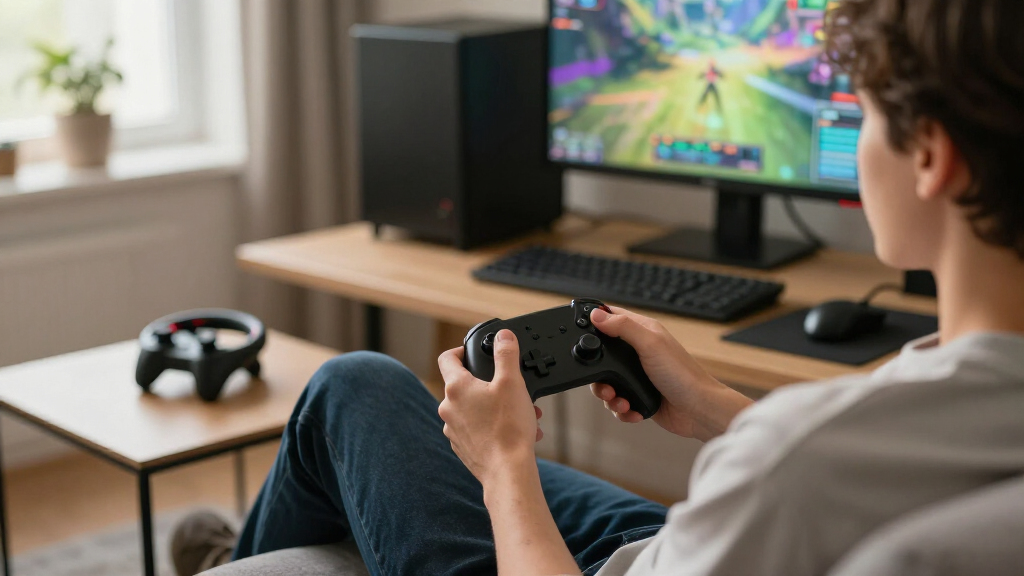
Input devices explained through character movement point toward the gamepad: it packs analog sticks, face buttons, shoulder controls, and triggers into a compact shape. You gain smooth movement and easy sofa play, but you accept fewer immediate commands and less raw aiming precision than a mouse usually provides.
A gamepad fits games where you constantly blend direction and speed. In a third-person adventure, you can tilt the stick gently to walk past a sleeping guard, then push it to the rim and sprint when the alarm rings. The controller changes both your character’s pace and your pulse—a small zeugma that becomes very real during a chase.
Analog triggers add another layer. In a racing game, pressing the accelerator halfway can feed in power without spinning the tires, while a digital key usually reports pressed or released. Vibration, detailed haptics, and adaptive trigger resistance can also tell you about gravel, recoil, or a blocked weapon through your fingertips.
The tradeoff appears when you need tiny, fast camera corrections. An analog stick controls the speed of camera movement rather than pointing directly at a location, so aiming often feels like steering a boat toward a buoy. Gyro aiming can help by letting you make small motion-based corrections after the stick handles the broad turn.
Stick drift occurs when a controller reports movement while the stick appears centered. Wear, dust, calibration errors, or sensor faults can cause it [1]. Hall-effect and TMR sensors reduce contact-related wear, but they cannot prevent every issue because springs, electronics, centering mechanisms, and manufacturing tolerances can still fail.
Hardware warning: Treat claims that magnetic sticks are completely drift-proof as marketing shorthand. They address one common wear point, not every mechanical or electronic fault.
A platformer provides a useful test. If you can hold a steady walking pace, reach shoulder buttons without shifting your grip, and play for an hour without squeezing the shell, the gamepad fits your hands. Check the exact PC or console version before buying because USB connectivity alone does not promise support on every platform.
As an affiliate, we earn on qualifying purchases.
Use Keyboard and Mouse for Fast Aim and Command-Heavy Games
Input devices explained through speed and command access favor the keyboard-and-mouse pair. The mouse gives you direct, precise pointing, while the keyboard places dozens of assignable commands under your fingers. You lose natural analog movement and need enough desk space for both devices.
In a shooter, the mouse converts physical hand movement into camera movement. You can snap toward a doorway, stop on a small target, and turn around with one broad sweep. In a strategy game, that same direct control lets you select a unit no larger than a pea and drag a clean box around an army.
DPI or CPI describes how strongly physical movement translates into cursor movement, but a larger number does not grant better aim. A steady sensitivity, reliable tracking, sensible lift-off distance, and a shape that suits your grip usually matter more. A mouse set to 3,200 DPI can feel smooth or wildly nervous depending on the game’s sensitivity setting.
The keyboard handles the commands that would crowd a controller. An MMO player might bind movement to WASD, abilities to number keys, healing to mouse buttons, and menus to nearby letters. Full-size boards offer maximum keys, while tenkeyless, 75%, 65%, and 60% layouts create progressively more mouse room by removing sections.
Most keyboard keys remain digital: they report pressed or not pressed. Magnetic and optical gaming keyboards can add adjustable actuation, rapid-trigger behavior, or analog-style readings, yet game support varies. Rapid trigger resets a key based on finger movement rather than forcing it past one fixed reset point, which can make repeated direction changes feel sharper.
Suppose your mouse keeps striking the keyboard during low-sensitivity turns. Moving from a full-size board to a 75% layout may give you several extra inches without changing your aim settings. Before: your mouse thumps plastic during every frantic turn. After: your hand sweeps across the pad like a clean paint stroke.
Competitive warning: Check the game’s current rules before using macros, automation, or unusual multi-action bindings. Allowed features differ between games, leagues, platforms, and tournament versions, and leaked claims about future support remain unconfirmed until the developer publishes them.
force feedback racing wheel for PC
As an affiliate, we earn on qualifying purchases.
As an affiliate, we earn on qualifying purchases.
Pick a Wheel or Flight Stick When You Want the Machine to Push Back
A racing wheel or flight stick gives you wide analog control and physical feedback modeled after a vehicle. Wheels shine in racing simulation, while sticks and HOTAS setups fit aircraft and spacecraft. You gain precision, resistance, and immersion, but you spend more money, desk space, and setup time.
A racing wheel turns steering into a large, measured motion instead of a short thumb movement. Separate pedals give throttle and brake their own axes, while force feedback can pull against your hands as tires load up. A wheel can expose bad braking habits and your forearm muscles during the same long corner.
Gear-driven wheels often feel mechanical and textured. Belt-driven systems can feel smoother, while direct-drive hardware connects the rim more directly to the motor for faster, stronger detail. That strength requires secure mounting; a powerful wheelbase clamped to a light folding table can shake the table like a washing machine with one wet towel inside.
Pedals deserve equal attention. A basic brake reads pedal travel, but a load-cell brake measures applied force. Many simulation drivers find pressure easier to repeat, much like learning the firm bite point of a real brake pedal, though a stiff setup works best when your chair and pedals cannot slide apart.
A flight stick controls pitch and roll, then handles yaw through a twist axis or separate pedals. HOTAS means hands on throttle and stick, giving you a dedicated throttle plus switches close to both hands. HOSAS uses two sticks and suits spacecraft that can move sideways, vertically, forward, and backward.
During a space docking sequence, one stick can rotate your ship while the other controls translation. The setup turns six-degree-of-freedom movement from a maze of keys into two coordinated hand motions. Entry-level sticks may still develop axis jitter, so calibration tools and modest dead zones can steady an on-screen ship that trembles while your hand rests.
Specialized hardware only works when the game and platform support it. A wheel recognized on Windows may not work on a particular console generation, and one console version of a game may support fewer devices than its PC release. Arcade racers may also feel quicker and more playful with a gamepad, even when a wheel technically works.
ergonomic flight stick for flight simulators
As an affiliate, we earn on qualifying purchases.
As an affiliate, we earn on qualifying purchases.
Run These Five Checks Before You Spend Money or Remap Everything
The safest setup process checks compatibility, comfort, control range, response, and software in that order. This sequence stops you from chasing tiny latency gains while ignoring a device that hurts your wrist or lacks support. It also reveals whether a settings change can solve the problem before new hardware enters your cart.
- Confirm support. Check the operating system, console generation, connection type, game version, and required software. Steam Deck compatibility and verified status can change after game or system updates, so check the current listing rather than relying on an old screenshot.
- Test your reach. Hold the device in your normal posture for at least 15 minutes. Notice whether you lift a shoulder, bend a wrist, stretch for a paddle, or clamp the grip harder during tense play.
- Calibrate axes and dead zones. Start with the smallest inner dead zone that stops unwanted movement. Increase it only until drift or jitter disappears, because a large dead zone makes initial movement feel muddy.
- Set a repeatable sensitivity. Choose a mouse sensitivity, stick curve, steering range, or throttle curve you can reproduce. Test it in the same training area instead of changing three settings after every match.
- Save and verify profiles. Map buttons, update firmware, and store settings in onboard memory when available. Confirm that the game displays the right prompts and accepts simultaneous devices if you plan to mix controls.
Polling rate shows how often a device reports input. At 125 Hz, reports can arrive every 8 milliseconds; at 1,000 Hz, the interval falls to 1 millisecond. Higher rates can reduce reporting gaps, but the practical result also depends on the processor, game engine, display refresh rate, connection, and firmware [1].
Imagine testing two mice in a quiet training range. One advertises 8,000 Hz but cramps your ring finger after 20 minutes; the other runs at 1,000 Hz and fits like a familiar pen. The comfortable mouse can give you steadier sessions because no device is fast in a useful way when you keep adjusting your grip.
Wireless performance also depends on the connection. A well-made dedicated 2.4 GHz link can perform comparably to wired hardware under suitable conditions, while Bluetooth behavior varies by implementation [1]. Wired gear avoids battery concerns; wireless gear removes cable drag and can clean up a sofa or simulation cockpit.
Hardware does not change a game’s ESRB, PEGI, or other age rating. Parents and younger players should still check the rating, online interaction notices, and purchase systems for the specific game and platform. A colorful controller can make play more comfortable, but it does not change the content behind the screen.
Use New Control Tech Where It Solves a Real Problem
New input technology helps most when it addresses a clear problem such as wear, limited movement, slow remapping, or inaccessible controls. Magnetic sensors, gyro aiming, modular parts, and mixed-device input can improve your experience. A feature earns its place when it makes players respond more comfortably or reliably, not when its number looks impressive.
Hall-effect and TMR sensors use magnetic sensing rather than the sliding electrical contact found in conventional potentiometers. Manufacturers now use them in sticks, triggers, keyboards, and flight controls. They can reduce contact wear and allow configurable actuation, but the surrounding springs, hinges, buttons, and calibration still influence long-term reliability.
Gyro aiming offers a practical example of devices working together inside one controller. You can use the right stick for a broad turn, then tilt the gamepad slightly for the final correction. It resembles moving a serving tray a few millimeters to stop a glass from sliding—small motion, immediate result.
Modular hardware can let you replace a worn stick, swap a wheel rim, move rear paddles, or choose a lighter switch. That can extend useful life and make repairs less wasteful, though proprietary modules may cost more or disappear from sale. Check replacement availability and warranty terms before treating modularity as a promise of permanent repairability.
Accessibility changes the definition of best. Remapping, toggle actions, one-handed layouts, switch interfaces, voice input, gyro control, and mixed devices can turn an awkward control scheme into a playable one. According to Microsoft’s accessibility guidance [2], adaptable controllers and external switches can help players build layouts around their own reach and movement.
Consider a player who steers with a gamepad in the left hand and aims with a mouse in the right. If the game accepts simultaneous input, that combination provides analog movement and direct pointing. If it constantly swaps button prompts or blocks one device when the other moves, the same setup becomes a flickering mess of icons.
The broader lesson is simple: players can respond well when the hardware, software, and body cooperate. The answer depends on the actual barrier—pain, insufficient buttons, poor precision, weak feedback, or missing support. Start with that barrier, then choose the feature that removes it.
Frequently Asked Questions
Which input device is best for gaming?
No single device wins every genre. Mouse and keyboard often suit shooters, strategy games, and command-heavy PC titles, while gamepads fit platformers, action games, sports games, and relaxed sofa play. Wheels and flight sticks serve racing, aircraft, and spacecraft simulation when specialized analog control matters.
Is mouse and keyboard always better for competitive games?
No. The stronger option depends on movement design, aiming rules, aim assistance, matchmaking pools, platform, and your practice. Some competitive games build their movement around a gamepad, while others reward the fast pointing and abundant bindings of mouse and keyboard.
Does higher mouse DPI or polling rate improve your aim?
Higher numbers do not create accuracy. DPI changes how much cursor movement you get from a physical motion, while polling rate changes how often the device sends reports. A comfortable sensitivity, stable sensor, suitable shape, and consistent practice usually matter more than extreme DPI or polling settings.
Do Hall-effect sticks completely prevent controller drift?
Hall-effect sticks reduce one major source of wear by replacing conventional contact-based sensing with magnetic measurement. They do not protect against weak centering springs, debris in the mechanism, calibration errors, electronic faults, or manufacturing variation. Treat them as a durability advantage, not a lifetime guarantee.
How should you set a controller or flight-stick dead zone?
Use the smallest inner dead zone that stops drift or sensor jitter when you release the control. Raise it one small step at a time, then test slow movement near the center. Adjust the outer dead zone only if the axis cannot reach full output or you want maximum output earlier in its travel.
Can you use two different input devices at the same time?
Many PC games accept mixed input, such as a gamepad for movement and a mouse for aiming, but support varies. Test whether the game keeps both devices active, displays stable prompts, and preserves analog movement. Some titles constantly switch icons or disable one input source, which can make an otherwise clever setup frustrating in practice.
Conclusion
Your best input device is the one that makes intent become action without pain, hesitation, or needless setup. Start with the game you actually play, identify whether you need analog movement, precise pointing, more commands, or realistic feedback, then test comfort and support before comparing headline specifications.
A good control setup almost disappears from your attention. Your hands stop wrestling the hardware, your eyes stay on the game, and a corner, headshot, spell, or smooth landing happens exactly when you ask for it. Choose the device that gives you that quiet, reliable connection.
Halloween Picks
halloween
As an affiliate, we earn on qualifying purchases.