TL;DR

Play games on Amazon Luna for your game nights, included with Prime
- A rotating selection of games, no download needed
- Play on TV, laptop or phone
- Fast, free delivery for your gear, too
External GPU enclosures let you connect a desktop graphics card to a gaming laptop, usually over Thunderbolt 3 or 4 at up to 40 Gbps, but they do not make the laptop identical to a desktop PC [1]. They work best when you dock at a desk with an external monitor, play GPU-heavy games, and already own a compatible laptop. They make less sense if your laptop lacks Thunderbolt or if the enclosure plus GPU costs close to a new desktop.
A gaming laptop can run out of graphical breath long before the rest of the machine feels old. One minute you are chasing smooth 1440p frames; the next, the fans scream, the keyboard warms your fingers, and your settings menu turns into a tiny negotiation table.
This guide explains what an external GPU enclosure actually does, where Thunderbolt helps, where it holds you back, and how to decide before you spend $500 on metal, cables, and hope.
You will also see why Steam players, gaming laptop owners, and Steam Deck fans need different expectations. Same games. Very different ports.
External GPU Enclosures Explained for Gaming Laptops
TL;DR: An external GPU enclosure lets a gaming laptop use a desktop graphics card through Thunderbolt 3 or 4, usually at up to 40 Gbps. It can lift settings and frame rates, especially at a desk with an external monitor, but it will not turn a laptop into a full desktop tower.
The promise is simple: keep the laptop, add desktop graphics, accept the cable’s limits.
A desktop GPU parked beside your laptop.
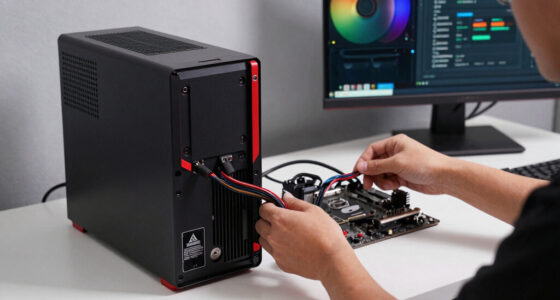
An enclosure holds the graphics card, powers it, cools it, and moves PCIe data between the laptop and GPU. The biggest gains appear when the laptop CPU is still strong but the internal graphics chip has run out of graphical breath.
Higher settings
A newer desktop GPU can make 1440p textures, ray tracing options, and dense open worlds feel less cramped than an aging laptop GPU.
One-cable desk
Some enclosures add Ethernet, USB ports, or SD card slots, turning the setup into a graphics dock for home play.
Less chassis strain
The GPU heat moves outside the laptop, though the CPU and internal cooling still matter under heavy game loads.
The port decides whether the whole idea works.
Thunderbolt 3 and Thunderbolt 4 advertise up to 40 Gbps, but the laptop still needs PCIe tunneling, firmware support, and stable drivers. Two USB-C ports can look identical while only one is wired for external graphics.
Check the spec sheet
Look for Thunderbolt 3, Thunderbolt 4, or USB4 with stated eGPU support.
Confirm firmware
Some laptops limit external graphics even when the connector appears compatible.
Use a certified cable
Short, certified Thunderbolt cables reduce random disconnects under load.
Prefer external display
Plug the monitor into the eGPU to avoid sending finished frames back to the laptop screen.
Four graphics paths, four very different feels.
An eGPU is not competing with one thing. It sits between built-in laptop graphics and a full desktop tower, which is why expectations matter as much as raw GPU choice.
| Setup | Best For | Main Limit | Real-World Feel | Worth It? |
|---|---|---|---|---|
| Integrated graphics | Indies, older games, battery play | Shared memory and CPU power | Quiet and simple, but heavy games feel muddy fast. | ✗ for AAA upgrades |
| Laptop dGPU | Portable gaming without extra gear | Heat and slim cooling | Great on the couch, louder under modern AAA load. | ~ depends on age |
| External GPU enclosure | Desk gaming with an external monitor | Thunderbolt bandwidth and added cost | Big uplift when the laptop GPU is weak or old. | ✓ with the right laptop |
| Desktop GPU in tower | Maximum performance from the same card | Not portable | Best frame rates, easiest cooling, more space. | ✓ for peak value |
The enclosure is only the first receipt.
Quality external GPU enclosures often start around $200 to $500-plus before the graphics card. The math works best when you already own a strong laptop CPU, enough memory, and a monitor worth feeding.
When it makes sense
Your laptop has Thunderbolt 3 or 4, a capable CPU, 16GB to 32GB of RAM, and an internal GPU that is clearly the bottleneck. You mostly play docked, and the enclosure plus GPU costs meaningfully less than replacing the whole setup.
When it stings
The laptop lacks confirmed eGPU support, the CPU is already old, the battery and cooling are tired, or the enclosure plus card lands close to the cost of a better desktop or newer gaming laptop.
Confirm the port
Thunderbolt 3, Thunderbolt 4, or clearly stated USB4 eGPU support.
Measure the card
Length, width, slot thickness, and cooling clearance matter before checkout.
Match the PSU
Compare enclosure wattage against the GPU maker’s power recommendation.
Plan the display path
For best results, connect the monitor directly to the eGPU.
Read driver notes
NVIDIA and AMD cards can work well, but mixed laptop and desktop drivers can be fussy.
Follow the frame from game to screen.
The cleaner the route, the better the experience. The ideal eGPU setup sends rendered frames straight from the external graphics card to an external monitor.
AAA visuals, high textures, 1440p targets.
PCIe data moves through the 40 Gbps link.
The external card renders the heavy frames.
Direct output avoids the laptop-screen round trip.
Key Takeaways
- An external GPU enclosure helps most when your gaming laptop has Thunderbolt 3 or 4 support, a strong CPU, and a weak or aging internal GPU.
- A direct external monitor connection usually gives better eGPU results than sending frames back to the laptop screen.
- The enclosure price often starts around $200 to $500-plus before you buy the graphics card, so compare the full cost against a desktop or newer laptop.
- Thunderbolt’s 40 Gbps ceiling is fast, but it still limits a desktop GPU compared with the same card inside a tower.
- Steam Deck players should not treat standard Thunderbolt eGPU enclosures as a normal plug-and-play upgrade.
external GPU enclosure for gaming laptops
As an affiliate, we earn on qualifying purchases.
As an affiliate, we earn on qualifying purchases.
What You Actually Gain When You Add an eGPU
External GPU Enclosures Explained for Gaming Laptops means you place a desktop graphics card in a powered box, connect it to your laptop through Thunderbolt 3 or 4, and let that card render your games. You gain higher settings, steadier frames, and more breathing room when your built-in GPU has hit its ceiling.
For example, think of a thin gaming laptop with an aging RTX 2060 inside. At a hotel, it still plays lighter Steam games just fine. At home, you plug in an enclosure with a newer desktop GPU, connect a 1440p monitor, and suddenly the same laptop feels less cramped in Cyberpunk 2077, Baldur’s Gate 3, or another GPU-heavy title.
The enclosure does three jobs at once: it holds the card, powers it with its own PSU, and moves data between the GPU and laptop. It is less like adding a tiny booster battery and more like parking a desktop graphics card beside your monitor and giving your laptop a fast doorway into it. Some models also add Ethernet, USB ports, or an SD card slot, which can turn your desk into a one-cable dock.
As an affiliate, we earn on qualifying purchases.
Why Thunderbolt Decides Whether This Works
External GPU Enclosures Explained for Gaming Laptops starts with the port, because the connector decides whether the idea works at all. Thunderbolt 3 and Thunderbolt 4 both advertise up to 40 Gbps, according to Intel [1], but the laptop still needs PCIe tunneling and vendor support for eGPU use.
A USB-C port alone is not proof. Two ports can look identical in the dim blue glow behind your monitor, but one may carry Thunderbolt data while the other only handles charging, display output, or basic USB accessories. It is like two identical-looking wall outlets where only one is actually wired to the room you need.
- Check the laptop spec sheet for Thunderbolt 3, Thunderbolt 4, or USB4 with eGPU support.
- Look for firmware notes from the laptop maker, since some machines block or limit external graphics.
- Use the shortest certified cable you can, because cheap long cables can cause random disconnects under load.
Here is the simple test: if the maker never says the port supports external graphics, do not assume the enclosure will rescue it. Hope is not a connection standard.
desktop graphics card enclosure for laptops
As an affiliate, we earn on qualifying purchases.
As an affiliate, we earn on qualifying purchases.
How an eGPU Compares With Built-In Laptop Graphics
An eGPU is best compared with laptop graphics by looking at where the work happens: inside the chip package, inside the laptop chassis, outside on your desk, or inside a desktop tower. The same game can feel different in each setup, especially when heat and bandwidth start squeezing frames.
| Setup | Best For | Main Limit | Real-World Feel |
|---|---|---|---|
| Integrated graphics | Indies, older games, battery play | Shares memory and power with the CPU | Quiet and simple, but heavy games feel muddy fast |
| Laptop dGPU | Portable gaming without extra gear | Heat and slim cooling | Great on the couch, louder under AAA load |
| External GPU enclosure | Desk gaming with an external monitor | Thunderbolt bandwidth and added cost | Big uplift when your laptop GPU is weak or old |
| Desktop GPU in a tower | Maximum performance from the same card | Not portable | Best frame rates, easiest cooling, more space |
If you play a bright, fast shooter at 1080p on low settings, your CPU may become the limit before the eGPU shines. If you play a dense open-world game at 1440p with high textures, the desktop card gets more room to flex. Picture it like road traffic: esports settings can become a busy intersection controlled by the CPU, while high-resolution textures give the graphics card a longer highway to use.
As an affiliate, we earn on qualifying purchases.
Check These 5 Things Before You Spend $500
External GPU Enclosures Explained for Gaming Laptops gets practical when you check five items before money leaves your account: the laptop port, operating system support, enclosure wattage, card dimensions, and display path. A 15-minute spec check can save you from a shiny metal box that only works as an expensive USB hub.
- Confirm the port. Look for Thunderbolt 3, Thunderbolt 4, or stated eGPU support in the laptop manual.
- Check the GPU size. Measure length, width, and slot thickness before buying a triple-fan card.
- Match the power supply. Many enclosures land around 300W to 650W, so compare that with the GPU maker’s recommendation.
- Plan the display route. For best results, plug your monitor into the eGPU, not the laptop screen.
- Read driver notes. NVIDIA and AMD cards can work well, but mixed laptop and desktop drivers can still be fussy.
For instance, a compact enclosure may happily fit a two-slot RTX 4060 but reject a thick triple-fan RTX 4080 before you ever reach the driver screen. A common mistake is buying a huge high-end card first, then learning it needs more power or space than the enclosure provides. That is the hardware version of bringing a sofa home before measuring the apartment door.
When the Price Makes Sense and When It Stings
An eGPU makes financial sense when the enclosure and graphics card cost less than replacing your whole gaming setup. Quality external gpu enclosures often sit around $200 to $500-plus before the GPU, according to skeldrift.com [2], so the math can get spicy fast.
Say you already own a strong laptop CPU, 32GB of RAM, and a nice 1440p monitor. Adding an enclosure and a midrange desktop GPU may extend that machine for several years, especially if your laptop GPU is the weak link. In that case, the eGPU is like adding a stronger outboard motor to a boat that is otherwise still solid.
Now flip the situation. If your laptop has an old four-core CPU, a tired battery, and one noisy fan that sounds like a hair dryer in a drawer, the eGPU may feel like a gold handle on a cracked door. Spending $700 on an enclosure and card for that machine can sting more than putting the same money toward a newer desktop or laptop.
Use an eGPU to make a good desk setup stronger, not to turn every aging laptop into a desktop with no tradeoffs.
Why the Same GPU Can Feel Slower Outside a Desktop
External GPU Enclosures Explained for Gaming Laptops has one hard truth: the cable is not magic. A 40 Gbps Thunderbolt link is fast for a dock cable, but it is still narrower than a desktop graphics slot, so the same GPU can lose performance outside a tower [1].
The biggest hit often appears when you send frames back to the laptop’s built-in screen. The image leaves the eGPU, travels back through the cable, and lands on the internal display. That round trip can shave off performance you paid for. Imagine asking a chef to cook in the kitchen, carry every plate down the hallway, then bring the dirty dishes back through the same narrow doorway during dinner rush.
An external monitor changes the feel. Plug the monitor directly into the eGPU and the card sends finished frames straight to the screen. Cleaner path, fewer wasted steps.
Performance claims also need a label. A benchmark for an RTX 4070 eGPU on Windows 11 at 1440p does not automatically apply to Linux, a different laptop BIOS, or a patched Steam release six months later. Treat leaks and early dock numbers as unconfirmed until retail hardware gets tested.
Build a Desk Setup That Does Not Sound Like a Hair Dryer
A good eGPU desk setup keeps the graphics card cool, fed with enough power, and far enough from your ears that fan noise does not take over the room. Think airflow first: the enclosure needs clean intake, clear exhaust, and a PSU that matches the GPU’s appetite.
Place the box where it can breathe. Not pressed against a wall, not buried behind a stack of game boxes, and not under a blanket of dust. Hot air needs somewhere to go. A practical setup might put the enclosure on the far side of the desk, with its rear exhaust facing open room air and the monitor cable running straight from the GPU to the display.
- Leave several inches behind the exhaust so heat does not bounce back into the case.
- Use a stable desk surface because heavy cards can make small enclosures wobble.
- Keep one cable path for power, Thunderbolt, display, and Ethernet so unplugging your laptop stays quick.
The best version feels boring in a good way. You sit down, plug in one cable, hear a soft fan whoosh, and your monitor wakes up ready for the next raid, race, or late-night city crawl.
Buy One If These Conditions Match Your Gaming Life
You should buy an eGPU when you mostly play at a desk, already own a compatible laptop, and want better graphics without building a full desktop. You should skip it when portability matters more than docked power or when the total cost crowds into new-PC territory.
- Good fit: you use a gaming laptop for work and travel, then dock it at home for Steam games on a 1440p monitor.
- Good fit: your laptop CPU is still strong, but the internal GPU can no longer hold the settings you like.
- Bad fit: you play mostly on battery, on the couch, or in places where carrying a separate box makes no sense.
- Bad fit: you own a Steam Deck and expect a standard Thunderbolt eGPU to work through the USB-C port. Steam Deck is not a plug-and-play Thunderbolt eGPU machine.
A strong example is the student or remote worker who carries one laptop all day, then comes home, plugs in one Thunderbolt cable, and uses a full monitor, keyboard, Ethernet, and desktop GPU for the evening. A weak example is someone who wants better frames on trains, couches, and coffee shop tables; the enclosure stays at home, so it cannot help those sessions.
For handheld PC players, check the exact model and port. Some Windows handhelds with USB4 may support external graphics in specific setups, while others behave more like simple docks. Steam Deck Verified status can also change after Proton or game updates, so check the game’s current Steam page before making performance plans.
Hardware does not change age ratings either. If younger players share the laptop, check ESRB or PEGI labels for the actual game, not the shiny graphics box next to the monitor.
Frequently Asked Questions
Can any gaming laptop use an external GPU enclosure?
No. Your laptop needs a compatible high-speed port, usually Thunderbolt 3 or Thunderbolt 4, plus firmware and driver support for external graphics. A USB-C port that only handles charging or display output will not be enough.
Will an eGPU work with my laptop’s built-in screen?
Often, yes, but it can run slower than using an external monitor connected directly to the eGPU. Sending rendered frames back to the laptop screen uses extra bandwidth, which can cost performance in demanding games.
Is Thunderbolt 4 faster than Thunderbolt 3 for eGPU gaming?
Not by raw headline bandwidth. Both Thunderbolt 3 and Thunderbolt 4 reach up to 40 Gbps [1]. Thunderbolt 4 can bring stricter feature requirements and cleaner compatibility, but it does not automatically make the same eGPU much faster.
Is an eGPU worth it for Steam Deck gaming?
For a standard Steam Deck setup, no. Steam Deck does not provide plug-and-play Thunderbolt eGPU support through its USB-C port. DIY adapter projects exist in the wider hardware scene, but those are not normal dock upgrades and can affect reliability or warranty coverage.
Do I need a high-end GPU for an eGPU enclosure?
Not always. A balanced midrange desktop card often makes more sense because Thunderbolt bandwidth can limit very high-end GPUs. If you play at 1080p or 1440p, spend first on compatibility, cooling, and a good monitor path before chasing the biggest card on the shelf.
Conclusion
Remember the clean rule: buy an eGPU for a desk setup, not for portable magic. When your laptop, port, monitor, GPU, and budget all line up, the upgrade can turn a thin machine into a sharp, quiet command center.
Get the specs right before you buy, then let the enclosure do what it does best: sit beside your monitor, hum softly, and push more frames onto the screen.
Fall Picks
fall essentials
As an affiliate, we earn on qualifying purchases.