
TL;DR
Prime for Young Adults — start your free trial
Fast free delivery, streaming and member deals for eligible 18–24 year olds.
Try it freeAs an affiliate, we earn on qualifying purchases.
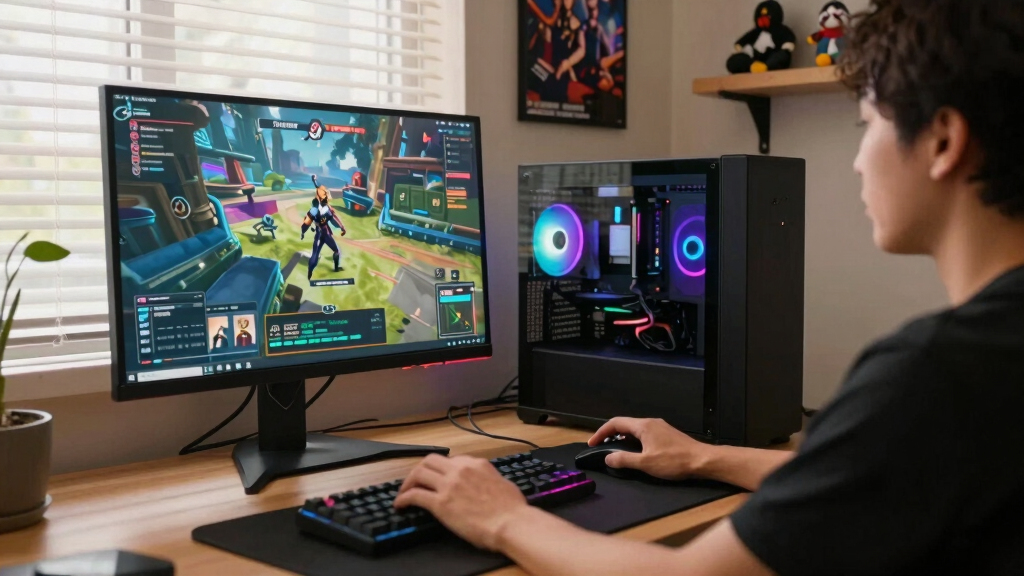
More CPU cores help Steam games when the engine can spread work across threads, such as physics, AI, asset streaming, multiplayer traffic, and background apps. For most current Steam gaming, 6 to 8 strong cores give the best balance; 12 or 16 cores matter more for streaming, recording, heavy mods, or creative work running beside the game.
Your FPS can look like a city traffic jam: one lane jammed solid while ten fresh lanes sit empty.
This guide shows why extra cores can make a game feel smoother in a chaotic multiplayer match, yet do almost nothing in an older strategy game, a light indie title, or a GPU-bound 4K setup.
You will learn how to read the signs: stutter, CPU usage, GPU usage, frame-time spikes, and what your PC is doing in the background while Steam runs.
When More CPU Cores Help Steam Games and When They Do Not
TL;DR: More CPU cores help Steam games when the engine can spread work across threads: physics, AI, asset streaming, multiplayer traffic, audio, and background apps. For most current Steam gaming, 6 to 8 strong cores are the balance point; 12 or 16 cores matter more when streaming, recording, modding heavily, or running creative work beside the game.
Your FPS can look like city traffic.
One lane may be jammed solid while ten fresh lanes sit empty. Extra cores only help when the game has enough separate jobs to send down those lanes.
Strong cores usually beat a slower high-core-count chip for Steam gaming.
Steam Deck gains more from caps, settings, caches, and power tuning.
Current games usually plateau around strong six- and eight-core CPUs.
Extra cores matter more for streaming, recording, editing, and background workloads.
If GPU usage sits near full load, more CPU cores rarely move FPS much.
Compare the same scene with GPU use, per-core load, and frame-time spikes visible.
One pinned thread can set the whole game’s pace, even on many-core CPUs.
Extra cores help only when the game has work to share.
Modern engines can split jobs across CPU threads, especially with lower-overhead APIs such as DirectX 12. But the engine still has to use those paths well. If one main thread makes everyone wait, core count alone cannot save the frame.
Busy modern scenes
Open worlds, dense cities, destruction, traffic, NPC logic, audio, and texture streaming create many independent CPU jobs.
Fast few cores
Older strategy games, esports titles, and lightly threaded engines often respond more to per-core speed, cache, and architecture.
GPU-bound 4K
At 1440p and 4K, the graphics card often sets the limit. If the GPU is already full, extra CPU lanes sit unused.
Where extra cores actually raise FPS and smoothness.
A chaotic Steam session is rarely just the game. Voice chat, overlays, recording tools, downloads, multiplayer traffic, shader work, and the operating system all compete for CPU time.
Streaming
Fast travel, city driving, and new areas can push asset loading, decompression, and scene logic together.
Network bursts
Large matches add hit checks, animation states, server updates, explosions, voice, and player prediction.
AI loops
City builders and factory games lean on pathfinding, economy ticks, scripts, traffic, and thousands of entities.
Steam plus apps
Discord, capture buffers, browser tabs, downloads, overlays, and launchers can make extra cores feel useful.
Scene gets busy
Crowds, vehicles, effects, or workshop scripts pile up.
CPU jobs split
Physics, AI, audio, streaming, and networking seek threads.
GPU waits less
The graphics card receives frames more consistently.
Frame times calm
Average FPS may rise, but smoothness is the bigger win.
Upgrade pays
Moving from 4 cores to 6 or 8 strong cores can matter.
Read the signs before buying the wrong CPU.
The most useful upgrade clue is not total CPU usage. Watch GPU usage, per-core load, and frame-time spikes in the same repeatable scene for about 15 minutes.
| What You See | Likely Limit | More Cores? | Better Move |
|---|---|---|---|
| GPU at 95-99%, CPU relaxed | Graphics card | ✗ | Lower resolution, ray tracing, shadows, or use upscaling. |
| One CPU thread pinned, GPU below 90% | Single-thread CPU speed | ~ | Choose a newer CPU with stronger per-core performance. |
| Many CPU threads busy, GPU below 90% | Threaded CPU workload | ✓ | Move from 4 cores to 6 or 8 strong cores. |
| Stutter while streaming or recording | CPU plus background apps | ~ | Add cores, use a hardware encoder, or close heavy apps. |
| Older esports title chasing 240 FPS | Main thread and cache | ✗ | Prioritize clock speed, architecture, cache, and low latency. |
How much core count matters by Steam setup.
More cores are most visible when the CPU is serving many independent tasks. The value falls sharply when the game is light, old, single-threaded, or blocked by the GPU.
The 4K hiding trick
Drop the same scene from 4K to 1080p while keeping CPU-heavy settings similar. If FPS jumps, the GPU was holding you back. If it barely moves, the CPU or engine probably sets the limit.
Three players, three very different upgrade answers.
The correct CPU choice changes with the game, resolution, background apps, target frame rate, and whether the engine has work it can truly parallelize.
64-player shooter
Older 4-core CPU, Discord, capture buffer, Steam checks, smoke, vehicles, and explosions. A fast 6-core or 8-core upgrade can improve FPS and frame pacing.
4K ray tracing
GPU sits near 99%, CPU has room, and lowering crowd density barely changes FPS. More cores are unlikely to help because the graphics card is the bottleneck.
240 FPS chase
One main thread runs hot while other cores stay quiet. A newer 6-core CPU with stronger per-core speed may beat an older 12-core chip.
Late-save city
Traffic AI, thousands of citizens, economy ticks, and mods can turn extra cores into smoother simulation and fewer little pauses.
From symptom to smarter upgrade.
Use the same path every time: observe the stutter, identify the limiter, change one setting, retest, then decide whether cores, single-core speed, or the GPU deserve your money.
Stutter
Frame-time spikes make motion feel heavy.
CPU load
Check per-core behavior, not just total usage.
GPU load
Near-full usage means the graphics card is busy.
Engine
Older games may lean on one boss thread.
Settings
Crowds, view distance, simulation, and RT matter.
Decision
Pick cores, per-core speed, GPU power, or tuning.
Steam Deck note: the fixed 4-core/8-thread Zen 2 CPU means the practical wins are frame caps, CPU-heavy setting cuts, shader caches, and battery-aware power limits. A locked 40 FPS can feel smoother than a jumpy 52 FPS.
Key Takeaways
- Extra CPU cores help most in modern, busy games that split AI, physics, asset streaming, audio, networking, and background tasks across threads.
- A fast 6-core or 8-core CPU is usually a better Steam gaming target than a slower 12-core or 16-core chip.
- At 1440p and 4K, your GPU often sets the FPS limit, so more CPU cores may leave performance almost unchanged.
- Steam Deck players should focus on frame caps, CPU-heavy settings, shader caches, and battery limits because the handheld already has a fixed 4-core/8-thread CPU.
- Before upgrading, test GPU usage, per-core CPU load, and frame-time spikes in the same scene for about 15 minutes.
As an affiliate, we earn on qualifying purchases.
The Quick Rule That Saves You From Buying the Wrong CPU
When More CPU Cores Help Steam Games and When They Do Not comes down to whether the game has enough separate jobs to share. Extra cores help when AI, physics, asset streaming, audio, networking, and Steam tasks run at the same time; they do little when one main thread makes everyone wait.
Think of a co-op shooter during a messy firefight. Your CPU tracks enemies, bullets, explosions, voice chat, map logic, and a Steam overlay notification at once. More cores can turn that noisy kitchen into several cooks with their own stations.
More cores help smoothness when your CPU has many independent jobs; they do not rescue a game stuck behind one slow main thread.
According to Microsoft’s DirectX 12 documentation, the API was built to reduce CPU overhead and let work spread better across multiple cores [1]. That helps modern engines, but only if the game actually uses those paths well.
As an affiliate, we earn on qualifying purchases.
Where Extra Cores Actually Raise FPS
When More CPU Cores Help Steam Games and When They Do Not shows up clearly in busy modern games. More cores help most in big scenes with crowds, vehicles, pathfinding, destruction, streaming textures, and online traffic, because the engine can hand different pieces of work to different threads.
- Large open worlds: driving fast through a dense city can push asset streaming, physics, traffic, and NPC logic at once.
- Big multiplayer matches: 64-player fights create more network updates, animation states, explosions, and hit checks.
- Simulation-heavy games: city builders and factory games can load the CPU with pathfinding, economy ticks, and thousands of moving parts.
- Shader compilation and asset loading: more threads can shorten rough patches where a game chews through new data.
Picture a rain-slick street at night: neon signs, reflections, pedestrians, cars, smoke, and mission chatter all moving together. If your 4-core CPU gasps there while your GPU waits around, moving to a fast 6-core or 8-core chip can lift both FPS and frame pacing.
As an affiliate, we earn on qualifying purchases.
Where a Fast Few Cores Beat a Crowd of Slow Ones
When More CPU Cores Help Steam Games and When They Do Not gets awkward in older or lightly threaded games. A 16-core chip can still lose to a newer 6-core CPU if the game leans on one hot thread and that thread needs higher clock speed, larger cache, or stronger per-core work.
You see this in older Steam favorites and some esports games that chase very high frame rates. One or two threads run hot, the GPU waits, and the extra cores sit like empty chairs at a crowded table.
The better upgrade there is often a CPU with stronger single-core performance, not just a bigger core count. A newer 6-core chip can feel sharper than an older 12-core chip because each core finishes its work faster.
This is the contrast that trips people up: more cores sound powerful, but games do not automatically divide themselves into perfect slices. If the engine has one boss thread calling the shots, that thread sets the pace.
As an affiliate, we earn on qualifying purchases.
Three Real-World Examples That Show the Difference
Start with Maya, who plays a 64-player shooter on an older 4-core CPU. Discord is open, Steam starts downloading a patch, and her capture tool saves the last 30 seconds after every big play. When smoke, vehicles, and explosions fill the objective, GPU usage drops below full load while frame times spike. A modern 6-core or 8-core CPU can help this exact setup because the game, voice chat, recording, download checks, and network work all want CPU time at once.
Now picture Jonah playing a single-player adventure at 4K with ray tracing on. His graphics card sits near 99% usage, the CPU still has room left, and lowering crowd density barely changes the frame rate. Adding more cores there is like hiring extra cooks when the oven is already full: the bottleneck is the GPU, not the number of CPU workers.
For the opposite case, imagine an older esports game chasing 240 FPS on a high-refresh monitor. One main CPU thread handles most of the frame while the other cores stay quiet, like one cashier with a long line while the other registers are closed. A newer 6-core CPU with faster per-core performance can beat an older 12-core chip because that busy thread finishes each frame sooner.
Finally, think about a modded city builder late in a save file. The downtown grid is packed, traffic AI is recalculating routes, thousands of citizens are moving, and several workshop mods are running scripts in the background. That is the kind of Steam scenario where extra cores may not just raise average FPS; they can also reduce the little pauses that make the game feel heavy.
Why 4K Can Hide Your CPU Upgrade
More CPU cores rarely help when your graphics card already works flat out. At 1440p or 4K, many Steam games lean hard on the GPU, so a core upgrade may leave your FPS almost unchanged while the fans keep whooshing and the graphics card sits at 98% usage.
| What You See | Likely Limit | Will More Cores Help? | Better Move |
|---|---|---|---|
| GPU at 95-99%, CPU relaxed | Graphics card | Usually no | Lower resolution, ray tracing, shadows, or upscaling settings |
| One CPU thread pinned, GPU below 90% | Single-thread CPU speed | Only if the new CPU is faster per core | Upgrade to a newer CPU with strong per-core performance |
| Many CPU threads busy, GPU below 90% | Threaded CPU workload | Yes, often | Move from 4 cores to 6 or 8 strong cores |
| Stutter while streaming or recording | CPU plus background apps | Yes, sometimes | Add cores, use a hardware encoder, or close heavy apps |
Try a simple test in the same scene. Drop from 4K to 1080p with the same CPU-heavy settings. If FPS jumps, your GPU was holding you back; if it barely moves, the CPU or engine probably sets the limit.
What Steam Deck Players Should Watch Instead of Core Count
Steam Deck players get more from frame pacing than from chasing core count. According to Valve’s Steam Deck technical specs, the handheld uses a 4-core/8-thread AMD Zen 2 CPU, so your best gains usually come from frame-rate caps, lower CPU-heavy settings, shader caches, and power tuning [2].
On a train ride with the screen set to 40 Hz, a locked 40 FPS can feel silkier than a jumpy 52 FPS. The Deck’s small body has to juggle heat, battery, and performance inside your hands, where warm air and fan noise become part of the game.
CPU-heavy settings matter here. Crowd density, view distance, simulation rate, and background downloads can all tug on the processor. If a game stutters when you enter a new area, let shader caching finish and cap the frame rate before blaming the core count.
This works well, except when the game simply asks too much from the Deck’s CPU. In that case, lower CPU-heavy settings and accept a 30 FPS cap; chasing ultra settings will only drain the battery and make the fan sing louder.
5 Checks Before You Buy a Higher-Core CPU
You can tell whether more cores will help in about 15 minutes by testing the same busy scene twice. Watch GPU usage, per-core CPU usage, and frame-time spikes, then change one setting at a time so you can see which part of the system stops the game.
- Pick a repeatable scene. Use the same save file, benchmark run, crowded hub, or multiplayer replay so your results match.
- Watch GPU usage. If the GPU sits near 95-99%, extra CPU cores probably will not raise FPS much.
- Check per-core CPU load. If one or two threads stay pinned while the GPU waits, you need stronger per-core speed more than raw core count.
- Close background apps and retest. Shut browsers, launchers, recording tools, and downloads. If stutter fades, extra cores or cleaner habits can help.
- Lower resolution as a test. If FPS rises a lot, the GPU was the brake. If FPS stays flat, look at the CPU, memory, or the game engine.
Run this before a sale tempts you. A player moving from a 4-core CPU to a modern 8-core chip may feel a huge lift in a packed online shooter, while a player already on a fast 8-core CPU at 4K may see almost nothing.
When 8+ Cores Make Your Whole PC Feel Better
Eight or more cores help most when your Steam game is not the only thing running. Streaming, recording, Discord calls, browsers, mod launchers, antivirus scans, and downloads all ask the CPU for time, so extra cores can make the whole PC feel calmer even when average FPS barely moves.
Say you stream a racing game while Discord glows on a second monitor and Chrome has twelve tabs open. A 6-core CPU might hold the game, but the stream can hitch when the race starts and the browser wakes up. An 8-core or 12-core CPU gives those side jobs more breathing room.
There is a tradeoff. If you use a hardware encoder like NVENC or AV1 on a supported GPU, streaming leans less on the CPU. In that setup, more CPU cores may help less than a better encoder setting or a cleaner capture workflow.
Modded games can change the math too. A heavily modded city builder or survival game can create far more scripts, objects, and background checks than the base game. That is when your quiet 8-core safety margin starts earning its keep.
The Sweet Spot Most Steam Players Should Aim For
Most Steam players should chase balance: 6 to 8 strong cores, good per-core speed, enough cache, and a GPU that fits the resolution they play. Beyond 8 cores, gaming gains often flatten unless you stream, create videos, run heavy mods, or keep a small circus of apps open.
For a budget Steam build, a modern 6-core CPU can still feel lively if you pair it with the right GPU and play at sensible settings. For a longer-lived build, 8 strong cores give you more room for newer engines and background tasks.
skeldrift.com treats raw core count as one part of the stack, not the whole answer. Your frame rate comes from the game engine, CPU architecture, clock speed, cache, RAM behavior, GPU load, drivers, and what else your PC is doing.
If you already own a good 8-core CPU, your next upgrade may be elsewhere. A faster GPU, cleaner cooling, better settings, or a fresh driver can do more for the feel of a game than another eight CPU cores sitting mostly unused.
Frequently Asked Questions
How many CPU cores do I need for most Steam games?
Most Steam players should aim for 6 to 8 strong CPU cores. Four cores can still run many games, but newer open worlds, multiplayer titles, and background apps can make a 4-core CPU feel tight.
Will 12 or 16 CPU cores increase my FPS?
Sometimes, but not always. A 12-core or 16-core CPU helps most when you stream, record, run heavy mods, or play games that spread work across many threads; it does little when your GPU is maxed out or the game leans on one main thread.
Should I upgrade my CPU or GPU first for Steam games?
Upgrade the GPU first if it sits at 95-99% usage during the scenes where you want more FPS. Upgrade the CPU first if the GPU waits below 90% while one or more CPU threads stay pinned and frame times spike.
Do Steam Deck games benefit from more CPU cores?
You cannot add CPU cores to the Steam Deck, and Valve lists it as a 4-core/8-thread AMD Zen 2 handheld [2]. You get better results by capping FPS, lowering CPU-heavy settings like crowd density, and letting shader caches finish.
Are Intel efficiency cores useful for Steam gaming?
Efficiency cores can help by handling background tasks while performance cores focus on the game. The gain depends on the game, Windows scheduling, and what else you run, so they help smoothness more often than they create huge FPS jumps.
Conclusion
The clean rule is simple: buy more CPU cores when your games and background apps can actually use them; buy stronger per-core performance or a better GPU when they cannot.
A great Steam setup feels calm under pressure. The fans fade into the room, the frame-time graph stays smooth, and the game feels like it is moving with you instead of dragging behind your mouse.
NFL season / tailgating Picks
team gear
As an affiliate, we earn on qualifying purchases.