TL;DR
Prime for Young Adults — start your free trial
Fast free delivery, streaming and member deals for eligible 18–24 year olds.
Try it freeAs an affiliate, we earn on qualifying purchases.
A game can say 60 FPS and still feel rough because the counter usually shows an average, while your eyes and hands feel the gaps between frames. At 60 FPS, each frame should arrive about every 16.67 ms; uneven frame timing, V-Sync behavior, input lag, shader stutter, or a bad cap can make that same 60 FPS feel jerky.
The FPS counter can lie to your face without showing a single false number.
You glance at the corner of the screen, see 60 FPS, and still feel the camera snag like fabric catching on a nail. Your character turns late. The road shimmers. A sword swing lands with a tiny hiccup right when you need it to feel clean.
This guide explains why frames per second is only one piece of smoothness. You will learn what frame timing, pacing, V-Sync, VRR, and input lag do in real play, plus the settings that usually help on PC, Steam, and Steam Deck.
60 FPS can be true and still feel wrong.
TL;DR: the counter usually shows an average, while your eyes and hands feel the gaps between frames. At 60 FPS, each frame should arrive about 16.67 ms apart. Uneven frame timing, V-Sync behavior, input lag, shader stutter, or a bad cap can make that same 60 FPS feel jerky.
FPS tells you how many. Frame time tells you when.
A one-second average can still hide lurches, stalls, and uneven spacing. You do not play an average; you feel each camera turn, missed beat, and tiny pause when the game fails to deliver frames evenly.
The tidy number
A counter can hover near 60 while hiding rough delivery inside the second. It is useful, but incomplete.
The actual rhythm
Smooth play needs frames landing close to the same interval, especially during pans, fights, and traversal.
The roughness detector
A flat line feels clean. Sharp spikes feel like little potholes under your thumbs.
Two games can report the same FPS and feel completely different.
The difference is spacing. One game presents frames like a metronome; the other bunches them into pairs and gaps.
| What you see | What is happening | How it feels | Trust score |
|---|---|---|---|
| Stable 60 FPS | Frames arrive close to every 16.67 ms | Camera pans feel steady and readable | ✓ Clean |
| 60 FPS with spikes | Most frames arrive on time, but some take 30-50 ms | Short hitches during turns, fights, or new areas | ~ Uneven |
| 60 FPS with poor pacing | Frames arrive in uneven pairs and gaps | Motion feels jittery without a big FPS drop | ✗ Rough |
| 60 FPS with high latency | Frames arrive, but inputs reach the screen late | Aiming and dodging feel heavy or delayed | ~ Sluggish |
Where roughness enters the ride.
Stutter is often a chain problem, not a single switch. Storage, CPU work, shader compilation, GPU load, sync behavior, and display latency can all stack into one rough moment.
Game work
AI, physics, crowds, streaming, and combat events hit the CPU.
GPU render
Shadows, effects, resolution, and ray tracing shape the frame budget.
Frame pacing
The frame either lands near 16.67 ms or breaks the rhythm.
Sync layer
V-Sync, VRR, and caps decide how frames meet the display.
Hands feel it
Latency turns tiny delays into late aiming, dodging, and camera motion.
The frame budget shrinks fast as refresh rises.
Higher rates help, but only if the game keeps a steady rhythm. A 60 FPS average with 32 ms gaps can feel worse than a lower cap that holds its timing.
Frame budget by target
Each bar shows how much time the game has to finish one frame.
What your eyes catch
Even at a 60 FPS average, a frame that lands late creates a visible hitch because the timing gap is bigger than the expected cadence.
8.33 ms
16.67 ms
33.33 ms
V-Sync, VRR, and caps stop the game and display from fighting.
V-Sync can remove tearing, but it may add lag or stutter when the game misses the display beat. VRR lets compatible screens vary refresh timing around the game’s output, softening dips inside the supported range.
V-Sync cleans the image, but can feel heavier.
On a 60 Hz screen, dropping from 60 to 55 FPS with plain V-Sync can feel like a stumble because the display cadence stays rigid.
VRR softens dips, but cannot hide every stall.
Shader hitches, CPU stalls, and asset streaming spikes can still break the rhythm even when the monitor adapts.
Six tweaks that usually make 60 FPS feel better.
Start by making frame delivery steadier before chasing ultra settings. Test in the busiest real scene you actually play, not in a quiet hallway.
- Turn on a frame-time graph. Watch for spikes during camera turns, loading doors, and crowded areas.
- Use a sensible frame cap. Try 60, 50, 45, or 40 FPS. A locked 50 can beat a shaky 60.
- Match refresh when possible. On Steam Deck, test 40 Hz with 40 FPS for slower games.
- Lower CPU-heavy settings first. Crowd density, view distance, physics, and ray tracing often cause spikes.
- Test V-Sync both ways. If tearing appears, use V-Sync or VRR. If input feels heavy, try a cap.
- Let shaders finish. If the first run stutters but the second is smoother, compilation was part of the roughness.
Key Takeaways
- A 60 FPS average can hide bad frame pacing; smooth play needs frames near the 16.67 ms rhythm.
- Frame-time spikes during camera turns, new areas, or combat explain many rough moments better than the FPS counter.
- V-Sync can remove tearing but may add lag or stutter; VRR can soften dips when your display supports it.
- On Steam Deck and slower PCs, a stable 40 or 50 FPS cap can feel better than an unstable 60 FPS target.
- Use a frame-time graph during the busiest real gameplay scene before changing settings.
gaming monitor with variable refresh rate
As an affiliate, we earn on qualifying purchases.
As an affiliate, we earn on qualifying purchases.
Why the FPS Counter Misses the Rough Part
Why a Game Can Say 60 FPS and Still Feel Rough is that many counters show an average, while roughness lives in the gaps between frames. You do not play an average. You feel each camera turn, each missed beat, and each tiny pause when the game fails to deliver frames evenly.
Think of a one-second FPS counter like a speedometer on a bumpy road. It can say you averaged 60 miles per hour, even if the car lurched, braked, and jolted over broken pavement. The number looks tidy. The ride does not.
On a Steam Deck, this can happen when you enter a busy village after a quiet forest. The overlay may still hover near 60 FPS, but the first few seconds feel crunchy because the game loads new assets, builds shaders, or strains the CPU.
The fix starts with changing what you watch. Keep the FPS number, but add a frame-time graph if your overlay offers one. A flat line feels smooth; sharp spikes feel like little potholes under your thumbs.
As an affiliate, we earn on qualifying purchases.
The 16.67 ms Rhythm Your Eyes Can Feel
60 FPS means the game should show a new frame about every 16.67 milliseconds. When that rhythm stays steady, motion feels clean and predictable. When one frame takes 8 ms and the next takes 32 ms, your eyes catch the uneven beat even if the counter still looks fine.
Imagine panning across a neon city street in a racing game. The signs should slide past like a smooth ribbon of light. If the frame times jump around, those same signs seem to skip sideways, almost like the camera coughed mid-turn.
This is why frame timing matters more than the headline number. Say it another way: FPS tells you how many frames arrived; frame time tells you when they arrived. Your brain cares deeply about the when.
At 30 FPS, each frame gets about 33.33 ms. At 120 FPS, each frame gets about 8.33 ms. Higher rates help, but only when the game can keep a steady rhythm instead of tossing frames at the display in uneven clumps.
gaming controller with low input lag
As an affiliate, we earn on qualifying purchases.
As an affiliate, we earn on qualifying purchases.
60 FPS Average vs Smooth 60 FPS: What Actually Changes
Why a Game Can Say 60 FPS and Still Feel Rough becomes easier to see when you compare average FPS with frame pacing. Two games can both report 60 FPS, but one spaces frames evenly while the other bunches them up. The first feels silky. The second feels nervous.
| What You See | What Is Happening | How It Feels |
|---|---|---|
| Stable 60 FPS | Frames arrive close to every 16.67 ms | Camera pans feel steady and readable |
| 60 FPS with spikes | Most frames arrive on time, but some take 30-50 ms | Short hitches during turns, fights, or new areas |
| 60 FPS with poor pacing | Frames arrive in uneven pairs and gaps | Motion feels jittery even without big drops |
| 60 FPS with high latency | Frames arrive, but your inputs reach the screen late | Aiming and dodging feel heavy or delayed |
A common PC example: you cap a game at 60 FPS, then run through a dense market full of cloth banners, NPCs, and flickering torches. The average stays near 60, but the graph spikes whenever the game streams new data from storage.
This is also why a boring hallway can feel perfect while a boss fight feels rough. The hallway asks little from your CPU and GPU. The boss fight adds particles, physics, animation, audio triggers, and frantic camera movement all at once.
As an affiliate, we earn on qualifying purchases.
What V-Sync and VRR Change in Real Play
V-Sync and VRR control how your game and display agree on timing. V-Sync can remove tearing, but it may add lag or stutter when the game misses the display’s beat. VRR lets compatible screens bend their refresh rate around the game’s output, which can make uneven FPS feel calmer.
According to VESA, Adaptive-Sync lets a display vary its refresh rate instead of sticking to one fixed beat [1]. NVIDIA describes G-SYNC in the same practical way: the display can wait for the GPU’s frame, reducing tearing and many visible stutters [2].
The smoothest setup is not always the highest number. It is the setup where the game, cap, and display stop fighting each other.
Here is a real scenario. On a 60 Hz monitor, a game that drops from 60 to 55 FPS with plain V-Sync may feel like it stumbled. On a VRR display, that same dip can feel much softer because the screen adjusts instead of forcing a rigid cadence.
There are tradeoffs. V-Sync can clean up torn frames, but it can make mouse movement feel heavier. VRR helps inside its supported range, but it cannot hide every shader hitch or CPU stall.
Why Your Hands Notice Roughness Before Your Eyes Do
A game can look close to smooth and still feel wrong because input lag changes how quickly your actions show up on screen. Your hands notice delay fast. If you move the mouse, press dodge, or pull the trigger and the game answers late, 60 FPS will not save the feel.
You feel this most in shooters, action games, and platformers. A 60 FPS walking scene may look fine, but a snap aim to a doorway exposes the delay instantly. The crosshair drifts a hair behind your hand, and your brain calls it rough.
Input lag can come from the game engine, V-Sync, frame generation, wireless controllers, TV processing, or a display mode that was made for movies instead of games. On a TV, switching to Game Mode can cut a sluggish feel more than lowering shadows ever will.
Latency also stacks. A little delay from the controller, a little from the game, a little from the display, and suddenly your character feels like they are moving through wet sand. The FPS counter only reports frames, not the full trip from button press to pixel.
6 Tweaks That Usually Make 60 FPS Feel Better
Why a Game Can Say 60 FPS and Still Feel Rough is often fixable with boring, practical settings changes. Start by making frame delivery steadier before chasing ultra settings. You want fewer spikes, less lag, and a cap your hardware can hold during the busiest scene you actually play.
- Turn on a frame-time graph. Watch for spikes during camera turns, loading doors, and crowded areas. If the line jumps, you have a timing problem, not just an FPS problem.
- Use a sensible frame cap. Try 60, 50, 45, or 40 FPS depending on your display. A locked 50 can feel better than a shaky 60.
- Match the refresh rate when you can. On Steam Deck, test 40 Hz with 40 FPS for slower games, or 60 Hz with a clean 60 FPS for fast ones.
- Lower CPU-heavy settings first. Crowd density, view distance, physics, and ray tracing often cause spikes that texture quality alone will not fix.
- Test V-Sync both ways. If you see tearing, turn it on or use VRR. If the game feels heavy, try a frame cap with V-Sync off or use low-latency settings.
- Let shaders finish when a game needs it. If the first five minutes stutter, replay the same area. If the second pass feels smoother, shader compilation or asset loading caused the hitch.
A simple test works well: stand in a demanding spot, slowly rotate the camera for 20 seconds, then sprint through the same area. If the graph spikes during the sprint, reduce settings that affect loading, shadows, crowds, or distant detail.
When 40 FPS Feels Better Than a Messy 60
A steady 40 FPS can feel better than an unstable 60 FPS because consistency beats ambition. At 40 FPS, each frame arrives every 25 ms. That is slower than 60, but if every frame lands on time, the game can feel calmer than a 60 FPS target that keeps slipping.
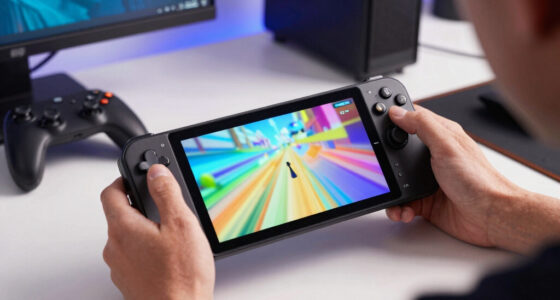
This matters on handhelds. On Steam Deck, a big open-world game may bounce between 47 and 60 FPS while draining the battery and kicking up fan noise. Locking it to 40 FPS with a matching refresh rate can make travel, combat, and camera pans feel more even.
The exception is fast competitive play. If you are flicking a mouse in a shooter, 60, 90, 120, or 144 FPS can lower latency and sharpen motion when your hardware can hold it. For slower RPGs, strategy games, and cinematic adventures, a stable lower cap often feels better than a heroic but wobbly one.
Use your eyes and hands, not pride. If 40 FPS feels steady and 60 FPS feels jagged, choose the steady setting. The best number is the one that disappears while you play.
The Performance Graph Tells You What to Fix Next
The fastest way to diagnose rough 60 FPS is to read the frame-time graph during real gameplay. A flat line points to good pacing. Tall spikes point to stutter. A sawtooth pattern often means the cap, V-Sync, or display timing needs a different setup.
Do not test only in the pause menu or a quiet room. Test the worst normal moment: rain at night, a packed town, a boss attack full of smoke, or a quick drive through a city block. Smoothness has to survive the loud parts.
- Flat line, high input lag: check V-Sync, TV Game Mode, controller connection, and low-latency settings.
- Random tall spikes: lower CPU-heavy settings, update drivers, check shader behavior, or move the game to faster storage.
- Regular uneven pattern: change the frame cap, refresh rate, or V-Sync setup.
- Clean graph but blurry motion: adjust motion blur, display response settings, or anti-aliasing.
On PC, Steam’s overlay, driver tools, and many launchers can show basic performance data. On Steam Deck, the built-in performance overlay gives you a quick read without installing anything. You are looking for rhythm, not just a trophy number.
Frequently Asked Questions
Why does my game feel choppy even though it says 60 FPS?
Your game likely has uneven frame times. The counter may average out to 60 FPS, but a few slow frames can create visible stutter during movement, combat, or loading.
Is frame pacing more useful than FPS?
Frame pacing is often more useful when you are trying to fix roughness. FPS tells you how many frames the game rendered, while frame pacing shows whether those frames arrived at even intervals.
Should I turn V-Sync on or off?
Turn V-Sync on if screen tearing bothers you, then test how the game feels. If controls feel heavy, try VRR, a frame cap, low-latency settings, or V-Sync off with a cap that your hardware can hold.
Can Steam Deck really feel smoother at 40 FPS than 60 FPS?
Yes, especially in demanding games that cannot hold 60 FPS. A locked 40 FPS at a matching refresh rate gives steady 25 ms frame delivery, which can feel cleaner than a jumpy 60 FPS target.
Does a 144 Hz monitor fix rough 60 FPS?
A 144 Hz monitor can make high-FPS play smoother, but it does not magically fix bad frame timing. If the game stutters because of shader compilation, CPU spikes, or poor pacing, you still need to fix the timing problem.
Conclusion
Chase steady frame times, not just a prettier FPS number. If your game says 60 FPS but feels rough, watch the graph, test your cap, and tune for the busiest scene instead of the quietest one.
When the timing clicks, you feel it instantly: the camera glides, the button press lands, and the game stops reminding you that a machine is working behind the screen.
NFL season / tailgating Picks
team gear
As an affiliate, we earn on qualifying purchases.