TL;DR
Play games included with Prime
Start a Prime free trial and play with Amazon Luna on your devices.
Start playingAs an affiliate, we earn on qualifying purchases.
Input lag explained for Steam Deck, Steam Machine, and Steam Frame means tracking every delay between your button press and the screen’s answer. You reduce it by running a stable frame rate, using fast display modes, avoiding weak wireless links, updating SteamOS and controller firmware, and treating prelaunch Steam Frame or Steam Machine claims as unconfirmed until Valve posts final details.
Your button press does not reach the screen instantly. It travels through a little relay race: controller, SteamOS, game engine, GPU, display, and sometimes Wi-Fi, each one passing the baton with a tiny delay.
This guide gives you input lag explained in plain English for Steam Deck, Steam Machine, and Steam Frame. You will see what actually adds delay, which settings help, and when the problem is not lag at all.
Every Button Press Runs a Relay Race
Input lag is the delay between your action and the screen’s answer. A press travels through controller polling, SteamOS, the game engine, GPU rendering, display refresh, and sometimes Wi-Fi. The goal is not magic zero delay. The goal is a stable, predictable chain your hands can trust.
TL;DR: fix the chain in order.
Stable frame rate first, then fast display mode, controller path, V-Sync or VRR behavior, firmware updates, and finally network cleanup. Treat prelaunch Steam Frame and Steam Machine claims as unconfirmed until Valve posts final details.
The delay is a stack, not one single pause.
Press A, flick a stick, or pull a trigger, then the device reads the input, the game simulates the result, the GPU draws it, and the display finally shows it. One weak step can make an otherwise fast setup feel heavy.
Controller report
Wired USB, strong dongles, and clean Bluetooth conditions reduce the chance that a press waits before the system even sees it.
Simulation step
The game accepts inputs on its own rhythm. Uneven frame pacing makes timing feel unreliable even when the average frame rate looks fine.
Refresh window
Higher refresh gives actions more chances to appear sooner. That is why 90 Hz can feel tighter than 60 Hz when the game keeps up.
How the millisecond target feels
Where one button press travels before you see it.
A flat-screen game can hide a little delay behind animation. Fast platformers, fighters, rhythm games, and VR expose it immediately because your hands expect the screen to answer on time.
Button
Controller scans and reports the press.
SteamOS
Input reaches the operating system and game layer.
Engine
The game simulation accepts the action.
GPU
Frames render, queue, and prepare for output.
Display
The screen refreshes at its own interval.
Network
Streaming adds encode, travel, and decode time.
Deck, Machine, and Frame have different weak links.
The same game can feel crisp on one Steam device and soft on another. The difference usually comes from refresh rate, display processing, controller route, frame pacing, or streaming overhead.
| Platform | Best Case | Common Lag Source | Fast Fix | Confidence |
|---|---|---|---|---|
| Steam Deck LCD | Consistent 60 Hz handheld play | 16.7 ms refresh window plus unstable frame pacing | Cap to a stable rate and reduce heavy settings | ✓ Shipping hardware |
| Steam Deck OLED | 90 Hz display and 180 Hz touchscreen polling | Battery tradeoffs or games that cannot sustain 90 fps | Use 90 Hz when pacing stays steady | ✓ Valve-published spec |
| Steam Machine on TV | More power and large-screen play | TV smoothing, Bluetooth delay, GPU queue, remote play | Enable Game Mode and test wired input | ~ Model-dependent |
| Steam Frame | Native headset play may skip PC video streaming | Tracking, Wi-Fi, encode, decode, firmware, compatibility | Wait for final Valve details before trusting claims | ~ Prelaunch details |
Fix lag from the most likely cause outward.
Start with the parts that influence every frame. A clean controller path matters, but a game that cannot deliver steady frames will still feel inconsistent.
In VR, your head becomes the controller.
A headset must answer head movement quickly or the room feels syrupy. Streaming PC VR adds extra toll booths: render, encode, Wi-Fi travel, decode, and panel refresh. Native headset play can skip some of that, but final latency depends on release firmware and public Valve support details.
Follow the delay until the weak link shows itself.
When a jump comes late, avoid guessing. Walk the chain from local hardware to display to streaming. The smallest boring fix is often the one that makes control feel alive again.
Key Takeaways
- For twitchy games, treat below 20 ms as a strong target; 10-30 ms is a common modern range, depending on how you measure.
- Steam Deck OLED’s 90 Hz display and 180 Hz touchscreen polling give inputs more frequent chances to show than the 60 Hz LCD model [1].
- A Steam Machine on a TV can feel worse than a handheld if motion smoothing, Bluetooth delay, or remote play adds extra steps.
- Steam Frame latency will depend on native play, PC streaming, tracking, Wi-Fi quality, and final firmware; rumors and leaks stay unconfirmed.
- Fix lag in order: stable frame rate, display Game Mode, controller path, V-Sync or VRR settings, updates, then network cleanup.
As an affiliate, we earn on qualifying purchases.
What Input Lag Means When Your Jump Comes Late
Input lag is the delay between your action and the screen’s answer. Press A, flick a stick, tap a trigger, then wait a few milliseconds while the device reads the input, the game simulates it, the GPU draws it, and the display shows it. You feel that delay as mush.
The tricky part is that input lag is not one single pause. It is a stack of tiny waits. Your controller has to report the press, the game has to accept it on the next simulation step, the GPU may have frames waiting in line, and the screen can only refresh at its own rhythm. One weak step can spoil an otherwise fast setup.
In a platformer, the button goes click, but your character hops a hair too late. In a fighter, your counter lands after the hit already smacked you. The game feels like it is wearing gloves.
For most modern gaming setups, 10-30 ms of total lag feels normal, while competitive players often aim for below 20 ms. That target matters because fast games teach your hands a rhythm. When the screen answers late, you start correcting for the hardware instead of the enemy, the jump arc, or the beat.
The tradeoff is that chasing the absolute lowest number can make the game uglier or less smooth. Turning off V-Sync may cut delay but add tearing. Dropping graphics settings may sharpen control but flatten the look. A turn-based RPG can hide extra delay; a parry window in Sekiro exposes it like a bright scratch on glass.
Low lag does not make you better by itself, but high lag steals the timing you already have.
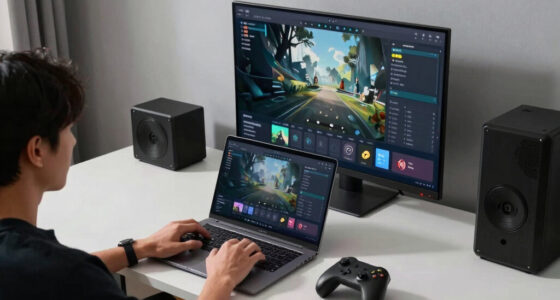
gaming monitor with fast response time
As an affiliate, we earn on qualifying purchases.
As an affiliate, we earn on qualifying purchases.
Why Steam Deck Can Feel Sharp One Day And Heavy The Next
Input lag explained for Steam Deck starts with frame pacing, because the handheld’s screen only shows new information at fixed intervals. The LCD Deck tops out at 60 Hz, while Steam Deck OLED supports up to 90 Hz and a 180 Hz touchscreen polling rate, according to Valve’s OLED page [1].
That jump does not erase every delay, but it gives your action more chances to appear sooner. At 60 Hz, a new frame can arrive every 16.7 ms; at 90 Hz, that window drops to 11.1 ms. You can feel that in a dash, a flick shot, or a menu cursor that stops sliding through honey.
The bigger lesson is consistency. A higher peak frame rate sounds better on paper, but uneven pacing makes your hands distrust the game. If one frame arrives quickly and the next arrives late, the delay keeps changing, so your thumb cannot build a clean timing habit.
- Use a stable cap when a game wobbles. A locked 40 fps can feel cleaner than 60 fps that keeps coughing, because each press lands into a more predictable rhythm.
- Try 90 Hz on Steam Deck OLED when the game can keep up. It helps motion feel tighter, but it can cost battery life and may force lower graphics settings.
- Watch Deck Verified status per game and date. Compatibility labels can change after patches, and they do not promise a fixed latency number.
That is why the same Steam Deck can feel crisp in one game and heavy in another. The hardware has not changed; the frame budget, engine behavior, and settings have.
controller firmware update for Steam Deck
As an affiliate, we earn on qualifying purchases.
As an affiliate, we earn on qualifying purchases.
How Steam Machine Changes The Lag Chain On Your TV
Input lag explained for Steam Machine depends on the whole living-room chain, not only the box under the TV. The 2015 Steam Machines varied by vendor hardware, while the newer Valve Steam Machine line is tied to SteamOS hardware pages, so model, controller, display, and SteamOS version all matter.
A TV setup adds freedom and danger at the same time. You may get more power, higher resolution, and a bigger screen than a handheld, but you also add more places for delay to hide. The Steam Machine can render quickly and still feel slow if the TV spends extra time cleaning, smoothing, or inventing frames.
| Part of the chain | What can add delay | Fast fix |
|---|---|---|
| TV | Motion smoothing, noise cleanup, heavy image processing | Use Game Mode |
| Controller | Weak Bluetooth signal or crowded wireless space | Use wired USB or a low-latency dongle |
| Game render path | Unstable frame rate or a long GPU queue | Lower settings until pacing steadies |
| Steam Link or remote play | Encode, network travel, decode, then display | Use Ethernet or strong 6 GHz Wi-Fi |
A 4K TV can make a powerful Steam Machine feel worse than a handheld if the TV starts polishing the image frame by frame. Turn off motion smoothing and the control feel often snaps back, like pulling tape off glass with one clean rip.
The tradeoff is picture treatment versus control response. Movie modes can make films look smoother, but games need the TV to stop admiring the frame and show it. Competitive play usually favors Game Mode even if colors, sharpness, or motion processing look less dramatic at first.
For any performance claim, note the platform and version: device model, SteamOS build, game build, resolution, refresh rate, and display mode. Without those details, a latency number floats in the air with no floor under it.
As an affiliate, we earn on qualifying purchases.
What Steam Frame Adds With Tracking And Streaming
Input lag explained for Steam Frame has a harsher rule: in VR, your head becomes the controller. A flat-screen game can hide a little delay behind animation, but a headset must answer every head turn quickly or the room feels syrupy and your stomach complains.
That matters because VR lag is not only about winning or losing. It affects comfort. If the image trails your head movement, your eyes see motion that your inner ear does not agree with. Even small delays can feel personal, like the world is arguing with your body.
Steam Frame is an announced Valve headset, but final latency, Frame Verified labels, launch pricing, and release timing can still depend on release firmware and public Valve updates [2]. Treat shipping records, pricing chatter, and leak threads as unconfirmed until Valve confirms them.
VR streaming adds extra toll booths: the PC renders, encodes, sends video over Wi-Fi, the headset decodes, then the panels show the frame. A strong dedicated wireless path can help, but it cannot cancel physics.
- Native headset play can skip PC video streaming, though game compatibility and translation layers may still affect feel. The tradeoff is that native play may be simpler and steadier, while streamed PC VR can offer heavier games if the network behaves.
- PC VR streaming needs clean Wi-Fi, short distance, and low interference. A router behind a cabinet is a bad teammate, because every retransmitted packet can become a tiny shove against comfort.
- Tracking quality matters as much as buttons. If the room is dim and the headset loses confidence, the world can wobble instead of glide.
For Steam Frame, do not judge latency from a single spec line. The real feel will come from the whole loop: tracking, rendering, wireless, decoding, panel timing, and software prediction all trying to land in step.
Which Steam Setup Usually Feels Fastest?
The fastest Steam setup is the one with the fewest weak links: high frame rate, fast display, direct input, and stable frame pacing. Steam Deck wins simplicity, Steam Machine can win raw output on a fast TV, and Steam Frame needs the cleanest wireless and tracking path when you stream VR.
The right answer changes with the room. A handheld has fewer moving parts, so there is less to misconfigure. A Steam Machine can beat it when paired with a low-lag display and a strong controller path. A headset has the strictest standard because lag follows your head instead of sitting safely on a flat screen.
| Setup | Best case | Common lag trap | Quick win |
|---|---|---|---|
| Steam Deck | Handheld play with built-in controls and known screen | Low frame cap or unstable frame pacing | Use a stable cap and OLED 90 Hz when available |
| Steam Machine | High frame rate on a low-lag TV or monitor | TV processing and wireless controller delay | Game Mode plus wired or low-latency input |
| Steam Frame | Native VR or clean low-latency PC streaming | Wi-Fi interference, tracking misses, encode delay | Clear play space and dedicated fast wireless path |
If you play Rocket League on a docked Deck through a TV with smoothing on, the handheld is not the villain. The TV is adding a soft cushion between your dodge and the ball. Switch to Game Mode and the hit can go from thud to snap.
So do not rank the devices as permanently fast or slow. Rank the path. Built-in screen and controls usually reduce surprises; living-room setups reward careful display settings; VR rewards a clean room, clean tracking, and clean wireless.
Seven Tweaks That Make Your Controls Answer Faster
You cut input lag by reducing waiting at each step: input device, game engine, GPU queue, display, and network. Start with free settings before buying cables or controllers. The fix often sounds boring, but the result feels sharp, like a clean snap instead of a rubber-band thud.
Change one thing at a time because latency fixes can trade against each other. A lower graphics preset may improve response but make the image less rich. V-Sync may smooth the picture but soften the hands. A higher refresh mode may feel great until battery life drops or the frame rate starts wobbling.
- Pick a stable frame rate. A steady 45 fps can feel better than a shaky 60 fps that keeps tripping, because consistent timing is easier for your hands to learn.
- Use the fastest display mode you can hold. On Steam Deck OLED, try 90 Hz when the game supports it well [1]. If it cannot hold that pace, step down before chasing a number.
- Turn on TV Game Mode. Kill motion smoothing, frame interpolation, and extra image cleanup so the TV shows the game instead of reworking it.
- Prefer wired input for competitive play. Weak wireless links can add delay, especially in crowded rooms. Good wireless is convenient; wired is predictable.
- Update SteamOS, controller firmware, and the game. Input handling and display sync can improve after patches, so old advice can go stale.
- Test V-Sync and VRR settings. V-Sync can smooth tearing but may add delay; VRR can help on compatible displays by letting the screen follow the game more naturally.
- Fix your network for streaming. Use Ethernet for the host PC, keep Wi-Fi clear, and avoid downloads during play, because streaming latency stacks on top of normal game latency.
Before a ranked match, spend five minutes in training mode and change one setting at a time. If your aim suddenly stops dragging behind your thumb, you found the sticky spot.
When Lag Is Not The Thing Slowing You Down
Not every sluggish game has an input-lag problem. Low frame rate, uneven frame pacing, stick dead zones, animation lock, shader compilation, and network ping can all wear the same costume. If a game stutters with a ch-ch-ch scrape, fix performance first before blaming the controller.
This distinction matters because the wrong diagnosis sends you in circles. If the issue is animation lock, a new controller will not save you. If it is network delay, TV Game Mode will not change what the server saw. If it is shader compilation, the game may feel terrible for a few moments and then suddenly behave.
- Input lag feels consistent. Every jump, shot, or dodge lands late by the same kind of gap.
- Frame pacing trouble feels uneven. The game lurches, then races, then lurches again.
- Network lag affects online outcomes. Your shot looked clean, but the server disagreed.
- Animation lock is game design. A heavy sword swing may ignore your dodge until the move finishes.
The practical test is repeatability. If the same offline jump always answers late, look at display, frame rate, and input path. If only online duels feel wrong, look at ping and server behavior. If one weapon or move ignores you, the game may be enforcing commitment rather than losing your input.
Age ratings such as ESRB Teen, ESRB Mature, PEGI 12, or PEGI 16 describe content, not control response. A family-friendly kart racer can have more display delay than a grim action game if your TV settings are wrong.
Where To Check The Facts Before You Buy
Check device pages and the exact game page before you trust any latency claim. Steam hardware changes through firmware, compatibility labels can move after patches, and prelaunch hardware attracts noisy rumors. As of June 16, 2026, treat Steam Frame and Steam Machine launch-date or price leaks as unconfirmed.
This matters because latency is easy to oversell. A number from one lab, one display, one firmware build, or one game scene may not match your couch, router, controller, or patch version. The most useful claim is not the smallest number; it is the number with enough context to repeat.
- [1] Valve Steam Deck OLED: https://www.steamdeck.com/en/oled
- [2] Valve Steam Frame: https://store.steampowered.com/sale/steamframe
- [3] Valve Steam Machine: https://store.steampowered.com/sale/steammachine
A good latency claim names the device, firmware, display, refresh rate, connection type, and game version. If someone only says it feels instant, treat that as a vibe, not a measurement.
Before buying hardware for lower lag, ask what part of your current chain is actually slow. A new box will not fix a TV stuck in movie mode, and a premium controller will not fix unstable frame pacing. Spend money after the free checks have pointed to the real bottleneck.
Frequently Asked Questions
What input lag is good for Steam Deck?
For most Steam Deck games, input lag under 20 ms feels good, while 10-30 ms is a common range for modern gaming setups. You will notice lag faster in shooters, fighters, rhythm games, and precision platformers than in RPGs or strategy games.
Does Steam Deck OLED have less input lag than Steam Deck LCD?
Steam Deck OLED can feel more responsive because it supports up to 90 Hz, while the LCD model tops out at 60 Hz. According to Valve, the OLED model also has a 180 Hz touchscreen polling rate [1], but game frame rate and frame pacing still matter.
Is a wired controller always better for Steam Machine?
Wired input is the safest pick when you want the lowest and most stable delay. Good wireless can feel excellent, but weak Bluetooth signal, distance, interference, or a crowded living room can add delay that you feel during quick aim or parry timing.
Will Steam Frame have more input lag because it can stream games?
Streaming can add delay because the image must be rendered, encoded, sent over Wi-Fi, decoded, and displayed. Steam Frame latency will depend on native versus streamed play, Wi-Fi quality, tracking, game support, and final firmware, so treat pre-release numbers and leaks as unconfirmed.
Should you turn off V-Sync to reduce input lag?
Turning off V-Sync can reduce delay, but it can also create screen tearing. If your display supports VRR, try that first; if not, test V-Sync on and off in the same game scene and keep the setting that feels cleaner to your hands.
Conclusion
The takeaway is simple: input lag is a chain, and you only need to find the slowest link. Start with frame rate, display mode, and controller connection before you spend money.
When the settings are right, your Steam hardware stops feeling like it is answering from the next room. Press, click, snap – the game moves with you.
Fall yard work Picks
leaf blowers
As an affiliate, we earn on qualifying purchases.