TL;DR
Play games included with Prime
Start a Prime free trial and play with Amazon Luna on your devices.
Start playingAs an affiliate, we earn on qualifying purchases.
Non-Steam games appear inside your Steam library because Steam creates a local shortcut that points to the game’s launcher or executable. You can rename it, add artwork, use some Steam features, and launch it from Big Picture or Steam Deck, but Steam usually will not add achievements, cloud saves, licenses, age ratings, or automatic updates for that game.
Your Steam library can show a game Steam never sold you, never patched, and never tracked as a purchase.
That sounds odd until you see what Steam is really doing. When you add a non-Steam game, Steam places a shortcut in your library, wraps it in familiar Steam clothing, and lets you launch it from the same shelf as your paid Steam games.
You’ll learn what that entry is, why it may look different from normal Steam games, which features work, and what Steam Deck players need to check before expecting smooth couch-ready play.
A Steam Library Entry Can Be Only a Shortcut in Disguise
TL;DR: Steam creates a local shortcut that points to another launcher or executable. You can rename it, add artwork, use some Steam features, and launch it from Big Picture or Steam Deck, but Steam usually does not add achievements, cloud saves, licenses, age ratings, or automatic updates.
Your library can show a game Steam never sold, patched, or tracked as a purchase.
A library tile, not a new copy of the game.
Think of it like putting a handwritten label on a game case and sliding it onto the same shelf. The shelf is Steam. The game still came from somewhere else.
Shortcut target
Steam stores a shortcut to a launcher, executable, emulator, mod tool, browser game, or standalone Windows program on your device.
Library presentation
The entry can sit beside paid Steam games, use custom artwork, appear in collections, and launch through Big Picture or Gaming Mode.
Original source stays in charge
Epic, GOG, itch.io, Battle.net, Ubisoft Connect, or a standalone installer still handles ownership, patches, saves, and account login.
How the entry gets into your library.
The cleanest result starts with the right target. Skip setup files, uninstallers, crash reporters, and helper utilities. Steam launches exactly what the shortcut points toward.
Add a Game
Open Steam and choose the library’s Add a Game control.
Pick Non-Steam
Select Add a Non-Steam Game and let Steam scan apps.
Browse if needed
Choose the main launcher or executable when Steam misses it.
Clean properties
Rename the entry, verify the launch target, and set options.
Add artwork
Store images in a stable folder so the tile stays polished.
What feels like Steam, and what usually does not.
The library tile can fool your eyes. The missing wiring matters when you expect achievements, cloud saves, automatic updates, reviews, or store metadata.
| Feature | Typical Steam Game | Typical Non-Steam Entry | Practical Meaning |
|---|---|---|---|
| Library launch | ✓ Yes | ✓ Yes, through shortcut | Steam can open the target program from the same shelf. |
| Steam Overlay | ✓ Usually yes | ~ Often, but not guaranteed | Launchers and permission mismatches can block the hook. |
| Screenshots | ✓ Usually yes | ~ Works when overlay hooks | No overlay often means no Steam screenshot capture. |
| Steam achievements | ✓ If supported | ✗ Usually no | The shortcut lacks Steam achievement integration. |
| Steam Cloud | ✓ If supported | ✗ Usually outside Steam | Saves remain with the original launcher, game, or local files. |
| Automatic updates | ✓ Handled by Steam | ✗ Handled elsewhere | Epic, GOG, itch.io, or the installer still patches the game. |
| Age rating metadata | ✓ Often on store page | ✗ Usually absent | The shortcut is not a full Steam store record. |
The magic depends on Steam hooking the right process.
Steam can add overlay, screenshots, chat, streaming, and Steam Input to many outside games. The weak point is often the launcher chain between Steam and the actual game.
Common friction
If Steam opens Epic, Battle.net, Ubisoft Connect, or another launcher first, the overlay may attach to the launcher instead of the final game. Pressing the overlay shortcut then feels like knocking on a locked glass door.
Steam Deck makes shortcuts more useful, but more variable.
Gaming Mode can launch non-Steam entries beside regular Steam games. Windows-only games may run through Proton, but performance claims need the device, SteamOS version, Proton version, settings, and launcher details.
Good Deck reports name the setup.
A useful claim sounds specific: Steam Deck OLED, SteamOS build, Proton Experimental, resolution, frame cap, launcher path, and whether the overlay works.
- Confirm controller layout before couch play.
- Test login prompts in Gaming Mode.
- Try borderless windowed mode when fullscreen misbehaves.
Compatibility is a spectrum.
Two games from the same folder can behave differently. One may open cleanly; another may need media codecs, a different Proton version, anti-cheat support, or a launcher workaround.
Follow the responsibility trail.
When something breaks, ask which layer owns it. The shortcut is only one link in the chain.
Make outside games feel intentional.
Good names, stable artwork, and dedicated collections keep non-Steam entries from turning a tidy library into a drawer of mystery launchers.
Rename clearly
Turn Launcher.exe into the real game title. Your future self should not need to remember which utility opens which game.
Store art safely
Keep capsule, hero, logo, and background images outside Downloads so cleanup does not strip the tile back to a blank placeholder.
Use collections
Create Non-Steam, Launchers, or Steam Deck collections so shortcuts stay searchable without pretending they are store purchases.
Key Takeaways
- A non-Steam game in your library is usually a local shortcut, not a Steam license or a new copy of the game.
- Steam can provide useful features like overlay, screenshots, streaming, and controller support, but results vary by launcher and game.
- Achievements, Steam Cloud saves, age rating metadata, and automatic Steam updates usually do not carry over to non-Steam entries.
- Steam Deck can run many non-Steam games through Proton, but performance claims should name the device, SteamOS version, Proton version, and settings.
- Good names, stable artwork folders, and a dedicated collection keep outside games from making your Steam library feel messy.
As an affiliate, we earn on qualifying purchases.
What Steam Actually Adds When You Bring In Another Game
How Non-Steam Games Appear Inside Your Steam Library is simple: Steam creates a local shortcut that points to a program on your device. That shortcut can launch an Epic, GOG, itch.io, emulator, mod tool, browser game, or standalone Windows executable, but it does not turn that item into a Steam purchase.
Think of it like putting a handwritten label on a game case and sliding it onto the same shelf. It looks organized, but the disc inside still came from somewhere else.
For example, if you add Fortnite through the Epic Games Launcher on a Windows PC, Steam may open Epic first, then Epic opens the game. Steam sees the shortcut you launched, not a new Steam-owned copy of the game.
Key idea: a non-Steam entry is usually a launcher shortcut dressed up as a library item, not a Steam license.
Steam Deck compatible game controller
As an affiliate, we earn on qualifying purchases.
As an affiliate, we earn on qualifying purchases.
How To Add A Non-Steam Game Without Making A Mess
- Open Steam and choose Add a Game near the bottom of the library window.
- Select Add a Non-Steam Game, then wait for Steam to scan installed apps.
- Pick the program you want, or use Browse if Steam misses it.
- Click Add Selected Programs so it appears in your library.
- Right-click the new entry, open Properties, then clean up the name, launch target, and artwork.
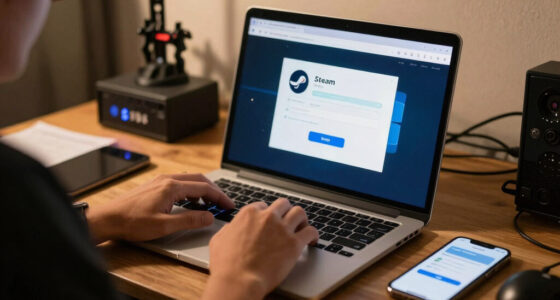
How Non-Steam Games Appear Inside Your Steam Library starts with this shortcut flow, and Valve documents the basic path through Steam’s own client menus [1]. It takes less than a minute when the game uses a normal executable.
A tidy example: you install Minecraft, add the Minecraft Launcher, rename the entry to “Minecraft,” and add custom art so it no longer sits there with a blank gray tile. Before, it looks like a dusty utility app. After, it feels like a proper library item.
If Steam lists a setup file, uninstall tool, or crash reporter, skip it. Choose the launcher or main executable, because Steam will do exactly what the shortcut tells it to do.
Steam library artwork customization
As an affiliate, we earn on qualifying purchases.
As an affiliate, we earn on qualifying purchases.
Why Some Non-Steam Games Look Polished And Others Look Bare
Non-Steam games can look polished when Steam finds a clean icon or when you add custom artwork, but many arrive as plain tiles with generic icons. Steam has no store metadata for most outside games, so the library may lack capsules, hero images, descriptions, ratings, and release details.
You’ve probably seen the contrast: one tile shines with bright key art, while the next looks like a lonely .exe file wearing a tiny icon from 2009. Same library. Very different first impression.
- Name: You can rename the shortcut so “Launcher.exe” becomes “Alan Wake 2” or “Final Fantasy XIV.”
- Icon: You can point Steam at an .ico file or another executable that carries the right icon.
- Artwork: You can set custom library art, logo art, and background images.
- Collections: You can place the entry in a “Non-Steam,” “Launchers,” or “Steam Deck” collection.
One practical tip: keep your artwork in a folder you will not delete. If you stash images in Downloads and clean that folder later, Steam may lose the pretty cover art and snap back to a blank-looking tile.
As an affiliate, we earn on qualifying purchases.
What Works Like A Steam Game, And What Does Not
How Non-Steam Games Appear Inside Your Steam Library can fool your eyes, but the feature gap matters. Steam may provide overlay, screenshots, streaming, controller input, and friend activity, while achievements, Steam Cloud saves, Steam reviews, store pages, and automatic Steam updates usually stay missing.
| Feature | Typical Steam Game | Typical Non-Steam Game |
|---|---|---|
| Library launch | Yes | Yes, through a shortcut |
| Steam Overlay | Usually yes | Often yes, but some launchers block it |
| Screenshots | Usually yes | Often yes when overlay hooks correctly |
| Achievements | Yes if supported by the game | Usually no Steam achievements |
| Steam Cloud | Yes if the game supports it | Usually handled outside Steam or not at all |
| Automatic updates | Handled by Steam | Handled by the original launcher or installer |
| Age rating metadata | Often shown on the store page | Usually not shown inside the shortcut entry |
Say you add a GOG copy of Cyberpunk 2077. Steam can launch it and may let you use the overlay, but GOG Galaxy or the standalone installer still handles updates, saves, and ownership.
This distinction saves headaches. If your friend asks why your non-Steam copy shows no Steam achievements, the answer is not broken Steam. The entry simply lacks Steam’s achievement wiring.
Why The Steam Overlay Sometimes Works Like Magic
The Steam Overlay works with many non-Steam games because Steam launches the target program and tries to hook into it while it runs. When that hook succeeds, you can open the overlay, take screenshots, use Steam Input, chat with friends, or stream the game to another screen.
When it fails, the signs are obvious. You press the overlay shortcut and nothing happens, like knocking on a locked glass door.
Launchers add the most friction. If Steam opens Battle.net, Ubisoft Connect, or Epic first, the overlay may attach to the launcher instead of the game, especially if the actual game starts as a separate process.
- Try launching the game directly if the launcher allows it.
- Run Steam and the game with matching permission levels on Windows; mixed admin permissions can stop the overlay.
- Disable conflicting overlays from Discord, NVIDIA, AMD, or the outside launcher if inputs feel sticky.
- Check fullscreen mode; borderless windowed mode often behaves better than exclusive fullscreen.
For a real living-room setup, test the overlay before you need it. Nothing kills a relaxed Friday night faster than juggling windows with a controller while a login prompt waits in the corner.
What Steam Deck Changes For Non-Steam Games
Steam Deck makes non-Steam shortcuts more useful because Gaming Mode can launch them beside regular Steam games. On SteamOS, Windows-only non-Steam games may run through Proton, Valve’s compatibility layer, but performance depends on the game, launcher, anti-cheat, Proton version, and your settings [2].
This is where platform and version details matter. A game that runs fine on Windows through Steam may behave differently on Steam Deck OLED, Steam Deck LCD, or a specific SteamOS build.
Example: you add a Windows indie game from itch.io, set compatibility to Proton Experimental, and it opens cleanly in Gaming Mode. Another game from the same folder may show a black screen because it needs a media codec, a launcher login, or a different Proton version.
Steam Deck note: do not treat “works on my PC” as a Steam Deck performance claim. Name the device, SteamOS version, Proton version, and settings when you share results.
Steam Deck verified badges also belong to Steam store entries, not random local shortcuts. If a non-Steam game runs beautifully, that is still your tested result, not an official verified status change.
Why Updates, Saves, And DLC Still Belong Somewhere Else
Non-Steam games keep their original update and save systems because Steam did not sell or package them. If the game came from GOG, Epic, itch.io, a standalone installer, or a mod launcher, that outside source remains responsible for patches, DLC access, cloud saves, and account checks.
Picture a game like a train, and Steam as the station sign you added yourself. The sign helps you find the platform, but it does not control the engine, tickets, or schedule.
This matters when a patch drops. Your Steam library tile may sit there calmly while Epic, GOG Galaxy, or the game’s own updater has a 28 GB download waiting behind the curtain.
- Check the original launcher when a non-Steam game crashes after an update window.
- Back up local saves before reinstalling games from smaller stores or standalone installers.
- Confirm DLC ownership in the store where you bought the game.
- Keep login details handy for games that call home through another platform.
If you move to a new PC, copying Steam alone may not restore these games. You need the original installer, launcher account, save folders, and sometimes license files.
How Friends See Your Non-Steam Game Activity
Steam can show friends that you are playing a non-Steam game, but the name comes from your local shortcut. If you rename an entry to “Lunch Break Solitaire,” that can be the activity label friends see while Steam tracks the running shortcut.
This is useful, funny, and occasionally awkward. Rename with care if you stream, record, or play while your status is public.
For example, if you add an emulator frontend and call it “Retro Night,” friends may see that friendly label instead of the exact game you load inside the emulator. Steam sees the frontend process; it does not always know what runs inside it.
Rumors and leaks deserve the same care. If you add an unreleased build, datamined launcher, or private test executable, mark any claims about it as unconfirmed when you discuss it publicly. A shortcut in Steam does not verify a release date, build quality, age rating, or platform support.
How To Keep Your Library Clean After Adding Outside Games
A clean non-Steam library comes from naming, artwork, collections, and honest expectations. Treat each shortcut like a small label that needs upkeep, and your library stays pleasant instead of turning into a drawer full of loose cables.
Start with names. Remove launcher clutter, version numbers, and file names unless they help you pick the right build.
- Use one naming style: “Game Name” for games, “Launcher: Epic” for launchers, and “Tool: Mod Manager” for utilities.
- Create a Non-Steam collection: This keeps outside entries easy to find without mixing every tool into your main backlog.
- Add artwork after testing: Make sure the shortcut works before you spend time making it pretty.
- Delete dead shortcuts: Removing the library entry does not usually uninstall the original game.
- Write launch notes: If a game needs Proton 9, borderless mode, or a login step, record it in the shortcut name or your own notes.
A small example: “Hades II – Epic” may be more useful than just “Hades II” if you also own a Steam copy later. Future you will thank present you with silent relief.
Frequently Asked Questions
Can non-Steam games get Steam achievements?
Usually, no. Steam achievements need Steamworks support, and a local non-Steam shortcut does not add that system by itself.
If the same game has achievements inside Epic, GOG, Xbox, or another launcher, those achievements stay tied to that platform.
Will Steam update my non-Steam games?
No, Steam usually will not update a non-Steam game. The original launcher, standalone installer, or store handles patches and DLC.
If a game stops launching, open the place you bought it from and check for pending updates first.
Can I add non-Steam games on Steam Deck?
Yes. You can add non-Steam games on Steam Deck, then launch them from Gaming Mode after setting them up in Desktop Mode.
Windows-only games may need Proton, and some launchers or anti-cheat systems may still cause trouble on SteamOS [2].
Does deleting a non-Steam shortcut uninstall the game?
Usually, no. Deleting the entry from Steam removes the shortcut from your library view, while the original game files stay where they were installed.
To remove the game itself, use its launcher, uninstaller, or the folder where you installed it.
Why does my non-Steam game show the wrong icon or name?
Steam often pulls the label from the executable, which may be a launcher, helper app, or old file name. You can fix this by right-clicking the entry, opening Properties, and editing the name, target, icon, and artwork.
Keep custom art in a stable folder so Steam does not lose it after a cleanup.
Conclusion
Remember this: Steam can make non-Steam games easier to launch, but it does not make them Steam games. Add them for convenience, customize them for clarity, and let the original launcher handle what it still owns.
Do that, and your library starts to feel less like scattered folders on a cold desktop and more like one warm, well-lit game shelf.
Fall Picks
fall essentials
As an affiliate, we earn on qualifying purchases.