
TL;DR

Get games and gaming gear delivered free — and shop member deals
- Fast, free delivery on millions of items
- Access to Prime Big Deal Days deals on October 6–7
- Prime Video, Amazon Music and more included
Game streaming bitrate is the amount of video data sent each second, usually measured in Mbps. Start near 3–5 Mbps for 720p60, 5–9 Mbps for 1080p60, or 9–18 Mbps for 1440p60, then leave upload headroom and test fast, detailed gameplay before settling on a setting [1].
Your stream can pass a speed test, look razor-sharp while you stand still, and turn into a stew of gray blocks the moment you sprint through wet grass. That sudden mess usually comes from a mismatch between bitrate, motion, and network stability. The speed number alone tells only part of the story.
Game streaming bitrate controls how much information your encoder can spend on each second of video. Give it too little, and smoke, leaves, confetti, or quick camera turns crumble like a mosaic made from wet cardboard. Give it too much, and viewers on slower connections may face buffering, delay, or playback failure.
This guide shows you what the numbers mean, gives you practical settings from 720p30 through 4K60, and explains why two games can look wildly different at the same bitrate. You will also learn how codecs, frame rate, Wi-Fi, encoder load, and platform limits shape the final image. The goal is a stream that stays clean during motion, not one that wins a settings-screen beauty contest.
Start around 3–5 Mbps for 720p60, 5–9 Mbps for 1080p60, and 9–18 Mbps for 1440p60, then test demanding motion rather than a static menu.
Leave upload headroom for audio, protocol overhead, household traffic, and short connection drops; an 8 Mbps video setting needs roughly 9 Mbps or more in real…
Lowering resolution can produce a cleaner image than starving a larger frame: 720p60 often beats blocky 1080p60 on a limited connection.
Use CBR as the usual live-broadcast starting point, and choose AV1 or HEVC only when the full path from encoder to viewer supports it.
Diagnose network drops and encoder skips separately, then change one setting at a time while replaying the same difficult scene.
Game Streaming Bitrate Explained
Bitrate is the video data sent each second. It determines how much information your encoder can spend on motion, texture, edges, and fine detail. The winning setting is not the largest number—it is the highest stable rate your connection, platform, encoder, and viewers can sustain.
Match the frame to the connection
Resolution defines how many pixels must be described. Frame rate defines how often the description changes. If bandwidth is limited, a clean smaller frame usually looks better than a larger frame starved of data.
720p30
2–4 Mbps
Slow games, limited upload, and broad viewer access.
720p60
3–5 Mbps
Responsive motion without forcing a large frame through a narrow connection.
1080p30
3.5–6 Mbps
Strategy, card games, tutorials, and talk-heavy streams.
1080p60
5–9 Mbps
General action, competitive play, and detailed mainstream streams.
1440p60
9–18 Mbps
Detailed PC games when the platform and viewer path support it.
4K60
20–50+ Mbps
High-bandwidth production with supported encoding and playback.
Choose for the content, not the menu
These values are practical starting points, not universal rules. H.264 often needs the upper end for demanding motion, while AV1 or HEVC may reach similar quality with less data when the full delivery path supports them.
| Output | Video bitrate | Best fit | Motion risk |
|---|---|---|---|
| 720p30 | 2–4 Mbps | Static or slower gameplay | Low at the upper range |
| 720p60 | 3–5 Mbps | Fast play with limited upload | Moderate in dense scenes |
| 1080p30 | 3.5–6 Mbps | Strategy and presentation | Moderate with particles |
| 1080p60 | 5–9 Mbps | General action streaming | High near the lower limit |
| 1440p60 | 9–18 Mbps | High-detail PC gameplay | High without strong encoding |
| 4K60 | 20–50+ Mbps | Supported premium workflows | Very high at constrained rates |
Test at the time of day you normally stream; advertised peak upload speed does not reveal jitter, packet loss, or brief drops.
Motion spends data fast
A still stone wall may look perfect at the same bitrate that turns wet grass into gray blocks. The rate stayed fixed; the amount of changing information did not.
Bitrate is only one link
More data helps until another component becomes the bottleneck. Codec efficiency, encoder load, network stability, platform recompression, and viewer bandwidth all shape the final picture.
CBR
Targets a steady outgoing rate, making bandwidth and live platform ingest easier to predict.
Live defaultVBR
Spends more data on complex scenes and less on simple ones, but can create live bandwidth spikes.
Recording strengthAdaptive bitrate
The service creates several stream versions so viewers can switch quality as their connections change.
Platform featureH.264
Broadly supported and dependable, though demanding gameplay may need the upper end of each range.
Safest reachHEVC
Can preserve more quality at a similar rate, but platform, device, and licensing support vary.
Verify supportAV1
Often improves quality per bit, provided the encoder, platform, and viewer playback path all support it.
Best when supportedTrace the stream before changing the number
Start with a clean source image and correct resolution.
Check codec, preset, frame rate, and skipped frames.
Leave room for audio, overhead, traffic, and brief drops.
Account for ingest limits, codec rules, and recompression.
Inspect the final feed on another device during motion.
The cleanest setting is the one that stays stable during the worst scene.
Run a five-minute stress test through foliage, water, crowds, smoke, flashing effects, and rapid turns. Diagnose network drops separately from encoder skips. Change one variable at a time, replay the same scene, and judge the moving viewer feed—not a static menu or the local game window.
What Game Streaming Bitrate Actually Controls
Game streaming bitrate is the amount of video data a game stream transmits each second, usually measured in Kbps or Mbps. More data gives the encoder greater room to preserve textures, edges, and movement, while less data forces it to discard detail and blend nearby pixels together [1].
Think of bitrate as a delivery truck carrying pieces of your image. A quiet inventory screen needs only a few boxes, but a bright firefight with sparks, smoke, and swinging camera movement fills the truck in seconds. When the truck cannot carry everything, the encoder keeps the broad shapes and throws away fine detail, subtle color, and texture.
That explains a familiar streaming moment. You pause beside a stone wall, and every crack looks sharp; then you spin toward a field, and the blades of grass dissolve into green squares. Your bitrate stayed fixed, but the amount of changing information shot upward.
Audio also uses bandwidth, commonly around 128–320 Kbps, and network protocols add overhead [1]. An 8 Mbps video setting can require roughly 9 Mbps or more before you allow for connection swings, voice chat, cloud backups, or someone uploading photos elsewhere in your home.
Bitrate buys the encoder room to describe change. It cannot repair a blurry capture, an overloaded encoder, or detail removed by the streaming platform.
Bitrate is also different from file size, though the two connect. A steady 6 Mbps stream sends about 2.7 GB of video data per hour before audio and overhead. That calculation matters if your internet plan has a data cap or you stream through a metered mobile connection.
As an affiliate, we earn on qualifying purchases.
Use These Bitrate Ranges as Your Starting Line
Game streaming bitrate should rise with resolution and frame rate: a useful starting range is 3–5 Mbps for 720p60, 5–9 Mbps for 1080p60, and 9–18 Mbps for 1440p60 [1]. These ranges are starting lines because codec efficiency, game movement, platform rules, and encoder quality can shift the best value.
| Resolution and frame rate | Typical video bitrate | Good fit |
|---|---|---|
| 720p30 | 2–4 Mbps | Slow games, limited upload, broad viewer access |
| 720p60 | 3–5 Mbps | Fast play on a modest connection |
| 1080p30 | 3.5–6 Mbps | Strategy, card games, talk-heavy streams |
| 1080p60 | 5–9 Mbps | General action and competitive games |
| 1440p60 | 9–18 Mbps | Detailed PC games with platform support |
| 4K60 | 20–50+ Mbps | High-bandwidth workflows and supported playback |
Suppose you stream a turn-based card game at 1080p30 and 4.5 Mbps. Most of the screen barely moves, so cards, text, and character portraits can remain crisp. Send a rally game through that same setting, with gravel spraying across the road and trees whipping past, and the picture may smear during every corner.
Sixty frames per second sends twice as many frames as 30 fps. It does not always need exactly twice the bitrate because adjacent frames share information, but it does give the encoder less data per frame. If 1080p60 looks soft at 6 Mbps, 720p60 may look cleaner because each frame contains fewer pixels.
Platform limits can narrow your choice. A service may cap bitrate, accept only selected codecs, or recompress every incoming stream according to its current ingest rules [2]. Check the platform and app version before copying a setting from an old guide; codec support and quality options can change.
As an affiliate, we earn on qualifying purchases.
Why Fast Games Need More Data Than Quiet Ones
Game streaming bitrate must cover scene complexity as well as resolution. Fast camera turns, tiny particles, dense foliage, rain, smoke, and detailed textures create more changing information than menus or fixed backgrounds, so they reveal compression artifacts sooner at the same bitrate [1].
Imagine two 1080p60 streams running at 6 Mbps. One shows a chessboard on a dark wooden table; the other shows a rider tearing through a forest during a snowstorm. The chess stream gives the encoder long stretches of nearly identical pixels, while the forest replaces thousands of branches and flakes every frame.
Compression works partly by reusing information from nearby areas and earlier frames. A flat blue sky is cheap to describe, like painting a wall with one wide roller. A shower of gold confetti is expensive because every bright scrap moves in a different direction, forcing the encoder to make rougher guesses when data or processing time runs short.
- Grass and leaves: Lower resolution slightly or raise bitrate within the platform limit.
- Smoke and particle effects: Try a better encoder preset if your GPU or CPU has room.
- Rapid camera movement: Keep 60 fps for responsiveness, but test whether 720p60 beats a starved 1080p60 image.
- Menus and strategy games: Use 30 fps when motion smoothness adds little value.
A practical test needs your game’s ugliest compression scene, not its opening menu. Record or stream a five-minute stress run through tall grass, water, crowds, flashing effects, and quick turns. Watch the recording at normal size, because a still screenshot can hide the pulsing blocks and muddy trails that appear only in motion.
Do not judge quality from your local game window. That clean image exists before encoding and platform processing. Open the viewer feed on another device and inspect the final stream, where platform recompression may soften text, dark shadows, or fast movement.
As an affiliate, we earn on qualifying purchases.
Pick the Codec and Rate Mode That Fit Your Setup
Game streaming bitrate goes farther with an efficient codec, but compatibility decides whether that advantage reaches viewers. H.264 remains the broadest playback choice, while HEVC and AV1 can preserve comparable detail at a lower bitrate when the encoder, service, browser, and viewing device all support them [1][2].
A newer GPU may encode AV1 with a small game-performance cost, producing cleaner grass or text at a constrained rate. Yet that gain disappears if your chosen service rejects AV1 ingest or a viewer’s television cannot decode it. Treat codec support as an end-to-end chain, from capture software to the final screen.
| Option | What you gain | What can go wrong |
|---|---|---|
| H.264 | Wide hardware, browser, and platform support | Often needs more bitrate for busy motion |
| HEVC/H.265 | Better compression than H.264 in many workflows | Live support and device compatibility vary |
| AV1 | Strong quality at constrained bitrates | Encoding and playback support depend on hardware and platform |
| CBR | Predictable live-stream bandwidth | Spends the same target rate on simple and complex scenes |
| VBR | Allocates extra data when scenes become busy | Bandwidth spikes can trouble live ingest |
CBR, or constant bitrate, is usually the safer live-broadcast default because the service receives a predictable flow. VBR, or variable bitrate, gives complex scenes more data and simple scenes less, which suits local recordings and uploaded video but can produce live bandwidth spikes.
Adaptive bitrate means something different. The service creates several viewer versions, perhaps 1080p, 720p, and 480p, then switches between them as each viewer’s connection changes. Your outgoing stream can remain fixed at 8 Mbps while a phone on a crowded train receives a much lighter version.
Software encoding can deliver strong quality, but an overloaded CPU causes skipped frames. Hardware encoding uses a dedicated block on a GPU or processor and usually costs fewer game frames. If your stream stutters while network statistics stay clean, encoder overload may be the culprit, not bitrate.
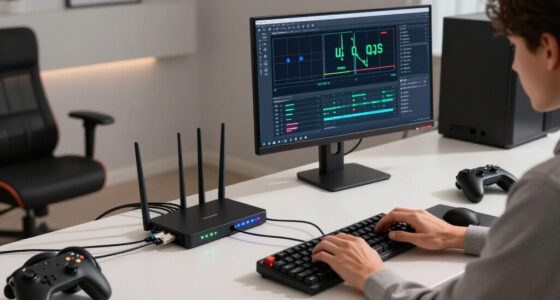
high-speed internet router for streaming
As an affiliate, we earn on qualifying purchases.
As an affiliate, we earn on qualifying purchases.
Set a Stable Bitrate Without Maxing Out Your Upload
A stable bitrate stays comfortably below your sustained upload capacity, including video, audio, protocol overhead, and other household traffic. If your stream uses 8 Mbps for video, plan for roughly 9 Mbps or more in actual traffic and leave added room for brief drops rather than filling the entire measured connection [1].
- Read the platform limits. Confirm its accepted resolution, frame rate, codec, keyframe interval, and maximum ingest bitrate for the version you use [2].
- Test at your normal streaming hour. Run several upload checks when your neighborhood and home network are busy, not once at 7 a.m.
- Choose a conservative starting rate. Use the lower half of the matching resolution range when upload stability is uncertain.
- Add audio and overhead. Include 128–320 Kbps for audio, protocol traffic, and room for connection swings.
- Stress the image and network. Play a busy scene for at least 10 minutes while monitoring network drops, encoder skips, and viewer playback.
- Change one setting at a time. Move bitrate in small steps, then test again before changing resolution, frame rate, or preset.
For example, a speed test may report 12 Mbps upload, but evening congestion can pull sustained performance down to 9 Mbps for several seconds. An 8 Mbps video stream plus audio and overhead now presses against the ceiling, creating a queue like cars squeezing into one wet, narrow lane.
Repeated tests expose what an average hides. A connection can average 20 Mbps while suffering packet loss, jitter, or two-second collapses that break live video. Watch the streaming application’s dropped network frames and bitrate graph; a jagged red saw blade tells you more than one glossy speed-test number.
Ethernet usually gives you the most predictable path. Modern Wi-Fi can work well, but walls, neighboring routers, shared airtime, distance, and microwaves can produce brief interference. If you must use wireless, move closer to the access point, choose a cleaner band or channel, and pause large household uploads during the broadcast.
Fix Pixelation, Buffering, and Dropped Frames Faster
The fastest fix starts by identifying which part of the chain is failing: image compression, network delivery, encoder performance, or viewer playback. Blocky motion calls for a different response than encoder overload, even though both problems can make a stream look jerky or soft [1].
| What you see | Likely cause | Best first move |
|---|---|---|
| Blocks during motion | Too little data for scene complexity | Raise bitrate modestly or lower resolution |
| Dropped network frames | Upload congestion, packet loss, or Wi-Fi interference | Lower bitrate and test over Ethernet |
| Skipped encoder frames | CPU or GPU encoding overload | Use a faster preset, cap game fps, or use hardware encoding |
| Viewer buffering | Outgoing rate exceeds viewer capacity | Lower bitrate or use adaptive quality options |
| Blur despite high bitrate | Scaling, capture, codec, or platform processing | Check the full image path before adding data |
| Washed-out HDR | Color-space, bit-depth, codec, or playback mismatch | Verify HDR support across the entire chain |
Say your stream drops frames whenever another person backs up a laptop. If the encoder statistics stay calm while network drops rise, reducing a quality preset will not help. Reserve upload capacity, pause the backup, use router traffic controls if available, or lower the stream from 8 Mbps to 6.5 Mbps.
Now take the opposite case. Your upload graph stays flat, but the game and stream hitch during a large battle. Cap the game from 165 fps to 120 or 90 fps, switch to hardware encoding, or choose a faster preset so the encoder receives enough processing time.
A high bitrate cannot sharpen a bad source. If 720p capture gets enlarged to 1080p, the stream merely sends more detailed blur. Check capture resolution, scaling filter, source sharpness, keyframe interval, color settings, and platform processing before spending more bandwidth.
Change one variable, replay the same hard scene, and inspect both network and encoder statistics. Randomly moving five sliders turns diagnosis into guesswork.
Know When Broadcasting and Cloud Gaming Need Different Priorities
Broadcasting prioritizes a clean, stable audience feed, while cloud gaming prioritizes immediate response to your controls. Both depend on bitrate, but latency, packet loss, frame pacing, and route stability carry more weight when every button press must travel to a remote server before the resulting frame returns [1].
During a broadcast, a few seconds of delay can be acceptable. Your encoder sends gameplay to a service, which may process it and distribute several quality versions. A brief buffer can smooth network bumps without changing what happens inside your game.
Cloud gaming has a tighter loop. You press jump, the command crosses the network, the server renders the result, and compressed video travels back to your screen. If bitrate exceeds the available connection and packets queue, the character can feel as if they are moving through cold syrup even when the image looks sharp.
Dynamic cloud-gaming systems may lower bitrate or resolution when the network wobbles. The image can briefly soften from crisp brickwork into a watercolor wash, but the game remains responsive. That trade often feels better than keeping every texture while your controls arrive late.
A wired connection or strong, low-interference Wi-Fi commonly beats a faster but unstable link. For example, a steady 50 Mbps Ethernet connection can feel better than Wi-Fi peaking at 300 Mbps but pausing every few seconds. Headline bandwidth cannot cancel jitter or packet loss.
Platform, client, codec, device, and application version all affect available resolution, HDR, frame rate, and performance. Verify current support before relying on a label such as 4K, AV1, or low latency [2]. Treat any claim based on a leak, beta menu, or unofficial post as unconfirmed until the provider publishes it.
Frequently Asked Questions
What bitrate should you use for 1080p60 game streaming?
Use about 5–9 Mbps as a general 1080p60 starting range [1]. A slow strategy game may look clean near the lower end, while a racing game filled with trees, dust, and quick turns may need the upper end or a more efficient codec.
Is a higher game streaming bitrate always better?
No, higher bitrate has diminishing returns once the encoder or platform becomes the limiting factor. Excess data can also cause buffering for viewers, especially when the service does not provide multiple adaptive quality levels.
How much upload speed do you need for an 8 Mbps stream?
An 8 Mbps video stream needs roughly 9 Mbps or more after audio and protocol overhead, but that is still a narrow margin [1]. A connection with stable upload capacity well above that level gives you room for short drops, voice chat, and other household traffic.
Should you stream games at 720p or 1080p?
Choose 720p when bandwidth or viewer access is limited, especially for 60 fps action. Choose 1080p when your upload, encoder, platform, and audience can handle it steadily; a clean 720p60 feed usually looks better than blocky 1080p60.
Is 30 fps or 60 fps better for streaming?
Sixty fps looks smoother during aiming, racing, sports, and quick camera movement, but it needs more data and encoding work. At a tight bitrate, 30 fps can preserve a cleaner frame for card games, strategy titles, or slow exploration.
Should you use CBR or VBR for live game streaming?
CBR is generally the safer live-streaming choice because it gives the platform a predictable incoming rate. VBR allocates data more efficiently across easy and difficult scenes, but its spikes fit local recordings and uploaded video better than many live ingest systems.
Why do grass, rain, and confetti look pixelated?
Those scenes contain thousands of small, rapidly changing details that are hard to compress. Raise bitrate within the service limit, lower resolution or frame rate, try a better encoder preset, or use a supported codec with stronger compression.
Can Wi-Fi handle game streaming?
Strong modern Wi-Fi can handle game streaming, but Ethernet usually produces steadier timing and fewer surprise drops. Distance, thick walls, neighboring networks, and shared airtime can damage a stream even when a speed test reports a large number.
Does bitrate directly affect cloud-gaming latency?
Bitrate does not create latency through a simple one-to-one rule. When your chosen rate exceeds available capacity, however, queues, buffering, and packet recovery increase delay, making controls feel heavy even if the image remains detailed.
What bitrate should you use for local game recordings?
Local recordings can use far more data than live streams because upload speed does not limit them. A quality-based recording mode often works better than a fixed bitrate, letting the encoder spend extra data on explosions and foliage while saving space during menus.
Conclusion
Choose the highest bitrate your complete setup can sustain calmly, not the highest number a speed test flashes for ten seconds. Start inside the range for your resolution, leave real upload headroom, and test the messiest scene you can find: blowing grass, sparks, rain, crowds, and hard camera turns.
When that scene stays clear and your network graph remains smooth, stop chasing bigger numbers. A good stream should feel like a clean window into the game—sharp enough to disappear, steady enough that neither you nor your viewers think about the connection.
Fall Picks
fall essentials
As an affiliate, we earn on qualifying purchases.