TL;DR

Get games and gaming gear delivered free — and shop member deals
- Fast, free delivery on millions of items
- Access to Prime Big Deal Days deals on October 6–7
- Prime Video, Amazon Music and more included
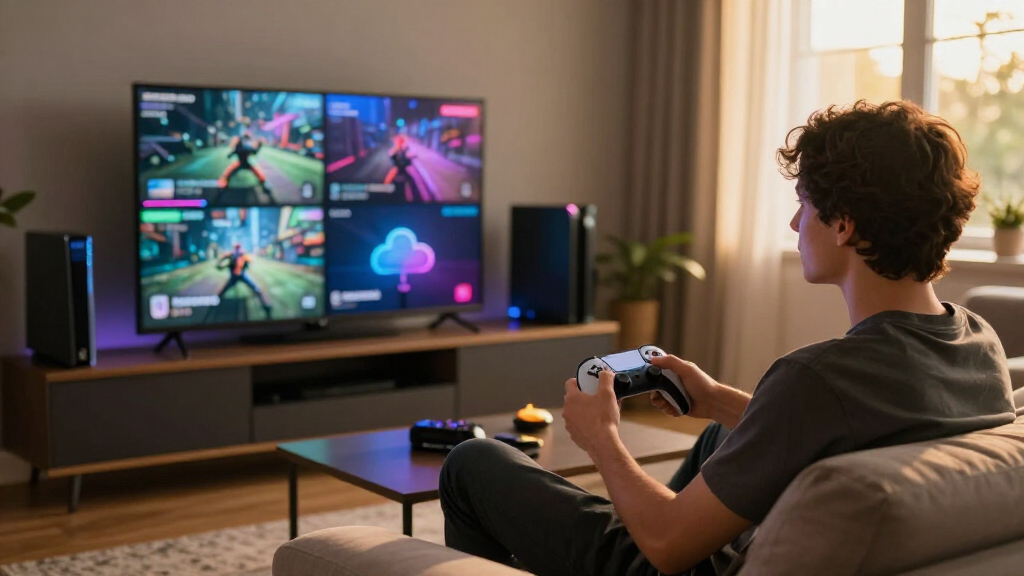
Local streaming runs games, applications, or media on hardware you own, while cloud streaming runs them in a provider’s data center and sends you compressed video and audio. Choose local streaming for lower latency, greater control, and strong in-home quality; choose cloud streaming for easy access away from home and less hardware maintenance.
A fast internet plan can still produce a terrible stream. You may have hundreds of megabits available, yet a game freezes when you turn the camera or a film dissolves into muddy blocks during a dark scene. Bandwidth is only one piece; distance, jitter, packet loss, Wi-Fi interference, compression, and the device decoding the stream all shape what you see and feel.
Local streaming runs the workload on a PC, console, NAS, or home server you control. Cloud streaming runs it in a provider’s remote data center, then sends compressed pictures and sound to your screen while your inputs travel in the opposite direction [1]. One is like sending dinner from your kitchen to the next room; the other is like ordering from a restaurant across town.
This guide shows you where each approach wins on latency, image quality, cost, privacy, reliability, and portability. You will also learn how to test your network with a real session instead of trusting one bright green speed-test number. By the end, you can choose a setup that fits how you actually play, work, or watch—not how a service advertisement says you should.
Connect the local-streaming host by Ethernet before buying a new router; removing one wireless leg often cuts stutter more than chasing a higher advertised Wi-…
Judge cloud streaming with a real 30- to 45-minute session during your normal evening hours, because a short speed test may hide jitter, packet loss, congestio…
Treat 4K, HDR, and high-refresh claims as an end-to-end requirement: the service tier, host, codec, client, display, app version, and network all need support.
Compare 24 months of subscription or usage fees with hardware, electricity, cooling, and maintenance rather than comparing only the first payment.
Use a hybrid routine: local streaming for competitive games, mods, quality, and offline access; cloud streaming for travel and low-powered devices.
Local Streaming vs Cloud Streaming Explained
Local streaming runs games, applications, or media on hardware you own. Cloud streaming runs the workload in a provider’s data center and sends compressed video and audio to your screen while your inputs travel back.
Follow one input through the system
Every extra network stop can add delay. Both systems encode and decode video, but cloud streaming also crosses your internet provider’s network to reach remote hardware.
Your input
A controller, keyboard, mouse, or touch event begins the round trip.
Host computes
Your PC or a provider server renders the next frame and processes audio.
Frame compresses
The encoder converts the live output into a stream suitable for transport.
Client displays
Your device decodes the feed while its display adds the final processing step.
Six trade-offs that matter
A large download number cannot guarantee a responsive, clean stream. Routing, jitter, packet loss, compression, Wi-Fi conditions, and client decoding all contribute to what you see and feel.
Latency
Shorter paths usually make inputs feel more immediate and frame delivery more consistent.
Local advantageImage quality
A fast LAN can support higher bitrates, helping foliage, smoke, grain, and rapid motion stay cleaner.
Local advantagePortability
Demanding software can run on a thin laptop, tablet, phone, television, or handheld.
Cloud advantageCost
Compare 24 months of fees with hardware, electricity, cooling, and maintenance.
Usage dependentControl
Local hosts offer greater control over installed software, mods, libraries, settings, and privacy.
Local advantageMaintenance
Cloud providers supply and maintain the powerful host hardware, reducing work at home.
Cloud advantageNeither option wins every row
Your best fit depends on what hardware you already own, where you stream, how sensitive the task is to delay, and how much setup you want to manage.
| Factor | Local streaming | Cloud streaming |
|---|---|---|
| Processing location | ✓ Your PC, console, NAS, or home server | Provider data center |
| Internet at home | ✓ Often unnecessary for in-home use | ✗ Required for every session |
| Response | ✓ Usually lower and steadier delay | ~ Depends on distance, routing, and load |
| Host hardware | ~ You buy, power, cool, and maintain it | ✓ Provider supplies it |
| Image ceiling | ✓ Often higher on a fast home network | ~ Limited by tier and internet conditions |
| Remote access | ~ Possible with additional setup | ✓ A central feature |
| Recurring cost | ✓ Often low after hardware purchase | ~ Subscriptions or usage fees are common |
| Content control | ✓ Greater control over installed software | ✗ Catalog, region, and policy restrictions |
| Maintenance | ✗ Your responsibility | ✓ Provider responsibility |
✓ Strong advantage ✗ Clear limitation ~ Situation dependent
Stability beats excess bandwidth
Once the stream has enough throughput, stable latency, low jitter, and near-zero packet loss usually improve responsiveness more than another hundred megabits on the plan.
A 500 Mbps result can look excellent while a real evening session fails because the test measured the wrong server, route, time window, or traffic conditions.
Run a session, not a snapshot
Test during the hours you normally use the service. Include rapid camera motion, dark scenes, detailed textures, and input-sensitive tasks so the system faces realistic stress.
Wire the host
Connect the local PC, console, or server by Ethernet when practical.
Use peak hours
Test during your normal evening window when congestion is most likely.
Run 30–45 minutes
Short tests can hide intermittent jitter, loss, and route changes.
Stress the codec
Try fast motion, shadows, smoke, foliage, and fine text.
Record symptoms
Separate input delay, visual artifacts, audio faults, and full freezes.
Remove one wireless leg first
A wired host often reduces stutter more than replacing every device or buying a faster internet plan.
Watch for wireless backhaul
A mesh node may relay every frame over the air twice, creating extra contention on the same channel.
Verify the complete feature chain
4K, HDR, surround sound, ultrawide, and high refresh rates require support from the service tier, host, codec, client, application, display, and network.
Compare complete costs
Measure two years of service fees against hardware, electricity, cooling, upgrades, and your maintenance time.
Keep the task in view
Competitive games and precise desktop work expose latency quickly; strategy games, films, and casual sessions tolerate more delay.
Choose local, cloud—or both
The strongest setup may be a hybrid routine: keep demanding, sensitive, or private workloads local and use cloud access when convenience matters more than the shortest possible path.
Control is the priority
- You already own capable host hardware.
- You play competitive, rhythm, or frame-sensitive games.
- You value mods, local libraries, privacy, or offline access.
- You want maximum image-quality headroom on a fast LAN.
- You are comfortable maintaining the host.
Access is the priority
- You travel or move frequently between screens.
- Your client device has limited processing power.
- You prefer the provider to maintain the hardware.
- Your connection to the service is stable and nearby.
- Your tasks tolerate modest additional latency.
Local for responsiveness, quality, mods, and offline access. Cloud for travel, lightweight devices, and instant access without carrying powerful hardware.
See Where Your Stream Actually Runs in Under a Minute
Local streaming vs cloud streaming comes down to where the game, application, or media server does its work. With local streaming, your hardware renders or serves the content. With cloud streaming, a provider’s remote machine processes it and returns a live audiovisual feed over the internet [1].
Think of the process like passing notes. During local game streaming, your controller input travels across your home network to a gaming PC, which draws the next frame, compresses it, and sends it to your handheld. During cloud gaming, that same note must cross your internet provider’s network, reach a data center, trigger the frame, and make the whole trip back. Every added stop can add delay, even when each stop takes only a few milliseconds.
A common local setup uses a gaming PC connected by Ethernet in an office and a lightweight client on the living-room television. The PC does the heavy lifting while the television device mainly decodes video and returns controller inputs. Local streaming runs without fast internet inside the home, provided the game does not demand online authentication and the home network stays healthy.
Cloud streaming changes the equipment equation. A thin laptop, tablet, phone, smart television, or handheld can display a demanding game because remote hardware handles the graphics. The client does not normally download the full game in the background; it receives compressed frames, much like an interactive live broadcast.
The cleanest distinction: local streaming uses hardware you control; cloud streaming rents access to hardware you do not control.
As an affiliate, we earn on qualifying purchases.
Compare Latency, Cost, Quality, and Control at a Glance
Local streaming vs cloud streaming favors local systems for response time, image-quality headroom, and content control, while cloud systems favor easy remote access and low local hardware demands. Neither wins every row. Your best choice depends on where you stream, what hardware you own, and how much delay you tolerate.
| Factor | Local streaming | Cloud streaming |
|---|---|---|
| Processing location | Your PC, console, NAS, or home server | Provider data center |
| Internet needed at home | Often no for in-home use | Yes for every session |
| Response | Usually lower and steadier delay | Depends heavily on distance and routing |
| Host hardware | You buy and maintain it | Provider supplies it |
| Image ceiling | Often higher on a fast LAN | Limited by service settings and internet conditions |
| Remote access | Possible, with added setup | A central feature |
| Recurring cost | Often low after purchase | Subscriptions or usage fees are common |
| Content access | Greater control over installed software | Subject to supported catalogs, regions, and policies |
| Maintenance | Your responsibility | Provider responsibility |
Imagine you play a rhythm game from the sofa while the host PC sits one room away. A wired host and clean 5 GHz or 6 GHz connection can make each button press feel crisp, like tapping a drum skin. Put the same session on a distant cloud server during evening congestion, and the beat may feel slightly soft even though the picture remains sharp.
The trade changes during a work trip. Carrying a powerful tower is absurd, while opening a browser on a hotel laptop takes seconds. Cloud portability can outweigh added latency for a slow strategy game, document task, or casual adventure. For competitive shooters, precise remote desktop drawing, or frame-perfect platformers, the shorter local path usually matters more.
As an affiliate, we earn on qualifying purchases.
Find Out Why Speed Tests Miss the Problems You Can Feel
Local streaming vs cloud streaming needs more than a large download number. A smooth session depends on low round-trip latency, low jitter, almost no packet loss, and steady throughput. Once you have enough bandwidth for the selected stream, consistency often matters more than another hundred megabits on the bill [1].
Latency is the travel time for your input and the returning image. Jitter means that travel time keeps changing, like a bus arriving in 10 minutes, then 35, then 12. Packet loss drops small pieces of traffic entirely. The streaming software may hide a missing piece, lower quality, or pause briefly, but you experience the result as blur, crackling audio, stutter, or heavy controls.
Suppose a speed test reports 500 Mbps, yet cloud play breaks up every evening. A family member may be uploading a large backup, your router may suffer from bufferbloat, or the route to the provider may become congested after dinner. A ten-second test to a nearby server can look spotless while a 45-minute game session to a different city tells another story.
Local networks create their own trouble. A mesh node with wireless backhaul can relay every frame over the air twice, adding congestion like two people trying to carry a sofa through the same narrow doorway. Connecting the host by Ethernet often produces a bigger improvement than replacing every device because it removes one busy wireless leg.
- Use Ethernet for the host when practical, even if the client stays on Wi-Fi.
- Prefer 5 GHz or 6 GHz near the access point; 2.4 GHz reaches farther but often faces more congestion.
- Test during the hours you normally stream, with normal household traffic active.
- Watch for packet loss and changing latency, not only peak download speed.
As an affiliate, we earn on qualifying purchases.
Get a Clearer Picture Without Chasing 4K Labels
A 4K label does not guarantee a native-looking 4K image. Both local and cloud streaming compress frames in real time, so bitrate, codec, frame rate, encoder quality, and network stability shape the result. A stable, well-encoded 1080p stream can look cleaner than unstable 4K video starved of data [2].
Compression struggles most when every patch of the image changes at once. Dark caves, drifting smoke, rain, film grain, dense grass, and rapid camera turns can turn into greasy blocks or a shimmering haze. A bright puzzle game with flat blue and yellow shapes compresses far more easily. The resolution counter may show the same number in both cases, yet the moving picture tells the truth.
Local streaming often allows a higher bitrate because a wired home network has far more room than many internet paths. If your PC sends a rich stream across gigabit Ethernet to a television box, tiny lettering and distant leaves may stay sharp. Cloud platforms must balance detail against data use, response time, server load, and the wide range of customer connections.
Newer hardware increasingly supports AV1, which can deliver better quality at a given bitrate than older codecs. HEVC remains common for high-quality video, while H.264 offers broad support and lightweight decoding. Codec names alone do not settle the issue: a slow client decoder or poor implementation can erase the theoretical gain.
Check every link before choosing HDR, ultrawide, 1440p, 4K, or refresh rates above 60 Hz. The host, service tier, client, display, codec, and network must all support the selected mode. Platform features and verified compatibility can change after app, firmware, operating-system, or handheld updates, so confirm the current version rather than relying on an old performance claim.
As an affiliate, we earn on qualifying purchases.
Choose the Setup That Fits Your Hardware and Monthly Budget
Choose local streaming when you already own capable hardware and value response, control, or image quality. Choose cloud streaming when you want access across several devices without buying a powerful host. Usage frequency, electricity, subscriptions, game access, and maintenance decide which path costs less over time.
A local host carries visible and hidden costs. You buy the PC, console, NAS, or home server, then power, cool, update, and repair it. The client can stay cheap because it mainly decodes video. For someone who already owns a strong gaming desktop, sending that library to a tablet may cost little beyond networking gear and time.
Cloud service costs arrive in smaller pieces. You may pay a monthly subscription, buy supported games separately, wait in queues, accept session limits, or face usage fees. Twelve modest monthly payments can feel painless, but years of payments change the comparison. Access may also depend on a supported storefront, region, service tier, and licensing agreement.
Use this quick sequence before spending money:
- List what you already own. Include the host, controller, television, router, and client devices.
- Mark where you will play. Separate in-home sessions from travel, school, office, or hotel use.
- Sort your games by sensitivity. Put competitive, rhythm, racing, and precise action titles in the low-latency group.
- Calculate a 24-month cost. Compare subscriptions and fees against hardware, electricity, upgrades, and maintenance.
- Test before committing. Run a demanding real session at your normal hour, not only a menu screen at noon.
A student playing turn-based games on a thin laptop may get more value from the cloud. A household with a powerful PC, a wired backbone, and three televisions may get more from local streaming. Neither profile makes the other choice wrong; they simply pay for different strengths.
Keep Access, Privacy, and Outages From Catching You Off Guard
Local streaming gives you more control, but it also gives you more responsibility. Cloud streaming hands maintenance to a provider, yet your access depends on its servers, catalog, account rules, regional support, and continued operation. Reliability is not just uptime; it includes whether your content remains available tomorrow.
If your internet connection fails, an in-home local stream can keep working when the host, client, and content stay on the same network and no outside login is required. You might watch a film from your NAS while rain rattles the windows and the modem flashes red. Cloud streaming stops when that internet path disappears, and it can also face maintenance, regional outages, queues, or crowded servers.
Local hardware has plenty of failure points too. A sleeping PC, broken graphics driver, overheated case, router reboot, or stubborn operating-system update can end the evening. Remote local access adds more moving parts, including upload capacity, wake-on-LAN, carrier-grade NAT, relay services, and restrictive hotel networks.
Privacy follows a similar split. In-home local streaming can keep personal video or desktop activity inside your network, although operating systems, games, and streaming software may still collect telemetry. Cloud providers process session data on their infrastructure, so account protection, retention rules, regional privacy law, and exposed credentials deserve attention.
Remote access warning: use strong authentication, install security updates, prefer encrypted connections, and avoid opening unnecessary router ports.
For children, review age ratings, chat, purchases, privacy settings, play-time controls, and the available catalog on the exact service and platform. Ratings and parental features can differ by region or version. A game suitable on one account can still expose voice chat or store purchases through the surrounding service.
Build a Hybrid Routine That Works at Home and Away
A hybrid setup uses local streaming for quality-sensitive sessions and cloud streaming for convenient remote access. You do not need to make one permanent choice. Location, game type, network conditions, and available hardware can decide which route you use each time.
At home, you might run a demanding role-playing game on a desktop and stream it to a handheld beside the window. The host stays wired, the handheld uses a nearby 6 GHz access point, and the stream carries fine armor textures without sending traffic across town. When you travel, the cloud version lets the same lightweight device continue the adventure without exposing your home PC to remote connections.
The split works for media and work too. A personal media server can deliver family videos across your LAN during an internet outage, while a cloud application gives you instant access to heavy software from an office laptop. Save synchronization can make the handoff feel smooth, but verify compatibility between local and streamed versions. Some platforms use different builds, accounts, regions, or save formats.
Mods expose another dividing line. Local streaming generally preserves the mods installed on hardware the user owns—typically a gaming PC or home server—because that machine still runs the software. Cloud environments may restrict launchers, storage, file changes, or persistent sessions. Support varies by provider and can change, so treat rumors or leaks about coming mod features as unconfirmed until the provider publishes details.
A practical rule keeps the choice simple: use local for competitive play, mods, offline access, and maximum control; use cloud for travel, quick trials, and devices without strong hardware. The boundary can move from one evening to the next. That flexibility is the real advantage of a hybrid routine.
Frequently Asked Questions
What internet speed do you need for cloud streaming?
There is no single speed that fits every service because resolution, frame rate, HDR, codec, and dynamic quality settings change the required throughput. After meeting the provider’s current bandwidth guidance, stable ping, low jitter, and near-zero packet loss usually matter more than extra peak speed. Test the exact service and quality mode on your platform, since requirements can change by app version and tier.
Do you need Ethernet for local streaming?
Ethernet is not mandatory, but it gives the host or client a steady path free from wireless interference. A strong arrangement connects the gaming PC or media server by cable while a nearby handheld uses 5 GHz or 6 GHz Wi-Fi. If your stream skips whenever someone walks between rooms, wiring the host is the first fix to try.
Why does streaming stutter when your speed test looks good?
A speed test can miss Wi-Fi interference, packet loss, jitter, bufferbloat, background uploads, thermal throttling, and poor cloud routing. It also tests a nearby server for a short period, while your stream may run for hours against a data center farther away. Watch latency during a real session and pause backups or large uploads to identify the bottleneck.
Can you use local streaming outside your home?
Yes, local streaming can work over the internet, but your host must stay awake and your home connection needs enough upload capacity. Secure remote access may use a relay, VPN, or supported account system; carrier-grade NAT can make direct connections harder. Use strong authentication and encrypted connections, and avoid exposing unnecessary ports.
Does cloud streaming use a lot of data?
Continuous high-resolution streaming can consume many gigabytes per hour, though the exact amount follows the service bitrate, codec, resolution, frame rate, and changing network conditions. A 4K or high-refresh session usually transfers more data than a modest 1080p stream. If your plan has a cap, check the service’s current usage estimate and monitor one full evening before making cloud play a habit.
Which option is better for competitive gaming?
Playing directly on the gaming machine gives you the lowest practical delay. If you must stream, a local session with the host and client on Ethernet usually responds more consistently than a cloud session. Cloud performance can feel good near a well-connected data center, but routing changes and congestion create a competitive risk.
Can cloud streaming replace your gaming PC or console?
Cloud streaming can replace local hardware for some casual players with stable internet, nearby server capacity, and a supported catalog. It remains a weaker replacement when you need mods, offline play, unsupported titles, maximum visual detail, or predictable long-term access. Check the exact game’s age rating, region, storefront support, save compatibility, and current platform features before relying on the cloud alone.
Conclusion
Choose based on where the workload runs and what you value most. If you own capable hardware and spend most sessions at home, start with a wired local host and test the client on clean 5 GHz or 6 GHz Wi-Fi. If portability and low maintenance matter more, test a cloud service at your usual play time and watch for input delay, jitter, data use, catalog limits, and recurring cost.
You can also keep both tools ready. Let local hardware handle the fast, detailed nights when every button press matters, then use the cloud when you are holding a thin laptop in a quiet hotel room. The best stream is not the one with the biggest resolution badge; it is the one that disappears, leaving only the game, film, or desktop in front of you.
Halloween Picks
halloween
As an affiliate, we earn on qualifying purchases.