TL;DR
Open a free Amazon Business account
Business pricing, bulk buying and tax-exempt orders.
Create a free accountAs an affiliate, we earn on qualifying purchases.
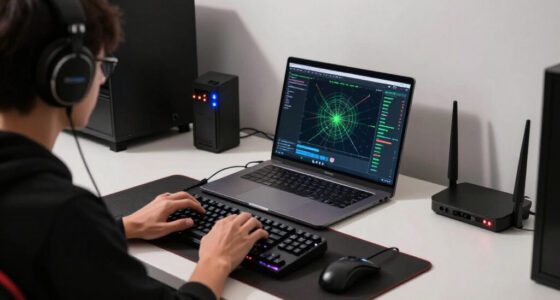
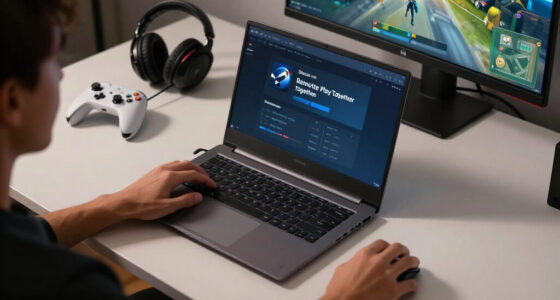
Steam Frame PC VR uses an included USB wireless adapter to create a direct Wi-Fi 6E link between your gaming PC and headset, bypassing your home router. Place the adapter in the same room, above desk clutter, away from the metal PC case, and within clear sight of your play area; a USB extension can turn a poor rear-port location into a much cleaner wireless path.
Your expensive router may have almost nothing to do with Steam Frame PC VR streaming. That sounds backward if you spent years tuning Quest Air Link, splitting wireless networks, or placing a dedicated access point beside the sofa. Valve’s announced design moves the critical radio out of the router and into an included USB wireless adapter connected directly to your gaming PC. [1]
The result changes what you need to fix when a wireless session stutters. You are no longer tracing traffic through a crowded home network while someone watches a 4K movie in the next room. You are managing a short, direct Wi-Fi 6E connection that works best when the adapter and headset can see each other without a wall, steel computer case, or your body sitting between them.
This guide shows you where to place the adapter, why 6 GHz behaves differently from lower-frequency Wi-Fi, and what happens if your PC lives in another room. Steam Frame was announced in November 2025 with an early-2026 launch window and no disclosed price, so firmware behavior, official USB guidance, and final launch timing may have changed. The details here are based on training information available through early 2026; verify current details against Valve’s official product and setup pages before drilling holes, buying cables, or rearranging your room. [1][2]
Treat Steam Frame router placement as adapter placement: PC VR traffic uses the included direct Wi-Fi 6E link rather than your home router.
Keep the PC, adapter, and headset in the same room with a clear path; 6 GHz is a poor match for walls, closed doors, and hidden office-to-living-room layouts.
Move the adapter away from rear motherboard ports and the metal PC case, then raise it to desk height or higher with a supported USB extension.
Test turns, crouches, and boundary corners because your body can shadow the signal even when the adapter is only a few feet away.
Check Valve’s current documentation before choosing ports or alternate network hardware because final firmware behavior and supported configurations may have c…
Router placement is the wrong question.
Steam Frame PC VR bypasses your home router. Its included USB wireless adapter creates a short, direct 6 GHz link between the gaming PC and headset. The practical challenge is not relocating your expensive router—it is giving the dongle open air, height and a clear view of the play area.
The private bridge replaces the network maze.
Rendered frames travel from the PC through the included adapter to the headset. Tracking and controls return over the same dedicated connection.
Gaming PC
Renders the VR scene and receives tracking and controller data.
USB Wi-Fi 6E adapter
Creates the dedicated point-to-point radio link beside the PC.
Steam Frame
Receives the stream while returning movement and input data.
Outside the VR path: mesh nodes, broadband gateway, household streaming devices and the router in the hallway. They still matter for downloads, cloud services and online traffic—not for this direct headset hop.
Home router bypassedFive moves that clean up the signal.
At 6 GHz, physical placement matters. Distance, walls, metal and even the player’s body can attenuate the link.
Stay in one room
Keep PC, adapter and headset inside one open space. A wall is not a minor detail at 6 GHz.
Escape the tower
Move the adapter away from rear ports where the steel case and cable bundle can shadow it.
Raise the radio
Use desk height or higher. A shelf or monitor stand usually gives a cleaner path than the floor.
Face the play area
Position the adapter toward the active boundary and follow Valve’s final orientation guidance.
Test every turn
Turn, crouch and reach into corners. A seated test will not reveal body occlusion during standing play.
The worst likely position
Rear motherboard port + steel tower + wall + monitor + coiled display and power cables. A short, supported USB extension can remove several obstacles at once.
Open air wins. Obstacles compound.
The chart is a practical placement score, not a measured RF specification. It visualizes the relative quality of common room layouts.
Signal-path score
Higher is better: prioritize clear sight and elevation before changing unrelated network equipment.
From clean to compromised
Short distance alone does not guarantee a clean link. What sits between the two radios matters.
What changes from Quest-style PC VR?
Valve’s announced architecture productizes a setup enthusiasts previously built with a dedicated router or access point.
| Setup question | Dedicated-router PC VR | Steam Frame adapter link |
|---|---|---|
| What carries VR traffic? | ~Home router or dedicated access point | ✓Included USB wireless adapter |
| Does household Wi-Fi load matter? | ~Often, depending on network design | ✓Not for the direct PC-to-headset hop |
| What should be repositioned? | ~Router or access point | ✓The USB adapter |
| Can the PC live in another room? | ~Sometimes, with careful network layout | ×Effectively a poor fit for the direct 6 GHz link |
| Does PC Ethernet improve the VR hop? | ✓Commonly part of the recommended path | ×No; it still helps internet and download traffic |
| Main troubleshooting target | ~Channels, congestion, router load and layout | ✓Sight line, height, obstruction and USB placement |
Diagnose stutter in the right order.
Walk the physical link before buying a new router. Each test isolates a common obstruction in the direct radio path.
Locate
Confirm the adapter and headset are in the same room.
Elevate
Raise the adapter above the PC case and desk clutter.
Expose
Create a clear view from the radio to the play boundary.
Move
Turn, crouch and test corners for body shadowing.
Verify
Check supported ports, extensions and firmware guidance.
Your router may have almost nothing to fix.
For Steam Frame PC VR, the critical wireless segment is the few feet between the USB adapter and your head. Give that path open air before changing channels, splitting networks or replacing expensive home networking gear.
Product details may have changed. Steam Frame was announced in November 2025 with an early-2026 launch window and no disclosed announcement price. Check Valve’s current product and setup documentation before choosing USB ports, extensions, alternate hardware or permanent room modifications.
Why Your Home Router Sits Outside the Steam Frame VR Path
Steam Frame Router Placement starts with a surprising answer: your home router is not part of the PC VR streaming path. Valve’s included USB adapter creates a direct Wi-Fi 6E link between the gaming PC and headset, so the useful placement question is where you put that adapter, not where you put the router. [1]
Think of the adapter as a tiny private bridge. Your PC sends rendered frames across that bridge, and the headset returns tracking and control data across the same connection. The packets do not take a scenic route through your mesh system, broadband gateway, or the steam frame router sitting in the hallway.
Here is a real household example. You start a VR session while two children stream video and a laptop uploads a large cloud backup. Those activities can still slow internet downloads, but they do not share the adapter’s dedicated headset link, so they should not crowd that specific PC VR path.
That separation is the design’s biggest practical benefit. Quest-era wireless PC VR often depended on router load, channel choice, network layout, and whether another device suddenly began moving gigabytes of data. Steam Frame replaces those moving parts with a point-to-point radio whose quality depends heavily on distance and physical obstruction.
The router stops being the traffic cop, but radio physics still writes the rules. Your connection is more private, not magically immune to walls, metal, distance, or a badly placed adapter.
Your router still handles internet access, game downloads, cloud saves, and online play reaching the PC. A wired Ethernet connection can help those tasks, especially when you are downloading a 70 GB game, but Ethernet does not improve the direct adapter-to-headset hop by itself. That distinction saves you from replacing perfectly good network gear to solve a problem happening three feet from the PC.
As an affiliate, we earn on qualifying purchases.
Put the Adapter in These 5 Places for a Cleaner Signal
Steam Frame Router Placement works best when the USB adapter sits in the same room, in open air, around desk height or higher, with a clear view of the play space. The worst location is usually a rear motherboard port buried behind a steel tower, a monitor, and a nest of power cables.
- Start in the same room. Keep the adapter and headset within one open space. If your play mat is six feet from the desk, place the adapter on the desk edge facing that mat rather than under the desk beside your shoes.
- Move it away from the PC case. Use a suitable USB extension or the positioning hardware Valve officially supports. Even an extra three feet can move the radio from behind a metal wall into clean air.
- Raise it above clutter. A shelf, monitor stand, or clear corner of the desk gives the signal a better path than a floor-level port hidden behind storage boxes. Aim for a location that can see your head and upper body during play.
- Face it toward the active area. If the final adapter design has an indicated orientation, follow Valve’s instructions. Do not assume every face or edge radiates equally.
- Test your full movement. Turn around, crouch, and reach into each corner of the boundary. A stable view while seated does not prove the link will stay clean when your back blocks it during a fast rhythm game.
Imagine a tower beneath the right side of your desk. Plugging the adapter into the rear leaves it boxed in by the case, wall, and a thick coil of display cables. Moving it to an extension on the left monitor stand gives it a broad view across the rug, much like lifting a small lamp above a crowded tabletop.
Front USB can beat rear USB because of radio exposure, not because the word “front” makes the port faster. Port speed, power, extension quality, and Valve’s supported configuration still matter. Follow the official setup guide [2] rather than buying the longest cable you can find; a poor extension can trade a wireless problem for a USB problem.
The most important aspect is wonderfully plain: give the adapter open air. Before you change channels, replace your router, or blame the headset, pull the radio away from the dark metal canyon behind your PC. One small move can remove several obstacles at once.
As an affiliate, we earn on qualifying purchases.
See What Changes From a Quest-Style Router Setup
Steam Frame Router Placement replaces the old dedicated-router playbook with a simpler direct link, but it also gives up some layout flexibility. A Quest-style setup can carry PC VR traffic through a carefully placed access point, while Steam Frame’s announced design puts the included Wi-Fi 6E adapter beside the gaming PC.
| Setup question | Dedicated-router PC VR | Steam Frame adapter link |
|---|---|---|
| What carries VR traffic? | Your Wi-Fi router or access point | The included PC adapter |
| Does household Wi-Fi load matter? | It can compete for airtime or network capacity | Not on the direct headset link |
| What must sit near the play space? | The access point | The adapter and, by extension, the PC |
| What needs configuration? | SSID, channel width, channel choice, and wired backhaul may matter | Physical adapter position becomes the main user-controlled factor |
| Can a wall sit between PC and headset? | Sometimes, depending on router placement and band | Same-room line of sight is the safe expectation |
Suppose your gaming PC sits in a spare bedroom while your router stands beside the living-room television. A Quest and Virtual Desktop arrangement can use that living-room access point while the PC reaches it over Ethernet. With the announced Steam Frame setup, the direct radio begins at the PC’s USB adapter, leaving a wall between the signal and your living-room headset.
This is simpler networking but stricter geography. You lose the fiddly work of creating a separate wireless network or chasing a clear 160 MHz channel. In return, you need to bring the PC and play space together, which may mean moving a tower, choosing a bedroom play area, or accepting seated play near the desk.
Valve has productized something enthusiasts once built themselves: a wireless path reserved for VR. The difference is ownership. Your old access point served as the bridge and could be placed wherever Ethernet reached; the new adapter belongs to the PC and sends its 6 GHz signal from there.
Do not read this comparison as a measured performance verdict. Valve’s streaming-first message and network design were public by the November 2025 announcement [1], but independent latency, range, and congestion tests depend on final hardware and firmware. Any unconfirmed leak claiming exact millisecond latency or room-to-room range should stay labeled unconfirmed until repeatable testing supports it.
USB extension cable for VR adapter
As an affiliate, we earn on qualifying purchases.
As an affiliate, we earn on qualifying purchases.
Why a Wall Can End Your Living-Room VR Plan
Steam Frame Router Placement cannot turn a 6 GHz link into a dependable room-to-room connection. The band offers high capacity and often less congestion, but it loses strength quickly through walls and solid objects. For planning purposes, treat the announced adapter as a same-room, clear-path system.
Higher-frequency radio behaves a little like a bright desk lamp. It can flood an open room with clean light, yet a bookcase casts a hard shadow. A lower-frequency signal may bend and push through obstacles more forgivingly, while 6 GHz pays for speed with shorter practical reach.
Take a common apartment layout: the PC sits eight feet away in an office, but a plaster wall and closed door separate it from the living-room play area. The straight-line distance looks tiny on a floor plan. To the radio, however, that wall matters more than several extra feet of open air.
This limitation creates a real tradeoff for quiet or visually tidy setups. You may have hidden the gaming tower in another room to keep fan noise and glowing LEDs away from the television. Steam Frame’s direct adapter can make your network setup cleaner while making that physical arrangement far less workable.
- Best case: The PC, adapter, and play boundary share one open room.
- Risky case: The adapter sits near an open doorway while you play just beyond it.
- Poor case: A closed door, masonry wall, cabinet, or metal appliance blocks the direct path.
- Bad assumption: A powerful Wi-Fi 7 router elsewhere in the house will strengthen the private adapter link.
Challenge your planned layout before launch day. Stand where the PC will remain and draw an imaginary straight line to every place your head will move. If that line passes through a wall, steel desk panel, packed bookcase, or television cabinet, your first fix should be relocating the adapter or PC, not buying a stronger home router.
best placement for VR wireless adapter
As an affiliate, we earn on qualifying purchases.
As an affiliate, we earn on qualifying purchases.
Keep Your Own Body From Becoming the Signal Blocker
Your body can briefly weaken the Steam Frame link when you turn your back to the adapter, because water-rich tissue absorbs and blocks some 6 GHz energy. Raising the adapter and angling it toward the center of your play area gives the signal a better chance of reaching the headset around your shoulders.
Consider a standing sword game. You face the desk while choosing a menu, then spin 180 degrees to strike an enemy behind you. Your head and torso suddenly form a thick barrier between the adapter and headset, which can create a brief weak spot even though you never left the room.
Elevation helps more than raw closeness in that situation. An adapter at ankle height sends its path through your legs, furniture, and the lower half of your body. Put it near the top of a monitor or on an open shelf, and the radio approaches the headset from a cleaner angle.
Steam Frame’s announced eye tracking adds another piece to the puzzle. Foveated streaming concentrates more image data around the point you are looking at and spends less on the edges of your view. Valve presented this as a way to manage bandwidth more intelligently, but it does not make a blocked radio path disappear. [1]
Imagine painting a detailed circle exactly where your eyes land while leaving the outer canvas softer. That technique reduces needless data, yet the finished picture still needs a road to the headset. Foveation can lower pressure on the link; good placement protects the link itself.
You should also separate network needs from computer performance. Foveated streaming may reduce wireless bitrate and some rendering work, but it does not turn an underpowered PC into a high-end VR machine. Valve’s final PC requirements, supported graphics hardware, and per-game demands are the figures that matter, and those details may have changed since the early announcement.
Standalone SteamOS play follows a different path. A compatible game running directly on the headset does not need the PC adapter for rendered-frame streaming at all. Age ratings remain game-specific, so check the store listing and parental controls for each title rather than treating the headset as carrying one universal rating.
Run This 10-Minute Placement Check Before You Blame the Network
A reliable Steam Frame setup check starts with the physical path, then moves outward to USB support, software, and internet service. Spend 10 minutes testing placement before changing your router. This order targets the direct link first and keeps unrelated home-network settings from muddying the result.
- Expose the adapter. Move it away from the rear of the tower and remove nearby metal or dense cable bundles.
- Raise the radio. Place it at desk height or higher with a clear view of the play boundary.
- Walk the boundary. Face forward, turn around, crouch, and pause in each corner while watching for repeatable disruption.
- Check the supported USB setup. Confirm the required port type, extension length, drivers, and firmware in Valve’s current instructions. [2]
- Separate local and internet symptoms. If only online features fail, test the PC’s internet connection; if the VR image breaks during a turn, inspect the adapter path.
For example, suppose the image stays smooth while you face your monitor but breaks every time you reach toward the bookcase behind you. That repeatable pattern points toward body shadowing or room geometry. A broadband speed test will tell you little about a dropout tied to the direction of your shoulders.
Now change one thing: move the adapter from the desk’s right rear corner to a shelf above the monitor. Repeat the same turn in the same game. Changing one variable at a time gives you a clean comparison instead of a blur of new drivers, router settings, cables, and guesses.
Keep pre-launch claims in their proper box. Valve announced Steam Frame in November 2025 alongside the Steam Machine and a new Steam Controller, with an early-2026 window and no price at that time. [1] Exact throughput, latency, supported third-party routers, adapter compatibility, and vendor lock-in need confirmation from final documentation or independent tests; rumors and leaks remain unconfirmed.
Your final check should use Valve’s current Steam Frame setup guide [2], not an old social post or a generic steam frame router diagram. Verify current details about USB port requirements, firmware behavior, final launch timing, and whether Valve officially supports using an existing Wi-Fi 6E or Wi-Fi 7 router instead of the included adapter. Product pages can change after launch, just as Steam Deck verified status can change when a game or operating-system update lands.
Frequently Asked Questions
Do I need a high-end router for Steam Frame PC VR?
No high-end router is required for the direct Steam Frame streaming link described by Valve. The included USB adapter carries VR traffic between your PC and headset, although your router still handles internet access, multiplayer traffic, downloads, and cloud services.
Can I use Steam Frame in a different room from my PC?
Do not plan on dependable room-to-room use with the announced adapter setup. A wall can sharply weaken 6 GHz, so a PC in the office and a headset in the living room is a poor layout even when the rooms sit only a few feet apart.
Should I plug the adapter into a front or rear USB port?
A front port or supported extension often gives the radio a clearer path than a rear port hidden behind a metal tower. Port speed and power still matter, so follow Valve’s current USB guidance rather than choosing solely by location. [2]
Will turning around block the wireless signal?
Your body can attenuate a 6 GHz signal when it sits directly between the adapter and headset. Place the adapter above desk clutter and test several full turns; a higher angle can reduce the size of the shadow created by your torso and shoulders.
Can I use my existing Wi-Fi 6E or Wi-Fi 7 router instead?
Valve’s included adapter is the announced primary path for PC VR streaming. Support for alternate router-based connections, exact limitations, or third-party configurations should be checked in Valve’s final documentation; unsupported claims circulating before release remain unconfirmed.
Does wired Ethernet improve Steam Frame image quality?
Ethernet does not strengthen the direct adapter-to-headset radio link. It can still help the PC download games, reach online services, or receive remote content without competing on home Wi-Fi, but it will not fix a headset signal blocked by the PC case or a wall.
Does foveated streaming remove the need for careful placement?
No. Eye-tracked foveated streaming can reduce bandwidth pressure by concentrating detail where you look, but it cannot carry data through a badly blocked radio path. Treat it as smarter use of the connection, not a replacement for same-room placement.
Conclusion
Place the adapter where your headset can see it. That is the crisp rule behind the whole setup: same room, open air, above the clutter, and away from the steel shell of your PC. Your router still matters for downloads and online services, but it cannot rescue a direct 6 GHz path blocked by a wall, cabinet, or your own shoulders.
Before spending money on new network gear, use a supported extension and move the adapter into the open. Then turn, crouch, and cross the room as you would during a real session. A tiny radio perched above your monitor may do more for Steam Frame PC VR than the blinking tower of antennas down the hall.
College move-in / dorm season Picks
dorm essentials
As an affiliate, we earn on qualifying purchases.