
TL;DR

Play games on Amazon Luna for your game nights, included with Prime
- A rotating selection of games, no download needed
- Play on TV, laptop or phone
- Fast, free delivery for your gear, too
HDMI-CEC lets devices control each other (power, input switching, volume), while eARC carries high-quality audio from your TV back to a soundbar or AV receiver. For gaming, eARC’s biggest win is carrying uncompressed 5.1 or 7.1 LPCM from a console connected directly to your TV. Neither feature affects frame rates or input lag — VRR and ALLM handle that separately.
Your TV remote just turned on your PlayStation, switched to the right input, and set your soundbar’s volume. No magic — that’s HDMI-CEC quietly doing its job. Meanwhile, in a different corner of the same HDMI cable, eARC is ferrying uncompressed 7.1 game audio from your TV to your soundbar. Two features, one cable, almost nothing in common.
That confusion costs people real enjoyment. You buy a gorgeous OLED, plug everything in, and discover your surround sound has collapsed to stereo — or your soundbar randomly turns off mid-match. Nine times out of ten, the fix is understanding which feature does what.
In this guide, you’ll learn how CEC and eARC actually work, why eARC matters more for gaming than for movies, and how to arrange your setup so 4K/120, VRR, and lossless audio all survive the trip to your screen. No fluff — just the mental model and the practical fixes.
CEC controls power, input switching, and volume — it never carries audio. If your problem is sound quality, look at ARC/eARC instead.
eARC’s biggest gaming advantage is carrying uncompressed 5.1 or 7.1 LPCM, the format consoles generate in real time — original ARC physically cannot do this.
The strongest setup for a modern TV with an older receiver: console directly into the TV, TV’s eARC port into the soundbar or receiver. This preserves 4K/120,…
eARC does not reduce input lag or improve frame rates — VRR, ALLM, and Game Mode handle video performance independently.
An eARC label guarantees nothing about format support: verify that your specific TV passes through and your specific soundbar decodes each format (some eARC TV…
CEC, eARC, and Living-Room Gaming Explained
CEC lets your devices control each other — power, input switching, volume. eARC carries high-quality audio from your TV back to a soundbar or receiver. Two features, one cable, almost nothing in common. Here’s the mental model and the practical fixes.
What CEC Actually Does — And Why It Never Carries Sound
HDMI-CEC — Consumer Electronics Control — is a low-speed control channel that lets HDMI-connected devices send basic commands to each other. It never carries audio or video. Key rule: if a problem involves power, input switching, or volume, it’s CEC. Sound quality or audio formats? That’s ARC/eARC territory.
One-Touch Power
Turns the TV on when a console wakes from rest mode, powers everything off together, and keeps devices in sync across the chain.
Auto Input Select
Switches the TV to the console’s input automatically — until a capture device or switch starts issuing competing commands and the TV obeys whoever shouts loudest.
Remote & Playback
Adjusts soundbar volume with the TV remote and passes play, pause, and menu navigation commands between devices.
ARC vs. eARC: The Audio Difference That Decides Your Setup
Both send audio backward from your TV to a soundbar or receiver over a single HDMI cable. The difference is bandwidth — and that difference decides which formats survive the trip. Caveat: an eARC port label guarantees nothing. The TV must pass through the format, and the soundbar must decode it — some eARC TVs still refuse DTS entirely.
| Audio Format | ARC | eARC |
|---|---|---|
| Stereo PCM | ✓ Yes | ✓ Yes |
| Compressed Dolby Digital 5.1 | ✓ Yes | ✓ Yes |
| Atmos via Dolby Digital Plus | ~ If all devices support it | ✓ Yes |
| Uncompressed 5.1/7.1 LPCM | ✗ No | ✓ Yes |
| Dolby TrueHD (lossless Atmos) | ✗ No | ✓ Yes |
| DTS-HD MA / DTS:X | ✗ No | ~ With DTS passthrough |
Why eARC Is a Bigger Deal for Gaming Than for Movies
Consoles and gaming PCs generate audio in real time as uncompressed PCM — not the pre-encoded Dolby TrueHD or DTS tracks found on Blu-ray discs. Without eARC, your TV-based setup squeezes game audio into a compressed bitstream or plain stereo. Original ARC physically cannot carry multichannel PCM.
Console / Gaming PC
Connects straight into the TV’s full-bandwidth HDMI 2.1 gaming port.
TV
Receives 4K/120, VRR, and ALLM video untouched — no receiver bottleneck.
eARC Return
Audio travels backward over the TV’s eARC port to the audio system.
Soundbar / Receiver
Plays full uncompressed 5.1/7.1 LPCM — even on an older AVR.
Console → TV → eARC → Soundbar/Receiver
The High-Performance Arrangement
Example: a 2023 TV with two full-bandwidth HDMI 2.1 ports plus a 2018 receiver. Console into the TV’s gaming port, TV’s eARC port into the receiver. You keep 4K/120 and VRR, and the receiver still plays full-quality multichannel audio. Everyone wins.
Console → Receiver → TV
The Alternative — Many Checkboxes
Works only when every device and every HDMI input in the video path supports your target resolution, refresh rate, HDR formats, VRR, and bandwidth. HDMI ports on the same device often have different capabilities — an older receiver can silently kill 4K/120.
VRR, ALLM, and Input Lag: What eARC Does NOT Do
eARC does not reduce input lag, raise frame rates, or improve picture quality. Video performance comes from a different HDMI toolbox entirely — mixing them up leads to buying the wrong gear.
4K at 120 Hz
Smoother motion and lower input latency in supported games. Requires full-bandwidth ports on every device in the video path.
VRR — Variable Refresh Rate
Matches the display’s refresh timing to fluctuating frame rates, eliminating screen tearing and judder.
ALLM — Auto Low Latency Mode
Lets the console tell the TV to switch into its low-latency Game Mode automatically the moment you launch a game.
Game Mode & Quick Frame Transport
Game Mode disables TV processing that adds input lag; QFT can further reduce transport latency on compatible equipment.
Relative Audio Return Bandwidth
Why original ARC collapses your surround to stereo: it simply lacks the bandwidth for uncompressed multichannel audio. eARC multiplies the return channel’s capacity.
Five Things to Remember
CEC controls; it never carries audio. If your problem is power, input switching, or volume, look at CEC settings — for sound quality, look at ARC/eARC instead.
eARC’s biggest gaming win is uncompressed 5.1/7.1 LPCM — the format consoles generate in real time. Original ARC physically cannot do this.
Console → TV → eARC → receiver is the strongest setup for a modern TV with an older receiver. It preserves 4K/120 and VRR while keeping lossless audio.
eARC does not reduce input lag or improve frame rates. VRR, ALLM, and Game Mode handle video performance independently.
An eARC label guarantees nothing. Verify that your specific TV passes through and your specific soundbar decodes each format — some eARC TVs refuse DTS formats entirely. Check format-specific passthrough specs, not just the port label.
What CEC Actually Does (And Why It Never Carries Sound)
HDMI-CEC — Consumer Electronics Control — is a low-speed control channel that lets HDMI-connected devices send basic commands to each other. It can turn your TV on when a console wakes from rest mode, switch the TV to the console’s input, power everything off together, adjust soundbar volume with the TV remote, and pass along play, pause, and menu navigation commands [1]. That’s the whole job. CEC never carries audio or video — it only handles control signaling.
Here’s the first gotcha: manufacturers hide CEC behind their own brand names. Samsung calls it Anynet+, LG uses Simplink, Sony ships it as BRAVIA Sync, Panasonic says VIERA Link, and Philips labels it EasyLink. So when a support article tells you to “enable CEC,” you might be hunting for a menu item that doesn’t exist under that name on your TV.
A real scenario: you add an HDMI capture device or switch to your chain, and suddenly your TV flips inputs every time you power on the console. That’s CEC — multiple devices issuing competing commands. The console says “switch to me,” the capture device says “switch to me,” and the TV obeys whoever shouts loudest.
CEC is also notoriously inconsistent between brands. A command one device sends politely, another interprets as optional. This is an interoperability problem, not a cable-bandwidth problem — a fancier HDMI cable will not fix a CEC argument between your soundbar and your TV [1].
Key rule: if a problem involves power, input switching, or volume, it’s CEC. If it involves sound quality or audio formats, it’s ARC/eARC territory.
As an affiliate, we earn on qualifying purchases.
ARC vs. eARC: The Audio Difference That Decides Your Setup
ARC and eARC both send audio backward from your TV to a soundbar or receiver over a single HDMI cable. The difference is bandwidth. Original ARC tops out at roughly compressed formats: stereo PCM, Dolby Digital, and 5.1 bitstreams — plus Atmos only when packaged inside compressed Dolby Digital Plus [1]. eARC multiplies that bandwidth and can carry uncompressed multichannel LPCM, lossless Dolby TrueHD, DTS-HD Master Audio, and DTS:X where devices support them.
Why does this exist? Normally HDMI flows one direction: source to screen. But when your console plugs into the TV and the TV’s audio needs to reach a soundbar, something has to travel the wrong way. That’s the “return” in Audio Return Channel.
Here’s the comparison that matters when you’re planning a setup:
| Audio Format | ARC | eARC |
|---|---|---|
| Stereo PCM | Yes | Yes |
| Compressed Dolby Digital 5.1 | Yes | Yes |
| Atmos via Dolby Digital Plus | Yes (if all devices support it) | Yes |
| Uncompressed 5.1/7.1 LPCM | No | Yes |
| Dolby TrueHD (lossless Atmos) | No | Yes |
| DTS-HD Master Audio / DTS:X | No | Yes (with DTS passthrough support) |
One caveat that trips up everyone: an eARC port does not guarantee every format works. The TV must accept or pass through the format, and the soundbar must decode it. Some TVs with eARC still refuse to pass DTS formats at all. Check format-specific passthrough specs, not just the port label [1].
As an affiliate, we earn on qualifying purchases.
Why eARC Is a Bigger Deal for Gaming Than for Movies
eARC matters for gaming because consoles and gaming PCs generate audio in real time as uncompressed PCM, not the pre-encoded Dolby TrueHD or DTS tracks found on Blu-ray discs [1]. Original ARC physically cannot carry multichannel PCM — so without eARC, your TV-based setup squeezes game audio into a compressed bitstream or plain stereo.
This is where the modern living-room topology comes from. The high-performance arrangement looks like this:
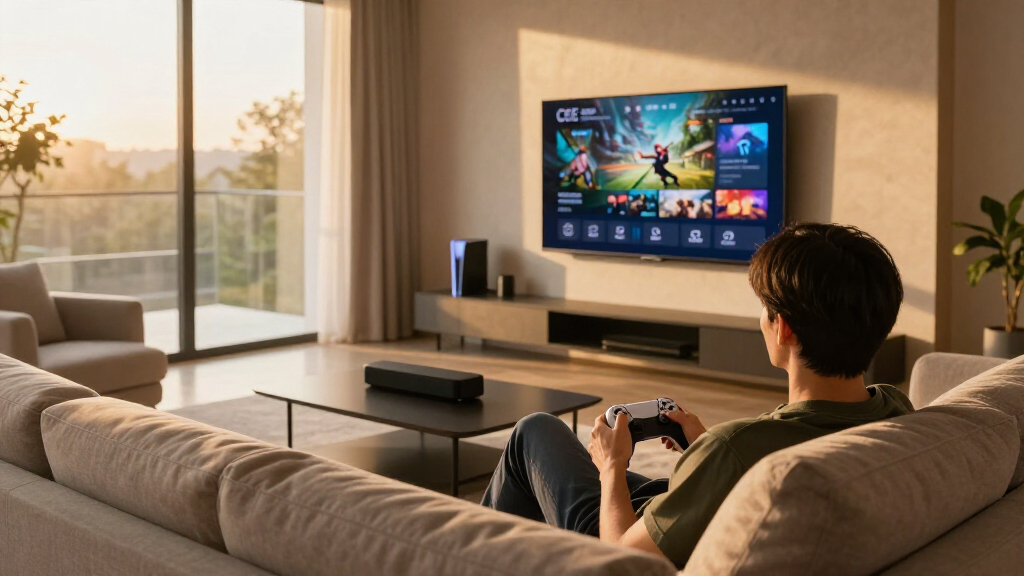
Console or gaming PC → TV → eARC → soundbar or AV receiver
Why not just route everything through the receiver? Because an older AV receiver can bottleneck your video. If your receiver maxes out at 4K/60, plugging a PS5 or an RTX-class PC into it means losing 4K at 120 Hz, VRR, or ALLM. Connect the console straight to the TV instead, and let eARC handle the audio return. The TV receives video untouched; your aging receiver only has to pass sound.
Example: you own a 2023 TV with two full-bandwidth HDMI 2.1 ports and a 2018 receiver. Console into the TV’s gaming port, TV’s eARC port into the receiver. You keep 4K/120 and VRR, and the receiver still plays full-quality multichannel audio. Everyone wins.
The alternative — console into receiver into TV — works fine only when every device and every HDMI input in the video path supports your target resolution, refresh rate, HDR formats, VRR, and bandwidth. That’s a lot of checkboxes, and HDMI ports on the same device often have different capabilities [1].
As an affiliate, we earn on qualifying purchases.
VRR, ALLM, and Input Lag: What eARC Does NOT Do
eARC does not reduce input lag, raise frame rates, or improve picture quality. Those are separate HDMI features, and mixing them up leads to buying the wrong gear. Video performance comes from a different toolbox entirely [1]:
- 4K at 120 Hz: smoother motion and lower input latency in supported games.
- VRR: matches the display’s refresh timing to fluctuating frame rates, killing tearing and judder.
- ALLM: lets the console tell the TV to switch into its low-latency mode automatically.
- Game Mode: disables TV processing that adds input lag.
- Quick Frame Transport: can reduce transport latency, though support is still limited.
- HDR: expands brightness and color range, depending on the game and display.
Notice what’s missing: audio. Here’s a clean way to keep it straight — CEC handles control, ALLM communicates a latency preference, VRR manages refresh timing, and eARC carries sound. Four distinct technologies, all living in the same cable.
A common mistake: someone buys an eARC soundbar expecting snappier gaming, then blames the soundbar when input lag stays the same. The lag was never about audio — it was the TV’s picture processing. Enabling Game Mode or confirming ALLM is active fixes it; eARC is irrelevant.
Also worth knowing: the HDMI version number on a box tells you less than you’d hope. “HDMI 2.1” labeling alone does not confirm any specific feature set. HDMI 2.1a added optional Source-Based Tone Mapping, and 2.1b is mostly a spec revision. Implementation matters more than the number printed on the product page [1].
As an affiliate, we earn on qualifying purchases.
Fixing Audio Lag, Lip-Sync Issues, and the Stereo-Only Mystery
When surround sound arrives noticeably after the picture in a console-to-TV-to-eARC chain, the TV is usually the culprit — it must process or forward the signal, and that takes time. Dolby processing modes often add more latency than raw PCM on some products [1]. Work through these fixes in order:
- Select Passthrough, Bitstream, or your TV manufacturer’s equivalent audio mode.
- Switch the console’s output to multichannel LPCM instead of a Dolby mode.
- Disable audio “enhancements” — virtual surround, dialog boost, upmixing.
- Use the TV or receiver’s lip-sync adjustment to nudge timing.
- Update firmware on the TV, console, soundbar, and receiver. Early HDMI 2.1 receivers received significant compatibility fixes this way.
- If nothing works, connect the console directly to the sound system — provided it passes all your required video features.
Important asymmetry: a delay control can compensate when sound arrives too early. It generally cannot fully fix sound that’s already arriving later than the picture, because you can’t delay the video further without adding input lag.
And the stereo-only mystery? When your console reports just two channels, the usual suspects are: ARC running instead of eARC, a wrong TV passthrough setting, an audio device that doesn’t support multichannel, an HDMI handshake failure, or inaccurate capability info reported over the connection. Also check which port you used — only ports labeled ARC or eARC support audio return, and on many TVs that port is separate from the full-bandwidth gaming ports [1].
Cables, Ports, and Splitters: Where Setups Quietly Fall Apart
For demanding signals like 4K/120 with HDR, use a certified Ultra High Speed HDMI Cable. eARC itself can run over suitable cables with Ethernet capability, but replacing marginal cables resolves a surprising number of dropouts and handshake glitches [1]. Cables can’t add missing features, though — a perfect cable into a port that lacks eARC still gives you no eARC.
Port planning is the underappreciated skill here. A typical TV might have four HDMI ports, but only two handle 4K/120, and only one is the eARC port. If your soundbar occupies the eARC port (as it normally does), your console and PC compete for the remaining high-bandwidth ports. Count your devices against your ports before buying anything.
Before purchasing or cabling, verify each port’s documented support for [1]:
- 4K/120 or your target format
- VRR and its supported refresh range
- ALLM
- eARC
- HDR formats
- Audio passthrough and decoding
- Any bandwidth or port-sharing restrictions
HDMI switches and splitters deserve special suspicion. They only preserve everything if they explicitly support your required bandwidth, HDCP version, HDR formats, VRR, refresh rate, audio formats, and CEC behavior. In practice, these accessories frequently become the weakest link in the chain — the thing that silently drops VRR or breaks CEC for every device downstream.
The broader trend helps, at least: 4K/120, VRR, and ALLM have spread to midrange TVs, more soundbars and receivers now support eARC and multichannel LPCM, and direct-to-TV console connections have become the standard workaround for receiver bandwidth limits [1].
Frequently Asked Questions
Do I need eARC for gaming?
No — your console plays fine without it. eARC becomes valuable when the console connects to the TV and the TV must send high-quality multichannel sound to a soundbar or receiver. Without eARC, expect compressed audio or stereo PCM only.
Does eARC reduce input lag?
Not directly. Input lag comes mainly from the TV’s picture processing, so Game Mode and ALLM are your tools there. eARC can influence audio delay, though — if sound lags behind the picture, that’s an eARC-chain issue worth troubleshooting.
Does eARC require CEC to be enabled?
eARC has its own discovery and control mechanisms and is less dependent on CEC than original ARC. In practice, though, some products still require HDMI-CEC to be on for eARC, volume control, or reliable operation. If eARC misbehaves, try enabling CEC before assuming hardware failure.
Why does my console only show stereo PCM as an option?
Common causes: the TV is using ARC instead of eARC, the passthrough setting is wrong, the audio device doesn’t support multichannel, an HDMI handshake failed, or the connection reported inaccurate capabilities. Confirm you’re using the port labeled eARC and that TV audio output is set to passthrough or Bitstream.
Why does CEC turn on the wrong device or switch inputs by itself?
Multiple devices are issuing competing CEC commands — a console, capture device, or soundbar all telling the TV to switch to them. Disable automatic input switching or CEC on the problematic device, then re-enable only the specific functions you actually need, one at a time.
Can I plug my console into the TV’s eARC port?
You can, if that port also supports your required video features like 4K/120 and VRR — but it’s usually a waste. The eARC port’s job is connecting the TV to your soundbar or receiver for audio return. When you use an eARC sound system, that device normally occupies that port.
Conclusion
Remember one sentence and you’ll diagnose most living-room AV problems on sight: CEC controls devices, eARC carries audio, and video features like VRR and ALLM live on their own. Power and input weirdness? CEC. Stereo-only or missing formats? ARC/eARC. Torn frames or sluggish response? VRR, ALLM, and Game Mode.
If you’re building or fixing a setup tonight, start with the simplest topology: console straight into the TV’s best gaming port, certified Ultra High Speed cable, eARC from TV to sound system. Get that working, then add complexity only if something’s actually broken. Your TV remote turning everything on with one button press should feel like magic — not like a hostage negotiation.
Halloween Picks
halloween
As an affiliate, we earn on qualifying purchases.