TL;DR

Play games on Amazon Luna for your game nights, included with Prime
- A rotating selection of games, no download needed
- Play on TV, laptop or phone
- Fast, free delivery for your gear, too
A NAS (Network-Attached Storage) is a storage box on your network that any PC in your house can access — great for backing up game libraries, sharing files between machines, and streaming media, but too slow over Gigabit Ethernet to run modern games from directly. Use it as your game library’s vault and second PC’s storage, not your primary game drive.
Your Steam folder just hit 2 terabytes, your second PC is out of space, and your external drive — the one holding every save file from the last five years — just started clicking. If any of that sounds familiar, you’ve probably had someone tell you to “just get a NAS.”
Good advice, actually. But vague. Because a NAS won’t do what most gamers assume it will, and it will do a few things you probably haven’t thought of. That gap between expectation and reality is where wasted money lives.
So here’s the honest version: what NAS storage is, what it can and can’t do for gaming, and exactly how to set one up so it actually earns its spot under your desk.
Gigabit Ethernet caps NAS transfers around 110–115 MB/s — slower than a SATA SSD — so run games locally and use the NAS for archives, backups, and sharing.
RAID 1 or RAID 5 protects against drive failure but is not a backup; keep an off-site or cloud copy of irreplaceable saves and footage.
Map NAS folders as network drives in Windows and automate nightly syncs of saves, screenshots, and captures — set it once, forget it.
Spend your budget on drives and a 2.5GbE network upgrade, not an all-SSD NAS; hard drives are 4–5x cheaper per terabyte for archive workloads.
A realistic starter setup: 2-bay NAS, two 12TB NAS-rated drives in RAID 1, wired Ethernet, and Plex or Jellyfin for free media streaming.
NAS Storage Explained for PC Gamers
Your Steam folder just hit 2 terabytes, your second PC is out of space, and your external drive — the one holding every save file from the last five years — just started clicking. Here’s the honest version of what a NAS can and can’t do for gaming.
What a NAS Actually Is — In Plain English
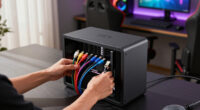
A NAS is a small computer stuffed with hard drives that sits on your network and serves files to every device in your house. Think of it as a librarian who never sleeps: your gaming PC, laptop, phone, and TV can all check books out at the same time. To your PC, a NAS folder shows up in File Explorer looking exactly like a local drive — with one big difference.
A dedicated box, not a shared folder
A NAS draws 20–40 watts, runs quietly 24/7, and has an OS purpose-built for storage — snapshots, permissions, drive-health monitoring, media servers. Your gaming PC idles at 80+ watts and can’t serve files while rebooting for a GPU driver update.
Works even when your PC is off
Your files live on the network, not inside any single machine. Moving storage onto the network removes single points of failure: a dead motherboard can’t take your data hostage when it isn’t the one holding it.
Speaks your PC’s language
NAS units run lightweight operating systems — Synology DSM, TrueNAS, QNAP — and serve files over SMB or NFS, which Windows, Linux, and macOS all speak natively. No extra software needed on your PC.
Sized for gamers
NAS units range from 2-bay boxes to rack-mounted monsters. Most gamers land in the 2-to-4-bay range with big hard drives — 8 TB and 12 TB are the current sweet spot for price per terabyte.
Why Gigabit Ethernet Makes a NAS Slower Than Your Slowest SSD
The single most important fact about gaming on a NAS: your network, not your drives, is the bottleneck. A NAS over Gigabit is slower than a 2015 hard drive for large sequential reads. Install a 150 GB game like Baldur’s Gate 3 on a NAS and level loads stretch from seconds to a minute or more.
| Connection | Real-World Speed | Gaming From NAS? |
|---|---|---|
| Gigabit Ethernet (1GbE) | ~110 MB/s | ✗ Painful for modern games |
| 2.5GbE | ~280 MB/s | ~ Workable — SATA SSD class |
| 10GbE | ~1,100 MB/s | ✓ Genuinely viable |
| Wi-Fi 6 | Highly variable | ✗ Latency spikes kill it |
4 Jobs a NAS Does Brilliantly for Gamers
So you don’t run games from it. What is it for? Four things — and all four are genuinely excellent.
Game Library Vault
Modern games eat 100–150 GB each. A 4-bay NAS with 12 TB drives gives 24–36 TB of usable space. An archived game returns to your local SSD in ~20 minutes at 110 MB/s — no data cap, no waiting on a Tuesday-night Steam sale crushing the CDN.
Automatic Backups That Actually Happen
Screenshots, capture footage, save files, mod folders — the stuff you’d cry about losing. Sync designated folders nightly so your best clip reel survives a dead drive. Pair with RAID and a single failure becomes an inconvenience, not a funeral.
Sharing Between Machines
Two PCs in the house? A gaming laptop? The NAS is neutral territory — every machine reaches the same files without anyone’s desktop needing to stay awake. Map NAS folders as network drives in Windows and set it once, forget it.
Media Streaming Server
Run Plex or Jellyfin for free and stream your library to any TV or device in the house. The NAS does the transcoding work while your gaming PC stays free — or stays off entirely.
Remember: RAID 1 or RAID 5 protects against drive failure but is not a backup. Keep an off-site or cloud copy of irreplaceable saves and footage.
From Box to Backups: The Setup Chain
Unbox & Slot Drives
2-bay NAS, two 12 TB NAS-rated drives.
Configure RAID 1
Mirror the drives for drive-failure protection.
Wire the Ethernet
Cable only — Wi-Fi jitter ruins everything.
Create Shared Folders
Games, saves, captures, media — via SMB.
Automate Nightly Sync
Saves, screenshots, captures — set and forget.
Spend on Drives and Networking — Not an All-SSD NAS
Hard drives are 4–5× cheaper per terabyte for archive workloads, and a 2.5GbE upgrade changes the math far more than SSD bays do.
All-SSD NAS Builds
Great for databases, wasteful for game archives. Sequential archive reads are exactly what spinning disks handle well.
NAS-Rated Hard Drives
8–12 TB drives built for 24/7 operation. Two of them in RAID 1 is the classic starter setup for most homes.
2.5GbE Networking
~280 MB/s — comparable to a decent SATA SSD — for a modest spend on NICs and a switch. Best performance-per-dollar move.
What a NAS Actually Is (In Plain English)
A NAS is a Network-Attached Storage device — basically a small computer stuffed with hard drives that sits on your network and serves files to every device in your house. Think of it as a librarian who never sleeps: your gaming PC, your laptop, your phone, and your TV can all check books out at the same time, without touching each other’s shelves.
The box itself runs a lightweight operating system (Synology’s DSM, TrueNAS, QNAP’s software) instead of Windows. You access your files over the network using protocols like SMB or NFS, which Windows, Linux, and macOS all speak natively. To your PC, a NAS folder shows up in File Explorer looking exactly like a local drive — with one big difference we’ll get to.
NAS units range from simple 2-bay units (two drive slots, fine for most homes) to rack-mounted monsters with dozens of bays. Most gamers land somewhere in the 2-to-4-bay range. Fill the bays with big hard drives — 8TB and 12TB drives are the current sweet spot for price per terabyte — and you’ve got one central place for everything: game installers, screenshots, capture footage, mods, and backups.
The real magic isn’t capacity, though. It’s that the NAS works even when your gaming PC is off. Your files live on the network, not inside any single machine. That distinction matters more than it sounds: when storage lives inside a PC, that machine becomes a single point of failure and a bottleneck — your laptop can’t reach your desktop’s drives while it’s asleep, and a dead motherboard can take your data hostage until you transplant the drive. Moving storage onto the network untangles those dependencies. It also changes the performance tradeoff: because files travel over Ethernet instead of a motherboard’s fast internal lanes, a NAS trades raw speed for reach and resilience. That tradeoff is the single most important idea in this article — a NAS buys you access and survivability, not velocity.
Why a dedicated box at all, instead of just sharing a folder from your desktop? Because a NAS draws maybe 20–40 watts, runs quietly 24/7, and has an OS purpose-built for storage — snapshots, permissions, drive-health monitoring, media servers. Your gaming PC could do the same job, but it idles at 80+ watts, sounds like a jet when you’re gaming, and can’t serve files while it’s rebooting for a GPU driver update. The NAS is specialized for a job your PC is bad at doing on the side.
As an affiliate, we earn on qualifying purchases.
Why Gigabit Ethernet Makes NAS Slower Than Your Slowest SSD
The single most important fact about gaming on a NAS: your network, not your drives, is the bottleneck. Standard Gigabit Ethernet tops out at about 110–115 MB/s in real-world use. A SATA SSD does roughly 550 MB/s. An NVMe drive? 3,500–7,000 MB/s. That means a NAS over Gigabit is slower than a hard drive from 2015 for large sequential reads.
What does that feel like in practice? Say you install Baldur’s Gate 3 (about 150GB) on your NAS and try to run it from there. The game loads, sure — but level load times stretch from seconds on your NVMe to potentially a minute or more, and open-world games that stream assets constantly can stutter as the network chokes on demand spikes.
Stepping up changes the math dramatically:
| Connection | Real-World Speed | Gaming From NAS? |
|---|---|---|
| Gigabit Ethernet (1GbE) | ~110 MB/s | Playable for older/light games, painful for modern ones |
| 2.5GbE | ~280 MB/s | Comparable to a decent SATA SSD — workable |
| 10GbE | ~1,100 MB/s | Smoother than most SATA SSDs; genuinely viable |
| Wi-Fi 6 | Highly variable | Latency spikes make it a bad idea for running games |
Notice Wi-Fi at the bottom. Even fast Wi-Fi adds jitter — tiny, random delays that a file download shrugs off but a game engine loading textures does not. For any gaming-adjacent NAS use, run a cable.
Some NAS units also add SSD caching — a fast NVMe drive inside the box that holds frequently-read data. It helps with repeated access, but it can’t outrun a network pipe that’s narrower than the cache itself.
As an affiliate, we earn on qualifying purchases.
4 Jobs a NAS Does Brilliantly for Gamers
So you don’t run games from it. What is it for? Four things, and all four are genuinely excellent.
1. Game library vault and archive. Modern games eat 100–150GB each. A 4-bay NAS with 12TB drives gives you 24–36TB of usable space — enough to archive installers, old saves, and games you’re “definitely going to replay someday.” Reinstalling across your LAN at 110 MB/s beats redownloading 120GB from Steam on most connections. The reason this matters: it changes your relationship with deletion. Without a vault, “uninstall to make room” means a 120GB redownload and your real-world internet speed deciding when you can play again. With one, an archived game is back on your local SSD in about 20 minutes, no data cap, no waiting on a Tuesday-night Steam sale crushing the CDN.
2. Automatic backups that actually happen. Screenshots, capture footage, save files, mod folders — the stuff you’d actually cry about losing. NAS software can sync designated folders nightly so your best clip reel survives a dead drive. Pair that with RAID and a single drive failure becomes an inconvenience instead of a funeral. The honest tradeoff here is effort versus regret: the whole setup takes under an hour, but the alternative isn’t “no backup” — it’s a backup routine you’ll mean to do manually and never do. Automation works because it removes you from the loop, and you from the loop is the most reliable backup strategy there is.
3. Sharing between machines. Two PCs in the house? A gaming laptop? The NAS is neutral ground. Your desktop uploads 40GB of 4K gameplay footage; your laptop edits it downstairs without a cable in sight. The deeper value is that it eliminates the “sneakernet” tax — the external-drive shuffle, the duplicate copies drifting out of sync, the “wait, which version is current?” problem. One canonical copy of every file, one place to look. That’s less about speed and more about sanity.
4. Media streaming. Most NAS units run Plex or Jellyfin natively. Your box of drives doubles as a media server for the living room TV — gaming highlight reels included. One box, two jobs. It earns its shelf space. This is also the quiet budget argument for a NAS: amortized across storage, backup, and media duties, a $400 box doing three jobs is cheaper than three separate solutions — a media PC, a backup subscription, and a pile of external drives.
The rule of thumb at skeldrift.com: keep games you’re actively playing on local SSD, keep everything else on the NAS.
As an affiliate, we earn on qualifying purchases.
RAID Without the Jargon: What Protection Actually Buys You
RAID is how a NAS spreads your data across multiple drives so one dead drive doesn’t take everything down. That’s the whole concept — redundancy, not magic. Here’s the plain-English version of the options gamers actually encounter.
RAID 1 mirrors two drives: everything written to one is copied to the other. You get half your total capacity. Two 12TB drives = 12TB usable. Simple, safe, perfect for 2-bay units.
RAID 5 needs three or more drives and uses parity — roughly translated, extra math that lets the array rebuild lost data. You lose one drive’s worth of capacity. Three 12TB drives = 24TB usable, and any single drive can die without losing data.
RAID 10 combines mirroring and striping: speed plus redundancy, but you only get half your capacity. Usually overkill for a home gaming setup.
| RAID Level | Min Drives | Usable Capacity | Survives? |
|---|---|---|---|
| RAID 1 (mirror) | 2 | 50% | Any 1 drive failure |
| RAID 5 | 3 | ~(n−1) drives | Any 1 drive failure |
| RAID 10 | 4 | 50% | 1 per mirror pair |
So which one should you pick? The deciding factor is usually bay count and how much of your data is irreplaceable. RAID 1 is the right default for most gamers because it’s dumb in the best way — rebuilds are simple, failure modes are well understood, and the capacity math is easy to reason about. RAID 5 becomes attractive when capacity matters more than simplicity: it gets you more usable terabytes per dollar of drives, but the tradeoff is that rebuilds after a failure are slow (a 12TB drive can take a day or more to reconstruct) and during that rebuild window the array is running without a net — a second drive failure in that stretch loses everything. That’s a small risk with fresh drives, but it’s why “more efficient” isn’t automatically “safer.”
One warning worth carving into the desk: RAID is not a backup. It protects against drive failure. It does nothing against fire, theft, ransomware, or you confidently deleting the wrong folder at 2am — RAID will faithfully mirror your mistake instantly to every drive in the array. For irreplaceable stuff — save files, years of footage — keep a copy somewhere else too, whether that’s a cloud tier or a drive at a relative’s house. Think of it in layers: RAID covers hardware failure, backups cover everything else, and you need both because they fail in different ways.
network attached storage for media streaming
As an affiliate, we earn on qualifying purchases.
As an affiliate, we earn on qualifying purchases.
How to Set Up a NAS for Gaming in 6 Steps
Setup is easier than building the PC you’ll connect it to. Here’s the whole process, start to finish.
- Pick your box and drives. A 2-bay NAS with two matching drives covers most gamers; go 4-bay if your library is enormous. Buy drives in pairs, and consider drives rated for NAS use — they’re built for always-on operation.
- Connect it by Ethernet, directly to your router. Not Wi-Fi. Not “the powerline adapter that came free with something.” A real cable into a real Gigabit port.
- Initialize and update. The NAS OS walks you through formatting the drives and creating your storage pool — this is where you choose RAID. Update the firmware before anything else.
- Create shared folders. Make a few with obvious jobs: GameArchive, Captures, Backups, Media. Future-you will appreciate the tidiness.
- Map the folders on your PC. In Windows, right-click the shared folder, choose Map Network Drive, assign it a letter. It now appears in File Explorer like any other drive.
- Set up automatic sync and backups. Point your backup software at the NAS — most NAS brands ship a client app, and tools like FreeFileSync work fine. Set screenshots, saves, and capture folders to sync nightly.
A concrete example: a common setup is a 2-bay NAS with two 12TB drives in RAID 1, one mapped drive letter for archives, and a nightly 2am sync of the Documents/My Games folder. Total hands-on time after the drives format: maybe 45 minutes.
One extra tip — if your router and PC both have 2.5GbE ports, enable them. It’s the cheapest meaningful speed upgrade in home networking right now, and it more than doubles your NAS transfer speed.
Where the Money Goes: Building a NAS Budget That Makes Sense
A gaming NAS has three cost layers, and knowing where to spend — and where not to — is the difference between a smart buy and an expensive paperweight.
Layer 1: The enclosure. A basic 2-bay NAS runs roughly $150–$300; a 4-bay with 2.5GbE lands around $400–$600. Don’t pay for 10GbE on the enclosure unless your PC and network can also do 10GbE — you’d be buying a fire hose for a garden tap. The enclosure is also the one layer worth thinking of as a long-term investment: drives get swapped and upgraded every few years, but the box — its CPU, its ports, its OS support — is what you live with. A cheap enclosure with a weak CPU can choke on Plex transcoding or saturate during simultaneous backups and streams. That said, don’t over-buy bays you won’t fill; an empty 4-bay costs more upfront and idle bays earn nothing.
Layer 2: The drives. This is where most of your budget should go. Two 12TB NAS-rated drives cost around $400–$500 combined. Capacity is cheap per terabyte once you pass 8TB — the price curve flattens out, so bigger drives are almost always the better deal. The logic is simple: drive slots are finite and enclosures cap out, so the cheapest way to future-proof capacity is buying the biggest sensible drives now, not upgrading again in 18 months. The tradeoff to weigh is RAID capacity loss — bigger drives mean losing more raw terabytes to redundancy, but since you’re losing a fixed number of drives’ worth rather than a percentage, it still favors going big.
Layer 3: The network. A 2.5GbE PCIe card for your PC costs about $25–$40. That’s arguably the best money-per-megabyte upgrade in this entire article. Why it’s such a bargain: it’s the only layer where a tiny spend removes the system-wide bottleneck. Drives and enclosures already exceed Gigabit speed — a single modern hard drive can nearly saturate 1GbE on sequential reads — so every dollar spent there is throttled by a $30 problem you haven’t fixed. Fix the pipe first, then the expensive components can actually perform.
Where gamers overspend: SSD-filled NAS units. All-flash NAS boxes are gorgeous and fast, but for game archives and backups — workloads that run at 2am while you sleep — hard drives are 4–5x cheaper per terabyte and plenty quick. The principle: match your storage speed to when the workload runs. A backup that finishes at 3am instead of 1am costs you nothing; the $800 you saved buys 20+ extra terabytes. Save the SSD budget for your PC’s local game drive, where speed changes your experience in the moment.
Where gamers underspend: drive quality. A desktop drive in an always-on NAS is a slow-motion failure. The small premium for NAS-rated drives buys vibration tolerance and firmware designed for 24/7 operation. Why vibration matters specifically: drives packed side by side in a NAS chassis resonate with each other, and desktop drives aren’t built to compensate — leading to premature head retractions and, eventually, the exact drive failure you bought the NAS to protect against. Spending $20 less per drive to undermine the redundancy you just paid for is the worst trade in this whole article.
Frequently Asked Questions
Can I run games directly from a NAS?
Technically yes, but it’s rarely worth it. Over standard Gigabit Ethernet (~110 MB/s), a NAS is slower than a SATA SSD and far slower than NVMe, so load times stretch and asset-streaming games can stutter. With 2.5GbE or 10GbE networking plus SSD storage in the NAS, it becomes genuinely workable — but for most gamers, local SSD for active games and the NAS for everything else is the better setup.
Is NAS storage necessary for gaming?
No — it’s a quality-of-life upgrade, not a requirement. It earns its keep when you have a large library to archive, multiple PCs sharing files, footage to back up, or a household that wants a media server. If one PC with one big local drive covers you, skip it.
Will a NAS improve game load times?
No — running a game from a NAS over a typical home network will usually make load times worse than a local drive. The one indirect benefit: reinstalling an archived game over your LAN at ~110 MB/s is often faster than redownloading 120GB from the internet.
Is Wi-Fi okay for accessing a NAS?
Wi-Fi works fine for backups, file transfers, and streaming media. But for anything gaming-related that happens in real time, use wired Ethernet — Wi-Fi adds latency jitter that file downloads tolerate and game engines don’t.
How many drive bays do I need?
Two bays cover most gamers — a RAID 1 mirror of two large drives gives redundancy and plenty of capacity. Go four bays if your archive is enormous or you want RAID 5 with room to grow. Match your drives in size and model, and buy NAS-rated drives built for 24/7 operation.
Conclusion
The mental model that makes everything click: a NAS is your library and vault, not your game drive. Games you’re playing live on local SSD where they load fast; everything else — archives, backups, footage, media — lives on the network where every device in the house can reach it and one dead drive can’t kill it.
Start small. Two drives, one mirror, a mapped drive letter, and a nightly backup job. The night your gaming PC’s drive dies and your saves stroll back from the NAS in twenty minutes, you’ll wonder how you ever gamed without one.
Halloween Picks
halloween
As an affiliate, we earn on qualifying purchases.