
TL;DR
Listen free for 30 days with Audible
Thousands of audiobooks and originals — cancel anytime.
Start your free trialAs an affiliate, we earn on qualifying purchases.
NVMe SSDs can make games load dramatically faster than hard drives, but upgrading from a modern NVMe drive to a faster model usually saves only seconds or fractions of a second. Game loading also depends on CPU decompression, shader work, memory transfers, and engine design, making a reliable PCIe 4.0 drive with enough capacity the practical choice for many gaming PCs.
A drive rated at 7,000 MB/s can finish loading a game only a second ahead of one rated at 3,500 MB/s. That sounds wrong until you realize the SSD is just one runner in a relay race. The CPU, memory, graphics hardware, and game engine still have to carry the baton across the line.
This guide gives you NVMe SSDs explained through the moments you actually notice: opening a save, fast-traveling across a city, installing a 90 GB game, or waiting beside a multiplayer lobby. You will see why the jump from an HDD to any competent SSD feels enormous, while moving between recent NVMe generations often feels more like trimming a pause than erasing it.
You will also learn which specifications matter for game load times, what DirectStorage changes on supported Windows games, and where a faster drive cannot help. By the end, you can choose storage by real workload, capacity, cooling, and value instead of chasing the loudest number on the box.
Replace an HDD before chasing a faster NVMe generation; removing mechanical latency usually creates the most visible improvement.
Judge gaming drives by real loading tests, low-queue-depth behavior, sustained performance, capacity, and cooling—not peak sequential speed alone.
Treat stutter as a diagnosis problem: an SSD can reduce storage stalls, but shader compilation, low RAM or VRAM, CPU limits, and network waits need different f…
A reliable 1 TB or 2 TB PCIe 4.0 NVMe drive is the practical sweet spot for many gaming PCs, especially when you keep 10–20% of its space free.
Check the exact motherboard or console requirements because M.2 shape, NVMe support, PCIe lanes, heatsink clearance, and platform approval are separate concern…
NVMe SSDs Explained for Game Load Times
NVMe can transform a game moved from a hard drive, but doubling an SSD’s advertised speed rarely halves the wait. Loading is a relay involving storage, CPU decompression, memory, graphics hardware, shaders, the game engine, and sometimes the network.
MB/s headline speed
MB/s headline speed
MB/s headline speed
MB/s on high-end models
The first SSD leap changes the experience
Modern NVMe generations create huge benchmark gaps, yet conventional game loads often remain close because storage is only one stage of the job.
| Storage type | Typical headline speed | What you may notice | Main tradeoff |
|---|---|---|---|
| Mechanical HDD | 100–200 MB/s | Long loads, slower installs, possible texture pop-in | Cheap capacity, high mechanical latency |
| SATA SSD | 500–550 MB/s | ✓ Major gain over an HDD | Restricted by the SATA interface |
| PCIe 3.0 NVMe | 3,000–3,500 MB/s | Fast loads that can sit close to newer drives | Lower large-transfer bandwidth |
| PCIe 4.0 NVMe | 7,000–7,500 MB/s | ✓ Balanced choice for loading and copying | Needs compatible lanes and suitable cooling |
| PCIe 5.0 NVMe | Up to 14,000 MB/s | Often only a small conventional load-time gain | Higher price, heat, and cooling demands |
Illustrative loading scenario—not a universal benchmark. The shape reflects a common pattern: replacing mechanical storage produces the largest gain.
Why 7 GB/s rarely means twice as fast
Once storage stops being the slowest stage, extra bandwidth waits behind CPU, memory, shader, engine, or network work.
Read assets
The drive locates archives, textures, audio, scripts, and geometry.
Process requests
The CPU and file system coordinate many scattered reads.
Decompress
Compressed packages become usable game assets.
Move data
Assets travel into system memory and graphics memory.
Build the world
The engine prepares shaders, physics, scripts, and objects.
Synchronize
Online games may still wait for servers or other players.
A faster SSD only accelerates stages that are waiting for storage. It cannot repair shader compilation, insufficient RAM or VRAM, a CPU limit, poor engine design, or a slow multiplayer connection.
Look beyond the loudest number
Peak sequential bandwidth is useful for large orderly transfers. Gaming behavior depends on a wider set of characteristics.
Random performance
Games often request many small files or scattered archive fragments. Results at queue depth 1 or 4 can be more relevant than maximum IOPS.
Latency
Low access latency helps the drive begin each request quickly. This is why even a SATA SSD feels dramatically more responsive than an HDD.
Sustained speed
Pseudo-SLC cache can hide slower write behavior until it fills. This matters most during large installs, patches, copies, and game-library moves.
Controller and NAND
Firmware, NAND type, cache design, and thermal management can make two drives from the same PCIe generation behave differently.
DRAM and HMB
DRAM-less does not automatically mean unsuitable. Many NVMe drives use Host Memory Buffer and still perform well as dedicated game storage.
Capacity and free space
Larger models may access more NAND dies in parallel. Keeping 10–20% free supports updates, garbage collection, and consistent performance.
Choose for the whole workload
Capacity, compatibility, cooling, reliability, and real loading tests usually deserve more attention than a peak sequential score.
A reliable PCIe 4.0 NVMe drive
For many gaming PCs, this offers strong loading, asset streaming, installation, and file-copy performance without the heat and premium of top-end PCIe 5.0 hardware.
Verify the interface
M.2 describes the physical shape; NVMe describes the protocol. Some M.2 drives use SATA.
Check motherboard lanes
A PCIe 4.0 drive can often run in a PCIe 3.0 slot, but only at the older slot’s speed.
Confirm cooling and clearance
Review heatsink space, M.2 placement, graphics-card clearance, and platform requirements.
Use real game tests
Compare save loads, fast travel, installations, patching, and sustained transfers—not one synthetic score.
The smart gaming-storage playbook
Buy for noticeable outcomes: shorter waits, enough library space, stable performance, and correct platform support.
Replace an HDD before chasing a newer NVMe generation.
Prioritize real loading tests and low-queue-depth behavior.
Diagnose stutter; storage is only one possible cause.
Favor sufficient capacity and maintain 10–20% free space.
Check protocol, lanes, form factor, cooling, and approval.
What NVMe Actually Changes When You Launch a Game
NVMe SSDs Explained for Game Load Times starts with one fact: NVMe is a storage protocol for solid-state drives that communicate over PCI Express, giving games much quicker access to data than a mechanical hard drive. It cuts waiting at the storage end, but it does not speed every task that happens after a file arrives.
An HDD uses a moving arm to find data on spinning platters. Each scattered request creates a tiny mechanical delay, like a librarian sprinting between shelves for every page of a book. An SSD has no moving read head, so thousands of textures, sound files, and map fragments arrive with far lower access latency.
NVMe also supports many requests efficiently and offers more bandwidth than the older SATA interface. A SATA SSD commonly tops out near 500–550 MB/s, while a PCIe 3.0 NVMe model can reach roughly 3,000–3,500 MB/s. That difference can help installations, large transfers, and games built around fast asset streaming, though it does not create a matching sixfold reduction in every loading screen.
Suppose you move an open-world game from a 7,200 rpm HDD to an NVMe SSD. The old save might open after a long chorus of platter clicks and a 50-second loading screen; the SSD could cut that wait sharply and reduce muddy textures appearing after you start moving. Replace that NVMe drive with a newer model, and you may save only another second because storage is no longer the slowest step.
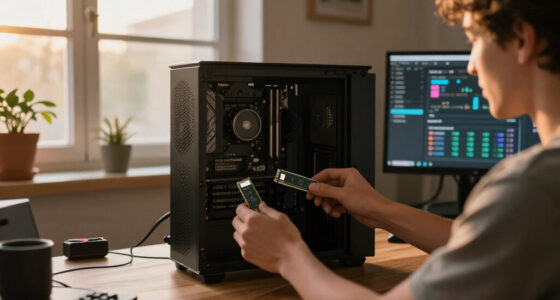
M.2 describes a physical shape, while NVMe describes the interface protocol. Some M.2 drives use SATA, so check both the drive and motherboard slot before buying.
As an affiliate, we earn on qualifying purchases.
See Which Storage Upgrade Delivers the Biggest Change
NVMe SSDs Explained for Game Load Times shows that the largest practical gain comes from replacing an HDD, not from replacing one recent NVMe drive with another. SATA SSDs and NVMe SSDs both remove mechanical seek delays, while newer PCIe generations mainly add bandwidth that conventional game engines may not fully use.
| Storage type | Typical headline speed | What you may notice in games | Main tradeoff |
|---|---|---|---|
| Mechanical HDD | Often about 100–200 MB/s | Long loads, possible texture pop-in, slower installs | Cheap capacity but high latency |
| SATA SSD | About 500–550 MB/s | Major improvement over HDD; quick general response | Limited by the SATA interface |
| PCIe 3.0 NVMe | About 3,000–3,500 MB/s | Fast loads that can sit close to newer drives | Lower large-transfer bandwidth |
| PCIe 4.0 NVMe | About 7,000–7,500 MB/s | Strong all-round loading, streaming, and copying | Needs compatible lanes and suitable cooling |
| PCIe 5.0 NVMe | Up to roughly 14,000 MB/s | Small load-time gains in many current PC games | Higher price, heat, and cooling demands |
Imagine a game that loads a level in 55 seconds from an HDD, 22 seconds from SATA, 19 seconds from PCIe 3.0 NVMe, and 18 seconds from PCIe 4.0 NVMe. Those figures are an illustrative scenario rather than a universal benchmark, but the shape mirrors a common result: the first SSD upgrade changes the experience, while later upgrades polish it.
Moving from SATA to NVMe can still make games load faster, especially when a title reads large archives efficiently or streams detailed environments. You may also notice the difference while moving a 120 GB library, unpacking a large patch, or verifying files. Those jobs give the drive more room to stretch its legs because they involve longer transfers than a mixed game-loading workload.
PCIe generations remain backward compatible in many M.2 systems. A PCIe 4.0 drive in a PCIe 3.0 slot usually works when the format and interface match, but it runs at the older slot’s speed. Check the motherboard manual because some slots share lanes with graphics cards or SATA ports.
As an affiliate, we earn on qualifying purchases.
Why a 7 GB/s Drive Rarely Loads Games Twice as Fast
NVMe SSDs Explained for Game Load Times only makes sense when you treat loading as a multi-stage pipeline, not a single file copy. A game must read data, decompress it, interpret assets, move them into memory, prepare shaders, and initialize the world. Once another stage becomes slower, extra SSD bandwidth waits at a closed gate.
- The drive reads assets from many files or packed archives.
- The CPU handles requests and processes file-system work.
- Compressed data is unpacked into usable textures, geometry, audio, and scripts.
- Assets move into RAM and VRAM for the engine and graphics hardware.
- The engine builds the scene, initializes physics, loads scripts, and may compile shader data.
- Network synchronization begins when the game requires a server or other players.
Think of the SSD as a wide water pipe feeding a kitchen. Replacing an HDD opens that pipe dramatically, but a narrow faucet still controls how quickly you fill the glass. In a game, that faucet may be an older CPU decompressing assets, a shader compilation task, or an engine processing thousands of objects one by one.
Headline specifications also describe ideal sequential transfers, often produced with large, orderly blocks and a favorable request queue. Games commonly make scattered, low-queue-depth requests, so random-read latency at queue depth 1 or 4 can tell you more than peak IOPS measured under a heavy synthetic workload. Independent game-loading tests expose this gap far better than a single benchmark score.
For example, a dense city level may contain wet pavement textures, the metallic clatter of trains, dialogue clips, shop signs, and hundreds of small object files. A fast drive can deliver that pile quickly, but the CPU still needs to unpack and arrange it. The benchmark promises a roaring river; the engine may accept the data through a drinking straw.
Shader compilation can add another hard limit. If a game spends eight seconds reading files and twelve seconds preparing shaders and world state, eliminating every storage delay would still leave a 12-second load. A faster SSD cannot make non-storage work disappear.
high performance NVMe SSD for gaming
As an affiliate, we earn on qualifying purchases.
As an affiliate, we earn on qualifying purchases.
What DirectStorage Can Speed Up—and What It Cannot
DirectStorage can reduce storage-request overhead and support fast asset streaming when a Windows game implements it, but an NVMe SSD does not activate those benefits by itself. The game, operating system, drivers, compression method, CPU, GPU, and memory all shape the result, so software support matters as much as bandwidth.
In a traditional PC pipeline, compressed game data travels from storage into system memory, where the CPU often handles decompression before the finished asset reaches the GPU. DirectStorage gives developers a more efficient way to submit many requests and can support GPU-accelerated decompression. According to Microsoft’s DirectStorage documentation, the API is available on Windows 10 and Windows 11, while Windows 11 uses a newer storage stack designed for it [1].
Imagine sprinting through a futuristic market with glowing orange signs, polished metal stalls, and steam curling from food carts. A streaming-focused engine needs to pull fresh textures and geometry before you turn the next corner. DirectStorage can help feed that scene continuously, reducing request overhead and allowing compatible hardware to unpack data quickly, but the developer must build the game around the pipeline.
The difference between support and results matters. A game may use DirectStorage yet gain only a modest load-time reduction because its world initialization or shader work still takes longer than asset delivery. Another title may use it to reduce CPU load and support richer streaming rather than turning a 15-second loading screen into a blink.
- Game implementation is required; the drive alone cannot rewrite the engine.
- GPU decompression has separate requirements, including compatible hardware, drivers, operating-system support, and game code.
- Windows version matters, so performance claims should name the game build, operating system, and hardware tested.
- Instant loading is not guaranteed, even with a fast PCIe 4.0 or PCIe 5.0 drive.
The useful trend is broader than one API. New engines increasingly treat storage as a stream that keeps worlds fed while you play, rather than a warehouse visited only during loading screens. That change gives fast NVMe storage more meaningful work, though engine design remains the steering wheel.
As an affiliate, we earn on qualifying purchases.
Know Which Stutters an SSD Can Fix Before You Spend
An NVMe SSD usually does not raise average FPS, but it can reduce hitches caused by slow asset access, shorten respawns, and limit late-loading textures. It helps when storage is the bottleneck; it cannot repair shader compilation, limited memory, CPU stalls, driver problems, or poor engine code.
Consider an open-world driving game installed on an HDD. You race into a neon district, the road briefly turns blurry, buildings snap into full detail, and the frame time spikes while the disk chatters. Moving that game to an SSD can reduce those storage-related stalls because assets arrive before the camera catches them.
Now consider a PC with an NVMe drive that stutters the first time each explosion or spell appears. If the game is compiling shaders during play, replacing a PCIe 3.0 drive with a PCIe 5.0 model will not cure the sharp silence between frames. A shader cache, game update, driver fix, or engine patch may matter more than storage speed.
- Likely storage symptoms: slow texture arrival, hitching during rapid traversal, long fast travel, and severe pauses on an HDD.
- Likely CPU or shader symptoms: repeated spikes when new effects appear, even though drive activity remains low.
- Likely RAM or VRAM symptoms: paging, texture quality drops, or stutter after memory fills.
- Likely network symptoms: multiplayer waits after your local loading indicator has already finished.
A simple test can save you money. Watch drive activity, memory use, CPU load, and frame-time graphs during the problem, then repeat the same route after background downloads and antivirus scans finish. If the SSD sits mostly idle while one CPU thread strains, buying a faster drive attacks the wrong target.
Multiplayer provides another clear example. Your NVMe SSD may finish local loading in eight seconds, yet the match waits another twenty for server synchronization or a player using slower hardware. The drive improved your part of the process, but it does not control the whole lobby.
Choose a Gaming NVMe Drive Without Paying for Empty Speed
The sensible gaming choice is usually a compatible, reliable NVMe SSD with enough capacity, steady low-queue-depth performance, and suitable cooling. For many current PC builds, a well-priced PCIe 4.0 model delivers the useful speed without the added heat and cost of benchmark-leading PCIe 5.0 hardware.
- Check the slot first. Confirm the supported M.2 length, NVMe interface, PCIe generation, lane count, and any shared-port restrictions in the motherboard manual.
- Choose enough capacity. A 1 TB drive is a practical starting point, while 2 TB gives large libraries and patches more breathing room.
- Compare real game tests. Favor low-queue-depth results, loading measurements, sustained behavior, warranty coverage, and firmware history over peak sequential speed.
- Plan for cooling. Use the motherboard’s M.2 heatsink or a suitable drive cooler when the model and workload produce substantial heat.
- Leave working space. Keeping roughly 10–20% free gives garbage collection, patching, and large temporary files room to work.
Capacity affects more than convenience. Larger versions of the same model may use more NAND dies in parallel, and nearly full SSDs can lose consistency during writes. If you install a 140 GB game on a drive with only 25 GB left, a patch that rewrites large archives can become a slow, cramped shuffle.
Do not reject a drive solely because it lacks onboard DRAM. Many DRAM-less NVMe drives use Host Memory Buffer, borrowing a small amount of system RAM for mapping data, and can work well as game storage. Stronger cache and controller designs matter more during sustained writes, heavy mixed work, recordings, or frequent giant updates.
A PCIe 5.0 model makes more sense when you also move huge video files, build large projects, or want maximum platform capability. For game load times alone, its extra heat may require a bulky heatsink while its advantage appears as a tiny shave from a familiar loading animation. That is expensive speed sitting in traffic.
For a concrete buying scenario, take a PC with one PCIe 4.0 M.2 slot and a library of six games around 100 GB each. A dependable 2 TB PCIe 4.0 drive leaves space for updates and future releases, while a pricier 1 TB PCIe 5.0 drive fills quickly and rarely changes the loading experience. More usable room wins every evening you do not have to delete and redownload a game.
Match Console Storage to the Platform’s Rules
Console NVMe upgrades must meet the platform’s interface, size, capacity, and cooling rules; desktop benchmark speed alone cannot prove compatibility. PlayStation 5 and Xbox Series consoles use different storage systems, so a drive that works in one machine may be unusable for current-generation games on the other.
The PlayStation 5 includes custom internal storage and dedicated I/O hardware. According to Sony’s published support requirements, an M.2 expansion must meet specified physical and performance criteria, and an effective heat-dissipation structure is required [2]. Check Sony’s current support page before buying because firmware support and stated requirements can change.
On Xbox Series X and Series S, games optimized for the current generation commonly need to run from internal storage or an approved proprietary expansion card. A USB drive can store many of those games, but moving one back before play turns the process into a digital coat check: useful for holding a large library, less useful when you want immediate access.
Suppose a desktop PCIe 4.0 NVMe drive advertises 7,000 MB/s and fits under a slim heatsink. That specification may make it a candidate for a PS5 expansion when every current Sony requirement is met, but it does not let the drive plug directly into an Xbox expansion slot. Platform compliance beats the headline number.
Console loading also depends on each game’s version. A current-generation build may use the console’s newer I/O path, while a backward-compatible older build may retain loading routines designed around hard drives. When comparing results, name the console model, game version, patch, and storage location; otherwise two accurate tests can appear to disagree.
Frequently Asked Questions
Will an NVMe SSD increase my FPS?
An NVMe SSD usually will not increase average FPS because the CPU and GPU produce frames. It can reduce storage-related hitches, texture pop-in, and traversal pauses when a slower drive cannot feed assets quickly enough. If your game stutters while compiling shaders, a faster SSD will not solve that cause.
Is NVMe noticeably faster than a SATA SSD for games?
NVMe can load some games faster than SATA, but the difference often feels much smaller than the leap from an HDD to either SSD. You may notice a clearer advantage during large installations, file copies, patches, and streaming-heavy games. Conventional titles can finish within a few seconds of each other because CPU and engine work limit the result.
Is PCIe 5.0 worth buying only for gaming?
PCIe 5.0 is rarely the best value for game load times alone. High-end drives can approach roughly 14,000 MB/s in ideal sequential work, but many current PC games load only slightly faster than they do on a good PCIe 4.0 model. The newer drives also tend to cost more and produce more heat.
Does DirectStorage work with every game on an NVMe SSD?
No. The game must implement DirectStorage, and GPU decompression also depends on compatible hardware, drivers, operating-system support, and game code. Installing an NVMe SSD improves storage performance, but it cannot convert an older loading system into a DirectStorage pipeline.
How much free space should I leave on a gaming SSD?
A useful working target is roughly 10–20% free space, especially on a system drive or an SSD handling frequent patches. There is no single failure point for every model, but spare space helps garbage collection and gives launchers room to rewrite large archives. A nearly full 1 TB drive can make a 70 GB update far more awkward than its download size suggests.
Conclusion
Your best storage upgrade is the one that removes the bottleneck you actually have. If your games still live on a hard drive, move them to a competent SSD and expect the loading screen to shrink from a long hallway into a short doorway. If you already own a good PCIe 3.0 or 4.0 NVMe drive, spend carefully; a faster label may buy only a sliver of time.
Choose enough capacity, check compatibility, read real game-loading tests, and leave 10–20% free space. Then put the stopwatch away and play. The right SSD should fade into the background, leaving you with a quick flash of a loading icon before the world snaps into color.
Baby shower & registry season Picks
baby registry must-haves
As an affiliate, we earn on qualifying purchases.