TL;DR
A modern wireless gaming mouse using a dedicated 2.4 GHz receiver can match, or occasionally outperform, wired mice in practical latency tests. Use 1,000 Hz as your default, keep the receiver near your mousepad, and judge performance by measured click latency, motion latency, and consistency rather than the word wireless.
Wireless no longer means slow. A good wireless gaming mouse can send your click before a poorly designed wired model finishes processing its own switch signal. That tiny USB receiver may look like a plastic thumbnail, but inside it runs a connection built for fast, predictable input rather than casual laptop use.
You still cannot judge responsiveness from the connection label alone. Click processing, sensor behavior, polling rate, firmware, radio interference, frame rate, and your display all add links to the same chain. One weak link can make a fast mouse feel as though you are dragging the pointer through cold syrup.
This guide shows you where latency comes from, what polling-rate numbers really mean, and why Bluetooth feels different from a dedicated receiver. You will also learn how to position your receiver, choose practical settings, read test results, and trace sluggish controls back to the mouse or the wider PC. The goal is simple: reliable response under real play, not the prettiest number printed on a box.
Use a dedicated 2.4 GHz receiver for competitive play; Bluetooth favors portability and battery life but usually delivers slower or less consistent input.
Start at 1,000 Hz, which limits report spacing to 1 ms and gives most players a strong balance of responsiveness, battery life, and system load.
Place the receiver about 20 to 30 cm from the mouse with a clear path, especially when USB 3.x devices, Wi-Fi hardware, or metal surfaces sit nearby.
Judge test results by repeated click and motion measurements, latency variation, firmware version, and connection mode rather than one best-case number.
Check frame rate, V-sync, rendering queues, display refresh, and network behavior before assuming the wireless link causes every sluggish response.
Wireless Gaming Mouse Latency Explained
Modern 2.4 GHz gaming mice can match—or occasionally outperform—wired models. Responsiveness depends on the complete input chain: switch, sensor, firmware, radio, USB reports, game processing, rendering, and display refresh.
Responsive enough for most players without excessive battery or system overhead.
Keep the dongle close to the mousepad with a clear path.
Connection type alone does not determine real-world speed.
Latency is a chain, not one pause
A click travels through seven stages before the result reaches your eyes. The wireless hop occupies only one slice of this journey, so a sluggish game does not automatically indicate a slow radio link.
Consistency beats a record-setting sample. A mouse that remains near 3 ms across hundreds of inputs can feel more controlled than one that averages 2 ms but occasionally spikes to 12 ms.
Four ways to describe responsiveness
Laboratory results answer different questions. Compare repeated measurements in the same connection mode and firmware version, then examine both the average and the spread.
Click latency
Time from the physical button press until the computer receives the click event.
Motion latency
Time from physical movement until the computer receives updated coordinates.
End-to-end latency
Time from input until the shot, cursor movement, or camera turn appears on screen.
Consistency
Variation between inputs. Stable delivery often matters more than one exceptional result.
More reports, smaller scheduling waits
Polling rate controls how frequently a mouse can report its state. These intervals describe USB report timing—not the total time required for a game and display to show the result.
| Polling rate | Maximum report interval | Average scheduling wait | Practical fit |
|---|---|---|---|
| 125 Hz | 8 ms | About 4 ms | Basic office use |
| 500 Hz | 2 ms | About 1 ms | Casual play or battery savings |
| 1,000 Hz | 1 ms | About 0.5 ms | Strong default for most players |
| 2,000 Hz | 0.5 ms | About 0.25 ms | Fast PCs and high-refresh displays |
| 4,000 Hz | 0.25 ms | About 0.125 ms | Competitive setups |
| 8,000 Hz | 0.125 ms | About 0.063 ms | Niche gains with higher power use |
Report interval is not total mouse latency. A 1,000 Hz setting does not guarantee a complete 1 ms response.
The gains diminish rapidly
Moving from 125 Hz to 1,000 Hz saves roughly 3.5 ms of average scheduling wait. Moving from 1,000 Hz to 8,000 Hz saves only about 0.437 ms at this stage of the chain.
2.4 GHz for competition, Bluetooth for convenience
A proprietary receiver lets the manufacturer control more of the transmission path. Bluetooth prioritizes broad compatibility and power efficiency, which can make its timing slower or less predictable.
Dedicated 2.4 GHz
Performance- Low and predictable click and motion latency
- Common support for 1,000 Hz or higher polling
- Firmware optimized for real-time input
- Stronger interference management
- Preferred for shooters and rhythm games
Bluetooth
Convenience- Lower or less stable report rates
- More aggressive power-saving behavior
- Greater dependence on computer hardware and drivers
- No dedicated USB receiver required
- Well suited to productivity and casual play
Competitive matches, shooters, rhythm games, high-refresh displays, and any play where predictable timing matters.
Travel, desktop work, turn-based games, limited USB ports, and situations where convenience or battery life leads.
Fix the hidden causes of sluggish input
A fast mouse can still feel heavy when receiver placement, debounce, power saving, frame queues, or display processing creates delay elsewhere.
Move the receiver closer
Use the extension adapter and keep a clear path between the mouse and dongle.
Separate noisy devices
Move away from USB 3.x hardware, Wi-Fi equipment, hubs, and large metal surfaces.
Update both components
Check mouse and receiver firmware before comparing latency results or modes.
Review debounce settings
Excessive mechanical-switch filtering can add click delay even when the radio is fast.
Watch frame-time graphs
High polling may create stutter in older games or on systems with limited CPU headroom.
Check the wider PC
Inspect frame rate, V-sync, render queues, monitor processing, and network behavior.
The receiver belongs near the mousepad
A short, unobstructed radio path helps reduce interference and timing variation. The rear of a metal PC case is often a poor location for a tiny gaming receiver.
Diagnose from input to image
Change one condition at a time. Repeat the same movement or training sequence, watch consistency, and follow the chain until the symptom changes.
Look beyond the mouse
Check GPU load, V-sync, rendering queues, frame rate, and monitor processing.
Inspect the radio path
Reposition the receiver, remove interference, and compare USB ports.
Return to 1,000 Hz
A stable lower rate is better than a faster setting that disrupts frame delivery.
The practical verdict
Wireless no longer means slow. Use a dedicated 2.4 GHz receiver, begin at 1,000 Hz, keep the dongle close, and judge performance through repeated click latency, motion latency, and consistency tests. Wired mode remains useful for uninterrupted operation and simpler troubleshooting, but the cable alone does not guarantee lower latency.
See Every Step Between Your Click and the Muzzle Flash
Wireless Gaming Mouse Latency Explained begins with one basic fact: mouse latency is a chain, not a single pause inside the radio connection. Your switch or sensor detects an action, firmware processes it, the receiver delivers a report, and your PC, game, GPU, and display finish the journey before you see a result.
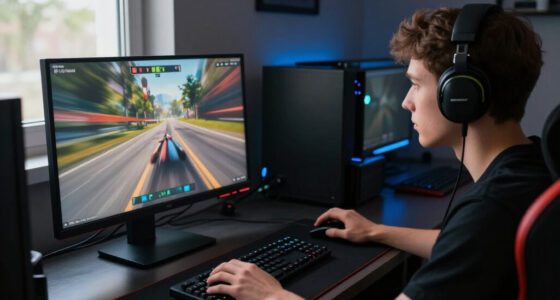
Imagine clicking during a close Counter-Strike round. The button must register, debounce logic must accept the press, and the mouse must place that information into its next report. Your game then reads the report, builds a frame, and sends that frame to a monitor that may already be partway through a refresh. The wireless hop occupies only one slice of that timeline.
Reviewers split the chain into useful measurements. Click latency covers the time between a physical button press and the computer receiving it, while motion latency tracks how quickly movement becomes updated coordinates. End-to-end latency runs farther, all the way to the visible shot, cursor movement, or camera turn.
Latency consistency matters just as much as a low average. A mouse that usually responds in 2 ms but occasionally jumps to 12 ms can feel less controlled than one that stays near 3 ms on every input. It is the difference between a drummer holding a steady beat and one landing a few random hits late.
A fast best-case result cannot rescue uneven timing. For competitive play, a tight spread across hundreds of inputs often tells you more than one record-setting click.
This distinction helps when a mouse earns excellent laboratory results yet feels heavy in your game. If the cursor moves instantly on the desktop but the camera trails during a GPU-heavy fight, inspect frame rate, V-sync, rendering queues, and display processing. The mouse may have already finished its work.
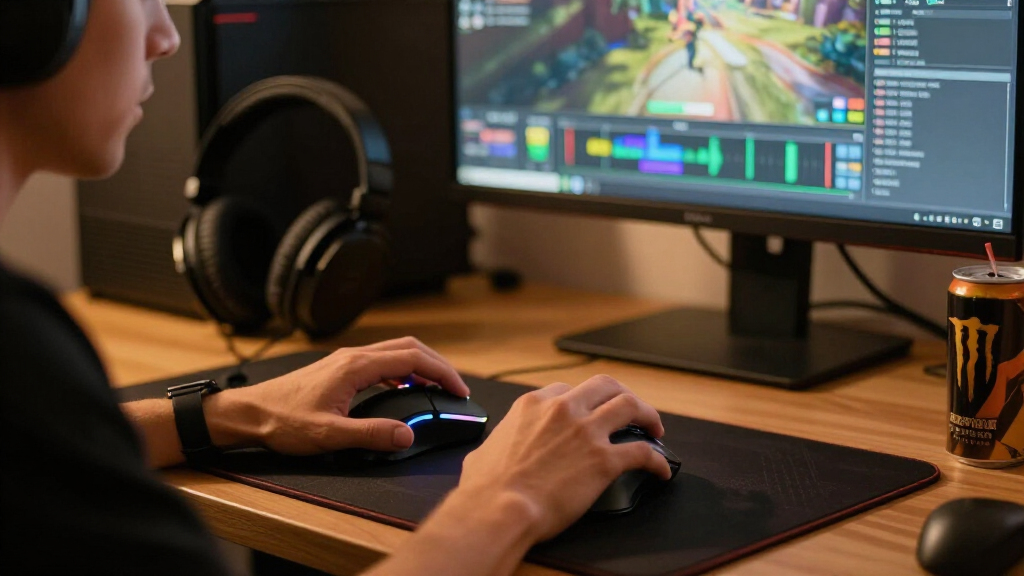
wireless gaming mouse with 2.4 GHz receiver
As an affiliate, we earn on qualifying purchases.
As an affiliate, we earn on qualifying purchases.
Choose a Polling Rate That Makes Your Setup Faster
Wireless Gaming Mouse Latency Explained often gets reduced to polling rate, but polling only controls how frequently the mouse can report its state. At 1,000 Hz, reports may arrive 1 ms apart; that does not mean the mouse, game, and screen produce a visible response in exactly 1 ms.
| Polling rate | Maximum report interval | Average scheduling wait | Practical fit |
|---|---|---|---|
| 125 Hz | 8 ms | About 4 ms | Basic office use |
| 500 Hz | 2 ms | About 1 ms | Casual play or battery savings |
| 1,000 Hz | 1 ms | About 0.5 ms | Strong default for most players |
| 2,000 Hz | 0.5 ms | About 0.25 ms | Fast PCs and high-refresh displays |
| 4,000 Hz | 0.25 ms | About 0.125 ms | Competitive setups |
| 8,000 Hz | 0.125 ms | About 0.063 ms | Niche gains with higher power use |
According to standard report-timing calculations [1], moving from 125 Hz to 1,000 Hz reduces the average scheduling wait by roughly 3.5 ms. Moving from 1,000 Hz to 8,000 Hz saves only about 0.437 ms at that stage. The first jump feels like opening a wider door; the second sands a thin edge from its frame.
Higher rates can make fast sweeps look smoother on a 240 Hz, 360 Hz, or faster monitor, especially when the game also runs at a high frame rate. Yet they increase battery drain and USB or CPU work. Some older games stutter when handed thousands of input reports every second, turning a theoretical gain into a rough, crackling camera pan.
Use 1,000 Hz as your baseline. Try 2,000 or 4,000 Hz if your display, processor, receiver, and game support them cleanly. Reserve 8,000 Hz for a capable system after checking frame-time graphs and battery life, because a stable 1,000 Hz signal beats an 8,000 Hz setting that produces visible hitches.
A practical test takes five minutes. Load the same training area, sweep across a detailed wall, and repeat the movement at each rate while monitoring frame times. If 4,000 Hz looks smoother without spikes and the battery tradeoff suits you, keep it; if not, 1,000 Hz remains highly responsive.
high polling rate gaming mouse 1000Hz
As an affiliate, we earn on qualifying purchases.
As an affiliate, we earn on qualifying purchases.
Pick 2.4 GHz When Every Shot Needs Predictable Timing
Wireless Gaming Mouse Latency Explained draws a sharp practical line between a gaming-focused 2.4 GHz receiver and Bluetooth. A dedicated receiver usually supports faster, steadier reports and firmware tuned for real-time input, while Bluetooth favors compatibility, portability, and battery life over the tightest possible gaming response.
When you connect through the small USB dongle included with a gaming mouse, the manufacturer controls more of the path. That system can use 1,000 Hz or higher polling, manage interference aggressively, and avoid some of Bluetooth’s power-saving pauses. Modern gaming mice rely on this controlled link to produce wired-class results.
Bluetooth remains useful. If you are playing Civilization on a laptop at an airport gate, one connection that leaves your only USB port free makes sense. If you are tracking a darting target in Valorant or hitting notes in a rhythm game, Bluetooth’s lower or less stable report rate can make timing feel softer.
- Use 2.4 GHz for shooters, rhythm games, competitive matches, and other timing-sensitive play.
- Use Bluetooth for desktop work, travel, turn-based games, and situations where battery life matters more than the last few milliseconds.
- Use wired USB while charging or when you need uninterrupted operation and simpler fault-finding.
Connection quality also depends on the computer. A laptop with weak Bluetooth hardware or crowded drivers can behave differently from a desktop with a clear antenna path. The same mouse may feel crisp through its receiver at your gaming desk and strangely sleepy over Bluetooth in a room full of phones, headphones, and wireless controllers.
The misconception says every cable beats every radio. The reality is more interesting: a polished 2.4 GHz receiver can match or occasionally outperform wired mice in practical tests because switch logic, firmware, sensor processing, and USB behavior still shape the result. Wired removes the radio link, but it does not erase slow processing elsewhere.
As an affiliate, we earn on qualifying purchases.
Fix the Hidden Problems That Make a Fast Mouse Feel Slow
A fast wireless mouse can still feel sluggish when receiver placement, debounce, sensor settings, or power saving adds delay or unevenness. Before replacing the mouse, check these practical causes in order. Each one can turn clean movement into a cursor that seems to tug against an invisible rubber band.
- Move the receiver close to the mousepad. Use the supplied extension cable or adapter, place the receiver within roughly 20 to 30 cm of the mouse, and give it a clear path. A receiver hidden behind a steel PC case must fight through metal and nearby electronics.
- Separate it from noisy hardware. USB 3.x ports, external drives, Wi-Fi routers, Bluetooth devices, and other wireless peripherals can crowd the 2.4 GHz band. If your aim skips only when a nearby drive is active, move the receiver to another port or extension.
- Confirm the selected polling rate. A mouse sold as 4,000 Hz may start at 1,000 Hz, require a separate compatible receiver, or need a software setting. Test the active rate after firmware updates because profiles can reset.
- Check sleep and battery settings. If the first movement after a coffee break arrives late, aggressive power saving may be waking the sensor or radio. Update the firmware and choose a less aggressive sleep option when the software offers one.
- Remove software-side drag. Disable unwanted angle snapping, mouse smoothing, and acceleration. Then inspect V-sync, frame caps, rendering queues, and monitor processing if the whole game still feels delayed.
Switch behavior can also hide delay. Mechanical contacts chatter for a moment after a press, so firmware applies debounce filtering to reject accidental double-clicks. Too much filtering adds click lag. Optical switches avoid conventional electrical chatter, though their real performance still depends on firmware, power use, and the surrounding design.
DPI deserves a measured approach. Moving from an extremely low value to roughly 800–1,600 DPI, then lowering in-game sensitivity to keep the same turn speed, can make fine movement register sooner and produce more detailed updates. Extreme DPI values do not guarantee lower latency and can add unwanted processing on some sensors.
Imagine your crosshair makes tiny jumps during a slow head-level sweep. Raising DPI from 400 to 1,600 while dividing game sensitivity by four preserves your full-turn distance but gives the sensor more movement detail. That can smooth the grain without changing how far your arm travels across the pad.
wireless gaming mouse for competitive gaming
As an affiliate, we earn on qualifying purchases.
As an affiliate, we earn on qualifying purchases.
Read Latency Tests Without Falling for One Flashy Number
Useful latency testing measures many repeated inputs with equipment that detects both the physical action and the resulting USB or on-screen event. A single slow-motion phone clip or browser reaction test cannot isolate the mouse because your finger, browser, frame timing, display, and camera all add their own delay.
Strong methods include a hardware latency analyzer, USB event capture, or a high-speed camera paired with a controlled mechanical press. According to established mouse-testing practice [2], reviewers should report the average, spread, connection mode, polling rate, receiver position, and firmware version. Without those details, two attractive numbers may describe completely different conditions.
Suppose Mouse A averages 2.0 ms across 100 clicks but produces several 9 ms spikes. Mouse B averages 2.7 ms and keeps nearly every click between 2.4 and 3.0 ms. The box-score winner is Mouse A, yet Mouse B offers more predictable timing when you tap-fire through a tense final round.
Check motion and click results separately. A manufacturer may build fast button handling around optical switches while the sensor adds smoothing at certain DPI settings, or the reverse may happen. You want stable tracking at your chosen polling rate, not just a headline click result recorded under a special maximum-performance mode.
- Look for tests covering 2.4 GHz, Bluetooth, and wired modes separately.
- Check performance at 1,000 Hz, even when the package advertises 4,000 or 8,000 Hz.
- Look for variation across repeated clicks and movements, not only the lowest result.
- Match the listed firmware version to current performance because updates can change timing and battery behavior.
- Confirm whether high polling needs an optional receiver that is not included.
Online reaction tests answer a different question: how quickly your entire body and setup respond. If you score 185 ms on Monday and 205 ms after a long workday, the change does not prove that your mouse gained 20 ms of delay. Fatigue, anticipation, browser timing, and frame alignment can move the result far more than the mouse itself.
Find Out Whether the Mouse or the Rest of Your PC Is Lagging
Your mouse causes only one part of visible input delay, so test the whole response chain before blaming wireless transmission. Low frame rate, V-sync, a rendering queue, game-engine input handling, monitor processing, and unstable frame times can each outweigh the difference between a strong wired mouse and a strong 2.4 GHz model.
A 60 Hz display starts a new refresh every 16.67 ms, while a 240 Hz display starts one about every 4.17 ms. Your click can miss the current scanout and wait for the next one, even if the mouse reported almost immediately. That display-sized gap is far larger than the average scheduling difference between 1,000 and 8,000 Hz polling.
Run a simple comparison. Move the pointer rapidly on the desktop, then repeat the motion inside the game at a quiet scene and during a heavy battle. If only the battle feels muddy, GPU load or frame pacing is a stronger suspect than the radio link.
Next, switch between the dedicated receiver and Bluetooth while leaving every other setting alone. A clear improvement on 2.4 GHz points toward the connection mode. If both modes feel equally delayed only when V-sync is active, the mouse is likely delivering data on time while the rendering pipeline holds the visible response.
Network ping creates another common mix-up. Ping does not delay your local cursor or camera movement, but it can delay server-confirmed damage, movement, or hit registration. You may see the crosshair snap onto an opponent instantly while the hit arrives late, like hearing thunder after the flash.
Follow the symptom. Delayed local movement points toward input or rendering; delayed online results with crisp local movement point toward the network or server.
This method keeps you from buying hardware to solve a software problem. Before spending money, update mouse firmware, use the 2.4 GHz mode, set 1,000 Hz, move the receiver close, check frame times, and test V-sync behavior. That short routine often reveals the slow link more clearly than a new mouse box ever could.
Buy for Consistent Control, Not the Biggest Number on the Box
The best buying choice pairs measured consistency and reliable 1,000 Hz performance with a shape you can control for hours. Maximum polling rate deserves attention, but firmware quality, sensor stability, switch behavior, battery life, receiver requirements, weight, and comfort have a larger daily effect than a tiny laboratory advantage.
Start with independent click and motion measurements in the exact mode you plan to use. A mouse may reach 8,000 Hz only with a separate receiver, drain its battery quickly at that rate, or behave differently after a firmware change. Treat the maximum rate as one operating mode rather than a permanent speed badge.
Then look at your actual setup. If you play story-driven games on a 144 Hz monitor, 1,000 Hz and dependable battery life make more sense than paying extra for 8,000 Hz. If you compete at 360 Hz with frame rates to match, 2,000 or 4,000 Hz may make motion samples look a little smoother.
Fit can overwhelm fractions of a millisecond. A narrow mouse that cramps your ring finger after 40 minutes will hurt your aim more than a 0.2 ms scheduling gain helps it. Imagine reaching the final round with a stiff wrist and sweaty fingertips; the fastest electronics cannot make the wrong shell disappear from your hand.
- Prioritize measured click and motion consistency across repeated tests.
- Check battery life at the polling rate you will actually use.
- Confirm whether the standard receiver supports every advertised rate.
- Choose a sensor with accurate tracking, low initial delay, and no unwanted smoothing.
- Match shape, weight, coating, and switch feel to your grip and session length.
Platform and version details matter whenever you read a performance claim. Note the operating system, firmware, receiver type, polling setting, and game version, since updates can change stability or timing. Steam Deck compatibility and verified status can also change, so check the current listing and test the receiver or Bluetooth mode you plan to use.
The useful question is not whether wireless or wired wins as a category. Ask whether this mouse stays fast, steady, comfortable, and reliable in your room with your games. That turns a noisy specification contest into a practical choice you can feel every time the crosshair stops exactly where you intended.
Frequently Asked Questions
Are wireless gaming mice slower than wired mice?
Good 2.4 GHz gaming mice are not inherently slower than wired models. Modern designs can match or occasionally outperform wired mice because firmware, switch processing, sensor behavior, and USB handling all affect the final result. Bluetooth is usually slower and less consistent than a dedicated gaming receiver.
Does 1,000 Hz mean the mouse has exactly 1 ms of latency?
No. 1,000 Hz means reports can be spaced about 1 ms apart, creating an average scheduling wait near 0.5 ms. Sensor detection, switch processing, firmware, the game, rendering, and display refresh add more time before you see the action.
Is 8,000 Hz noticeably better than 1,000 Hz?
The improvement is subtle for most players. 8,000 Hz reduces the maximum report interval from 1 ms to 0.125 ms, but the visible benefit appears most clearly with very high frame rates and 240 Hz, 360 Hz, or faster displays. It can also consume more battery and create CPU or game-engine stutter.
Can Wi-Fi or USB devices interfere with a wireless gaming mouse?
Yes. Gaming receivers, Bluetooth gear, and many Wi-Fi networks share the 2.4 GHz band, while USB 3.x equipment can produce nearby radio noise. Put the receiver on an extension near your mousepad and away from routers, external drives, metal cases, and clusters of wireless dongles.
Why does my mouse feel slow even when reviews show low latency?
The delay may come from V-sync, low frame rate, uneven frame pacing, display processing, Bluetooth mode, or interference. Compare desktop movement with gameplay, test the dedicated receiver, and monitor frame times in a repeatable scene. If local movement feels crisp but online actions arrive late, check network ping or server behavior.
Conclusion
Remember one thing: wireless is a connection method, not a latency verdict. Choose a well-tested 2.4 GHz mouse, run it at a stable polling rate, keep the receiver near your pad, and favor consistent measurements over a spectacular best-case result. Your hand also needs a shape and weight it can control long after the first match.
Set 1,000 Hz, move the receiver out from behind the PC, and test the same game scene before changing anything else. When every link works together, the cursor should feel less like a signal crossing a room and more like the bright tip of a blade following your hand.