
TL;DR

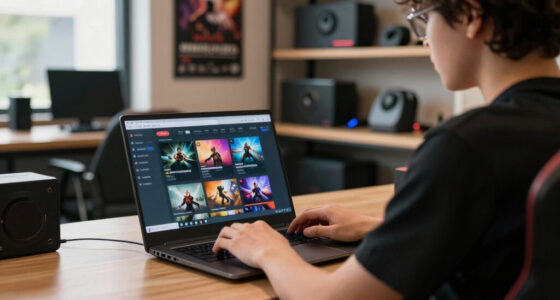
Play games on Amazon Luna for your game nights, included with Prime
- A rotating selection of games, no download needed
- Play on TV, laptop or phone
- Fast, free delivery for your gear, too
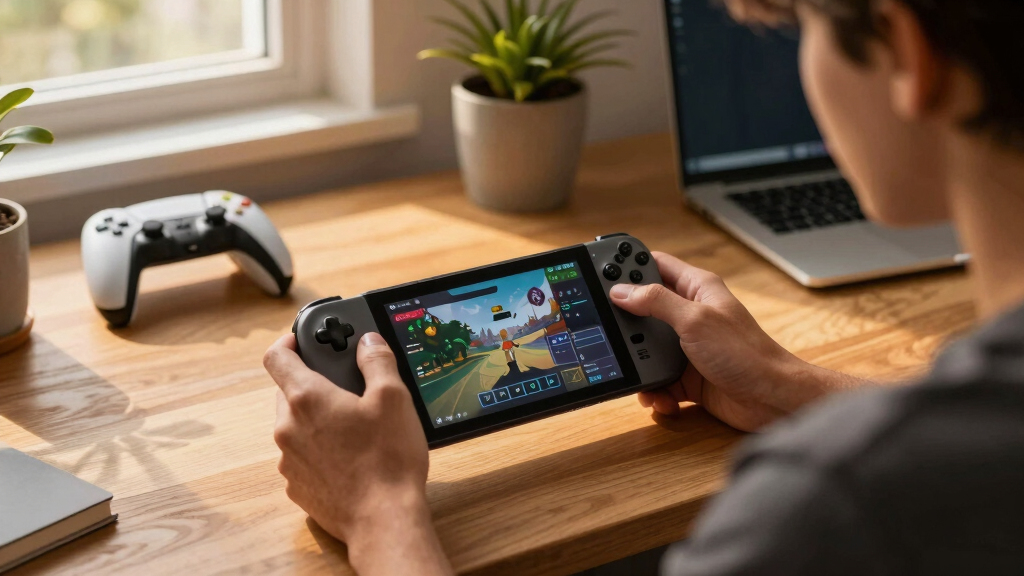
How to prepare Steam Deck games before you lose internet: download and update the games, launch each one while online, sync saves, install DLC, then test Steam Offline Mode before you leave. Most single-player Steam games work offline after setup, but third-party launchers, DRM checks, missing updates, and unsynced saves can still stop you cold.
The worst offline game is the one that opens to a spinning login screen while your train slides through the countryside with zero bars.
You can avoid most of that pain with a short prep routine. This guide shows you how to prepare Steam Deck games before you lose internet, whether you are flying, commuting, camping, or waiting out unreliable hotel Wi-Fi.
The goal is simple: turn your Steam Deck into a little self-contained library. Quiet fan, warm screen, games ready to go. No surprise updates. No missing DLC. No save file trapped in the cloud.
How to Prepare Steam Deck Games Before You Lose Internet
TL;DR: download and update your games, launch each one while online, sync saves, install DLC, then test Steam Offline Mode before you leave. Most single-player Steam games work offline after setup, but launchers, DRM checks, missing patches, and unsynced saves can still stop you cold.
Offline readiness is about dependencies, not just downloads.
A game can be installed and still fail when the Deck loses contact with the outside world. The safer picks launch directly through Steam, keep progress locally, and do not need an account service, server handshake, or anti-cheat layer before the main menu.
Self-contained games
Single-player adventures, local co-op games, older PC releases, and Deck Verified or Playable titles that launch straight from Steam are usually the strongest offline candidates.
Launcher-tied games
EA app, Ubisoft Connect, Rockstar Launcher, account linking, anti-cheat, periodic DRM checks, and modded saves all add extra places where no internet can become a hard stop.
Server-first games
Cloud-only games, always-online RPGs, competitive multiplayer shooters, MMOs, and games that store progress only on a server are fragile choices for flights, trains, and camping.
Run the full loop before the signal disappears.
Steam Support recommends that games be fully updated and launched once before relying on Offline Mode. That sequence clears first-run setup, account prompts, redistributables, shader downloads, and save sync issues while your Deck can still phone home.
Which games are most likely to fail without Wi-Fi?
The riskiest games rely on outside services after installation. A downloaded game is not always a playable game, so build a mixed travel library with one big tested title and a few boringly reliable backups.
| Game Situation | Offline Risk | Readiness Signal | What To Do Before Leaving |
|---|---|---|---|
| Single-player Steam game with local saves | ✓Low | Launches directly from Steam and loads a save without extra accounts. | Update it, launch once, load a save, then test Offline Mode. |
| Game with third-party launcher | ~Medium to high | Launcher stays logged in and does not demand a fresh token or terms prompt. | Log in online, clear prompts, then run a full no-Wi-Fi launch test. |
| Game with DLC, mods, or a modded save | ~Medium | The exact save opens and all DLC areas or mod content are present. | Open the DLC area or modded save while online so missing files show up early. |
| Always-online or live-service game | ✗Very high | Developer clearly supports offline play and your own Deck proves it. | Pick a different travel game unless offline access is explicitly supported. |
Rank your travel library before it matters.
Verified or Playable status helps with Deck compatibility, but it does not guarantee offline access. Treat each title like an audition: fewer external dependencies means a better chance of surviving the dead-zone test.
The invisible blockers are the ones that ruin the trip.
Your safest setup has both a current cloud save and a fresh local save on the Steam Deck. Steam Cloud needs internet to upload and download files, so the smart move is to sync, open the game, save locally, quit cleanly, and then test again offline.
Protect your progress
Wait for Steam Cloud to finish, then create or overwrite a save on the Deck. Load it again offline so you know progress is not trapped on another device.
Verify owned content
Install DLC, open DLC areas, test modded saves, and clear any ownership checks before leaving. Missing content often appears only when the save tries to load it.
From internet-dependent to self-contained library.
The goal is simple: turn your Steam Deck into a small, quiet, ready-to-play library with no surprise updates, no missing DLC, and no save file stranded in the cloud.
Key Takeaways
- Download, patch, and launch each Steam Deck game while online before you rely on Offline Mode.
- Steam Deck Verified or Playable status helps with Deck compatibility, but it does not guarantee offline access.
- Third-party launchers, DRM checks, live-service design, and missing DLC are the biggest offline play risks.
- Sync Steam Cloud saves, then create a fresh local save on the Deck before the connection disappears.
- Run a final no-Wi-Fi launch test because a real test catches problems a checklist can miss.
Steam Deck portable game storage case
As an affiliate, we earn on qualifying purchases.
As an affiliate, we earn on qualifying purchases.
Pick Games That Can Actually Survive Offline
How to Prepare Steam Deck Games Before You Lose Internet starts with choosing games that do not need a constant server handshake. Single-player games with Steam-native launches tend to behave best, while live-service games, MMOs, multiplayer shooters, and titles with third-party launchers can fail even after a clean download.
The reason is simple but important: offline play is not just about whether the game files are on your SSD or microSD card. It is about whether the game can prove ownership, load your profile, find its saves, and start its executable without asking another service for permission. A game that launches directly through Steam has fewer doors to unlock. A game that passes through a publisher account, anti-cheat layer, or online profile system has more places where no internet can become a hard stop.
Think of offline readiness like packing snacks for a long trip. A sealed granola bar works anywhere; a frozen pizza needs a kitchen. Your Deck library has the same split between simple self-contained games and games that keep asking for the outside world.
- Best bets: single-player games, local co-op games, older PC releases, and Steam Deck Verified or Playable games that launch directly from Steam.
- Needs testing: games with EA app, Ubisoft Connect, Rockstar Launcher, anti-cheat, account linking, or periodic DRM checks.
- Bad offline picks: cloud-only games, always-online RPGs, competitive multiplayer games, and anything that stores progress only on a server.
The tradeoff is that some of the biggest, newest, prettiest games are also the ones most likely to drag extra services behind them. That does not mean you can never travel with them. It means they need a stricter audition than a lightweight indie game. If a title has a launcher or account gate, make it prove itself before it earns a spot in your offline lineup.
Deck Verified status helps, but it is not an offline promise. Valve says the Steam Deck compatibility badge focuses on input, display, system support, and smooth launch behavior on Deck [2]. A game can look great in Game Mode and still ask for a login when the Wi-Fi disappears.
Steam Deck compatible external SSD
As an affiliate, we earn on qualifying purchases.
As an affiliate, we earn on qualifying purchases.
Run This 20-Minute Prep Check Before Wi-Fi Disappears
How to Prepare Steam Deck Games Before You Lose Internet works best as a repeatable checklist: update Steam, update the game, launch it online, close it cleanly, then test it in Offline Mode. According to Steam Support, games should be fully updated and launched once before you depend on Offline Mode [1].
That sequence matters because each step clears a different kind of failure. Updating handles missing files and compatibility fixes. Launching online lets first-run setup, account checks, and redistributable installs happen while the Deck can still phone home. Loading a save proves the game is not only installed but connected to the progress you actually care about. Quitting cleanly gives Steam and the game time to write local files instead of leaving them half-finished in the background.
- Connect to reliable Wi-Fi and plug in your Steam Deck so downloads do not stall halfway.
- Update SteamOS and Steam from Settings, then restart the Deck if it asks.
- Open Downloads and let every queued patch finish, even tiny shader or redistributable downloads.
- Launch each game once online and reach the main menu, not just the splash screen.
- Start a save file or load your current save so the game creates local data on the Deck.
- Quit the game normally so Steam has time to write files and sync saves.
- Turn on Offline Mode from Steam, restart when prompted, then launch the game again.
A real test beats a hopeful guess. If you plan to play one 60-hour RPG during a flight, do not only check whether it opens. Load your latest save, move your character, save again, and quit. That five-minute rehearsal can save a five-hour sulk.
The hidden benefit is confidence. Once you know a game can complete the full loop without Wi-Fi, you can spend the trip playing instead of rationing battery while you troubleshoot. The small cost is time before you leave; the payoff is not having your only evening game blocked by a setup screen you could have cleared at home.
As an affiliate, we earn on qualifying purchases.
Which Games Are Most Likely to Fail Without Wi-Fi?
The games most likely to fail offline are the ones that rely on outside services after installation: launchers, account checks, online saves, multiplayer servers, or anti-cheat. A downloaded game is not always a playable game. Put simply: if it has not proven it can start alone, do not trust it alone.
This is where offline preparation becomes less about genre and more about dependency. A small narrative game may be safer than a massive blockbuster because it has fewer moving parts. A game with a launcher may work perfectly today and still fail later if the launcher wants a fresh login, token refresh, or terms prompt. The risk is not always visible from the install size or Steam page, which is why testing your own copy on your own Deck matters more than assuming.
| Game situation | Offline risk | What you should do before leaving |
|---|---|---|
| Single-player Steam game with local saves | Low | Update it, launch once, load a save, then test Offline Mode. |
| Game with third-party launcher | Medium to high | Log in online, disable extra prompts if available, then run a full offline launch test. |
| Game with DLC or mod content | Medium | Open the DLC area or modded save while online so missing files show up early. |
| Always-online or live-service game | Very high | Pick a different game for travel unless the developer clearly supports offline play. |
The practical implication is that you should build a mixed travel library. Bring one ambitious game if it passes testing, but also keep two or three simpler games that are boringly reliable. That way, one launcher tantrum does not wipe out the whole trip. Offline planning is partly technical and partly emotional: you are protecting your limited free time from fragile software assumptions.
Here is the travel version: your cozy puzzle game may behave like a paperback, while your account-linked open-world game may behave like a locked door with the key still on the other side. Rumors and forum posts about offline workarounds are unconfirmed until your own Steam Deck passes the launch test.
As an affiliate, we earn on qualifying purchases.
Protect Your Saves Before the Signal Drops
Your safest offline setup has both a current cloud save and a fresh local save on the Steam Deck. Steam Cloud syncs supported game saves across devices, but it needs internet to upload and download those files [3]. Before you lose Wi-Fi, open the game, save, quit, and wait for Steam to finish syncing.
The danger is not dramatic. It is tiny and dull: a small cloud icon still spinning in the corner, a conflict message you skip too fast, a save made on your desktop that never reached the Deck. Then you open the game on the train and your character is three bosses behind.
Cloud saves are convenient because they let your desktop PC and Steam Deck trade progress without you thinking about files. That convenience has a catch: the cloud is only useful after it has finished doing its work. If you leave before the Deck downloads the newest save, you are carrying an older version of your progress. If you play offline for hours, then reconnect later, Steam may need you to choose between local and cloud versions. Slow down at that moment. The wrong click can overwrite the save you meant to keep.
- Check the cloud icon on the game page before going offline.
- Open your latest save while online, then save again on the Steam Deck.
- Wait after quitting until Steam finishes its sync status.
- Back up rare saves manually for long RPGs, modded games, or anything you would hate to lose.
Manual backups are not necessary for every casual game, and that is the tradeoff. For a roguelike run you do not mind losing, the extra work may be overkill. For a 120-hour RPG, a modded save, or a shared family profile, a backup is cheap insurance. The more painful the loss would feel, the more boringly careful you should be before Wi-Fi disappears.
Offline play rewards boring prep, not heroic fixes. The antithesis is plain: the more ordinary your setup feels before departure, the less drama you get after the signal dies.
Make Updates, DLC, and Shaders Finish Before You Leave
How to Prepare Steam Deck Games Before You Lose Internet also means clearing every hidden download that can block play later. Game patches, DLC packs, Proton updates, shader pre-caching, and runtime files can all sit in the queue. If one is missing, the game may launch badly or refuse to launch at all.
These downloads are easy to underestimate because they do not all look like full game installs. A shader cache can affect smoothness. A Proton update can affect whether a Windows game behaves properly on SteamOS. DLC can determine whether your save loads at all if your character is standing in an expansion zone or using expansion gear. A tiny runtime package can be the difference between the game opening and bouncing back to the library.
Open Steam Downloads and treat it like a departure board. Anything stuck, paused, or scheduled for later deserves attention before the airport lounge, cabin, basement, or campsite. A 300 MB patch feels tiny at home and enormous on a train with no tethering.
- Install DLC before testing if your save depends on expansion areas, bonus characters, or soundtrack packs.
- Let shader downloads finish so supported games feel smoother on Steam Deck LCD or OLED running SteamOS Game Mode.
- Check storage space because a nearly full microSD card can make updates fail at the worst moment.
- Disable auto-update surprises only after the game is already working, since half-patched games can be worse than old ones.
There is a real tradeoff with updates. Updating everything gives you the best chance of compatibility, but it can also consume time, storage, and battery right before you leave. If you are short on time, prioritize the games you will actually play, not your whole library. A fully tested five-game travel set is better than 40 half-updated icons that look ready until one asks for another download.
Offline Mode changes access, not performance. On Steam Deck, a game that runs at 30 frames per second online will not magically hit 60 frames per second offline. Your prep removes login and file problems; it does not rewrite the game engine.
Set Power, Storage, and Family Details While You Still Can
A ready Steam Deck needs more than ready software: it needs battery, storage, controls, and account settings that match your trip. Before you leave, charge the Deck, pack the charger, check microSD space, set per-game controls, and review age ratings if younger players will use it.
Imagine passing the Deck to a younger cousin during a long family drive. The game starts, but the Mature-rated store page was never checked, the controls feel wrong, and the battery is at 18 percent. That is not a game problem. That is a prep problem.
The deeper point is that offline failure is not always a login screen. Sometimes it is a control layout that makes a game miserable in handheld mode. Sometimes it is a nearly full drive that cannot create shader files or screenshots. Sometimes it is a battery bank that charges a phone just fine but cannot keep up with the Deck under load. The game may technically work, but the session still falls apart.
- Battery: charge to 100 percent and bring a USB-C charger or battery bank that can keep up with the Deck.
- Storage: leave several GB free for save files, shader caches, screenshots, and small last-minute updates.
- Controls: open each game and test the controller layout in Game Mode before you lose Wi-Fi.
- Age ratings: check ESRB or PEGI ratings on store pages before travel if kids will share the device.
- Audio: pair Bluetooth headphones while online if you need firmware prompts or pairing screens out of the way.
Every trip has a different balance. For a solo commute, you may care most about battery and quick resume. For a family vacation, ratings, profiles, and headphone pairing may matter more. For a long flight, storage and charger wattage become part of the plan. Preparing the Deck means matching the setup to the real situation, not just checking that the download button says complete.
The simple restatement: prepare the whole play session, not just the install button. A Steam Deck with the right game but no power is still a brick with thumbsticks.
Use One Final Offline Test Before You Trust the Deck
How to Prepare Steam Deck Games Before You Lose Internet ends with a real offline test, not a mental checklist. Turn on Steam Offline Mode, restart if Steam asks, disconnect Wi-Fi, and launch the exact games you plan to play. If they work now, they are far more likely to work later.
This final test matters because it changes the Deck into the same conditions you will have when the connection is gone. Many problems do not appear while Wi-Fi is still quietly available in the background. A launcher may be borrowing an active session. Steam may be finishing a sync. A game may be reaching out for a small entitlement check without making that obvious. Cutting Wi-Fi during the test exposes those dependencies while you can still fix them.
- Go to Steam settings and switch to Offline Mode while still connected.
- Restart Steam when prompted so the Deck enters the same state you will use later.
- Turn Wi-Fi off from Quick Settings to simulate the dead-zone moment.
- Launch each travel game and reach playable control, not just the title screen.
- Load a save, play for two minutes, save, and quit so you test the full loop.
- Write down problem games and replace them before you leave.
The two-minute play test is doing more work than it seems. It checks input, save access, DLC, performance quirks, and whether the game can return to Steam cleanly. It also tells you which games deserve a place on the home screen and which ones should stay behind until you have reliable internet again.
This test feels fussy until it saves your weekend. You do not want to discover a launcher problem while rain taps the cabin window and your phone has one shaky bar. Test in comfort, then play in peace.
Frequently Asked Questions
Can you play Steam Deck games without internet?
Yes, many Steam Deck games work without internet after they are downloaded, updated, and launched at least once online. Games with online-only modes, third-party launchers, or periodic DRM checks may still need a connection, so test each game in Offline Mode before you leave.
Do I need to start every game before going offline?
Yes, start every game you plan to play. Steam Support recommends launching games while online after updates so any setup, activation, or missing-file prompt appears before you lose the connection [1]. Reaching the main menu is good; loading a save is better.
Will Steam Cloud saves work while offline?
Steam Cloud saves do not sync while you are offline because they need a network connection [3]. You can still play from a local save on the Deck, then Steam should sync changes later when you reconnect. Watch for cloud conflict prompts when you come back online.
Does Steam Deck Verified mean a game works offline?
No. Steam Deck Verified means Valve checked Deck compatibility areas such as input, display, system support, and launch experience [2]. Offline access depends on the game, DRM, launcher behavior, and whether your copy has already been installed and activated.
What should I do if a game fails during the offline test?
Reconnect to Wi-Fi, update the game, launch it online, sign into any required launcher, and test again. If it still fails, treat that title as a poor offline choice and bring a safer backup game. One reliable backup can rescue a long trip.
Conclusion
Prepare your Steam Deck like you would pack for bad weather: handle the boring stuff while conditions are good. Update the games, launch them once, sync the saves, test Offline Mode, and replace anything that complains.
Do that, and losing internet becomes background noise. The screen glows, the buttons click, and your game keeps moving while the world outside drops to zero bars.
Fall Picks
fall essentials
As an affiliate, we earn on qualifying purchases.