TL;DR

Play games on Amazon Luna for your game nights, included with Prime
- A rotating selection of games, no download needed
- Play on TV, laptop or phone
- Fast, free delivery for your gear, too
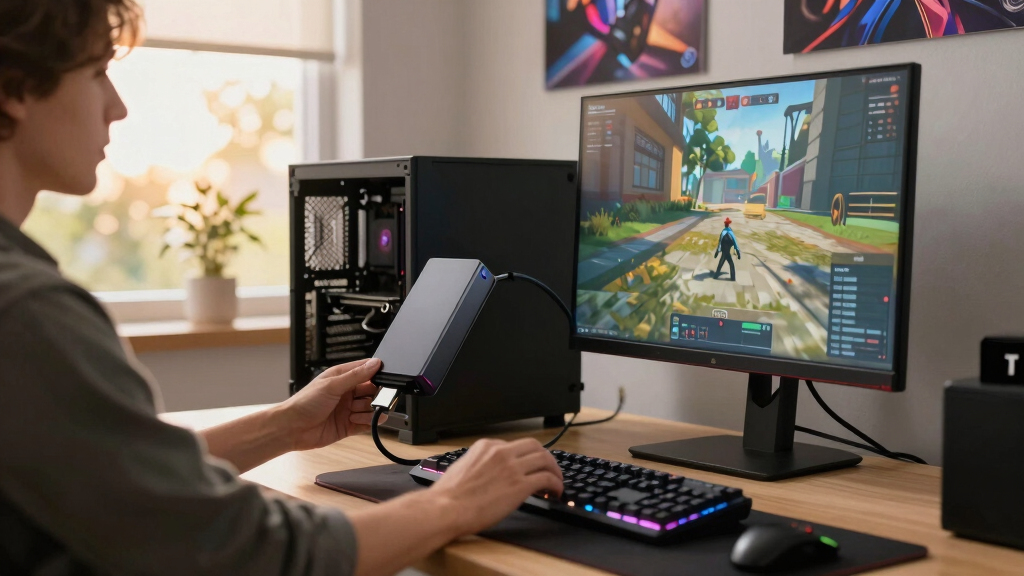
PCIe bandwidth explained for eGPU gaming means understanding how much data can move between your system and an external graphics card. Thunderbolt 3 and 4 usually feel fine for many 1080p and 1440p games, but high-refresh play, internal laptop screens, and flagship GPUs can expose the narrow link. Your best first move is to use an external monitor connected to the eGPU and verify the link speed before blaming the graphics card.
A $700 graphics card can feel weirdly ordinary when it breathes through a skinny cable.
This guide gives you PCIe bandwidth explained for eGPU gaming in plain numbers, without turning your evening into a motherboard manual. You will learn why lanes matter, why Thunderbolt feels different from a desktop slot, and why the same GPU can feel smooth on one setup and oddly sticky on another.
If you play on Steam, a Windows laptop, or a handheld PC, this matters before you buy an enclosure, flash a BIOS, or chase leaked dock claims. Treat rumors and leaks about unreleased eGPU hardware as unconfirmed until vendors publish specs and real players test final units.
Why a Big GPU Can Feel Smaller Outside the PC
External graphics cards can render fast, but they still trade data with the laptop through a much narrower path than a desktop x16 slot. Thunderbolt 3 and 4 often feel fine for 1080p and 1440p gaming, while high-refresh play, internal laptop screens, and flagship GPUs can expose the skinny cable.
A $700 graphics card can feel weirdly ordinary when it breathes through a skinny cable.
The Three Places Bandwidth Bites
PCIe bandwidth is the amount of data your system can move across PCI Express lanes each second. A lane is like one lane on a bridge: newer generations and more lanes let more traffic cross before frame pacing starts to bunch up.
x4 vs. x16
Many eGPU links behave like a compact x4 path, while desktop graphics cards are designed around much wider x16 slots.
Panel return trip
If the laptop screen displays the rendered frame, finished image data may travel back through the same cable.
Frame-time teeth
Esports titles, asset streaming, CPU chatter, and high refresh targets can reveal bottlenecks even when average FPS looks acceptable.
The Bandwidth Numbers That Set the Ceiling
PCIe generation and lane count both matter. Thunderbolt naming tells you the outside connector class, but the negotiated PCIe link width and speed tell you what the graphics card actually gets.
| Connection | Typical one-way payload | eGPU meaning | Ceiling signal |
|---|---|---|---|
| PCIe 3.0 x4 | About 3.94 GB/s | Common Thunderbolt 3 and 4 class limit. | ~ Tight for high-end GPUs |
| PCIe 3.0 x16 | About 15.75 GB/s | Older desktop GPU slot class. | ✓ Wide baseline |
| PCIe 4.0 x4 | About 7.88 GB/s | Stronger eGPU path when host, cable, and enclosure support it. | ✓ Better headroom |
| PCIe 4.0 x16 | About 31.5 GB/s | Modern desktop slot class. | ✗ Rare outside a PC |
| PCIe 5.0 x4 | About 15.75 GB/s | Roughly matches PCIe 3.0 x16 one-way bandwidth. | ✓ Future-friendly |
| Thunderbolt 3 / 4 | 40 Gbps link, often PCIe x4 class | Familiar laptop eGPU route with overhead and shared display traffic. | ~ Good, not magic |
| Thunderbolt 5 | 80 Gbps class, 120 Gbps display-heavy mode | More room for future setups when every part supports it. | ✓ More runway |
What You Feel at 1080p, 1440p, and 4K
Resolution changes where the pressure lands. Lower resolution high-refresh play can expose CPU and link chatter, while higher resolution often makes the GPU the main worker until asset streaming tugs on the cable.
For a Windows 11 Thunderbolt 4 laptop, a 1440p single-player game on an external monitor connected to the eGPU is often the cleanest balance. At 1080p esports settings, the frame-time graph can get uneven even while the GPU looks underused.
A 5-Step Check Before You Blame the GPU
A bandwidth bottleneck shows up when the GPU has room to work but frames still arrive unevenly or lower than expected. Keep the scene, driver, patch, and settings repeatable.
Route Display
Plug the monitor into the eGPU, not the laptop, then repeat the same scene.
Shift Load
Run 1080p low, then 1440p or 4K high. Flat FPS can point beyond the card.
Watch Use
If GPU use stays far below 90% while FPS struggles, inspect link, CPU, and driver path.
Verify Link
Look for actual Gen 3 x4, Gen 4 x4, or negotiated width, not just port marketing.
Compare Fairly
Use the same GPU, game patch, driver version, and benchmark scene before spending again.
External Monitor vs. Laptop Screen
The internal laptop screen can steal frames because the cable may carry command traffic, asset traffic, and finished display traffic in the same little stream.
Monitor on the eGPU
Finished frames leave the graphics card through its own display output. The PCIe link is calmer, and you often feel smoother pans and cleaner frame times.
Laptop internal panel
The eGPU renders, then the finished image may return through the same connection. That return trip can narrow the effective gaming path.
Trace the Bottleneck Like a Signal Chain
Before buying a faster enclosure or GPU, verify the whole chain. Rumors about unreleased docks stay unconfirmed until vendors publish specs and real players test final hardware.
Key Takeaways
- PCIe generation and lane count both matter: PCIe 5.0 x4 roughly matches PCIe 3.0 x16 one-way payload bandwidth.
- Thunderbolt 3 and 4 eGPU setups often work well at 1080p and 1440p, but internal laptop screens and high-refresh play can expose the narrower link.
- An external monitor connected to the eGPU is usually the simplest performance win because finished frames do not need to travel back to the laptop panel.
- Steam Deck eGPU setups are usually unsupported mods, while Steam Deck Verified badges describe game compatibility rather than external GPU performance.
- Before buying a faster enclosure or GPU, verify actual link width, cable quality, game version, driver version, and display routing.
As an affiliate, we earn on qualifying purchases.
Why Your Big GPU Can Feel Smaller Outside the PC
PCIe bandwidth explained for eGPU gaming is simple: your external GPU can render frames fast, but it still has to trade data with the CPU, memory, storage, and display through a link that is much narrower than a desktop x16 slot. The GPU may have muscle, while the cable acts like a tight hallway.
PCIe bandwidth is the amount of data your system can move across PCI Express lanes each second. A lane is like one lane on a bridge; more lanes or a newer PCIe generation let more traffic cross before cars bunch up and horns start blaring.
Think of a racing game loading a wet city track at night. The GPU draws reflections, puddles, brake lights, smoke, and sparks, but the CPU still feeds it draw calls, texture requests, physics updates, and frame timing. If the link is narrow, the scene can feel like a sports car stuck behind a delivery truck.
For many games, the eGPU still feels great because the graphics card does most of the heavy work locally. The trouble shows up when the game keeps asking the system for fresh data, or when finished frames must travel back through the same cable to the laptop screen.
As an affiliate, we earn on qualifying purchases.
The Bandwidth Numbers That Set Your Ceiling
PCIe bandwidth explained for eGPU gaming gets easier when you compare lanes and generations side by side. PCIe 3.0 x4 is a small outside pipe at about 3.94 GB/s one way, while PCIe 4.0 x4 roughly doubles that, and PCIe 5.0 x4 reaches the class of an older desktop x16 slot.
| Connection | Typical one-way payload bandwidth | What it means for eGPU gaming |
|---|---|---|
| PCIe 3.0 x4 | About 3.94 GB/s | Common Thunderbolt 3 and 4 class limit; fine for many games, tight for high-end GPUs. |
| PCIe 3.0 x16 | About 15.75 GB/s | Older desktop GPU slot class; much wider than most Thunderbolt eGPU paths. |
| PCIe 4.0 x4 | About 7.88 GB/s | A stronger eGPU path when the host, controller, cable, and enclosure support it. |
| PCIe 4.0 x16 | About 31.5 GB/s | Modern desktop slot class; outside setups rarely match this end to end. |
| PCIe 5.0 x4 | About 15.75 GB/s | Roughly matches PCIe 3.0 x16 one-way bandwidth on paper. |
| Thunderbolt 3 or 4 | 40 Gbps link, often PCIe x4 class | The familiar eGPU path for many laptops, with overhead and shared display traffic. |
| Thunderbolt 5 | 80 Gbps class, with 120 Gbps display-heavy mode | More room for future eGPU setups, but only when the whole chain supports it. |
According to PCI-SIG public PCI Express materials, PCIe generations double raw transfer rate: Gen 3 runs at 8 GT/s per lane, Gen 4 at 16 GT/s, Gen 5 at 32 GT/s, Gen 6 at 64 GT/s, and Gen 7 at 128 GT/s [1]. According to the Thunderbolt Technology Community FAQ, Thunderbolt connections can expose 40 Gbps, 80 Gbps, or 120 Gbps links over USB-C depending on generation and mode [2].
Sources used for the figures: [1] PCI-SIG, https://pcisig.com. [2] Thunderbolt Technology Community FAQ, https://www.thunderbolttechnology.net/tech/faq.
As an affiliate, we earn on qualifying purchases.
What You Feel at 1080p, 1440p, and 4K
Resolution changes how much PCIe bandwidth hurts because each game shifts work between the CPU, GPU, memory, and display path. At 1080p high refresh, the system may push many small frame updates fast; at 4K, the GPU often becomes the heavy lifter, though texture streaming can still tug on the link.
On a Windows 11 Thunderbolt 4 laptop using an external monitor plugged into the eGPU, a 1440p single-player game often feels like the sweet spot. You get sharper grass, cleaner shadows, and richer lighting without asking the CPU to chase 200 frames per second through a narrow connection.
At 1080p esports settings, the story can flip. A game like Counter-Strike 2 or Fortnite may care more about frame pacing and CPU chatter than raw shader power, so the eGPU can look underworked while the frame-time graph gets little teeth.
At 4K, a demanding game with ultra textures can still hit the bandwidth wall when assets stream constantly. You may see a momentary hitch as the camera swings into a neon market or a forest packed with wet leaves, even though average FPS looks fine.
high refresh rate external monitor
As an affiliate, we earn on qualifying purchases.
As an affiliate, we earn on qualifying purchases.
Why the Laptop Screen Can Steal Frames
The internal laptop screen can reduce eGPU performance because finished frames may travel back through the same cable after the GPU renders them. That return trip uses bandwidth that an external monitor plugged straight into the eGPU would skip, so the picture path matters as much as the graphics settings.
If the eGPU renders a frame and then sends it back to the laptop panel, the cable works twice: once for game data and once for the finished picture.
Say your laptop sits on a desk, the eGPU box hums beside it, and you play on the built-in screen because it looks convenient. The game may run, but the cable now carries command traffic, asset traffic, and display traffic in the same little stream.
Move that same game to a monitor connected to the graphics card inside the eGPU enclosure and the link gets calmer. You often feel it as smoother camera pans, cleaner frame times, and fewer little snags when the scene gets busy.
A 5-Step Check for a Bandwidth Bottleneck
A bandwidth bottleneck shows up when the GPU has room to work but frames still arrive unevenly or lower than expected. You can test it without fancy lab gear by comparing the same scene, the same game version, and the same driver path across display and resolution changes.
- Plug the monitor into the eGPU, not the laptop, then test the same save point or built-in benchmark.
- Run 1080p low, then 1440p or 4K high. If FPS barely changes, the link, CPU, or driver path may be holding you back.
- Watch GPU use with a tool such as Task Manager, GPU-Z, HWiNFO, or MangoHud on Linux. If GPU use sits far below 90% while FPS struggles, look beyond the graphics card.
- Check link speed and width. Look for Gen 3 x4, Gen 4 x4, or another actual negotiated value, not just the marketing name on the port.
- Compare against desktop results for the same GPU, same game patch, and similar settings. A gap is normal; a huge gap needs more testing.
Use a repeatable scene, like the same Cyberpunk 2077 street corner at night or the same Baldur’s Gate 3 camp camera sweep. Random multiplayer matches make bad tests because smoke, players, servers, and patches all move the target.
What Steam Deck and Handheld Players Should Expect
Steam Deck eGPU gaming is not the same as plugging a desktop GPU into a normal laptop dock. Valve’s standard USB-C dock path does not provide a regular external GPU route, so most eGPU talk around Steam Deck involves unsupported M.2 or OCuLink-style mods rather than a simple living-room cable.
That means the risk feels different. You may be opening the handheld, giving up compact portability, changing storage, or relying on community scripts that can break after a SteamOS update. A clean benchmark today can become a weekend repair puzzle after a driver change.
For compliance clarity: Steam Deck Verified badges apply to game compatibility, not external GPU performance, and they can change by game build and SteamOS version. An eGPU also does not change a game’s age rating; check the store page rating if younger players use the device.
Windows handhelds with USB4 or Thunderbolt-class ports can be simpler, but you still need actual PCIe tunneling support. A USB-C port shaped like the right door may still lead to the wrong room.
Where Your Money Helps Most Before More Lanes
Your money usually helps most when it removes easy friction before you chase a faster PCIe standard. A better display path, certified cable, stable enclosure, good cooling, and a sensible GPU match can improve the feel of a setup more than buying the biggest card you can fit in a box.
- Use an external monitor from the eGPU when you can. This often gives the cleanest gain for the least fuss.
- Buy the right cable. A short certified Thunderbolt or USB4 cable is boring in the best way: it either carries the link cleanly or it saves you hours of guessing.
- Match the GPU to the link. A midrange card can feel balanced on Thunderbolt 3 or 4, while a flagship card may spend more time waiting.
- Keep the enclosure cool. Heat can turn a smooth fan whoosh into thermal dips that look like bandwidth trouble.
- Check CPU age. A thin 4-core laptop from years ago may hold back a fast GPU even when the PCIe link behaves.
Imagine two upgrades: a giant GPU over a flaky long cable, or a slightly smaller GPU with an external monitor and a stable enclosure. The second setup often feels better because every part of the chain pulls in the same direction.
What Thunderbolt 5 Fixes and Still Leaves Alone
PCIe bandwidth explained for eGPU gaming changes with Thunderbolt 5 because the outside connection gets wider, but it does not erase every bottleneck. Thunderbolt 5 can raise the link from 40 Gbps-class to 80 Gbps-class and supports a 120 Gbps display-heavy mode, yet games still depend on drivers, enclosure design, CPU speed, and display routing.
For eGPU buyers, the fine print matters. Look for explicit PCIe 4.0 x4, PCIe tunneling, enclosure GPU support, power supply limits, cable length, firmware notes, and your laptop’s port spec. A shiny Thunderbolt 5 logo alone does not promise full external graphics speed.
As of June 16, 2026, Thunderbolt 5 support is growing across high-end laptops and docks, but eGPU enclosure support varies by vendor and firmware. Treat leaked performance charts for unreleased boxes as unconfirmed until final retail hardware, public drivers, and repeatable user tests line up.
The best scenario is quiet and simple: a Thunderbolt 5 laptop, a matching enclosure, a short certified cable, and a monitor connected directly to the eGPU. The worst scenario is a mixed chain where one older controller quietly drops everything back to a narrower path.
The Simple Rule for a Balanced eGPU Build
A balanced eGPU build matches the GPU, connection, display, and games instead of chasing the biggest number on one spec sheet. If your link is Thunderbolt 3 or 4, think 1080p or 1440p with sane settings; if your whole chain supports newer PCIe paths, you can push harder.
Here is the practical definition of balanced: the GPU stays busy, the CPU does not gasp, the cable runs at the speed you paid for, and the monitor gets frames without a round trip through the laptop screen. When those four pieces line up, the setup feels less like a hack and more like a small desktop with a handle.
For a Steam library full of RPGs, racing games, strategy games, and cinematic single-player titles, an eGPU can be a lovely upgrade. For ultra-high-refresh competitive play, a desktop still gives you the wider road, lower fuss, and cleaner timing.
Frequently Asked Questions
Is Thunderbolt 3 or 4 enough for eGPU gaming?
Thunderbolt 3 or 4 is enough for many 1080p and 1440p games, especially when you use an external monitor connected to the eGPU. It can limit high-end GPUs, high-refresh esports settings, and games that stream lots of data during play.
Does PCIe bandwidth matter more at 1080p or 4K?
PCIe bandwidth can show up at both, but for different reasons. At 1080p high refresh, the system may push more frame traffic and CPU work; at 4K, the GPU often carries more load, though ultra textures and asset streaming can still create hitches.
Should you wait for Thunderbolt 5 before buying an eGPU?
Wait for Thunderbolt 5 if you are buying a new laptop and enclosure soon, and you want the longest useful runway. If you already own a stable Thunderbolt 3 or 4 setup and play at 1440p, a better monitor path or saner GPU match may help more right now.
Can you use an eGPU with Steam Deck?
Steam Deck does not offer a normal plug-and-play eGPU path through Valve’s standard USB-C dock setup. Most Steam Deck eGPU projects rely on unsupported hardware mods, so check SteamOS version, game build, power, storage, and warranty risk before trying it.
How do you know your eGPU link is running at the right speed?
Check the negotiated link speed and width with a system tool, not the box label. On Windows, tools such as GPU-Z or HWiNFO can show PCIe generation and lane width; on Linux or SteamOS-based setups, command-line tools can show whether the link is x4, Gen 3, Gen 4, or something lower.
Conclusion
The crisp takeaway: treat an eGPU as a whole chain, not a graphics card in a box. The port, lanes, cable, enclosure, display, CPU, drivers, and game all decide whether the frame arrives cleanly.
Get the monitor on the eGPU, verify the real link speed, then tune from there. When the chain is balanced, the stutter fades and your game stops feeling like it is breathing through a straw.
Fall Picks
fall essentials
As an affiliate, we earn on qualifying purchases.