
TL;DR
Steam Deck controller layouts are game-specific Steam Input profiles that decide what every button, stick, trigger, touchpad, and gyro movement sends to a game. Before you remap anything, check the official layout, test community layouts, and change one control problem at a time so you keep muscle memory intact.
Your Steam Deck can feel perfect in one game and strangely stiff in the next, even when your thumbs sit on the same black sticks and glossy ABXY buttons.
That happens because the layout is not just hardware. It is a control recipe. Steam Input decides whether a touchpad acts like a mouse, a stick, a menu wheel, or four extra buttons, and that choice can make a game feel smooth or clumsy.
You will learn what the main layout pieces do, when community profiles help, and how to change controls without turning your Deck into a confusing button soup.
Steam Deck Controller Layouts Explained Before You Remap Anything
TL;DR: Steam Deck controller layouts are game-specific Steam Input profiles that decide what every button, stick, trigger, touchpad, and gyro movement sends to a game. Before you remap anything, check the official layout, test community layouts, and change one control problem at a time so your muscle memory stays intact.
A layout is not just hardware. It is the control recipe between your hands and the game.
Know What the Deck Already Gives You
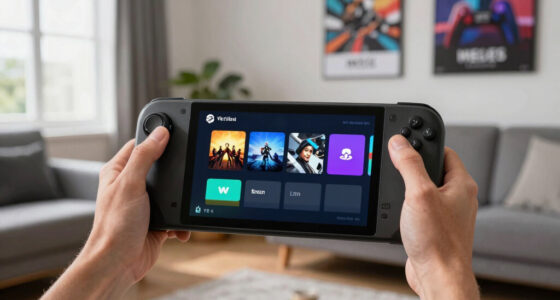
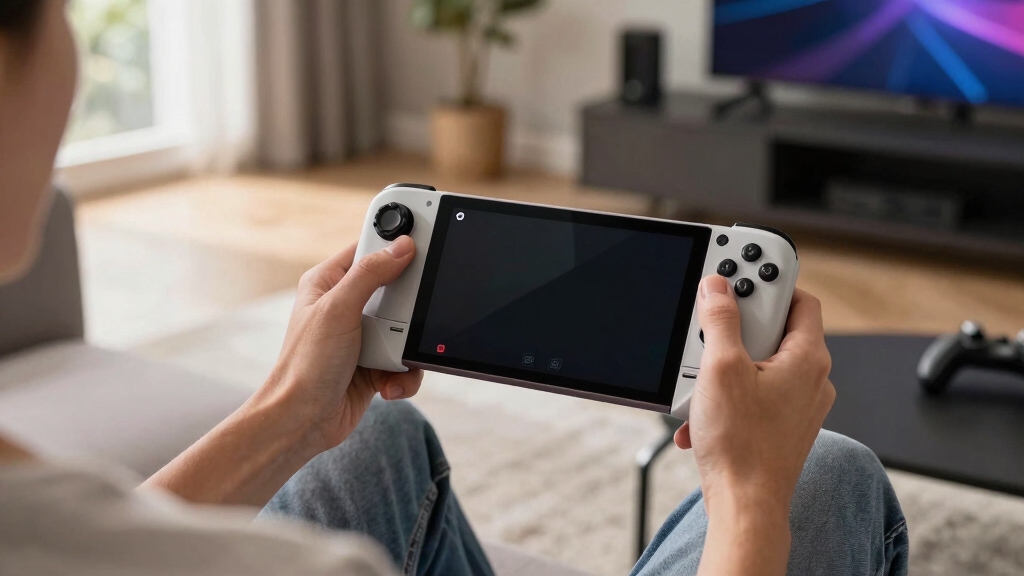
The default layout is the baseline: two sticks, ABXY, D-pad, shoulders, analog triggers, touchpads, rear grip buttons, gyro, and system buttons. Steam Input can translate those controls into gamepad, mouse, keyboard, or mixed input, so the same physical button can mean very different things in different games.
Face Buttons
ABXYUsually handle confirm, cancel, jump, reload, interact, or menu actions. Keep these predictable unless a game forces awkward defaults.
Triggers & Bumpers
L1 L2 R1 R2Best for aim, fire, throttle, brake, zoom, and other actions that benefit from index-finger access.
Touchpads
Cursor SurfaceCan become a mouse, radial menu, scroll wheel, camera surface, or grouped shortcut panel for PC-heavy games.
Rear Grips
L4 L5 R4 R5Perfect for actions you need while keeping both thumbs on the sticks, especially sprint, crouch, inventory, and map.
Gyro
Fine AimWorks best as small wrist correction after the basic camera already feels right, not as the first thing you tune.
System Layer
SteamOSQuick menus, controller settings, official layouts, and community profiles live close to gameplay, so testing is fast.
See Why the Translation Layer Changes Everything
A game can receive Xbox-style gamepad signals, keyboard keys, mouse movement, or a blend of all three. That is why your Deck can feel natural in Portal 2 and strangely stiff in an old PC RPG: the layout is translating your hands into whatever the game understands.
Ask the better question.
Do not start with “What button should I remap?” Start with “What kind of input does this game think I am using?” That answer tells you whether to lean into gamepad comfort, cursor precision, keyboard shortcuts, or a hybrid setup.
Compare Layouts Before You Commit
The fastest layout choice is genre matching. Gamepad layouts suit modern action games, mouse-and-keyboard layouts help older PC titles, and hybrids shine when a game needs both comfortable movement and precise cursor or aim control.
| Layout Type | Best For | Feels Like | Deck Strength | Watch For |
|---|---|---|---|---|
| Gamepad | Action games, platformers, racing games | Console-like, familiar, low fuss | ✓ Consistent prompts and fast learning | ~ May hide useful PC-only actions |
| Mouse & Keyboard | Old PC games, strategy games, launchers | Precise but busier | ✓ Touchpad cursor makes tiny UI playable | ✗ More commands to remember |
| Hybrid | Shooters, RPGs, sims, management games | Flexible and powerful | ✓ Stick movement plus gyro or touchpad precision | ~ Prompts can switch between controller and keyboard |
| Community | Popular games with awkward defaults | Player-tested, worth editing | ✓ Solves known pain points quickly | ~ Still needs a 10-minute real gameplay test |
The One-Annoyance Workflow
If you change six buttons at once, your hands lose the old map before your brain learns the new one. Fix the moment that keeps bothering you, test it in real play, then move on.
Drive First
Use the official layout long enough to learn what already works.
Browse Profiles
Check recommended and community layouts for the specific game.
Pick One Pain
Start with the repeated annoyance, like L3 sprint or awkward inventory.
Move It
Map the action to a grip, touchpad click, trigger, or radial menu.
Test 10 Minutes
Play a real fight, race, menu loop, or mission before judging the layout.
Give the Pads a Clear Personality
Touchpads feel best when they have a job that matches the surface: cursor movement, menu selection, camera control, scrolling, or clustered shortcuts. They feel strange when treated as random spare buttons.
Best Use Match
Comfort Spectrum
Most players should start left, borrow wisdom in the middle, and only move right after they know exactly what their hands want changed.
Keep Your Layout Useful, Not Clever
Steam Deck Controller Layouts Explained Before You Remap Anything comes down to restraint: understand the input layer, borrow good profiles, and protect the muscle memory that already works.
Layouts are Steam Input profiles, not just button maps; they can send gamepad, mouse, keyboard, or mixed inputs.
Check official and community layouts before editing, because another player may have solved the awkward parts.
Move repeated stick-click actions to rear buttons when they strain your thumbs or interrupt camera control.
Use touchpads for cursor work, radial menus, and grouped shortcuts instead of treating them as spare buttons.
From Thumb Movement to Game Action
Every layout decision travels through a chain. If something feels wrong, trace the chain before remapping the whole controller.
Hand
Your thumb, finger, or wrist makes the physical movement.
Deck Control
Stick, trigger, touchpad, grip, button, or gyro captures it.
Steam Input
The profile translates that control into a chosen input type.
Game Signal
The game receives gamepad, mouse, keyboard, or mixed input.
On-Screen Prompt
The UI may show controller prompts, keyboard prompts, or both.
Muscle Memory
Your hands decide whether the layout feels smooth or clumsy.
Key Takeaways
- Steam Deck layouts are Steam Input profiles, not just button maps; they can send gamepad, mouse, keyboard, or mixed inputs.
- Check the official and community layouts before editing, because another player may have already solved the awkward parts.
- Remap one repeated annoyance at a time, especially stick-click actions that strain your thumbs.
- Use touchpads for cursor work, radial menus, and grouped shortcuts instead of treating them as random spare buttons.
- Test any layout for 10 minutes in real gameplay before deciding it works.
Steam Deck controller remapping kit
As an affiliate, we earn on qualifying purchases.
As an affiliate, we earn on qualifying purchases.
Know What the Default Layout Already Gives You
Steam Deck Controller Layouts Explained Before You Remap Anything starts with the default controls: two sticks, ABXY buttons, a D-pad, shoulder buttons, analog triggers, two touchpads, four rear grip buttons, gyro, and system buttons. According to Valve’s Steam Deck materials, Steam Input lets these controls act as gamepad, mouse, keyboard, or mixed inputs [1].
Think of the default layout like a rental car dashboard. The wheel, pedals, and mirrors are where you expect them, but the wipers, lights, and seat controls may hide in different spots. Before you change anything, drive around the block.
- ABXY buttons usually handle confirm, cancel, jump, reload, or interact actions.
- Triggers often control aim, fire, throttle, brake, or camera zoom.
- Touchpads can act like a mouse, radial menu, scroll wheel, or extra button pad.
- Rear grip buttons are ideal for actions you need while keeping both thumbs on the sticks.
- Gyro adds small wrist-based aiming corrections, especially useful in shooters.
In a game like Portal 2, the default layout may feel natural right away: left stick moves, right stick looks, trigger fires. In a mouse-heavy strategy game, the right touchpad may do the heavy lifting, with tiny tap-tap clicks replacing a desk mouse.
Steam Input profile customization tools
As an affiliate, we earn on qualifying purchases.
As an affiliate, we earn on qualifying purchases.
See Why Steam Input Changes Everything
Steam Deck Controller Layouts Explained Before You Remap Anything means understanding Steam Input first: it is Valve’s built-in control layer that translates your physical Deck controls into whatever the game expects. A game can receive Xbox-style gamepad signals, keyboard keys, mouse movement, or a blend of all three [1].
That translation layer is the magic and the mess. It can rescue old PC games that never expected a handheld. It can also confuse you when a game shows keyboard prompts while your hands are clearly holding a controller.
Key insight: do not ask, “What button should I remap?” Ask, “What kind of input does this game think I am using?”
For example, a 2004 PC RPG may expect number keys, right-click menus, and tiny cursor movements. Steam Input can make the left stick walk, the right touchpad move the cursor, and a rear grip button press the Tab key. Click. Swish. Suddenly an old desktop game feels handheld.
As an affiliate, we earn on qualifying purchases.
Compare Layout Types Before You Pick One
The fastest way to choose a Steam Deck layout is to match the layout type to the game’s control style. Gamepad layouts suit modern controller-ready games, mouse-and-keyboard layouts help older PC titles, and hybrid layouts shine when a game needs both precise cursor work and comfortable movement.
| Layout type | Best for | What it feels like | Example scenario |
|---|---|---|---|
| Gamepad | Action games, platformers, racing games | Console-like, familiar, low fuss | You play Hades and use triggers, sticks, and face buttons without touching the pads. |
| Mouse and keyboard | Old PC games, strategy games, launchers | Precise but busier | You use the right touchpad as a mouse to click small inventory icons. |
| Hybrid | Shooters, RPGs, sims | Flexible, sometimes prompt-heavy | You move with a stick but aim with gyro and touchpad for finer control. |
| Community layout | Popular games with awkward defaults | Player-tested, worth editing | You download a layout where someone mapped rear buttons for sprint, crouch, map, and inventory. |
Here is the practical tradeoff. Gamepad layouts feel clean, but they can hide useful PC actions. Hybrid layouts give you more control, but the screen may flash between “Press A” and “Press Enter,” which feels like the game forgot what room it is in.
game-specific controller profiles for Steam Deck
As an affiliate, we earn on qualifying purchases.
As an affiliate, we earn on qualifying purchases.
Use Community Layouts Without Losing Your Bearings
Steam Deck Controller Layouts Explained Before You Remap Anything also means checking community layouts before building from scratch. Steam lets players share per-game control profiles, and those profiles can save you 20 minutes of trial and error when a game has odd menus, tiny UI buttons, or no native controller support [2].
Community layouts are like borrowing a friend’s tuned guitar. It may sound great in their hands, but you still need to adjust the strap and strings for yours. Start with a popular layout, then change only the parts that bother you.
- Open the game’s controller settings from the Steam Deck quick menu.
- Browse recommended and community layouts for that specific game.
- Pick one with clear labels, recent use, and actions that match how you play.
- Test it for 10 minutes in real gameplay, not just in the opening menu.
- Save your own copy before editing, so you can roll back fast.
Say you are playing a survival game where inventory opens every few minutes. A community layout may put inventory on a rear grip button, so your thumb never leaves the camera stick. That one small change can make a tense night raid feel less like finger gymnastics.
Remap One Annoyance at a Time
The safest way to remap Steam Deck controls is to fix one repeated annoyance, test it, and then move to the next. If you change six buttons at once, your hands lose the old map before your brain learns the new one, and every fight becomes a blur of wrong presses.
Start with the moment that makes you mutter. Maybe sprint sits on L3 and your left thumb hates clicking the stick. Map sprint to a rear grip button, run through the same hallway twice, and feel whether the change sticks.
- Move stick-click actions to rear buttons if they strain your thumbs.
- Put frequent menu actions on touchpad clicks or grip buttons.
- Use gyro for fine aim only after the basic camera feels right.
- Label custom commands so future-you knows what you changed.
Your layout has a memory. Give it too many new jobs at once and it starts dropping plates. Small changes let your hands learn with a quiet click instead of a clumsy scramble.
Give Touchpads Real Jobs, Not Random Extras
Touchpads work best when you assign them clear jobs: mouse control, menu selection, camera movement, or grouped shortcuts. They feel strange when you treat them as spare buttons with no pattern, because your thumb expects a surface to behave with some logic.
In a strategy game, the right touchpad as a mouse can feel crisp and glassy, like sliding a fingertip over a laptop trackpad. In an RPG, the left touchpad can become a radial menu for map, journal, inventory, and character screen. Same hardware. Different personality.
Rule of thumb: use touchpads for actions that benefit from direction, cursor movement, or clusters of commands.
A good example is a game with eight hotbar slots. Instead of cramming them onto ABXY plus triggers, you can set a touchpad menu where each slice fires a numbered key. Your thumb moves north for slot 1, east for slot 3, south for slot 5. Fast, tidy, repeatable.
Use Rear Buttons to Keep Your Thumbs on the Sticks
Rear grip buttons are best for actions you press during movement or aiming, because they let your thumbs stay on the sticks. On the Steam Deck, the four back buttons can handle sprint, crouch, jump, reload, dodge, push-to-talk, or map without breaking camera control.
Ask yourself this: why should your thumb leave the camera stick during the exact second you need to aim? In a shooter, mapping jump to a rear button can make movement feel smoother. In an action RPG, putting dodge on the back can keep your right thumb ready for camera swings.
- L4: sprint or interact works well for left-hand movement tasks.
- R4: jump, dodge, or reload works well for fast combat actions.
- L5: map, inventory, or crouch works well for secondary actions.
- R5: melee, ping, or ability wheel works well when timing matters.
There is a catch. Rear buttons can feel easy to press by accident at first. Spend five minutes in a safe area, squeeze the Deck naturally, and make sure you are not firing a grenade every time your grip tightens.
Know When Gyro Helps and When It Gets in the Way
Gyro aiming helps when you need small, precise camera corrections after using a stick or touchpad for bigger movement. It can make headshots and cursor nudges feel more natural, but it can also feel twitchy if sensitivity is too high or always active.
Think of gyro like seasoning. A pinch makes the whole dish brighter; a fistful ruins dinner. For many shooters, the sweet spot is “gyro on while touching the right stick” or “gyro on while holding aim.”
Imagine lining up a distant target. The stick gets you close with a soft sweep, then a tiny wrist tilt moves the reticle the last few pixels. No wild flailing. Just a quiet correction that feels almost invisible when it works.
- Use gyro for aiming in shooters and third-person action games.
- Turn gyro off for relaxed games where the screen should stay still.
- Lower sensitivity first if the camera jitters or drifts.
- Bind gyro activation to aim, touch, or a specific button for better control.
Fix Bad Layouts With This 10-Minute Test
You can judge a Steam Deck layout in 10 minutes by testing movement, camera, menus, combat, and one stressful moment. A layout that works only in the opening menu has not earned your trust yet; you need to test it where the game actually bites back.
- Move for 60 seconds: walk, sprint, crouch, jump, and rotate the camera.
- Open every major menu: inventory, map, settings, journal, and quick wheel.
- Try combat or pressure: reload, dodge, aim, block, swap weapons, or use skills.
- Check prompts: see whether the game shows controller buttons, keyboard keys, or both.
- Repeat your most common action 10 times and notice any strain or hesitation.
For a farming sim, that test may mean watering crops, opening inventory, moving items, and talking to a villager. For a shooter, it means sprinting into cover, aiming, reloading, and using a grenade without looking down at your hands.
If one action feels wrong every time, remap that action. If everything feels wrong, switch layout type instead. That difference saves you from polishing a layout that was built on the wrong input style.
Remember What Changes Per Game and What Stays Global
Steam Deck layouts are usually saved per game, so your custom controls for one title do not have to disturb another. That per-game setup is powerful because a racing game, a shooter, and a point-and-click adventure all ask your hands for different things.
Per-game profiles are the reason your Deck can feel like three machines in one afternoon. At lunch, the triggers purr as gas and brake in a racing game. At night, the right touchpad becomes a mouse, skimming across a dusty old RPG menu.
Keep your naming simple. “Shooter gyro low,” “RPG touchpad menus,” or “Default plus rear sprint” beats a mystery title like “New Layout 4.” When you come back two months later, clear names save you from opening every drawer in the house.
Practical warning: if a layout breaks after an update, switch back to the official template first, then reapply your custom changes one by one.
Frequently Asked Questions
Can you remap every Steam Deck button?
You can remap nearly every gameplay input on the Steam Deck through Steam Input, including buttons, sticks, triggers, touchpads, rear grip buttons, and gyro behavior. Some system-level buttons keep special functions, but game controls are highly flexible.
Should you use the official layout or a community layout?
Start with the official layout when a game has full controller support. Try community layouts when the default feels awkward, the game was built for mouse and keyboard, or you want tested shortcuts for menus, hotbars, and rear buttons.
What is the best use for the Steam Deck touchpads?
The best use for touchpads is cursor movement, radial menus, scroll wheels, or groups of keyboard shortcuts. They shine in strategy games, RPG inventories, launchers, and older PC games with small clickable menus.
Does gyro aiming replace the right stick?
Gyro usually works best as a helper, not a full replacement. Use the right stick or touchpad for large camera movement, then use gyro for small aim corrections when you hold the aim trigger or touch the stick.
Can you reset a bad custom layout?
Yes. You can switch back to the official layout, choose another community layout, or reload a saved personal layout from the controller settings. Save a copy before major edits so you can return to a working setup fast.
Conclusion
Before you remap anything, learn what the current layout is trying to do. Then fix the one control that keeps breaking your rhythm.
The best Steam Deck layout disappears in your hands: a soft trigger pull, a clean thumb sweep, a tiny wrist correction, and the game simply does what you meant.