
TL;DR

Play games on Amazon Luna for your game nights, included with Prime
- A rotating selection of games, no download needed
- Play on TV, laptop or phone
- Fast, free delivery for your gear, too
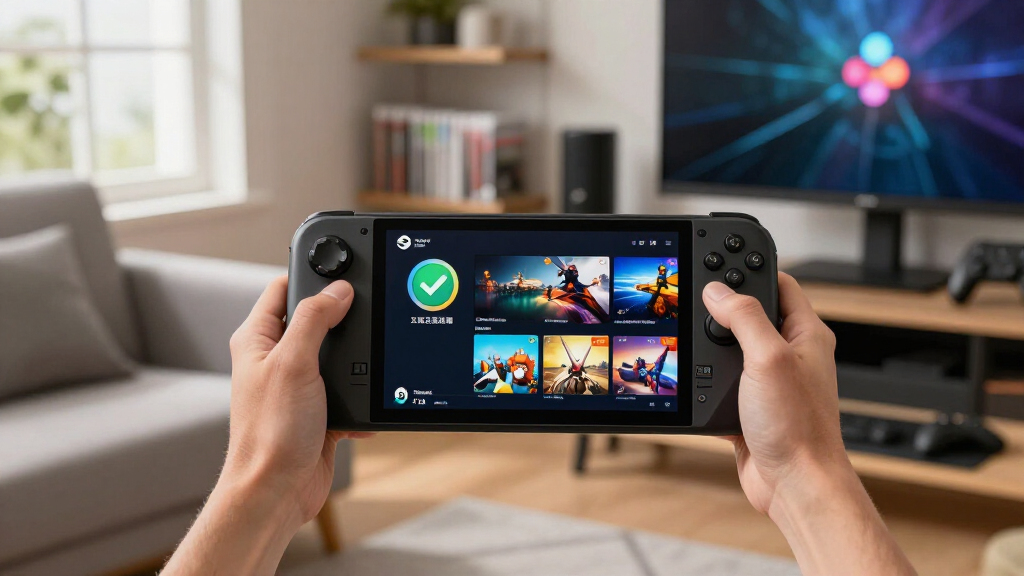
The Steam Deck Verified Status briefing for August 5, 2026 highlights two games with Valve’s green compatibility badge: Big Walk and Marvel’s Spider-Man 2. Verified means their controls, interface, text, and system compatibility passed Valve’s Deck checks, but it does not promise identical frame rates, battery life, or visual quality in every scene.
Two very different games carry the same green checkmark today: the playful social adventure Big Walk and the skyscraper-swinging Marvel’s Spider-Man 2. One may fill your screen with wandering friends and odd discoveries; the other throws glass towers, traffic, and explosive combat at a handheld-sized processor.
This August 5, 2026 briefing explains what Steam Deck Verified means, which featured games currently carry the badge, and where the label stops being useful. You will also learn how to check a listing before spending money, because a bright green symbol can answer compatibility questions while leaving frame rate, battery drain, download size, and age suitability open.
The date matters. Valve can retest games after patches, Proton changes, or SteamOS updates, so Steam Deck Verified status changes over time. Treat this as a dated snapshot, then check the live Steam store page before buying or starting a long download on hotel Wi-Fi.
Big Walk and Marvel’s Spider-Man 2 are the two Verified titles highlighted in the August 5, 2026 Skeldrift briefing.
Use Verified as a compatibility baseline, not as a promise of fixed frame rate, battery life, visual quality, or bug-free play.
Open the live Steam compatibility panel before buying because Valve can change a badge after game, Proton, or SteamOS updates.
Match performance reports to the exact Steam Deck model, game version, SteamOS build, settings, and tested scene.
Check regional age ratings, storage, online requirements, and account sign-ins separately because the Deck badge does not cover them.
- Big Walk — Verified
- Marvel’s Spider-Man 2 — Verified
Steam Deck compatibility for current top & new games, as of 2026-08-05.
What the Green Checkmark Actually Gives You
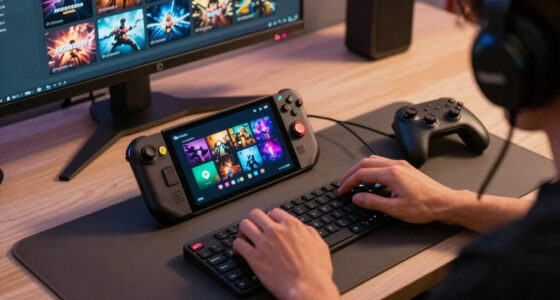
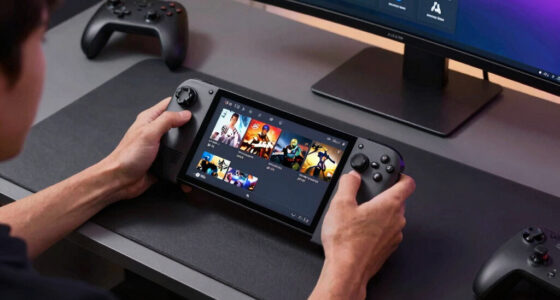
Steam Deck Verified Status is Valve’s compatibility label for games that meet its main handheld checks without requiring manual work from you. A Verified game should support the Deck’s built-in controls, display readable interface text, avoid compatibility warnings, and run through the required system software with no major setup obstacle.
In practice, that means you should not need to balance a keyboard on your knees just to type through the opening screen. If a game asks you to press a button, it should show a controller-friendly prompt; if it opens a launcher, that launcher should work with the Deck. Text should also remain readable on the 7-inch or 7.4-inch display, depending on your Deck model.
Think of the badge like a door-width check at a hotel. It tells you your suitcase fits through the entrance; it does not tell you whether the mattress feels firm or the room stays quiet. In the same way, Verified confirms a baseline handheld fit, not your preferred graphics quality, a fixed frame rate, or a full evening of battery life.
Verified means compatible, not identical. Your SteamOS version, game patch, graphics settings, and Deck model can still shape the experience.
For example, you might launch a Verified game on an LCD Steam Deck and hear the fan rise during a crowded scene. Another player may use an OLED model, cap the refresh rate, and get a calmer experience. Both sessions can satisfy the badge while producing different heat, noise, and play time.
As an affiliate, we earn on qualifying purchases.
The Two Verified Games Worth Checking Today
Steam Deck Verified Status on August 5, 2026 places Big Walk and Marvel’s Spider-Man 2 in the Verified category. According to the Steam listings referenced for this briefing, both titles display the green badge, giving you two confirmed options with sharply different moods and hardware demands.[1][2]
- Big Walk: Verified. Its appeal lies in shared exploration, playful communication, and the kind of wandering session that suits a sofa or train ride.[1]
- Marvel’s Spider-Man 2: Verified. It brings large-scale action, fast movement, story missions, and a dense city to Valve’s handheld.[2]
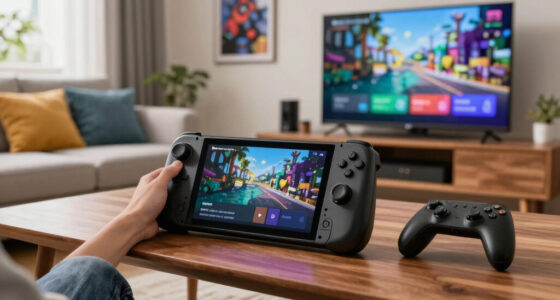
Big Walk is the easy title to imagine during a relaxed evening with friends. You settle into the cushions, hear voices through your headset, and roam a colorful landscape while someone gets distracted by a strange object off the path. The Verified badge says the Deck can handle the basic interaction cleanly, though online play still depends on a stable network connection.
Marvel’s Spider-Man 2 presents a different test. You can swing between buildings, land in a burst of sparks, and move straight into close-range combat without reaching for a mouse. Its Verified status confirms the supported Deck experience, but a large action game can still demand compromises such as lower visual settings or a frame-rate cap.
This is where the shared badge can mislead hurried buyers. Verified makes both games easy to identify as compatible, but it does not make their workloads equal. One green checkmark sits on two different machines under the hood: one built for social wandering, the other for a fast, crowded city.
handheld gaming console accessories
As an affiliate, we earn on qualifying purchases.
As an affiliate, we earn on qualifying purchases.
See What Verified, Playable, and Unsupported Mean at a Glance
Steam Deck Verified Status uses compatibility categories to tell you how much work may stand between installation and play. Verified signals the cleanest expected setup, Playable flags manageable friction, and Unsupported warns that serious technical barriers or Valve’s current test result may block a dependable session.
| Badge | What you can expect | Typical real-world example |
|---|---|---|
| Verified | Built-in controls, readable text, and required compatibility support should work without manual configuration. | You install the game, press Play, and reach the opening scene using only Deck controls. |
| Playable | The game runs, but you may need a touchscreen, virtual keyboard, community layout, or manual graphics choice. | You tap a tiny launcher button before the game accepts the controller. |
| Unsupported | Valve found a major problem, or a required feature does not work reliably on Deck. | An anti-cheat system blocks online play, or the game fails to reach its main menu. |
| Unknown | Valve has not published a completed compatibility result for that title. | Owners report mixed results, but the store offers no official Deck verdict yet. |
The yellow Playable badge is not a polite way of saying broken. Imagine a strategy game that runs smoothly once loaded but presents a launcher with buttons as small as peppercorns. A quick touchscreen tap may be the only inconvenience, making Playable perfectly acceptable for you and irritating for someone who wants a pure controller experience.
Unsupported also needs context. The trouble may affect a central feature, such as multiplayer authentication, rather than every second of offline play. Yet you should not buy on the hope that a workaround survives the next update; an unofficial fix can vanish like chalk in heavy rain after a game patch.
Unknown tells you even less. Community reports can help, but they may come from another SteamOS build or Proton version. A comment saying “runs great” without hardware, settings, and patch details is closer to a postcard than a test report.
As an affiliate, we earn on qualifying purchases.
Check a Game’s Live Status Before You Spend
You can verify a game’s current Deck badge in four quick checks: open its Steam page, find the Steam Deck Compatibility panel, expand the details, and compare the result with recent Deck-specific reports. This takes about two minutes and can save you from a huge download that ends at an awkward launcher.
- Open the live Steam store page. Use the listing for the exact game, not a sequel, demo, or similarly named edition.
- Find Steam Deck Compatibility. Read the badge rather than relying on an old search-result snippet.
- Expand the compatibility details. For Playable titles, Valve lists the friction you may meet, such as keyboard input or small text.
- Check recent player reports. Look for comments that name the Deck model, SteamOS build, game version, frame-rate target, and tested area.
- Review practical limits. Confirm storage needs, internet requirements, account sign-ins, and the age rating shown in your region.
Suppose you want Marvel’s Spider-Man 2 for a six-hour rail trip. The green badge answers the first question: the game supports the Deck experience.[2] It does not tell you whether your battery covers the journey, whether the installation fits beside three other large games, or whether cloud saves finished syncing before the train leaves the station.
The same habit helps with Big Walk. Its Verified label covers compatibility, while the store page and recent community notes can reveal the practical shape of a session, such as online requirements or whether your friends need their own copies.[1] Compatibility gets you through the front door; session planning keeps the evening moving.
You have access to the best answer on the live listing because it can reflect specific updates beyond an older article’s date. Check again after a major patch, especially if reports mention crashes, launcher changes, or a new login screen. A badge copied into a screenshot months ago can grow stale while still looking polished.
As an affiliate, we earn on qualifying purchases.
Know What Verified Still Cannot Promise
Steam Deck Verified Status does not guarantee a locked frame rate, long battery life, maximum graphics settings, bug-free play, permanent compatibility, or suitability for every age. It confirms Valve’s compatibility checks, while performance and personal fit still depend on the game build, your settings, and the hardware in your hands.
Performance claims need a platform and version attached. “Runs at 30 frames per second” means little unless you know whether the test used an LCD or OLED Steam Deck, which SteamOS and game versions were installed, which scene was tested, and whether the player used upscaling. A quiet indoor corridor and a rain-soaked city battle can place very different loads on the device.
Battery life has the same wrinkle. You might play a light scene with the screen dimmed and headphones connected, while another owner pushes full brightness, Wi-Fi, louder speakers, and a demanding outdoor area. The battery meter can fall slowly in one session and like sand through open fingers in another.
Verified also says nothing about whether the content suits a child. Marvel’s Spider-Man 2 includes superhero combat and story material that families may want to review, while age labels can differ by country.[2] Check the rating and content descriptors displayed for your region; the green Deck symbol is a hardware badge, not an age recommendation.
This works well as a buying shortcut, except when a single feature matters more than the whole game. If you buy mainly for competitive multiplayer, one authentication problem can outweigh hours of working single-player content. Read recent reports about the feature you care about, not just the broad verdict.
Turn the Badge Into a Better Handheld Session
The smartest way to use a Verified badge is to treat it as your starting filter, then match the game to your location, available time, battery, and connection. A title can be fully compatible yet poorly suited to a crowded commute, while the same game feels superb during a quiet evening near a charger.
Pick the game for the place
For a short bus ride, favor a game that lets you pause quickly and read the screen in shifting sunlight. A social game such as Big Walk may suit a planned evening better if voice chat and friends sit at the heart of the fun.[1] The badge confirms controls; your surroundings decide comfort.
Test before the long trip
Install updates, launch the game, load a save, and play for 15 minutes before leaving home. Listen for the fan, watch the battery estimate, and test sleep-resume if you expect interruptions. Discovering a login request beside your router feels routine; discovering it in a tunnel feels like finding a locked gate.
Use settings that serve the session
A lower frame-rate cap can trade some fluidity for steadier pacing and reduced power use. That trade can feel sensible in a story-driven section of Marvel’s Spider-Man 2, but less appealing during rapid combat if responsiveness matters more to you.[2] Smooth and beautiful are not always partners; on a handheld, consistency often beats sparkle.
Keep a small fallback installed
Carry one compact offline game beside any large or network-focused title. If a server stumbles or a patch lands at the wrong moment, you still have something ready. It is the digital version of slipping a paperback into your bag: small insurance against a silent, loading-screen-filled journey.
Frequently Asked Questions
Is Big Walk Steam Deck Verified?
Yes. Big Walk is Steam Deck Verified in this August 5, 2026 briefing, based on its referenced Steam listing.[1] That badge covers Valve’s compatibility checks, while network quality and session requirements can still affect how a social play session feels.
Is Marvel’s Spider-Man 2 Steam Deck Verified?
Yes. Marvel’s Spider-Man 2 is Steam Deck Verified in the August 5, 2026 snapshot.[2] The badge confirms Deck compatibility, but it does not promise maximum graphics, a fixed frame rate, or identical battery life across every mission.
Does Steam Deck Verified mean a game will run at 60 fps?
No. Verified does not guarantee 60 fps or any single performance target. Check reports that identify the Deck model, game patch, SteamOS version, settings, and tested scene before treating a frame-rate claim as useful.
Can a Steam Deck Verified rating change later?
Yes. Valve can update compatibility results after game patches, Proton changes, launcher revisions, or new testing. A title marked Verified today may receive different notes later, so check the live Steam store panel before buying.
Is a Playable game worth buying for Steam Deck?
Often, yes. A Playable game may need only a touchscreen tap, virtual keyboard entry, or manual controller layout, which could take seconds. Read Valve’s listed reason and decide whether that specific inconvenience bothers you.
Does the Verified badge cover age ratings and online requirements?
No. Age ratings, internet needs, third-party accounts, and server access sit outside the core Deck compatibility badge. Review the regional store listing, especially when buying for a child or planning to play somewhere with weak or unavailable Wi-Fi.
Conclusion
Your best move is simple: use the green checkmark to build a shortlist, then spend two minutes checking the live listing and the details that shape your session. On August 5, 2026, Big Walk and Marvel’s Spider-Man 2 clear that first compatibility gate, even though they offer very different experiences.[1][2]
Before your next trip, launch the game once, load a real save, and watch the battery meter for 15 minutes. When the train doors close and the city slides past the glass, you want a game in your hands, not a surprise login box glowing on the screen.
Fall Picks
fall essentials
As an affiliate, we earn on qualifying purchases.