TL;DR

Play games on Amazon Luna for your game nights, included with Prime
- A rotating selection of games, no download needed
- Play on TV, laptop or phone
- Fast, free delivery for your gear, too
Steam Deck Controller Order Explained for Multiplayer Sessions means this: SteamOS assigns connected controllers to player slots, and many games treat the first slot as Player 1. For smooth couch play, connect or reorder pads before the match starts, plan around up to four controllers, and use Steam Input settings when mixed Xbox, PlayStation, Steam Deck, or third-party pads behave differently.
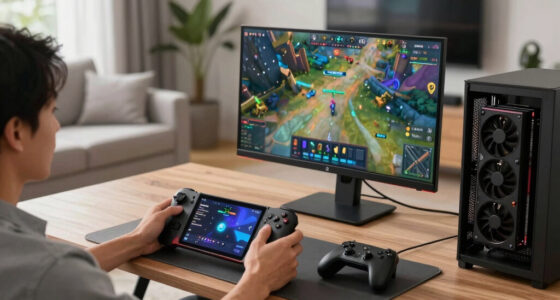
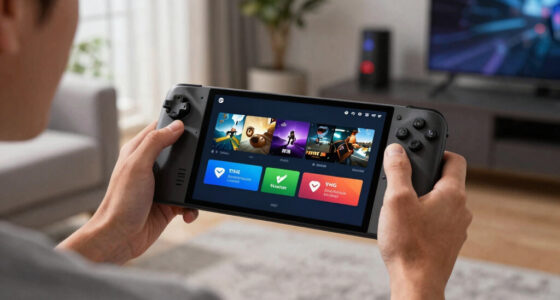
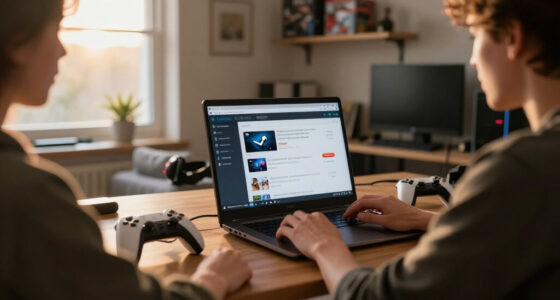
One wrong controller slot can turn a cheerful couch co-op night into four people shouting, ‘Who is Player 1?’ The Steam Deck is small, quiet, and portable, but multiplayer setup can get messy fast when the built-in controls, Bluetooth pads, and a wired controller all arrive at once.
You will learn what controller order means, how SteamOS assigns player slots, and what to do when a game gives the keyboard to one person and the sword to another. The goal is simple: less menu wrestling, more racing, fighting, building, and laughing from the first round.
Steam Deck Controller Order Explained for Multiplayer Sessions
TL;DR: SteamOS assigns connected controllers to player slots, and many games treat the first slot as Player 1. For smoother couch play, connect or reorder pads before the match starts, plan around up to four controllers, and use Steam Input settings when mixed Xbox, PlayStation, Steam Deck, or third-party pads behave differently.
One wrong controller slot can turn co-op night into “Who is Player 1?”
Why order matters
Player 1 is the controller that matters most.
SteamOS gives each connected input device a slot, and many games read that slot before the match starts. A perfect button map still feels broken when the wrong person owns the first slot.
Order decides who sits where
The first controller SteamOS recognizes often becomes Player 1, which can control menus, lobbies, and the first playable character.
Buttons decide what happens
Steam Input can apply controller layouts per game, helping mixed pads feel usable without changing who owns each player slot.
Set order before launch
Connect Player 1 first, then Player 2, Player 3, and Player 4. Test movement in the lobby before committing to a round.
Before the match
A clean setup flow beats menu wrestling.
The most reliable multiplayer ritual is boring in the best way: wake the Deck, connect pads in player order, verify Steam sees them, then launch the game.
Wake SteamOS
Stay in Gaming Mode and make sure unused controllers are asleep.
Connect P1 first
Use Bluetooth, USB-C, or a dock for the person who should control the lobby.
Add the group
Connect each extra controller in seating order, waiting a few seconds between pads.
Test in lobby
Move, select, pause, and back out before the race, fight, farm, or kitchen chaos begins.
Connection choice
Use wired for steadiness, Bluetooth for couch comfort.
Wireless play is usually fine for casual party games, but cables remove pairing delays, low-battery surprises, and some room interference from the setup.
| Connection type | Best for | What can go wrong | Quick tip | Stability read |
|---|---|---|---|---|
| Bluetooth | Casual co-op, party games, couch comfort | Pairing hiccups, battery drain, mild input delay in some rooms | Pair pads before guests arrive and charge them fully. | ~ Room-dependent |
| USB-C or docked wired | Fighting games, racers, rhythm games | Cable clutter, limited ports without a hub | Use a dock or USB hub for three or four controllers. | ✓ Strongest pick |
| Mixed setup | Households with Xbox, PlayStation, and third-party pads | Different prompts, shapes, habits, and layouts | Check Steam Input per-game layouts before play. | ~ Needs testing |
Comfort versus control spectrum
Fixes that save the night
Wrong player slots do not always require a reboot.
Check Steam’s controller controls for the active game, then look for reorder or assignment options before closing everything. Some games only read order at launch, so relaunching is the final move, not the first one.
If your friend presses A and your character jumps, check Player 1.
The Steam Deck’s built-in controls may have grabbed the first slot. Disconnect the misplaced pad, put unused controllers to sleep, and verify order before restarting the game.
Mixed controllers
Make different pads feel fair enough.
Xbox, PlayStation, Steam Controller, third-party pads, and built-in Deck controls can work together when SteamOS recognizes them. The catch is prompts, habits, and per-game layout tuning.
Hand the simplest controller to the least experienced player
If someone only knows PlayStation symbols, do not hand them a mystery-label third-party pad. Comfort beats theoretical fairness when the point is fun.
Match similar controllers when the game is serious
For fighting games, racers, and score-chasing sessions, similar pads reduce arguments about button feel, prompts, and accidental disadvantage.
Use Steam Input for special bindings
One player may want gyro, another may need swapped face buttons, and another may simply want jump moved back to a familiar place.
Verify the game before kids join
Check the Steam store page, ESRB, or PEGI rating before launching a multiplayer game with younger players in the room.
Traceability chain
From plugged-in pad to playable round.
Controller order is only one layer. Smooth multiplayer happens when hardware, SteamOS recognition, Steam Input, and the game’s own lobby rules all agree.
Connect in order
Player 1 first, then Player 2, Player 3, and Player 4 before opening the game lobby.
Reassign early
Use Steam controller settings or the game input menu before the first match locks the slots.
Check the game
Four recognized pads do not make a two-player platformer support four-player local play.
Key Takeaways
- Controller order decides player slots; the first recognized controller often becomes Player 1.
- Connect controllers in the order you want people to play before launching the game lobby.
- Wired controllers are usually steadier for timing-heavy games, while Bluetooth keeps casual couch sessions tidy.
- Mixed Xbox, PlayStation, Steam Controller, third-party, and Steam Deck controls can work together, but Steam Input layouts may need per-game tuning.
- Plan around up to four controllers for local Steam Deck multiplayer, then check the game’s own player limit.
Steam Deck compatible Bluetooth game controllers
As an affiliate, we earn on qualifying purchases.
As an affiliate, we earn on qualifying purchases.
Why Player 1 Is Usually the Controller That Matters Most
Steam Deck Controller Order Explained for Multiplayer Sessions is simple: SteamOS gives each connected input device a slot, and many games read that slot before the match starts. The first controller usually becomes Player 1, which means it may control menus, character select, pause screens, and the first playable character.
Think of a four-player night in Stardew Valley or Overcooked. If your Steam Deck’s built-in controls sit in slot one while your friend holds an Xbox controller in slot two, the wrong person may control the farmer, chef, or lobby cursor.
According to Valve’s Steam Input documentation, Steam can apply controller layouts on a per-game basis [2]. That helps, but layout is not the same as order. A perfect button map still feels broken when the wrong player owns the first slot.
Key idea: controller order decides who gets the seat; controller layout decides what the buttons in that seat do.
multi-controller setup for Steam Deck
As an affiliate, we earn on qualifying purchases.
As an affiliate, we earn on qualifying purchases.
Set the Order Before the First Round Starts
Steam Deck Controller Order Explained for Multiplayer Sessions works best when you set the order before launching the game or starting a lobby. Connect the controller you want as Player 1 first, then add Player 2, Player 3, and Player 4 in the same order you want people to sit.
- Wake the Steam Deck and stay in Gaming Mode.
- Connect Player 1 first, either with Bluetooth, USB-C, or a dock.
- Connect each extra controller in player order, waiting a few seconds after each one appears.
- Open the game only after all pads show up in Steam’s controller area.
- Test movement in the lobby before starting the match.
For example, if you are playing a split-screen racer, hand the first paired controller to the person choosing the track. Hand the second pad to the friend taking the red car, then the third to the friend already blaming the track before the green light.
According to Valve’s Steam Deck support pages, Bluetooth devices pair through Settings, then Bluetooth [1]. A wired USB-C controller or a controller plugged into a dock can skip pairing, which feels cleaner when people keep swapping seats.
best wired controllers for Steam Deck multiplayer
As an affiliate, we earn on qualifying purchases.
As an affiliate, we earn on qualifying purchases.
Choose Wired or Bluetooth Based on the Game
A wired controller is the steadier pick for timing-heavy Steam Deck multiplayer, while Bluetooth is cleaner for casual couch sessions. On SteamOS, wireless play is usually fine for party games, but cables remove pairing delays, low-battery surprises, and some room interference from the setup.
| Connection type | Best for | What can go wrong | Quick tip |
|---|---|---|---|
| Bluetooth | Casual co-op, party games, couch comfort | Pairing hiccups, battery drain, mild input delay in some rooms | Pair pads before guests arrive and charge them fully |
| USB-C or docked wired | Fighting games, racers, rhythm games | Cable clutter, limited ports without a hub | Use a dock or USB hub for three or four controllers |
| Mixed setup | Households with Xbox, PlayStation, and third-party pads | Different button prompts and layouts | Check Steam Input per-game layouts before play |
Imagine a living-room tournament in a fighting game. Bluetooth may feel perfectly playable, but one missed parry can start an argument. A wired pad does not make you better, but it removes one easy excuse and one possible source of mushy timing.
Do not treat this as a universal performance claim. The controller model, firmware, game, dock, room, and SteamOS version can all change how the setup feels, so test the exact hardware you plan to use.
Steam Input configuration for controllers
As an affiliate, we earn on qualifying purchases.
As an affiliate, we earn on qualifying purchases.
Fix Wrong Player Slots Without Restarting Everything
Steam Deck controller order can often be fixed from Steam’s controller controls without rebooting the handheld. Open the Steam menu, check controller settings for the active game, and look for reorder or assignment options before you close the game and start from scratch.
A common scene: your friend presses A, but your character jumps. Someone else hits pause and freezes the game while holding a completely different pad. Before you blame the controller, check whether the Steam Deck’s built-in controls grabbed Player 1.
- Disconnect and reconnect the controller that landed in the wrong slot.
- Put unused controllers to sleep so SteamOS stops counting them.
- Check the game’s own input menu, because some games manage player slots inside the game.
- Restart the game only after Steam shows the controllers in the order you want.
Some games read controller order only at launch. If a local co-op game refuses to move Player 1 after the menu appears, quit to Steam, set the order, then relaunch. Annoying, yes. Faster than playing one round as the wrong character.
Make Mixed Controllers Feel Fair for Everyone
Mixed controllers work on Steam Deck, but you should expect different prompts, shapes, and habits. An Xbox pad, a DualSense, a Steam Controller, and the built-in Steam Deck controls can all play together when SteamOS recognizes them, but each player may see or feel the game differently.
This is where Steam Input earns its keep. You can adjust layouts per controller and per game, which helps when one player needs Nintendo-style face buttons, another wants gyro, and another just wants jump to stop living on the wrong button.
For a family game night, hand the simplest controller to the least experienced player. If your younger cousin knows only PlayStation symbols, do not give them a third-party pad with stiff buttons and mystery labels. Comfort beats fairness when the whole point is fun.
- Match similar controllers for competitive games when you can.
- Use per-game layouts when one title needs special bindings.
- Test button prompts before a guest has to learn them mid-match.
- Check age ratings on the Steam store page, ESRB, or PEGI before starting multiplayer with kids in the room.
Know the Four-Controller Limit Before the Couch Fills Up
Steam Deck Controller Order Explained for Multiplayer Sessions should start with a realistic headcount: plan around up to four controllers for local multiplayer. Some games support fewer players, some modes support more on PC, and SteamOS recognition still depends on the controllers and connection method you use.
Four players already asks a lot from a handheld setup. You may have the Steam Deck on a TV, a dock on the coffee table, a USB hub glowing blue, and four people reaching for snacks while cables snake across the rug.
The game matters as much as the device. A two-player platformer will not become four-player because Steam sees four pads. Check the Steam store page, the game’s local multiplayer listing, and any in-game lobby limits before everyone gets attached to a character.
Practical warning: SteamOS can recognize controllers, but the game decides how many players can actually join.
Build a Repeatable Setup for Every Game Night
A repeatable Steam Deck multiplayer setup saves time because you stop solving the same controller puzzle every weekend. Use the same dock, the same player order, the same charged pads, and the same first-minute test before anyone starts a campaign, cup, raid, or match.
Here is a simple routine that works well: charge Bluetooth pads the day before, plug wired controllers into the dock in seat order, pair wireless controllers before guests arrive, then launch one quick test round. You spend five quiet minutes up front and save twenty noisy minutes later.
For example, keep Player 1 as the controller used by whoever manages menus. Player 2 sits left side of the couch, Player 3 gets the middle chair, Player 4 takes the floor cushion. It sounds a little silly until the same setup works three weeks in a row.
If SteamOS or a controller firmware update changes behavior, treat leaks or forum rumors as unconfirmed until you test your own device. For performance claims, write down your SteamOS version, game version, and connection type, especially if you are comparing Bluetooth against wired play.
Frequently Asked Questions
How do I change controller order on Steam Deck?
Open the Steam menu while in Gaming Mode, go to the game’s controller settings, and check for reorder or assignment controls. If the game already launched and refuses to change slots, quit the game, reconnect controllers in the right order, then launch it again.
Can I use Xbox and PlayStation controllers together on Steam Deck?
Yes, you can use mixed controllers if SteamOS recognizes them. The main catch is button prompts: one player may see Xbox-style A and B while another expects PlayStation-style cross and circle, so test layouts before play starts.
Why does the Steam Deck itself keep becoming Player 1?
The built-in Steam Deck controls may count as the first input device when a game starts. If you want an external controller as Player 1, connect it before launch and check the controller order in Steam’s controller settings.
Is Bluetooth good enough for Steam Deck multiplayer?
Bluetooth is usually good enough for casual co-op and party games on SteamOS. For fighting games, rhythm games, or close races where tiny timing differences feel annoying, a wired controller through USB-C or a dock is the safer pick.
Does controller order change a game’s age rating?
No. Controller order only changes who controls which player slot. For kids or family sessions, check the Steam store page plus ESRB or PEGI rating before starting the game.
Conclusion
The best Steam Deck multiplayer setup is the one you can repeat without thinking: pair in order, test in the lobby, and fix Player 1 before the match starts. Controller order feels invisible when it works and loud as a dropped plate when it does not.
Take sixty seconds before game night begins. The room gets quieter, the menus obey the right person, and the first round starts with button clicks instead of blame.
Fall Picks
fall essentials
As an affiliate, we earn on qualifying purchases.