
TL;DR
Open a free Amazon Business account
Business pricing, bulk buying and tax-exempt orders.
Create a free accountAs an affiliate, we earn on qualifying purchases.
Why Some Games Behave Differently Docked Than Handheld: docking usually changes resolution, display timing, power draw, heat, and inputs, so the game can look sharper, run hotter, or feel less smooth. On Steam Deck, docked mode does not give you a free performance boost; it often asks the same hardware to feed a larger screen. Start by matching resolution, frame cap, and controller settings before you judge the game.
Your game did not get worse when you docked it; you probably gave it a much bigger canvas. A Steam Deck that felt silky in your hands can suddenly show frame dips, tiny text, washed-out color, or a fan that sounds like a hair dryer across the room.
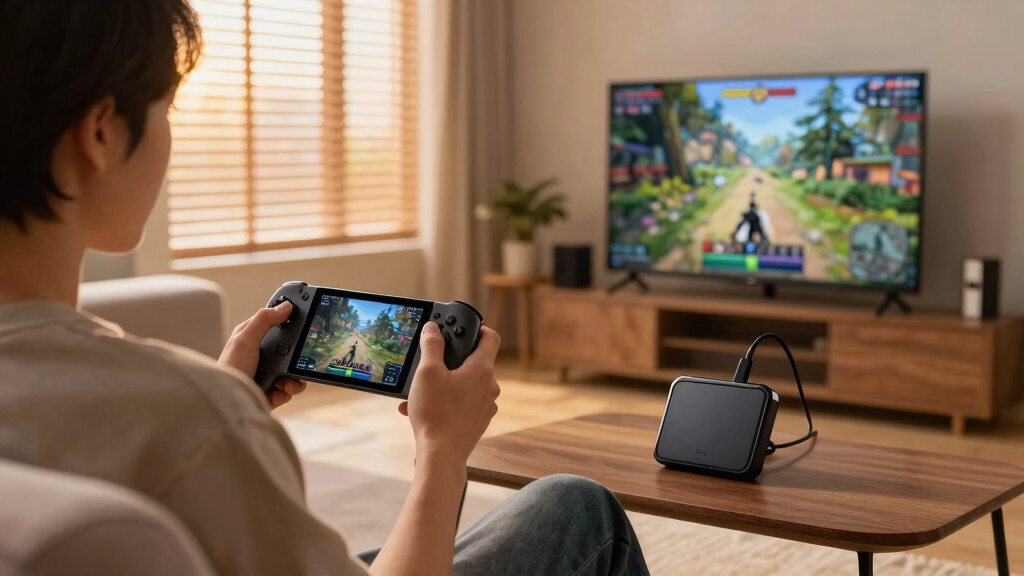
Here is an overview related to why some games behave differently when docked versus handheld on gaming consoles like Nintendo Switch and PC handhelds like Steam Deck: docking changes the screen, power setup, heat, and controls. You will learn what changes behind the curtain and what you can tweak in under five minutes.
Docking Does Not Change the Game. It Changes the Job.
TL;DR: Docking usually changes resolution, display timing, power draw, heat, and inputs. On Steam Deck, docked mode does not unlock a free performance boost; it often asks the same handheld hardware to feed a larger screen. Match resolution, frame cap, and controller settings before you judge the game.
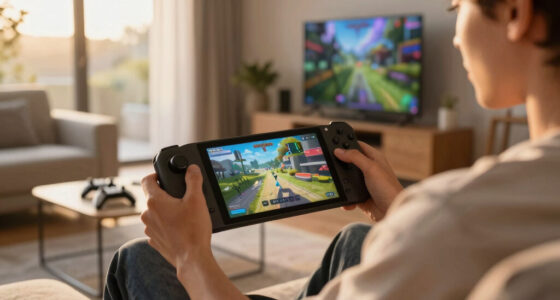
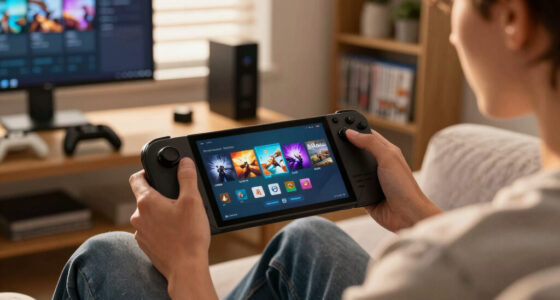
Handheld play starts from a small, dense screen that hides blur and keeps pixel load modest.
Nintendo lists TV output up to 1920×1080, versus 1280×720 on the built-in display.
Your game probably did not get worse. You gave it a much bigger canvas.
The Fast Answer: Docking Changes the Workload
Docked play can alter the render target, refresh behavior, scaling path, audio route, controller loop, and thermal conditions. The result can be sharper visuals, rougher frame pacing, tiny UI text, or more visible input delay.
Bigger screens expose more flaws
800p can look dense in your hands, while the same render stretched to a 55-inch TV reveals shimmer, muddy textures, and small HUD text.
The display chain gets longer
TV processing, refresh mismatches, Bluetooth controllers, and audio routing can make a game feel less immediate even when FPS looks unchanged.
Heat changes the ceiling
A stand with airflow can help. A cramped cabinet can trap heat and trigger fan noise, clock changes, or frame-time swings.
What Actually Changes Behind the Curtain
Think of docking as a chain reaction. One setting nudges the next, and the whole play session can feel different without a patch, bug, or broken dock.
Output
The handheld detects a TV or monitor and may expose 1080p, 1440p, or 4K options.
Render
The game may render more pixels, use dynamic resolution, or lean on scaling.
Sync
Frame caps and refresh rates decide whether motion feels even or uneven.
Input
Built-in controls become wireless or USB controllers with different latency and prompts.
Heat
Long sessions reveal whether the device can sustain the chosen profile.
Docked vs Handheld: The Practical Difference
Treat each mode as its own profile. The same title can need different settings on a train, in bed, and on a living-room TV.
| What Changes | Handheld | Docked | What You May Notice |
|---|---|---|---|
| Screen target | Steam Deck 1280×800 or Switch 1280×720 | 1080p, 1440p, or 4K TV and monitor targets | ~ Sharper image, possible lower frame rate if rendering higher |
| Power setup | Battery limits shape your choices | Plugged-in play removes battery anxiety | ✗ No automatic desktop-GPU boost on Steam Deck |
| Controls | Built-in sticks, buttons, touchpads, touchscreen | Bluetooth or USB controllers, keyboard, mouse, TV audio | ~ Different prompts, layout changes, or extra delay |
| Viewing distance | About 12 to 18 inches from your face | Often 6 to 10 feet from the sofa | ~ Small text, visible blur, HUD scaling issues |
| Optimization | Lower pixel count gives the GPU breathing room | Developers may use higher resolution or quality targets | ✓ 2D and older games often feel identical |
The Pixel Bill Arrives Fast
A higher TV resolution is the classic docked surprise. The title screen looks crisp, then the first busy city, rainy boss arena, or open-world vista starts to judder.
Approximate render load
What usually helps first
Match the frame cap
Use 40, 45, or 60 FPS only when the display and game can hold it evenly.
Scale before panic-lowering
Try 1280×800 or 1280×720 with FSR or TV scaling before cutting everything to low.
Fix controls separately
Check controller order, dead zones, Bluetooth delay, and TV game mode.
Why Handheld Can Feel Smoother
The built-in screen is forgiving. It is smaller, closer, and usually running a known resolution, so flaws stay tucked inside a compact frame.
Lower resolution can still look sharp
Painting a postcard takes fewer brushstrokes than painting a wall mural. 800p on a handheld can look cleaner than the same render stretched across a TV.
Controls, screen, and audio stay together
Your hands, speakers, display, and touch input live in one device. Docking can add a TV processor, receiver, wireless controller, or soundbar delay.
Warm rooms and blocked vents matter
If performance gets worse over time, test the same scene after 10 to 15 minutes. Then lower TDP, cap FPS, or move the dock where air can flow.
Not every title cares equally
Hades, Stardew Valley, and older 2D games rarely notice. Cyberpunk 2077, Elden Ring, racing games, and dense city builders can expose every extra pixel.
Trace the Problem Before You Blame the Dock
Use this chain as a five-minute diagnosis. It keeps the fix focused and stops you from lowering settings that were never the cause.
Key Takeaways
- Docked play often changes resolution, display timing, inputs, heat, and scaling, so the same game can feel different without any patch or bug.
- Steam Deck does not gain a hidden docked performance boost; a higher TV resolution can make the same hardware work much harder.
- If docked play feels rough, test 720p or 800p with scaling, cap the frame rate, and lower shadows or reflections before you lower everything.
- Handheld mode can feel smoother because the smaller built-in screen hides blur, reduces pixel load, and keeps controls in one tight loop.
- Treat docked and handheld as separate profiles, especially for heavy 3D games, open-world titles, and anything with tiny UI text.
Steam Deck adjustable resolution settings
As an affiliate, we earn on qualifying purchases.
As an affiliate, we earn on qualifying purchases.
The Fast Answer: Docking Changes the Workload
Why Some Games Behave Differently Docked Than Handheld is mostly a workload story: the same game may render more pixels, sync to a different display, use another controller, and lean on a new power profile once you dock it. You notice the change as blur, stutter, input lag, or a warmer handheld shell.
On Nintendo Switch, docked play can use a TV profile with higher output resolution; according to Nintendo, TV mode supports up to 1920 x 1080, while the built-in screen is 1280 x 720 [2]. On Steam Deck, the story feels more PC-like: the dock connects you to a new display, but the game still answers to your resolution, frame cap, and graphics settings.
Say you play a dense city builder on the couch. In handheld mode, small roads look soft but the frame pacing feels calm. Dock it to a 55-inch TV, and the same menus stretch across a bright glass wall; now every tiny hitch looks louder because your eyes can see it from six feet away.
Docked mode does not mean free performance on Steam Deck. It means the game may be asked to draw a bigger, sharper picture with the same small computer.
Nintendo Switch docked mode display calibration
As an affiliate, we earn on qualifying purchases.
As an affiliate, we earn on qualifying purchases.
See What Actually Changes When You Dock
Docking changes the parts of play you can see and the parts you only feel: resolution, refresh rate, scaling, audio path, controller delay, and heat. A game can look cleaner on a TV while feeling heavier because each frame takes more work to draw and display.
| What changes | Handheld | Docked | What you may notice |
|---|---|---|---|
| Screen target | Steam Deck at 1280 x 800 or Switch at 1280 x 720 | 1080p, 1440p, or 4K TV and monitor targets | Sharper image, lower frame rate if the game renders higher |
| Power setup | Battery limits shape your choices | Plugged-in play removes battery pressure | Longer sessions, but not automatic extra GPU muscle |
| Controls | Built-in sticks, buttons, touchpads, and screen | Bluetooth or USB controllers, keyboard, mouse, TV audio | Different prompts, layout changes, or extra delay |
| Viewing distance | About 12 to 18 inches from your face | Often 6 to 10 feet from the sofa | Small text, HUD scaling issues, more visible blur |
According to Valve’s Steam Deck specs, the handheld display is 1280 x 800, but the USB-C display path can feed displays far beyond that [1]. If your game silently jumps from 800p to 1080p, it must draw about 2 times as many pixels; at 1440p, it draws about 3.6 times as many.
That math explains the classic docked surprise. You sit down with Elden Ring or Cyberpunk 2077, the title screen looks crisp, and five minutes later the first busy street or rain-slick boss arena starts to judder. The TV did not break the game; the pixel bill arrived.
gaming monitor with adjustable resolution
As an affiliate, we earn on qualifying purchases.
As an affiliate, we earn on qualifying purchases.
Why Steam Deck Docked Play Is Not a Hidden Turbo Mode
Why Some Games Behave Differently Docked Than Handheld on Steam Deck starts with one plain fact: docking is not a magic overclock. Valve lists the Steam Deck APU power range at 4 to 15 watts [1], and the dock does not turn that handheld chip into a desktop GPU.
Plugging in helps because you stop worrying about the battery meter sliding from green to red. It also lets the device sustain a chosen power limit without draining in an hour. But if you set the game to native 1080p with high shadows, the Deck still has to pay for every shadow, reflection, and blade of grass.
A practical example: Hades, Stardew Valley, and older 2D games often feel identical docked because they barely scratch the hardware. A big open-world game can act differently because a wider view, higher resolution, and heavier effects pile up like extra luggage in a small suitcase.
Your best docked move is not always raising graphics. Often, you get a better couch session by setting the game to 1280 x 800 or 1280 x 720, then letting FSR or your TV scale the picture. The image may lose a razor-thin edge, but motion feels cleaner.
game controller for docked and handheld gaming
As an affiliate, we earn on qualifying purchases.
As an affiliate, we earn on qualifying purchases.
Why Handheld Can Feel Smoother Even at Lower Settings
Handheld can feel smoother because the built-in screen hides flaws kindly: it is smaller, closer, and usually running a known resolution. Lower pixel counts give the GPU breathing room, and your hands, screen, speakers, and controls all sit in one tight loop with fewer display-chain surprises.
Think of it like painting a postcard instead of a wall mural. The postcard can use fewer brushstrokes and still look sharp. On Steam Deck, a game at 800p often looks dense and clean in your hands, while the same render on a big TV can reveal shimmering edges and muddy textures.
You might see this in racing games. Handheld mode feels quick because the track, car, and HUD all sit inside a small, bright frame. Dock the same game to a living-room TV, and the road texture looks grainier, the mirrors may shimmer, and a 40 fps cap can feel more obvious on a large panel.
- Use 40 fps or 45 fps caps on displays that support them when you want steadier battery and smooth motion.
- Lower shadows before textures; shadow quality often costs performance while texture quality may still look fine on the small screen.
- Keep brightness sensible; a blazing screen drains battery and makes the fan work harder in warm rooms.
How Heat and Battery Push Games Into Different Behavior
Why Some Games Behave Differently Docked Than Handheld also comes down to heat and battery: handheld play asks the system to balance frame rate against a limited charge, while docked play removes battery fear but can still build heat during long sessions. Performance changes when a device protects itself.
Handheld devices live in a tight metal-and-plastic sandwich. The chip, screen, battery, and fan all share the same small body, so a sunny train ride or a blanket-covered couch can matter. When heat builds, the system may lower clocks or make the fan spin harder to keep the game stable.
You can feel it during a two-hour RPG session. The back gets warm, the fan pitch climbs, and a once-steady town square begins to pulse between smooth and rough. Docked on a stand, the Deck may breathe better; docked inside a cramped cabinet, it may bake.
Do not judge docked performance from the first quiet minute. Test the same busy scene after 10 to 15 minutes, when heat has settled into the device.
If a game gets worse over time, lower the TDP limit, cap the frame rate, or move the dock where air can flow around it. A slightly lower cap can feel better than wild swings between 60 fps and 34 fps.
Fix the Mismatch Before You Blame the Game
You can fix many docked-versus-handheld issues by matching the game to the display instead of letting auto settings guess. Start with resolution and frame rate, then check scaling, controller delay, and text size. Five minutes of settings work can rescue a whole weekend session.
- Set a sane external display target. Try 1080p for lighter games and 720p or 800p for heavy 3D games.
- Cap the frame rate. Pick 30 fps for demanding games, 40 fps when it feels stable, or 60 fps for lighter titles.
- Use scaling on purpose. Let FSR or your TV scale from a lower render resolution instead of forcing native 1440p or 4K.
- Lower costly effects first. Shadows, ambient occlusion, reflections, and crowd density often cost more than texture quality.
- Check Steam Input. Confirm the game sees the right controller layout, especially after you switch from handheld controls to a couch controller.
- Retest the same busy scene. Use one crowded street, one boss arena, or one rainy race so you compare the same workload.
For example, if Baldur’s Gate 3 feels fine handheld but rough on TV, try 720p or 800p output with FSR, cap at 30 fps, and lower shadows first. You trade a little crispness for calmer camera pans and fewer fan surges.
When Docked Mode Makes the Game Better
Docked mode makes the game better when the title values screen space, shared viewing, or precise controls more than raw frame rate. Strategy games, visual novels, co-op party games, and older PC titles often gain comfort on a monitor or TV because you can read, share, and sit back.
A tactics game with tiny unit icons can feel cramped in handheld mode, like reading a map through a keyhole. On a monitor, you can see the battlefield, tooltips, and turn order without hunching over the device. The game may not run faster, but your neck and eyes get a break.
- Best docked fits: games with menus, maps, local co-op, slower camera movement, or keyboard-and-mouse support.
- Risky docked fits: games chasing 60 fps with heavy lighting, dense crowds, ray tracing, or high-resolution texture packs.
- Quick check: if the game feels good at 800p handheld, try 1080p docked only after you test 720p or 800p scaled.
Docked also helps when you use a keyboard, mouse, or arcade stick. A fighting game can feel cleaner through a wired controller on a monitor with game mode enabled. A slow Bluetooth chain on a TV, though, can make button presses feel like they land through syrup.
What Developers Decide Before You Ever Launch the Game
Why Some Games Behave Differently Docked Than Handheld is not only about your settings; developers build separate targets, presets, and fallbacks so one game can survive many screens. They choose resolution scaling, UI sizes, texture budgets, frame caps, and input prompts before you see the main menu.
Dynamic resolution scaling is the quiet worker here. The game lowers internal resolution during a fiery boss attack, then raises it when the scene calms down. On a small handheld screen, that drop can look like a soft shimmer; on a 4K TV, it can look like someone smeared the glass with a thumb.
Some games behave differently because the developer made a clear trade: steady frame pacing over sharp pixels, or readable TV text over a dense handheld HUD. Other games act oddly because they inherit desktop PC assumptions, such as tiny launchers, mouse-first menus, or resolution lists that pick the wrong display.
The best ports treat Steam Deck like its own platform, not a shrunken laptop. They remember your per-display settings, offer readable UI scaling, show Steam Input prompts, and keep frame pacing even when the scene gets noisy with rain, sparks, smoke, and crowds.
Set Expectations Based on the Game You Are Playing
Your expectations should change with the type of game you play, because docked mode stresses each genre in a different way. A 2D platformer may shrug at a TV, while a modern open-world game may need lower resolution, a tighter frame cap, and gentler graphics settings.
Use a simple rule: if a game already makes the fan sing in handheld mode, docked play will need restraint. If it sips power in handheld mode, you can usually raise resolution or plug into a larger screen with little drama. That rule works because workload headroom matters more than the dock itself.
For your next session, treat docked and handheld as two profiles. Save a couch profile for your TV and a travel profile for the built-in screen. Steam Deck’s per-game performance settings make this routine painless once you stop chasing one perfect setting for every room.
Frequently Asked Questions
Does Steam Deck run faster when docked?
No. Steam Deck does not gain a console-style docked performance boost just because you plug it in. According to Valve, the APU operates within a 4 to 15 watt power range [1], and your settings control how much work the game takes on.
Why does my game look blurry on a TV but fine handheld?
Your game may be rendering at a low internal resolution and scaling that image to a much larger screen. An 800p image can look clean in your hands, but on a 55-inch TV it may show soft edges, smeared textures, and shimmering lines.
Should I use 4K output from Steam Deck?
Use 4K output for light games, desktop use, video, or older titles that have plenty of headroom. For demanding 3D games, 720p, 800p, or 1080p usually gives you a better mix of motion and image quality.
Why do Switch games sometimes improve docked while Steam Deck games do not?
Nintendo Switch games often use separate handheld and TV targets, and Nintendo lists TV output up to 1920 x 1080 compared with a 1280 x 720 built-in screen [2]. Steam Deck behaves more like a small PC, so docking changes the display setup but does not automatically hand the game a stronger chip.
Can game updates change docked behavior?
Yes. Patches can improve shader stutter, frame pacing, UI scaling, controller prompts, and dynamic resolution behavior. If a game suddenly acts better docked after an update, the developer may have tuned the settings that sit between the game engine and your display.
Conclusion
Remember one thing: docking changes the job, not the identity of the game. Before you blame the port, match resolution, cap the frame rate, and test the same busy scene in both modes.
Do that, and docked play stops feeling mysterious. The game becomes a set of dials you can tune, not a black box humming under the TV.
Flea & tick season Picks
flea and tick prevention
As an affiliate, we earn on qualifying purchases.