TL;DR
Play games included with Prime
Start a Prime free trial and play with Amazon Luna on your devices.
Start playingAs an affiliate, we earn on qualifying purchases.
Steam Deck performance profiles let you tune three linked settings: TDP controls power and heat, FPS controls how many frames the game tries to render, and refresh rate controls how often the screen updates. Match the FPS cap to the screen refresh rate, then lower TDP until the game stays stable without wasting battery.
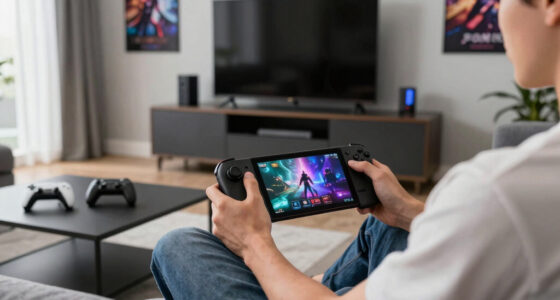
Your Steam Deck can feel like three different machines before lunch: cool and quiet in a pixel-art game, warm and loud in a big open-world city, then silky again after one small FPS cap.
That is the point of performance profiles. You are not just turning settings down. You are choosing where the machine spends its battery, heat, and screen refreshes.
You will learn what TDP, FPS, and refresh rate do, how they affect each other, and how to build a profile you can trust on a couch, train seat, or hotel pillow.
Steam Deck Performance Profiles Explained: TDP, FPS, and Refresh Rate
TL;DR: Start with an FPS cap, match the screen refresh rate, then lower TDP until the game stays stable without wasting battery. You are not just turning settings down; you are choosing where the Steam Deck spends power, heat, and screen rhythm.
Valve lists Steam Deck APU power at 4-15W, making stock tuning about smart limits rather than endless power.
A stable 40 FPS can feel cleaner than an unstable 60 FPS because frame pacing beats peak numbers.
Steam Deck LCD tops out at 60Hz, while Steam Deck OLED can reach 90Hz.
A performance profile is a tiny mixing board.
TDP is the power knob, FPS is the motion knob, and refresh rate is the screen rhythm. Push one too far and the others complain through heat, stutter, fan noise, or battery drain.
TDP limit
Controls how much power the APU can use. Raise it when a game is power-starved; lower it when the game already holds your FPS target.
FPS cap
Controls how many frames the game tries to render each second. A locked lower number often feels better than a higher number that keeps wobbling.
Refresh rate
Controls how often the display updates. Match it to FPS, or make sure it divides cleanly, so motion stops juddering.
Know which problem you are fixing.
If a game stutters, raising TDP may help. If battery drains fast, lowering FPS may do more than gutting texture quality.
| Setting | What it controls | What you feel | Good real-world use | Battery |
|---|---|---|---|---|
| TDP limit | How much power the APU can use | Heat, fan noise, battery drain, peak FPS | Set 8-10W for light games; use 12-15W for heavier scenes | ~ depends on cap |
| FPS cap | How many frames the game renders per second | Smoothness, input feel, battery use | Try 40 FPS when action games cannot hold 60 | ✓ big savings |
| Refresh rate | How often the display updates per second | Motion pacing and screen feel | Pair 40 FPS with 40Hz or 80Hz where your model allows it | ~ pacing first |
| Uncapped play | Lets the game render as much as it can | Fast menus, hotter shell, uneven frame graph | Useful only when the game is light enough to stay stable | ✗ drains faster |
Lower TDP can make a game feel better.
Once a game already hits your FPS cap, extra watts often turn into warmth and fan noise instead of better play. The quietest stable wattage is the target.
Typical TDP bands
Use the Steam Deck’s 4-15W stock APU range as a practical ceiling. Many games land well below the maximum when the FPS cap is sensible.
Refresh matching
A 40 FPS cap with a matching refresh rhythm can make a racing road glide smoothly while the fan calms down. Bad matching shows up during slow camera pans.
Five moves that work for most games.
Test in a real scene: a rainy village, a crowded hub, or a fight with smoke and sparks. Menus are easy; messy gameplay tells the truth.
Open Performance
Use the Quick Access menu and go to the Performance tab.
Per-game profile
Turn it on so changes apply only to the game you are tuning.
Pick FPS
Choose 30, 40, 45, 60, or 90 depending on model and game.
Match refresh
Set the display rhythm to match or divide into the cap cleanly.
Trim TDP
Lower watts until FPS dips, then raise slightly for stability.
Use the cap that matches the game’s temperament.
Portal 2 may feel immediate at 60 or 90 FPS. Cyberpunk 2077 often feels better locked at 30 or 40 than chasing 60 and watching the graph spike.
Every profile connects the same four ideas.
When the frame graph stays flat for five busy minutes, your profile is probably ready for the couch, train seat, or hotel pillow.
Target
Choose the smoothness you actually want before changing every graphics slider.
Rhythm
Match FPS and refresh rate so frames land evenly on the display.
Heat
Trim TDP until the game barely stays stable, then add a little margin.
Battery
Reduce wasted frames, lower TDP, and dim the screen before making the image ugly.
Key Takeaways
- Start every Steam Deck performance profile with an FPS cap, then match refresh rate, then tune TDP.
- Valve lists Steam Deck APU power at 4-15W, so stock TDP tuning is about smart limits, not endless power.
- A stable 40 FPS can feel better than an unstable 60 FPS because frame pacing matters more than peak numbers.
- Steam Deck LCD caps at 60Hz, while Steam Deck OLED caps at 90Hz, so the best refresh match depends on your model.
- Save 12-15W profiles for demanding 3D scenes; many indies and older games feel great at 6-10W.
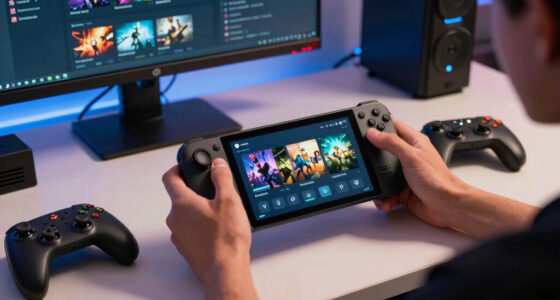
Steam Deck performance profile tuning
As an affiliate, we earn on qualifying purchases.
As an affiliate, we earn on qualifying purchases.
The 3 Dials That Actually Change How Your Game Feels
Steam Deck Performance Profiles Explained: TDP, FPS, and Refresh Rate means you stop guessing and start matching power, smoothness, and screen timing to the game in your hands. A performance profile is a saved set of limits for one game, so Stardew Valley can sip power while Elden Ring gets more room to breathe.
Think of the profile as a tiny mixing board. TDP is the power knob, FPS is the motion knob, and refresh rate is the screen rhythm. Push one too far and the others complain through heat, stutter, or a battery icon that drops like a stone.
For example, a 2D platformer may feel perfect at 60 FPS with an 8W limit. A dense RPG town may need 30 or 40 FPS at 12-15W, with the fan pushing warm air out of the top vent.
Steam Deck TDP control accessories
As an affiliate, we earn on qualifying purchases.
As an affiliate, we earn on qualifying purchases.
TDP, FPS, and Refresh Rate: Know Which Problem You Are Fixing
Steam Deck Performance Profiles Explained: TDP, FPS, and Refresh Rate gets easier when you treat the settings as three separate jobs: power budget, frame target, and display rhythm. If a game stutters, raising TDP may help. If battery drains fast, lowering FPS may do more than touching texture quality.
| Setting | What it controls | What you feel | Good real-world use |
|---|---|---|---|
| TDP limit | How much power the APU can use | Heat, fan noise, battery drain, peak FPS | Set 8-10W for light games; use 12-15W for heavier scenes |
| FPS cap | How many frames the game renders per second | Smoothness, input feel, battery use | Try 40 FPS for action games that cannot hold 60 |
| Refresh rate | How often the display updates per second | Motion pacing and screen feel | Pair 40 FPS with 40Hz or 80Hz where your model allows it |
A racing game tells the story fast. At 60 FPS, the road feels sharp and steady, but the Deck may run hot. At 40 FPS with a matching refresh rate, the same road can still glide smoothly while the fan calms down.
As an affiliate, we earn on qualifying purchases.
Why Lower TDP Can Make a Game Feel Better
Steam Deck Performance Profiles Explained: TDP, FPS, and Refresh Rate starts with TDP because power creates the ceiling for everything else. TDP is the heat-and-power budget for the chip, and Valve lists Steam Deck APU power at 4-15W on its tech specs page, https://www.steamdeck.com/en/tech [1].
More TDP can raise FPS when the game is starved for power. But once the game already hits your FPS cap, extra watts often turn into heat and fan noise, not better play.
Say you cap Hades II at 45 FPS on an OLED model. If it holds that target at 9W, running 15W just makes the back shell warmer against your fingers. Why burn battery for frames you told the game not to show?
- 6-8W: Great for many indies, visual novels, and older PC games.
- 9-11W: A sweet range for lots of 40 FPS handheld gaming sessions.
- 12-15W: Best saved for heavier 3D games, busy cities, and big combat scenes.
Steam Deck display refresh rate monitor
As an affiliate, we earn on qualifying purchases.
As an affiliate, we earn on qualifying purchases.
Pick the FPS Cap Before You Touch Every Graphics Setting
Your FPS cap should be the first performance choice because it tells the whole system what smoothness you actually want. A locked 40 FPS often feels much cleaner than a jumpy 48-60 FPS, especially when the camera pans across grass, brick walls, or neon signs.
FPS is the number of new frames the game renders each second. A stable lower number usually beats a higher number that keeps wobbling. On a handheld screen, steady motion can feel like polished glass; uneven motion feels like a shopping cart with one bad wheel.
- 30 FPS: Use it for cinematic games, battery saving, and titles that cannot hold 40.
- 40 FPS: Try this first for many modern games on Steam Deck LCD.
- 45 FPS: Try this on Steam Deck OLED when a game cannot hold 60 but feels too sluggish at 30.
- 60 FPS: Use it for shooters, platformers, racing games, and lighter games that stay locked.
- 90 FPS: Use it on OLED for very light games where the battery hit feels worth it.
In a game like Portal 2, 60 or 90 FPS can make aiming feel immediate. In Cyberpunk 2077, a steady 30 or 40 FPS often feels better than chasing 60 and watching the frame graph spike.
Match Refresh Rate to FPS So Motion Stops Juddering
Refresh rate should match or neatly divide your FPS cap because the screen needs a steady rhythm to show frames cleanly. According to Valve support, Steam Deck LCD is capped at 60Hz and Steam Deck OLED is capped at 90Hz; lowering refresh rate is available in device settings, https://help.steampowered.com/en/faqs/view/69E3-14AF-9764-4C28 [2].
Refresh rate is how many times the display updates each second. FPS is what the game produces. When those two line up, motion feels calm, like footsteps landing on a beat.
| FPS target | Best refresh match | Why it works |
|---|---|---|
| 30 FPS | 60Hz or 90Hz | Each frame repeats evenly on both models |
| 40 FPS | 40Hz on LCD where available, or 80Hz on OLED | Frame pacing feels smoother than 30 without the cost of 60 |
| 45 FPS | 90Hz on OLED | Each frame gets two refreshes, so motion stays even |
| 60 FPS | 60Hz or 90Hz | Best for quick inputs, if the game can hold it |
| 90 FPS | 90Hz on OLED | Very smooth, but only realistic for lighter games |
You will notice bad matching during slow camera turns. A stone hallway may seem to tug or pulse instead of slide. Fix the rhythm and the same hallway suddenly looks steadier, even with the same graphics preset.
Build a Profile in 5 Moves That Work for Most Games
A good Steam Deck profile starts with the FPS you want, then lowers power until the game barely stays stable. You are looking for the quietest setting that holds the target during normal play, not the loudest setting that wins a menu benchmark.
- Open the Quick Access menu with the three-dot button, then go to the Performance tab.
- Turn on the per-game profile so your changes apply only to the game you are testing.
- Choose an FPS cap such as 30, 40, 45, 60, or 90 depending on your model and game.
- Set the refresh rate to match the FPS cap or divide into it cleanly.
- Lower the TDP limit one step at a time until FPS dips, then raise it back slightly.
Test in a real scene, not only the title screen. Run through a rainy village, a crowded hub, or a fight with smoke and sparks. Menus are easy; messy gameplay tells the truth.
Rule of thumb: If the FPS graph stays flat for five busy minutes, your profile is probably ready for the couch.
Save Battery Without Turning Your Game Into Soup
You save the most battery by reducing wasted frames, lowering TDP, and dimming the screen before gutting visual quality. Valve says OLED battery estimates of 3-12 hours are based on 30 FPS, 50% brightness, and 50% volume; uncapped FPS, higher brightness, and louder audio drain faster [1].
Start with the settings that change power draw without making the image ugly. A 40 FPS cap can keep combat responsive, while a lower TDP limit can cut heat. Dropping every texture to low should come later, after the easy wins.
- Cap FPS before lowering resolution when the image already looks clean.
- Use 30 FPS for travel days when outlets are rare and the train window is bright.
- Reduce brightness indoors because the screen can be a quiet battery drain.
- Skip 90 FPS on battery unless the game is light and the session is short.
For a two-hour flight, a 30 FPS profile at 8-10W can feel relaxed and dependable. For a plugged-in hotel session, let the same game stretch to 45 or 60 FPS and enjoy the extra snap.
Know When a Profile Cannot Fix the Whole Game
A performance profile cannot fix every stutter because some problems come from the game, Proton behavior, shader compilation, background downloads, or CPU-heavy scenes. If a town square drops frames no matter how much TDP you give it, the bottleneck may sit outside the slider you are touching.
This is where patience saves you from chasing ghosts. Try one change at a time, test the same scene, and watch whether FPS, frame time, or power draw changes. If nothing moves, the game may need a patch, a different Proton version, or lower in-game settings.
Baldur’s Gate 3 is a useful example: a quiet room and a busy city can feel like different games. Your profile may handle the room beautifully and still struggle when NPCs, shadows, and scripts pile onto the screen.
Warning: Unofficial overclocking and extreme power tweaks can raise heat and cause crashes. For most players, stable caps beat risky experiments.
Frequently Asked Questions
Does higher TDP always mean higher FPS on Steam Deck?
No. Higher TDP only helps when the game needs more power and can use it. If your FPS cap is already stable, extra TDP usually becomes heat, fan noise, and faster battery drain.
Is 40 FPS better than 30 FPS on Steam Deck?
40 FPS often feels much smoother than 30 FPS while using far less power than 60 FPS. It is a strong middle setting for action games, RPGs, and open-world titles that cannot hold 60 FPS.
Should I use 90Hz on Steam Deck OLED all the time?
No. 90Hz feels excellent in light games that can reach 90 FPS or in 45 FPS setups where each frame repeats evenly. For demanding games on battery, 30, 40, or 45 FPS profiles usually make more sense.
Where do I change Steam Deck performance profiles?
Press the three-dot Quick Access button, open the Performance tab, and turn on the per-game profile option. From there, adjust FPS limit, refresh rate, TDP limit, and related settings for that game.
What is the best Steam Deck performance profile for battery life?
For battery life, start with 30 FPS, a matching refresh rate, medium or low brightness, and a TDP limit around 6-10W for lighter games. Heavier games may need 11-15W, but a stable lower FPS cap will still save more power than running uncapped.
Conclusion
The profile that feels best is the one where the game, chip, and screen keep the same beat. Pick a realistic FPS cap, match the refresh rate, then lower TDP until the Deck runs cool without losing stability.
Do that, and the Steam Deck stops feeling like a tiny PC you have to wrestle. It feels like a handheld that knows the game you are playing.
Flea & tick season Picks
flea and tick prevention
As an affiliate, we earn on qualifying purchases.