
TL;DR
Steam Deck downloads sometimes look weirdly large because Steam may show more than the raw internet download. Updates can include compressed files, unpacking, shader cache data, temporary patch space, or whole chunks of a game that must be rebuilt on disk.
A tiny update can flash a number so large it makes your Steam Deck feel suddenly full, like someone poured wet cement into your storage bar.
You expected a quick patch. Instead, Steam shows a bulky download, a long disk write, or a size that seems larger than the game itself. The good news: most of the time, your Deck is not broken.
You’ll learn why the numbers look strange, when a large update is normal, when something has gone wrong, and how to check what is really eating space before you delete a favorite game in a panic.
Steam Deck downloads are not always just downloads.
TL;DR: Steam may be showing the whole update job: compressed data, unpacking, shader cache files, temporary patch space, verification, and disk writes. A tiny patch can look huge when Steam has to rebuild a large archive on your SSD or microSD card.
Why the number looks bigger than the download
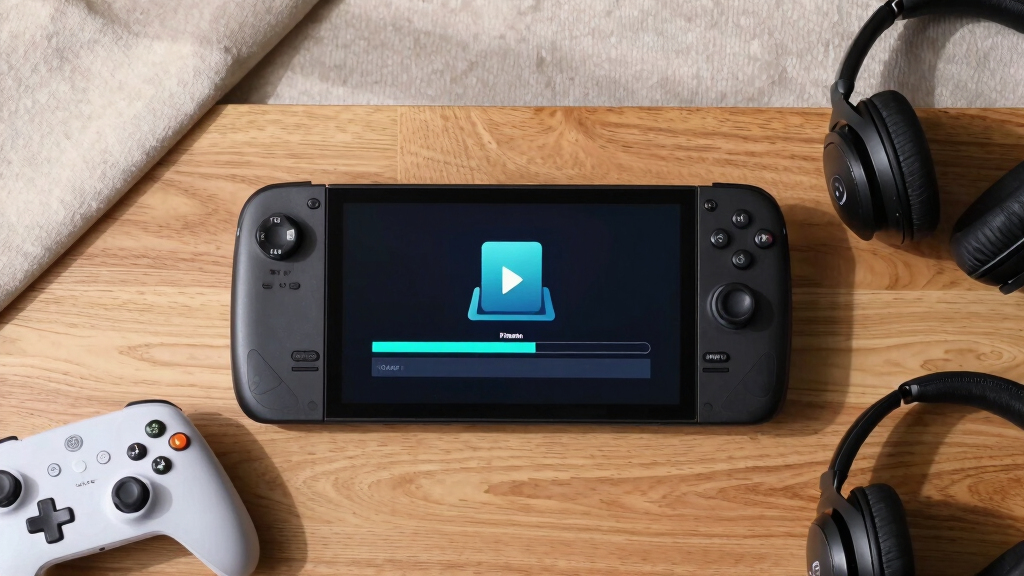
Steam’s progress screen combines several different jobs. The visible size may describe fresh data, temporary working space, or the amount of installed content Steam must read and rewrite before the game is playable again.
Small files expand after arrival
Steam can fetch a compact patch, then unpack it into bigger installed files. The download is not the same as the final disk footprint.
One touched chunk can mean a huge write
If a game stores maps, audio, or textures in giant archives, Steam may need to rebuild much of that archive for a modest change.
Steam needs room to work
The Deck may hold old files, new patched files, and temporary data at once, then clean up after verification finishes.

Crucial P310 1TB M.2 2230 SSD, PCIe Gen4 NVMe, Up to 7,100MB/s, Internal Solid State Drive, Ideal for Steam Deck, ASUS ROG Ally, MSI Claw, Mini PCs & Ultrabooks – CT1000P310SSD2
Broad Compatibility: Works with Steam Deck, ROG Ally, Microsoft Surface, and select Dell laptops for easy portable upgrades
As an affiliate, we earn on qualifying purchases.
As an affiliate, we earn on qualifying purchases.
What Steam is doing while the bar creeps along
When Wi‑Fi quiets down but storage keeps working, the Deck is usually patching locally. That can feel like a massive download even after the network portion is already finished.
Download
Compressed patch data lands from Steam.
Unpack
Files expand into temporary working space.
Patch
Large archives may be rewritten in chunks.
Verify
Steam checks that installed files match.
Clean up
Temporary files disappear after success.

Silicon Power 1TB SDXC Micro SD Card Gaming Memory Card, Compatible with Nintendo-Switch and Steam Deck
UHS Speed Class 3 (U3) and Video Speed Class 30 (V30)
As an affiliate, we earn on qualifying purchases.
As an affiliate, we earn on qualifying purchases.
Normal weird vs actually broken
A big disk number, slow verification, or shader cache refresh is usually normal. Repeating downloads, stuck loops, and updates that return after every reboot deserve a closer look.
| What you see | Likely meaning | Normal? | Deck action |
|---|---|---|---|
| 600MB update writes for 25 minutes | Steam is patching or verifying installed files | ✓ Yes | Wait, then check final free space after cleanup. |
| Wi‑Fi graph stops but disk activity continues | Local unpacking, moving, or archive rebuilding | ✓ Yes | Leave the Deck awake and plugged in. |
| Small shader cache downloads appear often | SteamOS and Proton are refreshing graphics data | ~ Usually | Keep them unless storage is critically tight. |
| The same update returns every morning | Corrupt file, flaky card, or interrupted update | ✗ No | Pause, resume, restart, then verify game files. |

OLED Steam Deck Charger Storage Case – Compatible with Steam Deck Case Back (Black)
Compact Design: Carry your Steam Deck charger and cable in a compact case.
As an affiliate, we earn on qualifying purchases.
As an affiliate, we earn on qualifying purchases.
Where the “huge” feeling comes from
The download may be small, but the perceived pain is shaped by disk writes, storage pressure, shader cache updates, and microSD speed. The bars below show which factors most often make an update feel oversized.

Silicon Power 1TB Superior Gaming Micro SDXC UHS-I (U3), V30 4K A2,High Speed MicroSD Card with Adapter, Design for Steam Deck, ROG Ally and Nintendo-Switch
UHS Speed Class 3 (U3) A2 and Video Speed Class 30 (V30)
As an affiliate, we earn on qualifying purchases.
As an affiliate, we earn on qualifying purchases.
Before deleting half your library
Treat weird download sizes as a storage-management signal. Check the Downloads page, compare network and disk activity, and move games based on update behavior instead of install size alone.
Quick Deck routine
- Check whether Steam shows downloaded data or disk activity.
- Look at free storage under Settings before restarting the update.
- Pause and resume once if the number freezes for several minutes.
- Verify files only when the game will not launch or keeps re-downloading.
- Move frequently updated games to internal storage when possible.
Update risk scale
A 90GB game that rarely updates can be calmer than a 45GB multiplayer title that rewrites big archives every week. Size matters, but patch behavior matters more.
Trace the weird number
Most scary Steam Deck download moments follow a simple chain: a small patch touches a large file, storage works harder than Wi‑Fi, and the final install size may barely change.
Compressed update arrives.
Large game file is touched.
Deck rewrites local chunks.
Cache refresh may appear.
Steam checks file integrity.
Temporary space returns.
Key Takeaways
- Steam Deck download size can include patching, unpacking, verifying, and temporary disk work, not just internet data.
- A small patch can need many extra gigabytes if Steam has to rebuild a large packed game archive.
- Shader cache downloads are normal on Steam Deck and can help games run more smoothly under SteamOS and Proton.
- Slow microSD writes can make an update feel huge even after the network download has already finished.
- Keep a free-space buffer and check download versus disk activity before deleting games.
Why That Huge Number Usually Is Not the Real Download
Why Steam Deck downloads sometimes look weirdly large because Steam mixes several jobs into one progress screen: downloading, unpacking, patching, verifying, and writing data to storage. The number you notice may describe the work Steam must do, not only the fresh data coming through your Wi-Fi.
Think of a 1.8 GB update for a 70 GB game. Steam may download a small patch, then open a giant game archive, rewrite part of it, and check the finished file. Your network did not pull 70 GB, but your storage still had to grind through a big chunk of it.
This feels strange on the Deck because you watch every gigabyte like a hawk. Valve’s original Steam Deck LCD models shipped in 64 GB, 256 GB, and 512 GB storage versions, so a scary-looking patch can feel personal fast [1].
The number that scares you is often the size of the job, not the size of the internet download.
What Steam Is Actually Doing While the Bar Creeps Along
Why Steam Deck downloads sometimes look weirdly large because the Steam client often handles updates in layers. It may fetch compressed data, unpack it, compare it against installed files, write replacement chunks, then verify the result before it marks the game ready to play.
| What You See | What May Be Happening | Deck Example |
|---|---|---|
| Download size | New compressed data coming from Steam | A 3 GB patch arrives over Wi-Fi |
| Disk usage | Files being unpacked, moved, or rewritten | A 40 GB game archive gets patched |
| Verifying | Steam checks files for damage or mismatch | The Deck reads the installed game after a crash |
| Final install size | Space the game keeps after cleanup | The game grows by only 600 MB |
That gap explains the organized chaos you see in the Downloads page. One line says the update is small. Another line shows disk activity roaring like a tiny fan heater.
According to Steam support guidance, updates can involve both downloaded data and local disk work, which is why the progress bar may keep moving after the network traffic slows down [2]. If your Wi-Fi graph goes quiet while the SSD keeps working, Steam is probably patching, not secretly downloading the whole game again.
Why a Small Patch Can Need a Mountain of Free Space
A small Steam Deck patch can need a lot of free space when the game stores data in large packed files. Steam may need room for the old file, the new patched version, and temporary working data before it deletes the leftovers.
Here’s the painful version. You have 18 GB free, and a game gets a 4 GB update. Steam refuses to finish because the patch touches a 32 GB archive and needs breathing room while it rebuilds the file.
Games with huge texture bundles, voice packs, or open-world map files can create this problem. The patch itself may be modest, but the file being changed is a brick-sized slab of data.
- Leave 10-20 GB free if you play large games that update often.
- Move one rarely played game to microSD before patch day if your internal drive is tight.
- Check final install size after the update instead of judging only the download screen.
How Shader Caches Make Steam Deck Downloads Look Stranger
Shader cache downloads are extra Steam Deck files that help games run more smoothly by preparing graphics work ahead of time. They can appear as frequent small downloads, and they may arrive even when the game itself did not get a dramatic content update.
On a Windows PC, a game may build shaders while you play, which can cause stutter when a new area loads. On the Steam Deck, SteamOS and Proton can use prebuilt shader cache data so your game spends less time hitching and coughing during play.
Imagine launching a game after a quiet Tuesday update. You see a few hundred megabytes appear before the game starts. That may be Steam refreshing shader data so a neon-lit city street or smoky battlefield renders with fewer bumps.
The tradeoff is simple: shader caches use storage and bandwidth, but they can make handheld play feel smoother. If you own dozens of games, those small files can stack up like coins in a jar.
How to Tell Normal Weird From Actually Broken
- Open Downloads and compare downloaded data with disk activity.
- Check free storage under Settings before you restart the update.
- Pause and resume once if the number freezes for several minutes.
- Verify game files only if the game will not launch or keeps re-downloading.
- Restart the Deck if Steam loops the same update after a clean finish.
Normal weird looks like a big disk number, slow patching, or shader downloads after an update. Actually broken looks like the same files downloading again and again, a stuck verification loop, or a download that resets after every reboot.
Say Steam shows a 600 MB update, then spends 25 minutes writing to disk. Annoying, yes. But if the game launches and your free space returns after cleanup, that was normal patch work.
Now say the same 600 MB update returns every morning and the game never gets past verifying. That points to a corrupted file, a flaky microSD card, or an interrupted download that Steam cannot cleanly finish.
Why MicroSD Cards Can Make Big Downloads Feel Even Bigger
MicroSD cards can make Steam Deck updates feel larger because slower write speeds stretch patching time. The download may finish quickly, but the card still has to unpack, rewrite, and verify files, which can make the whole job feel swollen and sluggish.
A fast Wi-Fi connection can dump data into the Deck faster than a tired card can write it. So the download bar pauses, the fan murmurs, and the Deck sits there chewing through files while you wonder why a small update has become a long evening chore.
This does not mean microSD storage is bad. It is great for many games, especially older titles, indies, and anything you do not update every other day. The rough spots show up with massive live-service games that patch big archives often.
- Keep frequently updated games on internal storage when possible.
- Use microSD for slower-moving games like single-player RPGs or finished indies.
- Give large updates time before assuming the download size is wrong.
What You Can Do Before Deleting Half Your Library
Why Steam Deck downloads sometimes look weirdly large is a storage-management problem as much as a Steam problem. You can avoid most panic deletes by checking the update details, keeping a buffer of free space, and moving games based on update behavior instead of file size alone.
Your biggest installed game is not always the biggest headache. A 90 GB single-player game that rarely updates may bother you less than a 45 GB multiplayer game that rewrites huge files every week.
Use this quick routine when a download looks absurd:
- Check the Downloads page for separate download and disk activity numbers.
- Look at available storage before starting a large patch.
- Move one cold game to microSD or uninstall it only if you need temporary room.
- Let Steam finish cleanup before judging the final storage hit.
- Verify files if the same update repeats or the game fails to start.
This is a practical overview suitable for players who searched why Steam Deck downloads sometimes look wrong and just want the Deck to behave. The key is patience first, cleanup second, file verification third.
When the Large Number Really Means a Large Update
Sometimes a huge Steam Deck download is exactly what it says it is. New maps, remastered textures, extra languages, seasonal events, and engine changes can add real gigabytes, especially when developers replace old files instead of patching tiny pieces.
A game update that adds high-resolution textures may be bulky even if you never notice a new menu item. Language packs can also sneak in weight: voice files for multiple regions can be large because audio does not shrink as neatly as plain text.
Live games make this more visible. A shooter might add one map, rebalance weapons, replace several texture bundles, and update anti-cheat files in the same patch. To you, it looks like one update. To Steam, it is a whole stack of changed parts.
Do not judge an update by the patch notes alone; judge it by what files the patch has to replace.
Frequently Asked Questions
Why does my Steam Deck say an update is bigger than the game?
Steam may be showing the size of files it needs to patch or verify, not only the new data it downloads. If a game uses large packed archives, a small patch can force Steam to rewrite a much larger file.
Are shader cache downloads safe to delete?
Shader cache files are safe in the sense that they are not your saved games, but deleting them can make games stutter while shaders rebuild. If you are desperate for space, you can clear caches, but expect some games to feel rougher at first launch.
Why does my Steam Deck keep downloading the same update?
A repeated update can point to a corrupted file, an interrupted patch, a problem with the microSD card, or a Steam client hiccup. Try verifying the game files, restarting the Deck, and checking whether the storage device has enough free space.
Can I reduce Steam Deck download sizes?
You usually cannot shrink a required game patch, but you can manage the damage. Keep less-played games on microSD, uninstall optional DLC you do not use, avoid installing giant language or texture packs when the game allows it, and leave free space for patching.
Is a large disk activity number the same as a large download?
No. Download activity measures data arriving from the internet, while disk activity measures local file work on your Deck. A patch can download 2 GB and still write or verify many more gigabytes on storage.
Conclusion
The number on the Steam Deck download screen is not always a bill for new storage. Treat it like a workshop window: you are seeing downloading, unpacking, patching, and cleanup all happening in a cramped little room.
Before you delete a game you still love, check the details, give Steam room to finish, and let the Deck sweep up its temporary mess. Most weirdly large downloads shrink back down once the workbench is clean.